1500 Characters to Describe the Hug
Use the prompt to explain how both people come together. Mention who reaches out first and where their arms should go to help the model create a convincing embrace.
Create Now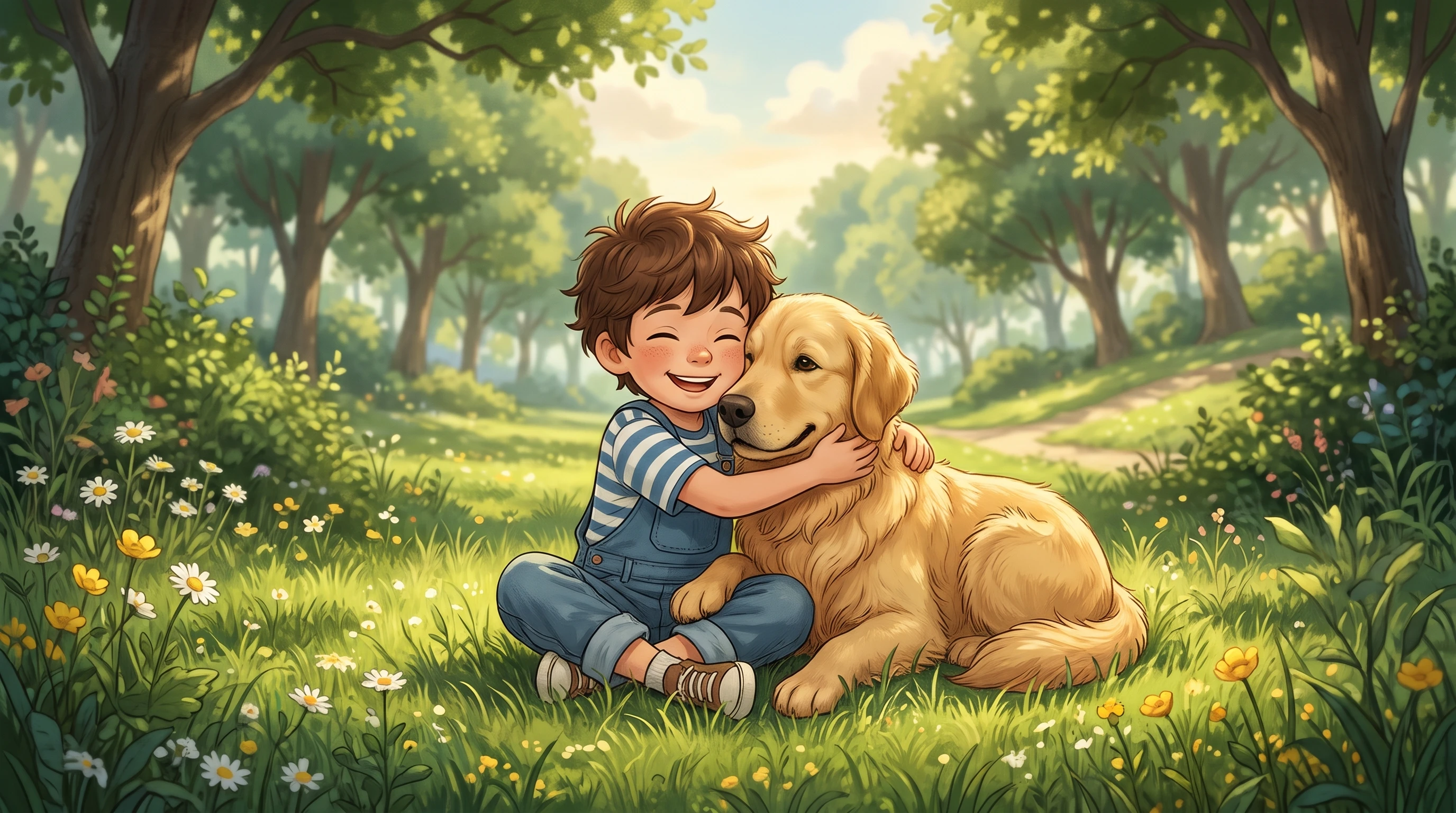
Bring people or characters together in a warm hugging video with Magiclight AI. Upload your images and turn them into a sweet animated moment. No editing skills needed.
Create an AI Hug Video for Free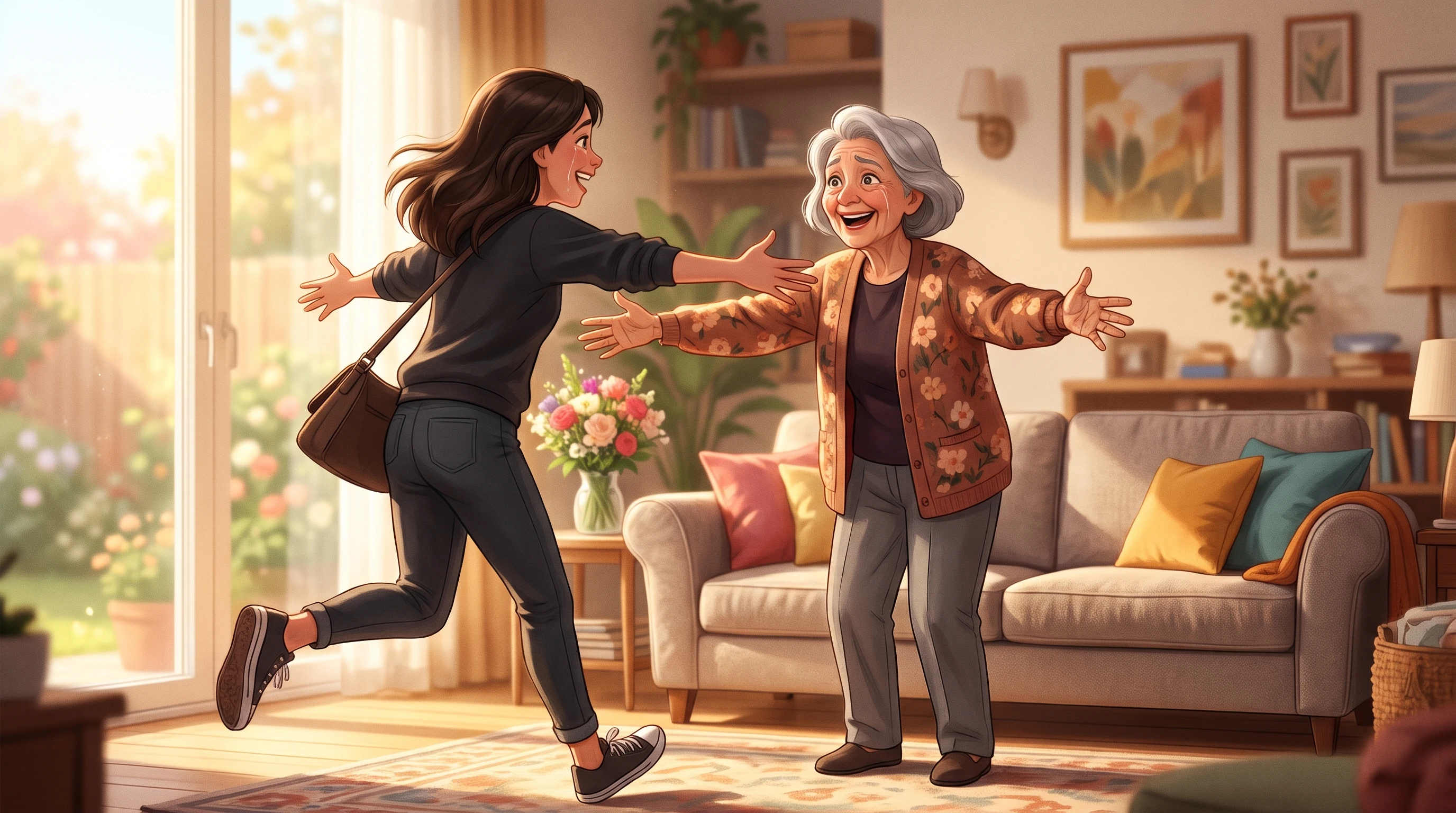










A family portrait or an old photograph can become the starting point for a hugging video. The Magiclight AI hug video generator lets you decide how the embrace should look.
Use the prompt to explain how both people come together. Mention who reaches out first and where their arms should go to help the model create a convincing embrace.
Create NowTwo people do not need a photo together to share a hug in your video. Choose a model that accepts reference images and provide a clear picture of the second person.
Create Characters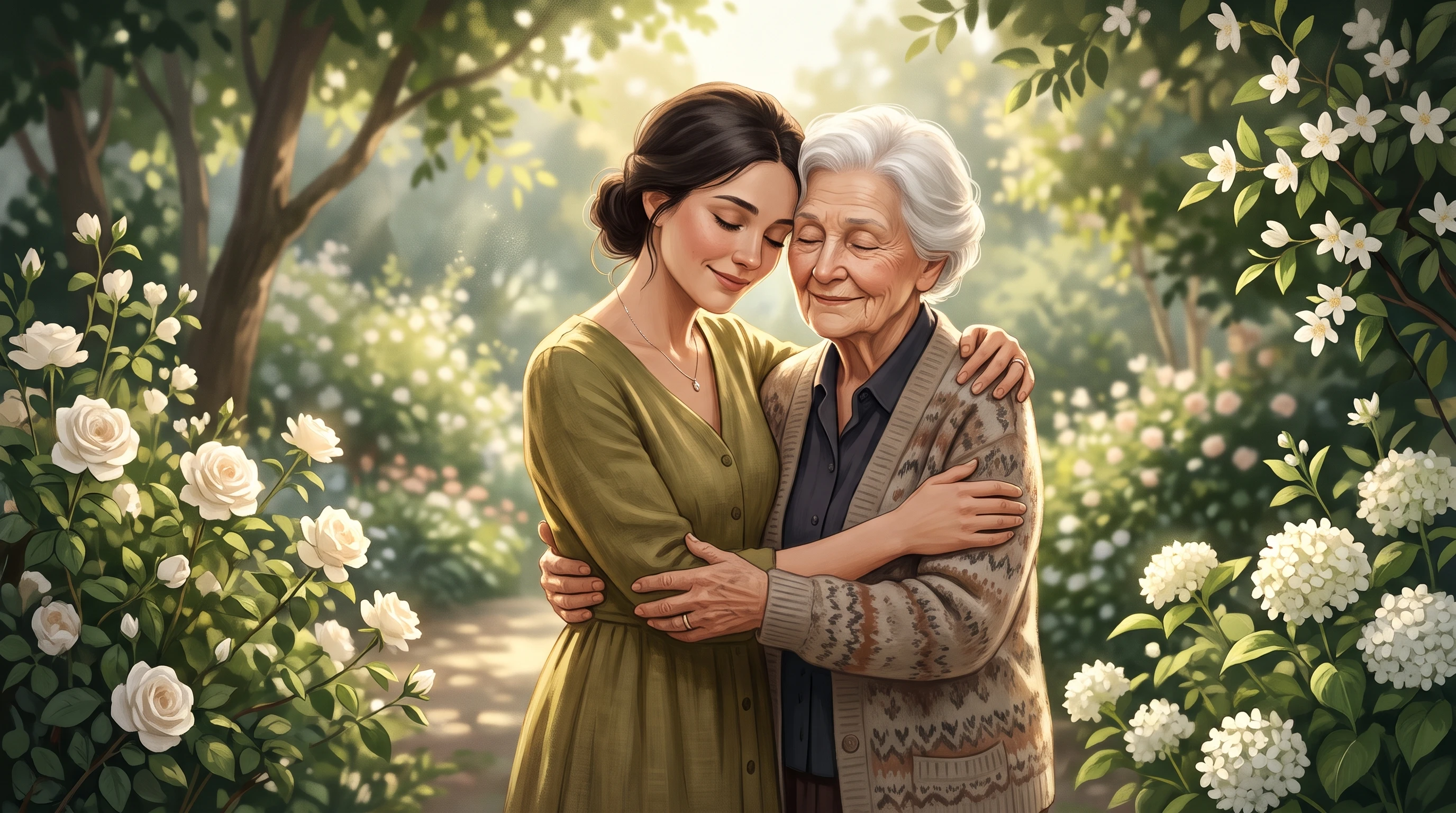
Give the people in your photos time to approach each other before they embrace. Magiclight AI supports 30 second videos, leaving room for the hug and a natural ending.
Generate a Video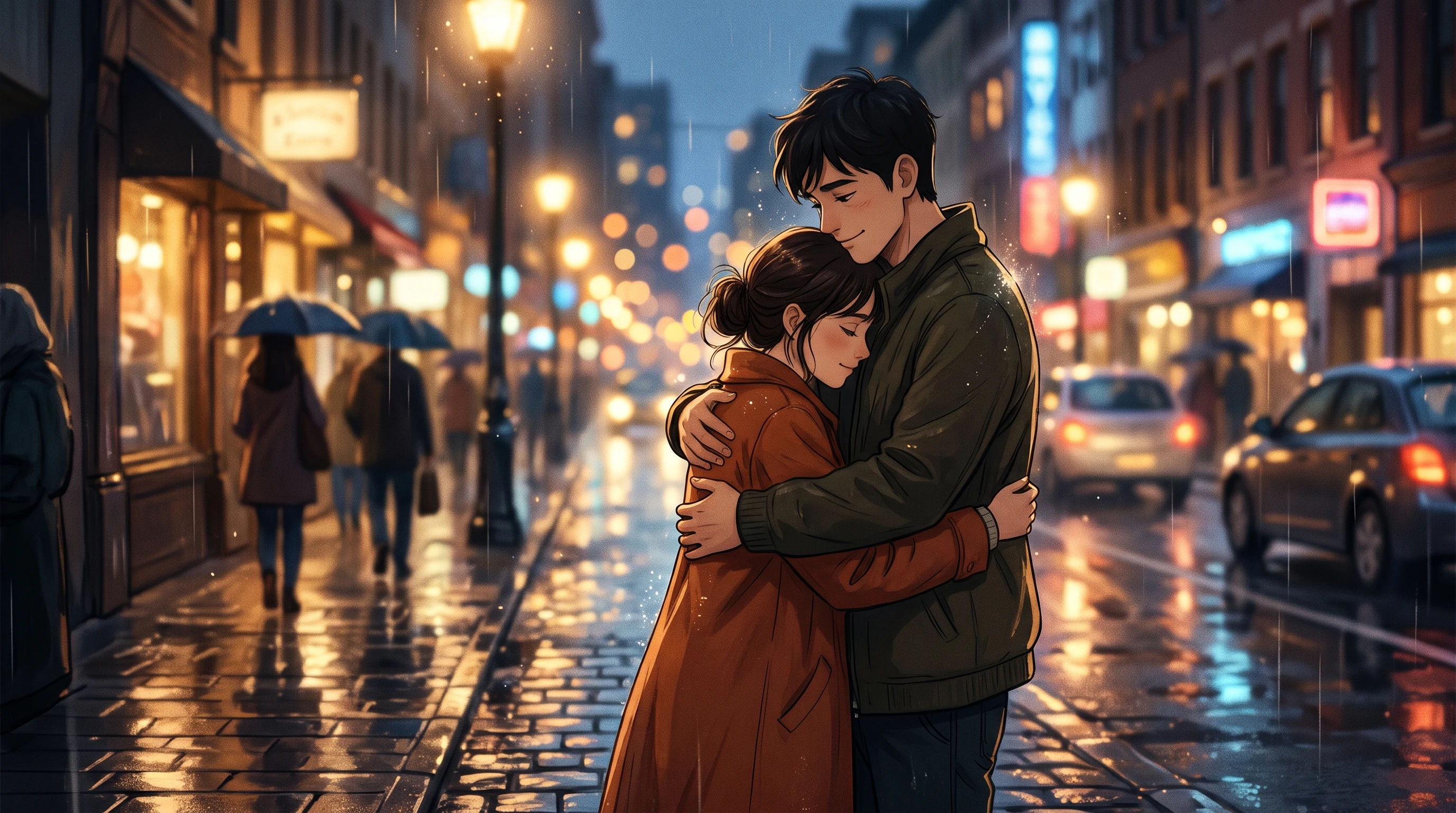
Choose 1080p when you plan to play the video on a television or save it as a family keepsake. The extra detail helps faces and clothing look clearer on a larger screen.
Start Creating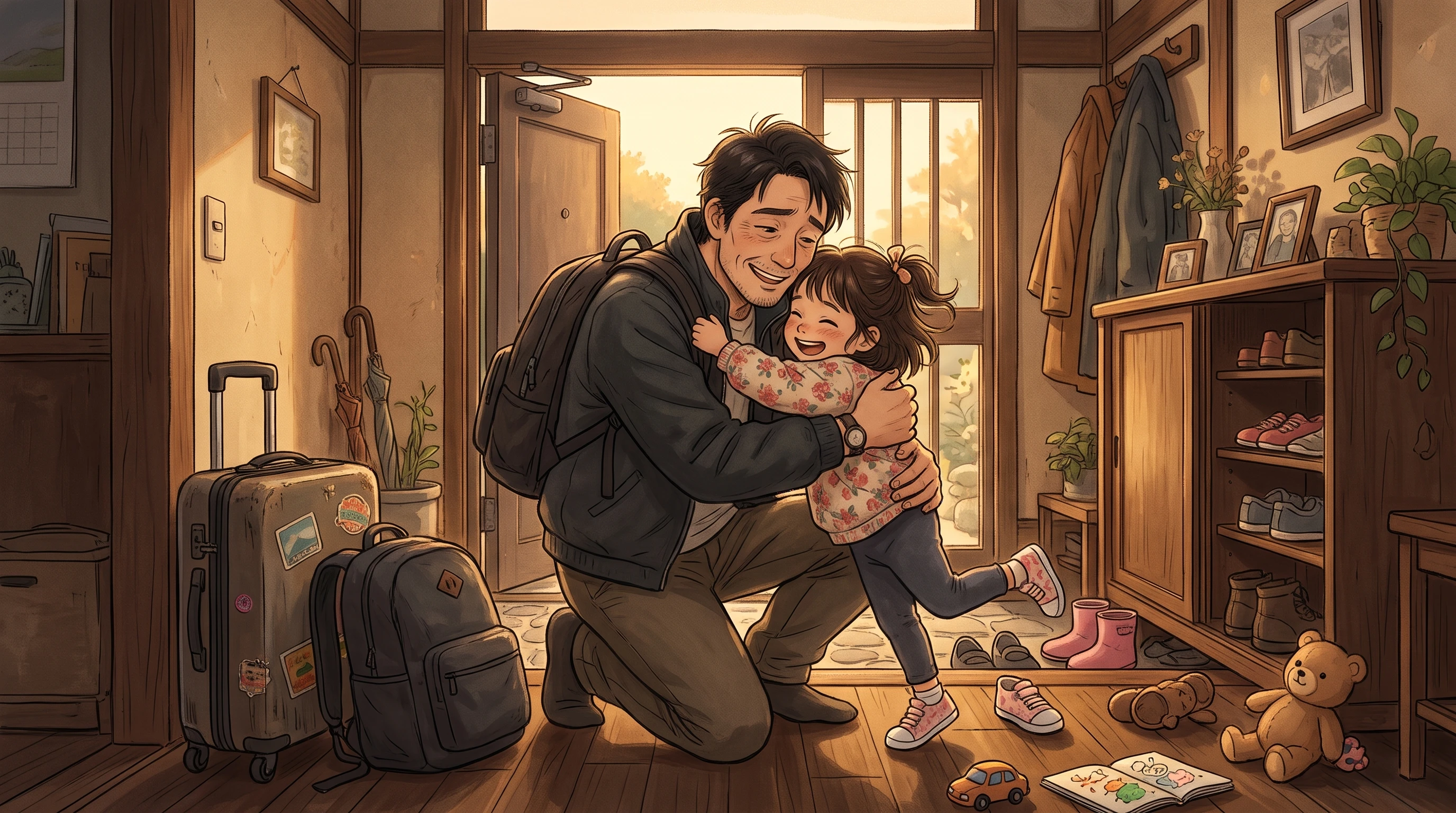


Magiclight AI hug video generator can create a warm embrace from your favorite pictures. The entire process takes 4 steps, from selecting your photos to saving the finished video.
Select the Video tab in Magiclight AI and upload a clear photo under 10MB. You can also provide a second person's picture as a reference if your chosen model supports it.
Explain how the two people approach each other and where their arms should rest. Include small details about their expressions to help the hug look gentle and natural.
Pick from models out of the 20 available options. Adjust the video duration and resolution to suit your hugging scene, and press Create Video to begin generating the clip.
Play the finished video and check the faces and hands during the embrace. Use Re-edit if something looks unusual, and download the final hugging video once you are satisfied.
Parent
My daughter loved seeing herself hug her grandmother in a video. They live far apart, and it was such a sweet surprise. We watched it together twice that evening.
Teacher
We made a hugging video using two classroom character drawings. The children found it funny, and a few wanted to try making their own with their favorite characters.
Content Creator
I tried this with two old photos for a short family video. The first result needed some changes, but the second one looked lovely. My sister really liked seeing it.
Video Editor
The hands needed a little work in my first attempt, which I expected. After changing the prompt, the hug looked much better and fitted nicely into my family montage.
Yes. Magiclight AI hug video generator supports reference images on compatible models. Photos with similar lighting and camera angles usually produce more natural hugging scenes.
You can create a memorial hugging video using a loved one's photograph. Consider sharing it privately with close family first, since seeing someone move again can feel emotional.
Faces sometimes become distorted when two people move very close together. Give each person a clear position in your prompt or test another video model to improve the result.
Veo 3.1 Lite supports sound effects for suitable hugging scenes. For background music, you can choose a compatible model with audio features or use a separate video editor.
Magiclight AI supports video clips lasting 30 seconds, depending on the model you select. Shorter clips can work well when you want to capture a brief embrace between two people.
Clear photos with visible faces and natural lighting work best. Try to avoid blurry pictures or cropped portraits, since the model needs enough detail to animate both people.



Turn your photos into a warm embrace with the AI hug video generator. Create a moment worth sharing.