
Lip Sync for Natural Speech
Match the character’s mouth movements with each sound instead of repeating a basic mouth loop. Magiclight AI uses lip sync to help the face follow the spoken words throughout the video.
Create Now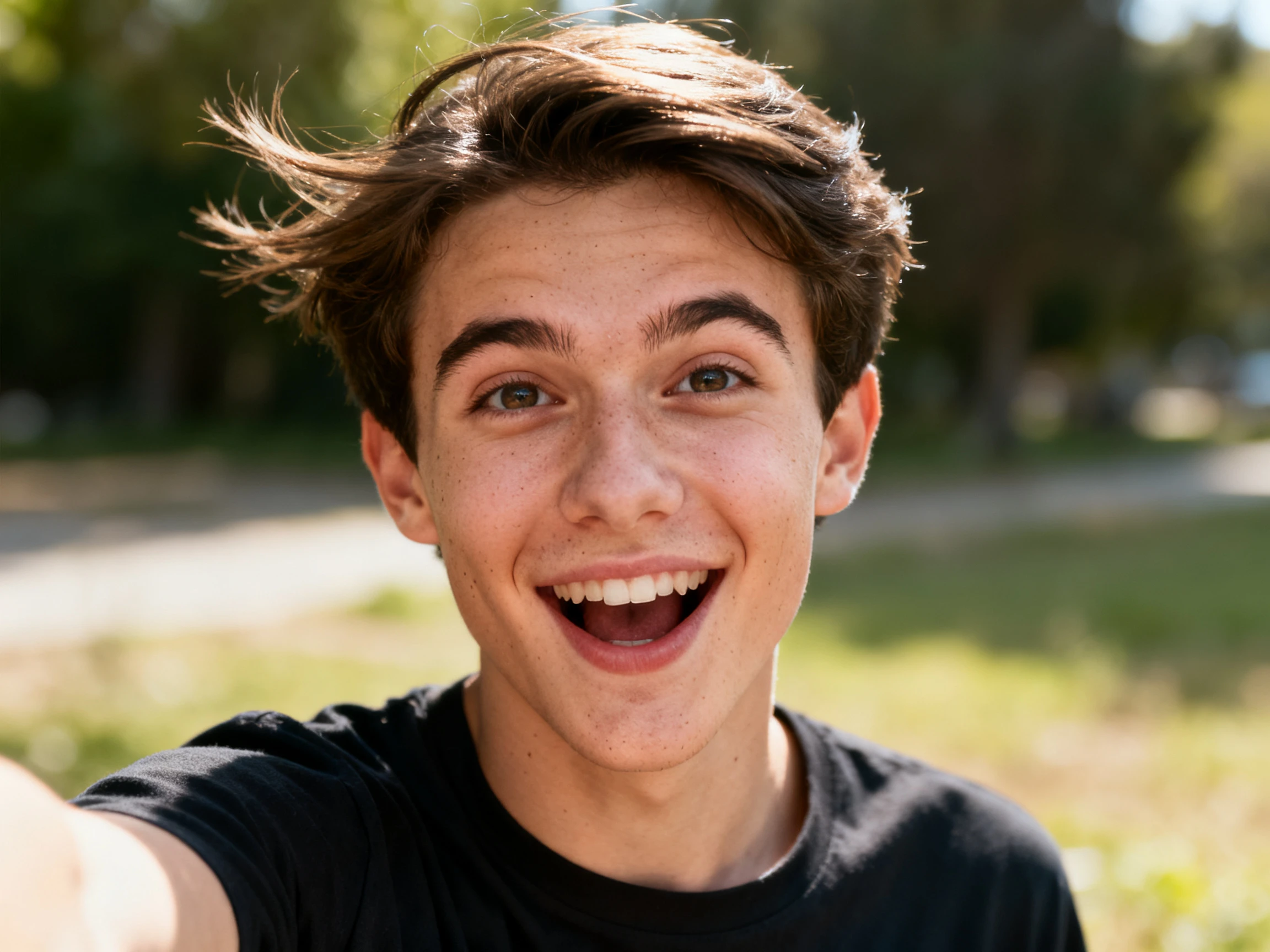
Transform a photo into a speaking video that continues beyond a single frame. Magiclight AI carries the same face across connected scenes. No filming or editing needed.
Create a Talking Photo For Free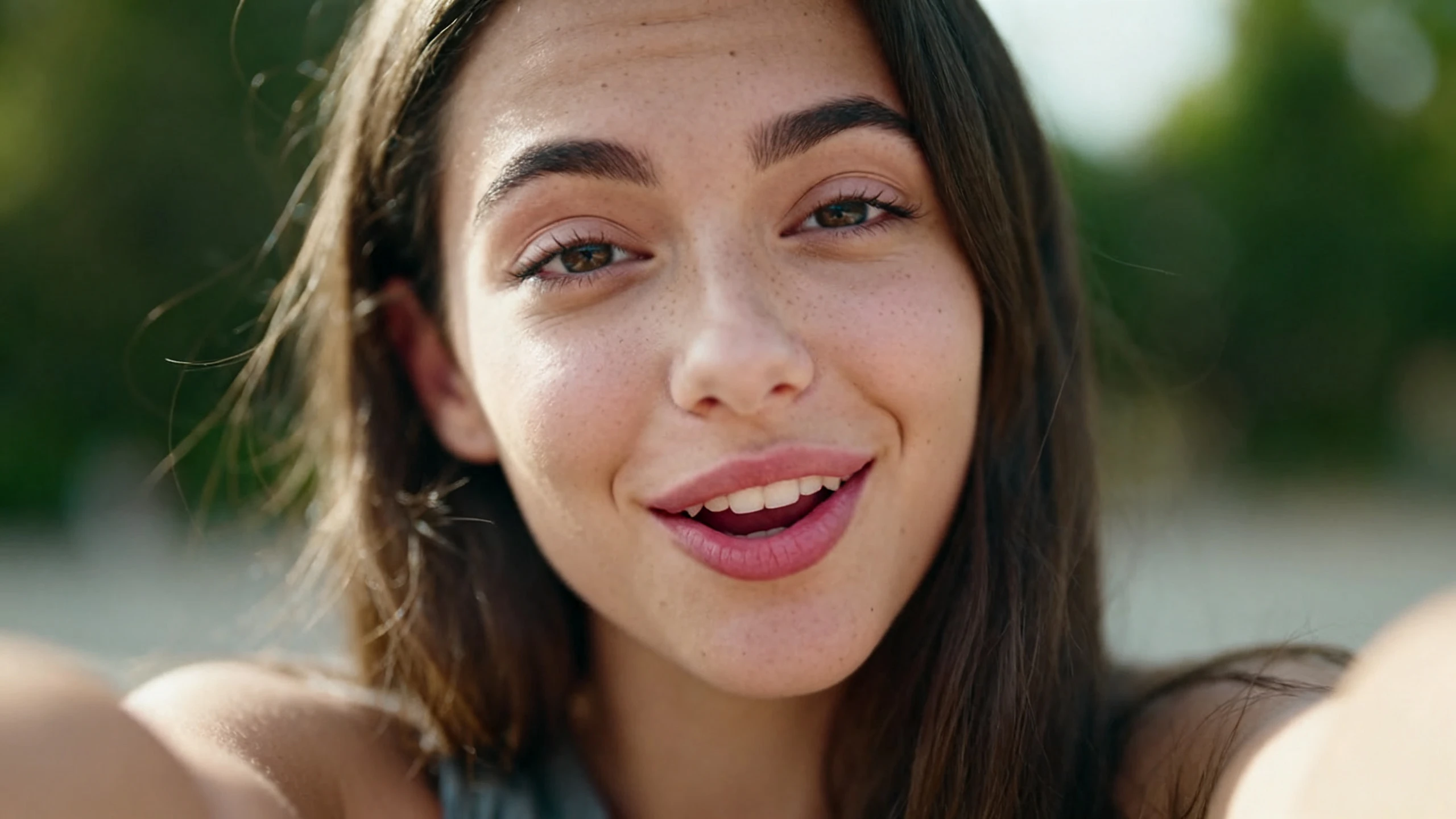










Start with one image and take the character beyond a basic talking portrait. Magiclight AI talking photo tools help keep that face recognizable as the video continues.
Match the character’s mouth movements with each sound instead of repeating a basic mouth loop. Magiclight AI uses lip sync to help the face follow the spoken words throughout the video.
Create NowSelect from 37 available voices or clone your own for the talking photo. Magiclight AI keeps the selected voice connected with the character throughout the video.
Create Characters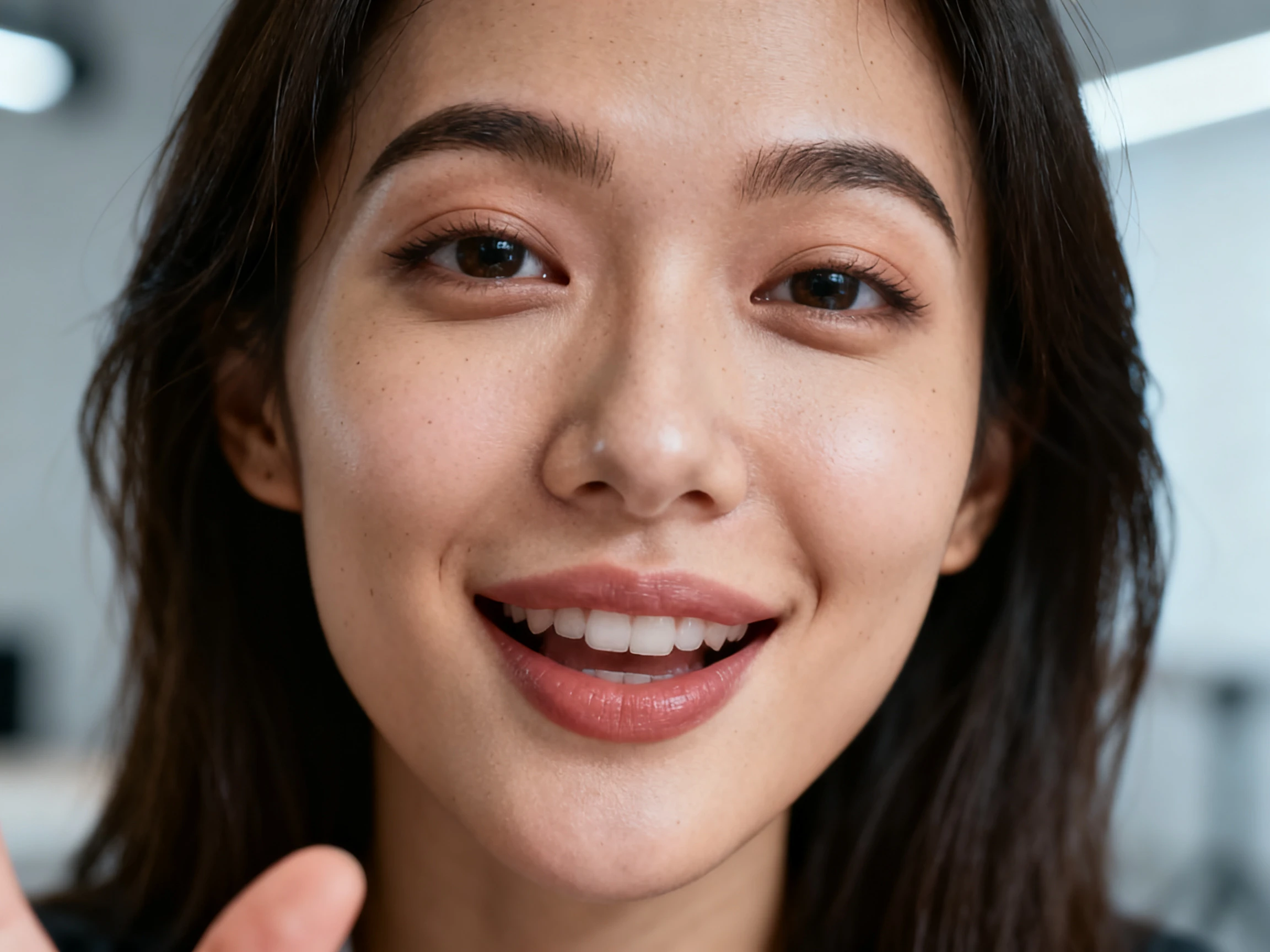
Add up to 5 reference images and write a motion prompt of up to 1500 characters. Magiclight AI uses your visual references and directions to control how the person and scene move.
Generate a Video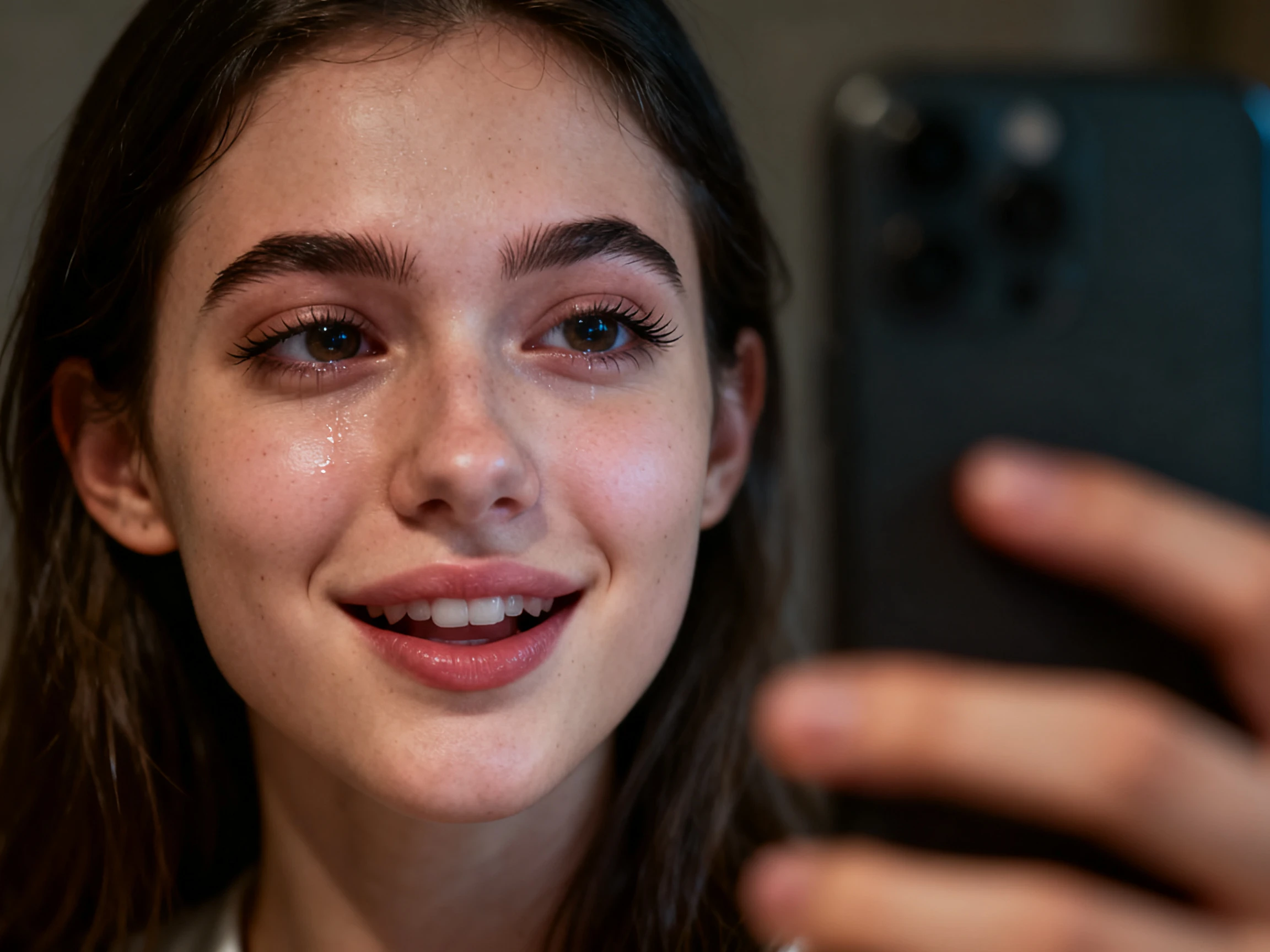
Explore 20 video models to find different ways of animating the same photo. With Magiclight AI, you can see how each model handles facial movement, body motion, and scene direction.
Start Creating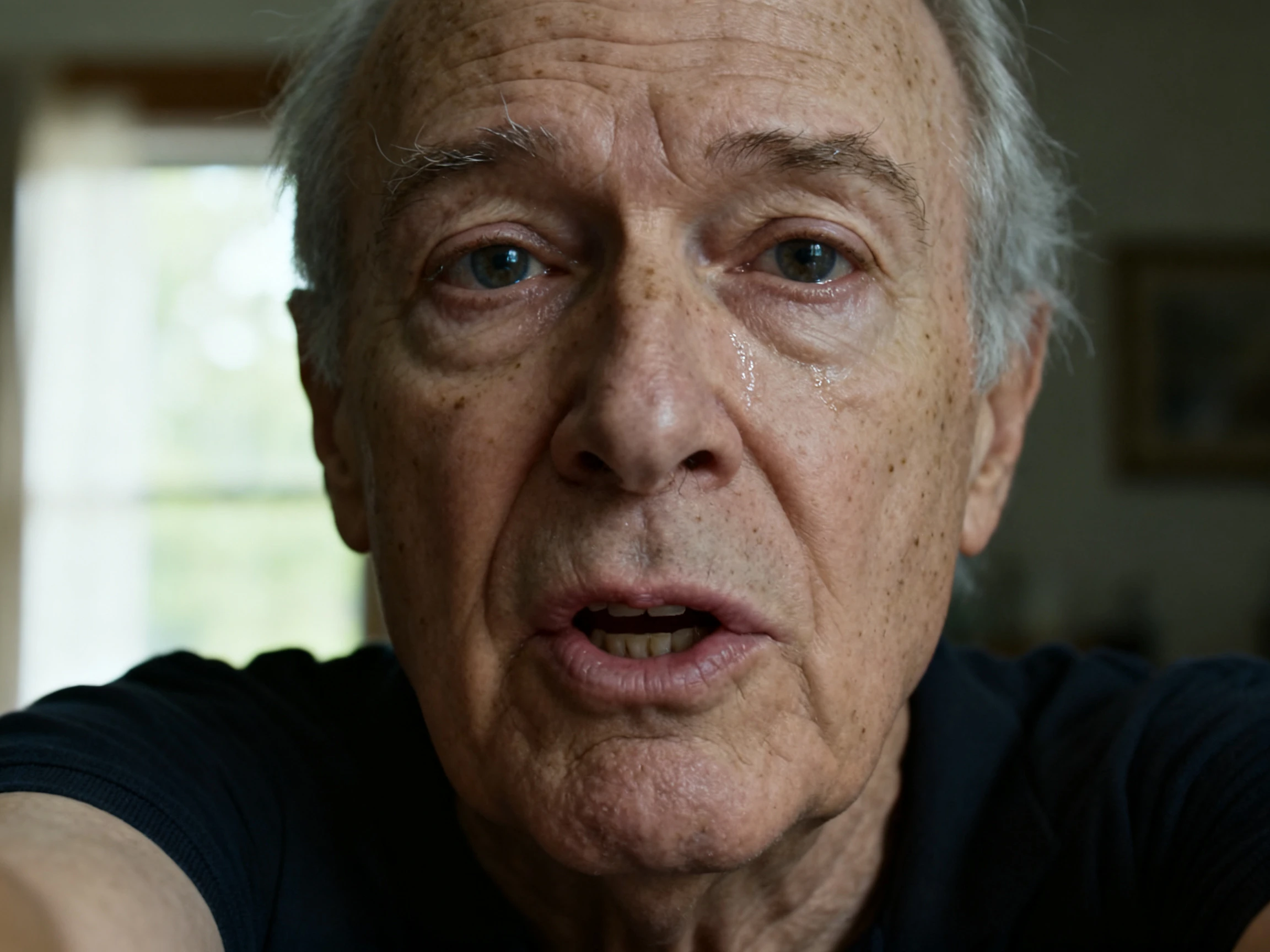


Bring a still portrait to life through a simple 4-step process. Magiclight AI’s photo talk AI workflow guides you from uploading the image to creating the finished video.
Upload a clear reference image of the person you want to animate. Use images where the face, eyes, nose, and mouth are visible, so Magiclight AI has clear visual details to follow.
Use up to 1500 characters to describe the speech, facial expressions, gestures, and movement you want. Turn on sound effects for voice so the talking photo includes spoken audio with the animation.
Choose from 20 video models to animate your reference images and directions. Generate the talking photo and check how the selected model handles facial movement, lip sync, gestures, and scene motion.
Watch the result and check the face, speech, lip sync, and movement throughout the video. Adjust your prompt when needed, then export in your preferred format and supported resolution.
Internal Comms Lead
Our company updates were long, and most people never reached the end. Putting a presenter on them with Magiclight AI gives employees something more engaging to watch.
History Teacher
Magiclight AI lets me turn a historical portrait into someone students can watch speak. It gives me a different way to present the same material I already teach.
Product Manager
I kept running into talking-photo tools that stopped after one short clip. With Magiclight AI, I can keep the same presenter as the product walkthrough continues.
Motion Designer
Our mascot is illustrated, so tools designed around real portraits were limiting. I can bring that drawn character into Magiclight AI and give it movement and speech.
Magiclight AI talking photo supports portraits that continue across connected video scenes. Dedicated tools may focus on single presenters, while Magiclight AI supports longer sequences.
Clear portraits give Magiclight AI stronger facial details to follow during lip sync. Visible eyes, nose, and mouth help the resulting speech movement look more natural.
Magiclight AI can animate illustrated characters when their facial features remain clearly visible. Clear eyes and mouth areas help Magiclight AI apply movement to drawn faces.
Magiclight AI accepts up to 5 reference images to guide the animated character. Several clear references can provide more visual information for the generated video result.
Your motion prompt can contain up to 1500 characters inside Magiclight AI. Use that space to describe facial expressions, gestures, movement, and scene direction clearly.
Magiclight AI supports both vertical 9:16 and widescreen 16:9 talking photo video formats. Choose vertical for mobile feeds or wide video for presentations and larger screens.



Use Magiclight AI photo talking tool to take one portrait beyond a short speaking clip. Continue the same character into more scenes with Magiclight AI.