Hero background

AI Icon Generator

Describe the icon you want, choose a visual style, and let MagicLight AI turn your idea into a custom icon. Create clean, square icons without using design software.

Create an AI Icon for Free
AI Icon Generator Custom Icon Collection
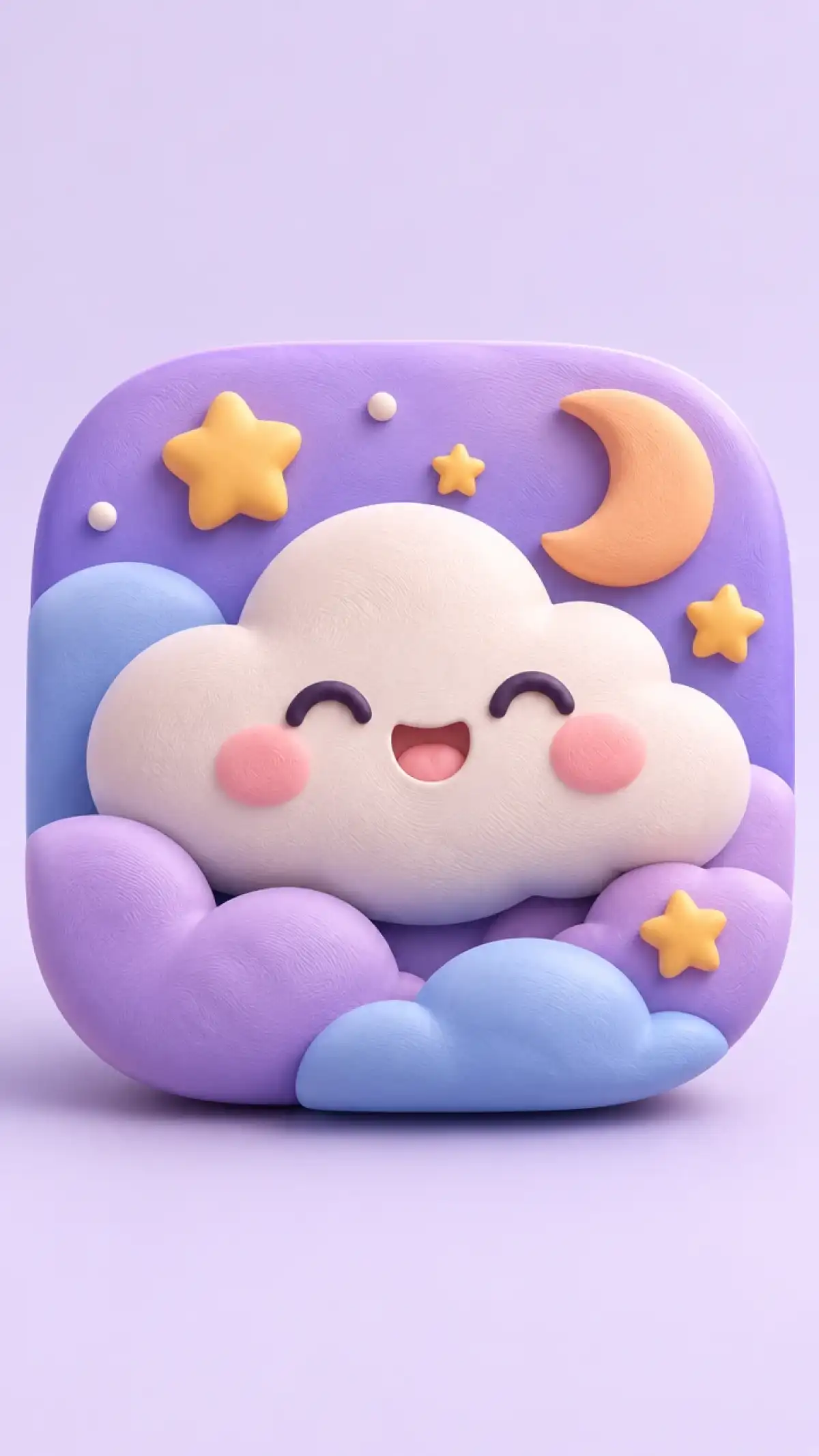
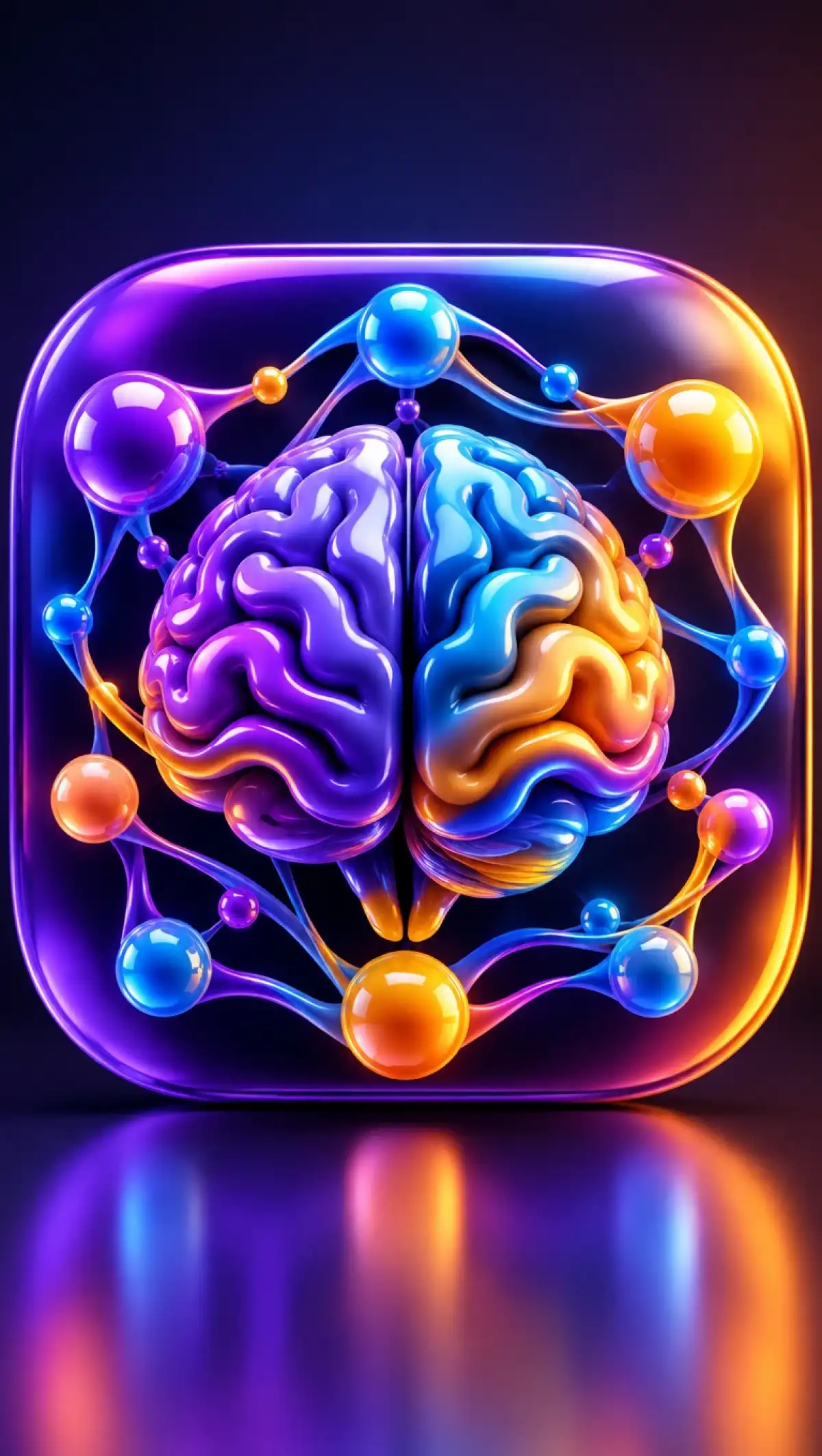
AI Generated App Icons
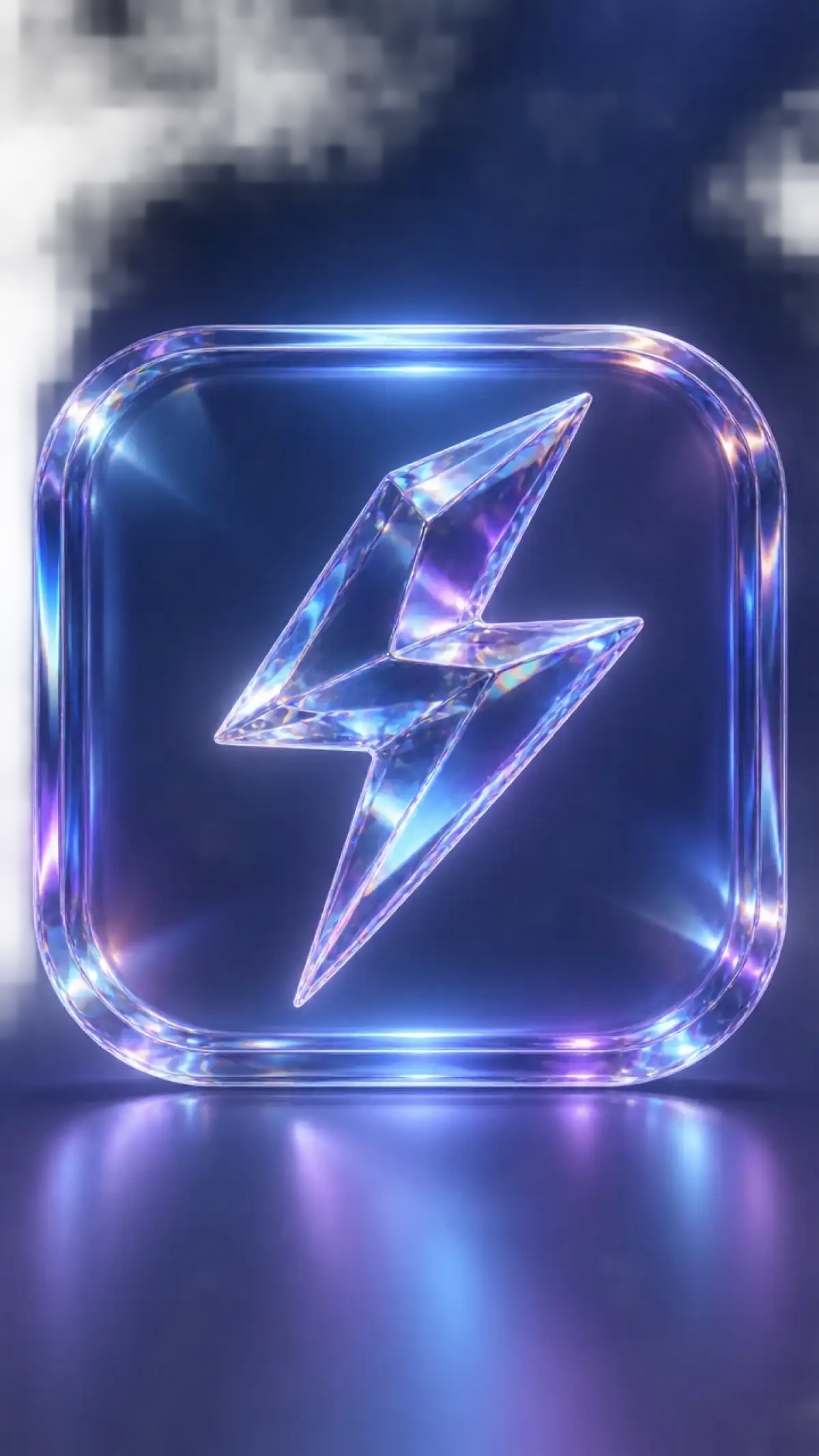
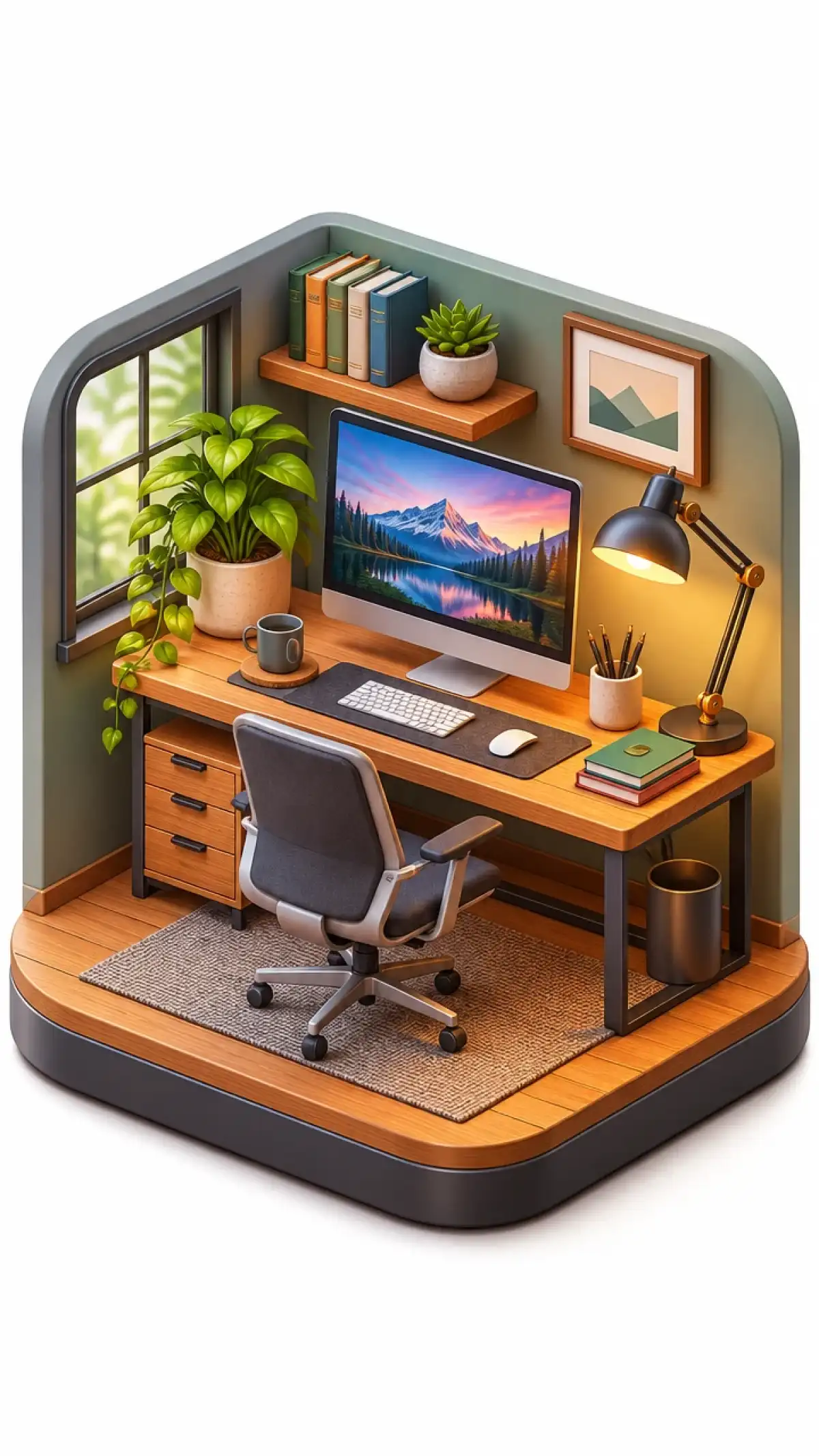
Custom AI Icon Designs
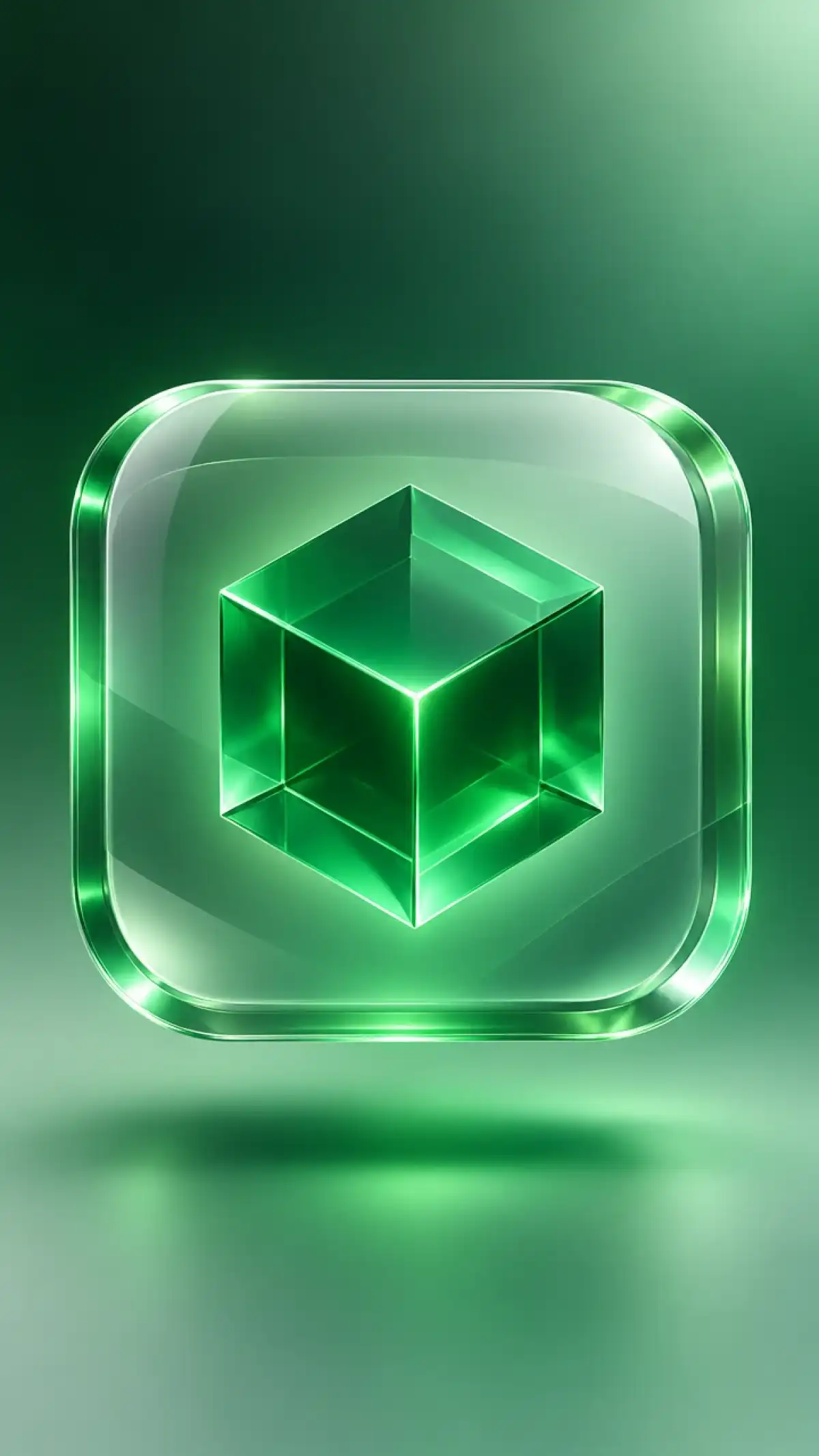
AI Icon Design Examples
AI Icon Design Example 5
AI Icon Design Example 6
AI Icon Generator Custom Icon Collection
AI Generated App Icons
Custom AI Icon Designs
AI Icon Design Examples
AI Icon Design Example 5
AI Icon Design Example 6

Top Features of the Magiclight AI Icon Generator

Good icons start with a clear brief and a few choices. Use the Magiclight AI icon generator to set the mode and the shape before each run.
Create Your Custom Icon
3D AI Icon Decoration

1:1 Square Frames for Every Icon

App stores, home screens, and toolbars all use square icons. The 1:1 shape keeps each design centered and balanced. You can judge the icon at small size from the first run.

20MB Sketch and Brand Uploads

Add JPG, PNG, or WEBP files up to 20MB each. Fine lines and exact colors stay clear to the model. You are not bound to resize anything within Magiclight AI as it retains the quality.

500 Characters for Icon Style

Choose flat, line, glyph, 3D, or glossy styles by naming the colors, the corners, and the shadows in the 500-character prompt. A clear style brief keeps each icon simple and readable.

6 Image Models for Different Icon Looks

Go for any of the 6 AI image models for creating glossy 3D icons or clean flat shapes. Run different models and find the best one that suits your business or purpose.

Who Can Use the Magiclight AI Icon Generator
Every product and site need icons that look like a family. App developers, web designers, creators, and small businesses use the AI icon generator in Magiclight AI to fill the gaps in a set.
AI Icon Generator for App Developers
For App Developers
Name flat or glossy 3D in the prompt to test an app icon style.
Reuse one prompt across 6 AI image models to get different ideas.
Draft icon ideas in the iPhone app between constructs.
AI Icon Generator for Web Designers
For Web Designers
Pick the 4:3 frame to place icons on a client slide.
Upload your top icon as a 20MB reference to add the next matching one.
Download the best result or re-edit to get the best icon design.
AI Icon Generator for Content Creators
For Content Creators
Write a playful or calm mood into a 500-character prompt for matching.
Add sound in the Audio tab to turn an emote into a short clip.
Edit a few prompt words and run again until the emote looks right.
AI Icon Generator for Small Businesses
For Small Businesses
Add 10 reference images as JPG, PNG, or WEBP for accurate results.
Create business-related icons with basic 500-character prompts.
Use a paid plan with commercial rights for icons on shop signs.
Why Choose
Magiclight AI Icon Generator
One off-style icon can break a whole interface. This AI icon generator from Magiclight AI helps every new icon fit the set.
Up to 10 Style Anchors
Feed the tool up to 10 reference files that show your look. Old icons, a color chart, and a style sample all count. Each new icon pulls from them so it joins the family.
Several Icon Ideas per Run
Ask for a few icon options in a single run. Put them side by side and drop the weak ones. Keep the best and describe the next icon in your set.
Style Rules in 500 Characters
Write your rules in up to 500 characters. List the corner shape, the shadow, and the palette. Short and specific wording gives the tidiest icon.
Big Files Go In Intact
Bring in sketches and brand files as JPG, PNG, or WEBP. Each can be up to 20MB, so thin lines and exact colors survive. Your originals go in as they are.
Words or Sketches in the Same Tab
Text to Image creates brand-new icons from a short brief. The Reference Image to Image tidies up a rough sketch. Both modes sit in the Image tab of the Toolbox.
Turn Static Icons Into Animated Graphics
Magiclight AI offers 20 video models to create animations lasting up to 30 seconds. Turn your static icon designs into moving graphics for app previews, website introductions, or social media promotions.

How to Make an Icon with Magiclight AI

Go from a plain idea to a square icon in 3 steps. The AI icon generator in Magiclight AI draws it from the object and the style you name.

1.

Step 1. Open the Image Tab

In the Toolbox, select the Image tab. Choose Text to Image to start from a typed idea. Use the Reference Image to Image mode to match icons you already use.

2.

Step 2. Write the Icon Brief

Name one object, style, colors, and the corners in up to 500 characters. Try a rounded blue chat bubble in soft 3D. Keep the wording short so the icon stays simple.

3.

Step 3. Set 1:1 and Create Icon

Keep the canvas at a 1:1 square shape and pick any of the 6 AI image models. Click Create Image and review the options before downloading the best icon.

FAQs on AI Icon Generator

Will I get an SVG or vector icon?

No, the Magiclight AI icon generator outputs image files, not vector formats. Download the best result and trace or recreate it as a vector in your design software for large sizes.

Can I make a full matching icon set?

Yes, upload your first icon as a reference with up to 9 files per image. Describe each new icon in the same style in up to 500 characters. Magiclight AI then keeps the colors and shapes consistent.

What size should an app icon be?

App stores require square icons, so use the 1:1 canvas in the Output setting. Check each store’s current pixel requirements before you upload. Resize the downloaded image in your design software to match them.

Can I copy a famous app's icon?

No, other companies’ icons are protected designs. Create an original icon in Magiclight AI for your own app or brand. Use references only from icons and style samples you own.

Which icon styles can I create?

Name the style in your prompt, such as flat, line, glyph, 3D, glossy, or hand-drawn. Add colors, corners, and shadows within the 500 characters. GPT Image 2.5 and Nano Banana 2 each give these styles a different finish.

Is the AI icon generator free to try?

Yes, sign up for a Magiclight AI account and try the Image tab at no cost to start. You do not need to enter a card to see your first icons.


Create Your AI Icon Set with Magiclight AI

A strong app or site starts with matching icons. Describe the next icon you need and let the AI icon generator from Magiclight AI draft it in your style.