Hero background

AI Image Generator from Text

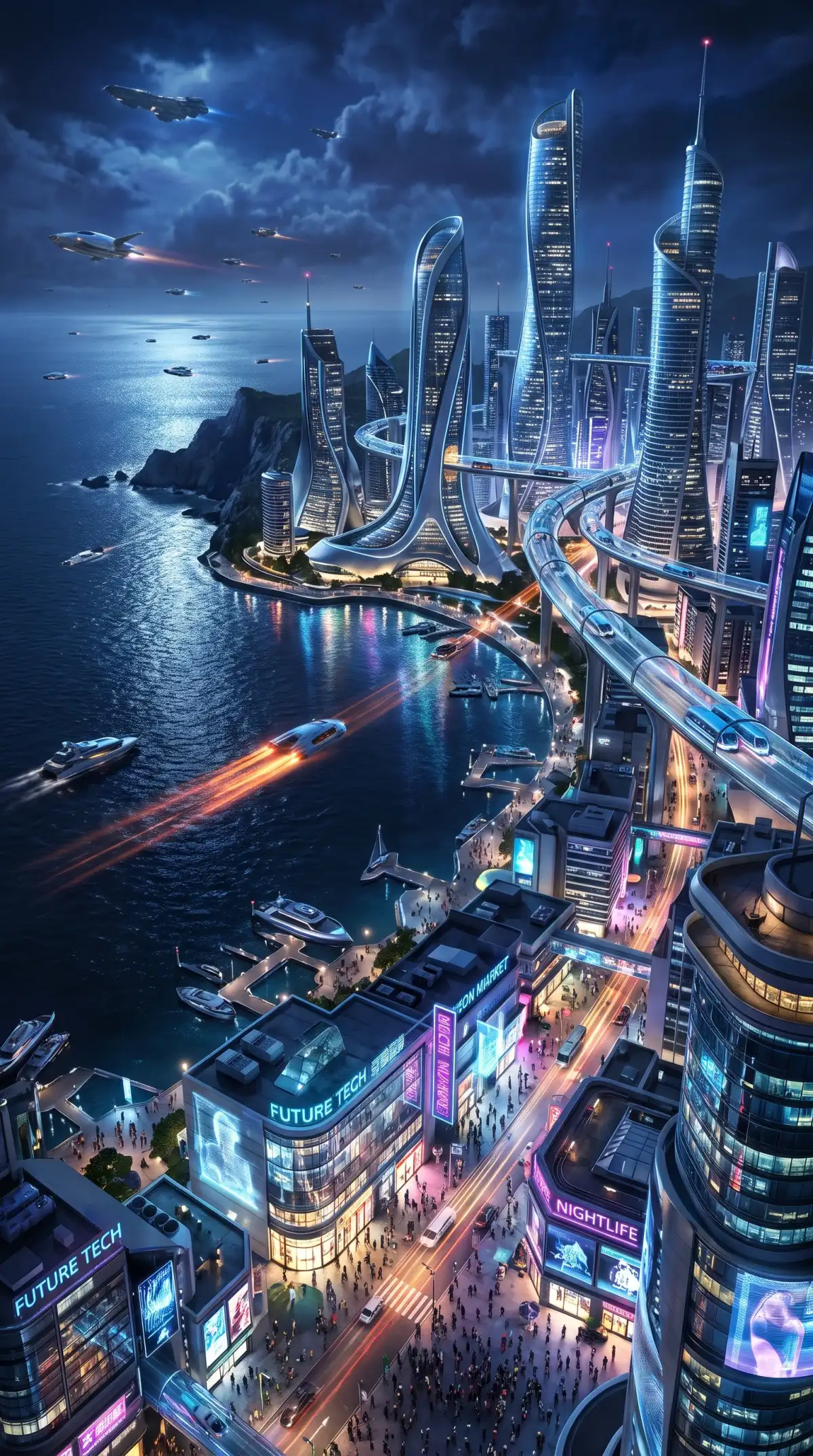
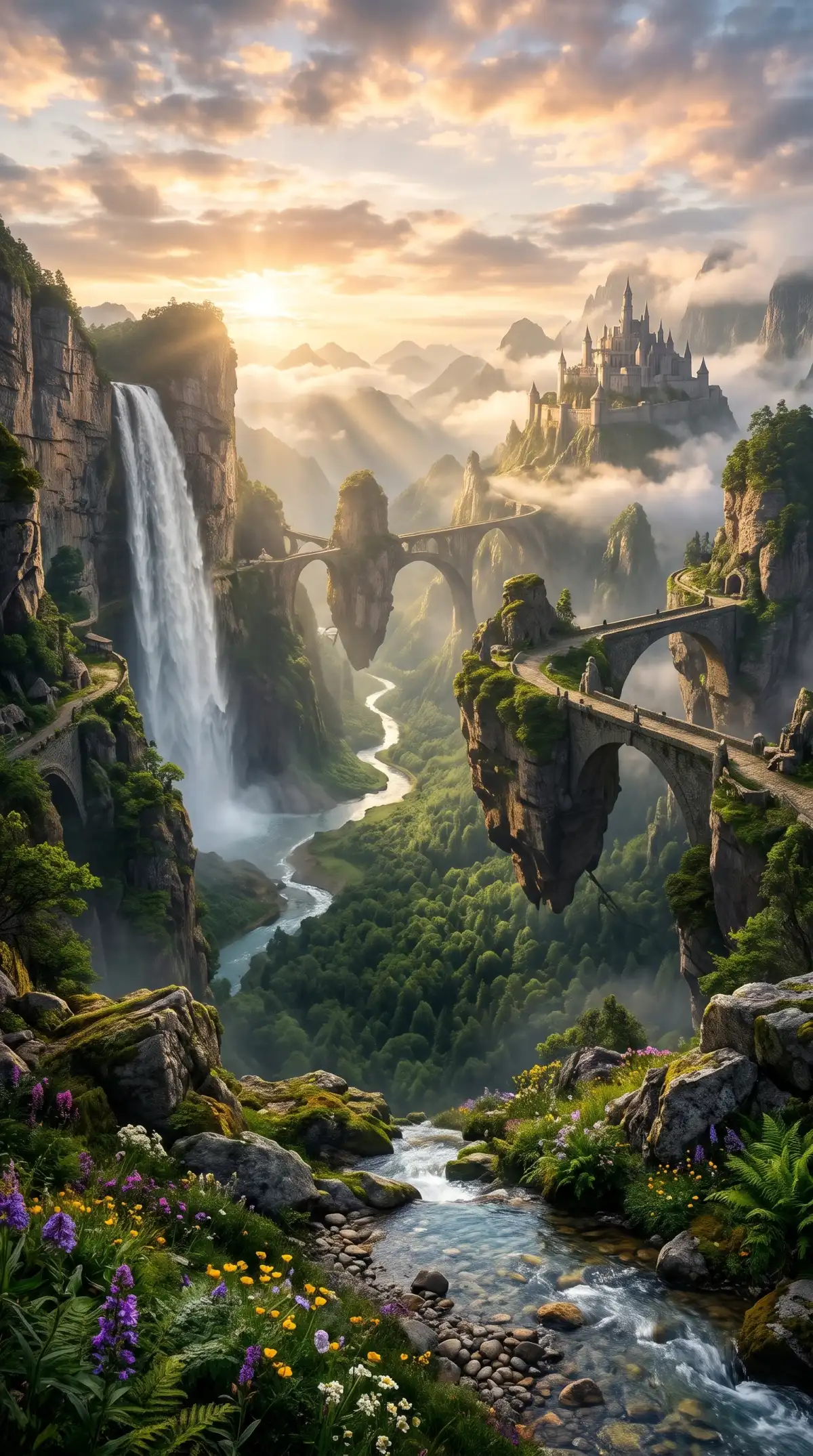
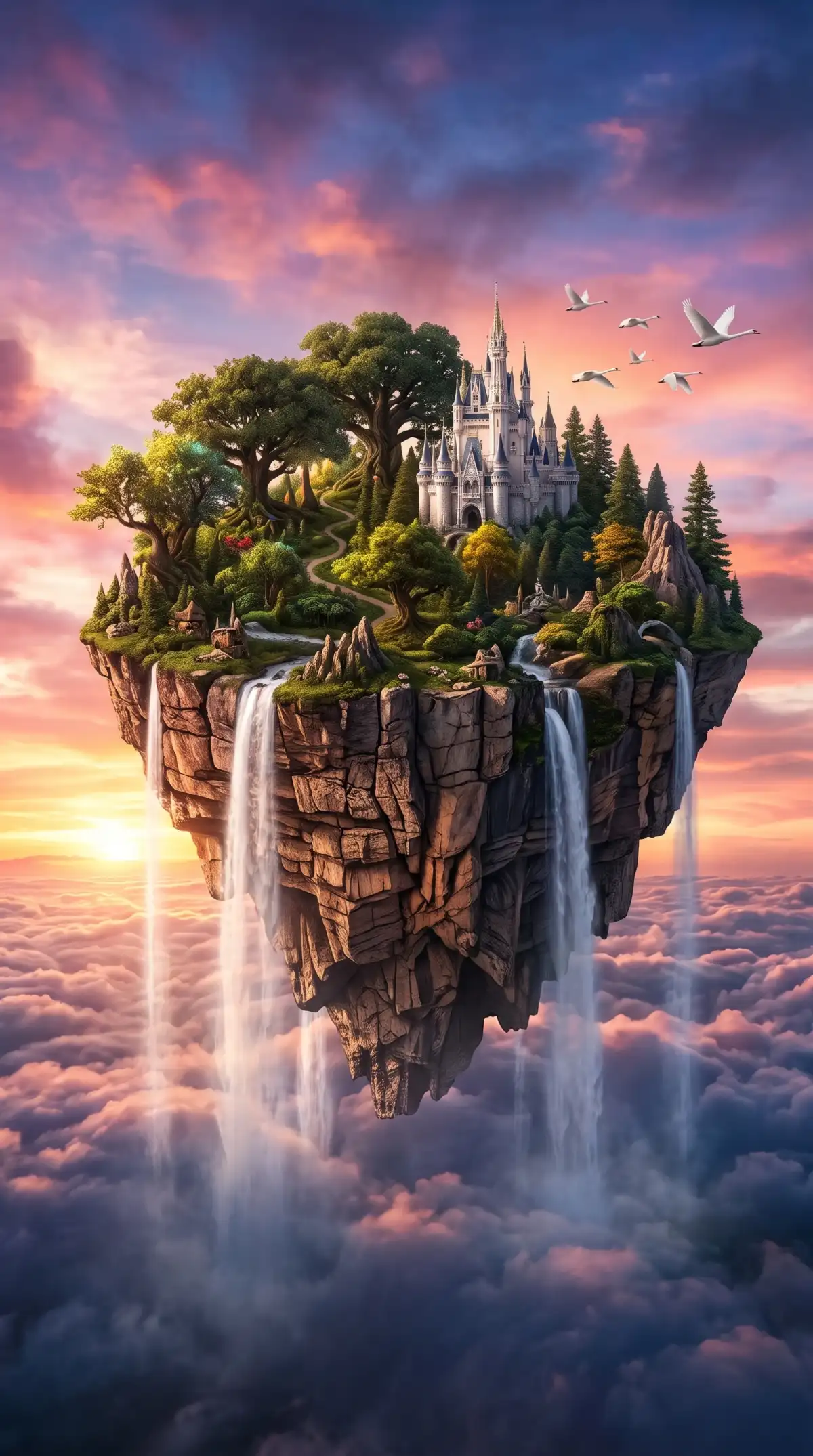
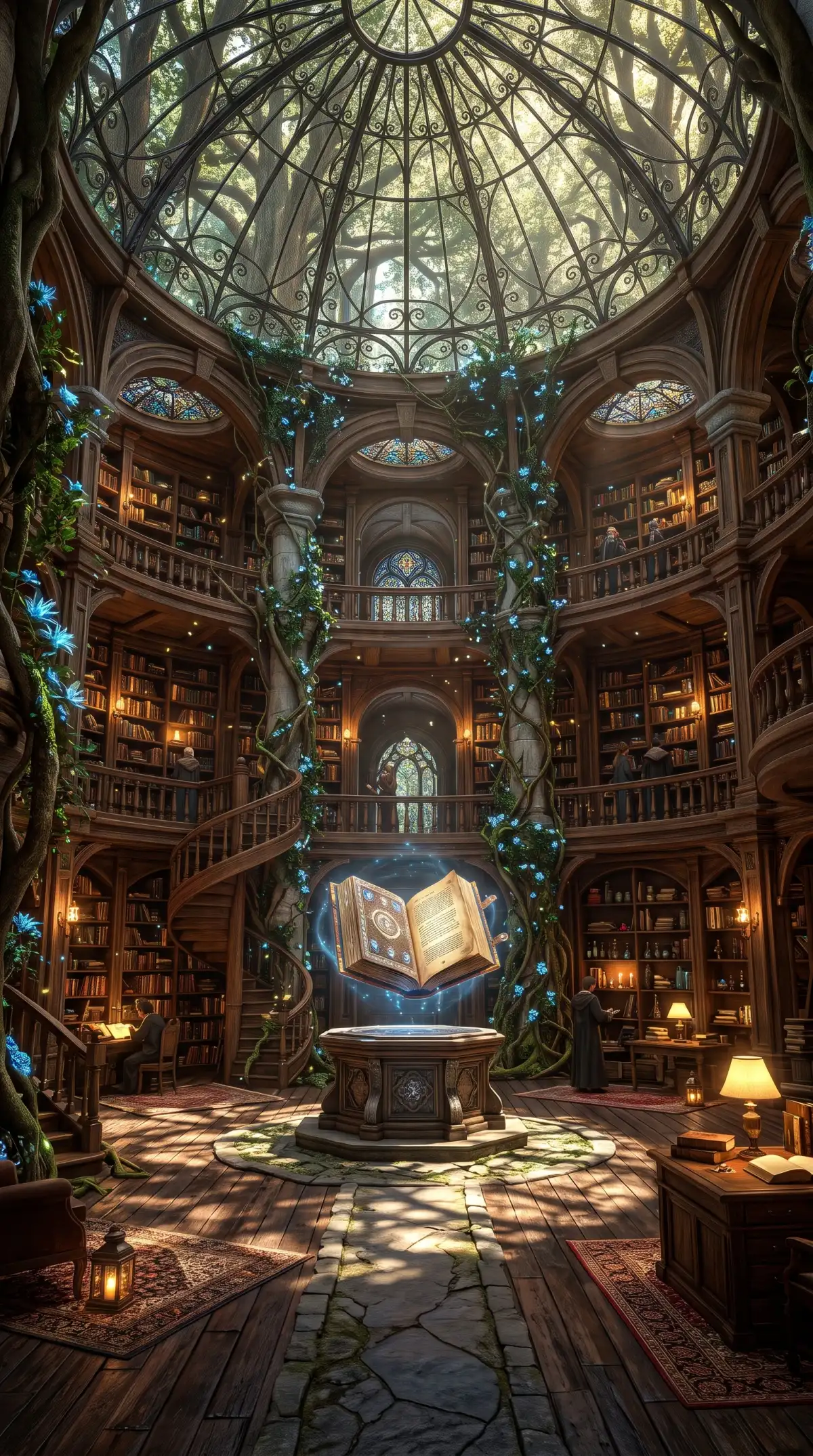
Turn your words into images with MagicLight AI. Describe what you want to create, choose an art style, and generate unique visuals in minutes. No design experience needed.

Create an AI Image for Free
AI Image Generator from Text
AI Image Generator Examples
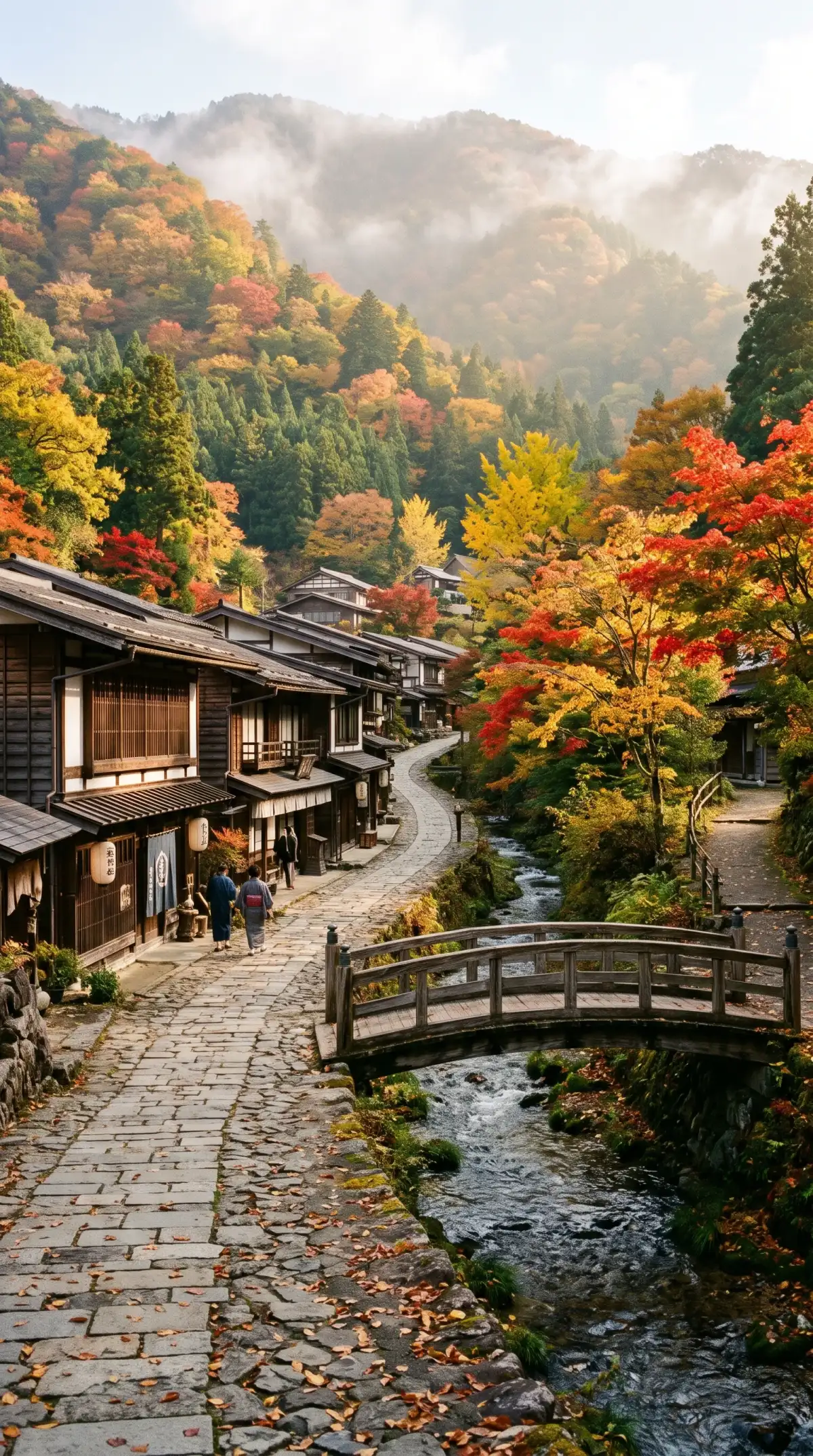
AI Generated Images
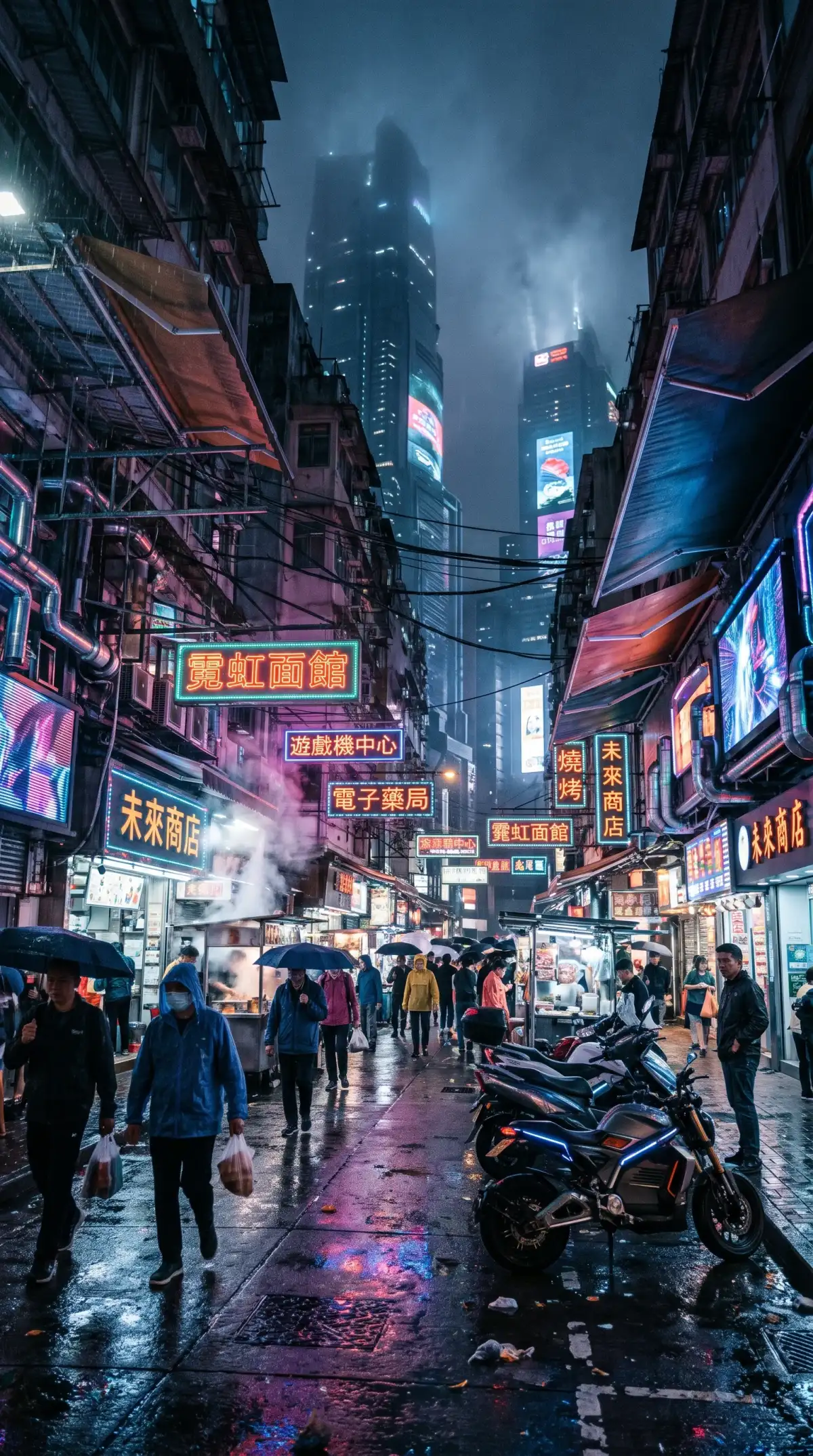
Custom AI Image Designs
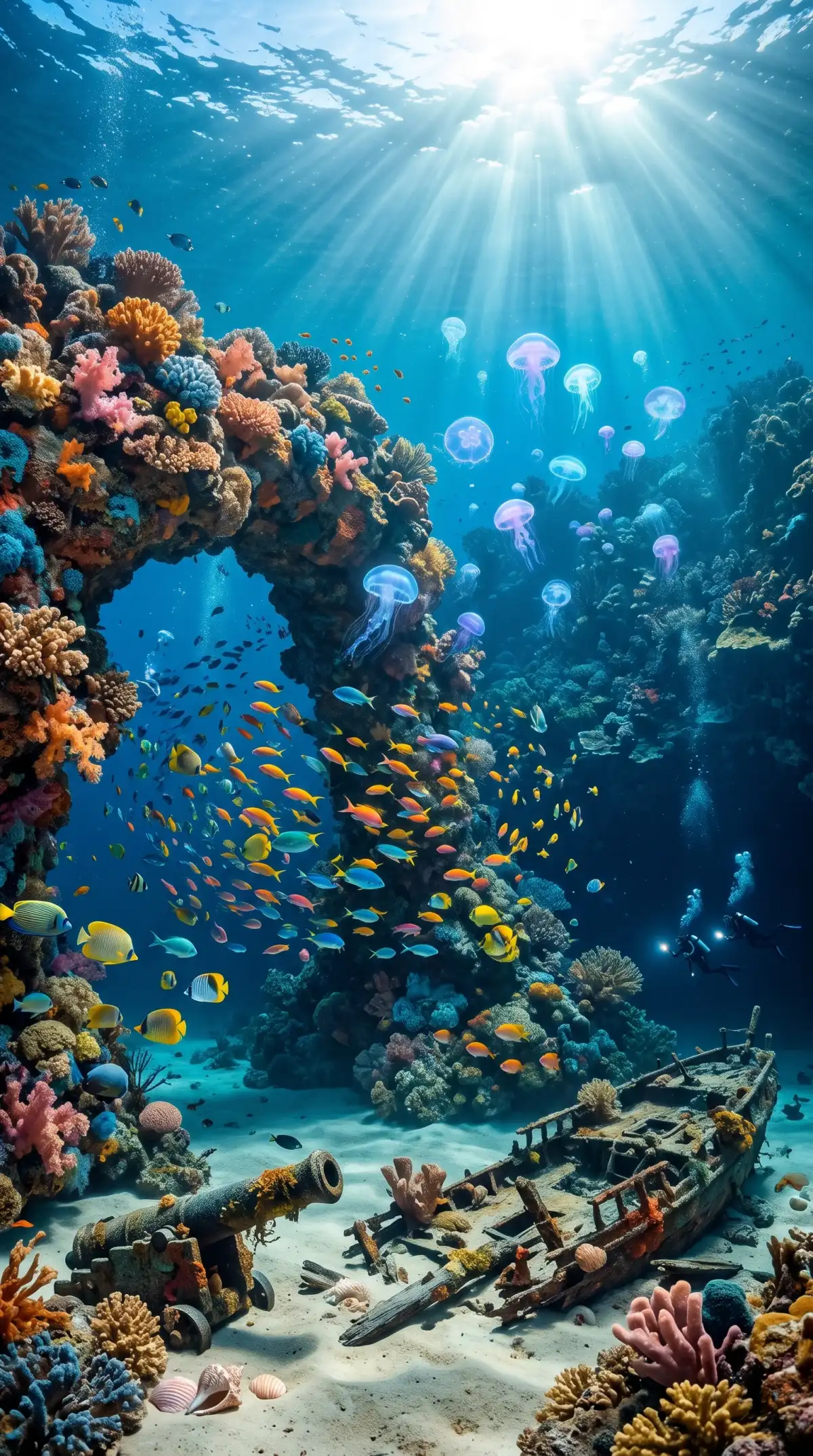
AI Image Generator Samples
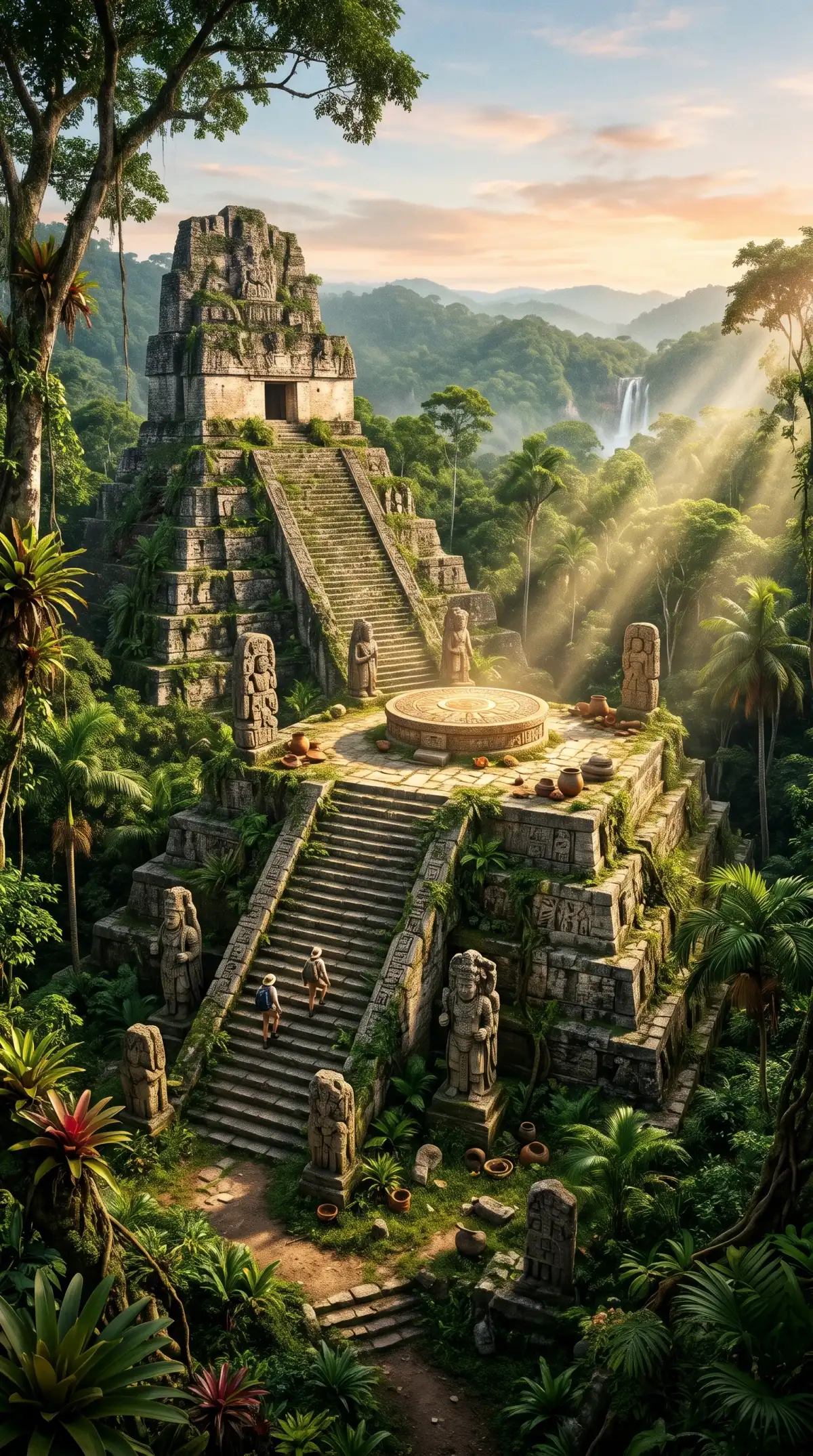
AI Image Generator Examples
AI Generated Visuals
AI Image Creation Ideas
AI Image Generator from Text
AI Image Generator Examples
AI Generated Images
Custom AI Image Designs
AI Image Generator Samples
AI Image Generator Examples
AI Generated Visuals
AI Image Creation Ideas

Explore the Magiclight AI Image Generator from Text Features

Cost and convenience matter as much as image quality. The AI image generator from text in Magiclight AI gives you control over both.
Create an AI Image for Free
AI Image Generator from Text Features

500 Characters for Full Scenes

Put the subject, the setting, and the lighting into one prompt. The prompt box counts up to 500 characters, so you can see how much room is left. Add a mood or a style at the end.

6 Image Models with Different Results

Choose from Seedream 5.0 Pro, GPT Image 2, or Nano Banana 2, among others. Each AI image model reads the same sentence differently, so you get a new take with every switch.

4 Output Ratios for Specific Platforms

Pick the frame before you create the image. Use 16:9 for a slide or a header, 9:16 for a story, 1:1 for a feed post, and 4:3 for a handout. Change the ratio between runs to test the same prompt in another frame.

3 File Formats Up to 20MB

Add JPG, PNG, or WEBP files as references. A photo, a sketch, or a color sample can steer the result. Uploads are optional, and each file can be up to 20MB.

Who Can Use the Magiclight AI Image Generator from Text
Many people need a picture but have no designer to ask. The AI image generator from text in Magiclight AI lets small shops, authors, students, and event teams create one from a written description.
AI Image Generator for Newsletter Writers
For Newsletter Writers
Describe the main idea of a post in 500 characters and get an image.
Choose a 16:9 or 4:3 ratio for a featured image or a post header.
Upload a brand photo or color sample as a JPG, PNG, or WEBP reference.
AI Image Generator for Teachers
For Teachers
Use Text to Image to make a picture from a reading passage.
Switch to Reference Image to Image to refine a classroom sketch.
Compare GPT Image 2 and Nano Banana 2 on one vocabulary word.
AI Image Generator for Social Media Managers
For Social Media Managers
Check the sample prompt in the box to format a quote request.
Draft a post image on the Magiclight iPhone app between meetings.
Download the finished image and add it to a content calendar.
AI Image Generator for Speakers and Trainers
For Speakers and Trainers
Keep a reference file under 20MB for a workshop opening visual.
Use the Image tab for slides and the Video tab for a teaser clip.
Open the Toolbox in a browser at the venue with nothing to install.
Why Choose Magiclight AI Image Generator from Text
You rarely get the perfect picture on the first run. Here is why the AI image generator from text in Magiclight AI suits repeated tries.
4 Aspect Ratios Built In
Slides and blog headers suit 16:9, Stories suit 9:16, handouts suit 4:3, and feed posts suit 1:1. Pick the ratio first, and the picture is framed for where it will sit.
Add Up to 10 Reference Images
For precise results, Magiclight AI allows you to add 10 reference images in JPG, PNG or WEBP format. Add images to get the result you expect, with precision.
Style Words Shape the Whole Look
Terms such as watercolor, flat illustration, or cinematic change the result without any other tools. Try the same subject in two styles to see which suits your project.
Audio Tab After the Picture
Open the Audio tab in the Toolbox when the project needs sound. Image, Video, and Audio share one workspace, so you don't have to move anything between tools.
2 Starting Modes for Each Try
Use Text to Image for a new idea. Switch to Reference Image to Image when you want to work from an earlier result or a sketch. Both modes are in the same menu.

 How to Turn Text into an Image with Magiclight AI

You can use the AI image generator from text for a blog header or a slide. The process is the same in both cases and takes 3 steps.

1.

Open the Image Tab

Choose the Image section, followed by the Text to Image mode in the Magiclight AI Toolbox.

2.

Describe the Picture and Choose a Model

Write the subject and the setting; keep the prompt under 500 characters. Open the Model menu and pick one of the 6 options. Then set the output ratio to fit the final use.

3.

Create and Download

Press Create Image and look at the result. Download the image or change one line of the prompt and run it again.

FAQs on AI Image Generator from Text

How long can my text prompt be?

The prompt box in the Magiclight AI image generator from text accepts up to 500 characters. That is enough for the subject and the setting, plus a lighting note and a style.

How do I write a good prompt?

Name the main subject first, and add the setting and the style after it. Mention the lighting and the colors last. Specific wording gives Magiclight AI a clearer target than vague wording.

Can I generate text inside the image?

You can ask for short words in your prompt, but lettering quality varies by model. For important headlines, add the text later in a design tool after using Magiclight AI.

Do I need to upload anything?

No, Text-to-image in Magiclight AI runs on words alone, with no files required. Uploads only come into play if you switch over to Reference Image to Image.

Can I use these images on a client's blog?

Yes, provided the Magiclight AI plan you hold carries commercial rights. In addition, read the client's image policy, since some publications set extra rules for AI pictures.

Is the AI image generator from text free to try?

Yes, Magiclight AI opens with no card on file, and the welcome credits cover several early text-to-image runs. Upgrade when you need more.

Create Your Next Image With Text in Magiclight AI

Start with a sentence about the picture you want. Magiclight AI turns your description into an image you can review, adjust, and save for your next project.