4 Models for editing footage
Seedance 2.5 is the default, while Wan 3.0, Seedance 2.0, and Happy Horse 1.0 sit in the list. No single model suits every effect, so compare a few. Run the same footage through each one.
Create Now

Add visual effects to your videos with MagicLight AI. Upload a clip, describe the effects you want and what should stay unchanged, and generate a new version. No compositing skills needed.
Create an AI VFX for Free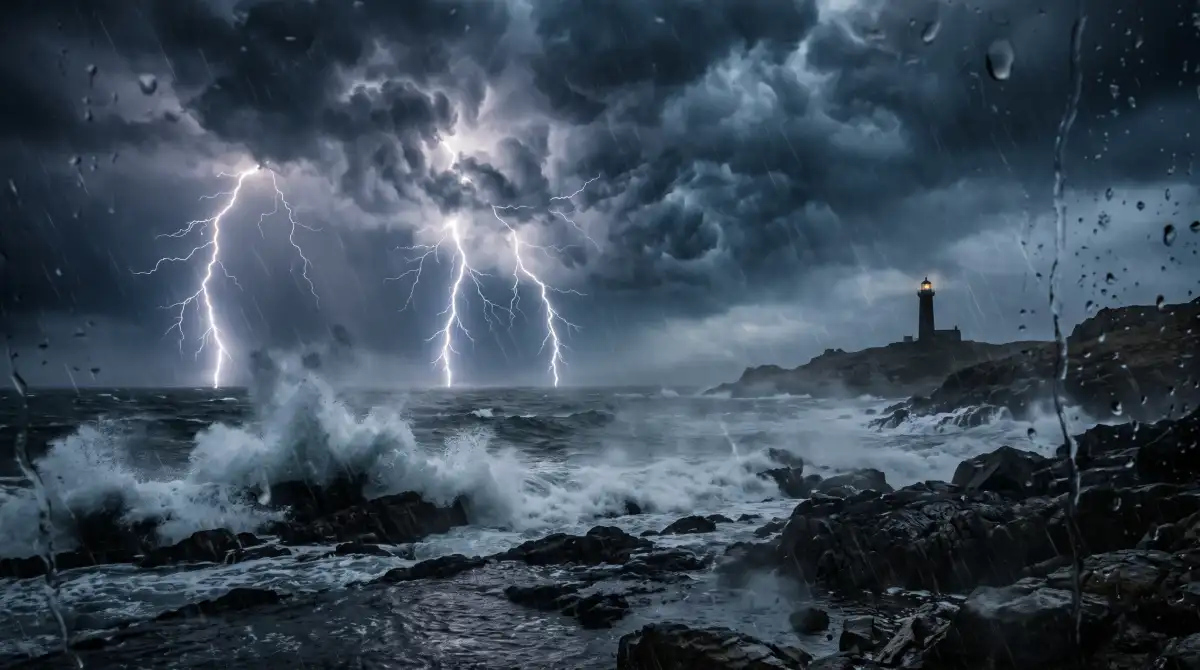










An effect shot needs a source clip and a clear note on what changes. VFX in Magiclight AI keeps both in one Video-to-Video mode.
Seedance 2.5 is the default, while Wan 3.0, Seedance 2.0, and Happy Horse 1.0 sit in the list. No single model suits every effect, so compare a few. Run the same footage through each one.
Create NowClip length limits depend on the model you pick. Happy Horse 1.0 takes MP4 or MOV clips from 3 to 60 seconds and up to 100MB. Seedance 2.5 takes clips from 2 to 30 seconds.
Create Characters
Add up to 5 reference images next to the clip so the effect follows a look you choose. Match a spell to the shade of a logo. The result in Magiclight AI follows your look and not a guess.
Generate a Video
Watch faces, hands, and any text in the frame, because a retake can shift small details. Re-edit with a tighter prompt when something drifts. Download the finished shot when it holds.
Start Creating


Steady the camera when you film because shaky footage leaves effects wobbling. A total of 3 steps to follow in Magiclight AI VFX, from upload to download.
Open Video in the Toolbox and set the mode to Video to Video. Upload your MP4 or MOV clip where it says Choose a video to edit. A shorter clip is much easier to check.
Describe the effect, where it appears, and how it moves. Add reference images if the model takes them. Keep Seedance 2.5 or switch to Happy Horse 1.0, Seedance 2.0, or Wan 3.0.
Check that the clip length fits the model you picked. Then create the retake and review the result. Watch faces, hands, and any text in the frame, since a retake can shift small details or download if satisfied.
Indie Filmmaker
I filmed a plain room and asked for flames in the fireplace while keeping the actors the same. The retake held the faces and the camera move on the first try.
Music Video Director
We had a clear afternoon and needed a storm. I wrote what to change and what to keep, compared two models on the same clip, and picked the final look.
Motion Designer
Glowing hands used to mean hours of layers. Now I describe the color and the light on the walls and add reference images until the spell matches my style.
Wedding Videographer
A client wanted snow outside the window in a wedding clip. I uploaded the footage, wrote the change, and checked the faces and hands before downloading.
AI VFX keeps your footage close to the original but not frame for frame. Video to Video retakes the clip, so faces, hands, and small text can shift. Name what must stay in the prompt and try another model such as Wan 3.0 if a detail drifts.
No, because Magiclight AI VFX rewrites the shot from your prompt and does not key, mask, or track layers. Use an editor like DaVinci Resolve for green screen work and precise compositing. Magiclight AI suits fire, weather, and glow added to a clip you already shot.
Prompts with violence, sexual themes, or copyrighted characters are blocked in AI VFX. A failed run is refunded so you can rewrite the effect in neutral terms and try again. Describe the color, motion, and where the effect sits to keep the prompt clear.
Yes, with their permission, and never to fake a real event. AI VFX is built for creative effects such as flames, storms, and glowing spells. Avoid any edit that could pass as genuine news or evidence.
No, because Video to Video needs a Magiclight AI membership. Free accounts are sent to the plans at Create Video. Members see the price per shot for each model before they generate with Seedance 2.5, Wan 3.0, Seedance 2.0, or Happy Horse 1.0.



Pull up an old clip that is missing a little magic. Send it through Magiclight AI VFX, describe the effect, and see the retake before you decide.