Hero background

AI Wallpaper Generator

Create custom wallpapers with MagicLight AI. Describe the look you want, choose your preferred screen size, and turn your ideas into unique wallpapers in seconds. No design skills needed.

Create an AI Wallpaper for Free
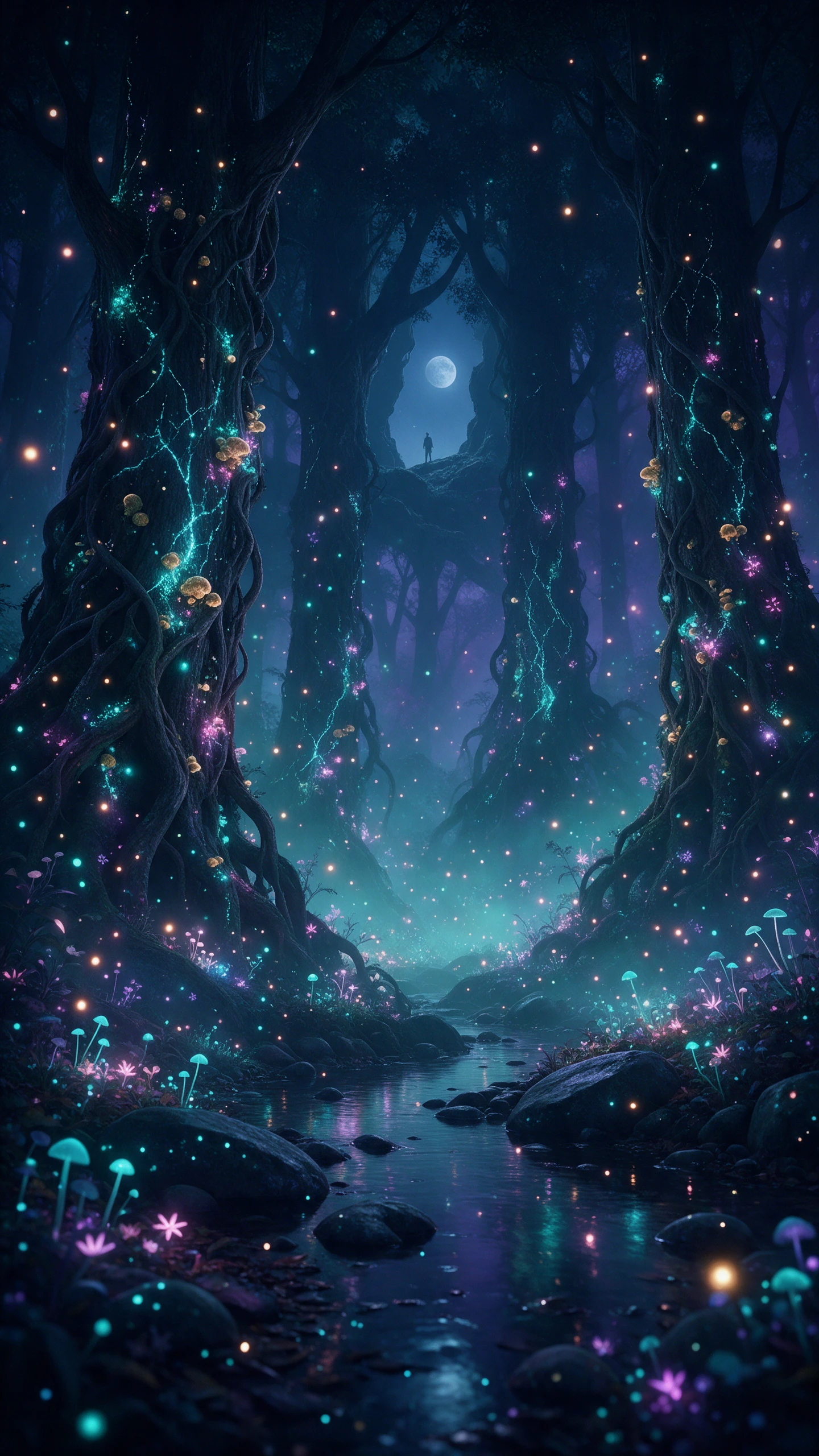
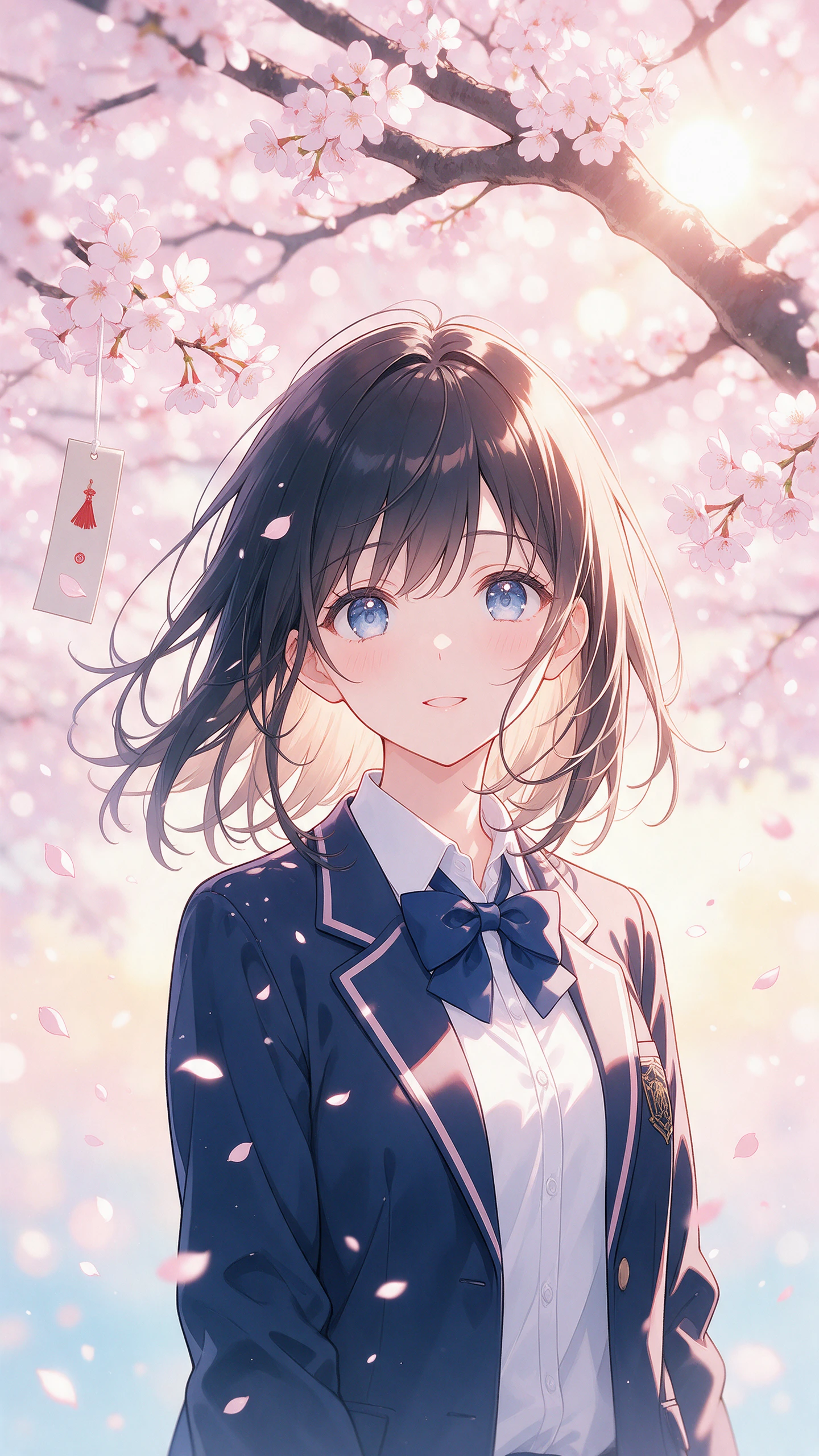
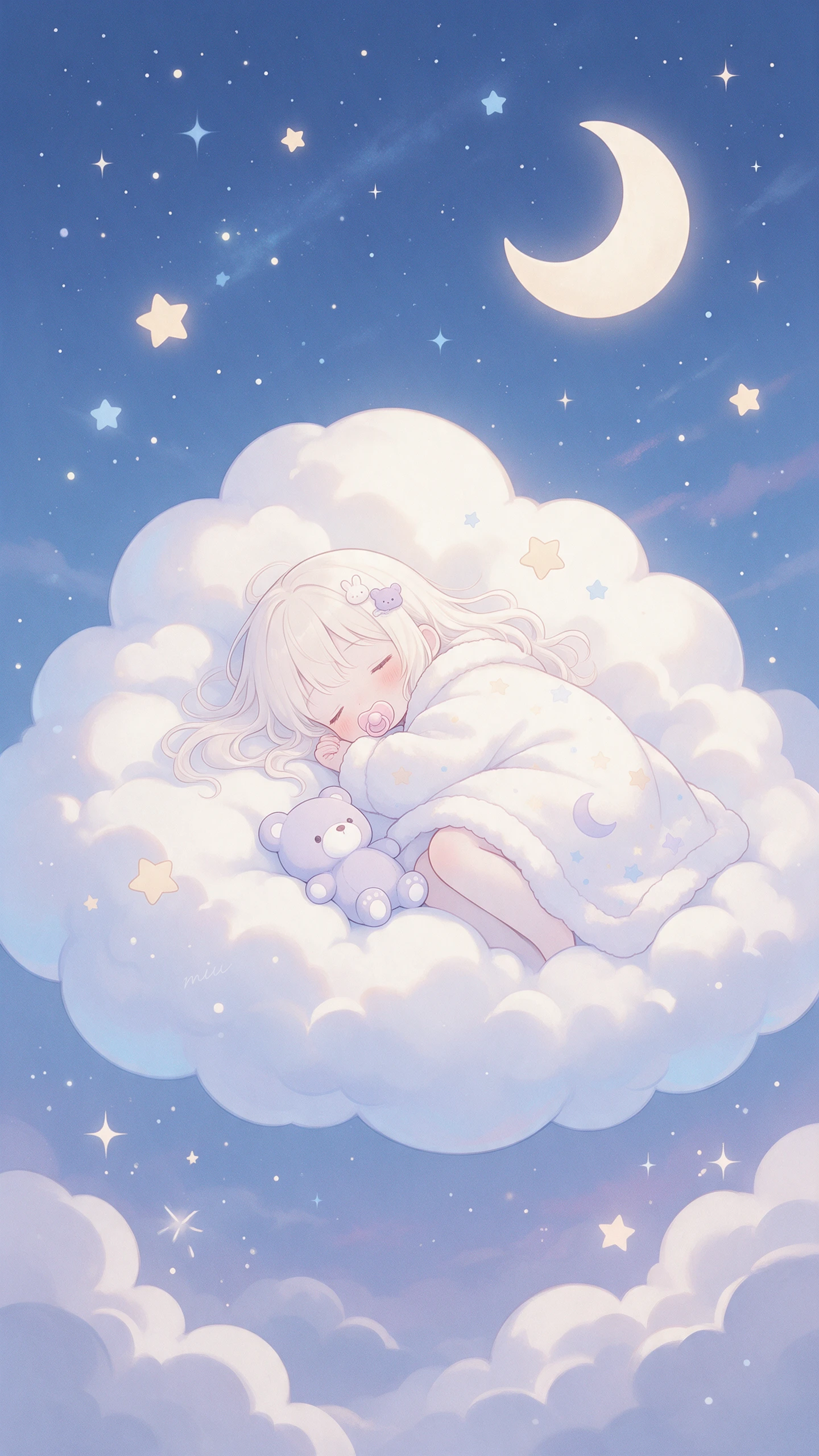
AI Wallpaper Generator preview
AI wallpaper scene preview
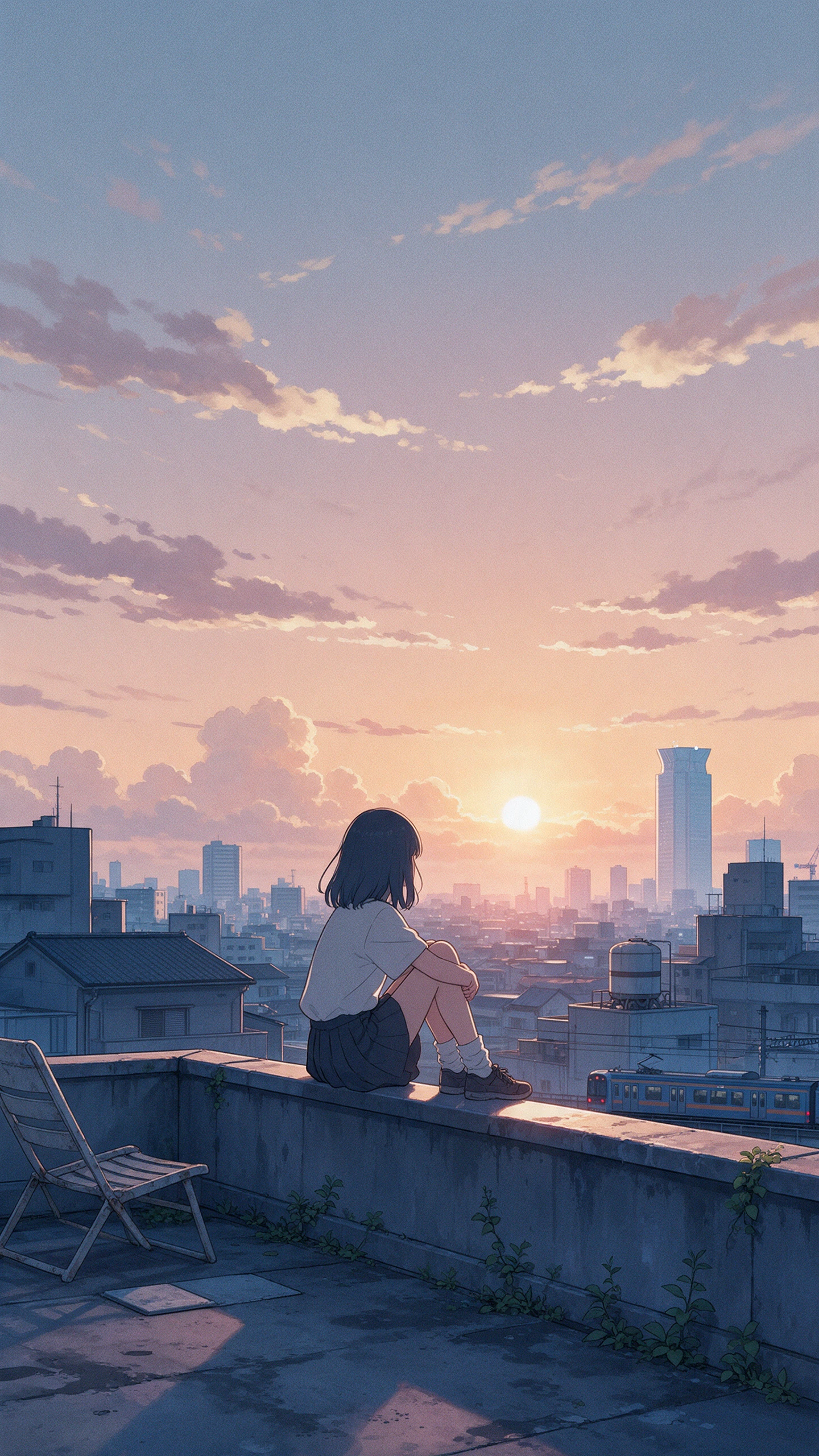
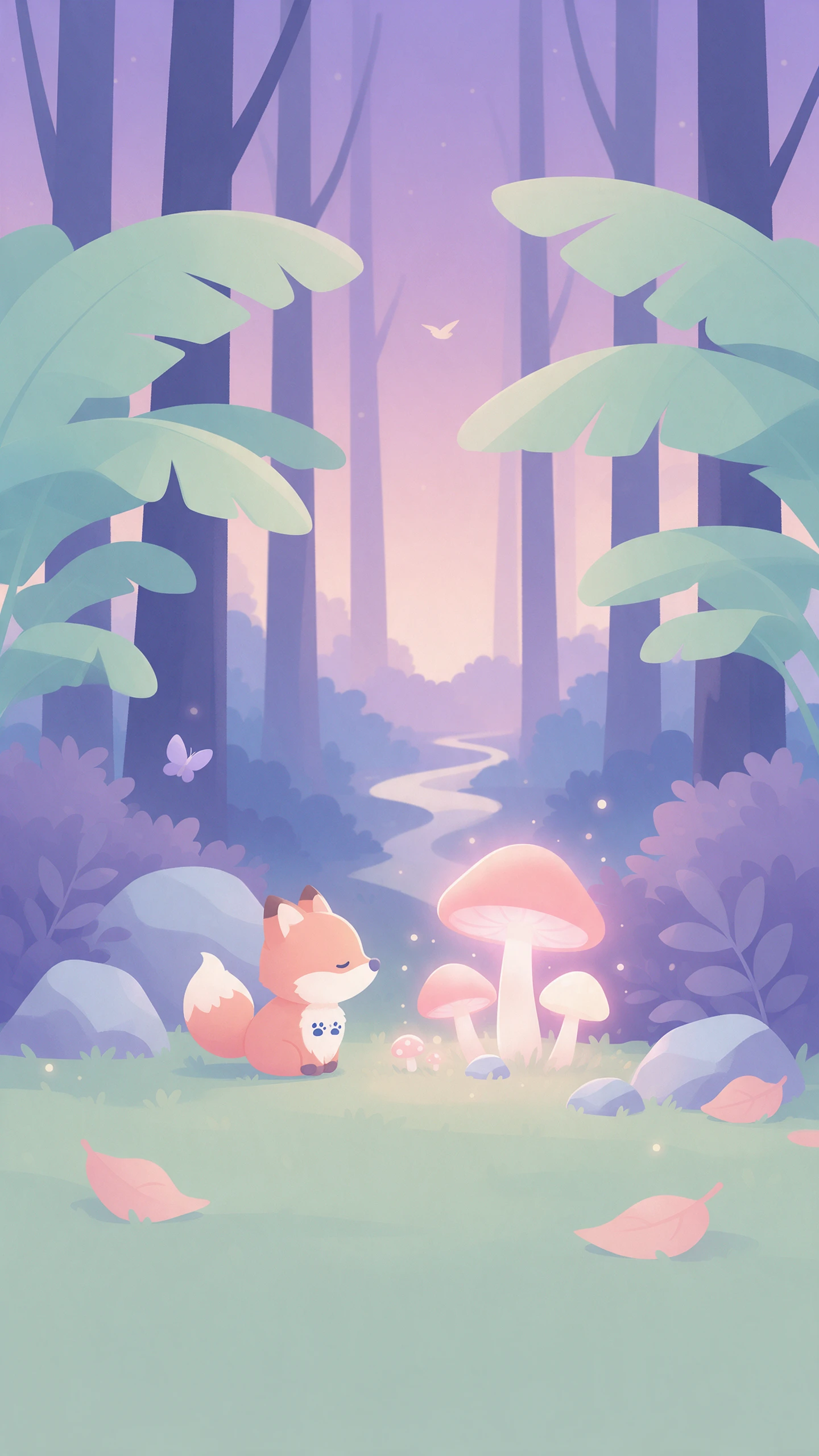
AI Wallpaper Generator preview
AI wallpaper scene preview

Top Features of the Magiclight AI Wallpaper Generator

Your wallpaper is on screen all day, so it should match your screen and your taste. The Magiclight AI wallpaper generator starts with a short description of the scene you want.
Generate an AI Wallpaper Now
3D decoration

Text to Image with No Photo Needed

Write the scene in words and skip the photo search. A floating island or a city on the moon is fair game. Go for the Text to Image mode out of the 2 options for creating wallpapers with prompts.

3 Reference Formats Up to 20MB

Upload JPG, PNG, or WEBP files as image references. A full-size phone photo works, where each file can be up to 20MB in size, so there is no need to compress it for uploading.

4 Screen Shapes for Phone and Desktop

Choose 9:16 for a phone or 16:9 for a desktop before you create the image. Pick 4:3 for a tablet or 1:1 for a square display. Set the frame first so nothing is cut off.

Frame to Video for Moving Screens

Use a finished wallpaper as the start frame in Frame to Video. Add a second image as the end frame. This creates a short clip for screens that support video backgrounds.

Who Can Use the Magiclight AI Wallpaper Generator
Every screen deserves something better than a stock image. Phone users and remote workers use the AI wallpaper generator in Magiclight AI as much as gamers and small brands.
For Phone Customizers
Pick 9:16 so a lock screen fills the entire phone display.
Use Reference Image to Image to restyle a holiday photo.
Start a wallpaper in the Magiclight iPhone app on the go.
For Remote Workers
For Remote Workers
Ask for a quiet left side in the 500-character prompt.
Use Text to Image for a calm scene with no photo needed.
Download the finished image and set it as your background.
For Gamers
For Gamers
Compare Seedream 5.0 Pro and Nano Banana 2.1 for neon scenes.
Use Frame to Video to animate a start frame and an end frame.
Upload a game screenshot under 20MB as a reference.
For Brands and Teams
Add up to 10 references for a logo and a color palette.
Upload brand files as JPG, PNG, or WEBP references.
Use Image to Video to animate a branded scene for a lobby display.
What Makes MagicLight AI
Wallpaper Generator Different
A wallpaper should match your screen, your photos, and your taste. Magiclight AI wallpaper generator gives you several ways to get there.
10 References for One Screen
Combine a beach photo, a color palette, and a favorite artwork in one run. Up to 10 references can guide a single design. Mention in the prompt what each one adds.
Text to Image for Basic Prompts
Describe the scene in 500-characters and press Create Image. A floating island or a city on the moon needs no source file. Start from nothing but an idea.
Animate Wallpapers from Image to Video
Switch from the Image tab to the Video tab in the same account. Image to Video starts from the wallpaper you made. Try a still and a moving version side by side.
6 AI Models for Different Looks
Run one scene on Seedream 5.0 Pro and then on Nano Banana 2.1. Each model reads the same description differently. Keep the version you want to see every day.
iPhone App for Quick Changes
Start a wallpaper in the Magiclight iPhone app when you see a scene you like. Set the result as your background after you create it. Try a new look each week.
Create Matching Wallpapers for Multiple Devices
Give your phone, tablet, and desktop a consistent visual look with Magiclight AI. Use your favorite generated wallpaper as a reference to create matching designs for other screens.

How to Make a Wallpaper with Magiclight AI Wallpaper Maker

Making a custom screen takes 3 quick steps in the Magiclight AI wallpaper maker. Start with your screen shape so nothing gets cut off.

1.

Step 1. Open the Image Tab

Go to the Image section of the Toolbox and choose how to begin. Use Text to Image for a brand-new scene or Reference Image to Image to work from a photo on your phone.

2.

Step 2. Pick Your Screen Shape and Details

Select 9:16 for a phone or 16:9 for a desktop. Use 4:3 for a tablet or 1:1 for a square display. Write the place and the colors, and the mood within the 500-character limit.

3.

Step 3. Create and Set It

Choose an AI model out of the 6 options and press Create Image. Download your favorite result and set it as your background.

FAQs on AI Wallpaper Generator

Which wallpaper sizes can I create?

Choose 9:16 for a phone or 16:9 for a desktop. Use 4:3 for a tablet or 1:1 for a square display in the Magiclight AI wallpaper generator. Set the shape in the Output dropdown before you press Create Image so the scene fits your screen.

Can I turn my own photo into a wallpaper?

Yes, open the Image tab and pick Reference Image to Image. Upload a JPG, PNG, or WEBP file up to 20MB and describe the new look in the prompt. Your photo guides the scene while the style follows your words.

How do I keep icons readable on my wallpaper?

Ask for open sky or a soft blur, or a calm corner in the 500-character prompt. Name the spot where the clock and the icons will sit. Keep that area quiet so icons and widgets stay easy to read.

Can I make a moving wallpaper?

Yes, Frame to Video animates a start frame and an end frame, while Image to Video starts from a single still. Use the clip on a device that supports video backgrounds.

Can I create wallpapers on my phone?

Yes, the Magiclight iPhone app lets you start a wallpaper wherever you are. Describe the scene, pick a shape, and then set the finished image as your background.

Is the AI wallpaper generator free to try?

New accounts can try the tool with free bonus credits. Each model shows its price on the Create Image button before you run it so you always know the cost first.

Create Stunning Wallpapers with Magiclight AI

Your phone, your desktop, and your tablet can all look new today. Describe the scene you want in the Magiclight AI wallpaper generator and see it fit your screen.