








Hero background

Cartoon Video Maker

Create entertaining cartoon videos with MagicLight AI, featuring expressive characters, colorful scenes, and engaging stories. No animation skills needed.

Create a Cartoon Video for Free
Story Grid 1
Nano Banana
Google VEO 3
Sora 2
Gemini
Hailuo
Kling
Midjourney
Qwen
Seedance
Wan
Nano Banana
Google VEO 3
Sora 2
Gemini
Hailuo
Kling
Midjourney
Qwen
Seedance
Wan

Explore the Features of theMagiclight AI Cartoon Video Maker

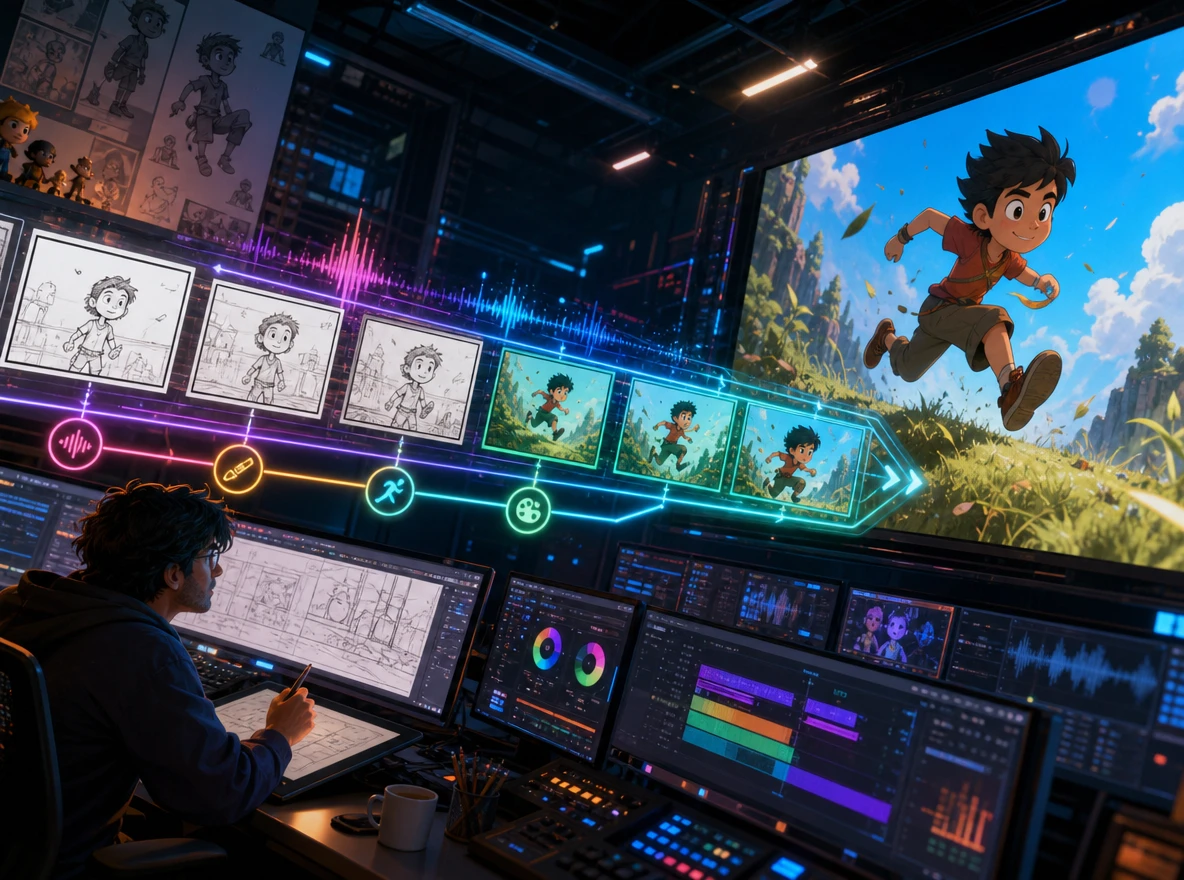
A funny cartoon character needs the right voice, facial expressions, and movements to tell a story. The Magiclight AI cartoon video maker adds it all after you set the scenes.

MagicLight Agent for Cartoon Story Ideas

Describe your main character, such as a nervous robot or a bossy duck, to MagicLight Agent. Let it develop a cartoon script with dialogue, funny situations, and scenes you can review before generation.

Create a Cartoon Video for Free
MagicLight Agent develops cartoon script

Animate One for Cartoon Scene Movements

Bring selected cartoon scenes to life using Magiclight AI Animate One. Add movement to character reactions, funny gestures, or action moments while keeping quieter scenes as still images.

Create a Cartoon Video for Free
Animate cartoon character movements

37 AI Voices for Cartoon Characters

Choose from 37 voice options in Magiclight AI to give your cartoon characters distinct personalities. Preview different voices for funny sidekicks, villains, or narrators, and select the ones that suit your story.

Create a Cartoon Video for Free

AI voice selection for cartoon roles

16 Subtitle Styles for Cartoon Videos

Select any of the 16 subtitle styles in Magiclight AI to display character dialogue and narration. Pick readable captions that suit your cartoon's visual style and help viewers follow the story without sound.

Create a Cartoon Video for Free

Custom subtitle styles for cartoons
Who Can Use the Magiclight AI Cartoon Video Maker
Some ideas need a character before they need a camera. The cartoon video maker in Magiclight AI helps classrooms, brands, families, and artists tell them.
Here are some of the use cases for Magiclight AI Cartoon Video Maker:
Educational cartoon lesson
For Classroom Lessons
Use MagicLight Agent to turn a science topic into a short cartoon lesson.
Choose Picture Books from the visual styles for younger students.
Add one of 16 subtitle styles so students can follow the dialogue.
Brand mascot cartoon video
For Company Mascots
Create a mascot using the 1,000-character character description.
Save your mascot in the Character Library for future cartoon videos.
Use Lip Sync to animate the mascot's dialogue in promotional clips.
Custom birthday cartoon
For Birthday Cartoons
Use AI Edit to add festive decorations to a cartoon birthday scene.
Choose 9:16 for vertical birthday cartoons shared on phones.
Pick from 40 background tracks for a cheerful birthday atmosphere.
Comic to animated cartoon
For Comic Strip Artists
Turn comic dialogue into scenes using the 12,000-character script input.
Choose the Comics visual style to guide the cartoon's illustrated look.
Use Nano Storyboard to adjust camera angles for dramatic comic scenes.

 How to Use the Magiclight AI Cartoon Video Maker

Create an animated cartoon with the Magiclight AI cartoon video maker. Describe your story, customize the characters, and bring your scenes to life. Follow these 4 steps to make your cartoon video.

1.

Step 1. Enter Your Cartoon Story

Open Story to Video in Magiclight AI. Describe your cartoon idea or enter a script of up to 12,000 characters. Let MagicLight Agent develop the storyline and dialogue.

2.

Step 2. Choose the Visual Style and Characters

Select a visual style, such as 3D Cartoon or Comics, and set the video language and aspect ratio. Choose characters from the Character Library or create your own using descriptions.

3.

Step 3. Customize and Animate Your Scenes

Open Nano Storyboard to review the generated scenes. Adjust character expressions, poses, and camera angles using AI Edit. Select Animate One for scenes that need movement.

4.

Step 4. Add Elements and Generate Your Cartoon

Assign the background music and subtitles from the available options. Generate your cartoon video, review the result, and download the MP4.

What Users Say About the Magiclight AI Cartoon Video Maker

Marlene Osei

Teacher

I made a cartoon about why leaves change color in Picture Book style, with subtitles on Magiclight AI. The students followed the narration easily, and the villain stayed silly instead of scary.

Kyle Brennan

YouTuber

I described a bossy duck to the Magiclight Agent and trimmed the jokes that ran long. A Low angle on the bully and Smoke on the exit made the gag land.

Ana Ferreira

Marketing Manager

We created a cartoon series featuring our company mascot with Magiclight AI. The cartoons made our product announcements more engaging.

Theo Lindqvist

Illustrator

I wanted to see my comic strip characters move beyond the page. Magiclight AI helped me turn their dialogue into animated scenes while keeping the illustrated style.

FAQs on Cartoon Video Maker

Could my own footage be turned into a cartoon?

Yes, for members, because the Video to Video mode of the cartoon video maker takes your clip. Describe the cartoon look and what must stay, such as the moves and the framing. Check the result against your original footage.

Can the cartoon characters talk on screen?

They can because each character gets 1 of 37 voices or a cloned voice. Lip Sync is a member feature that moves the mouth in shots with one character facing the camera. Check each close-up before you download.

Which cartoon style works for young kids?

Picture Book and 3D Cute tend to suit preschoolers with soft shapes and gentle colors. Turn the voiceover speed down a little and keep each scene’s text short. Preview the cartoon with the child’s age in mind.

Are long cartoons possible on a free plan?

No, because the free plan caps a cartoon at 1 minute and adds a watermark, while paid plans support up to 50 minutes. A gag-driven short usually lands best under 3 minutes. Check the plan page for the current limits.

Can I reuse the same cartoon character in different videos?

Yes. Magiclight AI lets you save custom characters in the Character Library for future projects. Select your saved character when creating another cartoon to maintain a familiar appearance across episodes.

Can I edit cartoon scenes before generating the final video?

Yes. Magiclight AI provides Nano Storyboard to review and customize your cartoon scenes. Use AI Edit to adjust character expressions, poses, backgrounds, or camera angles.

Create Your AI Cartoon with Magiclight AI

Gift a homemade cartoon to someone this weekend that stars a character you invented. Type one premise into the Magiclight AI cartoon video maker to get the first draft started.