Hero background

Doodle Generator

That little design in your imagination could become a cute notebook doodle. Describe your idea, choose a drawing style, and let Magiclight AI turn it into a sketch. No drawing skills needed.

Create a Doodle for Free
Cute Hand-Drawn Doodle Character Generator Preview
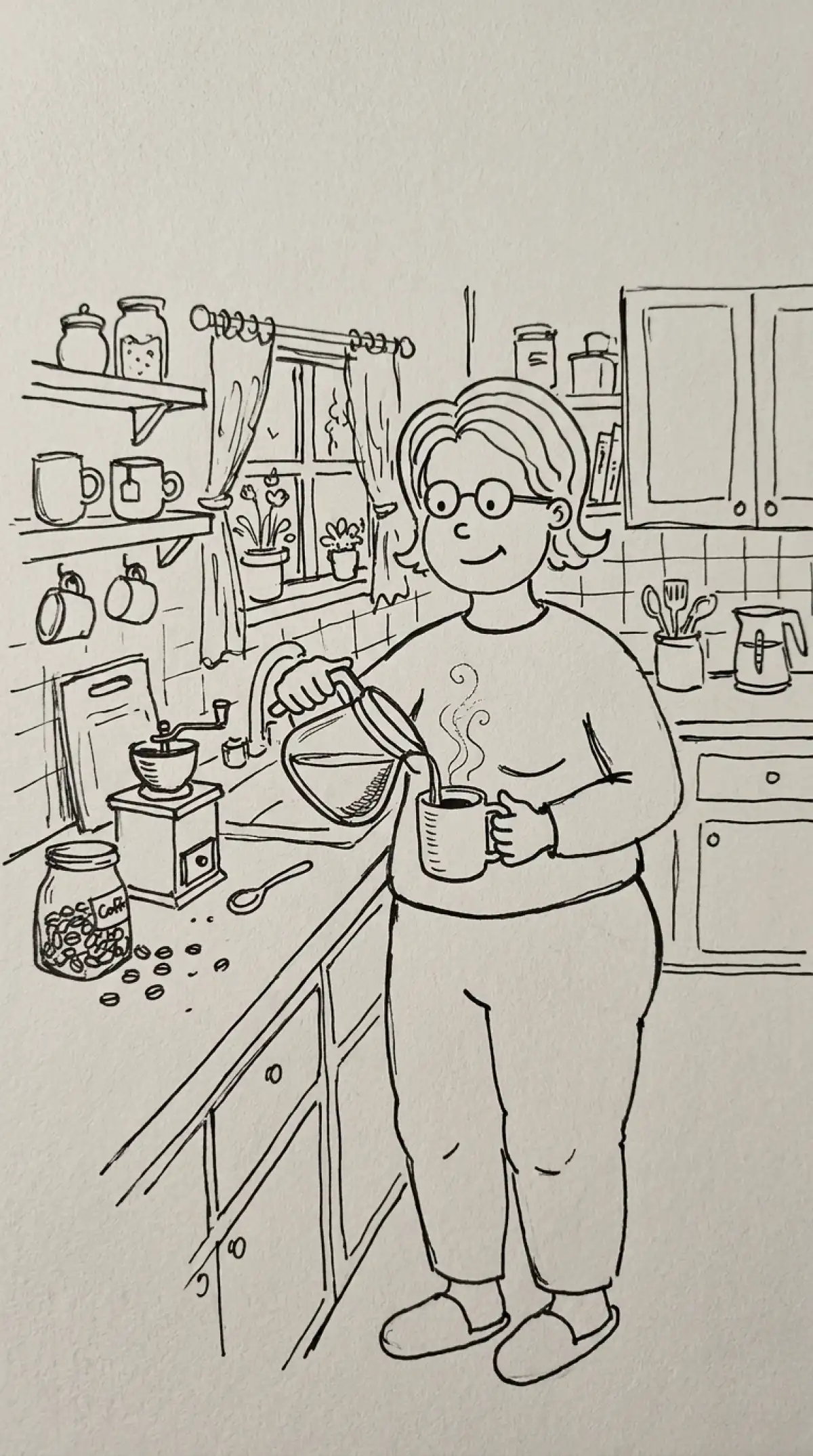
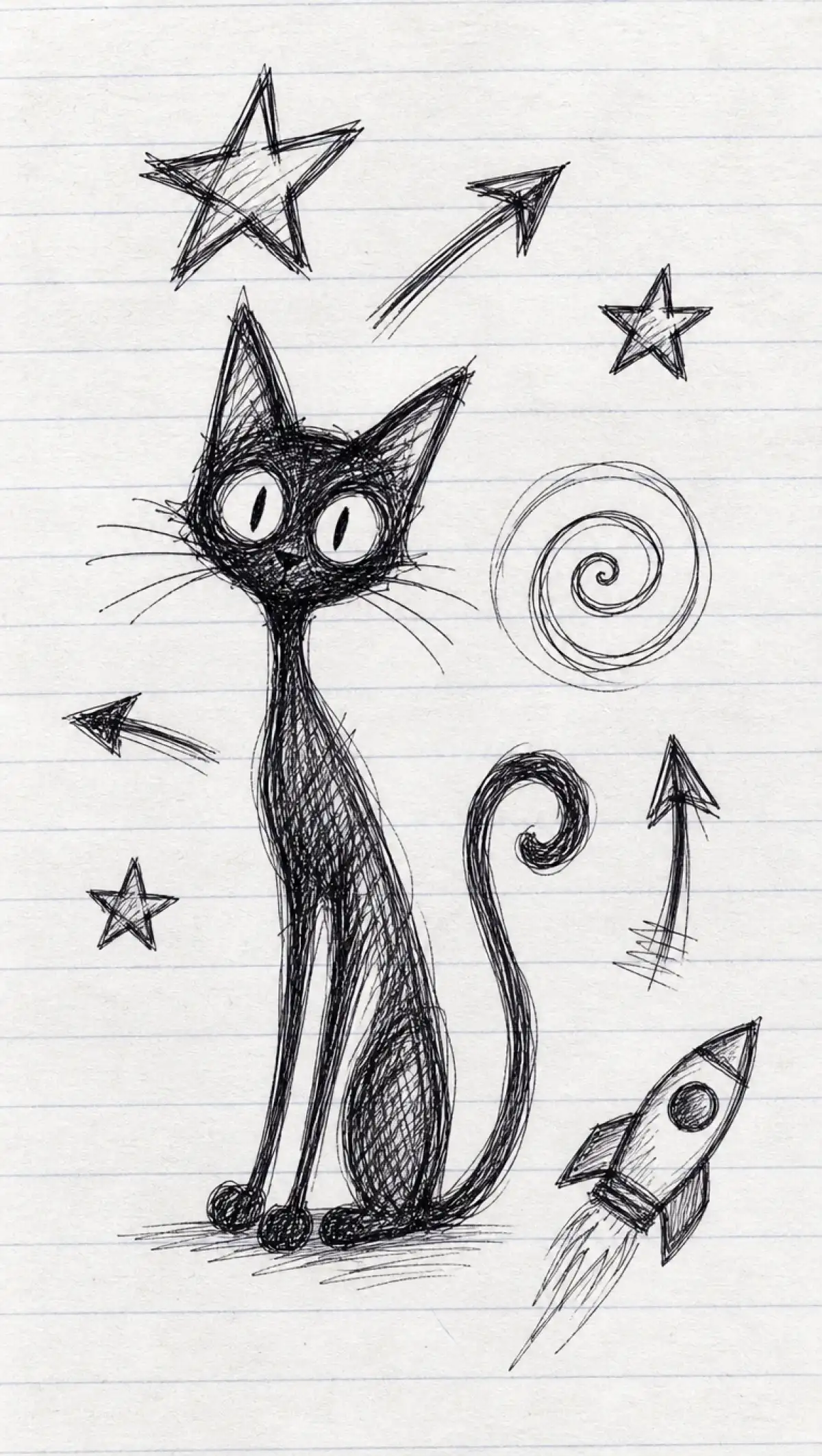
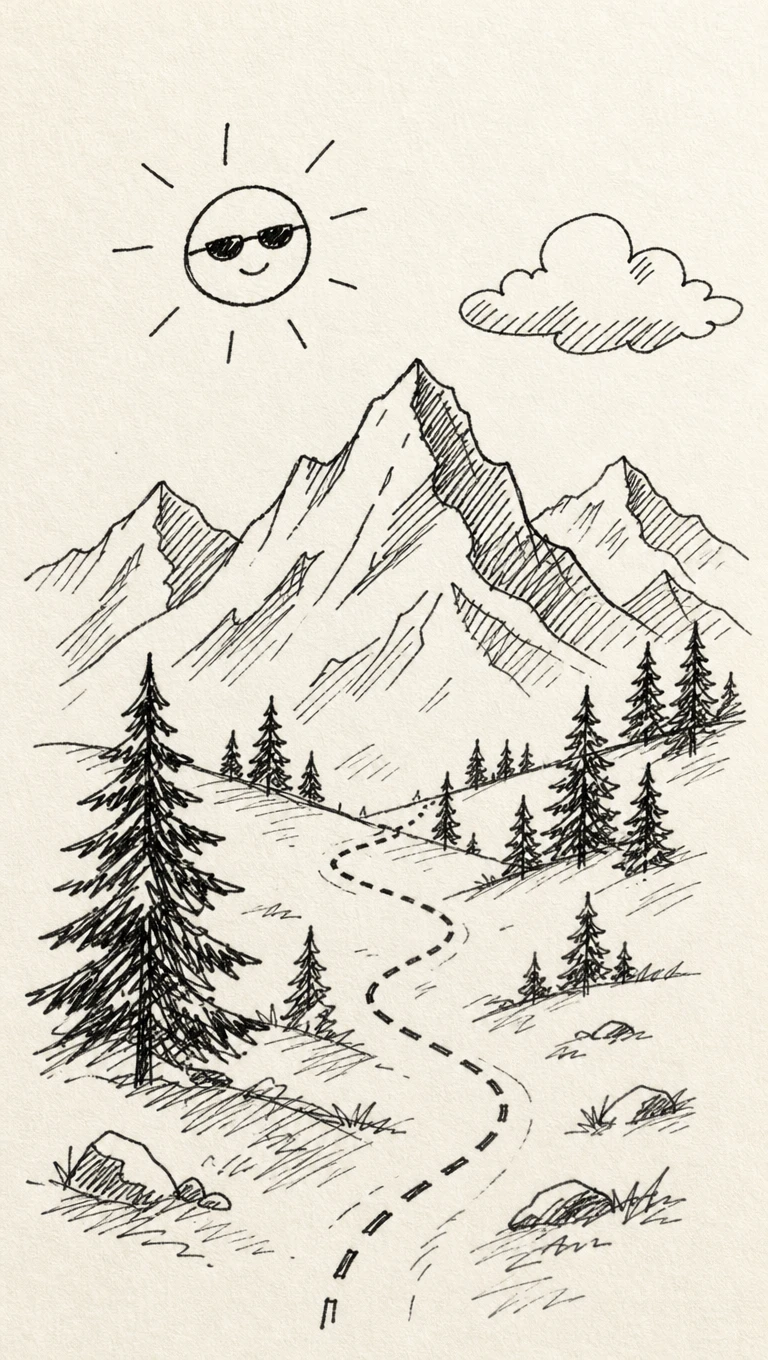
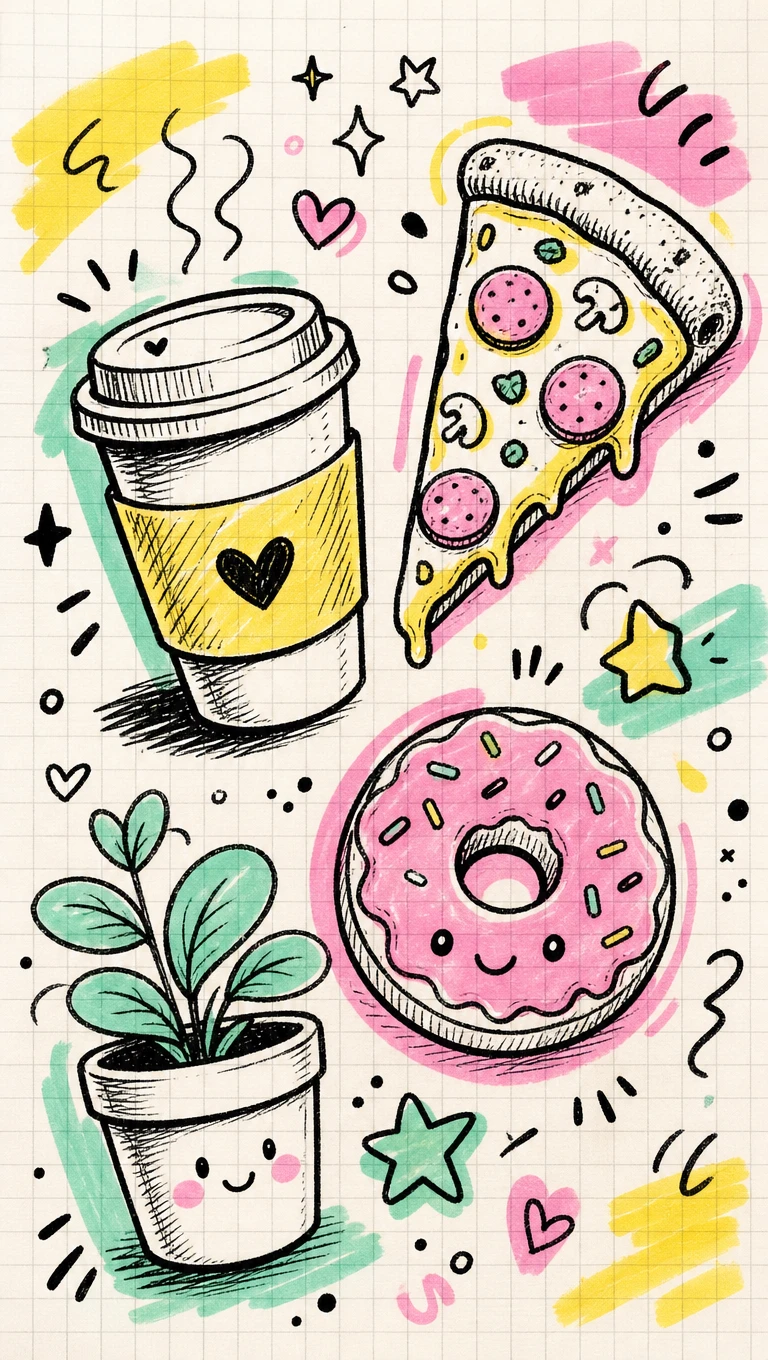
AI Generated Notebook Doodles with Hand-Drawn Sketch Details
Custom Doodle Illustration and Hand-Drawn Sketch Design
Photo to Hand-Drawn Doodle Transformation Example
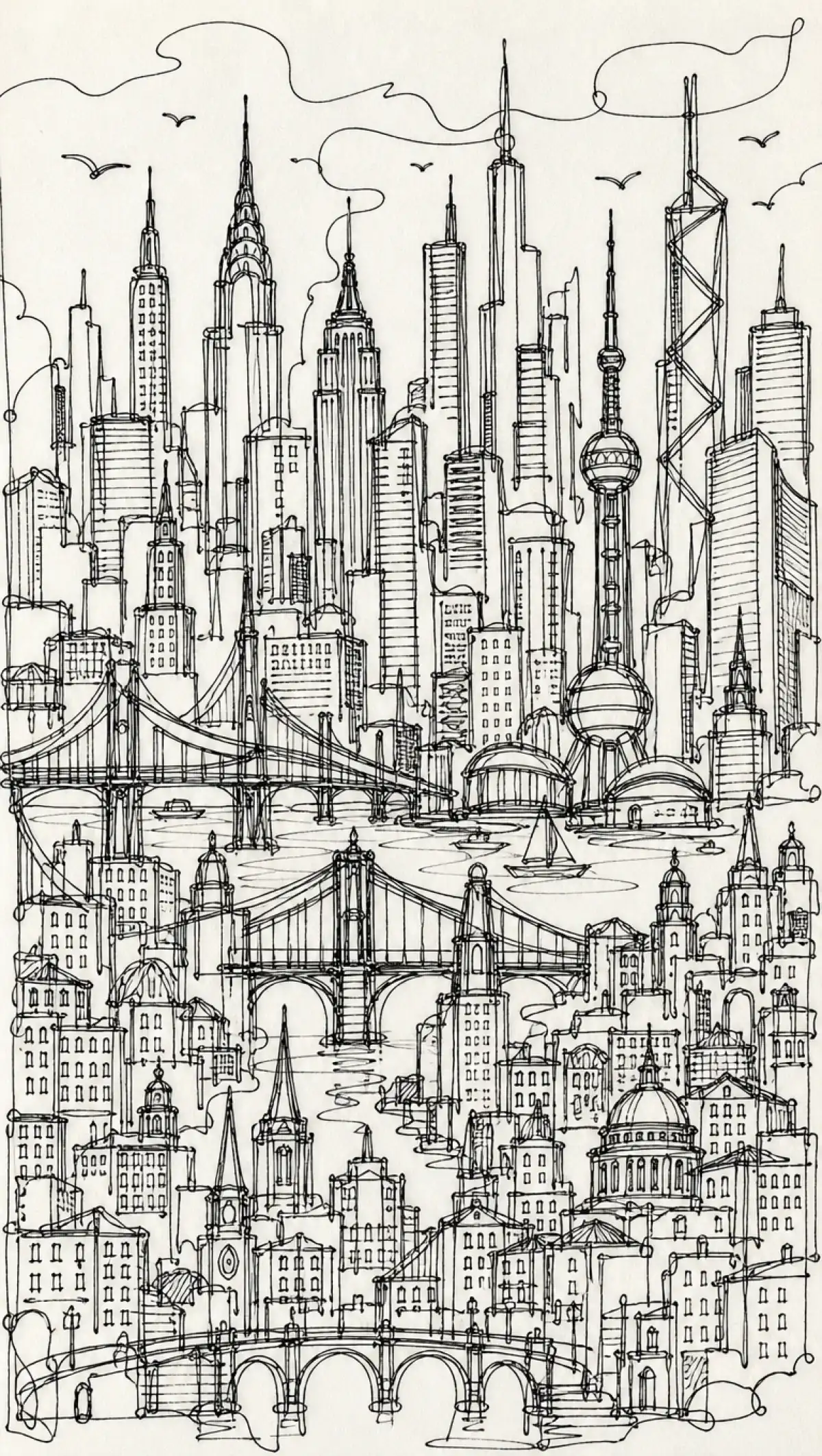
Doodle Illustration Collection with Different Drawing Styles
Personalized AI Doodle Artwork and Sketch Example

Explore the Magiclight AI Doodle Generator Features

A coffee cup drawn with a pen looks different from a playful cat sketched in pencil. The Magiclight AI doodle generator lets you explore different drawing styles, paper textures, and creative details.
Create a Doodle for Free
Doodle Generator Decoration

10 AI Image Models for Different Doodle Styles

Explore 10 image models in Magiclight AI to create hand-drawn sketches. Compare Nano Banana and GPT Image models using the same prompt to see differences in line thickness, shading, and drawing details.

10 Reference Images for Matching Doodles

Upload up to 10 reference images showing your characters, pets, or favorite sketch styles. Magiclight AI uses these pictures to guide the appearance of your doodles and create illustrations with a similar hand-drawn feel.

500 Characters to Describe Your Doodle

Enter up to 500 characters to explain your preferred sketch style. Mention a black ballpoint pen, lined notebook paper, wobbly outlines, or light pencil shading to guide the final artwork.

Reference Image to Image for Photo Doodles

Upload a photo of your pet, house, or favorite object to Magiclight AI. Use Reference Image to Image to explore a hand-drawn version with simple outlines, pencil textures, or playful sketch details.

Who Can Use the Magiclight AI Doodle Generator
Doodles end up on journal pages, worksheets, slides, and cafe menus. The Magiclight AI doodle generator also helps journal creators and cafe owners design hand-drawn visuals for their projects.
Journal Fans Creating Printable Hand-Drawn Doodle Pages
For Journal Fans
Choose 4:3 to create a doodle collection for printable journal pages.
Switch to Seedream 5.0 Pro for soft pencil doodles with gentle shading.
Revisit your favorite notebook sketches through Image History.
Teachers Turning Children's Drawings into Cleaner Doodles
For Teachers
Upload children's drawings under 20MB to create cleaner doodle versions.
Use Text to Image to create simple doodles for classroom worksheets.
Choose 1:1 for square doodle icons on learning cards.
Presenters and Students Using Hand-Drawn Doodle Illustrations
For Presenters and Students
Use Frame to Video to animate a doodle arrow for presentations.
Generate doodle diagrams with labeled parts using Text to Image.
Select 16:9 for hand-drawn illustrations on presentation slides.
Small Brands and Cafes Designing Hand-Drawn Doodle Visuals
For Small Brands and Cafes
Create hand-drawn food icons for cafe menus using 10 image models.
Use Reference Image to Image to turn a brand mascot into a doodle.
Animate a finished cafe doodle with Magiclight AI Image to Video.
Why Choose the Magiclight AI Doodle Generator
Once the sketch sheet is done, the fun can keep going. Magiclight AI takes the doodle generator's output into video and sound.
20MB Uploads for Dresses and Venues
Upload hand-drawn sketches as JPG, PNG, or WEBP files up to 20MB each. Magiclight AI uses the original lines and shapes to guide the new illustration. Clear scans help preserve small details from your artwork.
Text to Image for Original Doodle Collections
Use Text to Image in Magiclight AI to create doodle collections without uploading artwork. Describe a page of tiny stars, coffee cups, or flowers in matching pen styles for journals and worksheets.
4 Aspect Ratios for Doodle Artwork
Choose from 4 aspect ratios in Magiclight AI to suit your doodle project. Use 1:1 for sticker designs, 4:3 for printable worksheets, or 16:9 for hand-drawn presentation backgrounds.
Image History for Your Previous Doodles
Find your earlier sketches in Magiclight AI's Image History. Revisit a favorite doodle character, compare new drawing styles, or download a previous design when preparing another journal page or classroom activity.
Re-edit for Refining Your Doodle Designs
Use Re-edit in Magiclight AI to refine a doodle after generating it. Request thicker outlines, lighter pencil shading, or fewer background details. Adjust your instructions to create a cleaner sketch.
Video to Video for Animated Doodle Clips
Turn recorded footage into a hand-drawn animation with Magiclight AI Video to Video. Upload a short clip and describe the doodle style. The video uses your footage to guide movement and composition.

How to Make Doodles With Magiclight AI

Pick the pen and the paper in your head before you open the Toolbox. The Magiclight AI doodle generator then draws that page from a short line of words in 3 steps.

1.

Step 1. Open the Image Tab

Open the Toolbox and choose the Image tab. Pick Text to Image for new ideas or Reference Image to Image to doodle a photo of up to 20MB as a JPEG, PNG, or WEBP.

2.

Step 2. Describe the Doodles

List the objects, the pen type, and the paper in a prompt of up to 500 characters. Pick 1 of the 6 image models, such as Nano Banana 2 for a fast draft.

3.

Step 3. Generate the Doodle Sheet

Choose 1:1, 4:3, 16:9, or 9:16 and raise the outputs for a full sheet. Press Create Image and download the doodles you like.

FAQs on Doodle Generator

How is a doodle different from line art?

Doodles are loose and playful, and hand-drawn, while line art is cleaner and more precise. Use the MagicLight AI Doodle Generator for a sketchbook feel. Use the AI Line Art Generator for neat outlines.

Can I get a transparent background?

Ask for a plain white background in the prompt. Then remove the white in an editing app if you need transparency. Magiclight AI downloads standard image files.

Can I turn my child's drawing into a cleaner doodle?

Yes, upload the drawing in Reference Image to Image mode and ask for a tidier doodle with the same idea. Keep the child's ideas in the prompt. Frame both versions side by side as a family keepsake.

Can I use doodles in products I sell?

Yes, once your Magiclight AI plan covers resale rights. Check each shop’s rules on AI art. Keep the original files.

Can I copy famous cartoon characters as doodles?

No, because cartoon characters are protected. Doodle your own ideas, pets, and objects. Original doodles are also safer to share.

Is the doodle generator free to try?

Yes, a new account can try one doodle sheet at no cost. Describe a few objects to test it. Upgrade for more sheets and videos.

Create Quick AI Doodles from Magiclight AI

Bring the things you want drawn and the pen you love. The doodle generator in Magiclight AI sketches them for your next page.