Hero background

AI Illustration Generator

Turn your ideas into illustrations with MagicLight AI. Describe the scene, choose an art style, and upload a character reference if you have one. Create unique illustrations without using design software.

Create AI Illustrations for Free
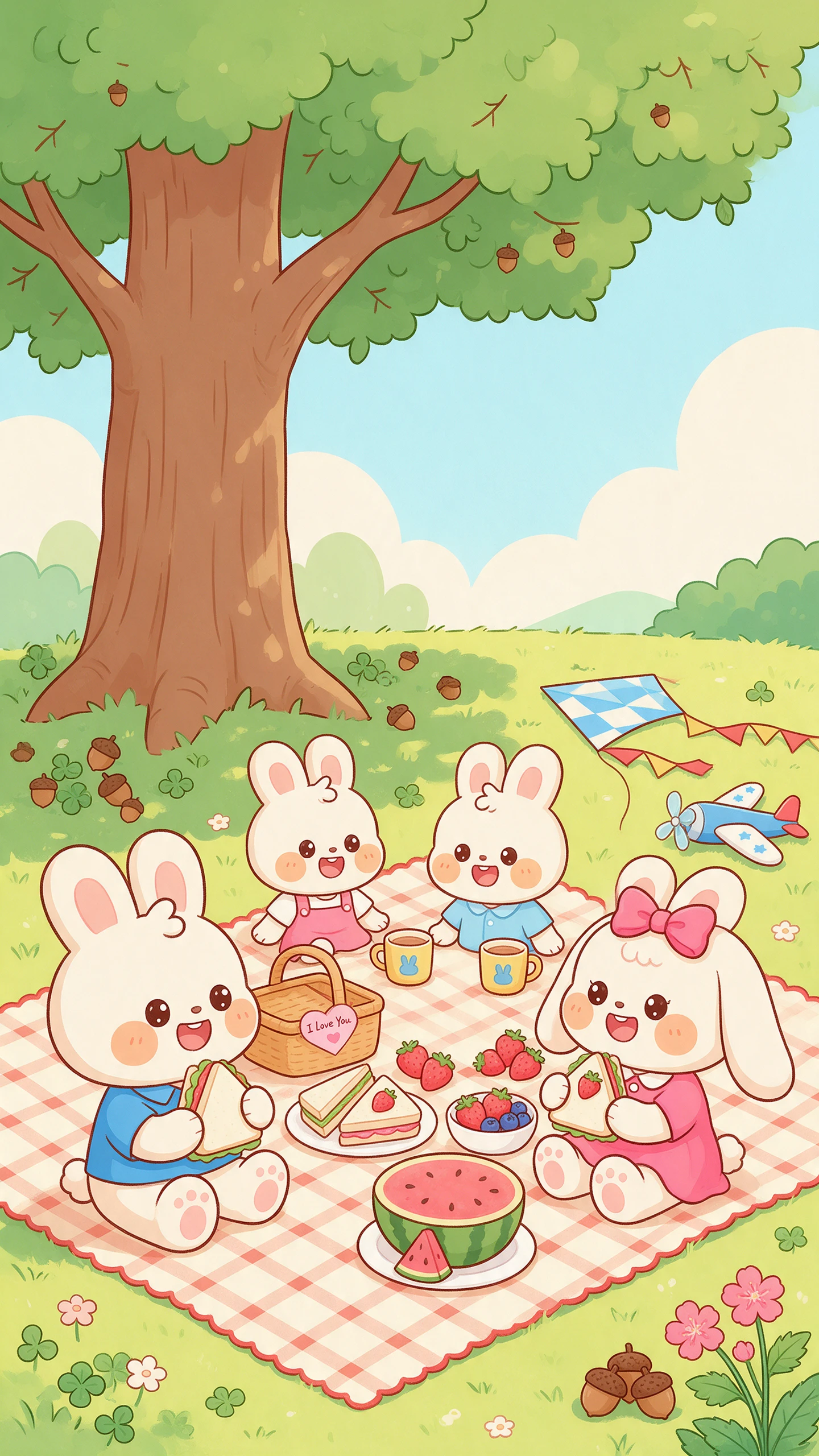
AI Illustration Generator preview
AI illustration preview
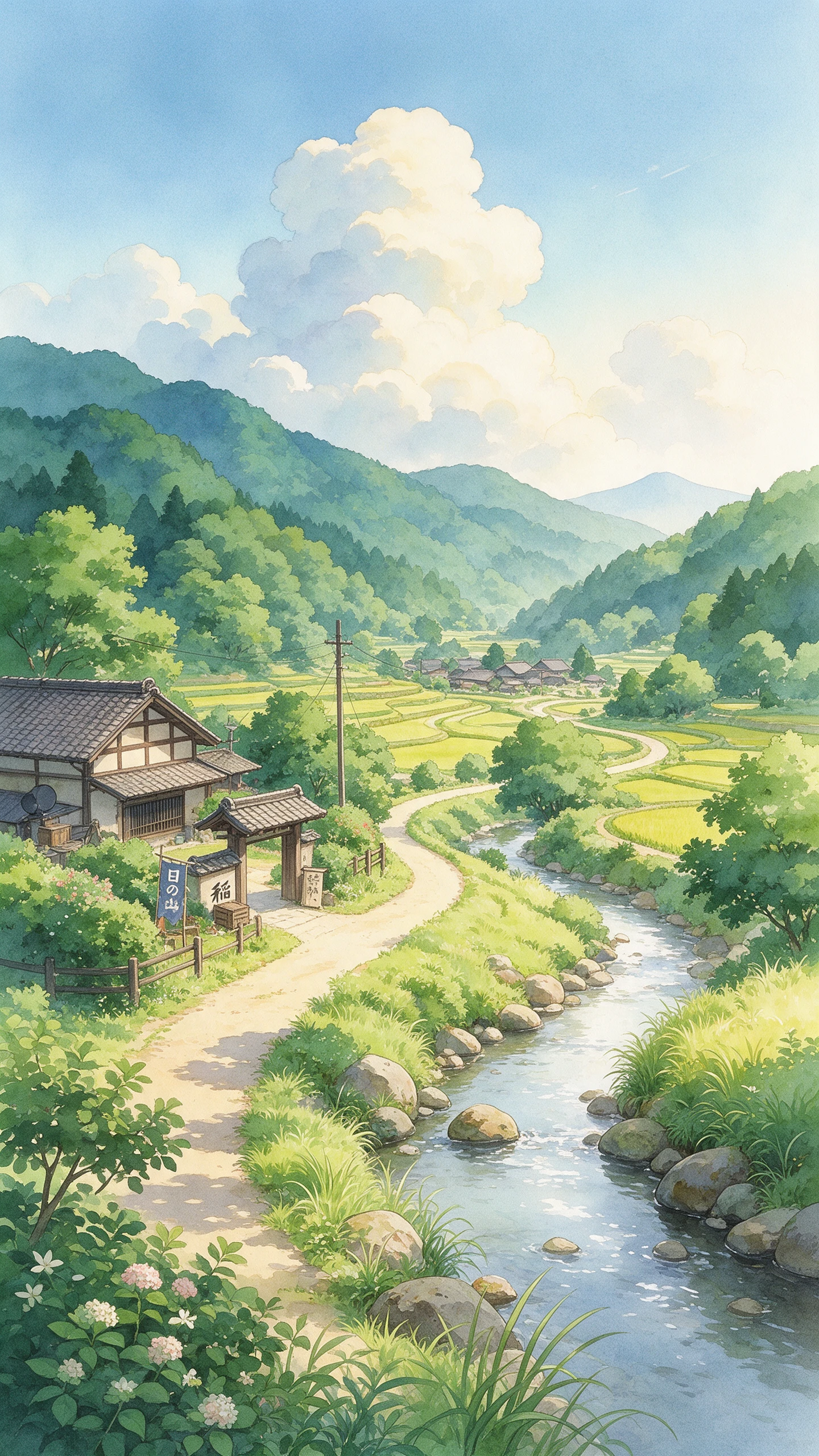
AI Illustration Generator preview
AI illustration preview

Explore the Features of Magiclight AI Illustration Generator

One image can explain an idea, sell a product, or tell a whole story. The Magiclight AI illustration generator turns your brief into art for the page, the package, or the post.
Generate AI Illustration Now
3D decoration

6 Image Models with Distinct Hands

Pick Seedream 5.0 Pro for painterly storybook art. Choose Nano Banana 2 or 4 other AI models for crisp and graphic editorial pieces. Each model draws with its own personality.

2 Modes for Any Starting Point

Text to Image mode starts from your words alone. Reference Image to Image mode starts from a rough sketch. Your pencil layout can become a finished color illustration in Magiclight AI.

4 Frame Shapes for Every Layout

Use 16:9 for article headers and 1:1 for labels. Pick 4:3 for worksheets and 9:16 for posters. Choose the shape first so the art fits the layout.

20MB Reference Sketch Scans

Add JPG, PNG, or WEBP reference scans up to 20MB each. Fine pencil lines stay visible in the final art and your drawing keeps its detail in it.

Who Can Use the Magiclight AI Illustration Generator
A lesson or a label, or a book page each needs its own kind of art. The AI illustration generator in Magiclight AI gives every group a quick way to get it.
For Editors and Bloggers
Pick the 16:9 frame for a wide header on every article.
Compare Seedream 5.0 Pro and Nano Banana 2 for your editorial look.
Write the style and mood in the 500-character prompt for each story.
For Picture Book Authors
Turn a pencil sketch into color art in Reference Image to Image mode.
Upload JPG, PNG, or WEBP page scans up to 20MB each.
Turn a 12000-character script into an animated tale with Story to Video.
For Product Designers
Download AI label art or re-edit it to connect it with the product.
Add up to 10 product photo references so shapes stay accurate.
Draw several takes per run to compare label styles side by side.
For Course Creators
For Course Creators
Draft worksheet art in the iPhone app between classes.
Start from Text to Image mode to illustrate a lesson concept.
Animate one image for 30 seconds with Video as a lesson opener.
Why Choose Magiclight AI
Illustration Generator
Readers notice when a character changes from one page to the next. Magiclight AI illustration generator is built to prevent that.
A Visual Style You Can Reuse
Upload 3 to 5 images that share one look and describe that style in plain words. Test a few samples and save the result. Later projects start from your style and not from zero.
4 Frame Shapes in the Output Settings
Pick 16:9, 4:3, 1:1, or 9:16 before you draw. One idea can fill a header, a slide, a label, and a poster. Each piece fits its layout with no crop.
Readable Words in Poster Art
GPT Image 2.5 handles posters and thumbnails that carry words. Add a title or a short slogan to your prompt. Check the spelling on the result before you publish.
Video and Audio Tabs for Moving Art
Use Video to animate a finished illustration for up to 30 seconds. Pick from 20 engines for the motion you like. Add sound in the Audio tab for a lesson opener or a social post.
One Image Panel for Every Setting
The Image panel holds Upload Images, Image Model, Outputs, and Aspect Ratios in one view. Set them and press Create. You never jump between screens to adjust a run.
Browser and iPhone Access
Open Magiclight AI in a browser with nothing to install. Use the iPhone app to sketch ideas on the go. Check the results on your phone before the deadline hits.

How to Make an Illustration with Magiclight AI

A series looks consistent when it starts from the right files. The AI illustration generator in Magiclight AI draws from the scene and style you describe.

1.

Step 1. Choose the Mode and Add References

Open the Toolbox and select the Image tab. Choose Text to Image mode to start from words or Reference Image to Image mode to start from a sketch. Add a character sheet or a style sample to keep a series consistent.

2.

Step 2. Describe the Style and Scene

Type the style, the scene, the colors, and the mood in up to 500 characters. Name the purpose, such as a book page or an article header. Try a flat vector with a soft palette for a calm look.

3.

Step 3. Pick the Frame and Create

Pick 16:9 for headers, 1:1 for labels, 4:3 for worksheets, and 9:16 for posters. Choose any AI model for the finish you want. Click Create Image and compare the takes on one screen.

FAQs on AI Illustration Generator

How is this different from the AI Illustration Video Generator?

The video generator turns stories into animated videos. The Magiclight AI illustration generator creates single illustrations from a prompt of up to 500 characters.

Can I keep the same character in every illustration?

Yes, add a character sheet or an earlier illustration as a reference with up to 9 uploads per image. Use JPG, PNG, or WEBP files up to 20MB each. Your cast then stays consistent across the series.

Which illustration styles can I create?

Name any style in your prompt, such as flat vector, watercolor, gouache, ink, or comic. Add the colors and the mood within the 500 characters. Seedream 5.0 Pro and Nano Banana 2 each give a style a different finish.

Can I turn my sketch into a finished illustration?

Yes, upload the sketch in Reference Image to Image mode as a JPG, PNG, or WEBP scan up to 20MB. Describe the colors and the style in your prompt. Magiclight AI builds the final art on your drawing.

Can I use the illustrations in a published book?

Yes, on a paid plan with commercial rights. Read your publisher’s or platform’s rules on AI artwork before you submit. Download the final art and place it in your book layout.

Is the AI illustration generator free to try?

Yes, sign up for Magiclight AI and make your first illustrations with no card on file. Test a sketch or a short prompt in the Image tab before you decide.


Create Custom AI Illustrations With Magiclight AI

Add your drawing or a character sheet and describe the look you want. This AI illustration generator from Magiclight AI turns both into finished art.