
Hero background

AI Graphic Generator

Create custom graphics with MagicLight AI. Describe what you want to see, choose your preferred format, and generate visuals in seconds. No design skills needed.

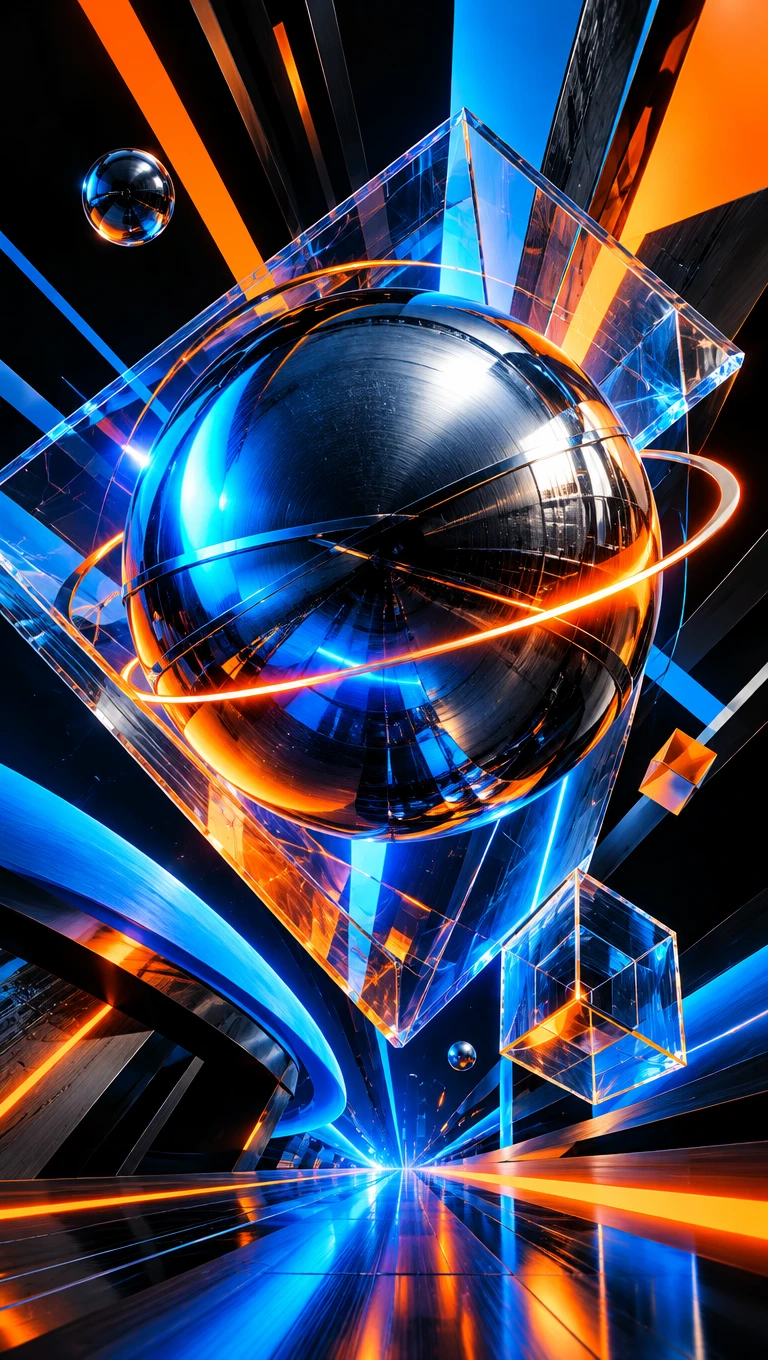
AI Graphic Generator custom graphic examples
AI-generated graphic designs
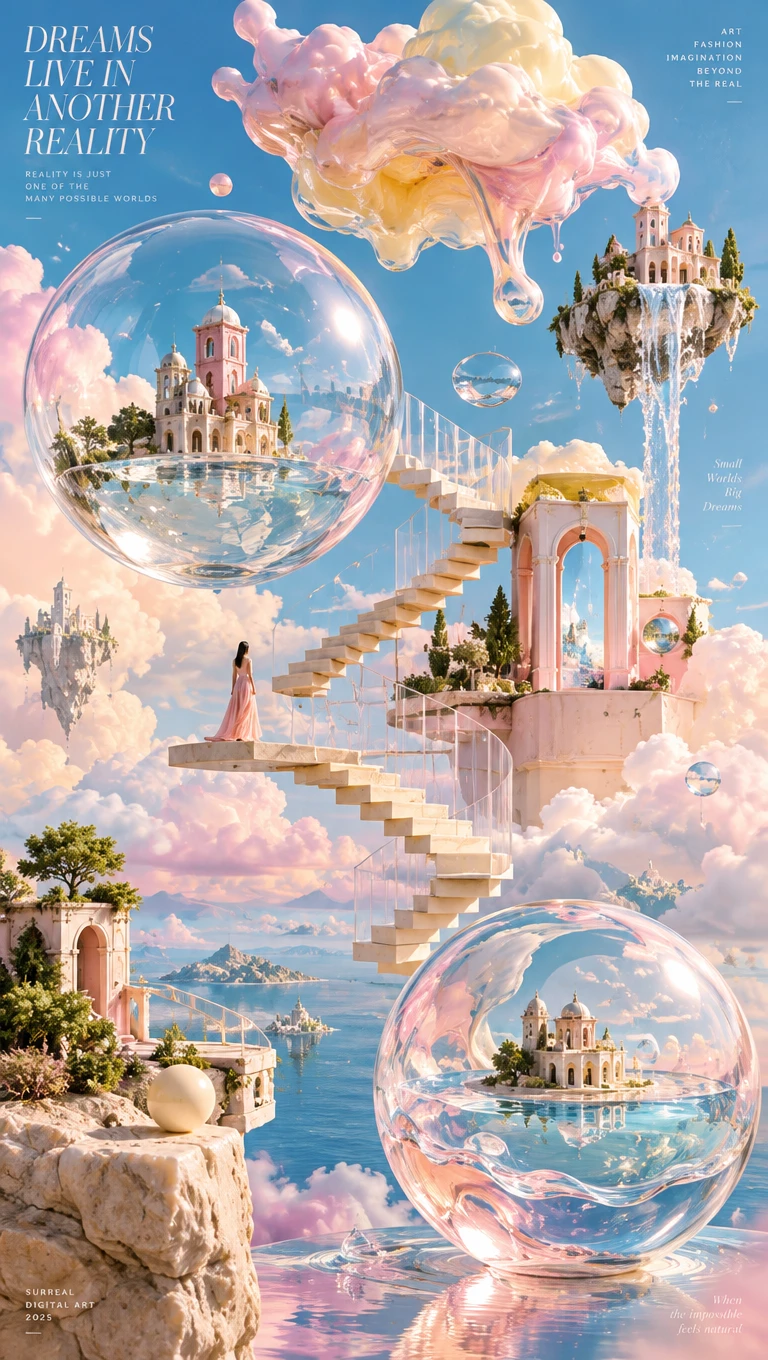
AI graphic design example
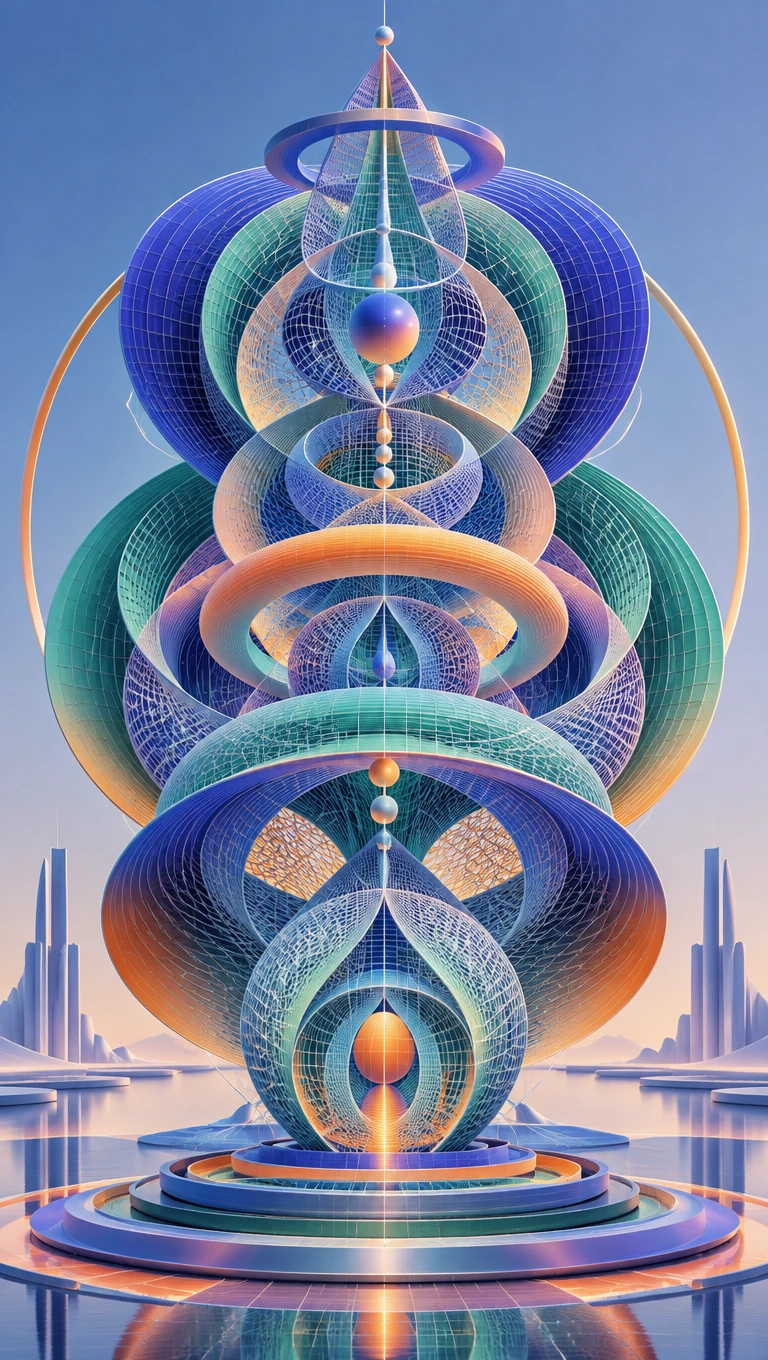
Custom AI graphic creation example
AI Graphic Generator custom graphic examples
AI-generated graphic designs
AI graphic design example
Custom AI graphic creation example

Explore the Magiclight AI Graphic Generator Features

Every post and header starts with a short brief and ends with a finished visual. These features in the Magiclight AI graphic generator cover the whole path from first idea to channel-ready graphic.
Create an AI Graphic for Free
AI graphic generator 3D decoration

500 Characters to Name Every Detail

The prompt box holds up to 500 characters so a brief can cover the full design. Add the channel, the color scheme, and a short, quoted headline in one place. The counter under the box shows how much room is left before you create.

4 Output Shape Set Before You Create

The Output setting sits under the prompt box and starts at 16:9. Switch it to 9:16, 1:1, or 4:3 to fit a Story, a feed post, or a slide. Each graphic is composed for its channel instead of cropped afterward.

6 Models to Choose from for Every Brief

The model list holds Seedream 5.0 Pro and GPT Image 2 and two GPT Image 2.5 versions. Nano Banana 2 and Nano Banana 2.1 complete the list for bright and playful designs.

2 Image Modes in One Menu

The menu lists Text to Image and Reference Image to Image. Use Text to Image to generate a graphic from a text prompt alone. Switch to Reference Image to Image to generate a graphic from an image prompt.

Who Can Use the Magiclight AI Graphic Generator
Teams without a full-time designer still need fresh visuals every week. Social media managers, newsletter writers, YouTubers, and small business teams keep pace with the AI graphic generator in Magiclight AI.
Here are some of the ways different creators and teams can use Magiclight AI:
For Social Media Managers
Type a post idea comprehensively in a 500-character box.
Compare results by feeding same prompt across 6 different models.
Set Output to 9:16 to turn a feed post into a Story.
For Blog Writers
For Blog Writers
Use up to 500 characters to explain an abstract topic as a flat graphic.
Upload an archive header in Reference Image to Image.
Add a quoted headline so each issue header carries its title.
For YouTubers
For YouTubers
Pick Nano Banana 2.1 for bright channel art and end screens.
Open the Video tab to animate channel art with a short clip.
Add your channel logo to the graphic for commercial usage.
For Small Business Teams
Open the Audio tab to record a voiceover for a promo graphic
Ask MagicLight Agent for an Explainer built from your graphics.
Use GPT Image 2.5 Sunburst to design warm and eye-catching ad banners. 
Why Choose Magiclight AI Graphic Generator
A good graphic should look consistent with your brand and work wherever it is posted. The Magiclight AI graphic generator supports every design with the strengths below.
6 Models for Different Graphic Styles
The model list includes Seedream 5.0 Pro, GPT Image 2, and GPT Image 2.5. Nano Banana 2 and Nano Banana 2.1 add bright, playful looks to the list. Switching models changes the graphic style without rewriting your brief.
500 Characters for Detailed Briefs
The Describe your image box holds up to 500 characters for every brief. Name the subject, layout, colors, and a short quoted headline in one place. A fuller brief gives you a graphic much closer to the post you planned.
Matching Sets for Carousels
Upload your first finished graphic in the Add references box to guide the rest of the series. Every slide in a carousel then shares the same colors, shapes, and spacing. The whole set looks like one designer made it in a single sitting.
20 AI Video Models for Animated Graphics
Turn your static graphics into moving promotional content with Magiclight AI's Image to Video feature. Choose from 20 AI video models to create animated clips lasting up to 30 seconds.
Logo and Palette Uploads
Add up to 10 brand files such as a logo, a color swatch, and an approved sample design. The box takes JPG, PNG, and WEBP files up to 20MB each. New graphics follow the brand kit you already use.
Create Promotional Videos With MagicLight Agent
Take your marketing graphics further using MagicLight Agent's Explainer feature. Turn your creative ideas into structured explainer videos that introduce products and highlight services.

How to Create a Graphic With Magiclight AI 

A finished graphic takes 3 steps. Name the channel and the layout in the Magiclight AI graphic generator, and get a result ready to post.

1.

Step 1. Pick the Mode

Go to the Toolbox and open the Image tab to see the Image Tools menu. Keep Text to Image selected when you are starting a new graphic from words. Switch to Reference Image to Image when you want to rework an existing design.

2.

Step 2. Write the Graphic Brief

Type the subject, layout, style, and colors in the Describe your image box. Mention where the graphic will appear and keep any on-image text to a short headline. Add a logo or sample design in the optional references box for a closer match.

3.

Step 3. Choose Shape and Model, Then Generate

Open the Model menu and pick the style that fits your brand from the list of 6. Press Create Image and download your favorite version.

FAQs on AI Graphic Generator

How is a graphic generator different from an illustration generator?

Illustrations focus on drawn artwork for stories and books. The Magiclight AI graphic generator targets marketing visuals such as banners, headers, and social posts in 4 channel shapes and 6 models.

Can I export vector or SVG files?

No, Magiclight AI produces image files, not editable vectors. For logos or icons that need scaling, recreate the final design in a vector editor and upload your logo as a JPG or PNG up to 20MB for the look.

Can I add text to my graphics?

Short headlines in quotes work best inside the Describe your image box, which holds up to 500 characters. Longer copy is better typed over the Magiclight AI graphic later in a regular editing app.

Can Magiclight AI match my brand fonts?

Exact font matching is not guaranteed, but you can upload a sample of your brand style in the Add references box for a close look. Set final text in your own font afterward or switch to Reference Image to Image to let the sample guide the whole graphic.

Can I use the graphics for clients and ads?

Yes, client and ad work is covered on Magiclight AI paid tiers with commercial licensing. Check client brand guidelines and ad platform policies as well before you download your favorite version.

Is the AI graphic generator free to try?

Signing up for Magiclight AI grants a set of free credits without a card. Each model lists its credit cost before a run, and the Create Image button shows it too.

Create Fresh Graphics for Channels With Magiclight AI

Describe the graphic and choose its shape, and watch the finished design appear. Magiclight AI graphic generator gives every post, header, and banner the right size from the start.