1 Starting Photo for Your Fancam Video
Upload a clear performer image up to 10MB in Magiclight AI Frame to Video. Describe handheld camera shakes, close-up zooms, or stage movements to create a fan-recorded concert effect.
Create Now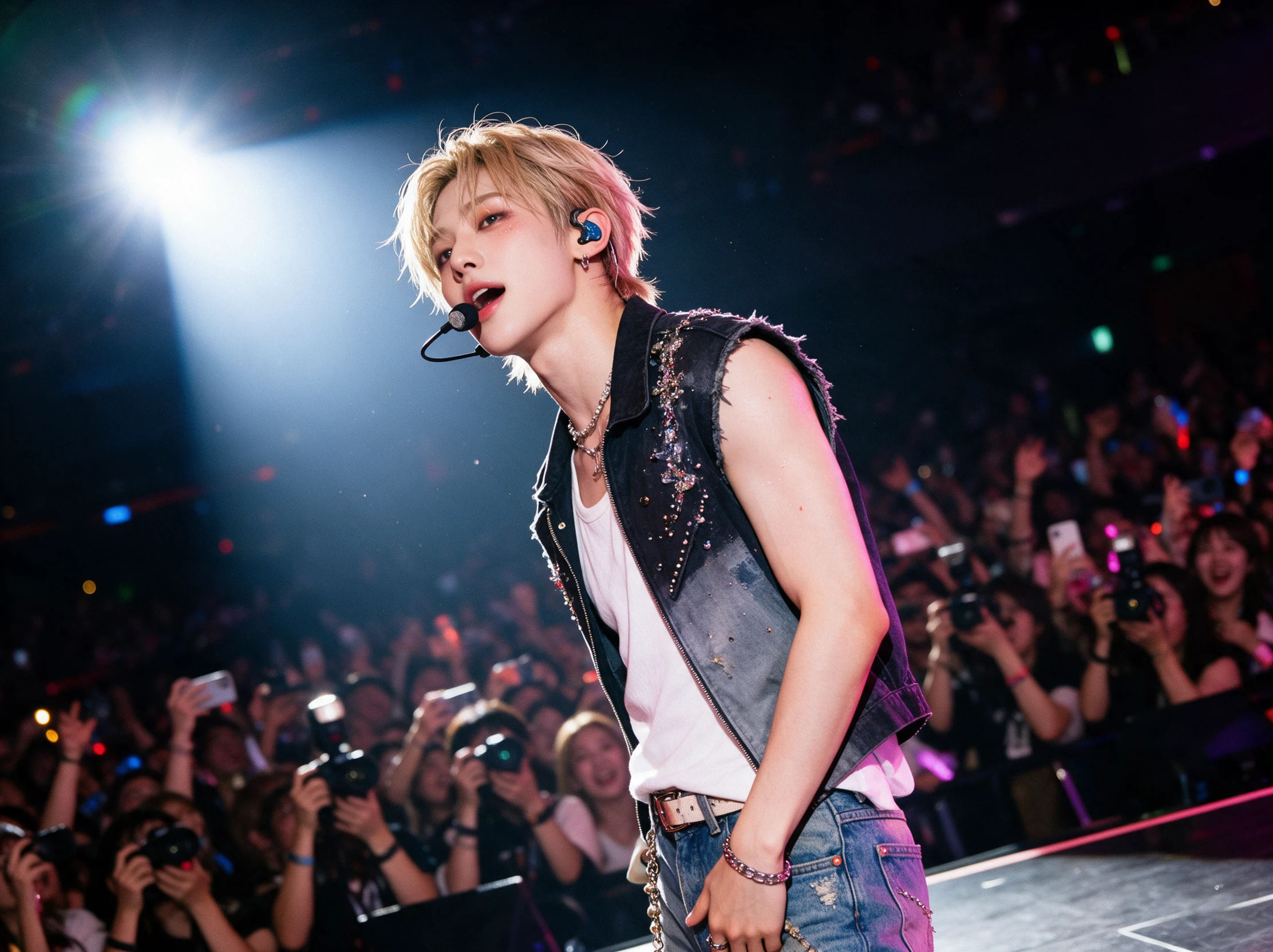
Upload a performer image to Magiclight AI fancam maker and describe the camera zooms, stage lights, and crowd atmosphere. No filming or editing skills needed.
Create a Fancam Video for Free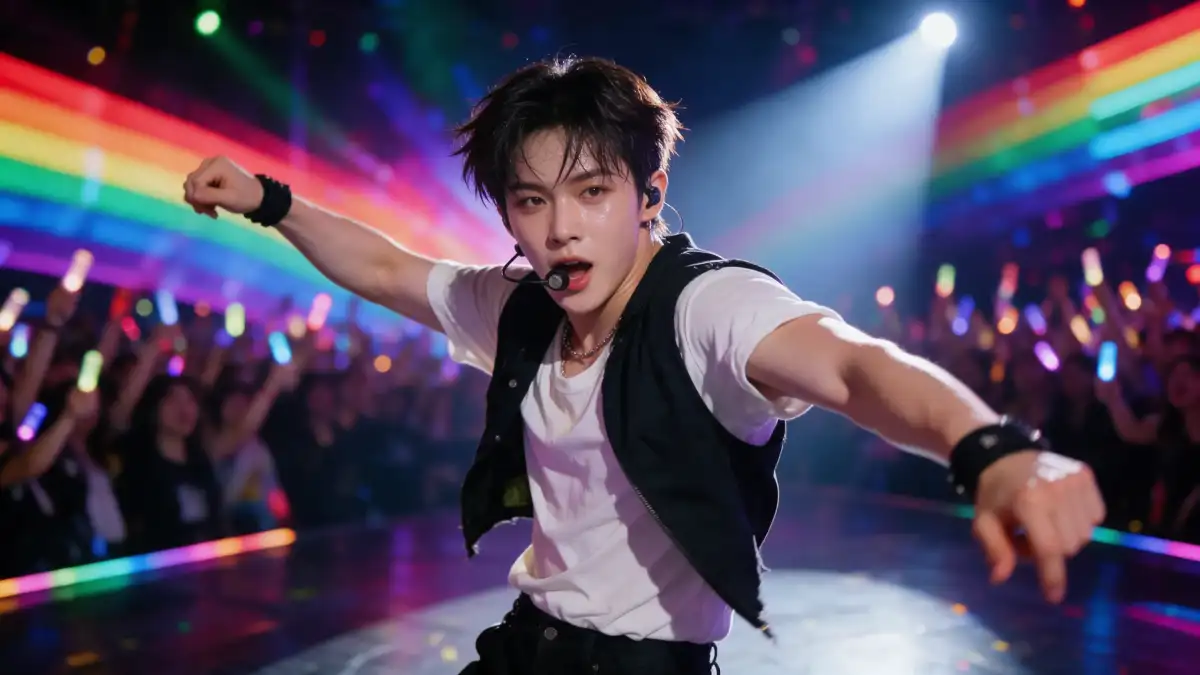










A close-up of your idol's performance feels different from a wide shot of the concert stage. The Magiclight AI fancam maker helps create these fan-style videos with custom camera movements and sound.
Upload a clear performer image up to 10MB in Magiclight AI Frame to Video. Describe handheld camera shakes, close-up zooms, or stage movements to create a fan-recorded concert effect.
Create NowCreate concert clips lasting up to 30 seconds with supported Magiclight AI video models. Use longer durations for dance performances, camera movements, or stage reveals that need more than a quick shot.
Generate Story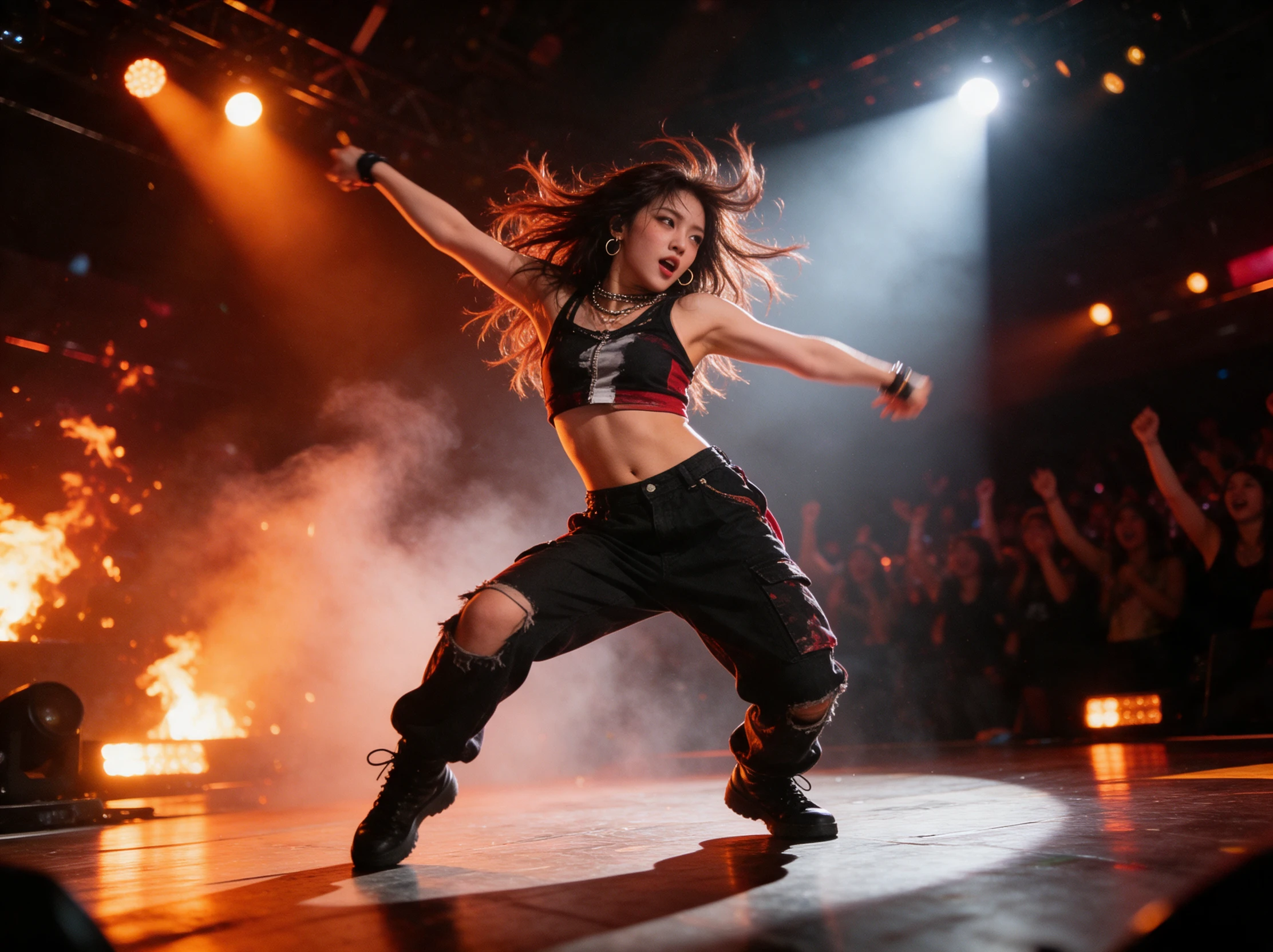
Add performer photos showing the stage outfit from different angles in Magiclight AI Reference to Video. Use image labels in your prompt to guide the character's clothing, hairstyle, and appearance throughout the clip.
Generate a Story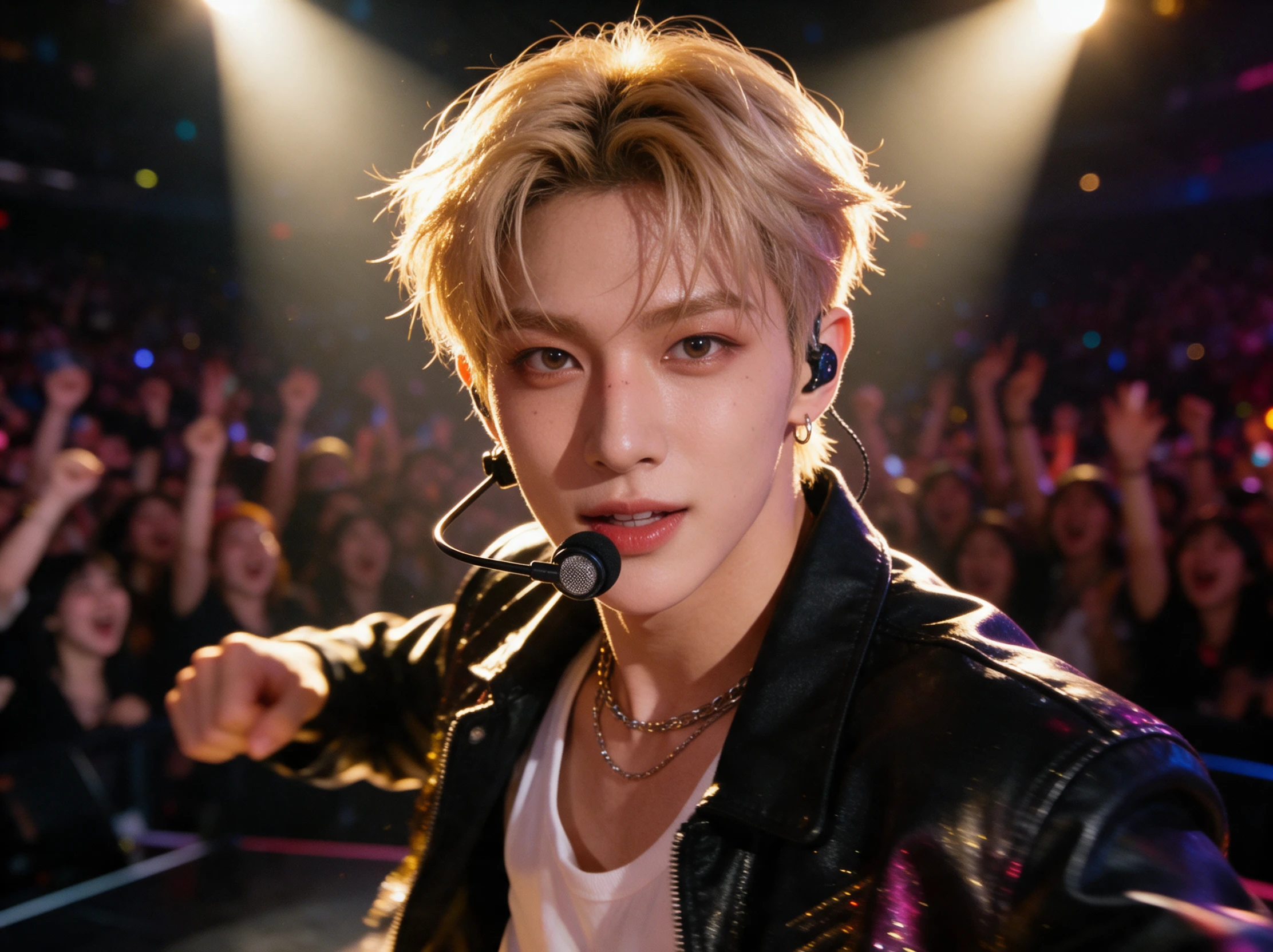
Enable Sound Effects with a supported Veo model in Magiclight AI. Describe cheering fans, applause, or stage sounds to create a lively concert atmosphere around your animated performer.
Start Creating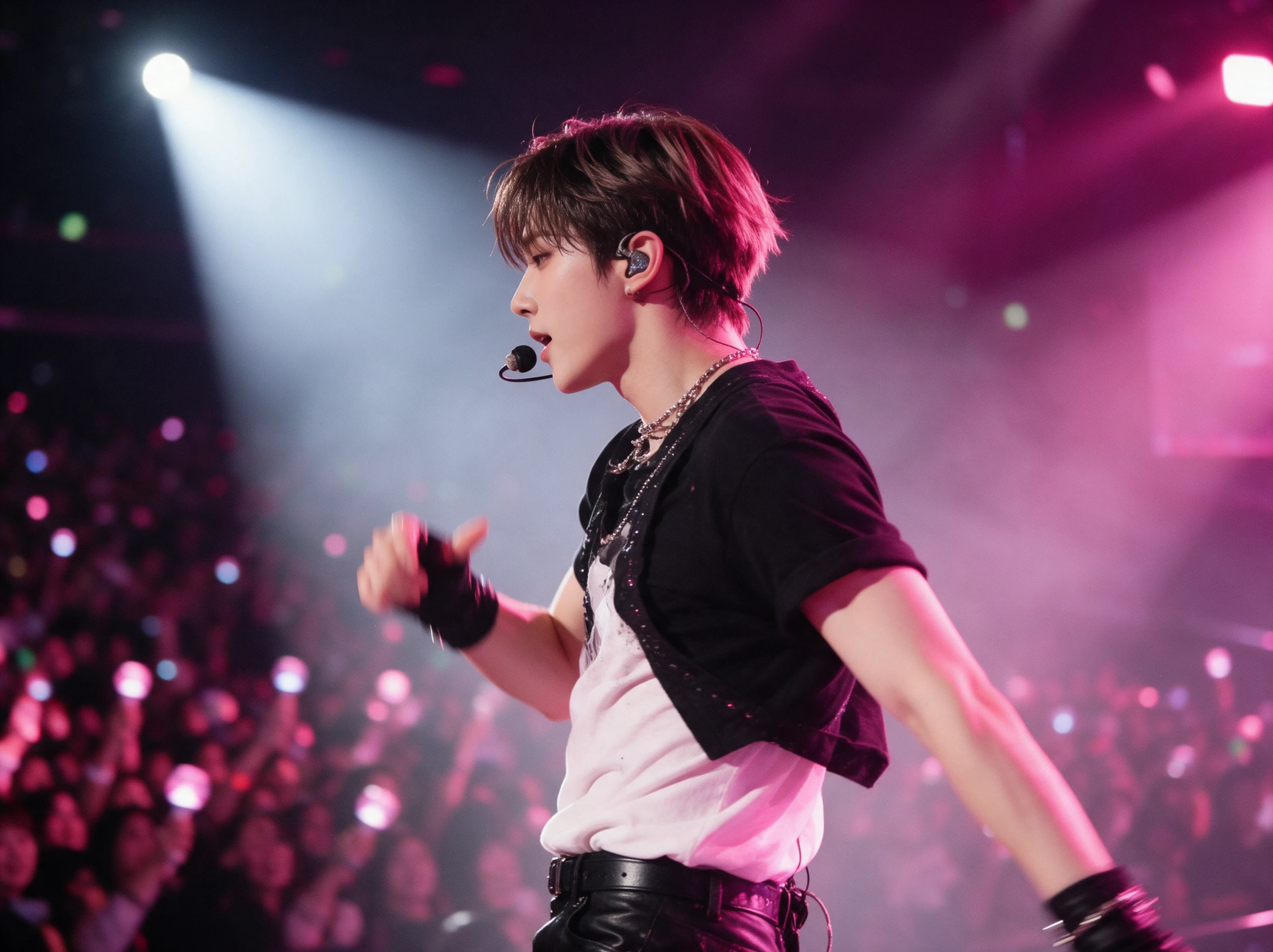


Create a concert-style video of your original idol with Magiclight AI fancam maker. Upload a performer image, describe the movements, and select your video settings. Follow these 3 steps to create your fancam.
After launching Magiclight AI, open Toolbox, navigate to Video and select Frame to Video. This mode lets you create a fancam from a still performer image.
Upload a clear JPG or PNG performer image up to 10MB as the starting frame. Describe handheld camera shakes, quick zooms, and stage lighting in the motion prompt.
Choose a video model, resolution, and clip duration. Select Create Video and review the result. Use Re-edit to refine camera movements, then download your finished clip.
Virtual Idol Producer
I started every clip from our approved idol image, and the face stayed the same across all three chorus versions in Magiclight AI. The 9:16 export went straight to our fan accounts.
Dance Cover Group Leader
We filmed our cover at home and retook it on a virtual stage across Magiclight AI. The moves and outfits stayed, and everyone had agreed to appear before we posted.
Indie Musician
I posted a 15-second fancam of the hook on release day. Sound Effects on Magiclight AI added the crowd, and I laid my own licensed track under it afterward.
Illustrator
One illustration became an 8-second stage clip. Naming cel shading in the first words of the prompt kept the art style consistent within Magiclight AI.
Yes. Upload a performer image, describe the camera movements and stage effects, and create a fancam-style video with dynamic close-ups and concert visuals.
Yes. Add a music track to complement the visuals and create the atmosphere of a live K-pop performance. Combine energetic stage effects, camera movements, and music to make your fancam more engaging.
Start every clip from the same approved image in Magiclight AI. Change the camera and the move in the prompt, not the outfit or hair, so each clip reads as the same performer.
Veo 3.1 stops at 8 seconds, and Seedance 2.5 reaches 30 seconds in Magiclight AI fancam maker. For a whole song, create it in sections, start each from the last frame of the one before, and join them.
Yes. Magiclight AI lets you describe camera movements in the motion prompt. Request close-up zooms, handheld shakes, or wide stage shots to create a fan-recorded look.



Upload one image and write one fan’s-eye sentence about the zoom and the shake. Magiclight AI fancam maker creates the clip, and you save it as a 9:16 MP4.