Explore the Features of Magiclight AI Talking Animation Generator
Start with a picture of your favorite character and decide what it needs to say. Magiclight AI talking animation generator gives that face a voice and makes the moment feel alive.
Bring characters to life with talking animations. Upload an image, add your dialogue, and let MagicLight turn your character into a speaking scene. No animation skills needed.
Create a Talking Animation for Free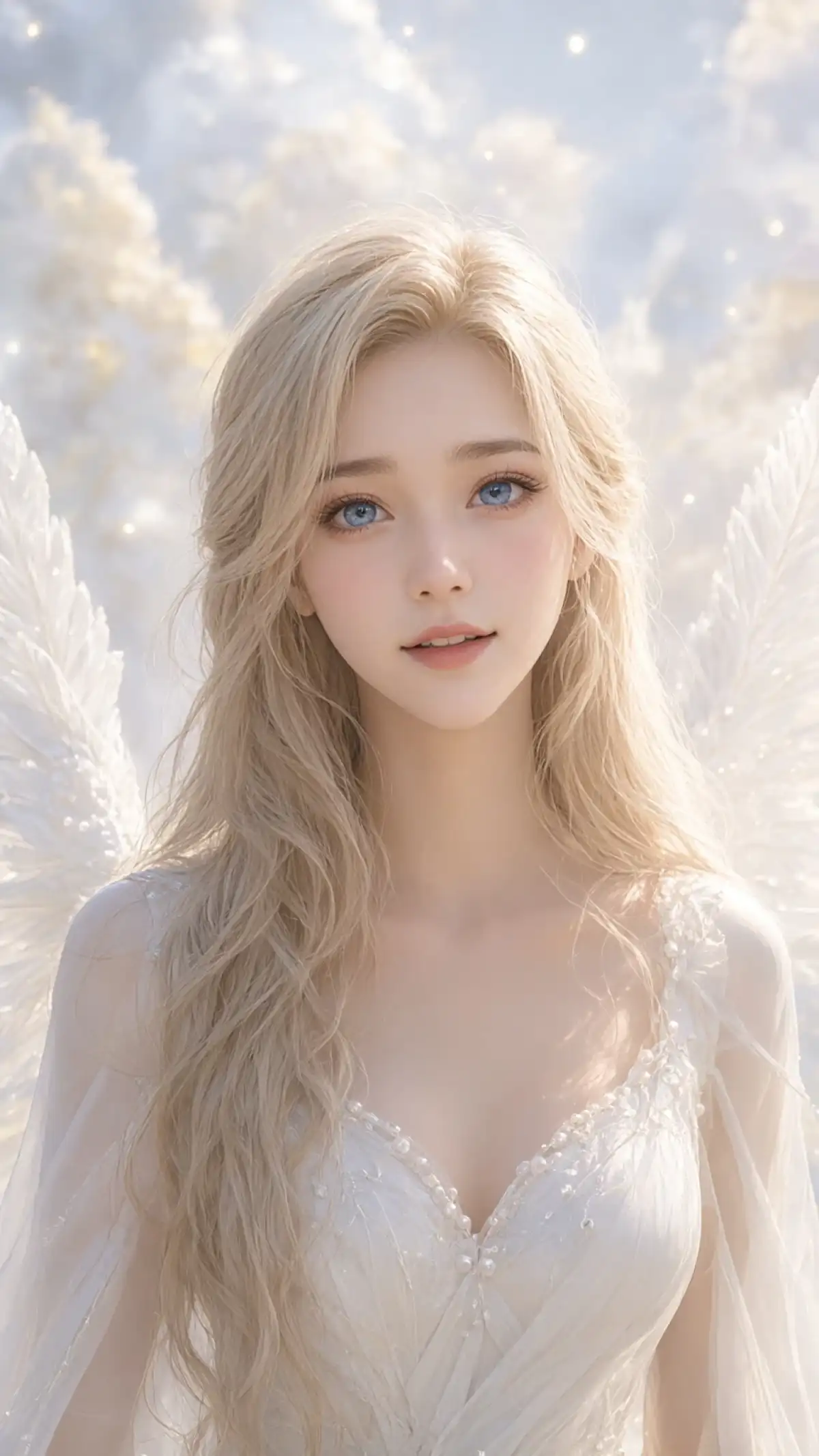
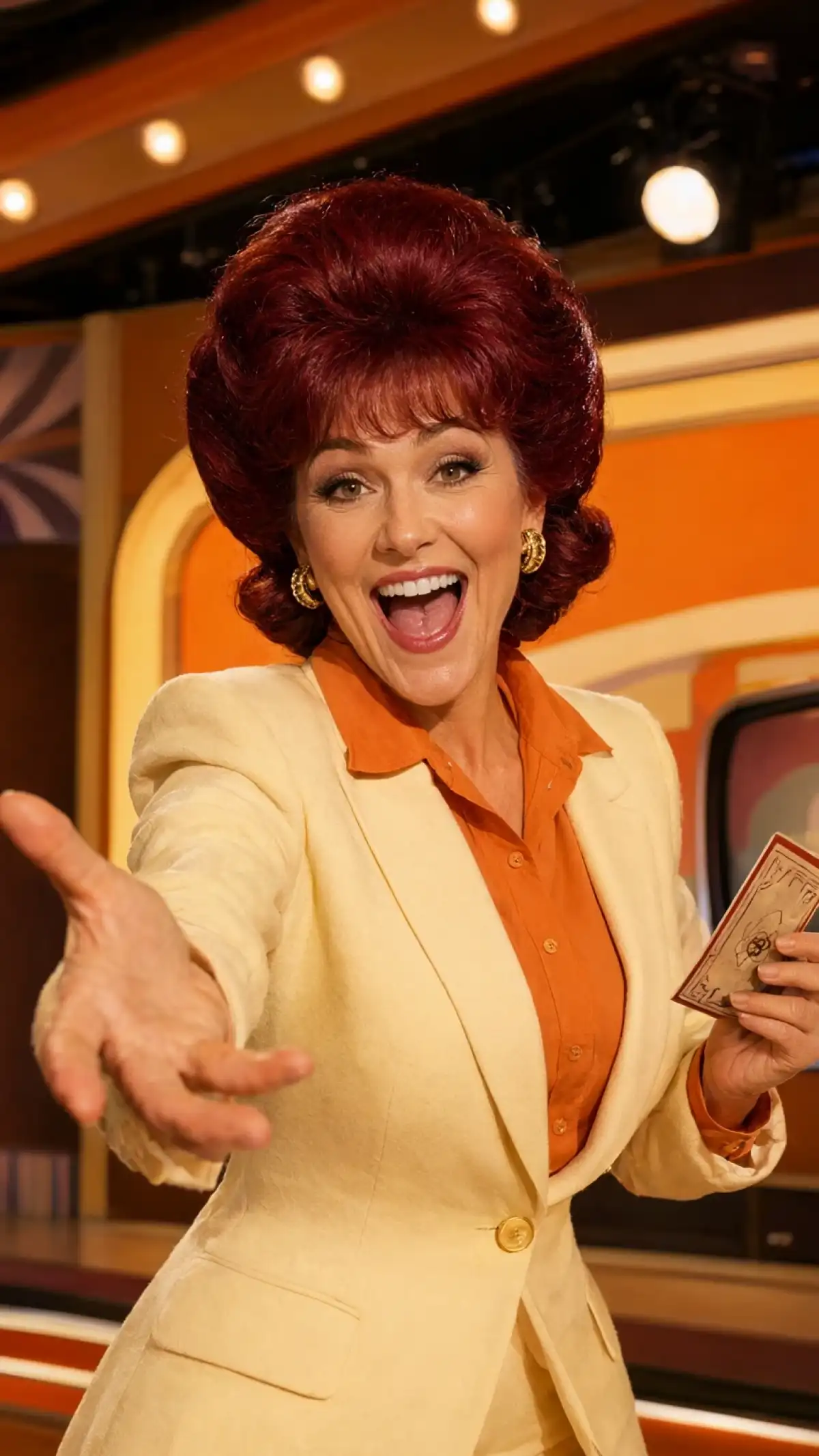
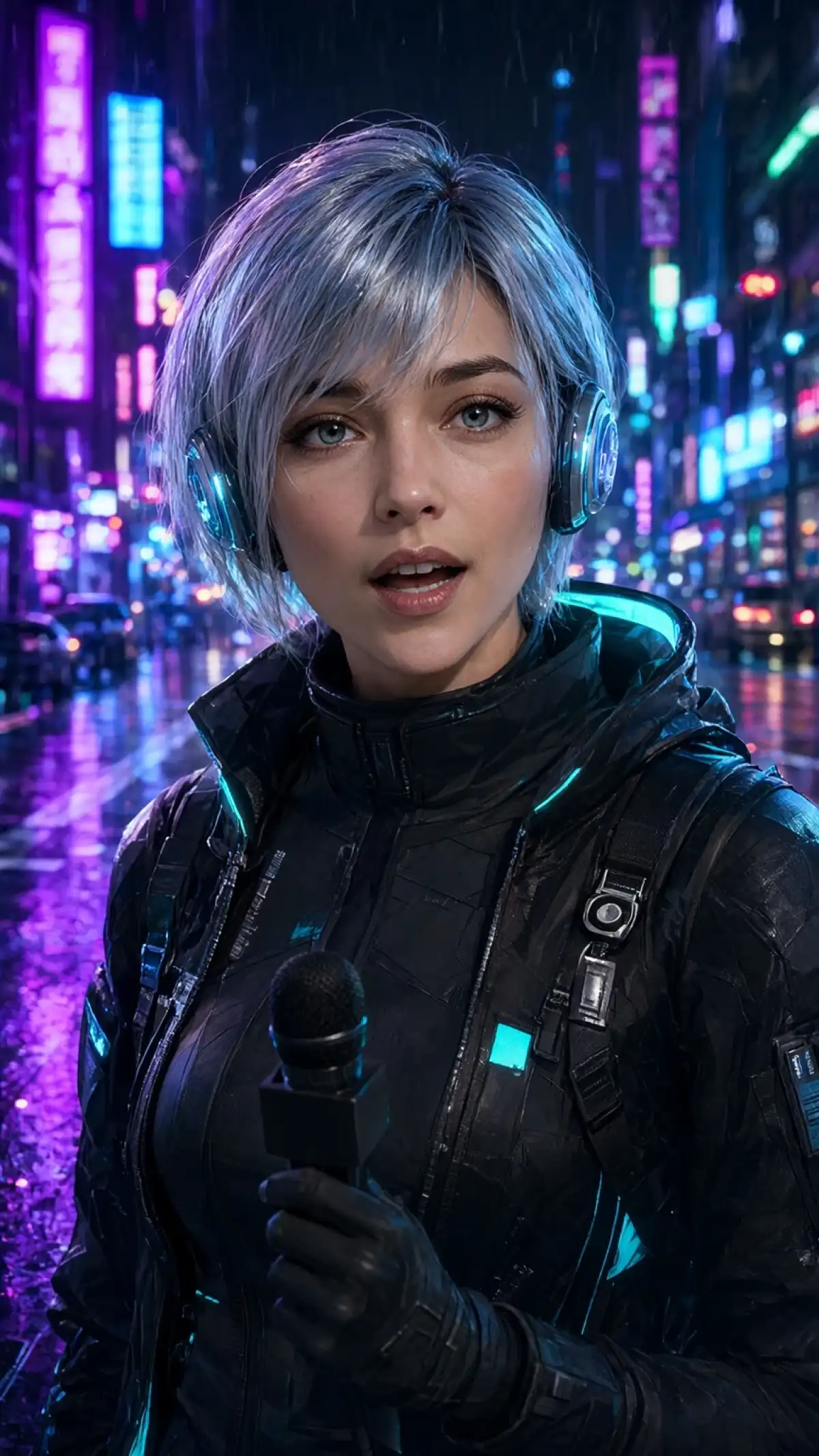
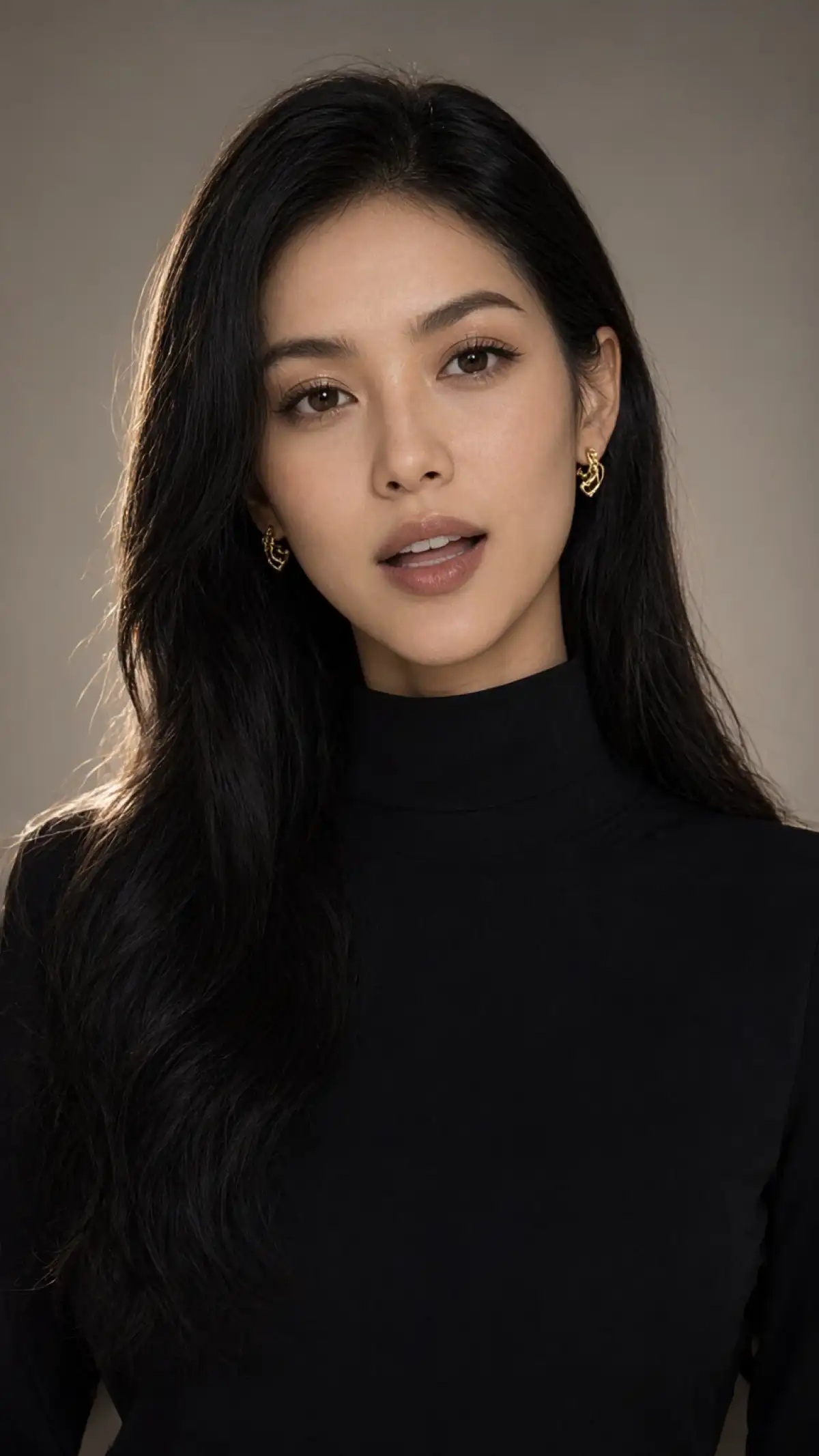
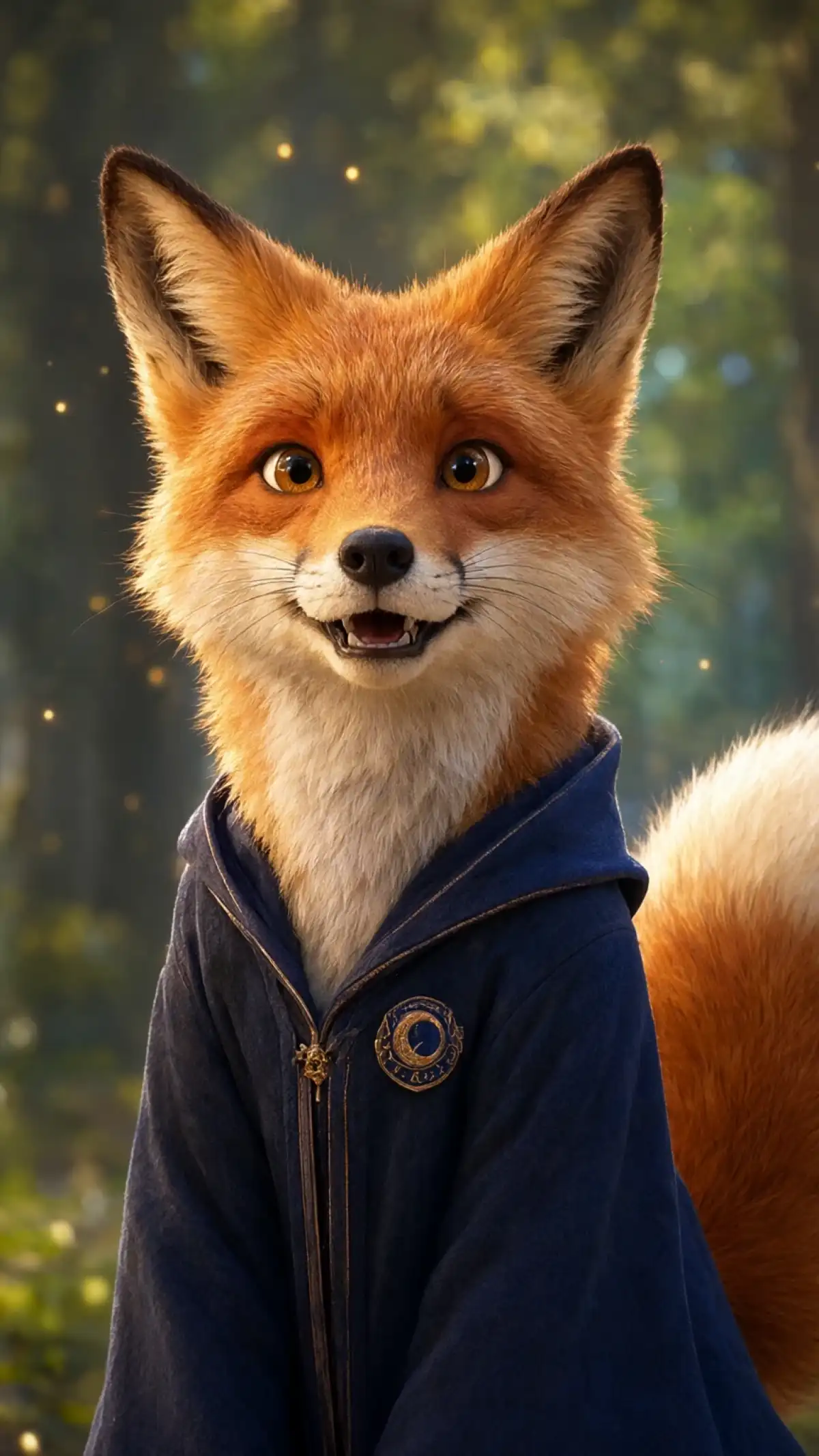
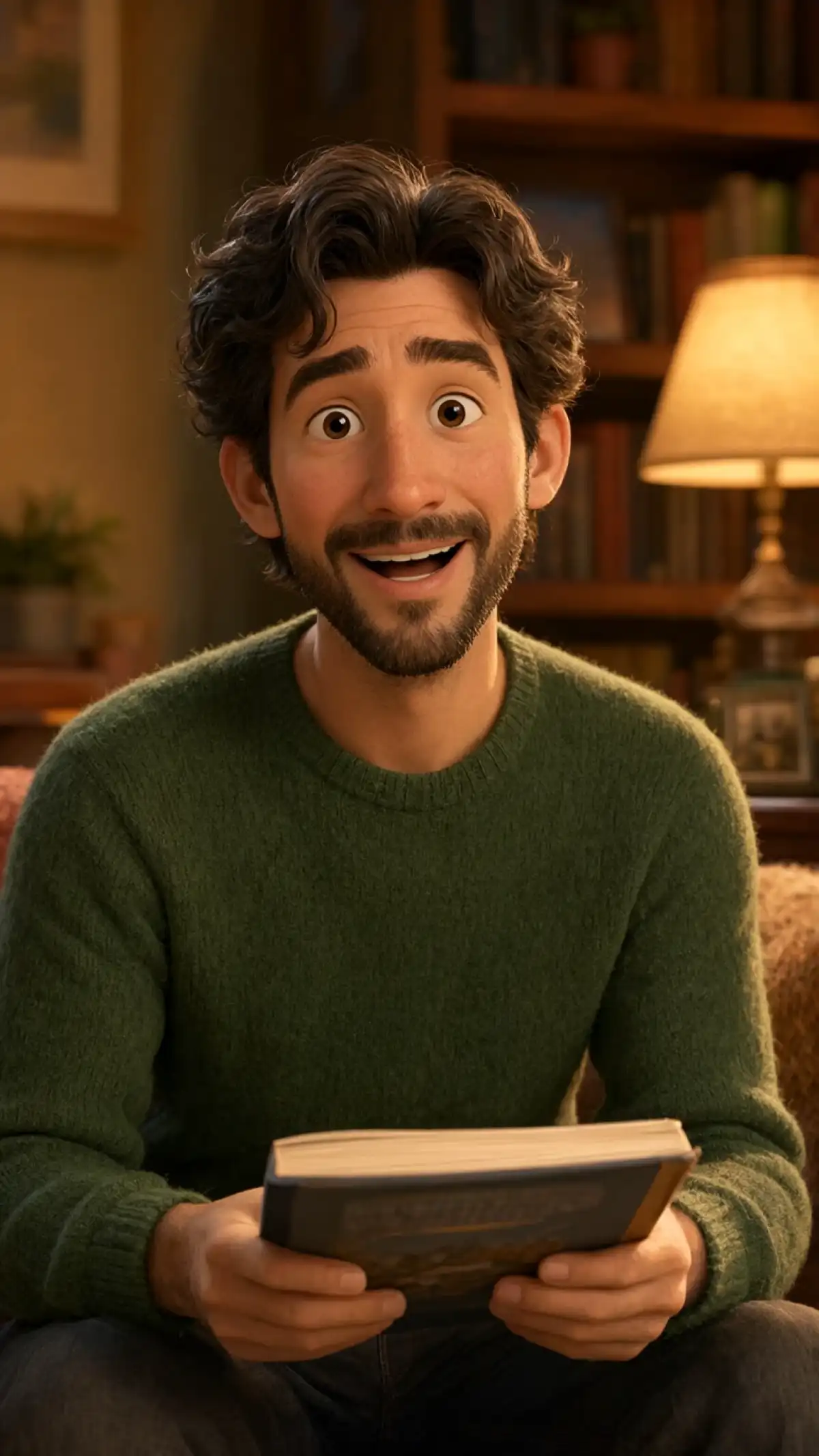
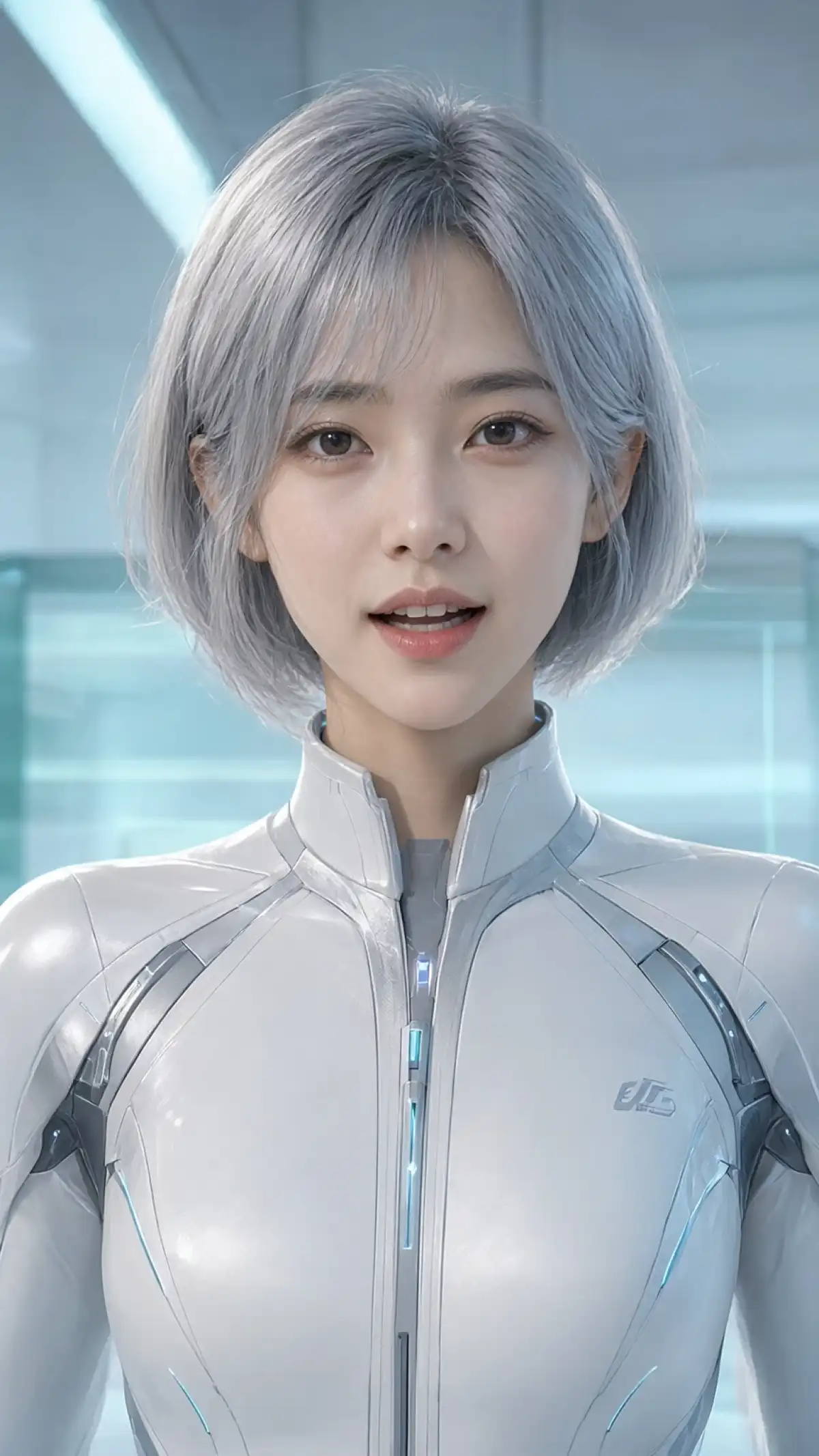
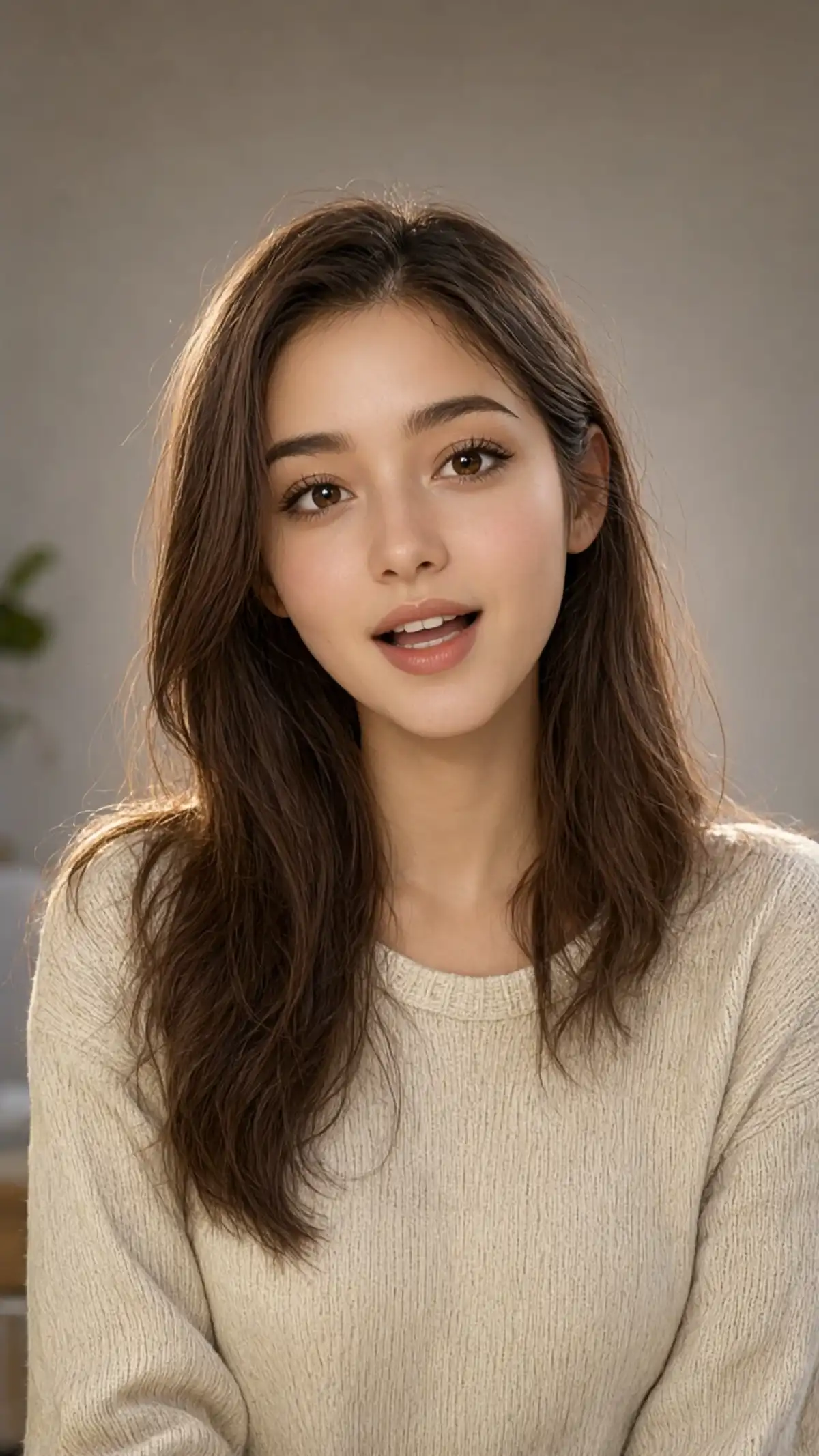
Start with a picture of your favorite character and decide what it needs to say. Magiclight AI talking animation generator gives that face a voice and makes the moment feel alive.
Upload a picture of your cartoon character and describe what it should say. Image to Video adds movement to its face, giving your mascot a chance to greet viewers on screen.
Give your character a 1000-character profile to explain its appearance. Magiclight AI uses these characters in Story to Video scenes, helping the same speaker look familiar each time.
Magiclight AI offers 20 video models from the Seedance, Veo and Kling families. Pick one that suits your character and see how it handles the speaking scene you have in mind.
Story to Video gives you 37 voice options for your cartoon. Choose one that suits your character, whether it is a friendly guide speaking to kids or a funny villain.


Your cartoon picture does not have to stay still. Magiclight AI talking animation can turn it into a moving scene in 4 steps. Story to Video is worth trying for longer videos.
Open the Toolbox and go to the Video tab. Select Reference to Video to animate a character using its picture, or choose Frame to Video to control the opening and closing frames.
Choose an AI video model that suits your cartoon scene. Upload a clear reference image showing your character's face. For music or voice references, select a Seedance family model.
Write what should happen in the scene using the 1500-character description field. Choose a duration of 30 seconds or less, set the video length, then press Create to begin.
Watch the result to see if your character moves naturally and its lips sync with the voice. If anything looks off, adjust your description and try again. Download the clip when ready.
Animate From Audio uses a recording as the starting point. With talking clips, you begin with a character picture and describe the motion you want Magiclight AI to create.
Yes, if the voice cloning feature is available in your workflow. Use a recording of your own voice or one you have permission to clone. Check the result before sharing it online.
AI talking animation can sometimes miss a mouth movement or make speech look slightly off. Check the finished clip closely and try a shorter line if the timing feels a bit wrong.
Yes. Story to Video is better suited to conversations between characters. Write the exchange clearly and assign each speaker a voice that helps viewers tell them apart.
Magiclight AI offers Frame to Video when you want to guide a scene with opening and closing images. Use clear character pictures and review the motion before downloading it.



Turn a simple character picture into a moving scene with Magiclight AI. Give your next cartoon a little more personality.