Explore the Magiclight AI Line Art Generator Features
Clean outlines start with a good source picture. The line art generator in Magiclight AI accepts photos in several formats and lets you pick the model.
Upload a photo or describe an idea and ask for clean black outlines. The line art generator in Magiclight AI makes the page with no restriction. No drawing or inking skills needed.
Create a Line Art for Free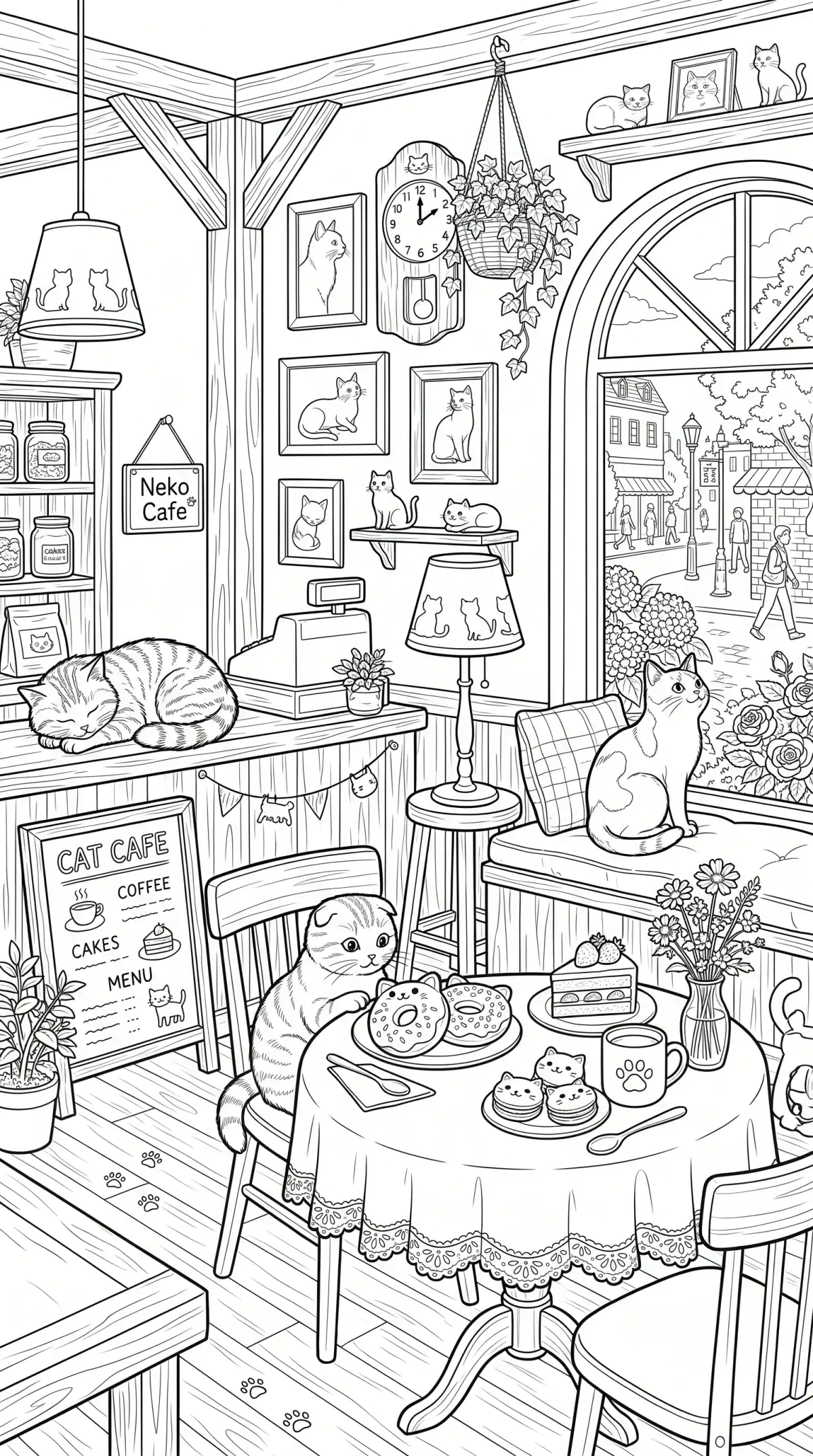
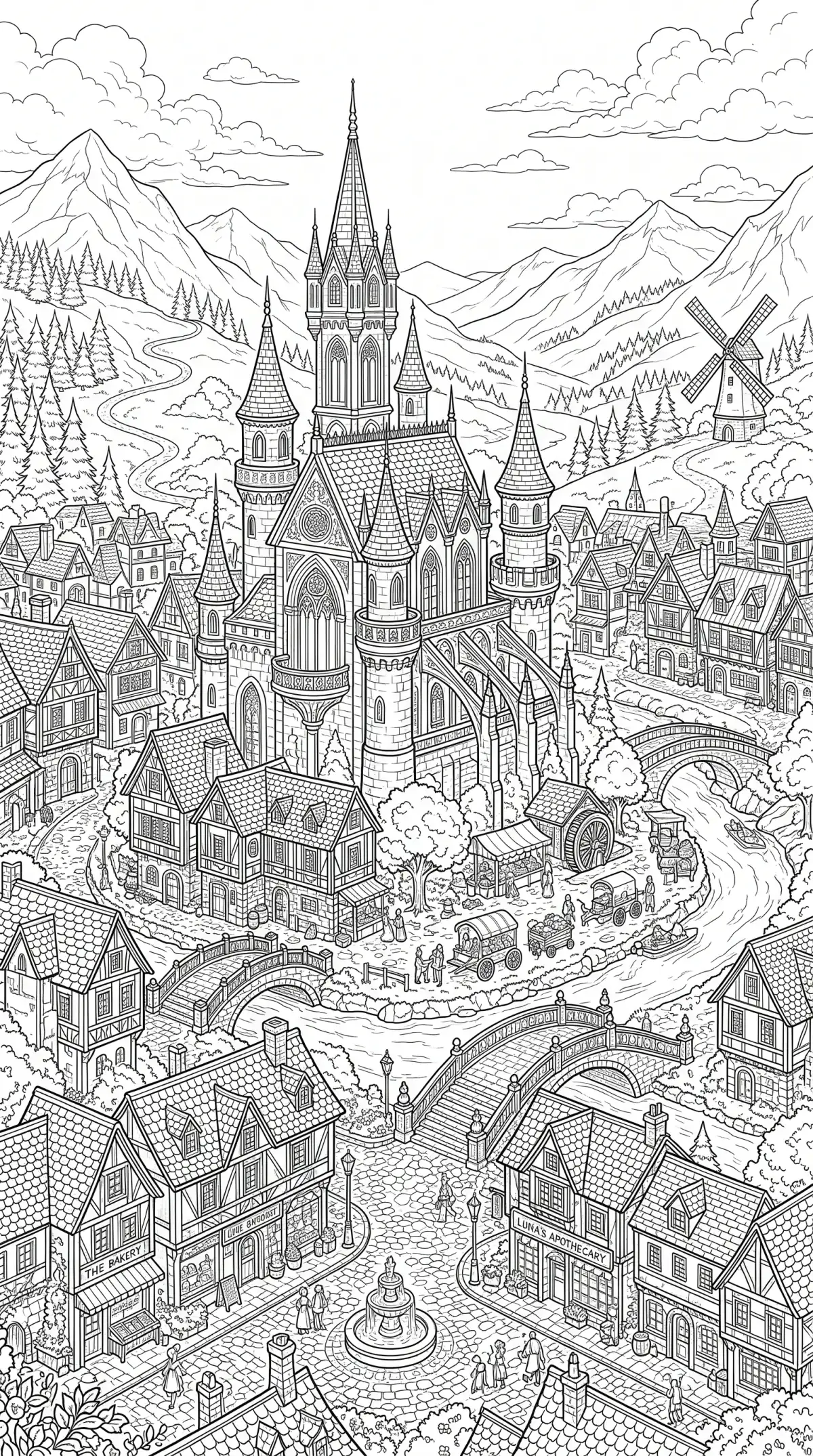
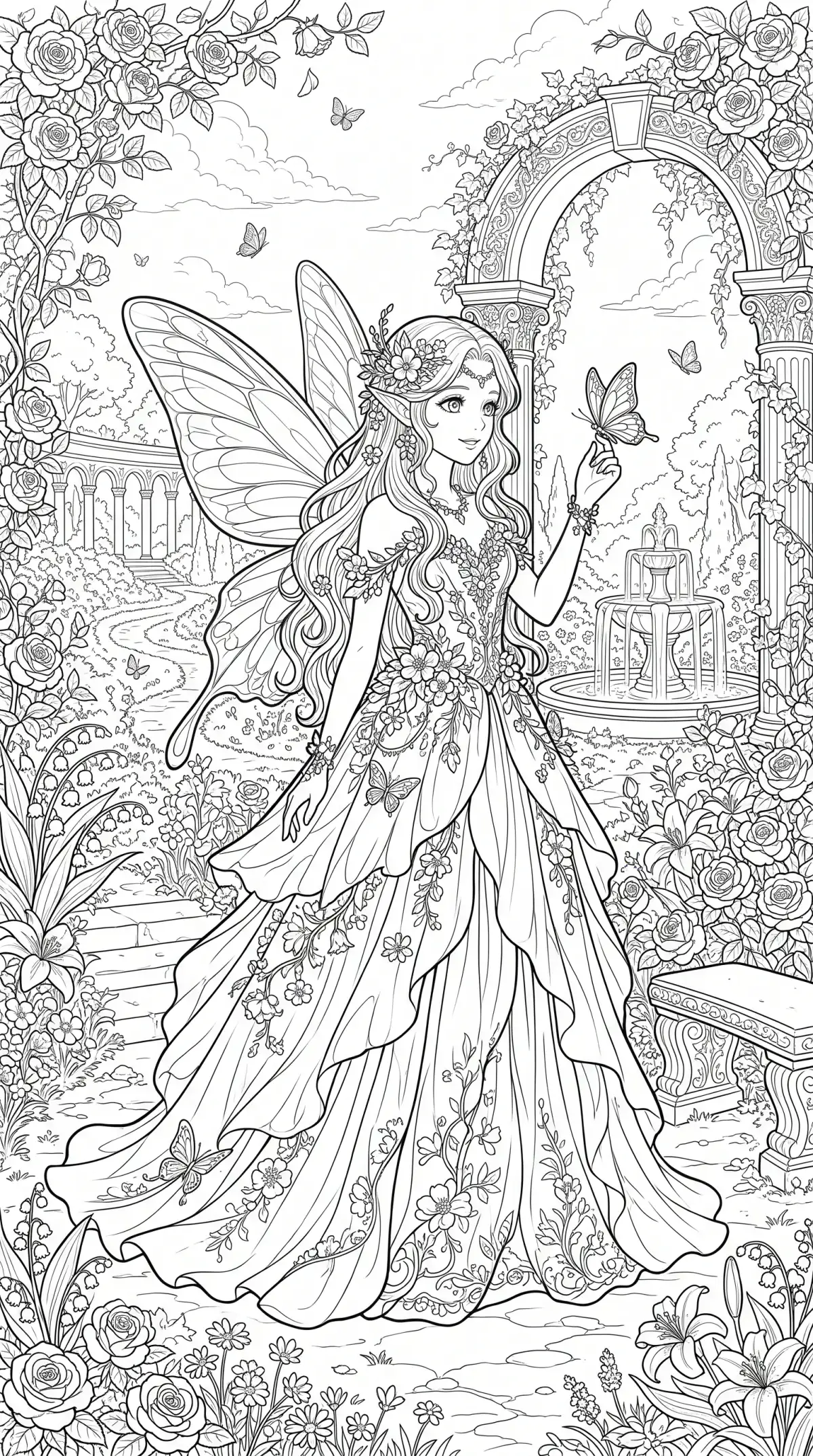
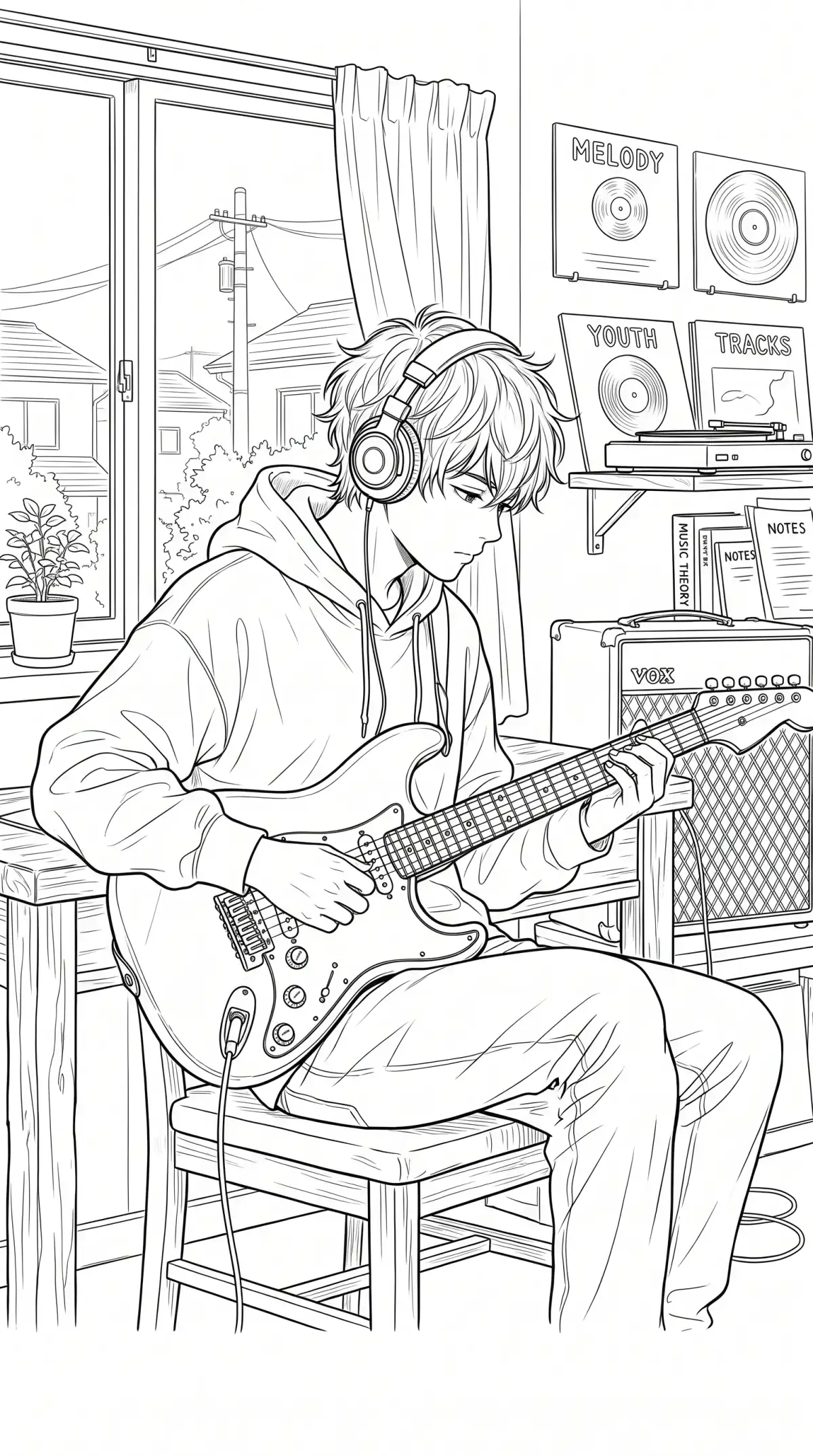
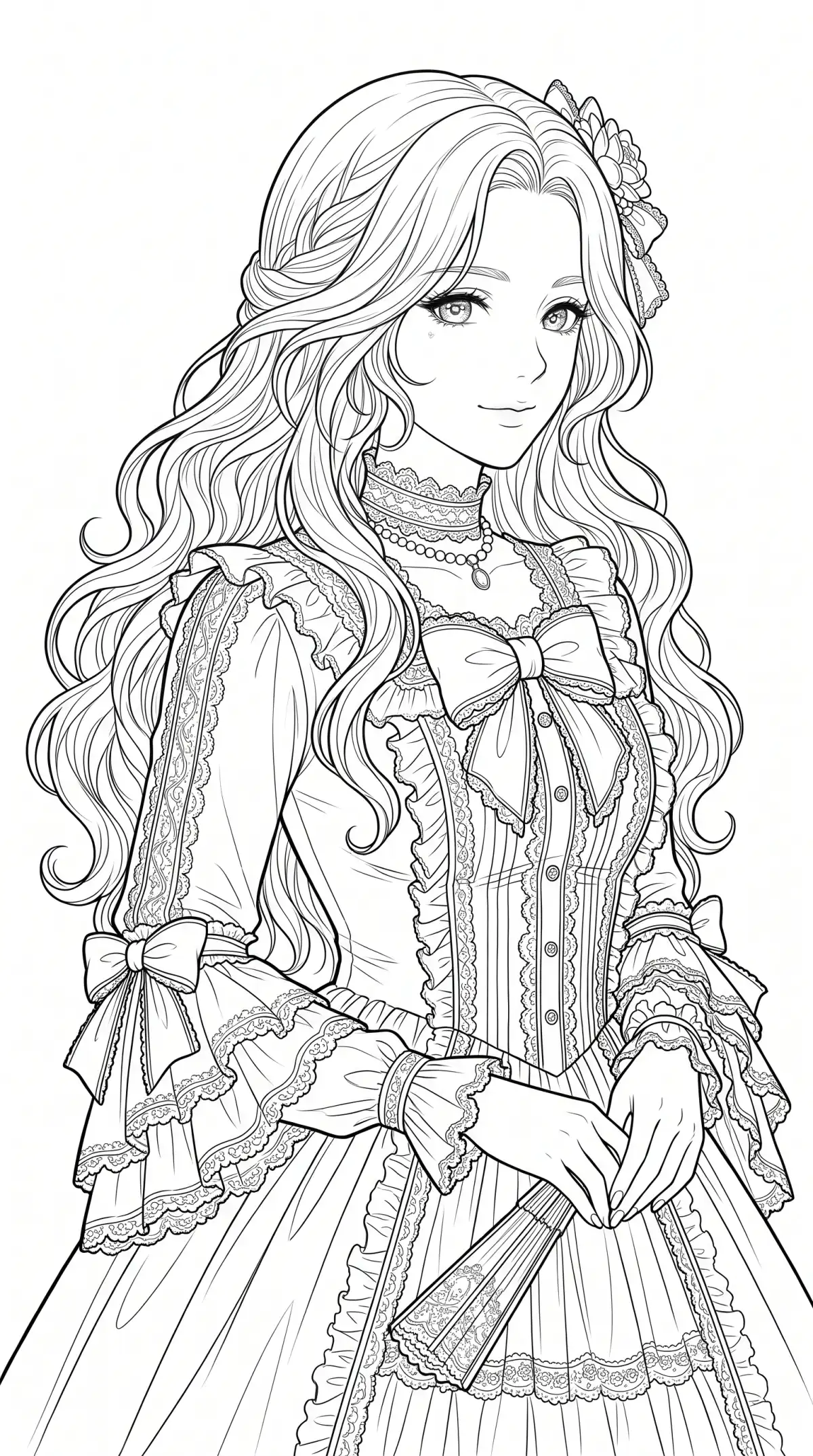
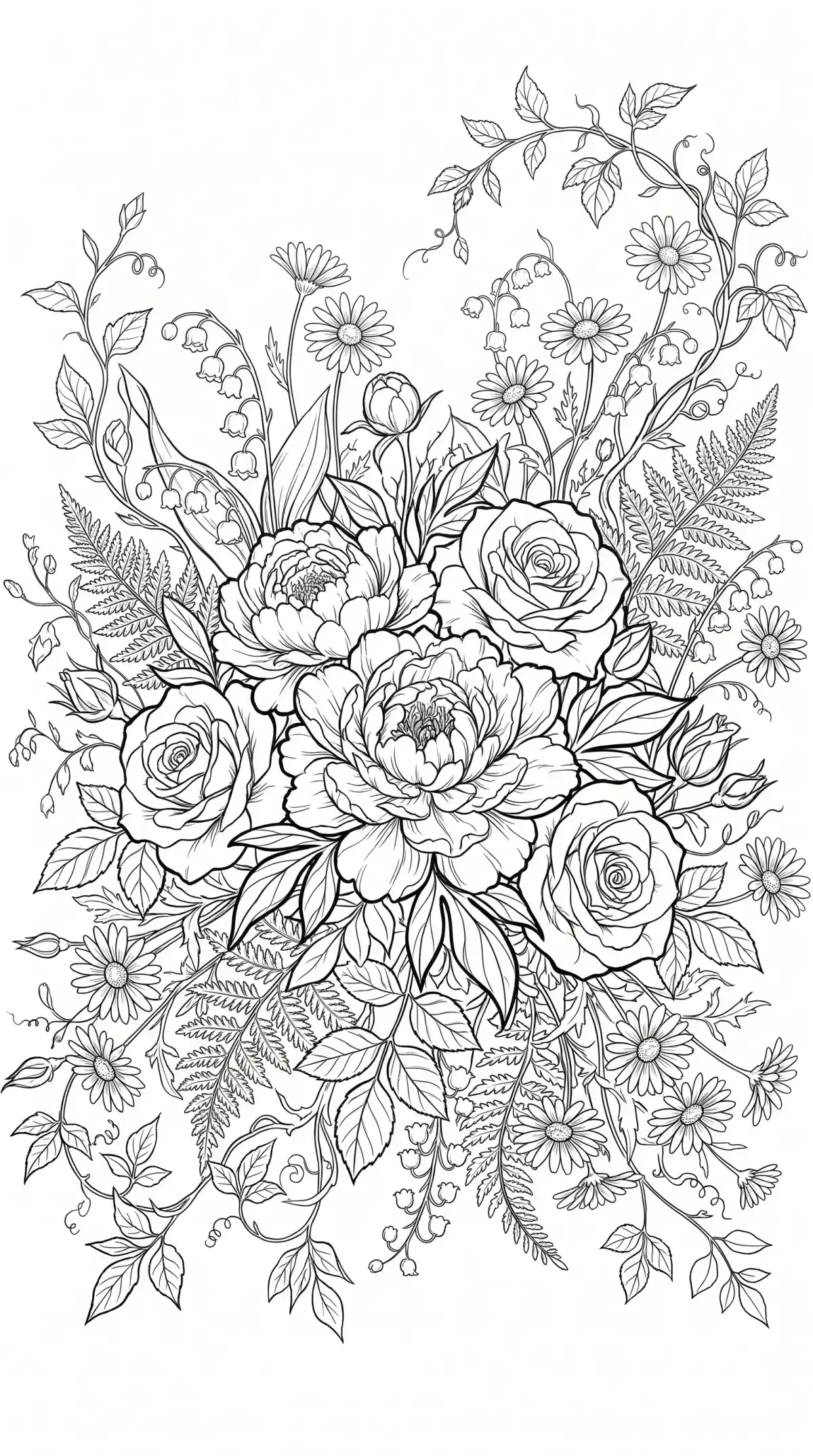
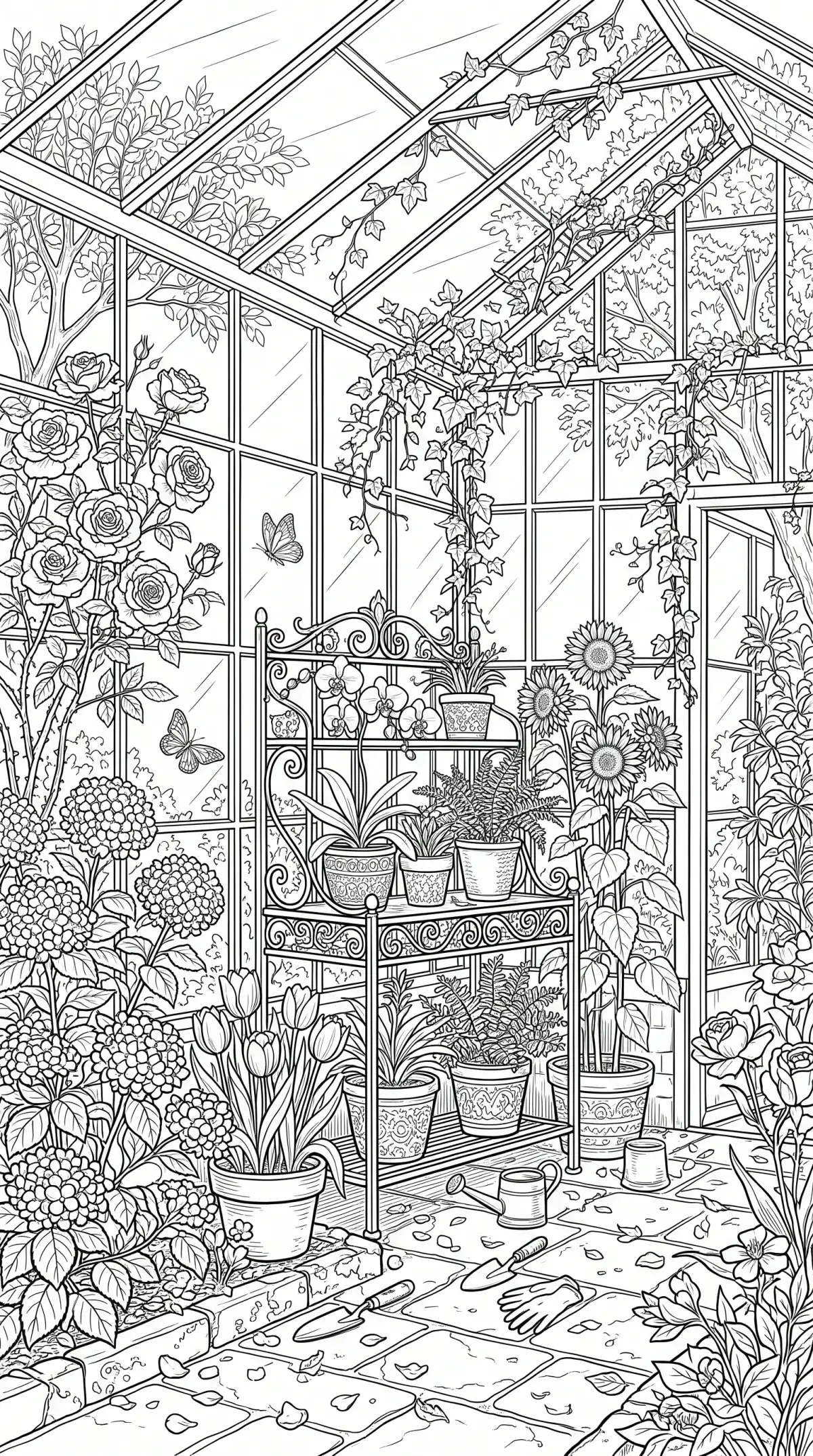
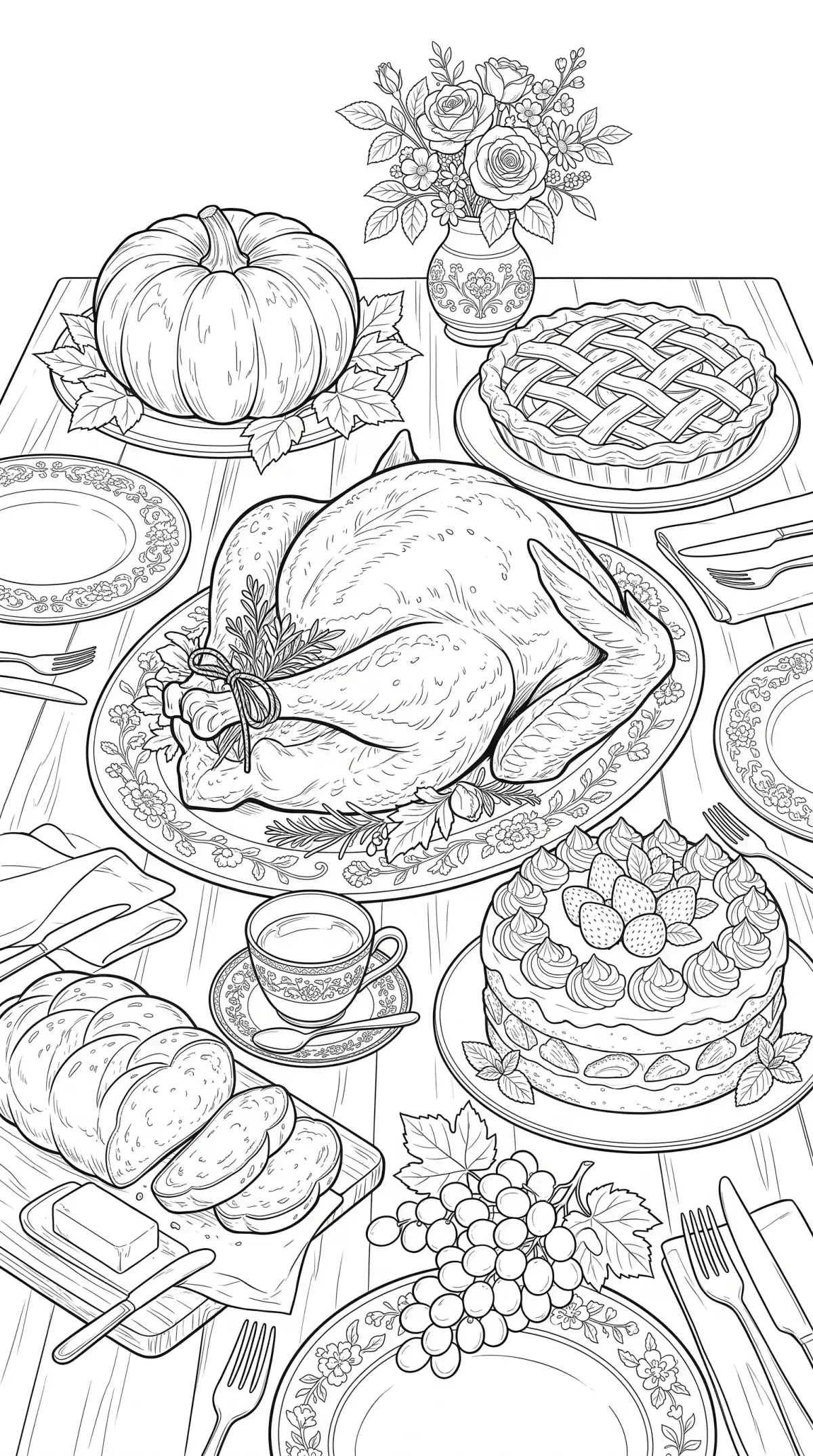
Clean outlines start with a good source picture. The line art generator in Magiclight AI accepts photos in several formats and lets you pick the model.

State the line weight and the detail level in one prompt. Add no shading and a white background to keep the page clean within the 500-character prompt. Thick lines suit kids, and fine lines fit adults.
Add a pet, a house, and a tree as reference images. Say in the prompt how all 10 reference images fit into one scene. Ask for the same line style with high accuracy according to the references.
Pick the 4:3 frame before you create the image. The shape suits a coloring sheet or a worksheet on standard paper. Find 4 aspect ratio options to choose from in Magiclight AI when finalizing the line art.
Use the bare outline as the start frame in Frame to Video. Use a colored version as the end frame. The clip shows the page filling with color with the help of a unique AI video model.


3 steps take you from an idea to a printable outline. A simple prompt tells the Magiclight AI line art generator to skip shading and keep the page white.
Inside the Toolbox Image tab, decide whether to start from a photo or a written idea. Use Reference Image to Image for a photo and Text to Image for a description. Both modes are in the Image tab of the Toolbox.
State the line weight and the detail level in up to 500 characters. Add black outlines only, no shading, and a white background to keep the page clean. Choose 4:3 for printing, 1:1 for social previews, or 9:16 for tall designs.
Select a model from the list. Press Create Image and check the lines. Download the cleanest page and print it on regular paper. You can also color it on a tablet with your favorite app.
Yes, add the photo in Reference Image to Image and ask for clean black outlines with no shading. The line art generator in Magiclight AI traces the main shapes of your picture. A clear photo gives cleaner lines.
Ask for thick, simple lines and a white background in the 500-character prompt. Keep the shapes large so small hands can color them. Choose the 4:3 frame to print the page on standard paper.
No, the output is a regular image file, not vector paths. Use a tracing tool if you need an SVG for a cutting machine. Check the result at full size before you convert it.
Yes, if your plan carries business rights. Check your marketplace’s rules on AI-made coloring pages before you publish. Keep your prompts and your source photos on hand.
Add black outlines only, no shading, and a white background to the prompt. Keep the prompt within 500 characters. Run the same prompt on a second model if the first result has gray areas.
Yes, you get starter credits to try the tool. Use them to make one page before you decide on a plan. Paid plans add more credits and business rights.



Clean outlines are one prompt away. Try the line art generator in Magiclight AI and get a page ready to color, print, or craft with.