Explore The Features of FLUX AI Image Generator
The FLUX AI image generator gives you different ways to shape an image from choosing a model to refining existing pictures. Here are 4 features worth knowing before you start.
Describe the scene, characters, and details you want to see. FLUX AI image generator turns your text prompts into detailed images, no advanced editing skills needed.
Try FLUX AI for Free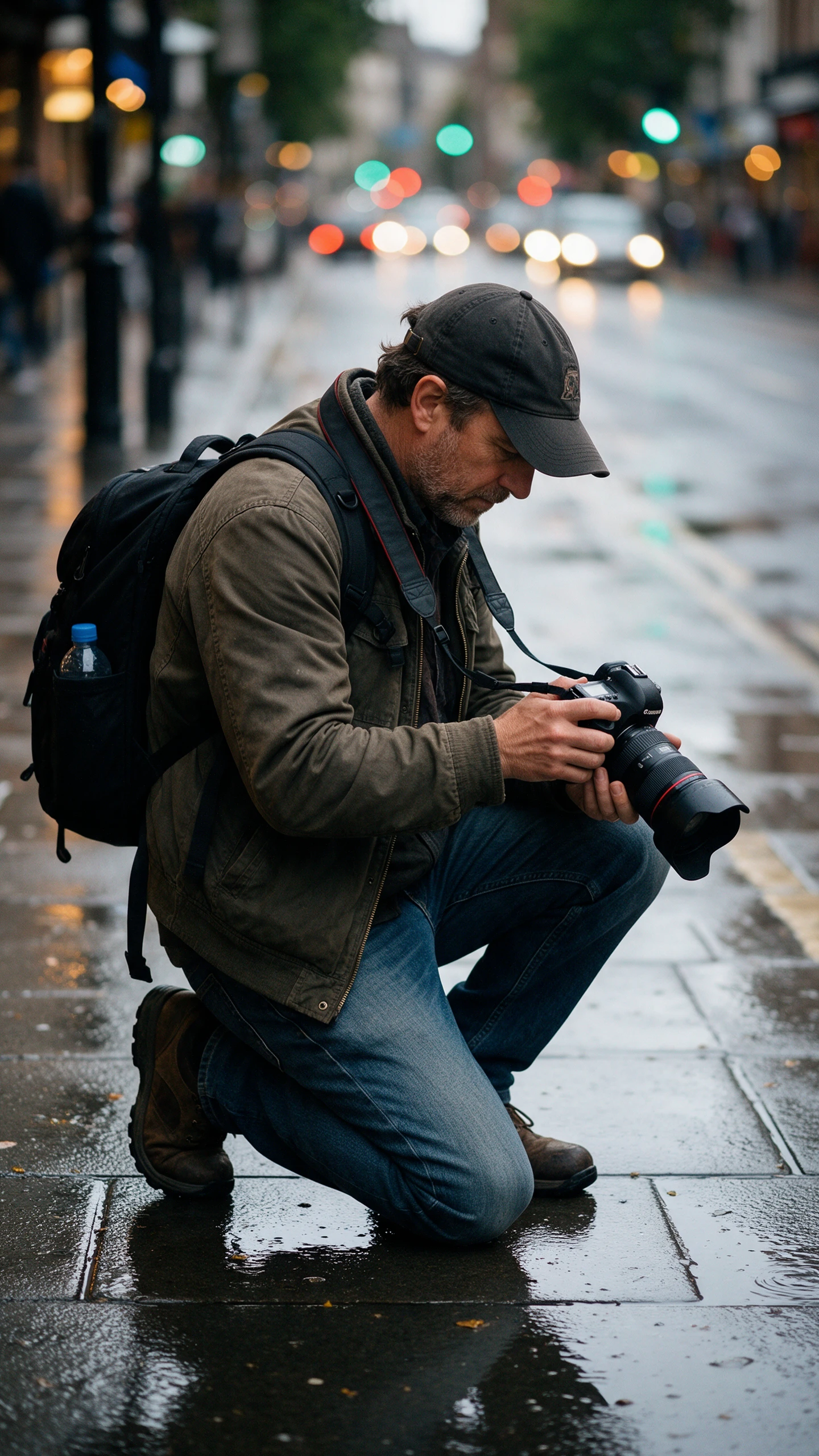
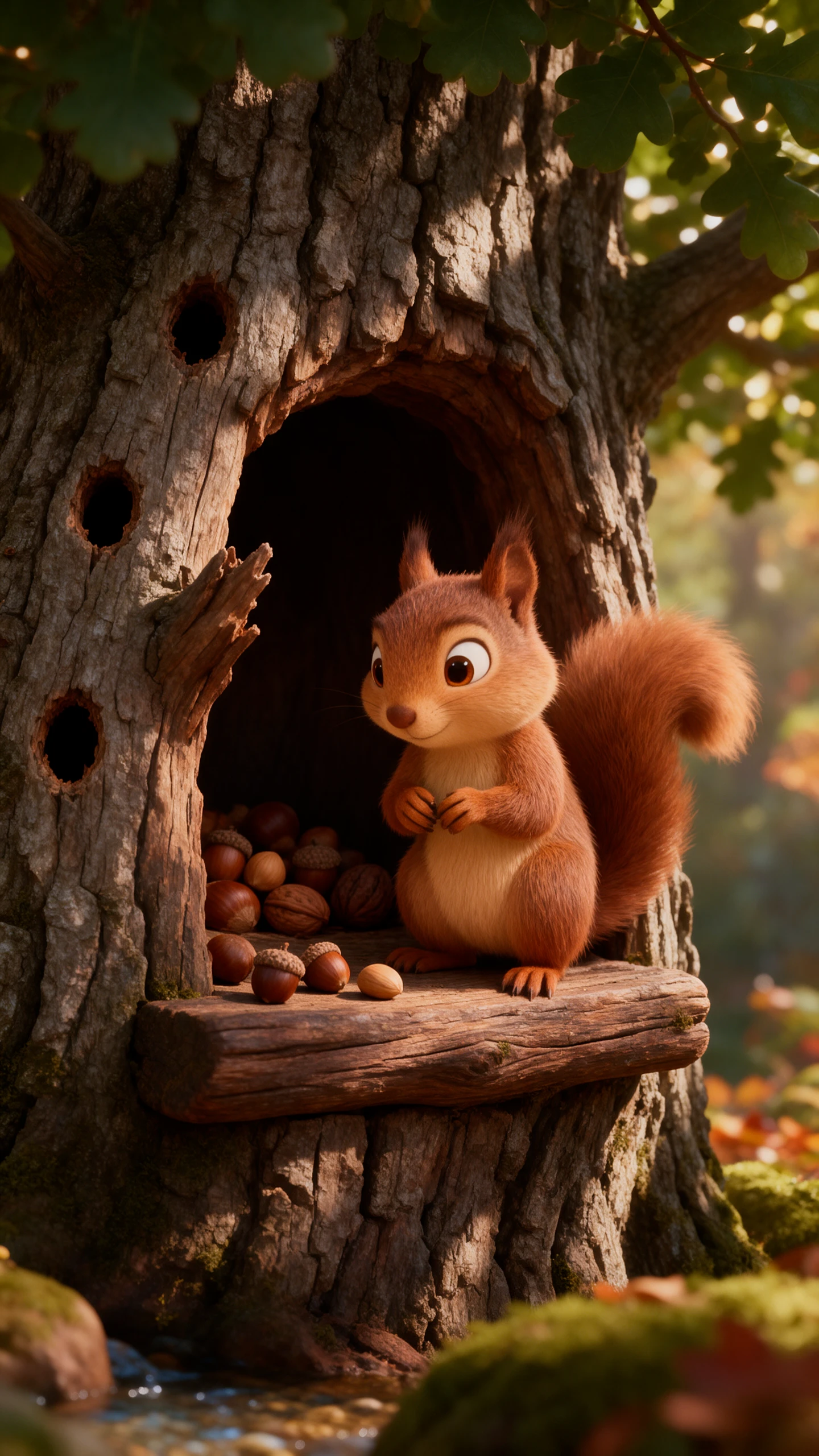
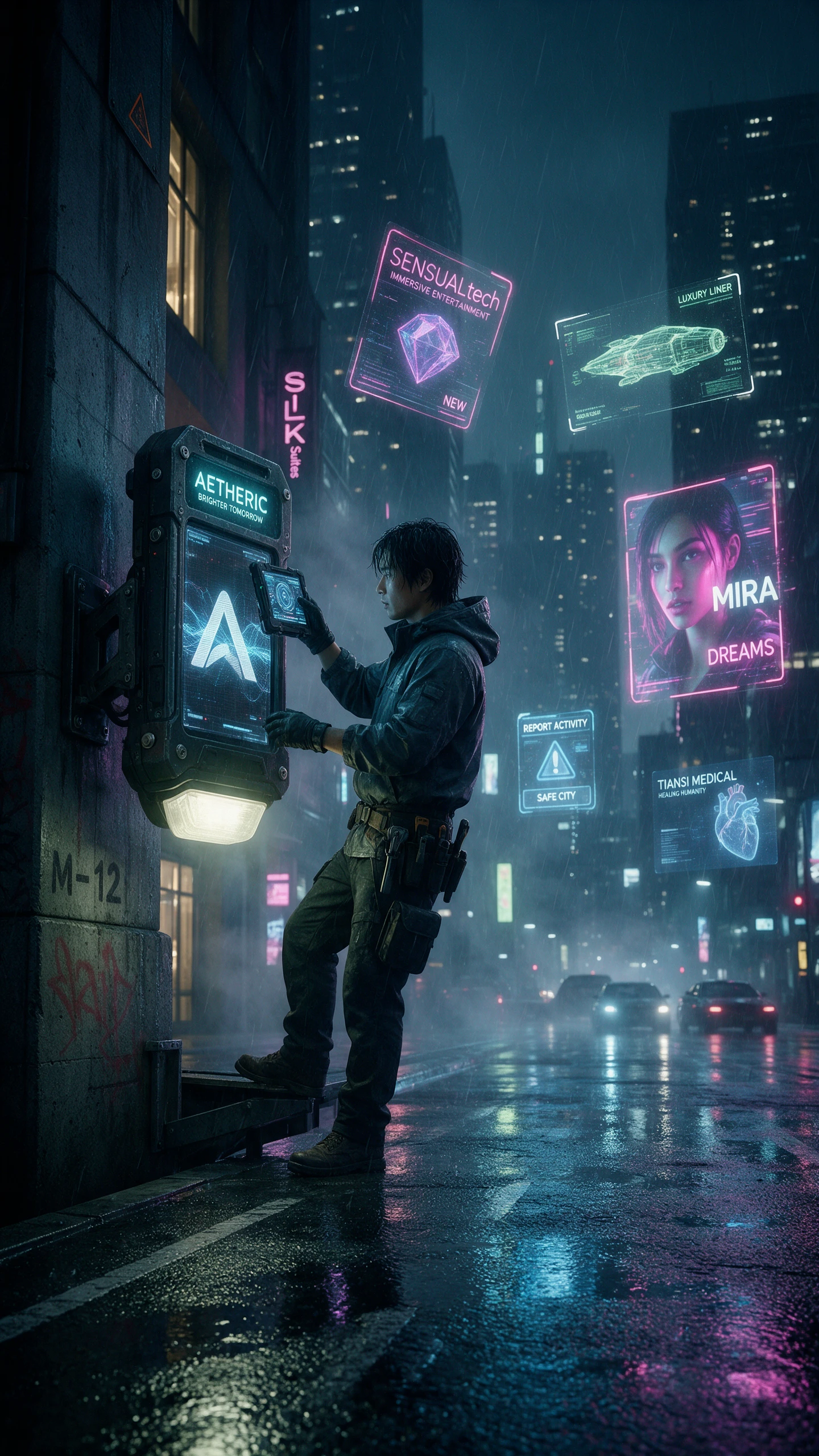
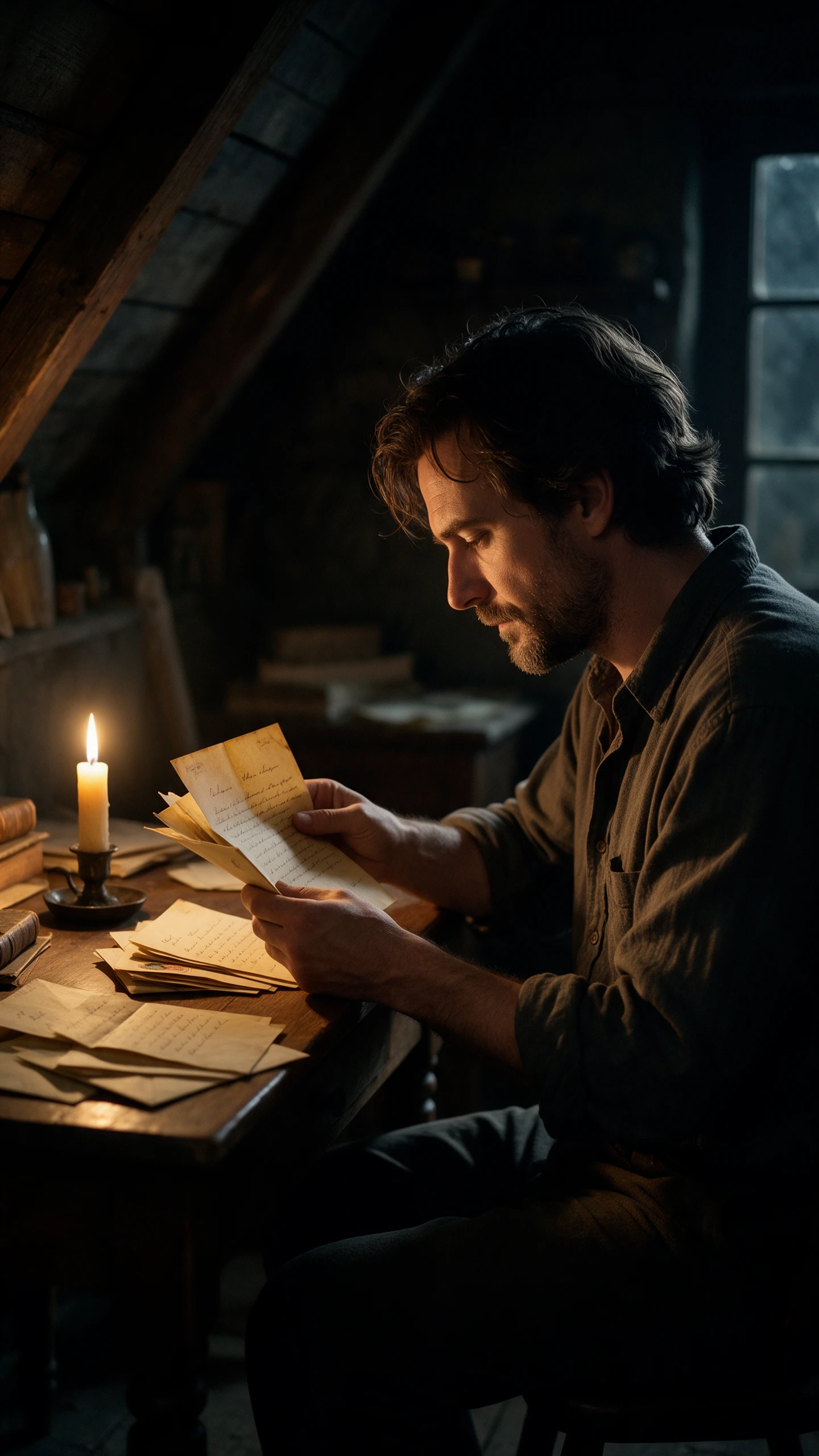
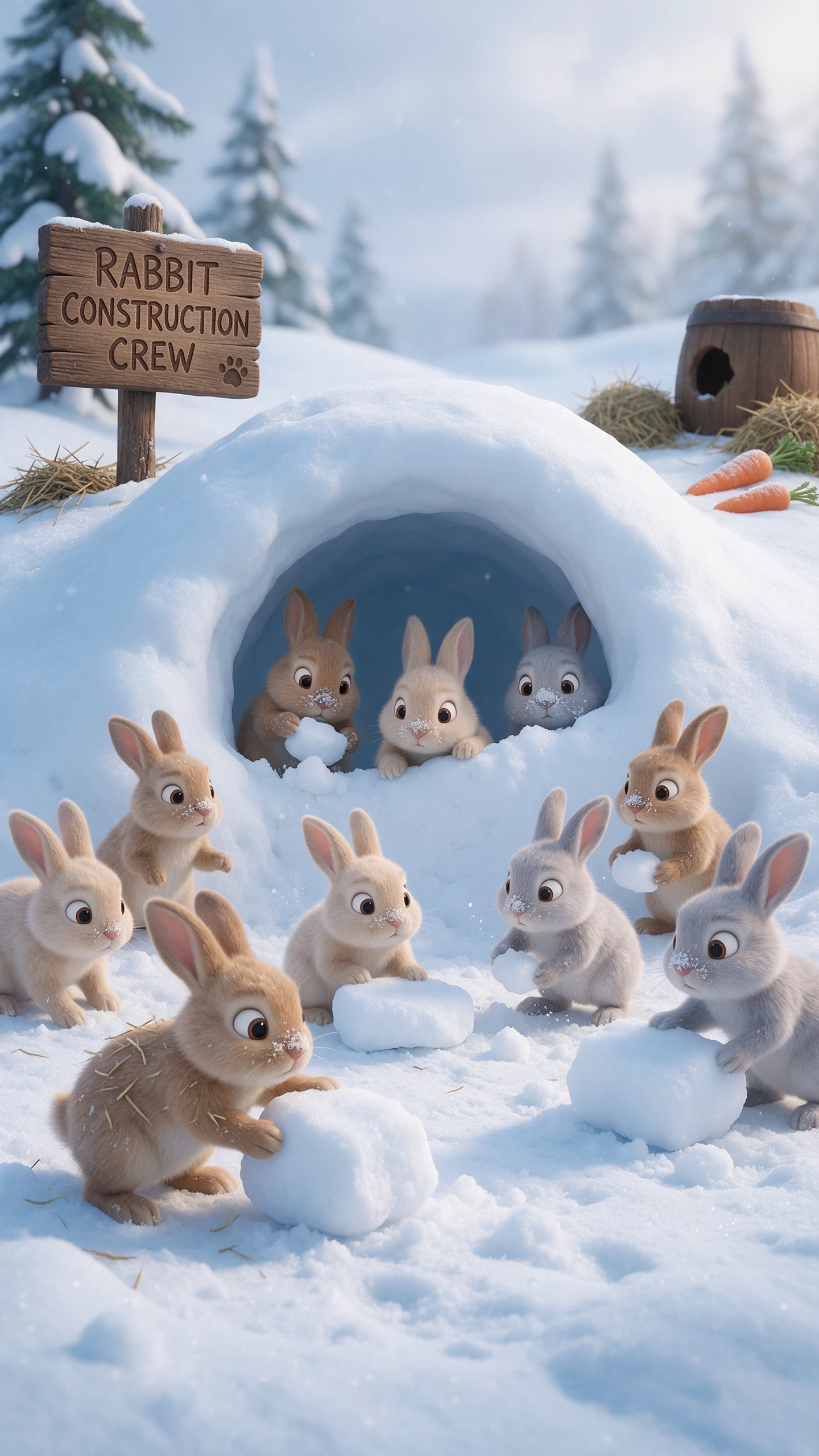
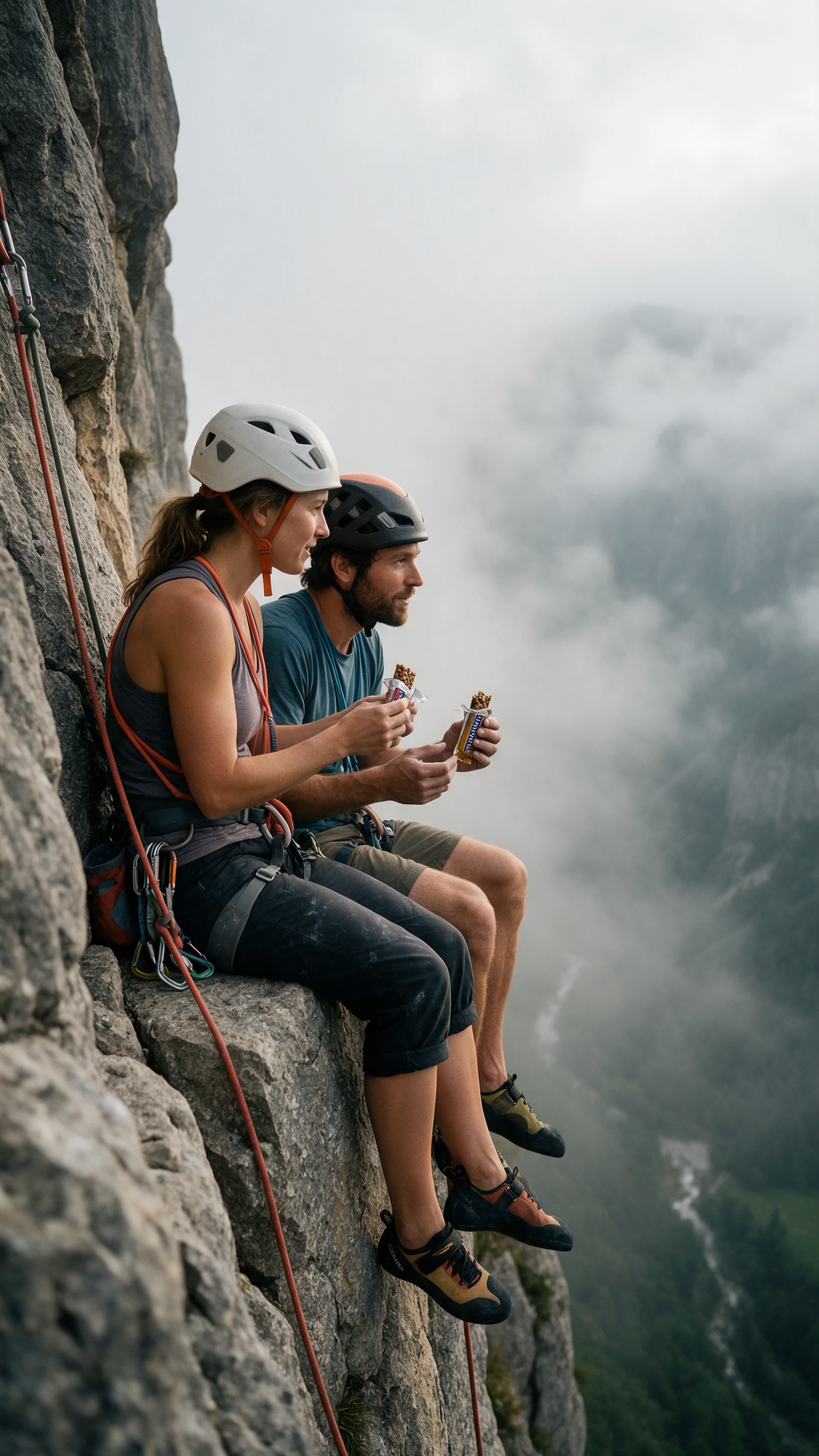
The FLUX AI image generator gives you different ways to shape an image from choosing a model to refining existing pictures. Here are 4 features worth knowing before you start.
FLUX AI image generator offers different models for different creative needs today. FLUX.1 Schnell handles quick experiments, while FLUX.1 Dev supports noncommercial creative projects. FLUX.2 Pro suits production work, while Max prioritizes image quality and detail.
Use FLUX editing tools to change only selected parts of existing pictures. Describe the replacement clearly, then review how the surrounding scene looks afterward. For tighter control, FLUX.1 Fill supports edits within areas you mask manually.
FLUX.2 can combine several different reference pictures into one new visual composition. Its Pro model accepts 8 references through the API for editing tasks. The Playground supports up to 10 references with compatible FLUX.2 models available.
FLUX.2 supports flexible image dimensions with output reaching around 4 megapixels total. A square image can measure 2048 pixels along each side. Both the image width and height must be multiples of 16.
The FLUX AI image generator gives you the freedom to shape each result your way. These 3 advantages cover photo changes, image sizes, and details drawn from real world scenes.
Use a photo you already have to create something completely different. FLUX can change its style while keeping the main subject familiar. Reference pictures help you carry that same look into other scenes.
Try FLUX AI for Free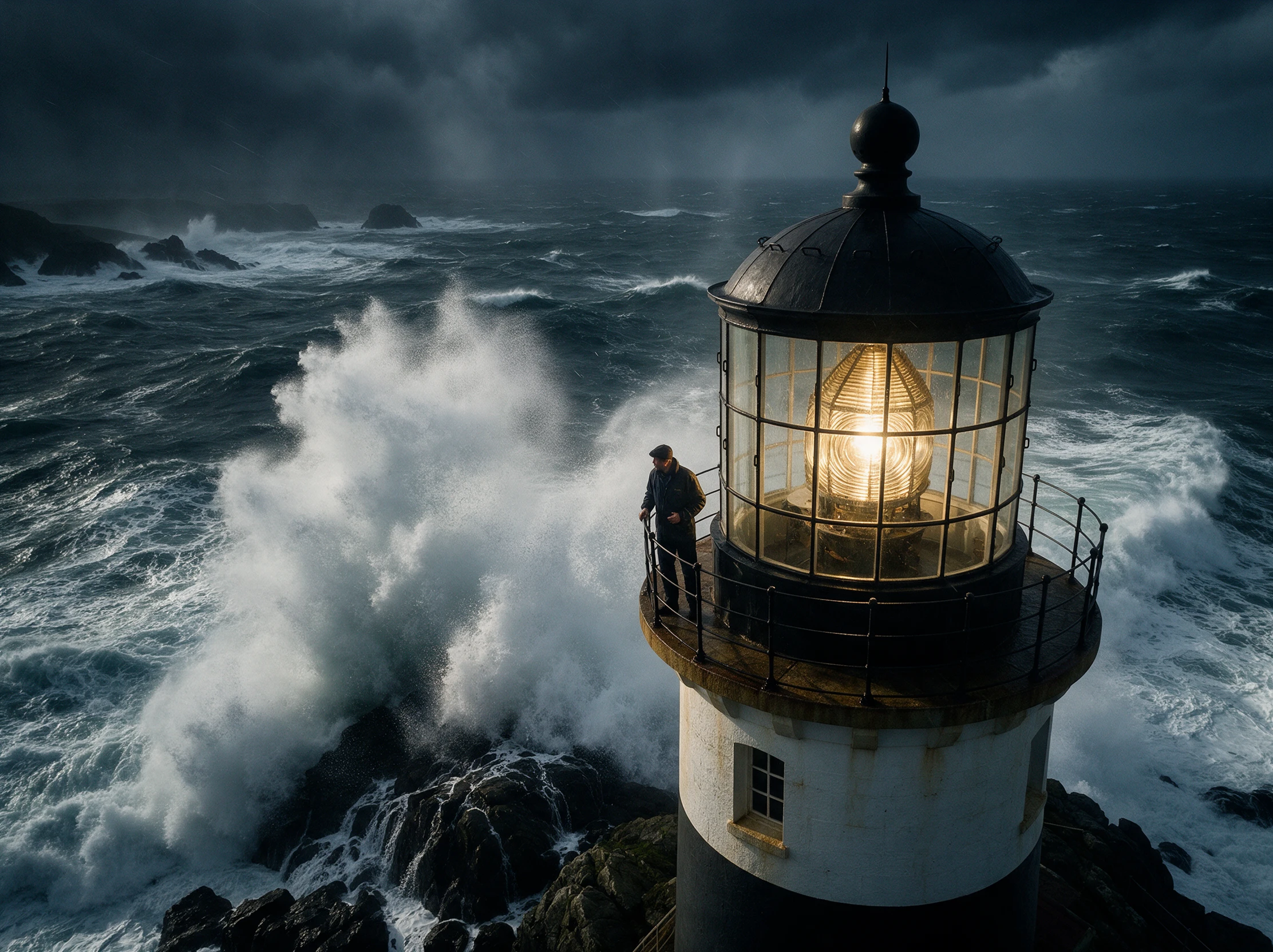
Some pictures need extra width, while others work better standing tall. FLUX lets you choose shapes that fit where images will appear. Try 16:9 for wide scenes or 9:16 for a vertical picture.
Try FLUX AI for Free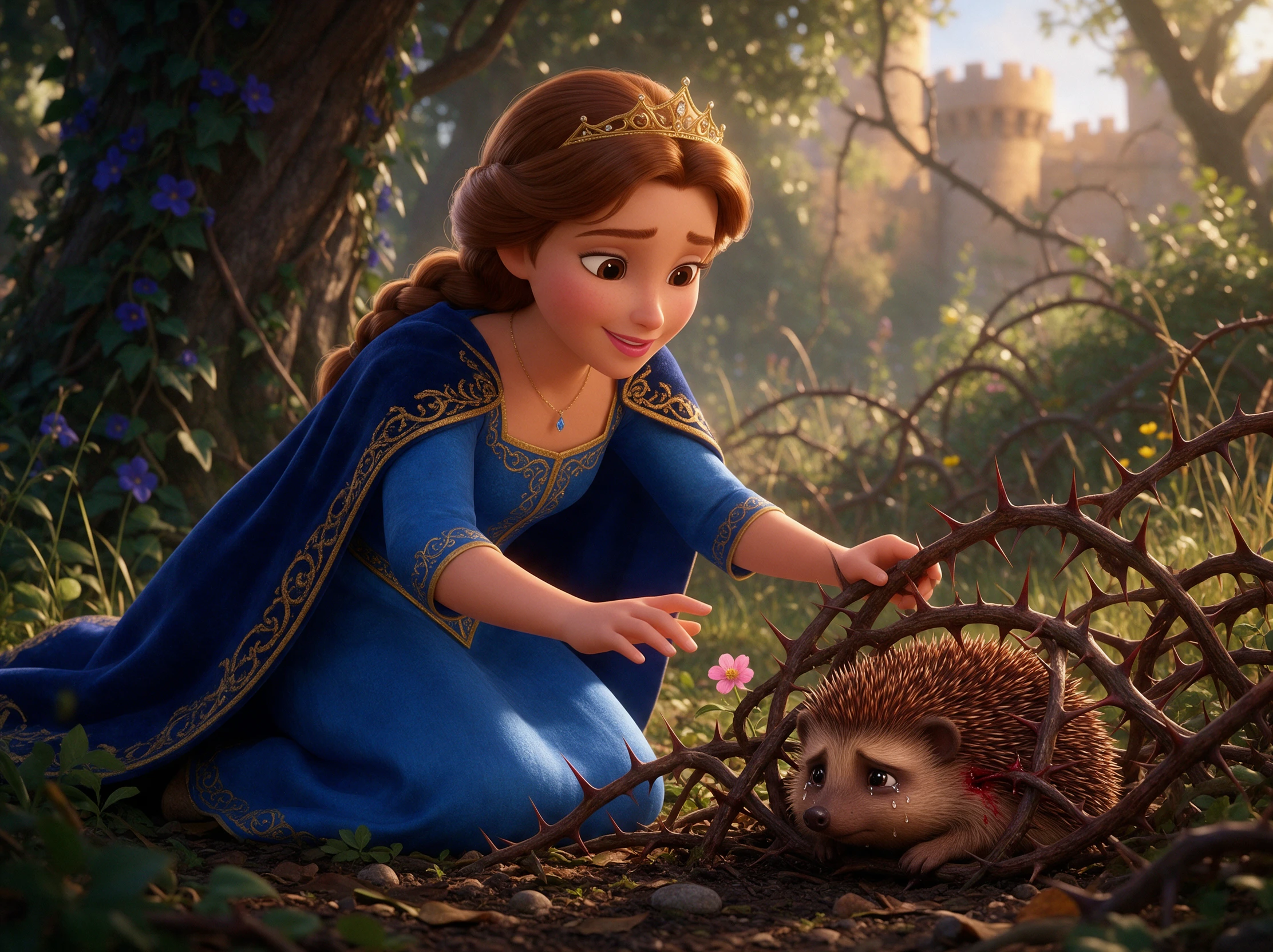
FLUX can draw on real world information when creating detailed images. This helps when your picture includes recognizable places or familiar products. Still check important details before using the result in public work.
Try FLUX AI for Free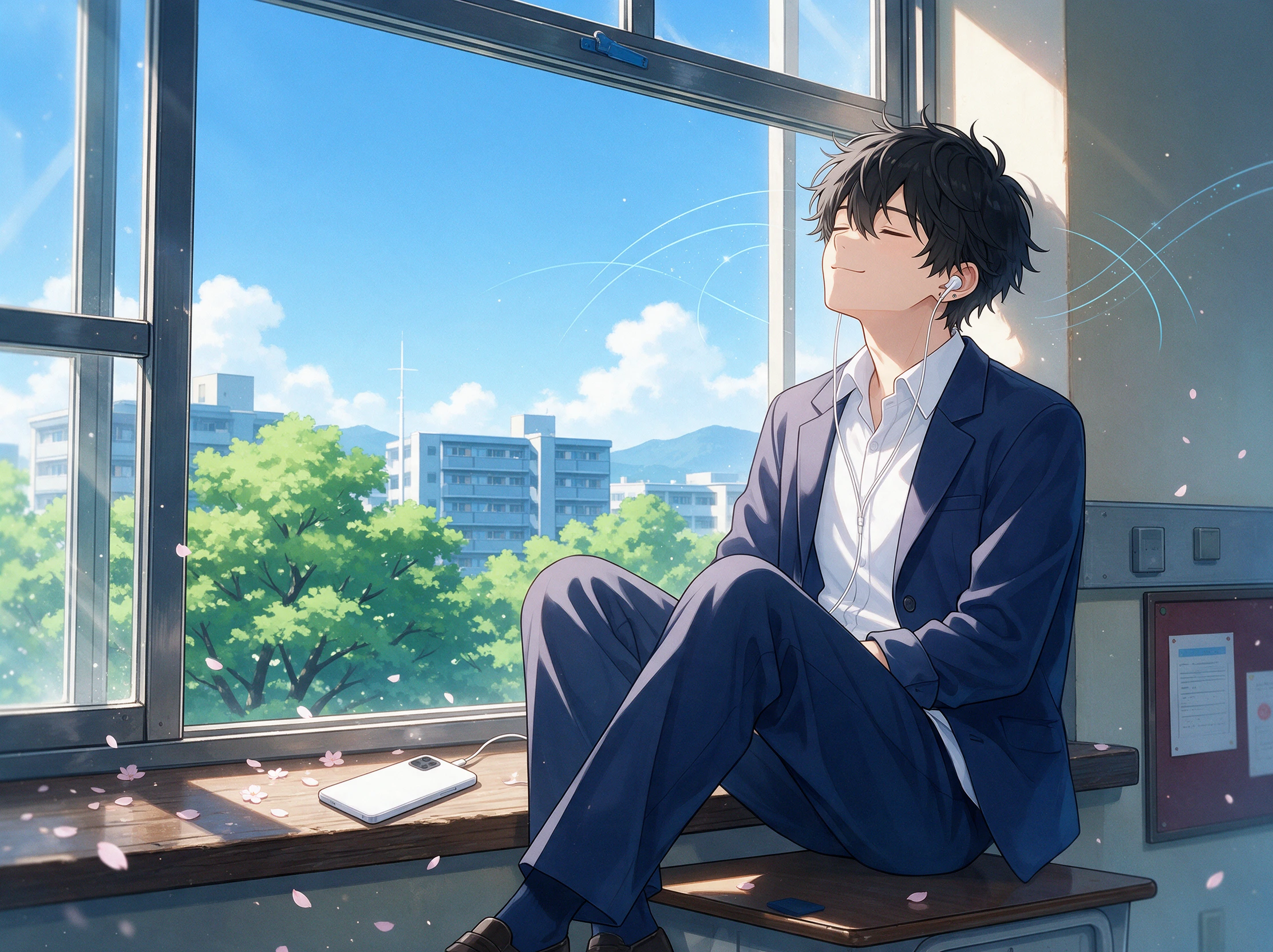
The FLUX AI image generator has plenty of competition. Here's how it compares with other image models when it comes to creative control, pricing and everyday use.
| Platform | Image Models | Image Editing Features | Image to Video | Best For |
|---|---|---|---|---|
| FLUX 3 Image | Multiple FLUX variants | Object placement and selective editing | No built-in support | Precise layouts and realistic images |
| MagicLight AI | 5 image models | AI editing and reference images | 20 video models | AI image creation and animated storytelling |
| Nano Banana 2.1 | 1 model | Up to 14 reference images | Via Google's Veo tools | Detailed image editing and design |
| GPT Image 2.5 | 1 model | Prompt-based editing and image preservation | Separate video tools | Image generation and creative editing |
| MAI Image 2.5 | 1 model | Targeted edits and detail preservation | Separate video tools | Professional images and design |
You can start with a prompt or bring your own picture to the FLUX AI image generator. These 4 steps show how to choose your setup and make final changes.
Open the Black Forest Labs Playground to create images online. Developers can also use the API, while compatible open weight models can run locally through tools like ComfyUI.
Select a wide or square format based on what you're making. Choose a supported resolution, then add reference pictures if you want FLUX to work from an existing look.
Write a prompt explaining what should appear in your image. For supported layout controls, you can also mark where different objects belong before generating the picture.
Check the finished image for anything that looks out of place. Use the editing options available for your chosen model to adjust those areas, then save the version you like.
Event Poster Designer
FLUX helped me plan a festival poster with boxes for the headline and artwork. The layout came out close to my sketch, leaving only a few details to adjust.
Product Photographer
I changed just the product label in FLUX and checked the rest of the photo afterward. The background still looked right, which saved me from making a new version.
Independent Developer
Getting FLUX Klein running on my own GPU took some setup, but now I can test images locally. It's useful when I want to try a few ideas without using an API.
Brand Designer
Several reference photos went into my FLUX product scene. The final image picked up the colors and overall mood I wanted, though the packaging needed another pass.
Yes. FLUX can place words inside an image when you include them in your prompt. Shorter text often works better, but check every letter before using the finished designs.
Try using a much bigger box when an object needs room to stand out. Very small boxes may fail to show the item, and the result can extend beyond the area you just marked.
FLUX.2 remains useful for image creation and editing. The newer FLUX 3 Image adds more direct layout controls. Available tools depend on where you access each model.
The FLUX AI image generator can help create artwork for posters or new products. Before selling your work, check the license for the chosen model and the service you use.
Yes. Some FLUX models support training with your own images, including LoRA methods. The setup takes technical work, and the rights to your training pictures also matter.
Not always. Results depend on the model and how you describe the scene. For faces or brand details, use clear reference photos and inspect the image before publishing.


Set your layout, describe the scene and let FLUX create the image. Adjust individual details until the result looks right.