Create Audio-Visual Scenes With Veo 3.1
Use Veo 3.1 when your project needs cinematic video and native audio. Create scenes with dialogue, ambient sound, visual references, image animation, and smooth transitions.
Create cinematic AI videos with Veo 3.1 in Magiclight AI. Add native audio, animate images, and guide scenes with references. No experience required.
Try Veo 3.1 for Free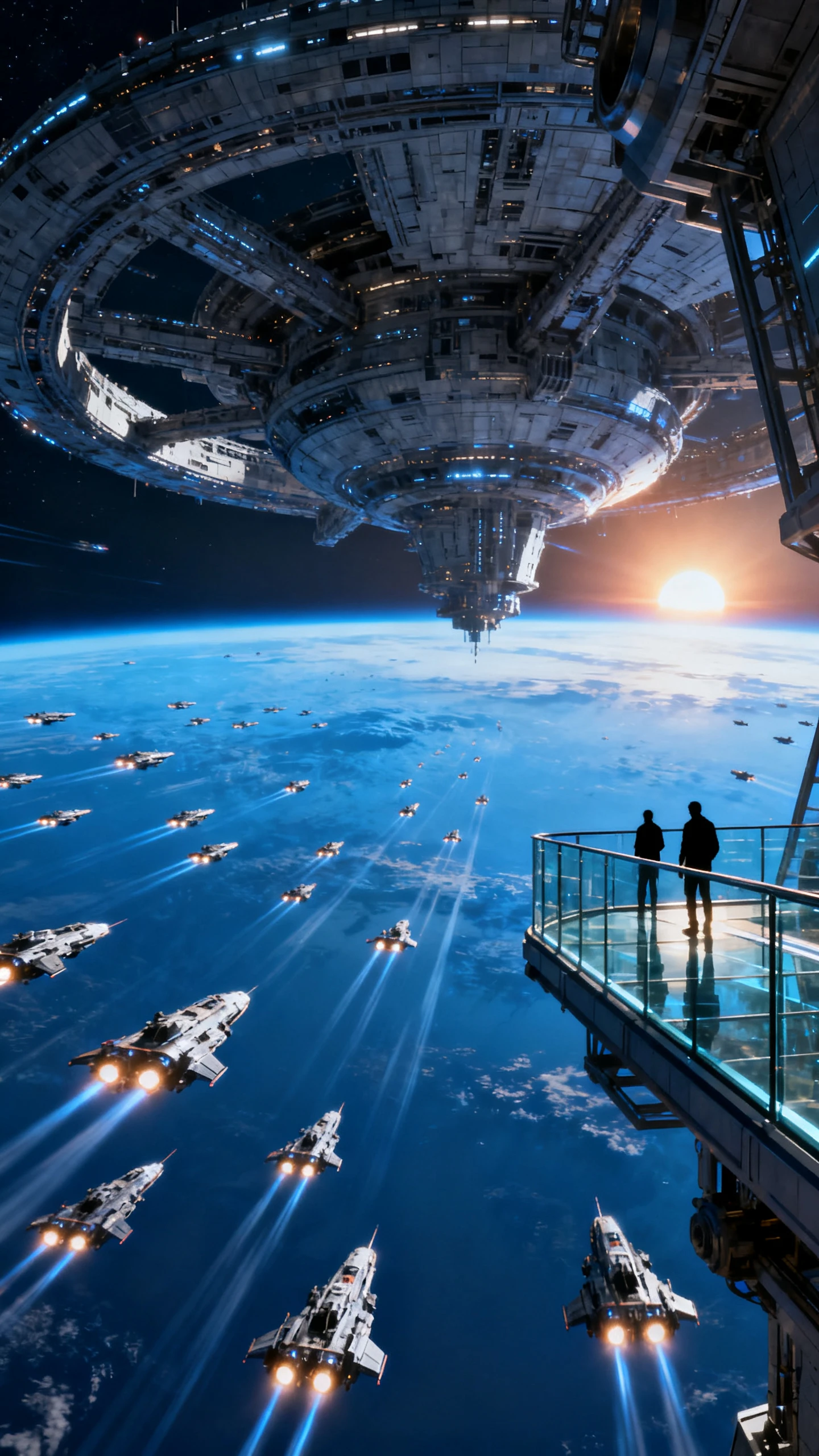
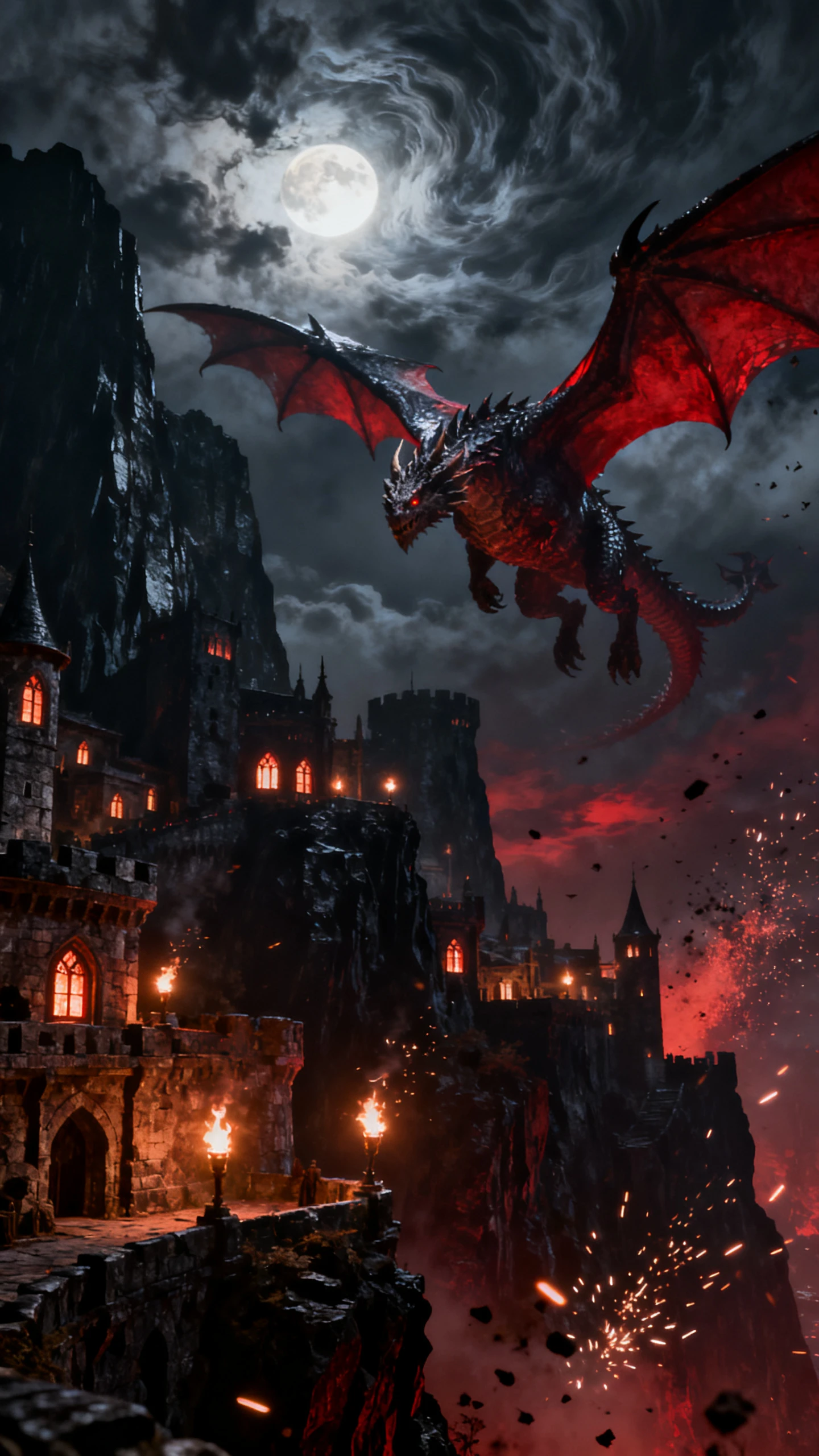
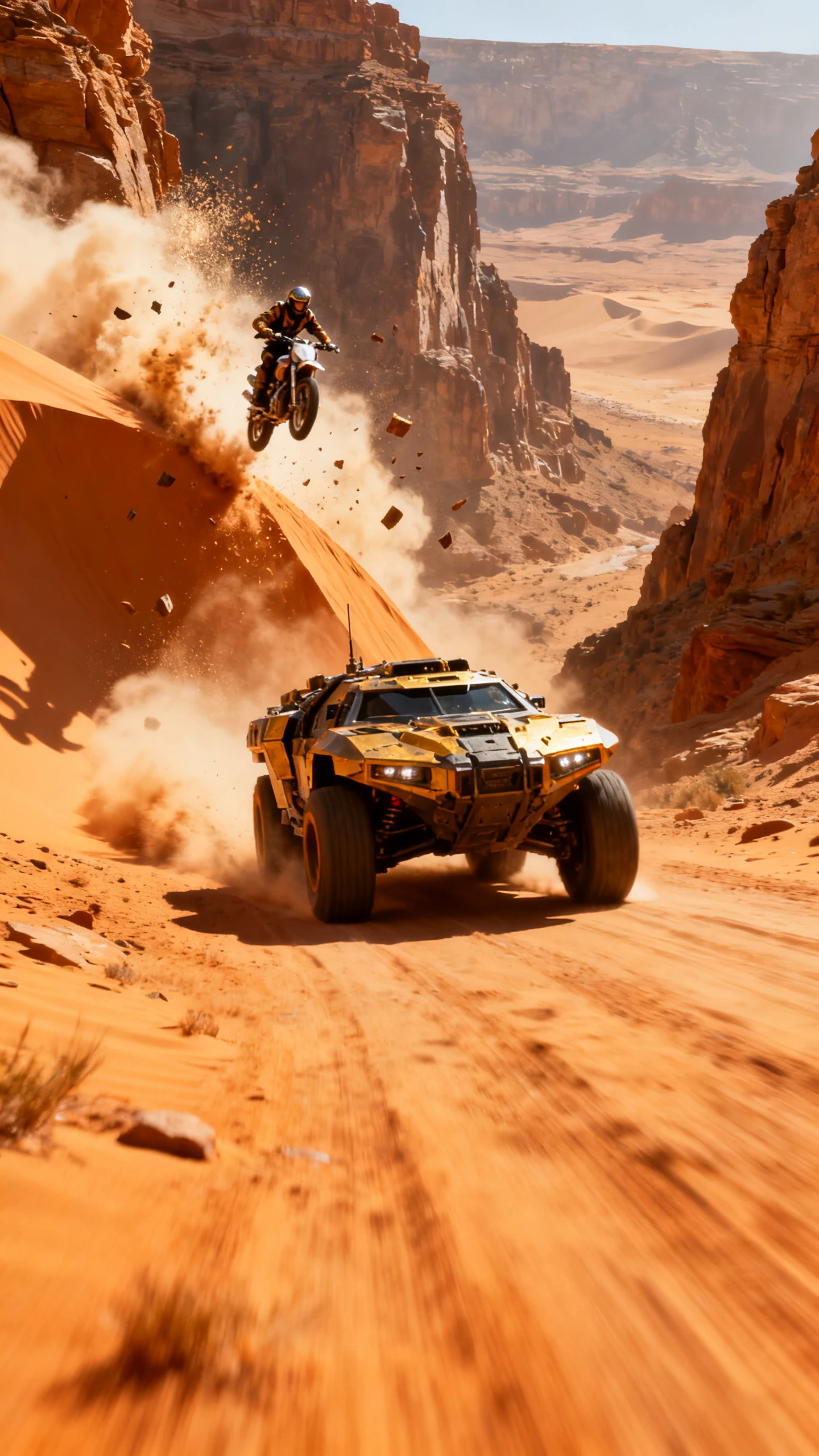
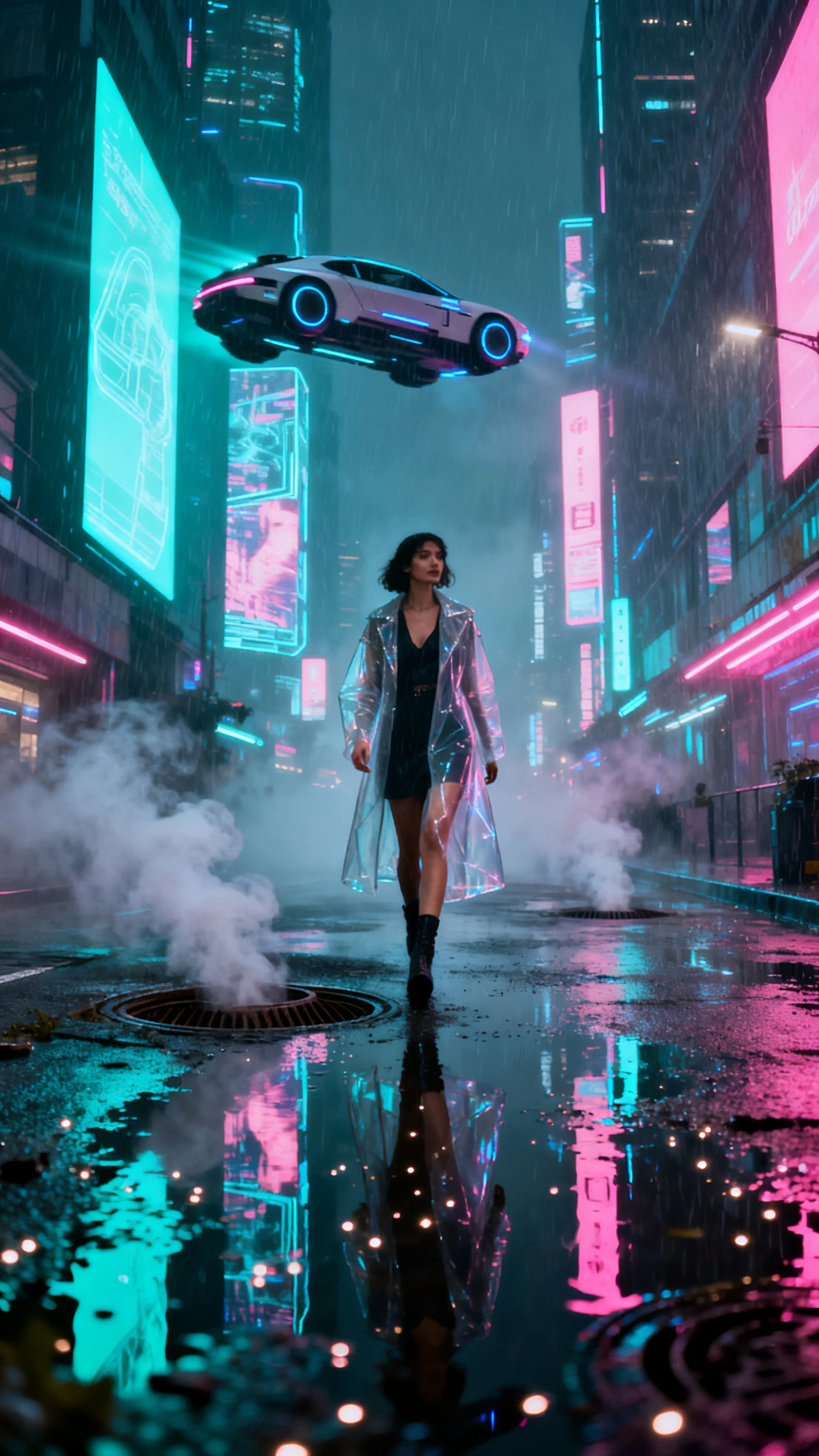
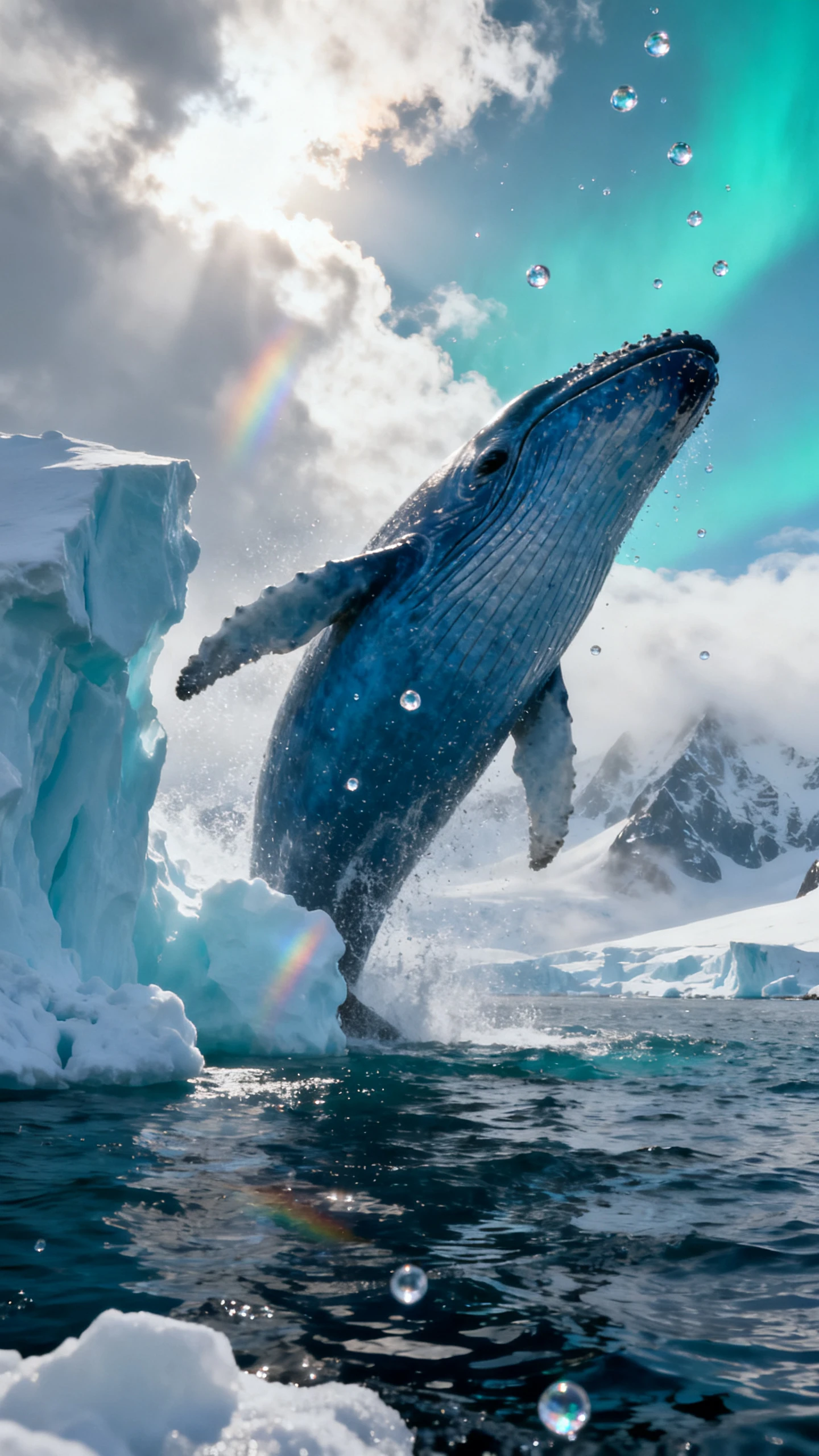
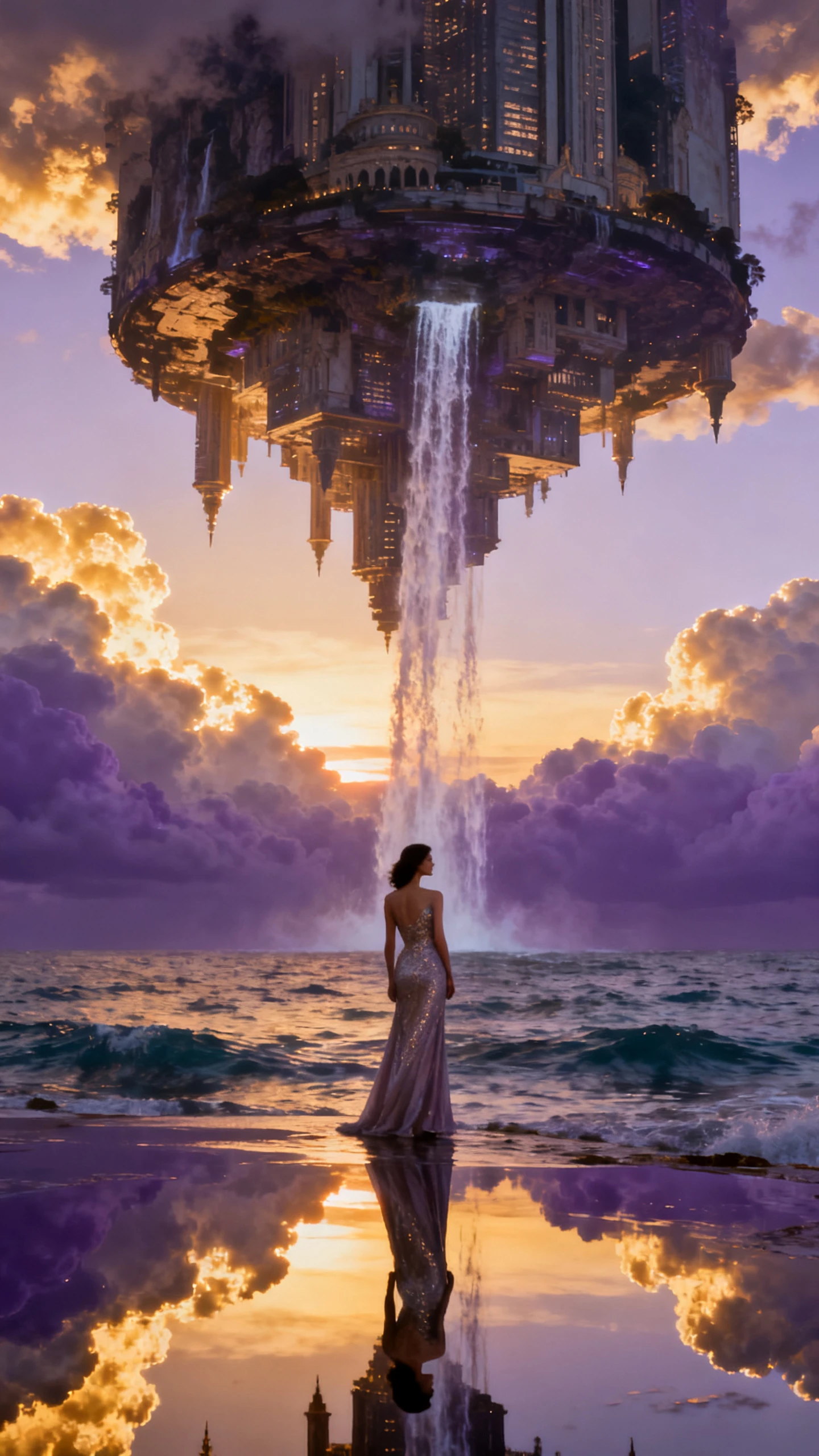
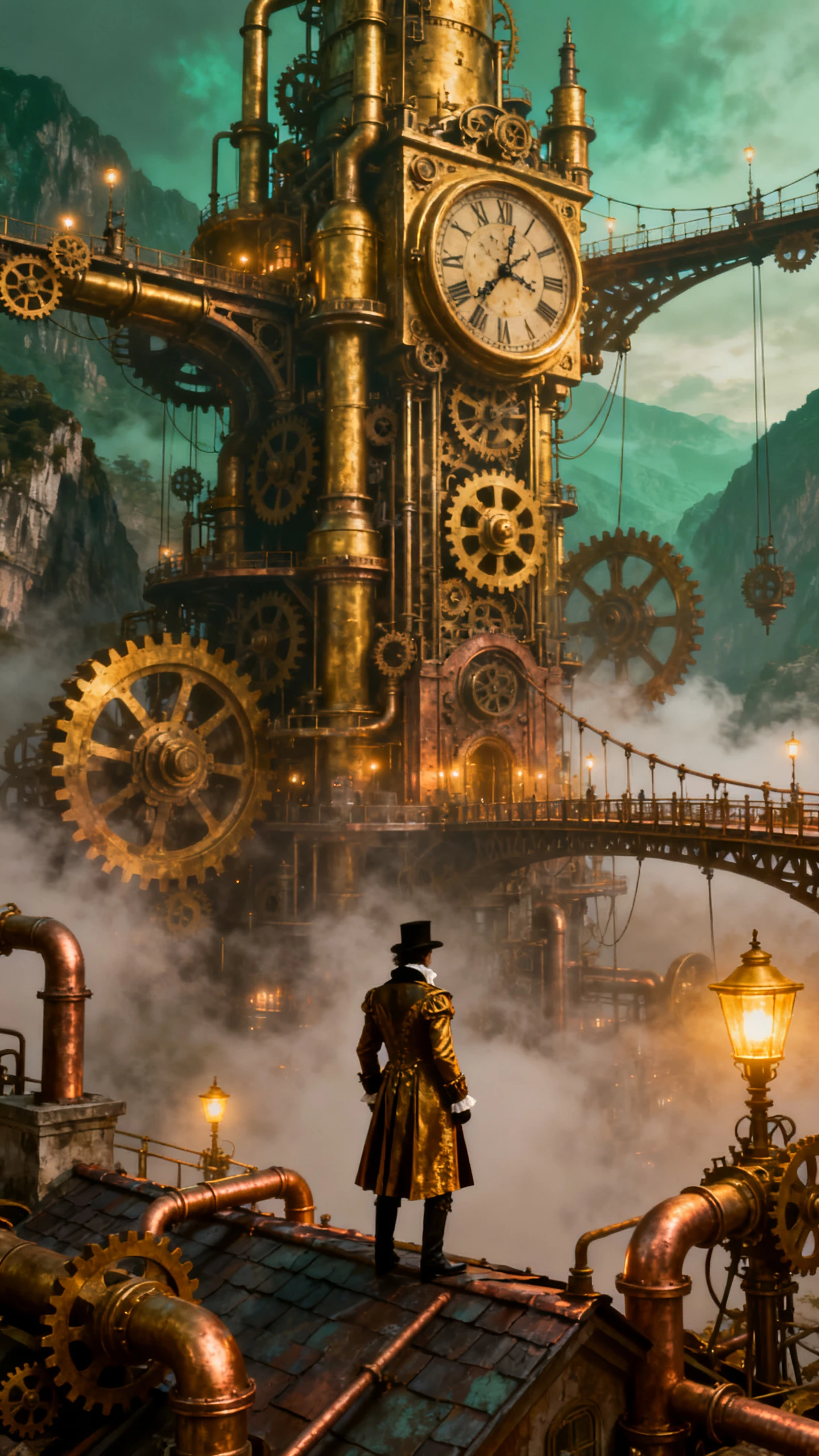
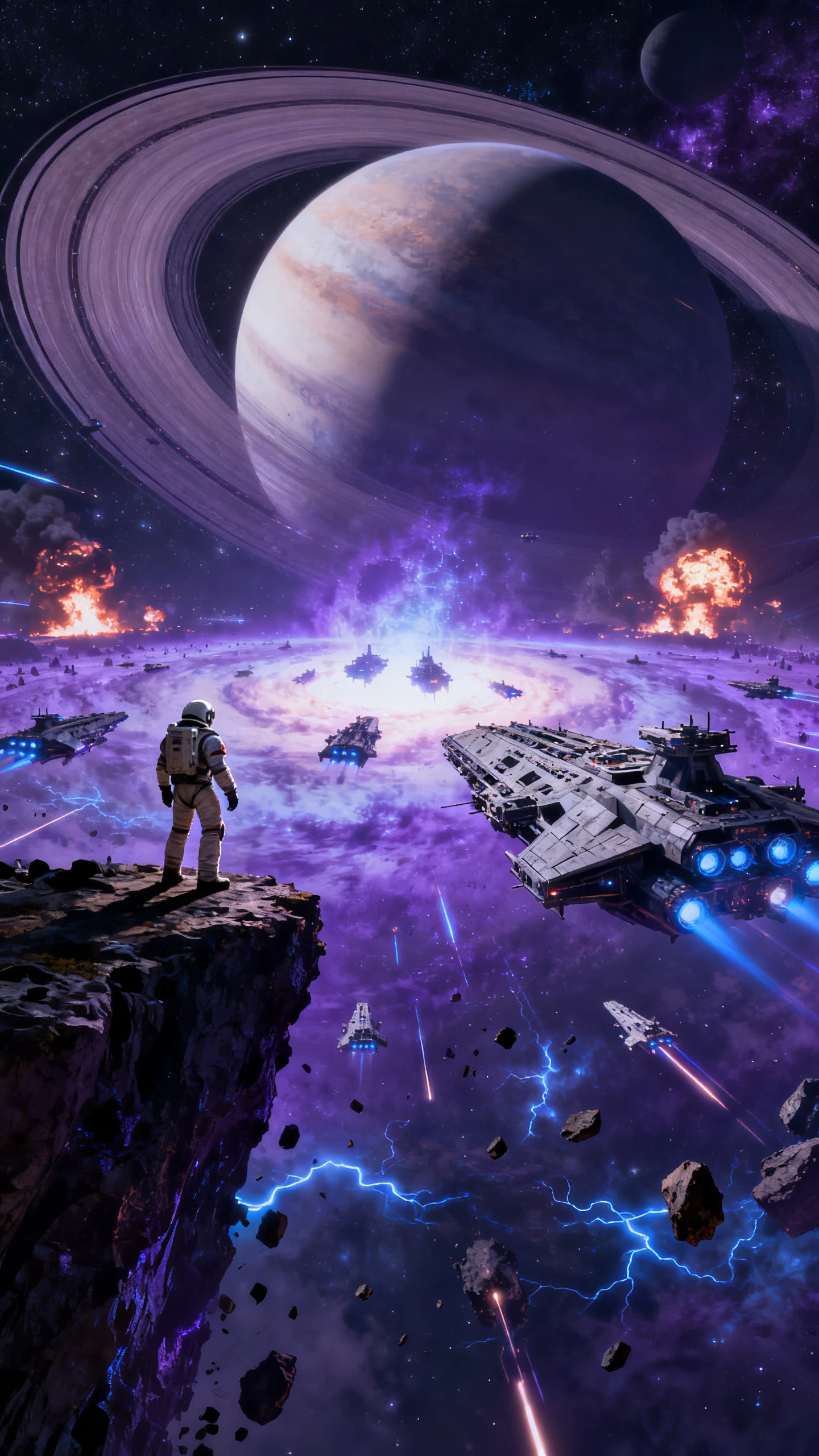
Use Veo 3.1 when your project needs cinematic video and native audio. Create scenes with dialogue, ambient sound, visual references, image animation, and smooth transitions.

Veo 3.1 can generate video with sound, helping scenes include atmosphere, effects, and audio cues that match the visual moment instead of being added as a separate afterthought.
Start from a character image, product visual, storyboard frame, or scene reference in Magiclight, then use Veo 3.1 to animate the image into a moving clip.
Use a beginning image and an ending image to guide the arc of a transition. Veo 3.1 can help fill the movement between those frames for more intentional scene flow.
Guide the generated clip with visual references for character, object, environment, or style. This helps keep the scene closer to the creative direction prepared in Magiclight.
Veo 3.1 gives Magiclight creators a strong model for scenes where sound, image references, and visual transitions all matter. Magiclight AI then helps organize those generated clips into complete videos.
Use Veo 3.1 when the scene needs more than silent motion. Native audio can help the moment feel closer to a finished clip before you add Magiclight narration, music, subtitles, or final edits.
Start Creating Free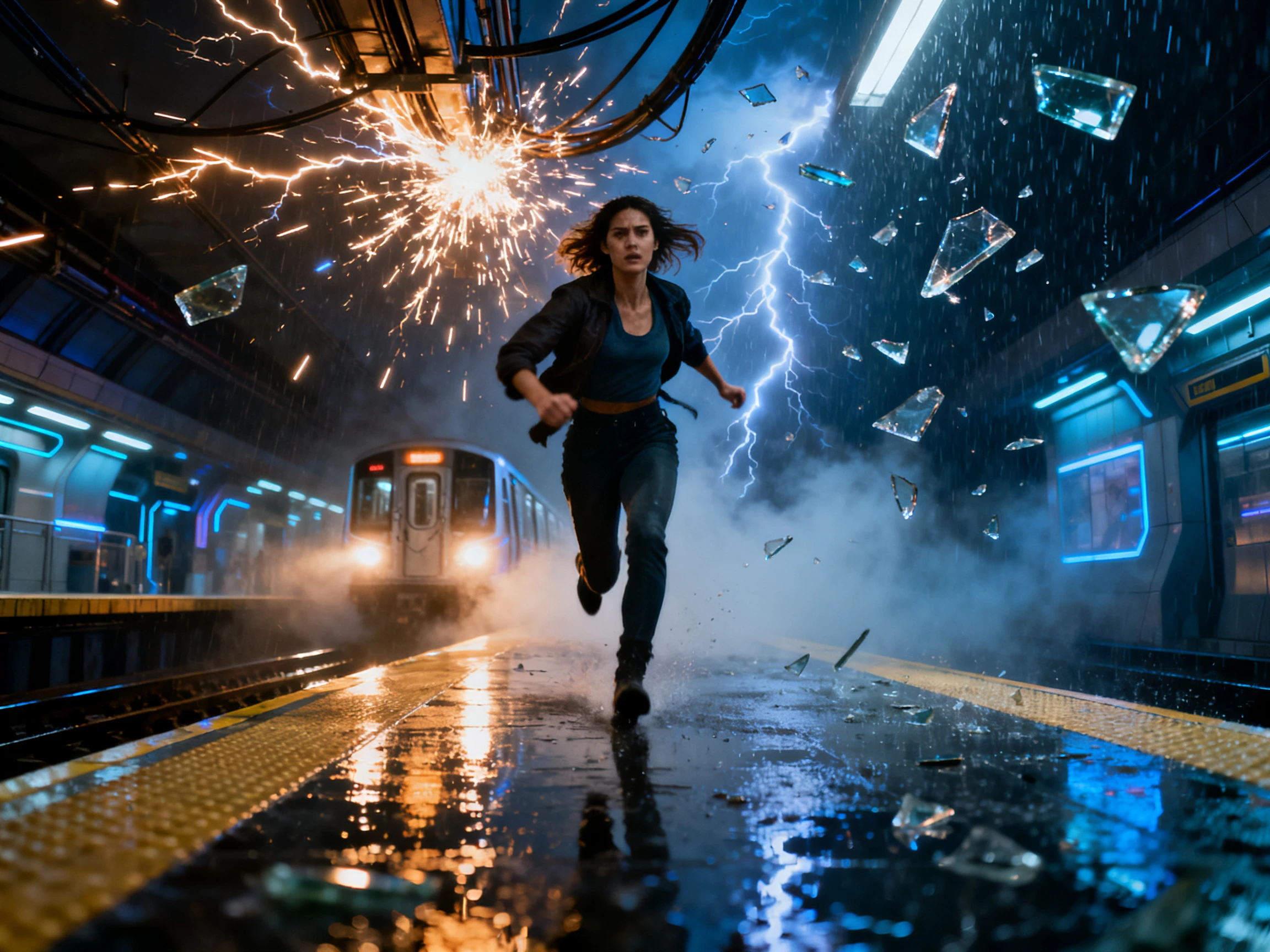
Bring character images, object references, visual styles, or scene frames into Magiclight, then choose Veo 3.1 when you want the video generation to follow those ingredients more closely.
Start Creating Free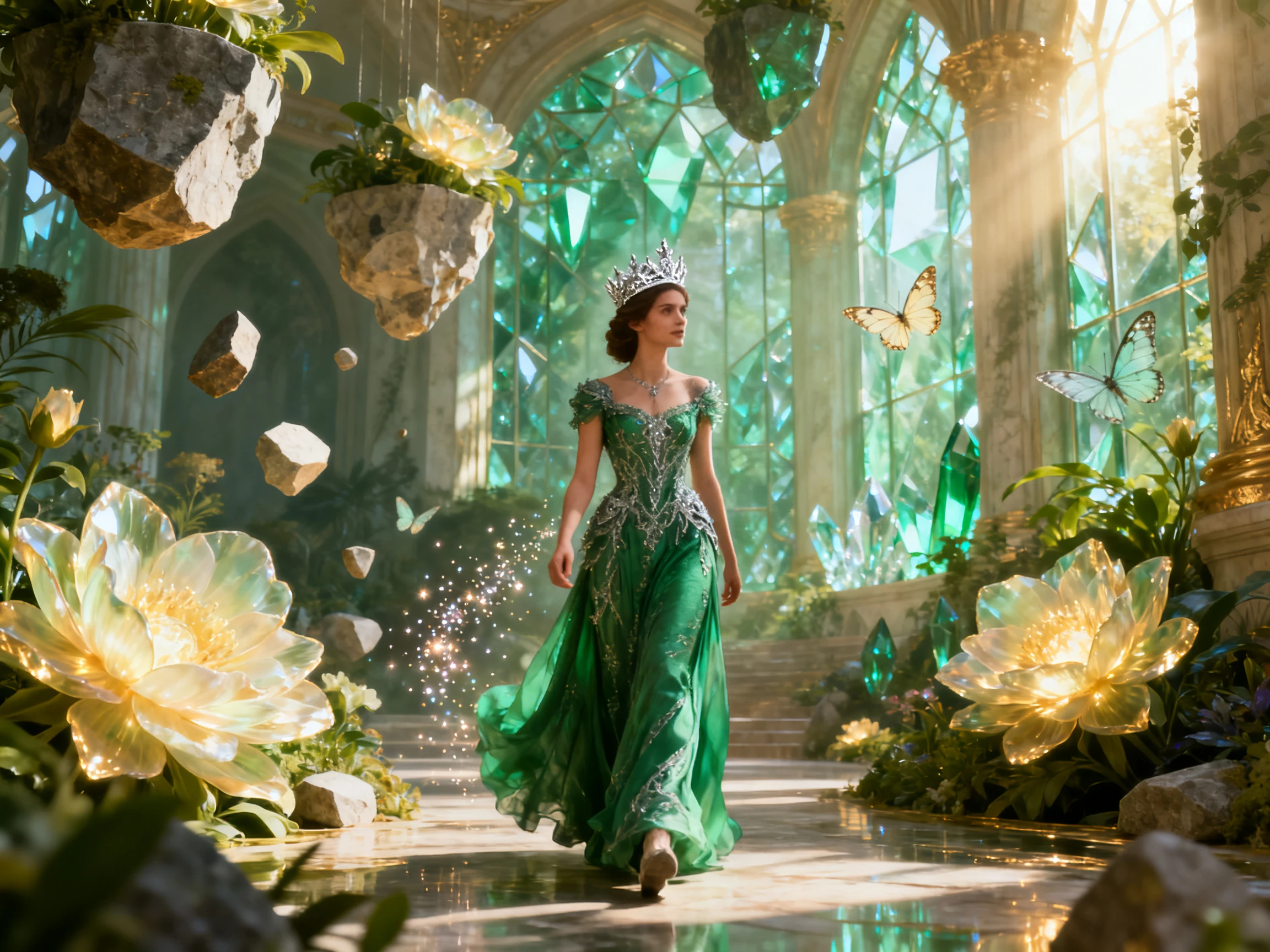
Veo 3.1 can generate high-impact scenes. Magiclight AI helps sequence those scenes into longer story videos with scripts, storyboards, AI voices, background music, subtitles, covers, and publishing tools.
Start Creating Free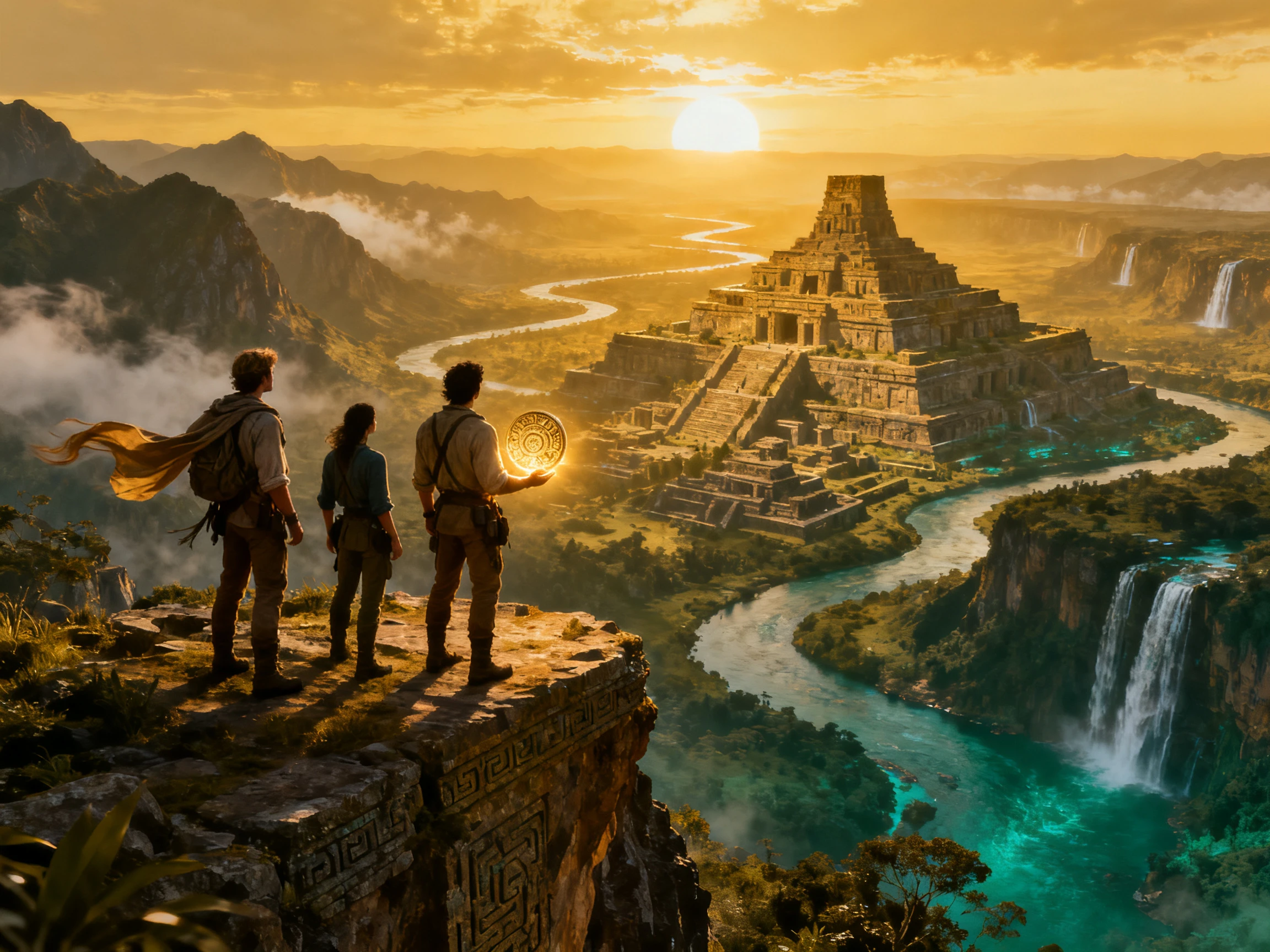
See how Veo 3.1 compares with other AI video models in audio, transitions, image-to-video, and creative control.
| Model | Strength | Visual Style | Best For | Creators |
|---|---|---|---|---|
| Veo 3.1 | Native audio, references, and frame-guided transitions | Cinematic video with synchronized sound | Audio-visual scenes | Filmmakers, marketers, and storytellers |
| Wan 3.0 | Longer takes and reference-guided video | Cinematic scenes with coherent motion | Longer video scenes | Story creators and video teams |
| Seedance 2.5 Pro | Reference alignment and planned scene control | Deliberate motion with prepared direction | Controlled planned scenes | Storyboard-heavy creators |
| Seedance 2.5 | Smooth motion and strong prompt following | Polished short-form cinematic scenes | Fast cinematic generation | Social and campaign creators |
| MiniMax H3 | Multi-modal references and native audio | Cinematic clips with synchronized sound | Mixed-reference clips | Directors and ad teams |
| Nano Banana 2 Lite | Low-latency image generation | Quick visual concepts before video | Fast image-first drafts | Social creators and marketers |
Use Veo 3.1 inside Magiclight AI when a project needs video generation with sound, reference images, image animation, or a planned visual transition.
Start with Story to Video, Image to Video, Short Drama, Explainer Video, Music Video, Interview Video, or another Magiclight creation workflow.
Write the prompt, add source images, define a first or last frame where supported, or prepare visual references for characters, objects, settings, and style.
Choose Veo 3.1 when you want native audio, stronger prompt following, image-to-video direction, or frame-guided transition generation inside the project.
Place generated clips into the Magiclight storyboard, add narration, music, subtitles, covers, and final edits, then export using Magiclight's supported output options.
Ad Creative Director
Veo 3.1 is useful when a product scene needs sound and motion together. We can generate a clip that already has atmosphere, then finish the ad sequence in Magiclight.
Animation Studio Lead
The first-and-last frame workflow helps when we know where a scene should begin and end. Magiclight makes it easier to place those generated moments inside a larger storyboard.

YouTube Channel Owner
I use Veo 3.1 for clips where the sound matters. It gives me a stronger starting point before I add titles, narration, music, and subtitles in Magiclight.
Freelance Video Editor
Reference-guided generation saves time when a client wants a specific character, object, or style. I can build the scene in Veo 3.1 and still finish the project in Magiclight.
Veo 3.1 is a Google AI video model option inside Magiclight AI. Creators can select it when a workflow needs video generation from prompts, images, references, or frame-based direction.
Veo 3.1 is known for native audio, improved image-to-video generation, reference-guided scene creation, stronger prompt adherence, and first-and-last frame transition workflows.
Yes. Veo 3.1 supports native audio generation, which can include sound that is contextually paired with the visuals. In Magiclight AI, you can also continue with narration, music, subtitles, and editing tools.
Yes. Veo 3.1 supports image-based direction, including image-to-video workflows and reference-guided generation. Available options inside Magiclight depend on the workflow and model access shown in the product.
First-and-last frame generation lets you provide a starting image and an ending image so the model can create the transition between them. It is useful when you already know how a scene should begin and where it should land.
This page does not claim 4K export. Veo 3.1 is presented here as a video generation model inside Magiclight AI, while final export follows the output options currently supported by Magiclight.
You can create cinematic clips, image-to-video scenes, product videos, ads, story moments, social content, explainer scenes, reference-guided shots, and audio-visual video segments.


Bring prompts, images, references, or frame directions into Magiclight AI. Use Veo 3.1 to create scenes, then add narration, music, subtitles, covers, and more.