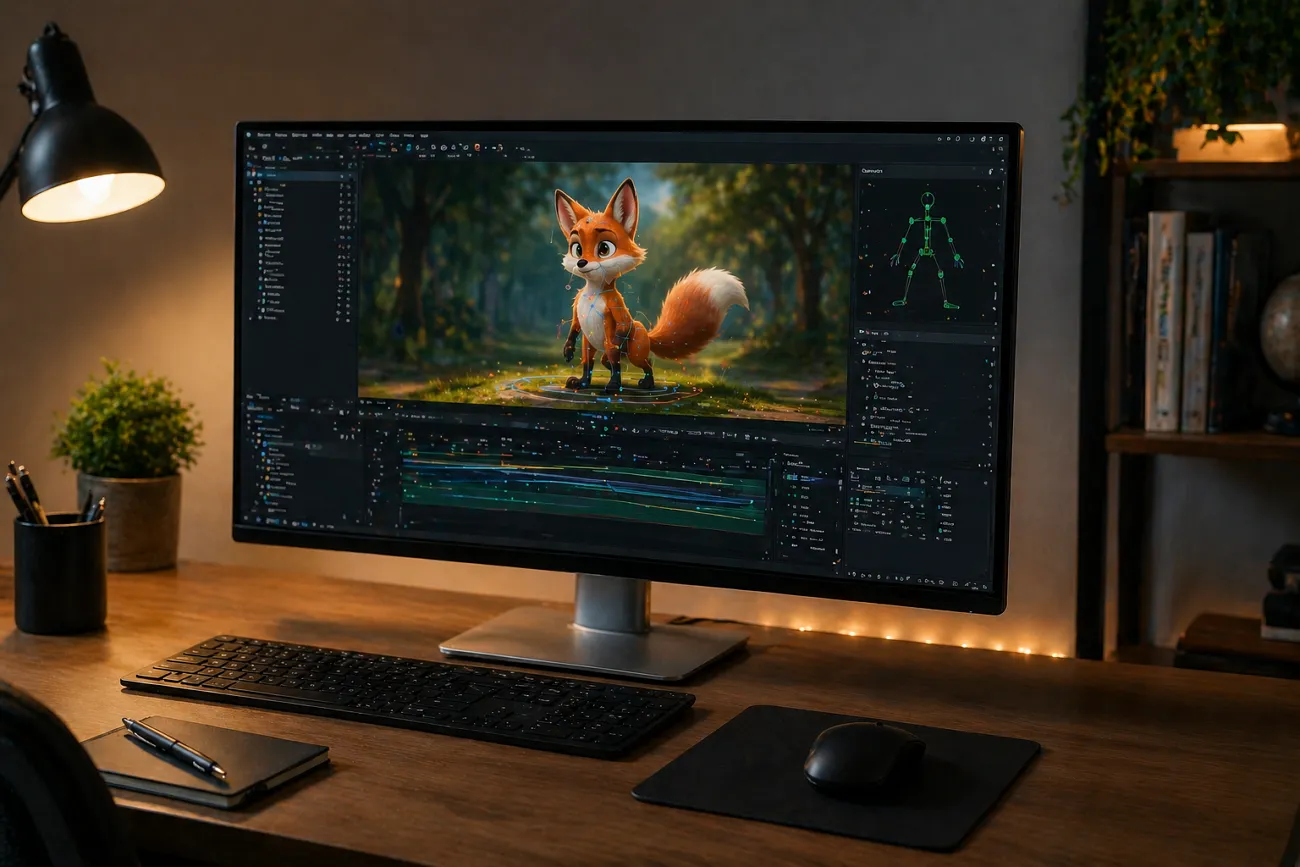
Animation helps people create fun, moving stories using simple tools. Many beginners search for tools that create AI-animated videos without effort. One such tool is Animon AI, which helps users generate short, animated videos without complex editing skills. However, it only focuses on video creation and lacks complex video generation features.
Creators also need tools for publishing and tracking performance in one place. That is why platforms like MagicLight AI are becoming popular among creators. It is a complete video-creation tool with advanced features to improve workflows. This guide explains how these tools help you in creating the perfect animation.
Part 1. What is Animon.ai?
Animon.AI is an AI-powered animation platform that turns text prompts and images into short anime-style videos. It uses multiple AI models, such as Veo 3 and Sora 2, to generate content in one place. Users can create videos from prompts or even animate images into short clips quickly. Along with video creation, creators can swap faces in videos with AI precision in 60 seconds.
AI Animation Features Explained
- Reference Control: Allows users to upload a reference video to maintain consistent character design and visual style across multiple generated videos.
- Auto Subtitles: Automatically generates captions for videos, improving accessibility and making content more engaging on social media platforms.
- Motion Presets: Simple built-in movements like walking, head turns, and camera moves make animation easy for beginners.
- Video Upscaling: Improves video quality by converting lower resolution clips into higher quality outputs like 1080p.
- Camera Control: Users can adjust zoom, pan, and orbit to create more cinematic and professional video scenes.
Is Animon AI Free? How to Use Animon AI (Step-by-Step)
Animon AI free access is available, but it is not completely free to use. It offers free access to create videos but includes limits. The free version allows users to generate videos but adds a watermark and limits quality to 480p. This tool has paid plans starting from $19.9 to $99.9 per month, offering 1080p quality, faster speed, and commercial usage rights.
A Short Guide to Generating an AI Image from Text Using Animon AI
You now need to review the steps below to learn how to use Animon AI to create AI visuals:
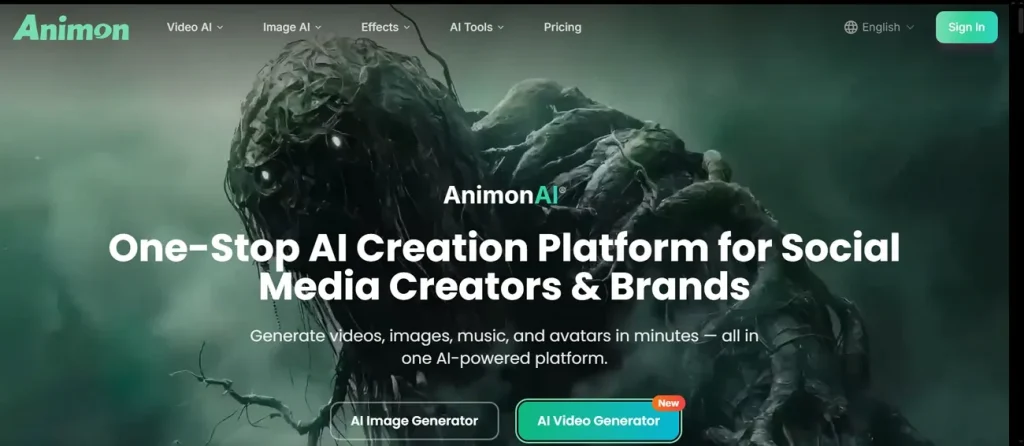
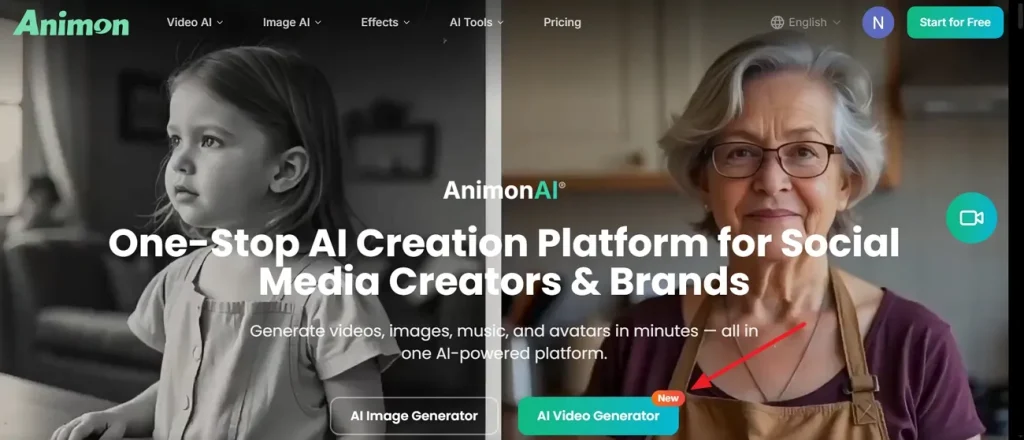
Step 1. Visit the official webpage of Animon.AI and click the AI Video Generator option from the main screen.
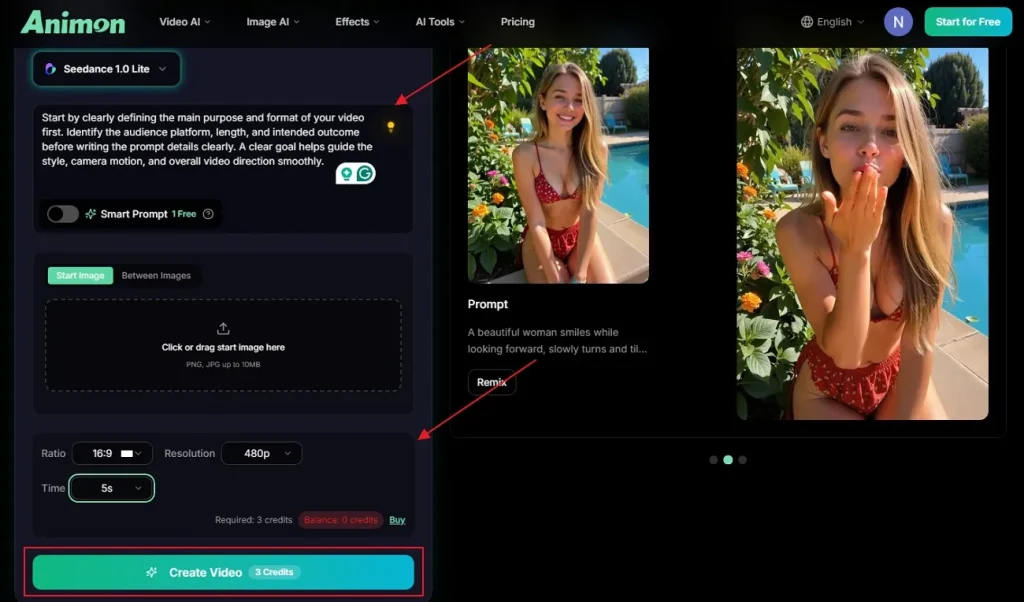
Step 2. After accessing it, enter the text in the given Text Box, adjust the Aspect Ratio and Time Duration from the given options. Next, opt for the Generate button to create an AI video.
Pros & Cons of Animon AI
Many users explore the Animon AI video generator for its creative animation features. Thus, this section explains the key advantages and disadvantages you should know before using:
Pros
- Maintains character consistency across frames with stable colors and lines.
- Produces high-quality anime visuals for portraits and simple scenes.
- Suitable for VTuber loops, profile animations, and social media content.
Cons
- Cannot create complex scenes with multiple anime characters and detailed storytelling.
- Video length is short and limited to simple animation templates.
- Motion options are basic and lack deep customization or creativity control.
Is Animon AI Worth Using?
Mostly, Animon AI is worth using for creating short anime clips quickly. It works best for beginners who want simple tools without complex animation learning. Users can animate images into short videos around 5 to 10 seconds long. However, it is not suitable for long stories or realistic video creation needs.
Part 2. Best Animon AI Alternative for Better Animation Results
Apart from the above, many creators want more control and better quality than basic animation tools provide. Similarly, some users find limits when working on longer videos or detailed creative projects. That is where MagicLight AI becomes a better choice than Animon AI animation tools. This modern tool allows the creation of videos up to 50 minutes for long-form video content projects.
In addition, it provides 37 voiceover options with voice cloning for natural narration results. To attract users globally, MagicLight AI supports 11 different languages for video creation. This platform also offers multiple animation models to convert storyboards into smooth animated videos. The tool has a Smart Script feature that improves your idea with advanced AI, with up to 12000 characters.
Key Features
- Effortless Scene Control: Allows precise control over camera movement, timing, and even character actions easily.
- Quick Image Animation: Converts images into advanced animated videos with prompts and selected background settings.
- One Click Generation: Generates complete AI-powered animated videos instantly using automated storytelling and rendering systems.
A Comprehensive Guide to Generating AI-Animated Videos Through MagicLight AI
This specific section explains to you how you can generate an AI-animated video easily with MagicLight AI:
Step 1. Create a New Video Project
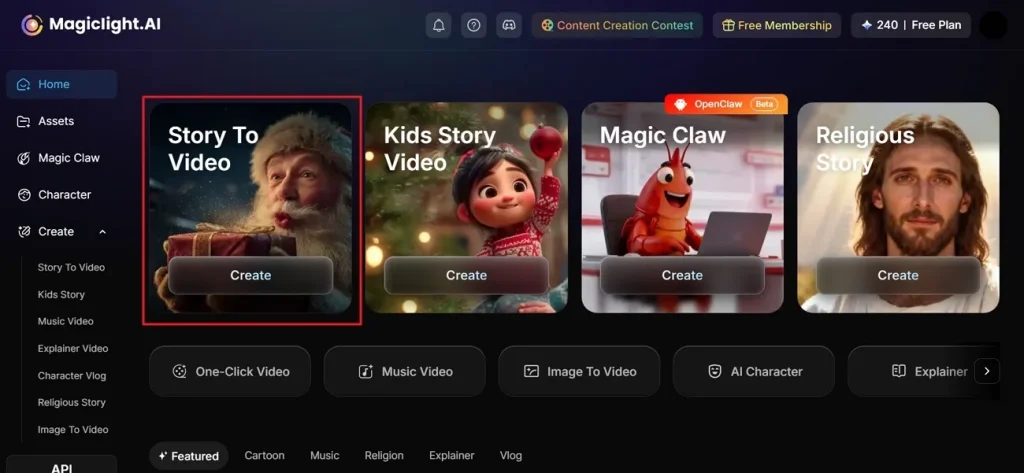
To initiate, go to the official webpage of MagicLight AI and click the Story To Video feature.
Step 2. Describe Your Idea and Select Settings
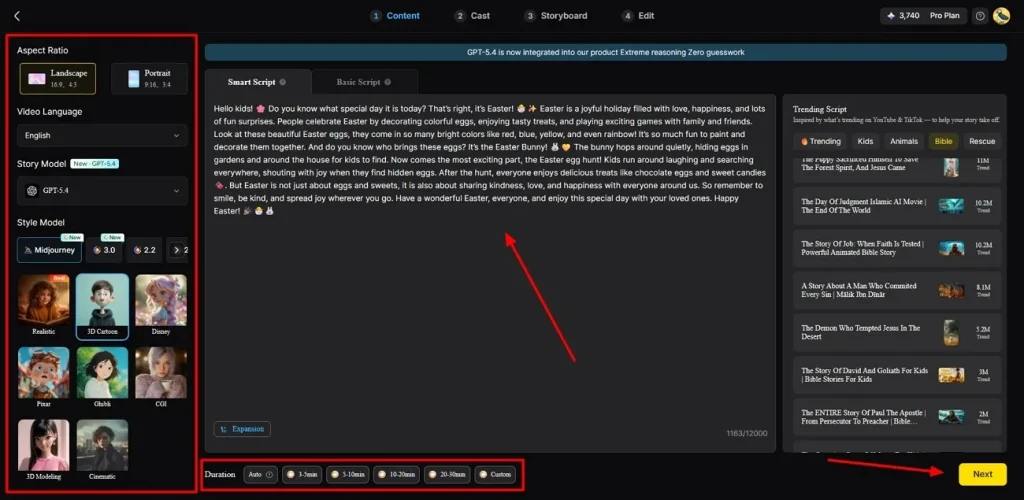
Following this, type your idea into the Text Box and select your preferred Video Language. Afterward, customize the Aspect Ratio from the side panel and opt for a story model like GPT-5.4. Upon doing this, choose a Style to set the Video Duration, then hit the Next button.
Step 3. Check Auto-Created Animated Video Scene
Once the MagicLight AI creates your video scenes, review the summary carefully, then press Next.
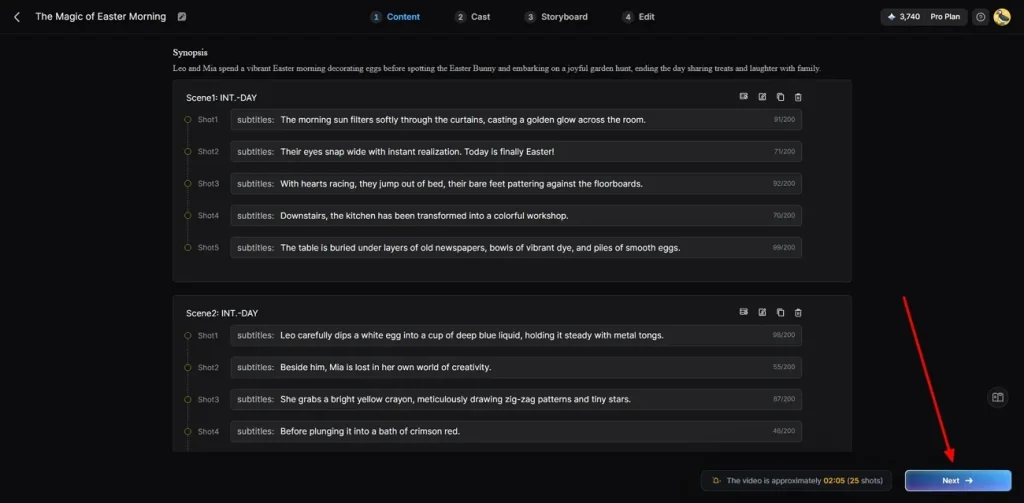
Step 4. Pick or Add Animated Characters
Later on, pick from existing animated characters or create new ones using the More Character option. When you are ready, opt for the Next Step button to move forward.
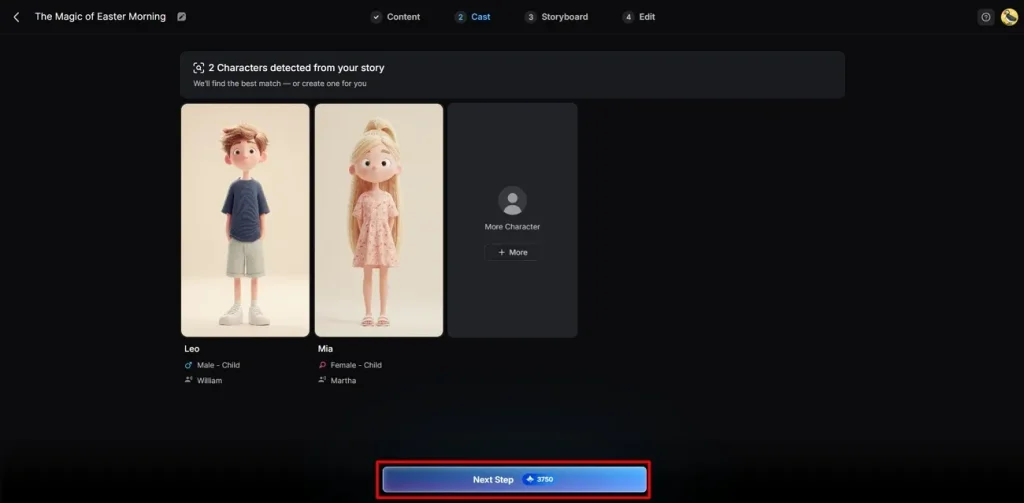
Step 5. Customize AI Character Appearance
In the storyboard screen, adjust the Voiceover Speed of the AI character to match the video’s pace. Along with this, you can personalize their Clothing or Body Figure and click the Next button.
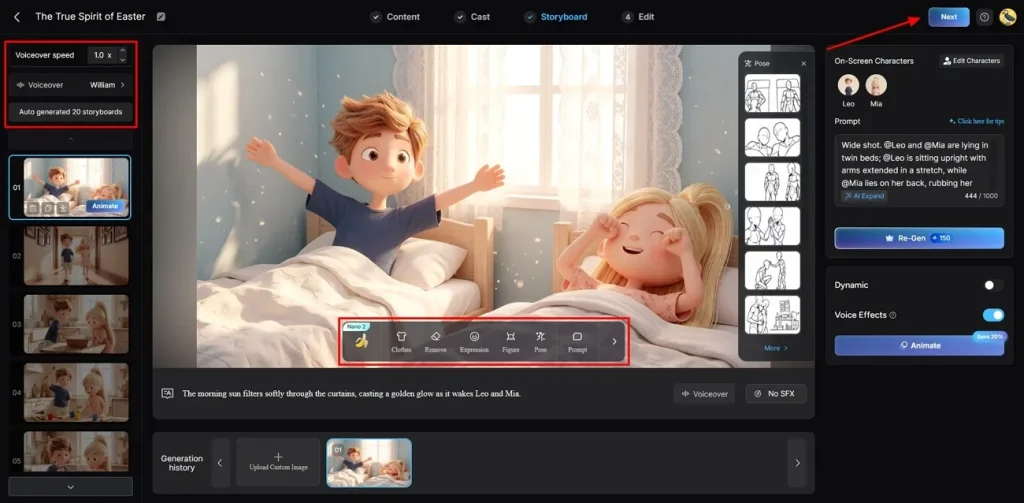
Step 6. Add Captions and Background Music
Now, head to the Subtitle Settings to add captions in the AI animated video. For sound, navigate to the Background Music section to set the tone of your video, then click Generate.
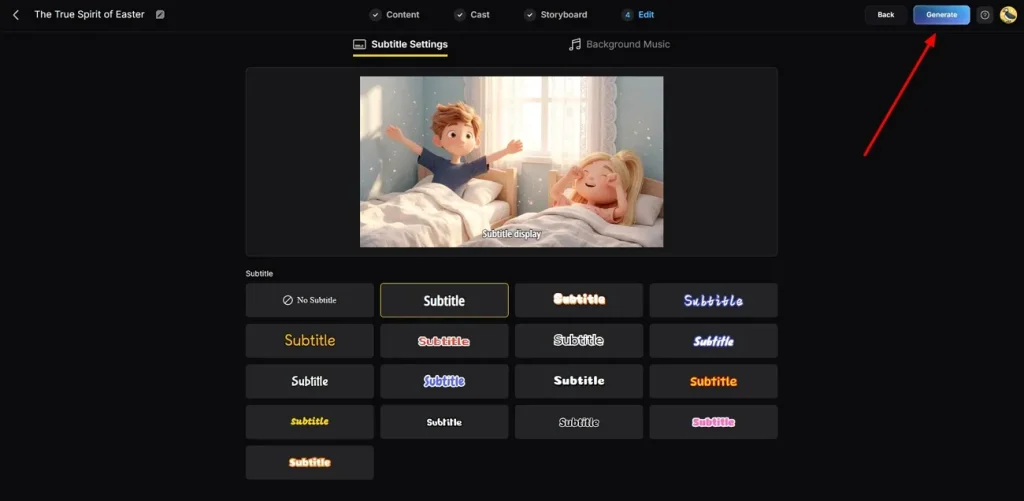
Step 7. Preview and Download Your AI Video
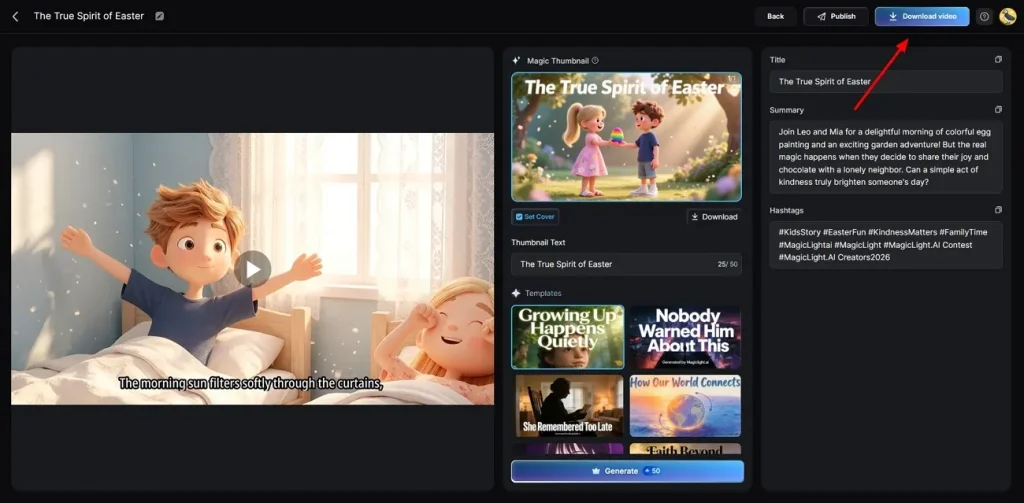
As your AI animated video is generated, watch it using the preview feature. Once everything matches your needs, click Download to export it.
Conclusion
To sum up, Animon AI is a simple tool for creating short anime videos quickly online. It works well for beginners who want easy animation without complex learning steps. However, Animon AI has limits in video length, control, and advanced features for creators. Therefore, users who need higher-quality, longer videos should explore other tools. In that case, MagicLight AI offers more powerful features and complete workflow support.
FAQs on Animon AI
1. Can I download the Animon AI app?
Currently, there is no official Animon AI app download available for users. It works as an online tool that runs directly in your browser. You can access all features online without installing any software on devices.
2. What are the best Animon AI alternatives?
Many users look for alternatives that offer better control and longer video creation features. So, MagicLight AI is a strong option with advanced tools and complete workflow support. It provides longer videos, better quality, and more flexibility compared to Animon AI.
3. What animation styles does Animon AI support?
The field of anime, comic, and game-style animation is mostly supported by Animon AI for its creators. It incorporates such styles as action, chibi, and cyberpunk. These styles enable users to produce regular and appealing animated videos with ease.
4. Is Animon AI safe to use?
This platform is safe for making personal videos and sharing your creative ideas. It uses smart technology to protect your data while you work on your projects. For even better security, MagicLight AI offers professional tools for all your video needs.
5. How long does Animon AI take to render videos?
Rendering time depends on video length, complexity, and current server usage conditions. Short videos usually take a few minutes on free or standard plans. Yet, MagicLight AI offers faster processing speeds, especially in its paid subscription plans.

![6 Best AI Tools for Designers to Try [2026 List]](https://magiclight.ai/wp-2/wp-content/uploads/ai-tools-for-designer-300x198.png)