Many creators use AI for YouTube scripts but often receive dull and unnatural results. A good prompt helps AI write a script that keeps viewers interested throughout the video. The best prompt for YouTube script writing helps AI understand what viewers actually expect.
It also guides the opening so people have a reason to continue watching longer. MagicLight AI can turn your finished script into an engaging video without difficult editing. This guide shares useful prompts and explains how MagicLight AI can bring your scripts to life.
Part 1. 15 Best Prompts for YouTube Script Writing
The best prompt for YouTube script writing gives AI enough direction to create useful content. These prompts can help you write your script before turning it into a video with MagicLight AI.
- 30-Second Hook Writer
YouTube Studio’s Intro figure counts viewers still watching after 30 seconds, the stretch this prompt writes.
Prompt: Write three openings for a YouTube video titled “[title].” Keep each under 80 spoken words, show the end result first, and skip greetings or channel introductions.

- Audience and Angle Finder
Word choice and pace depend on the viewer, and this prompt settles that question first.
Prompt: Suggest three angles for a [niche] video on [topic] aimed at [audience]. Give each a one-line promise, a likely search phrase, and a target runtime.
- Cold Open Scene
Opening inside the problem, such as yellow leaves on soggy soil, gives later explanations a purpose.
Prompt: Write a 20-second cold open about [topic] that begins mid-problem. Note camera shots in brackets and end on the question the video answers.
- Chapter Outline Builder
Manual chapters need at least three ascending timestamps, starting at 00:00, each lasting 10 seconds or longer.
Prompt: Outline a [length]-minute video on [topic] in five to seven chapters. Give each a timestamp starting at 00:00, a short title, and one key point.

- Outline-to-Draft Expander
About 150 spoken words fill one minute, a rate this prompt uses to control length.
Prompt: Expand this outline into a spoken script of about [minutes × 150] words. Use one-breath sentences and a bracketed B-roll note after each paragraph. [Paste outline]
- Tutorial Step Writer
How-to viewers pause and copy each move, which calls for one action per step.
Prompt: Write a tutorial script for [task] in numbered steps. List the tools first, keep one action per step, and add a fix wherever first-timers slip.
- Evidence-Based Review
Review scripts lose trust when a model invents test results, a risk this prompt removes.
Prompt: Write a balanced review of [product] using only the notes after this line. Cover what worked and what failed, and mark unsupported claims [CHECK]. [Paste notes]

- Countdown List Script
A countdown holds attention when each item carries a reason and the most surprising entry lands last.
Prompt: Write a countdown of [number] [items], giving each entry 60 to 90 seconds, one example, and a ranking reason. Save the most surprising pick for the final slot.
- Three-Act Storytime
Storytime videos need a turn, a moment where the plan fails, or the narration flattens.
Prompt: Turn these notes into a three-act storytime script with a setup, a failure point, and an outcome that shows what changed. [Paste notes]
- Faceless Narration Scenes
Faceless videos rely on narration that names what appears on screen, since no presenter fills the frame.
Prompt: Write faceless narration about [topic] in scenes of 40 to 60 words. Under each scene, add a one-line description of the visual.

- YouTube Shorts Script
YouTube Help lists three minutes as the Shorts limit, though one tip fits inside 45 seconds.
Prompt: Write a 45-second Shorts script about [tip] that opens on the result. Keep lines under 12 words and loop the ending into the first line.
- Retention Pass
Retention dips mark where viewers skip or leave, and a script review can catch slow stretches early.
Prompt: Flag every 60-second stretch of this script that adds no new example, visual, or question, then rewrite those parts in fewer words. [Paste script]
- Read-Aloud Rewrite
Lines written for the page trip narrators with long clauses and stacked terms.
Prompt: Rewrite this script for the ear, splitting sentences over 20 words and swapping jargon for plain terms without changing any fact. [Paste script]

- End Screen Setup
End screens fill the last 5 to 20 seconds, and the closing lines can set up the next video.
Prompt: Write a 20-second ending on [topic] that restates the main fix in one line. Then introduce my next video, “[title],” without a subscribe request.
- Claim Checker
AI drafts can state wrong numbers confidently, and a fact check before recording catches them.
Prompt: List every claim, number, and product detail in this script that needs a source, and flag anything that may be outdated. [Paste script]
Part 2. Turn YouTube Scripts Into AI Videos With MagicLight AI
Once you find the best prompt for YouTube script writing, MagicLight AI can turn your script into a video. Script to Video lets you bring your written content to the screen with less effort. Videos can run for up to 50 minutes, so longer YouTube content is also possible. Creators can also produce videos in 11 languages for audiences across different regions.
Character creation allows descriptions of up to 1,000 characters for a more detailed appearance. This extra space helps you explain how your character should look throughout the video. MagicLight AI brings everything together and gives you a complete video from your script.
Key Features of MagicLight AI
- Room for Long Scripts: The script field accepts 12,000 characters for detailed and longer YouTube scripts. Paid plans offer the Long Video Generator for videos reaching 50 minutes in length.
- Basic Script for Final Drafts: Basic Script keeps your pasted text unchanged throughout the entire video creation process. Smart Polish helps expand short notes when your script needs more written detail.
- 50+ Visual Styles per Channel: Choose from 50+ visual styles to give every YouTube video its own look. Realistic and 3D Cartoon options help videos match different topics and audiences easily.
- Unique Story Models: MagicLight AI includes 14 story models for different ideas and video needs. You can also use voice cloning when your videos need a familiar personal voice.
- Upload-Ready Export: Finished videos export in 16:9 format for easy uploading to YouTube. Eligible plans also provide titles and direct YouTube publishing options afterward.
Guide for Turning YouTube Scripts Into Videos Using MagicLight AI
After using the best prompt for YouTube script writing, your script is ready for MagicLight AI. Follow the steps below to turn your finished YouTube script into a complete video:
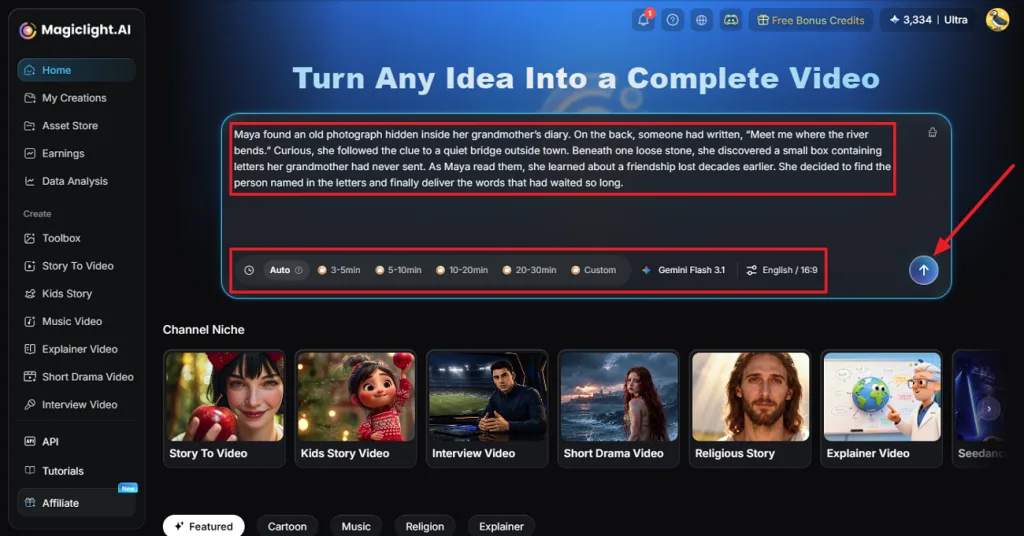
Step 1. Enter Your YouTube Video Script Prompt
Once you enter MagicLight AI, paste your YouTube video script prompt in the prompt panel. Choose a suitable Story Model and duration of the video. After that, select a language and press Send.
Step 2. Check the Generated Script
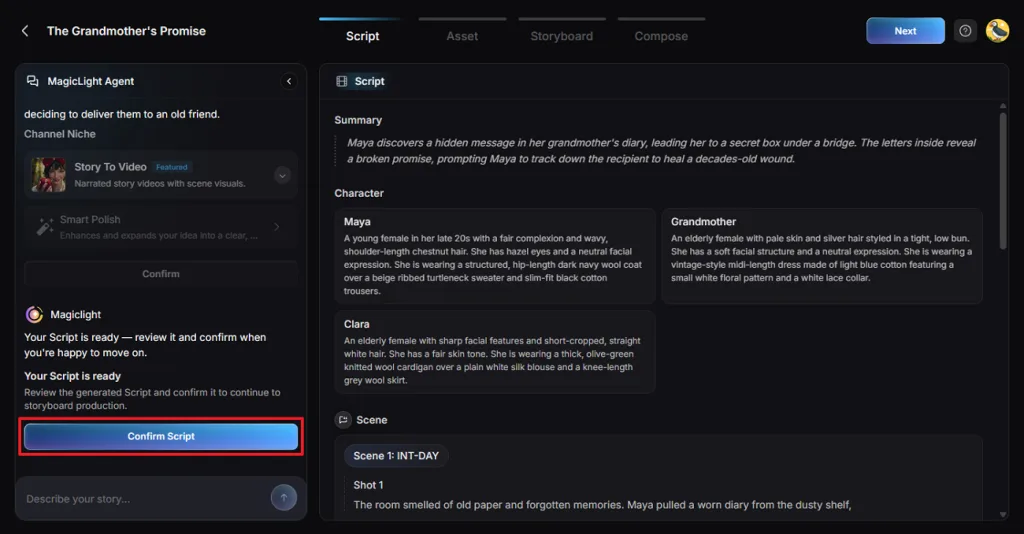
Next, the MagicLight Agent generates a summary of your video and provides details about the shots. Review the summary and press the Confirm Script button to move further.
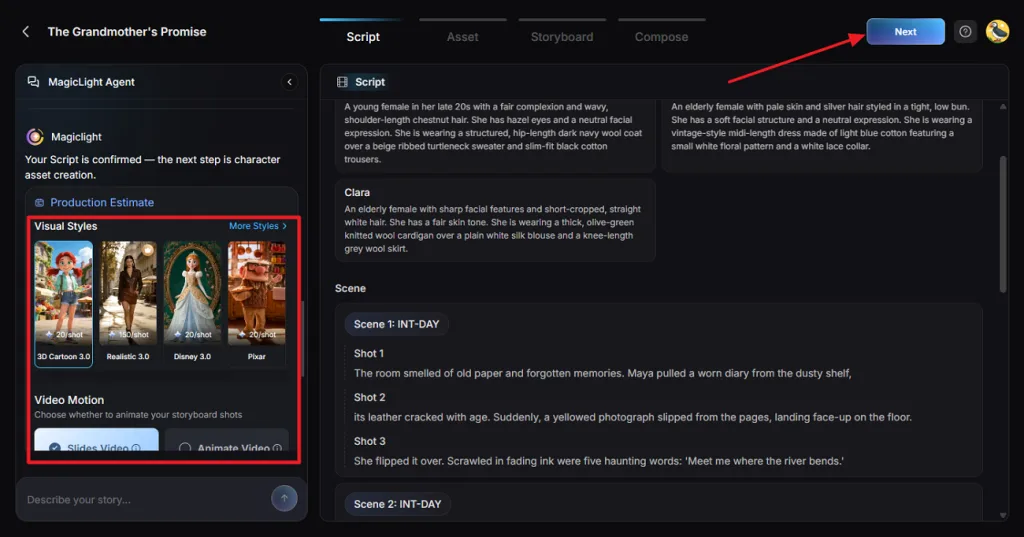
Step 3. Style Your Video
In the next interface, pick a style from the Visual Style section and choose a Video Motion mode to set whether your video will have animation or slides.
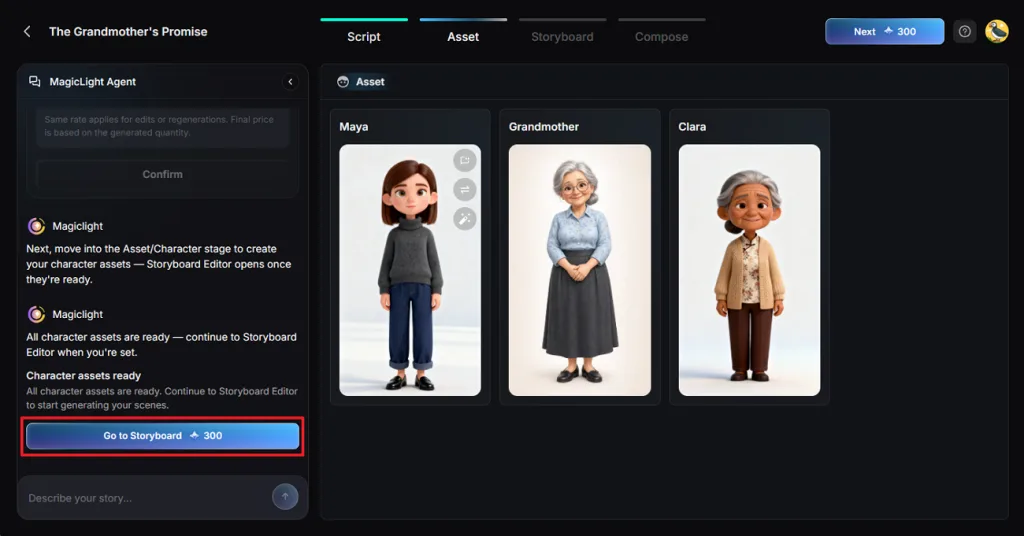
Step 4. Set a Character for Your Video
MagicLight AI then suggests some characters suitable for your video. Pick a character option or access the Character Library to generate or explore some other options. You can also save the generated character for future creation. Once done, press the Go to Storyboard button.
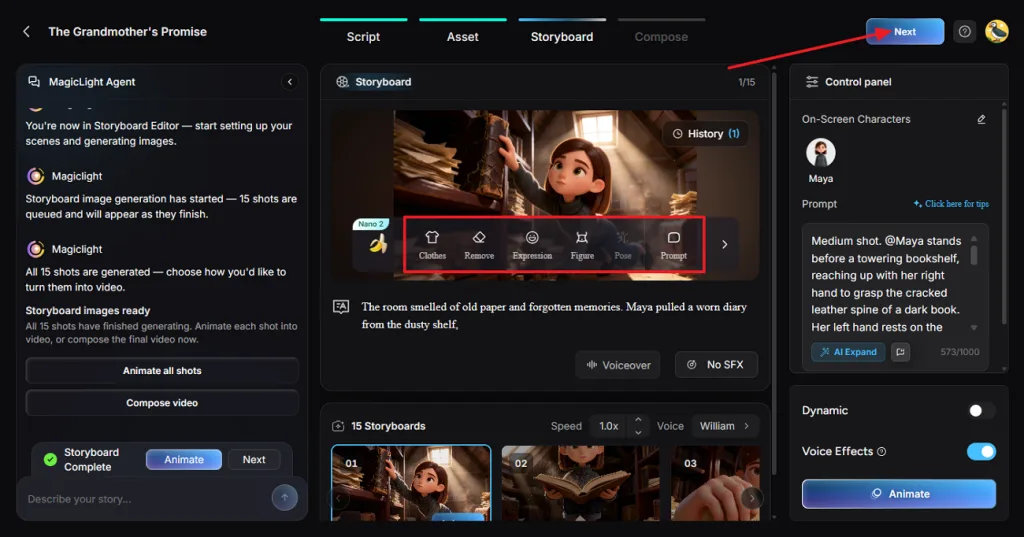
Step 5. Edit the Storyboard
After that, review all storyboard shots and change the poses and clothes of your character in particular scenes. Press Next to continue further.
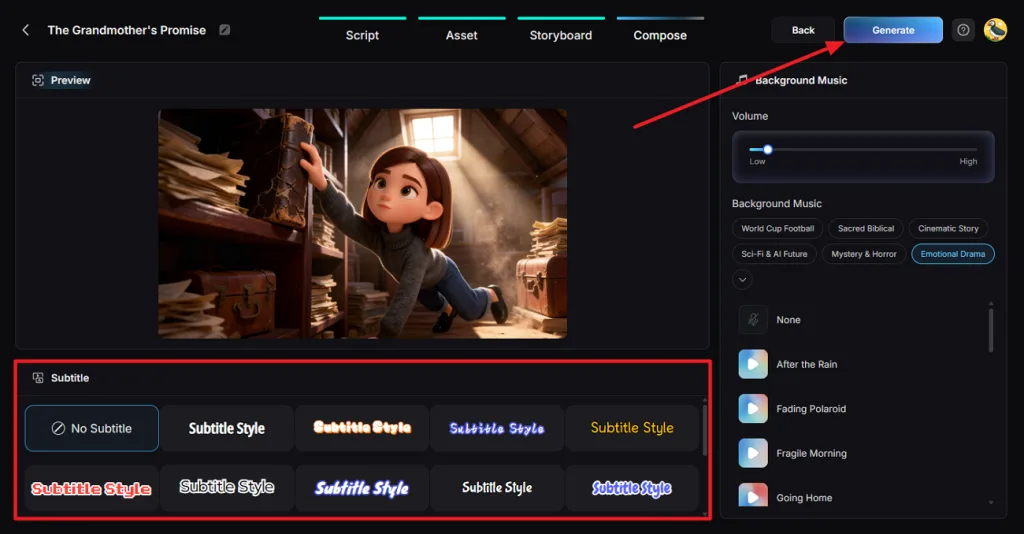
Step 6. Customize the Subtitles and Add Background Music
Choose a Subtitle Style for your video or pick No Subtitle if the video has no dialogue. Select a Background Music from the given options and press the Generate button.
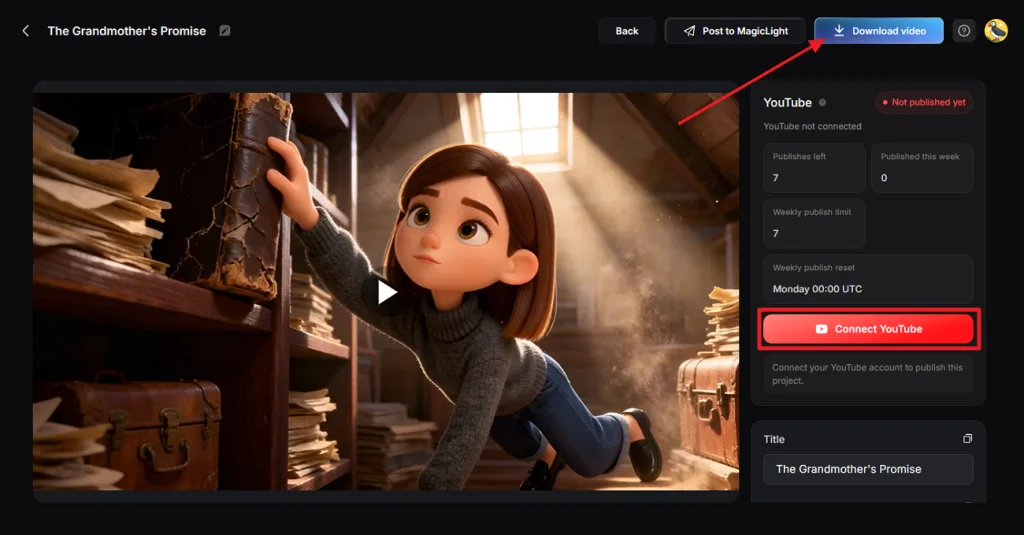
Step 7. Download the Final Video
Play the finished video and check its voices and pacing. When everything looks right, click Download Video to save the finished file or press Connect YouTube to connect your channel and publish to YouTube directly.
Part 3. Why Use MagicLight AI for YouTube Video Creation
Writing scripts with the best prompt for YouTube script writing is only the first step. MagicLight AI helps turn your scripts into complete videos without juggling several different tools. Look at the reasons below to see why MagicLight AI stands out:
- No Filming Needed: MagicLight AI turns your script into scenes, so you can create plant rescue videos without filming each step.
- Consistent Characters: The Story to Video workflow keeps your character’s look consistent across scenes.
- Easy Scene Fixes: Use Re-Gen or AI Edit to fix a frame without changing the rest of your approved storyboard.
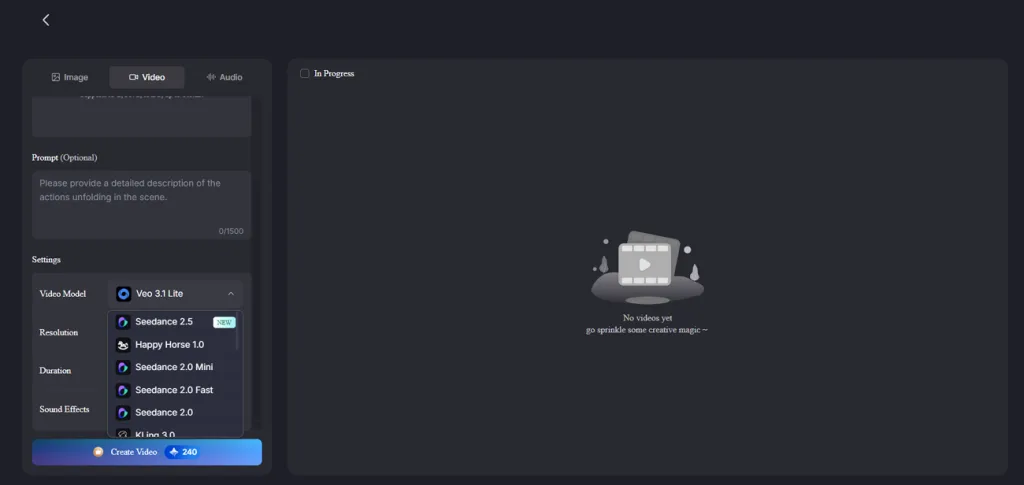
- Different Motion Options: Choose from 20 video engines to change how scenes move without rewriting your script.
- Subtitles for Every Step: MagicLight AI adds subtitles during the Compose stage to help viewers follow along even with the sound off.
Conclusion
To summarize, the best prompt for YouTube script writing helps you create scripts that hold viewers' attention. Clear instructions give your video a natural flow and help viewers follow the story. Once your script is ready, MagicLight AI can turn it into an animated video with narration. If you want to create storytelling videos without filming, MagicLight AI is worth trying.
FAQs About the Best Prompts for YouTube Script Writing
1. How do I write a YouTube script that keeps viewers watching?
Start with an interesting opening that shows viewers what they will gain by watching your video. Keep the story moving with useful examples and remove lines that repeat earlier points.
2. What prompts can I use to generate engaging YouTube video ideas?
Ask AI to suggest video ideas based on questions your target audience often asks. You can then request clear titles that match their interests and give each video a strong focus.
3. Can I turn an AI-generated YouTube script into a complete video?
Yes, MagicLight AI can turn your written script into a video with scenes and narration. It also adds music and subtitles to help you prepare the finished video for YouTube.
4. How can I create YouTube videos without filming myself?
You can use AI video tools to create animated scenes without recording footage with a camera. MagicLight AI helps turn your script into a narrated video with visuals and subtitles.
5. What is the best AI tool for turning YouTube scripts into videos?
MagicLight AI is a useful choice for creators who want to turn scripts into videos. It offers scene creation, narration, music, and subtitles to help bring your ideas to the screen.