


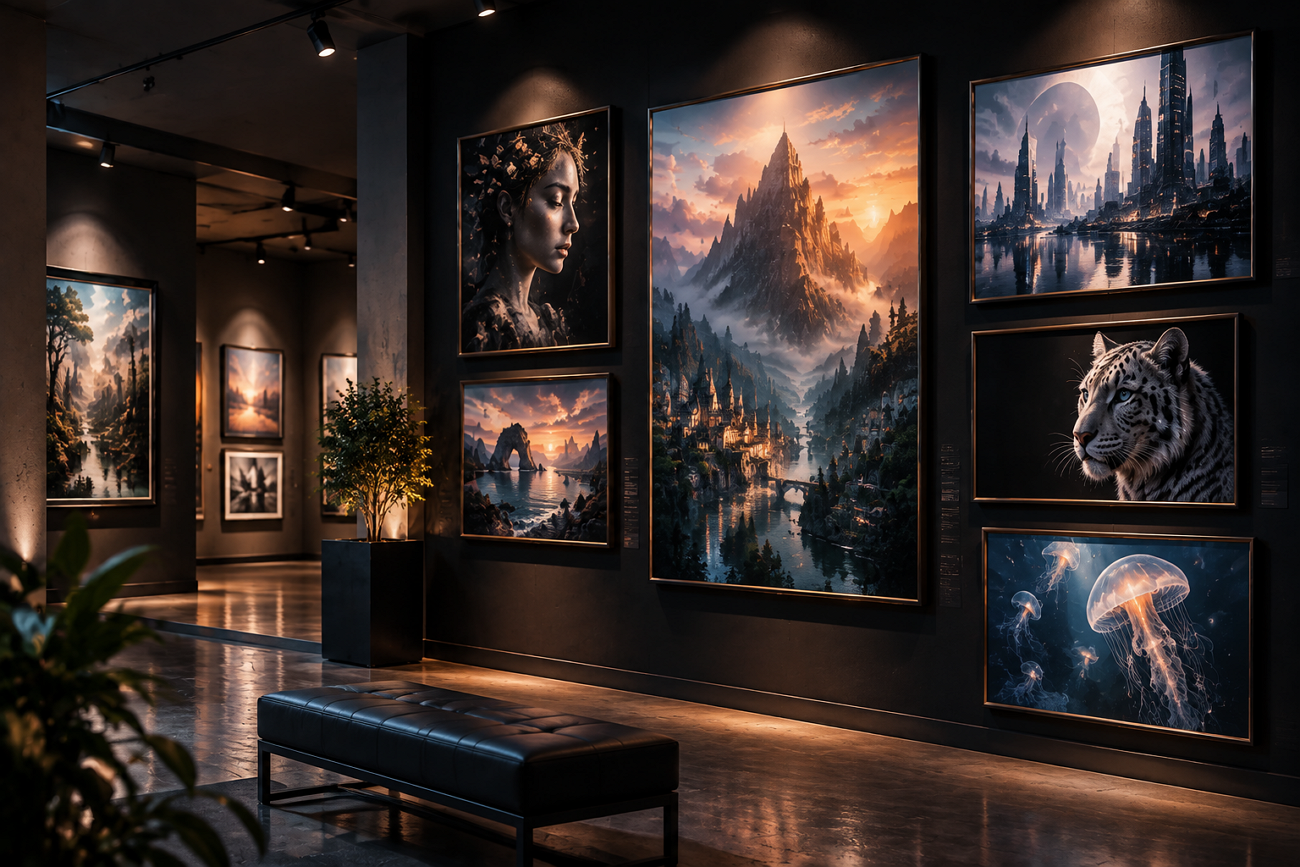
Mobile creators use AI artwork tools for quick results, and DaVinci AI helps turn ideas into images. Text prompts and uploaded photos can become images across many styles within seconds using simple creative tools. The product's video potential needs review beyond artwork because subscriptions and limits define what the platform covers.
Users need clear details about pricing and features before deciding if the tool matches their creative goals. This guide explains the main features, costs, limits, and video capabilities to help readers make informed choices.
Part 1: What is DaVinci AI?
Before reviewing DaVinci AI, understanding its basics helps create clear expectations. In this section, we will look at what makes the platform different.
Introduction to DaVinci AI
The DaVinci AI app helps users create images by entering prompts or uploading photos easily. It turns text and images into finished artwork across different styles within seconds. The platform supports image-to-video and text-to-video generation for creative projects.
DaVinci AI also combines AI images, videos, and voiceovers in one complete workspace. Users can access it through iOS, Android, and browser versions with flexible options. A limited free tier is available, while paid plans use separate in-app purchases.
Key Features
- AI Art Generator: Create unique artwork from text prompts and uploaded photos using different styles and effects.
- Model Selection: Access 14+ video models, including Veo 3.1, Kling, and Seedance, in one workspace.
- Avatar Creator: Turn personal photos into customized avatars with different themes and visual designs.
- Image Editing: Improve generated images by changing colors, textures, and appearance.
- Batch Creation: Generate multiple images from one prompt to compare different creative results.
The Pros and Cons
User feedback often highlights simple use and strong results, while pricing remains a common concern. A balanced DaVinci AI art review considers both benefits and limitations before reaching conclusions.
Pros
- Creates complete campaigns with images, videos, and edits together.
- Keeps generated content private without using outputs for training.
- Allows commercial use without requiring attribution on generated content.
- Syncs projects across mobile apps and web accounts.
Cons
- Video length and available generation settings vary depending on the selected AI model.
- Generated results may not always match the intended prompt.
- Free users receive limited generations before needing paid access.
- The platform focuses on AI creation rather than advanced editing controls.
Part 2: How to Use DaVinci AI Video Generator?
DaVinci AI lets users create videos from prompts, images, and other creative inputs easily. Many users search for DaVinci AI Video Generator for fast creation. Now, follow the steps below to create videos and understand the platform workflow:
Step 1. Access the video generator through mobile apps or a browser. After that, choose the text-to-video or image-to-video method. In text-to-video, start by entering a prompt for the video.
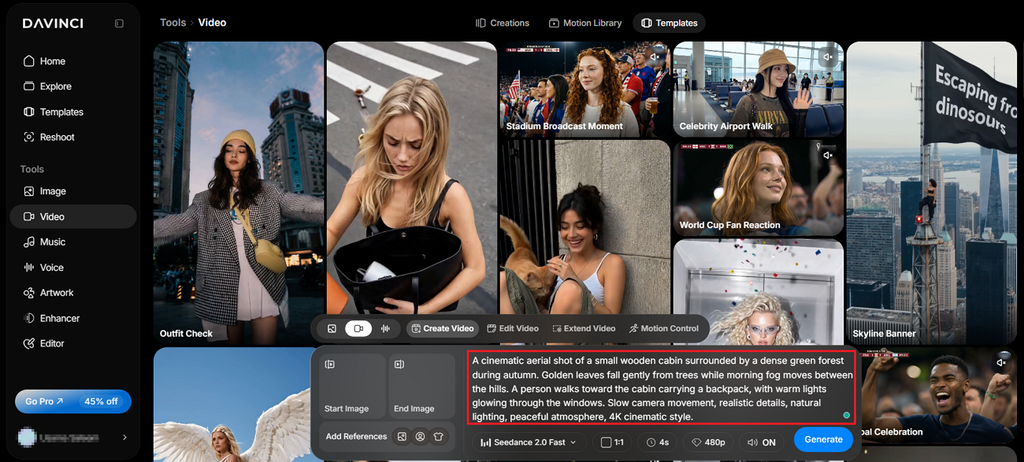
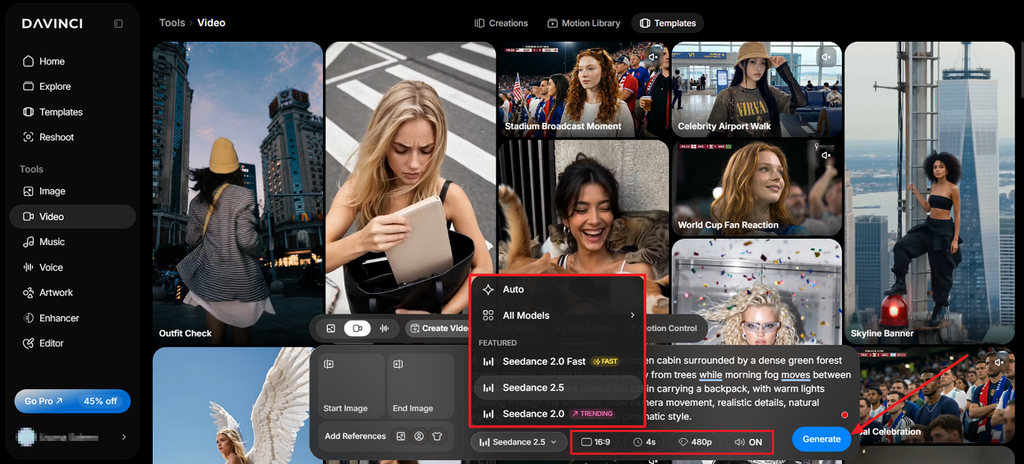
Step 2. Next, select an AI Video Model, Aspect Ratio, Duration, and Resolution. Once done, press the Generate button to begin video creation.
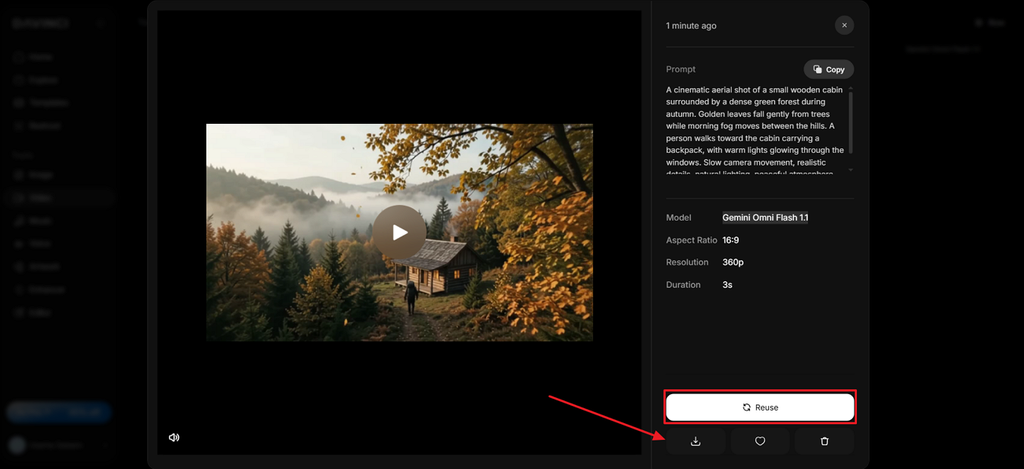
Step 3. After the video is generated, open it in the Preview panel. If any adjustments are required, press Reuse to edit the prompt and regenerate the video. Once the video is finalized, click Download to save the final video.
Part 3. Best Alternative to DaVinci AI for Video Creation
Users search for a DaVinci AI alternative when they need stronger video creation beyond images. This is where MagicLight AI comes in, offering story-to-video creation for complete videos easily. It transforms written scripts into scenes, characters, narration, and finished videos through an automated workflow. The Story to Video feature accepts up to 12,000 characters and creates 50-minute video outputs.
Creators can select 20 AI video models, including Kling 3.0, Seedance 2.5, and others. These latest options help produce varied styles while maintaining consistent scenes across longer video projects. MagicLight AI also supports downloadable videos with simple exports for different creative and business needs.
Key Features of MagicLight AI
- AI Image Generator: Upload a reference image and add a prompt to create new visuals. The tool accepts up to 500 characters for clear and detailed image instructions.
- AI Character Creation: Describe a character in text or upload a photo for consistent project results. Once created, the character stays saved and can reuse in future video projects.
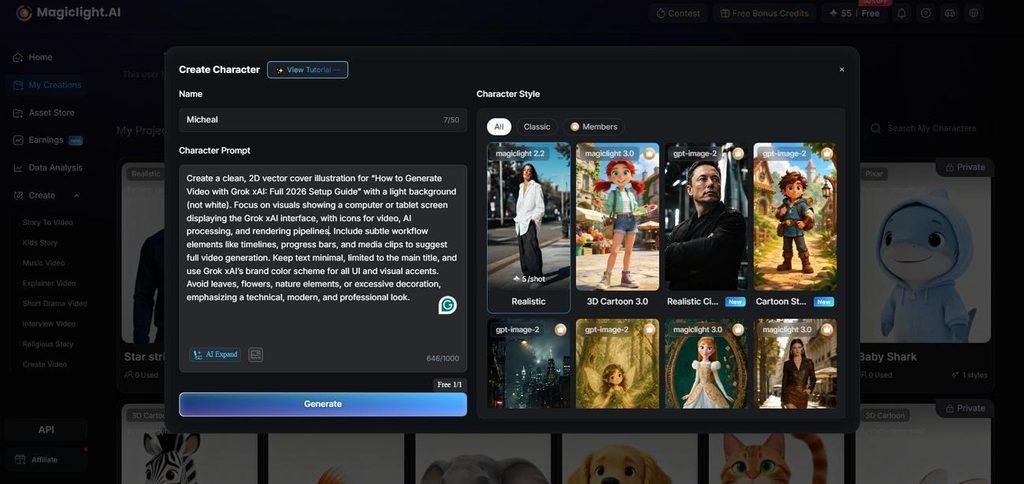
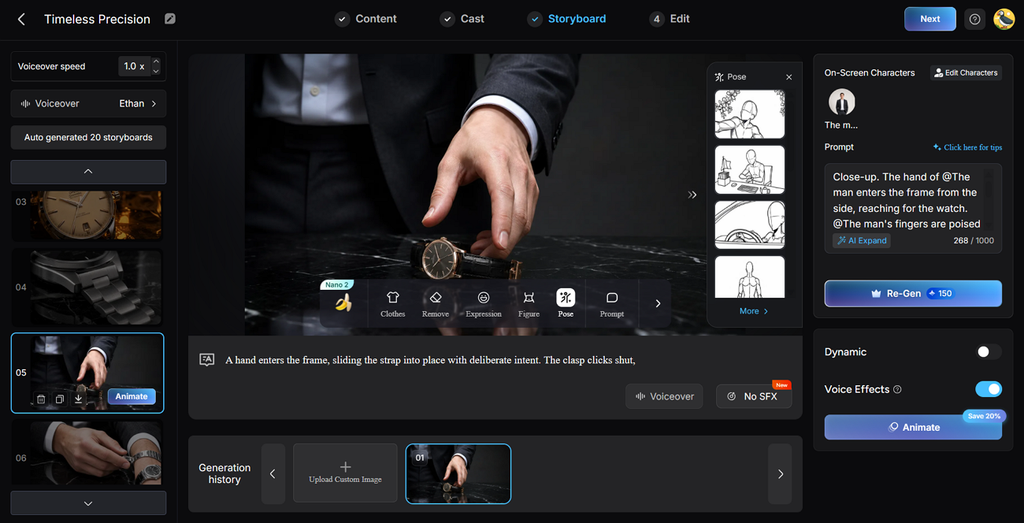
- Storyboard Scene Control: Adjust scenes before rendering with 50 poses, timing controls, and flexible edits. Creators can refine individual moments and improve story flow before final video generation.
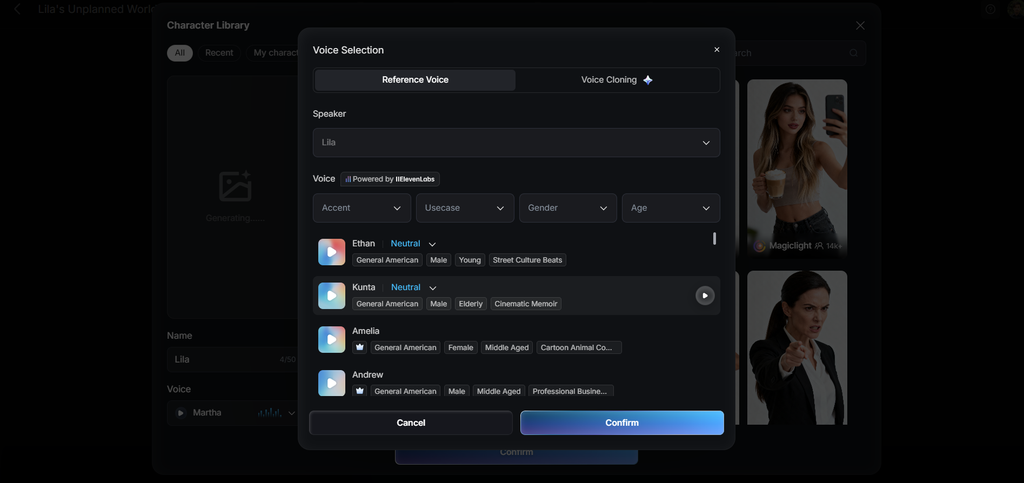
- Voiceover and Subtitles: Select from 37 AI voices in different ages, genders, and accents for narration. Add subtitles, clone voices, and apply 16 caption styles during video creation.
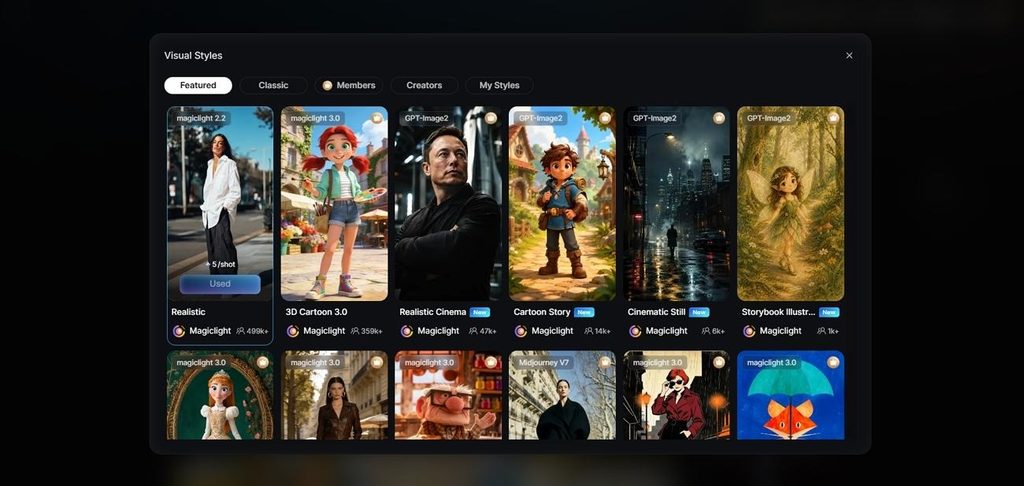
- Creative Style Library: Access 20+ visual themes, including realistic, anime, and watercolor-inspired designs. Apply different artistic styles to videos while keeping the overall visual direction consistent.
Part 4. Comparison Table Between DaVinci AI and MagicLight AI
DaVinci AI and MagicLight AI follow different creative workflows for making digital content. This comparison explains how the DaVinci AI app differs across key creation features:
| Feature | DaVinci AI | MagicLight AI |
| Output Type | AI-generated images and videos | Complete AI-generated videos and images |
| Video Generation | Supports AI video generation from prompts and images | Creates videos up to 50 minutes long |
| Starting Input | Text prompt or uploaded photo | Written scripts and story inputs |
| AI Models Available | 14+ AI video models, including Veo 3.1, Kling, and Seedance | 20 AI video models across different model families |
| Characters | Avatar styles from your own photos | Creates reusable characters across projects |
| Narration | AI voice generation features available | 37 voices with voice cloning support |
| Editing Control | Adjusts image lighting, colors, textures, and composition | Editable scenes through storyboard controls |
| Platforms | Mobile apps + a web version | Mobile apps + browser |
| Free Access | Free tier with limits | Free plan, no card required |
| Best For | Quick artwork and avatars | Story-based videos and automated video production |
Conclusion
To conclude, DaVinci AI works as creative tools for generating images, videos, and visual content. Its features suit users who need quick creations with simple AI-powered workflows. However, users who need longer, story-based videos may need more advanced video options. To create detailed storytelling videos with automation, use MagicLight AI for better results.
FAQs on DaVinci AI
- What is the best alternative to DaVinci AI?
The best alternative depends on whether users need artwork or video creation. For complete script-based videos, MagicLight AI offers a more focused video workflow.
- Can DaVinci AI create animation videos?
Yes, DaVinci AI can create short AI videos from prompts and images, but with limited duration. For longer animated videos with stories, scenes, and narration, MagicLight AI offers more advanced video creation.
- What is the length of videos created by DaVinci AI?
The DaVinci AI art generator can create short videos up to 10 seconds from AI content. For longer video projects, MagicLight AI supports extended videos up to 50 minutes.
- Do I need video editing experience to use DaVinci AI?
No, beginners can create artwork without previous editing or technical experience. Unlike traditional editors, MagicLight AI also uses simple inputs instead of timelines.


![How to Write a Script for a Video 2026 [Full Guide]](https://magiclight.ai/wp-2/wp-content/uploads/video-script-writing-setup-300x199.jpg)
![6 Best Free AI Video Generators [Compared]](https://magiclight.ai/wp-2/wp-content/uploads/ai-video-generation-workflow-300x196.png)