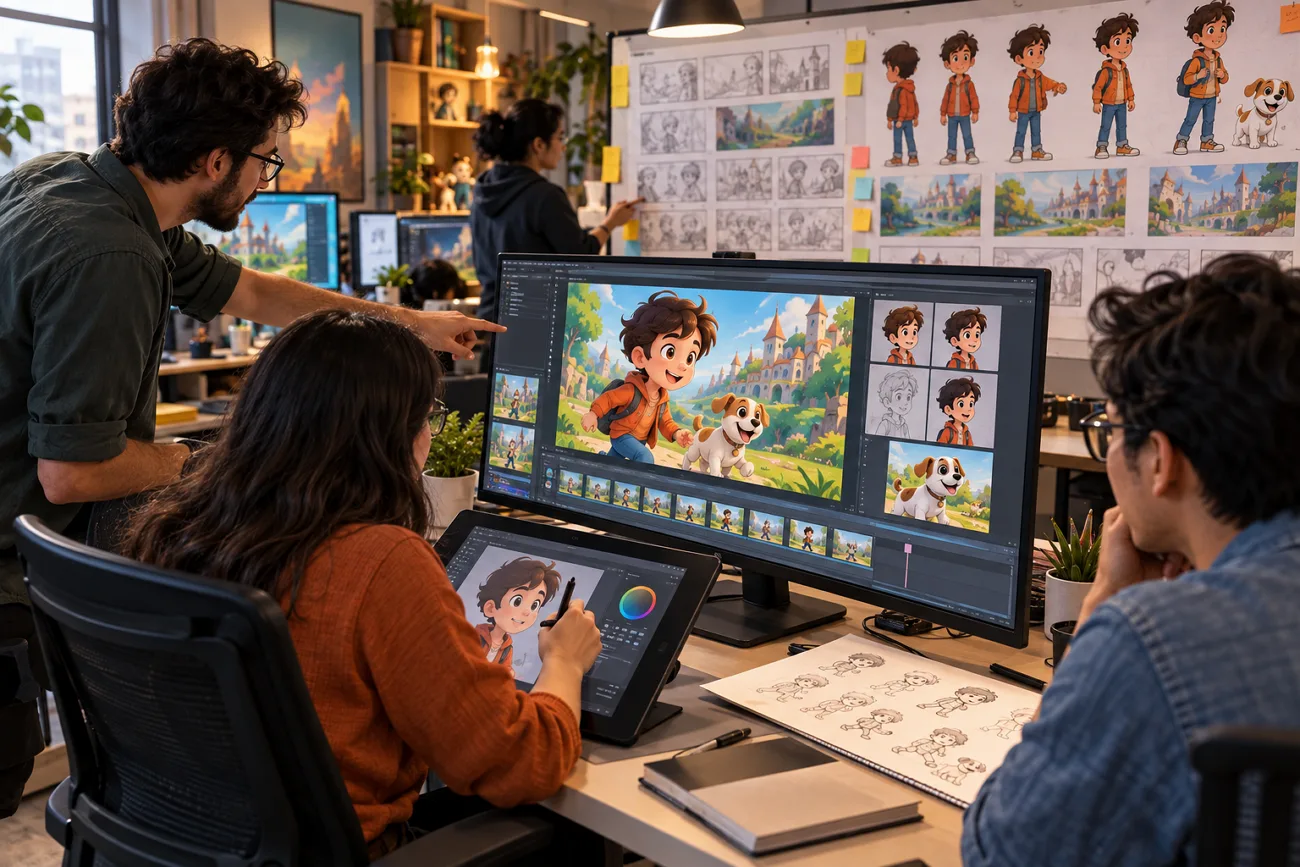
Traditional animation can require 24 individual frames to create just 1 second of smooth cartoon movement. That workload once made cartoon creation difficult for people without drawing skills or animation experience.
AI tools now generate characters, scenes, motion, and voices from simple ideas and written instructions. Knowing how to make a cartoon with AI helps turn simple ideas into complete animated stories. This guide shows each step you need to create your own cartoon using AI tools.
Part 1. How to Make a Cartoon with AI: Step-by-Step Guide
You do not need to draw every frame to build your first cartoon. If you are wondering “How do you make a cartoon?”, start with your story. From there, AI can help you turn that story into a finished video.
What Every Cartoon Needs
A good cartoon starts with an idea that can hold attention throughout the video. Each part should also work together instead of feeling separate from the rest. Here are 5 things worth getting right before you start:
- Story: Keep the story easy to follow from the opening scene through the ending.
- Characters: Make sure your characters remain recognizable whenever they appear again.
- Visual Style: Use the same overall look throughout the cartoon to avoid sudden changes.
- Timing: Give each scene enough time to make its main moment clear.
- Sound: Make sure the audio fits what viewers see happening on screen.
Choosing a Cartoon Style
Some cartoon styles work better for certain stories than others. If you are learning how to create a cartoon video, picking one early saves extra changes later. The table below shows 4 popular cartoon styles and where they fit best:
| Style | What It Looks Like | Best Suited To |
| Flat 2D | Bold outlines, solid color, minimal shading | Explainers and comedy shorts |
| Cel-shaded Anime | Hard shadow edges, expressive faces, speed lines | Action and character drama |
| Cut-out | Layered shapes moved rather than redrawn | Dialogue-led series and satire |
| Stylized 3D | Rounded forms, soft lighting, depth of field | Family stories and brand mascots |
Simple cartoon styles make small visual differences less noticeable across characters, objects, and scenes. Flat and cut-out styles are easier choices for beginners creating their first cartoon project.
Which Tool Can You Use to Make a Cartoon?
Creating a complete cartoon can become difficult when separate tools handle different production tasks. This is where MagicLight AI comes in, bringing major cartoon creation tools together. It supports 12,000-character scripts and can generate cartoon videos lasting up to 50 minutes.
Its text-to-video and image-to-video tools simplify how to make cartoon animation from existing ideas. MagicLight AI also supports 11 languages, helping creators produce cartoons for different audiences worldwide.
Key Features of MagicLight AI
- AI Image Generator: Upload a reference image and describe the new visual using your prompt. Prompts support 500 characters, giving enough space for clear details about your desired image.
- AI Character Creation: Create characters from written descriptions containing up to 1,000 characters or images. Save finished characters for reuse across future cartoon scenes, stories, and ongoing video projects.
- Nano Storyboard: Adjust clothing, facial expressions, body types, and poses for characters in individual scenes. Choose from 50 pose options and rewrite scene prompts before generating your cartoon visuals.
- Image to Video: Upload up to 5 reference images and enter prompts reaching 1,500 characters. Generate videos lasting up to 30 seconds while controlling motion through detailed prompt instructions.
- AI Video Models: Choose from 20 AI video models, including Kling 3.0, Seedance 2.5, and others. Different models provide more options for generating cartoon videos based on your preferred output.
How to Turn a Cartoon Idea Into a Finished Video
Learning how to make cartoon videos with AI becomes easier with a clear process. Follow the steps below to create your cartoon from idea to finished video:below to create your cartoon from idea to finished video:
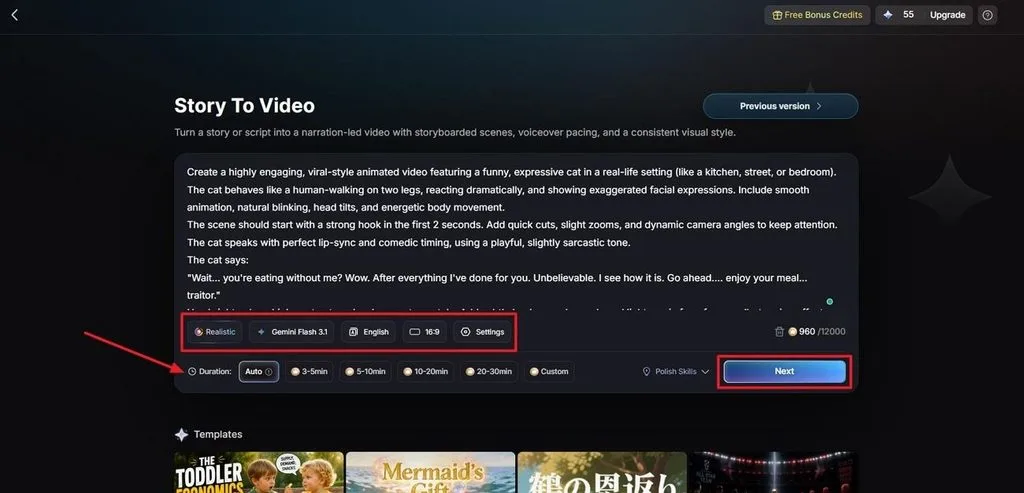
Step 1. Add Your Cartoon Story
Open Story to Video and enter your cartoon idea. Select a Visual Style Model, choose an AI Story Model, and set your Video Language and Aspect Ratio. Set the Video Duration for your cartoon and click Next to move forward.
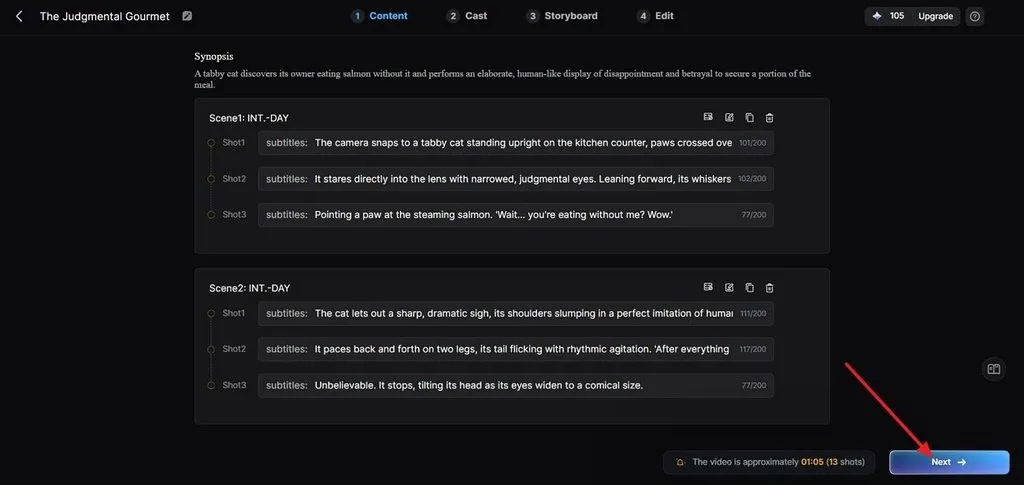
Step 2. Check Your Cartoon Scenes
Review the generated scenes and read the Synopsis to check your cartoon storyline. Use the Controls at the top to make changes wherever they are needed. Once you are satisfied with the scene structure, click Next to continue further.
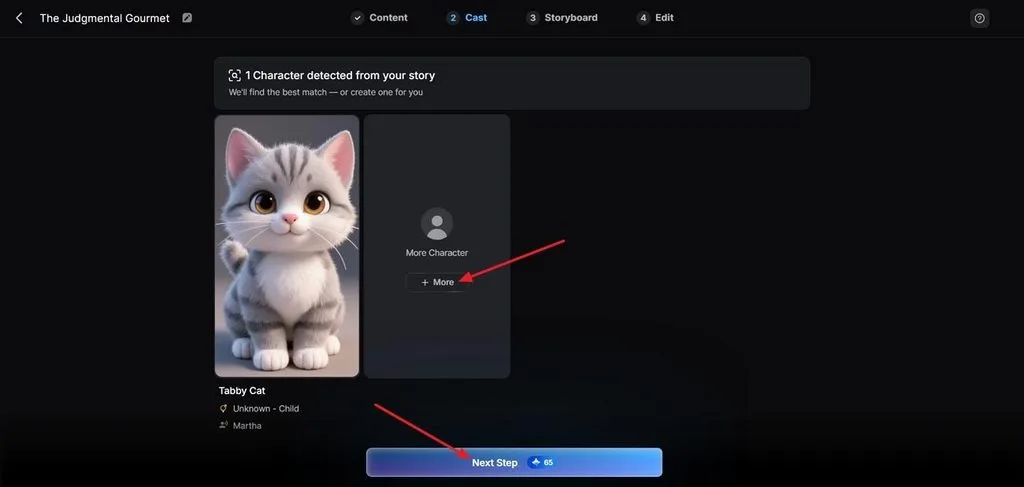
Step 3. Choose Your Cartoon Characters
MagicLight AI analyzes your cartoon script and recommends characters that match your story. Click +More when you want to browse additional character choices for your video. After choosing the character you want, click Next Step to continue.
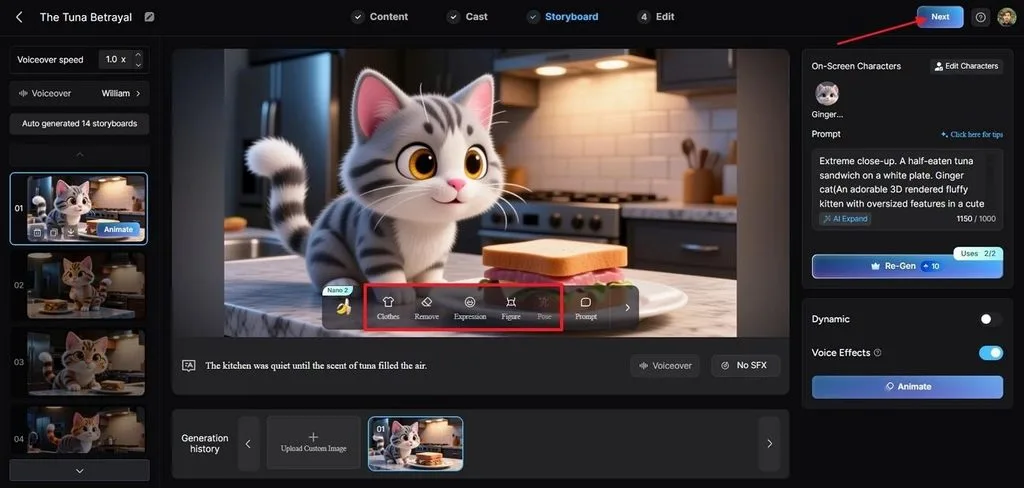
Step 4. Adjust Your Cartoon Storyboard
Review each storyboard scene and check how your cartoon characters appear throughout the video. Change Clothes, Poses, and Expressions where needed to match each scene better. When you are happy with the complete storyboard, click Next to continue.
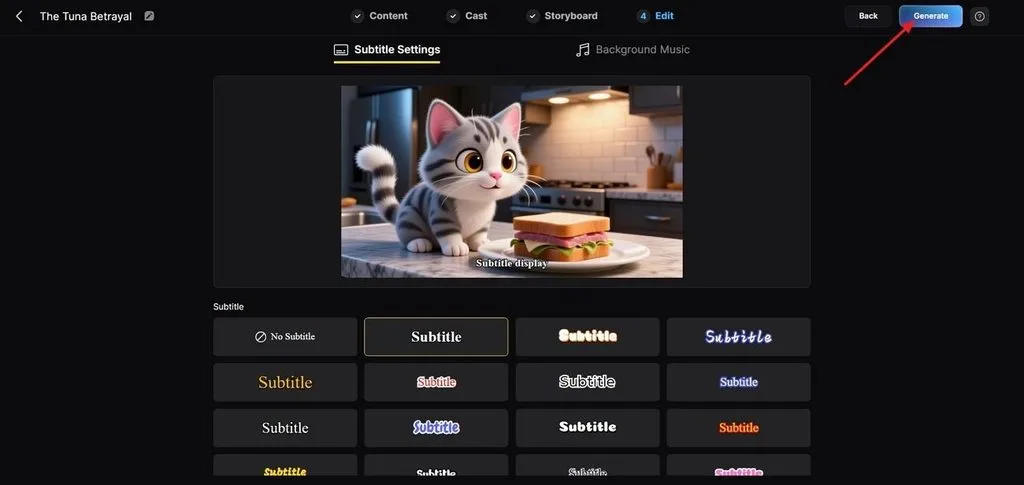
Step 5. Choose Your Subtitle Design
Browse the available subtitle styles and select one that matches your cartoon video design. Once you have chosen your preferred style, click Generate in the top-right corner.
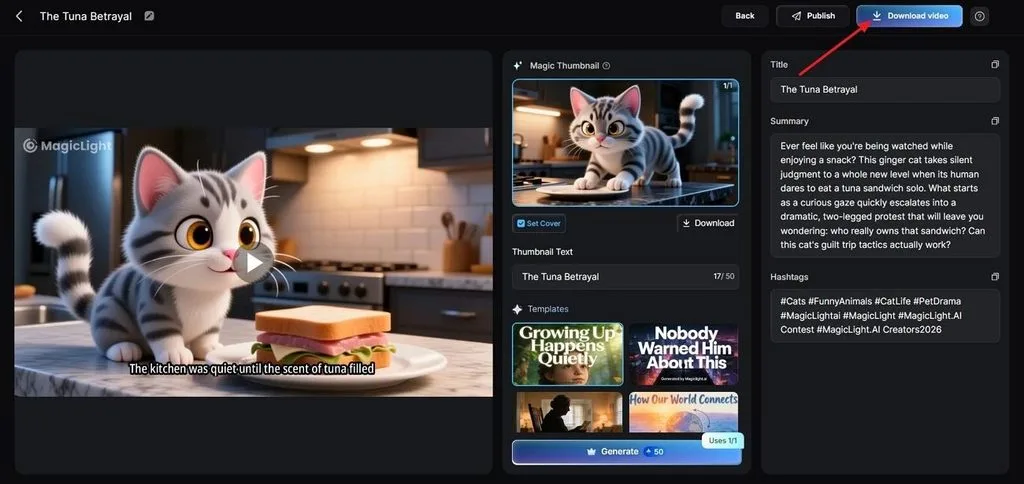
Step 6. Download Your Cartoon Video
Preview your generated cartoon and review the Cover, Thumbnail, and Hashtags before saving it. When everything looks ready, click Download Video to save the completed cartoon video.
Part 2. Why Use MagicLight AI to Make a Cartoon
Making a full cartoon takes more than generating a few short animated clips. MagicLight AI simplifies the process for beginners learning how to make cartoon animation. Let's explore the main reasons MagicLight AI works well for creating complete cartoons:
1. Keep Characters Consistent
Characters should look the same whenever they appear across different scenes in your cartoon. MagicLight AI keeps character details consistent throughout scenes instead of changing their appearance. This helps viewers recognize each character from the opening scene through the ending.
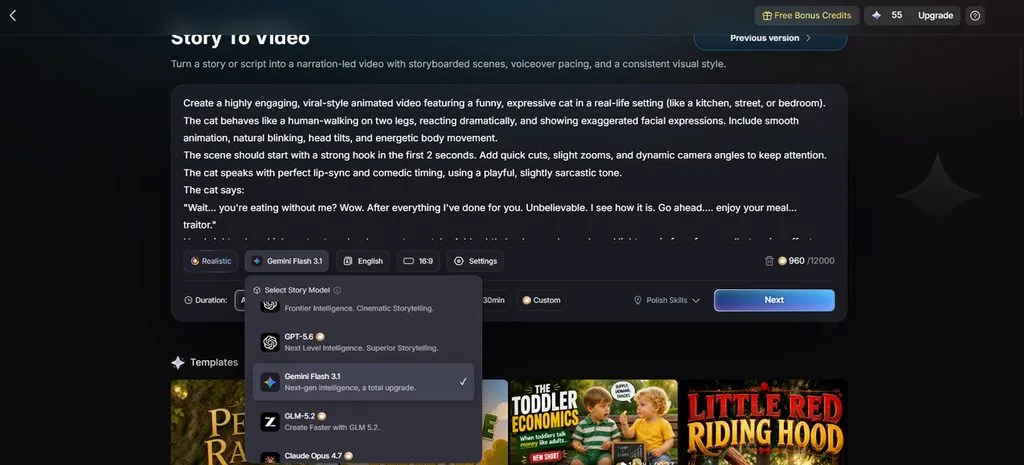
2. Choose From 14 Story Models
Different stories need different models to shape their structure and direction during video creation. MagicLight AI provides 14 story models for building different types of cartoon stories. Options include Gemini Flash 3.1, GPT-6 Astra, and other available story models.
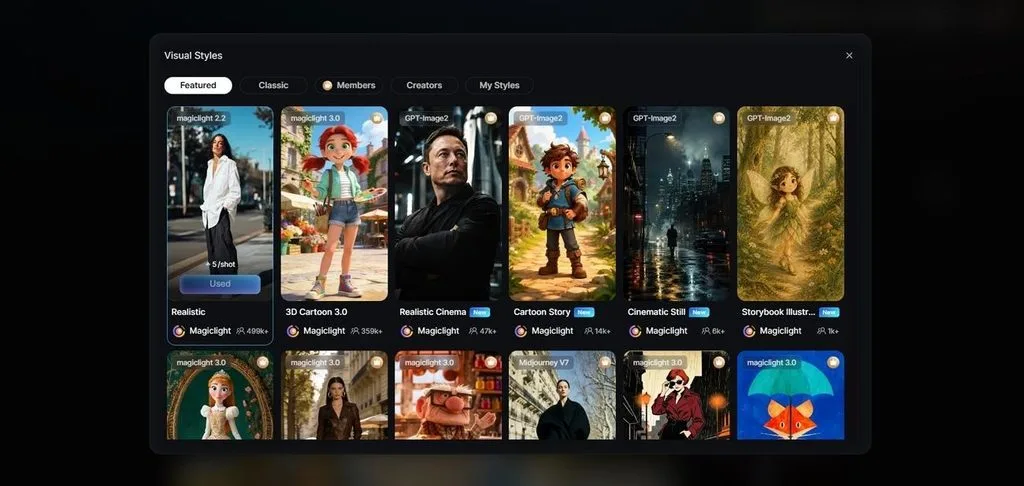
3. Pick From 20+ Visual Styles
The right visual style helps your cartoon match the story you want to tell. MagicLight AI offers 20+ visual styles for creating different types of cartoon videos. Your selected style stays consistent across scenes and keeps the cartoon visually connected.
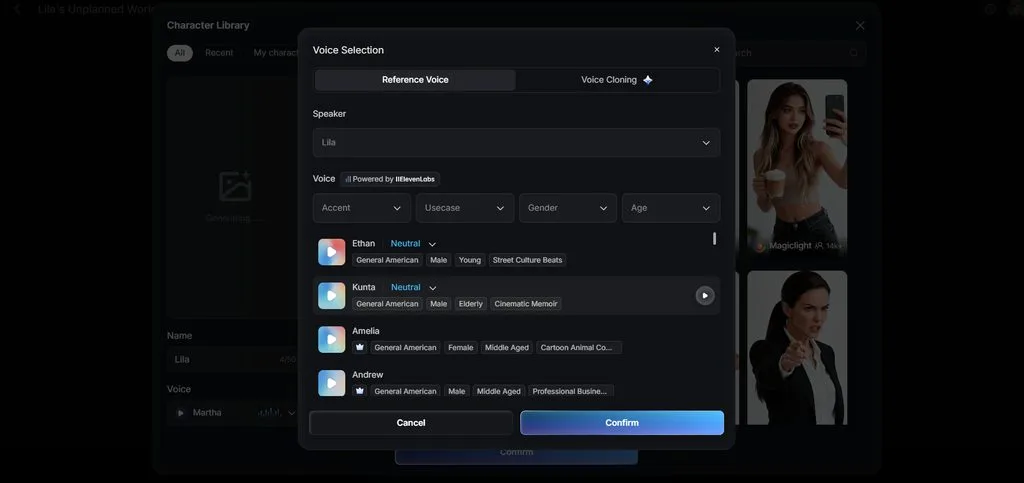
4. Add Voices and Subtitles Together
Adding voices and subtitles separately can create extra work during cartoon video production. MagicLight AI provides 37 AI voices for adding narration directly to cartoon scenes. You can also choose from 16 subtitle styles before generating your finished video.
Conclusion
To conclude, creating cartoons no longer requires years of drawing or animation experience. Start with a clear idea, then learn how to make a cartoon with AI while keeping characters, scenes, and visual styles consistent. With the right workflow, you can turn a simple concept into a complete animated story. MagicLight AI helps bring the entire cartoon idea to life from one place.
Frequently Asked Questions on How to Make a Cartoon
1. How can I make a cartoon with AI?
Start with a story, create your characters, and choose a suitable cartoon visual style. MagicLight AI can turn your story into scenes and generate the complete cartoon video.
2. Can AI turn a story into a cartoon?
Yes, AI can turn written stories into animated scenes with characters and matching visuals. MagicLight AI handles scene creation and helps connect your story throughout the cartoon.
3. How do I create a cartoon character with AI?
Describe your character with clear details or upload an image as your visual reference. MagicLight AI can save created characters for consistent use across different cartoon scenes.
4. Can beginners make cartoons without animation skills?
Yes, beginners can create cartoons without learning traditional drawing or complex animation software. AI simplifies learning how to make cartoon video content by handling many production tasks automatically.
5. What is the best AI tool for making cartoons?
MagicLight AI is a strong choice for creating complete cartoons from written story ideas. It supports videos up to 50 minutes while keeping characters consistent across different scenes.

![How to Make a Reaction Video with AI Tool [Guide 2026]](https://magiclight.ai/wp-2/wp-content/uploads/ai-faceless-reaction-video-guide-300x169.webp)