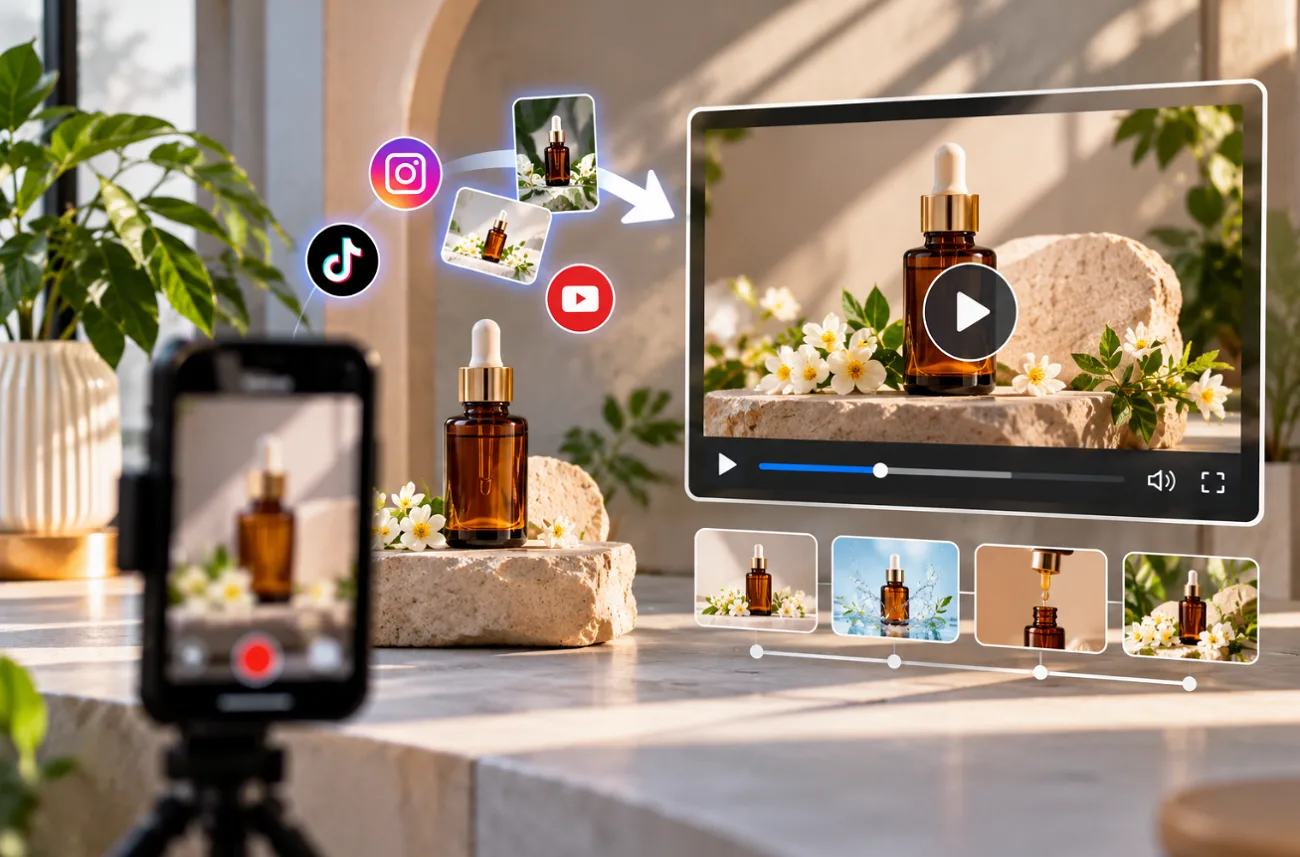
A 2-person candle brand has 1 phone photo of its new winter pine jar, taken on a kitchen counter under overhead light. That photo cannot show the flame moving or the glass glowing at night, and the launch post on Reels depends on both.
With no budget for a studio day, the brand figured out how to make a product video from the photo they already had. The photo passes through an AI image model for a new setting, and a video model then lights the wick. MagicLight AI handles both stages in its Toolbox, and its story tools add narration and music for longer promos.
Part 1. How to Make a Product Video
A product video shows what a still image cannot, from size and texture to movement in a real setting. If you’re learning how to create a product video, start with a clear product photo and a simple scene idea. MagicLight AI’s Toolbox can turn those inputs into a styled image and then a moving product clip.
For longer content, Story to Video can build a product story across multiple scenes, while the Long Video Generator suits more detailed walkthroughs and tutorials.
- 20 Video Models: One product scene can run on Veo 3.1 Lite, Happy Horse 1.0, Kling 3.0, or a Seedance version. Each model moves light and texture in its own way, which shows up on glass and fabric.
- A Brand Voice: A cloned voice keeps the founder’s own sound across every walkthrough, and 37 stock voices cover the rest.
- Multiple Languages: Scripts and narration run in 11 languages, which opens one promo to buyers in several markets.
- Detailed Prompts and References: Describe the product scene, motion, and camera direction in a prompt of up to 1,500 characters, then upload image and video references to guide the generated result.
- MagicLight Agent for Explainers: Typed on the home page, a product concept turns into a script with scenes and numbered shots. The Channel Niche card then proposes a format, Explainer Video, among the options.
What to Consider When Creating Product Videos
Product videos tend to fail in 2 places, such as a warped label and a frame that crops the item out. Both problems begin well before anything is generated in the Toolbox. Every rerun to fix them spends credits, a real constraint on how to make product videos for a small brand.
- One Goal per Video: A single clip cannot announce a release date and teach wick trimming at the same time. The candle brand kept its 8-second teaser for the date and saved the care steps for a separate demo.
- A True-to-Life Product: Errors show up first in the ingredient line on the label, because AI motion bends small print before it bends shapes. A jar that arrives looking different from the ad gives the buyer a fair complaint.
- The Opening Shot: The lit jar belongs in frame one, since a reveal that takes three seconds gives a Reels viewer time to swipe past.
- A Shape for Each Channel: TikTok’s ad specs list 9:16 as the recommended vertical ratio. YouTube categorizes qualifying square or vertical videos lasting up to 3 minutes as Shorts, while TikTok recommends a 9:16 format for vertical advertising.
- Sound-Off Viewing: A muted autoplay turns any spoken selling point into silence, which is why the product name belongs in on-screen text. Bold text on a plain area of the frame stays legible on small screens.
- Honest Claims and AI Labels: A 60-hour burn claim needs testing behind it, since the FTC requires ads to be truthful and, when appropriate, backed by evidence. TikTok also requires realistic AI footage to carry its AI-generated label.
Guide for Making Product Videos with MagicLight.AI
Creating a styled image first gives the video model a visual reference for the final scene. Alternatively, upload the original product photo directly into the Video tab. If you’re learning how to create product videos from one photo, follow the steps below to create and animate your product scene in MagicLight AI:
Step 1. Add the Product Image as a Reference
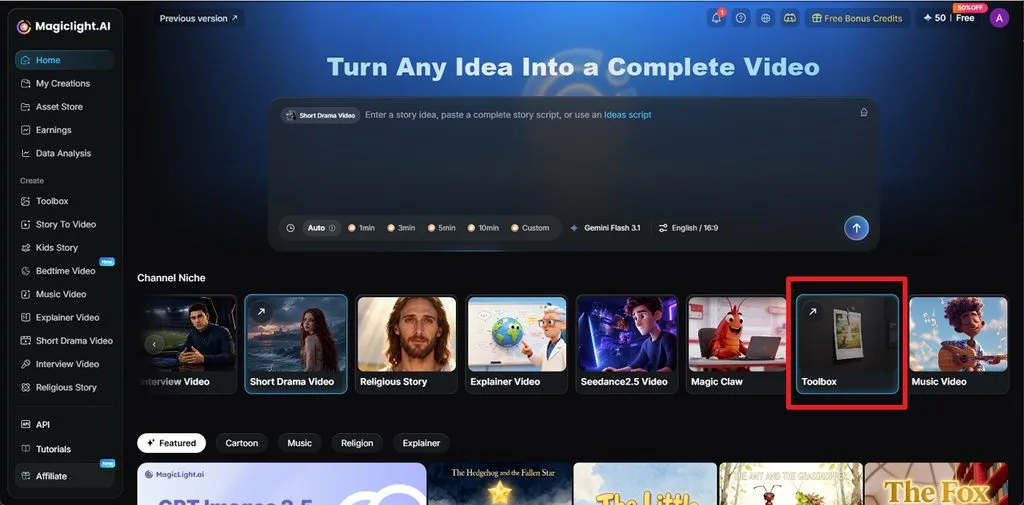
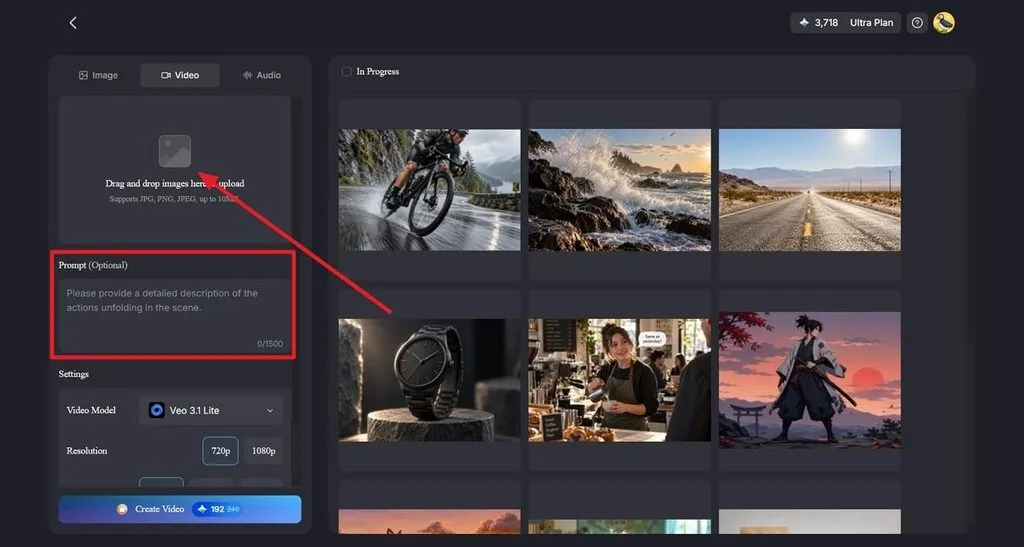
Select Toolbox from the sidebar and open the Video tab. Upload the product photo as the image reference, making sure the product and label are clearly visible.
Step 2. Set the Product Scene and Motion
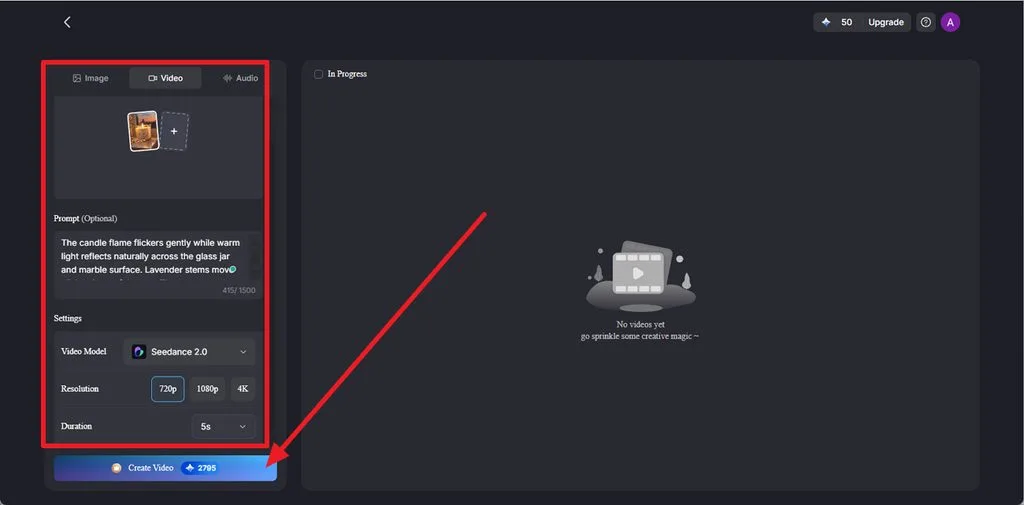
Write a prompt of up to 1,500 characters describing the scene and movement, such as “candle glowing on a frosted windowsill at dusk, label facing the camera, flame flickering, slow camera push-in.” Choose a Video Model, then set the Duration, Resolution, and other available settings and click Create Video.
Step 3. Preview and Save the Final Video
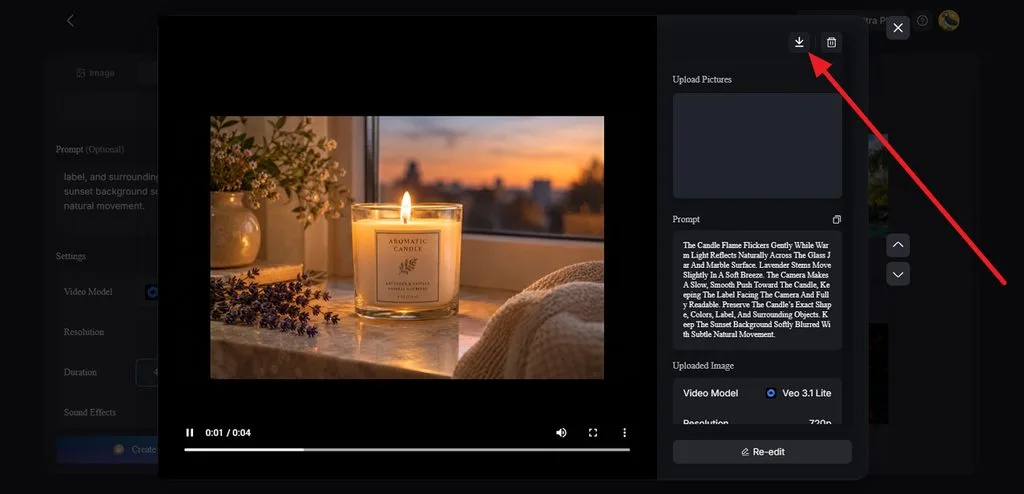
Watch the generated product video and check that the label, shape, and key product details remain consistent. If anything needs fixing, select Re-edit and adjust the prompt or settings. Once satisfied, click Download to save the clip.
Part 2. Why Use MagicLight.AI for Product Video Marketing
A launch rarely runs on one clip, since each channel wants its own shape and caption. For teams deciding how to make videos for products on a weekly schedule, 5 parts of MagicLight AI cover the spread.
- Lifestyle Scenes From One Photo: The 5 image models share the Image tab menu, with Seedream 5.0 Pro listed first. One jar shot can turn into a windowsill scene for Reels and a gift-table scene for the product page. The uploaded photo guides both scenes toward the original jar's appearance, although labels, packaging details, and product proportions still require inspection.
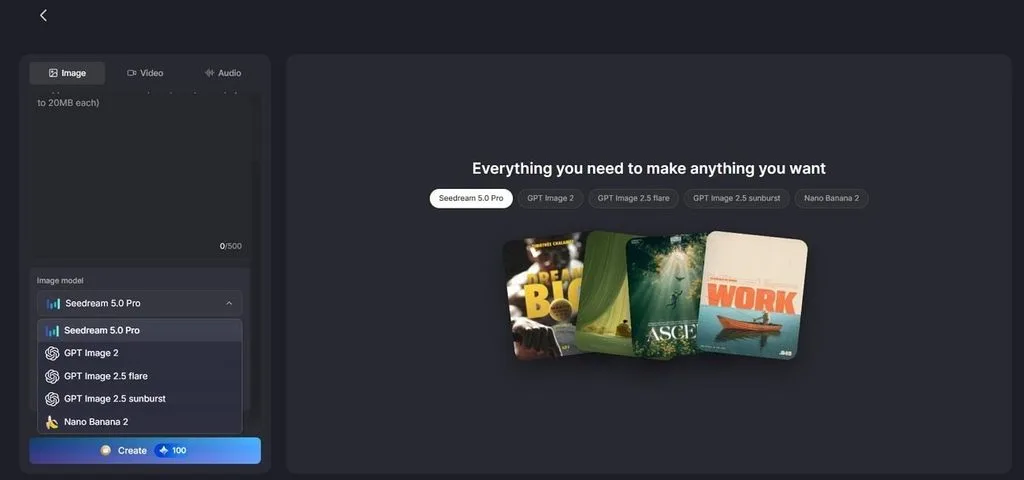
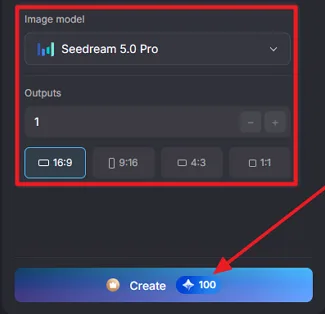
- Every Channel Shape in One Panel: A tall version for Reels and a square one for the brand’s feed came from the same prompt. Only the ratio button changed between runs, from 9:16 to 1:1. Raising Outputs added extra framings of each shape in the same pass.
- Motion Written in Detail: Product motion fails in specific ways, such as a rippling label or a lid that changes shape. The 1,500-character Video tab prompt has room to rule out both by name. Smaller motion requests leave fewer frames for those errors to appear in.
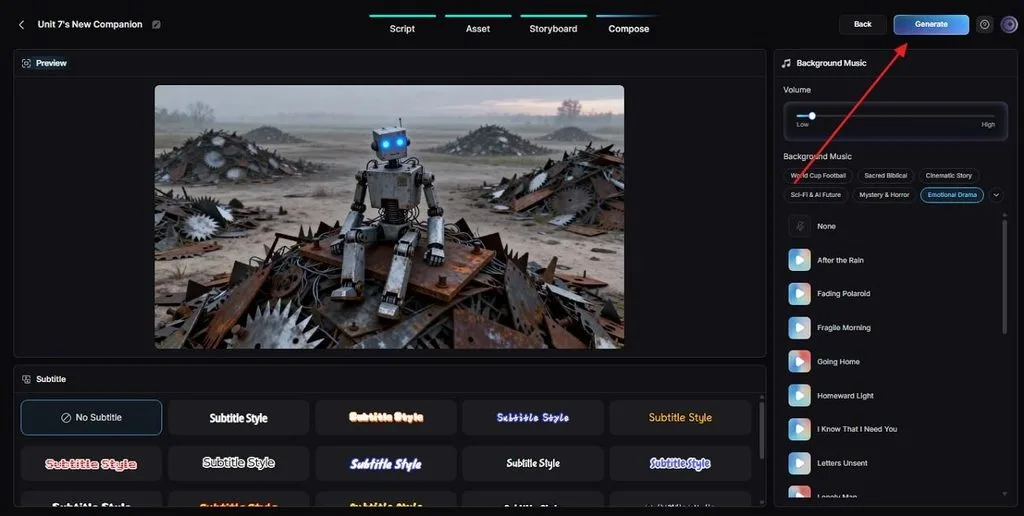
- Music and Captions in Compose: Longer formats, such as a narrated care guide, run past any Toolbox clip, and Story to Video builds those. Its Compose tab offers mood filters for the music, such as Cinematic Story, and a subtitle style for viewers watching on mute.
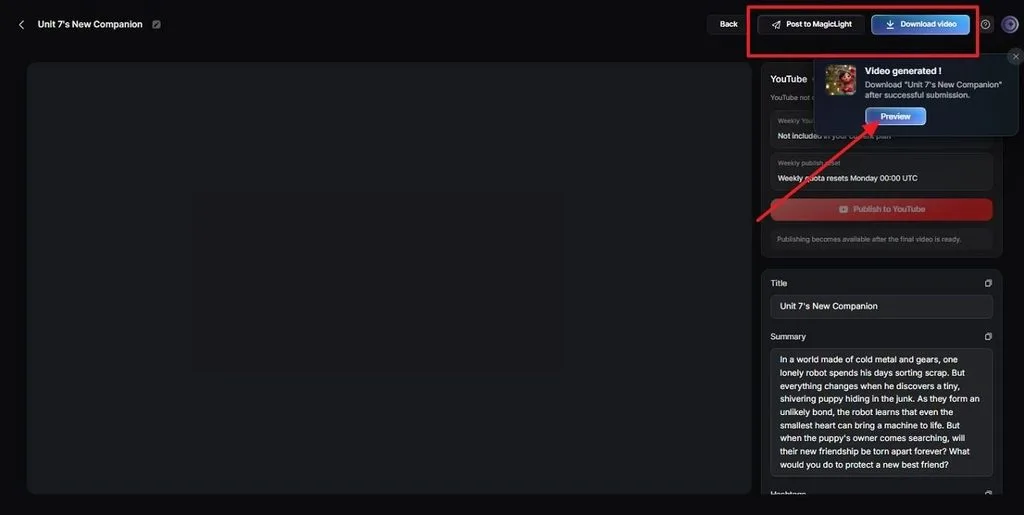
- Post-Ready Titles and Hashtags: Post copy is the final task in a launch, and the finished-video panel drafts it with suggested Title, Summary, and Hashtags fields. Download video and Post to MagicLight sit above them, and a Publish to YouTube button works on plans that include it.
Conclusion
The candle brand turned one phone photo into a vertical Reels clip and a wide version for its product page. That path answers how to make a video for a product without a studio, provided the label stays accurate. Each version still deserves a last check against the real jar. For the next scent, the same 2-tab routine in MagicLight AI’s Toolbox can start again from a fresh phone photo.
Frequently Asked Questions on How to Make a Product Video
1. What should a product video include to attract potential customers?
Every response to “how to make a great product video” starts with the product visible in the first shot and then shown in use. The closing frame names one next step, such as a shop link or a launch date.
2. Can I make a product video without professional filming equipment?
Yes, and a clear phone photo is enough to create a product video in MagicLight AI. The Image tab stages the product in a new setting. Motion then comes from a written prompt in the Video tab, with no lights or camera rig involved.
3. How can I explain a product’s features and benefits through video?
Explainers land when each scene covers one feature and what it does for the buyer. MagicLight Agent turns a product concept into that scene-by-scene script. Story to Video then voices it, with 37 narrator options or a cloned brand voice.
4. What types of product videos work well for social media marketing?
Short demos of the product in use fit vertical feeds, and so do launch teasers. Unboxings and before-and-after comparisons also do well on Reels and Shorts. Sellers searching “how to do a product video” for social media can start with a 10-second demo in 9:16.
5. What AI tool can help me turn product ideas into promotional videos?
MagicLight AI builds product scenes in its Image tab and animates them across 20 video models. A small brand can make product video ads for each channel from one photo. Narrated promos get their script from MagicLight Agent, and paid plans include commercial usage rights.