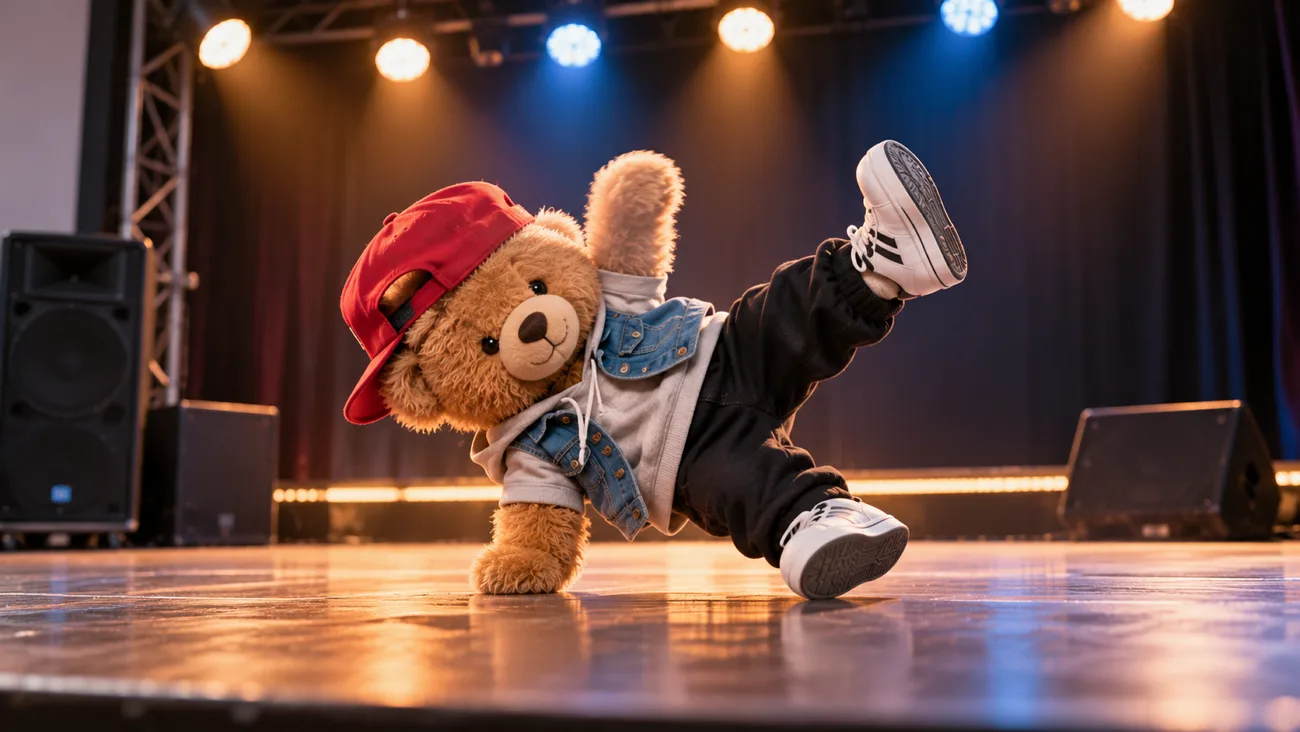
Making dance videos usually takes time when you need to practice every movement yourself. With AI tools, you can now turn a simple character image into dancing videos. Your favorite characters can perform dance moves without you standing before the camera yourself.
Learning how to make AI dance video clips becomes easier with the right tool. MagicLight AI lets you upload a character image and create videos with music. This guide shows how you can make your own dance videos from scratch.
Part 1. How to Make AI Dance Videos
Planning how to make AI dance video clips starts with choosing a clear character image first. MagicLight AI brings that image to life by creating dance movements based on your instructions. You can describe the dance style and guide how your character moves throughout the video.
The Toolbox tab gives you access to features designed for creating short dance clips. MagicLight AI also provides tools for designing characters and preparing music for your dance videos. Its Story to Video feature creates longer scenes from scripts prepared through MagicLight Agent first. MagicLight AI has several useful features that help you create dance videos with greater control:
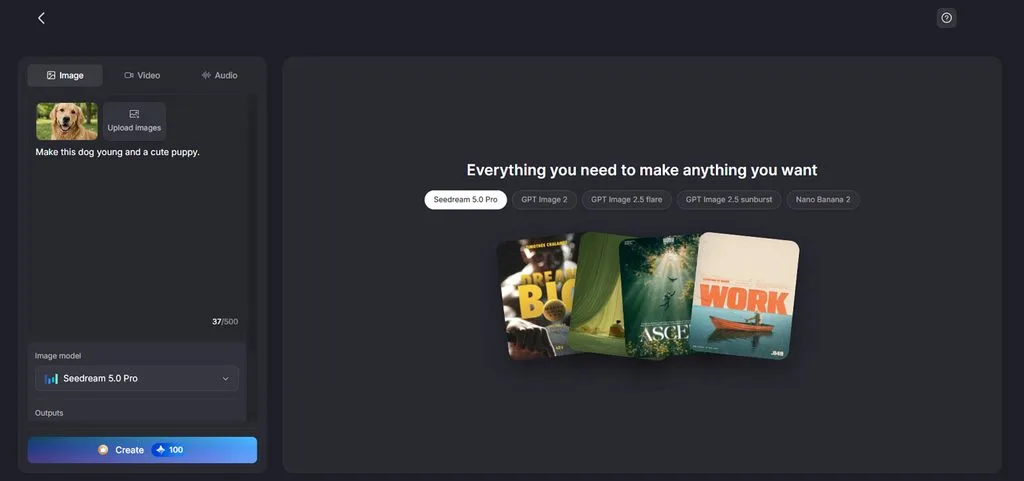
- Original Dancers From the Image Tab: Create your own dancer by entering a description within the 500-character limit. Reference images also help MagicLight AI match the appearance of existing characters.
- A Wide Model Menu: MagicLight AI provides 20 video models with different options for dance generation. Testing several models helps you find which produces more natural character movements.
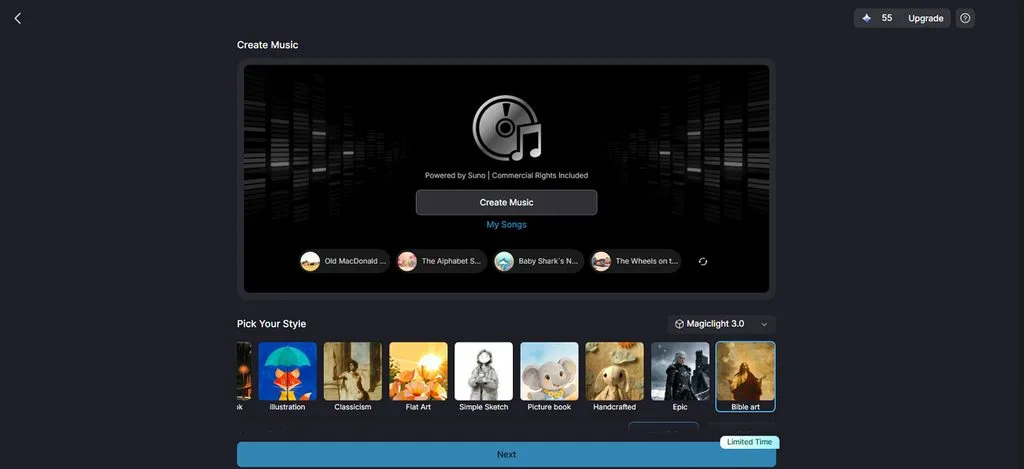
- Music Video for Full Songs: Uploaded music helps the Music Video feature create scenes matching the rhythm. Without an existing track, generate fresh music based on your preferred genre.
- Lip Sync Intros: Give your character a speaking introduction through the Lip Sync feature first. Recorded dialogue helps introduce the dance before your character begins performing onscreen.
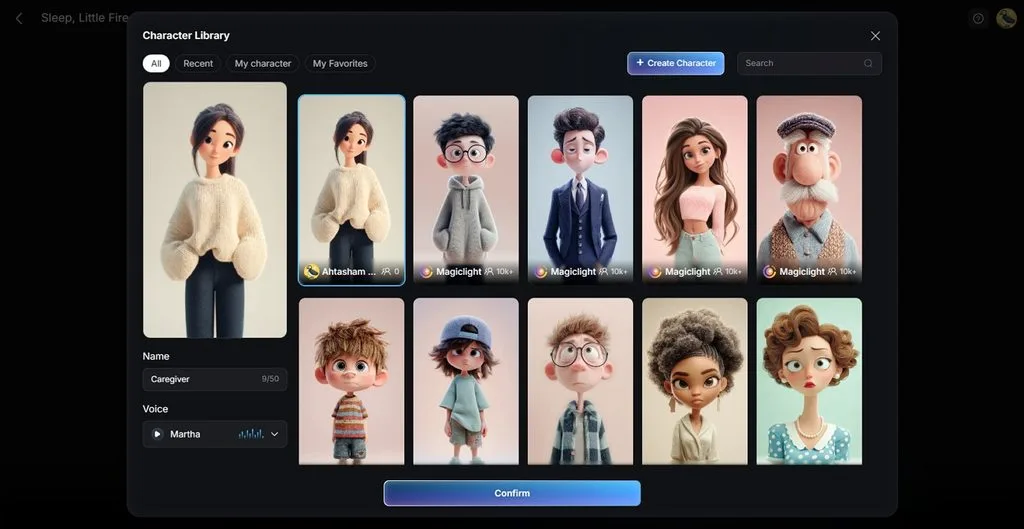
- Recurring Characters: Story to Video helps maintain consistent character appearances across multiple scenes. Familiar dancers can return in future videos while preserving their recognizable visual features.
What to Consider When Creating AI Dance Videos
AI dance videos can sometimes show problems with hand movements and foot positions during playback. These problems usually begin with choices made before generating the video. Here are some important things to consider when learning how to make AI dance video clips:
- A Full-Body Source Image: Make sure the starting image clearly shows your character's legs. A plain background also helps prevent the character from blending into the surrounding scene.
- Clip Length by Model: Each AI video model supports a different video length for creating dance clips. Veo 3.1 Lite creates 8-second videos, and Seedance 2.5 supports clips up to 30 seconds.
- Moves the Tempo Can Carry: Gentle dance movements work better with slower music and help the character move naturally. Fast dance moves can make the character's arms and legs look blurry.
- A Vertical Frame: TikTok recommends creating vertical videos that display properly across mobile phone screens. Make sure the entire character remains visible so the feet stay inside the frame.
- Music the Account Can Use: Check whether your selected music is approved for the account publishing the video. TikTok Business Accounts can choose licensed tracks from the Commercial Music Library.
- Consent and AI Labels: Obtain permission before using an adult private individual's likeness, and avoid prohibited AI depictions. TikTok requires labels for realistic AI-generated content.
Step-by-Step Guide to Make AI Dance Videos Using MagicLight.AI
Learning how to make AI dance video clips becomes easier with MagicLight AI. Follow the steps below to create your dance video using MagicLight AI:
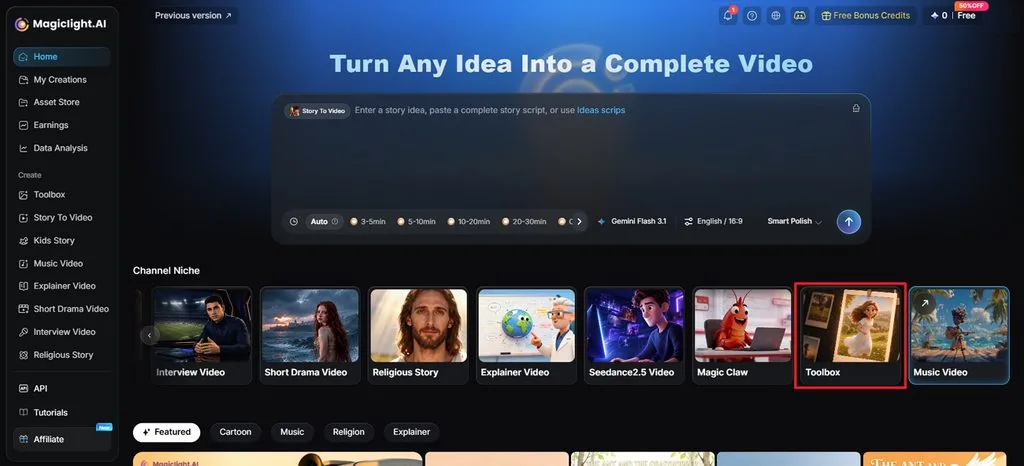
Step 1. Enter the Toolbox Feature Inside MagicLight AI
First, enter MagicLight AI’s main interface and choose the Toolbox feature.
Step 2. Upload the Reference Music and Photo
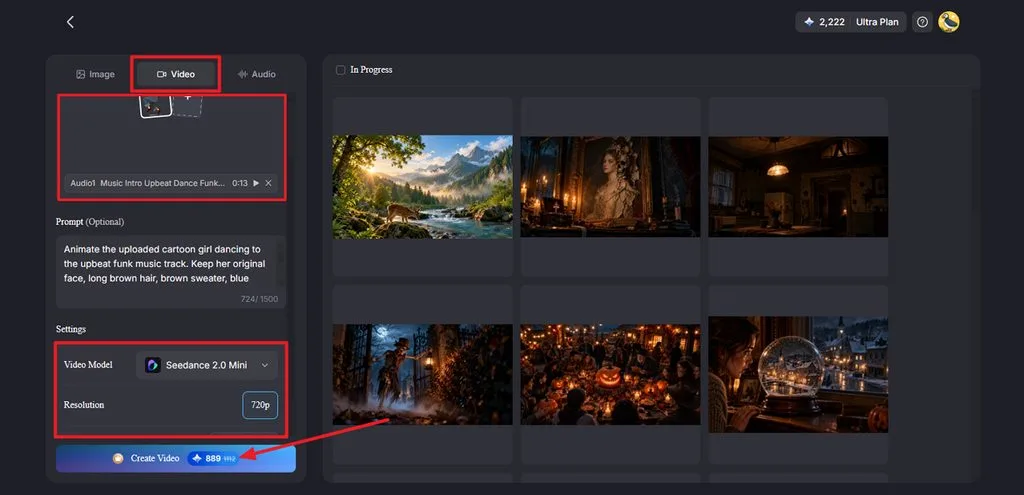
Next, choose the Video tab and select a Seedance family Video Model like Seedance 2.5. Upload your music and reference images. Enter a description to guide the camera movements and motion. Then, choose a Duration and Resolution, then press Create Video.
Step 3. Preview and Save the Dance Video
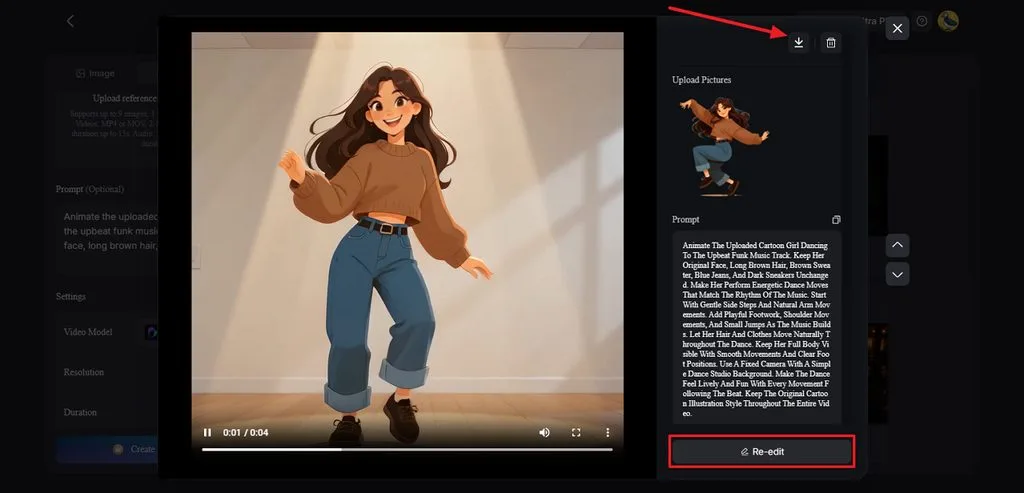
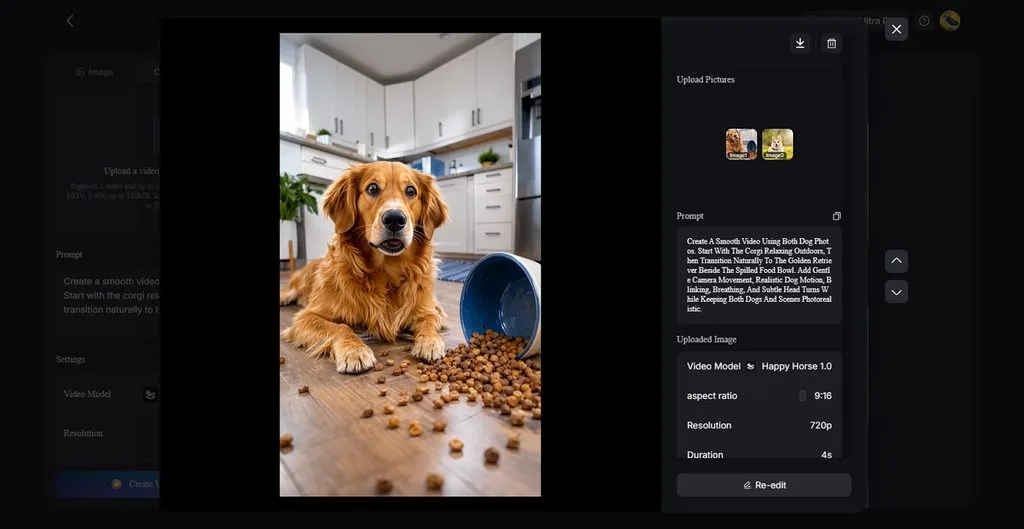
After that, preview the generated video and press the Re-edit option to make adjustments. Once the video is finalized, press the Download icon to save the video.
Part 2. Why Use MagicLight AI for AI Dance Video Creation
Learning how to make AI dance video clips requires smooth and natural character movements. MagicLight AI provides useful features that help create dance videos with better results. Below are the main reasons to choose MagicLight AI for creating dance videos:
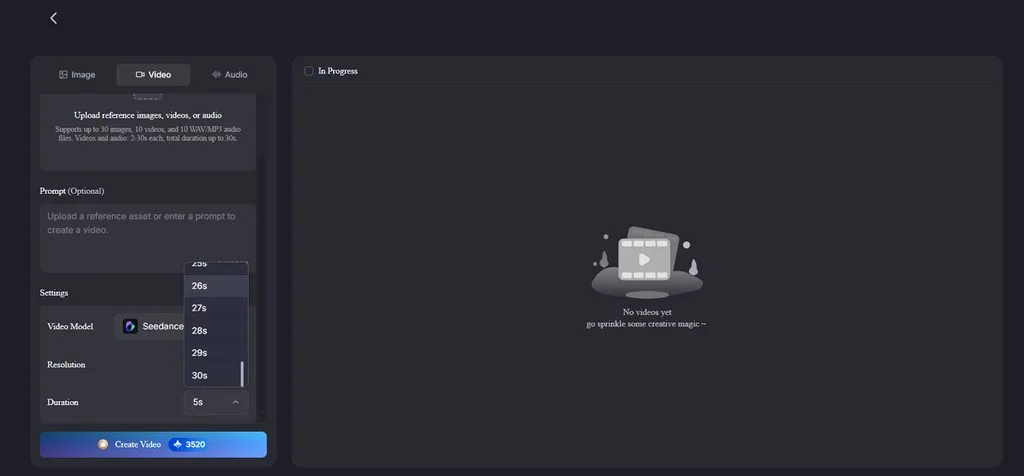
- Music as a Reference File: Seedance 2.5 supports audio and visual references for guiding video generation. Its clips can reach 30 seconds, depending on the selected settings.
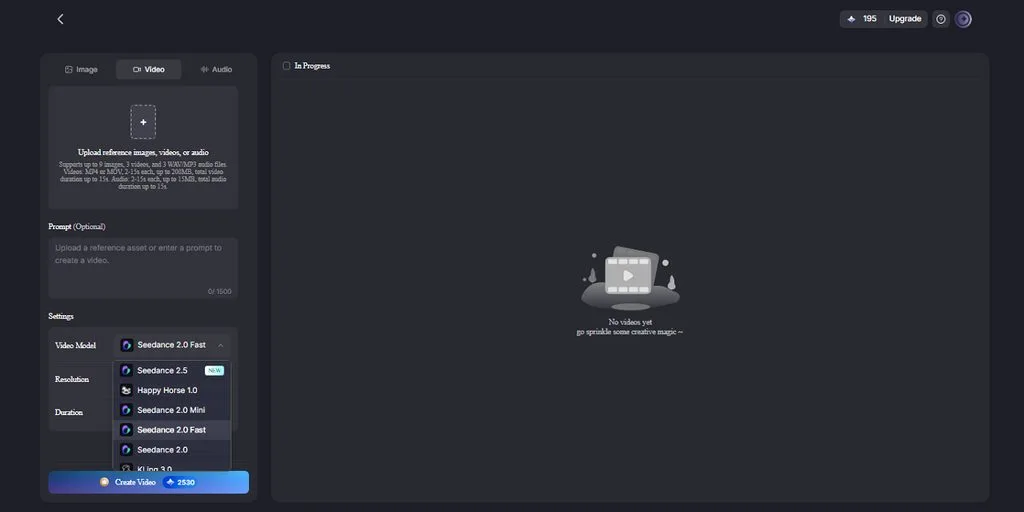
- Reference Videos for Choreography: Seedance 2.0 Fast accepts up to 3 reference videos with a combined duration of 15 seconds, helping guide the character through recorded dance movements.
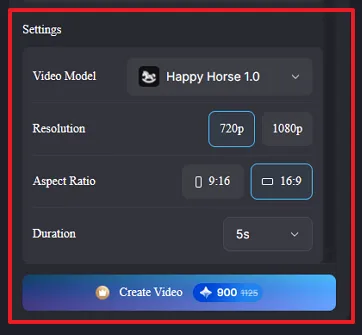
- A Vertical Frame on Request: Happy Horse 1.0 provides vertical and horizontal video settings with 720p and 1080p resolution options. The vertical setting matches the recommended TikTok format and helps keep the dancer fully visible.
- Room for a Full Routine: Prompts support up to 1,500 characters for describing dance movements and camera actions. Veo 3.1 Lite provides Sound Effects for short clips with audio.
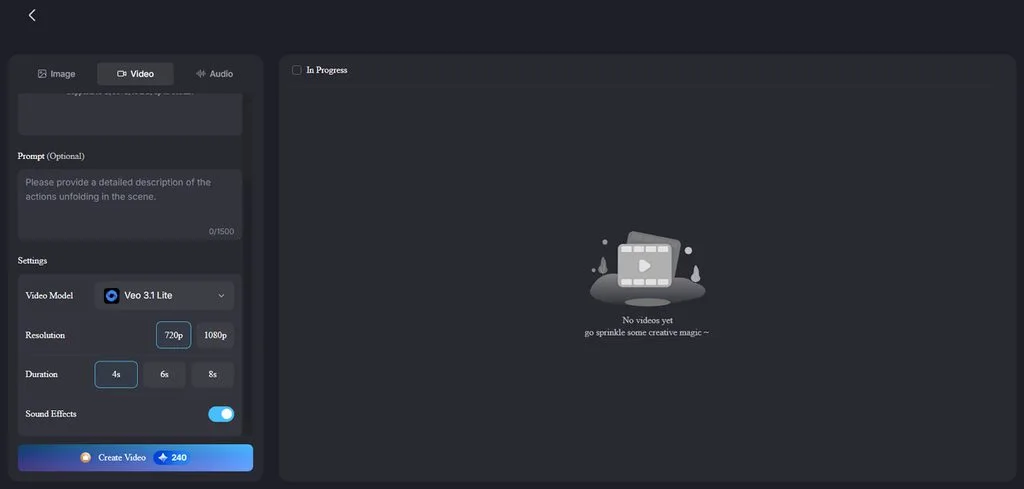
- Room for a Full Routine: Prompts support up to 1,500 characters for describing dance movements and camera actions. Veo 3.1 Lite provides Sound Effects for short clips with audio.
Conclusion
To conclude, learning how to make AI dance video clips starts with a clear character image. A well-planned dance sequence helps your character move naturally with the selected music. You can also create longer dance videos by matching different scenes with your soundtrack. Try MagicLight AI to create your own dance videos without filming yourself.
Frequently Asked Questions on How to Make AI Dance Videos
1. How can I make an AI character dance to music?
Upload your character image and music into MagicLight AI using the Seedance 2.5 model. The Video tab creates dance movements using your prompt and the uploaded music track.
2. Can I create AI dance videos without recording myself?
Yes, the MagicLight AI dance generator lets you animate characters using a single image without filming yourself. Its Image tab can create original dancers that you can animate using dance prompts.
3. What should I consider when making AI dance videos for TikTok?
Create vertical dance videos that keep your character fully visible throughout the entire performance. TikTok also requires labels for realistic AI content and permission when using private individuals.
4. How can I create multiple dance videos featuring the same AI character?
MagicLight AI lets you reuse the same character image across different dance video generations. Its Story to Video feature also helps maintain character appearances across multiple dance scenes.
5. What AI tool can I use to turn dance ideas into engaging videos?
MagicLight AI helps turn your dance ideas into animated videos using different video models. You can design characters in the Image tab and animate them with dance prompts.
![How to Make a Product Video for Marketing With AI [Guide 2026]](https://magiclight.ai/wp-2/wp-content/uploads/product-video-marketing-guide-1-300x198.webp)