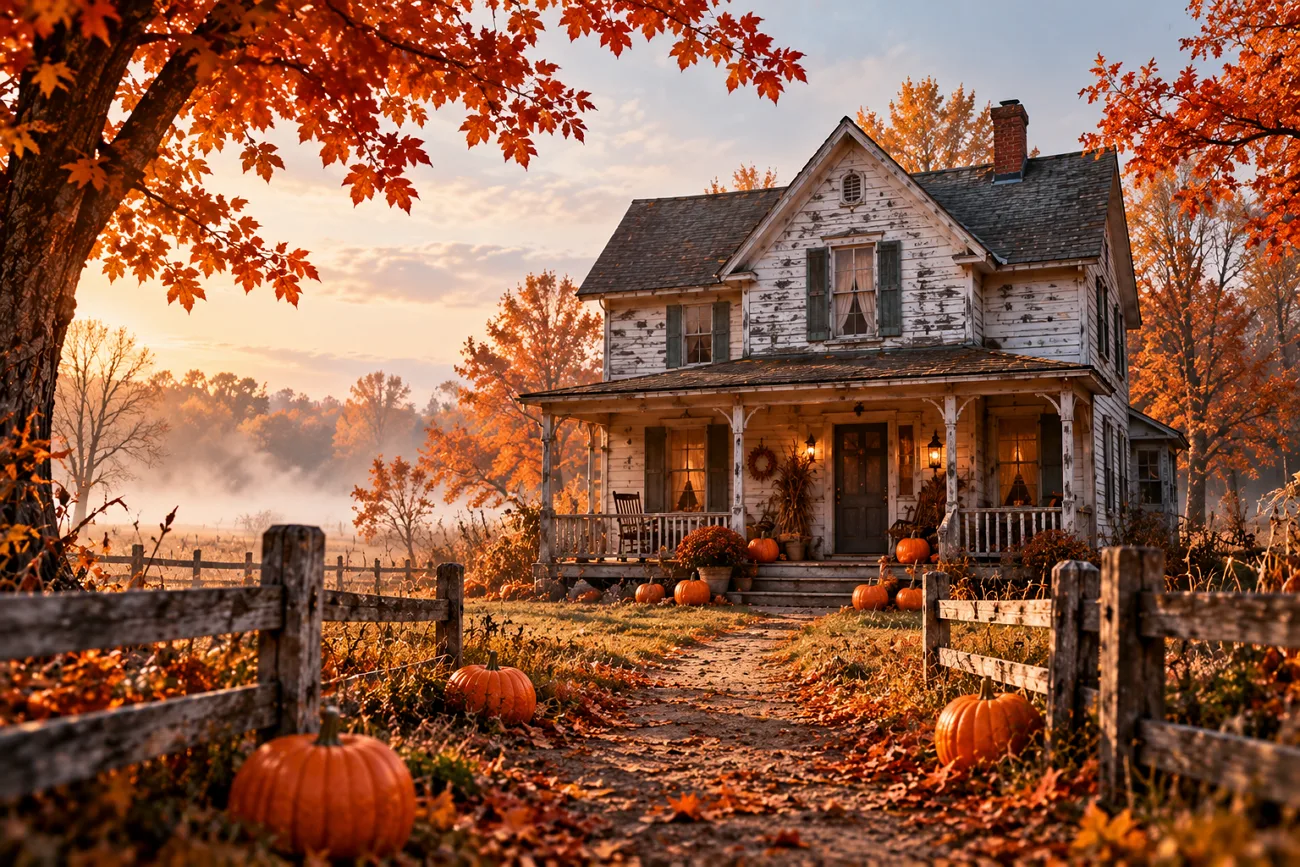
A family farm wants a creepy scarecrow image for its Halloween poster and later plans to use it in an Instagram video. A short prompt like “scarecrow, fog, dark field” may give a completely different result from what they imagined. The scarecrow might look friendly instead of frightening, while the background may feel too bright.
Writing Nano Banana prompts for Halloween with clear scene details can help avoid these problems. This article shares 20 Halloween prompts for posters, photo edits, and figurines that you can try. You will also learn how MagicLight AI turns still images into videos.
Part 1. 20 Nano Banana Prompts for Halloween to Try
Google introduced Nano Banana 2.1 on October 6, 2026, improving image editing, visual quality, and character consistency. These 20 Nano Banana prompts for Halloween explore cinematic scenes, photo transformations, collectible figures, and creative poster designs. You can try them using Nano Banana 2 in MagicLight AI's Image Generator.
Cinematic Halloween Scene Prompts
A scarecrow standing alone in a dark cornfield can create a frightening Halloween scene. Soft fog around the scarecrow gives the whole scene a much scarier look. Here are 4 Halloween prompts with different settings you can try.
- Scarecrow at the Maze Entrance: A scarecrow with a stitched burlap face guards the entrance of a moonlit corn maze. Low-angle shot, mist between the stalks, warm lantern glow, 9:16.
- Lighthouse Keeper’s Lantern: Show an old lighthouse keeper climbing a spiral staircase with a swinging oil lantern. Wide-angle lens, chiaroscuro lighting, sea fog drifting through a broken window, 16:9.
- Candlelit Library at Midnight: Books slide off candlelit library shelves as a ghostly reading lamp floats down the aisle. Shallow depth of field, drifting dust, muted teal shadows, 16:9.
- Ferry Crossing in Fog: Picture a hooded ferryman poling a wooden boat across a black lake toward a lantern-lit island chapel. Aerial view, thick ground fog, orange light on the horizon, 16:9.
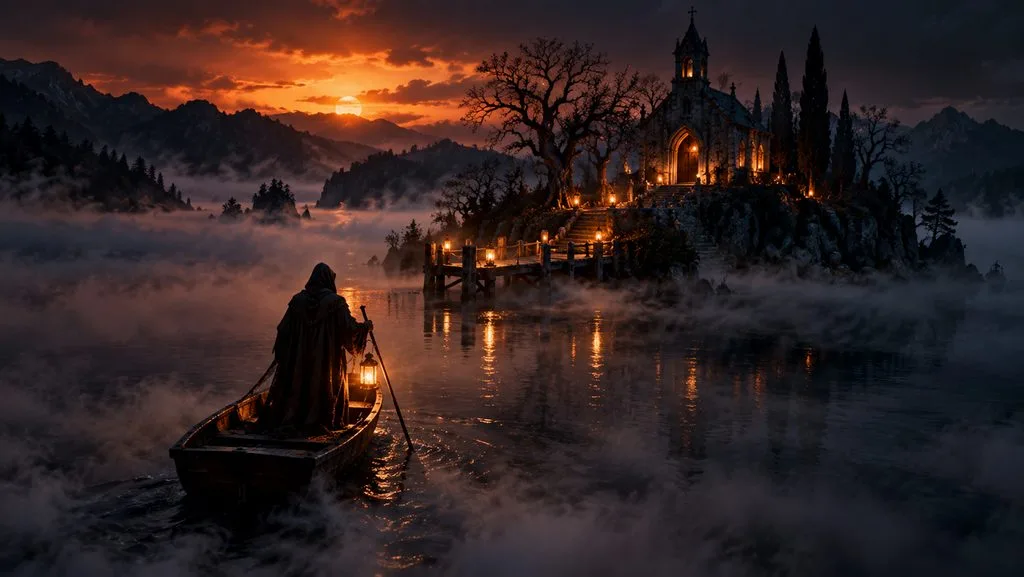
Photo Edit Prompts for Uploaded Pictures
Your photos can have a scary Halloween theme while everyone in them still looks the same. Nano Banana lets you change selected parts of a photo while keeping the rest the same. The following prompts show how to add scary Halloween details to your uploaded pictures.
- Porch Haunting Makeover: Turn the uploaded front porch photo into a haunted porch at night, with jack-o’-lanterns on each step. Keep the house shape, door, and windows exactly the same, 4:3.
- Daytime Street to Halloween Night: Change this daytime street photo to Halloween night, with glowing windows and a full moon. Every building and parked car stays where it is, 16:9.
- Living Room Party Setup: In the uploaded living room photo, add orange string lights, a candy table, and paper bats on the ceiling. The sofa, rug, and wall color remain untouched, 4:3.
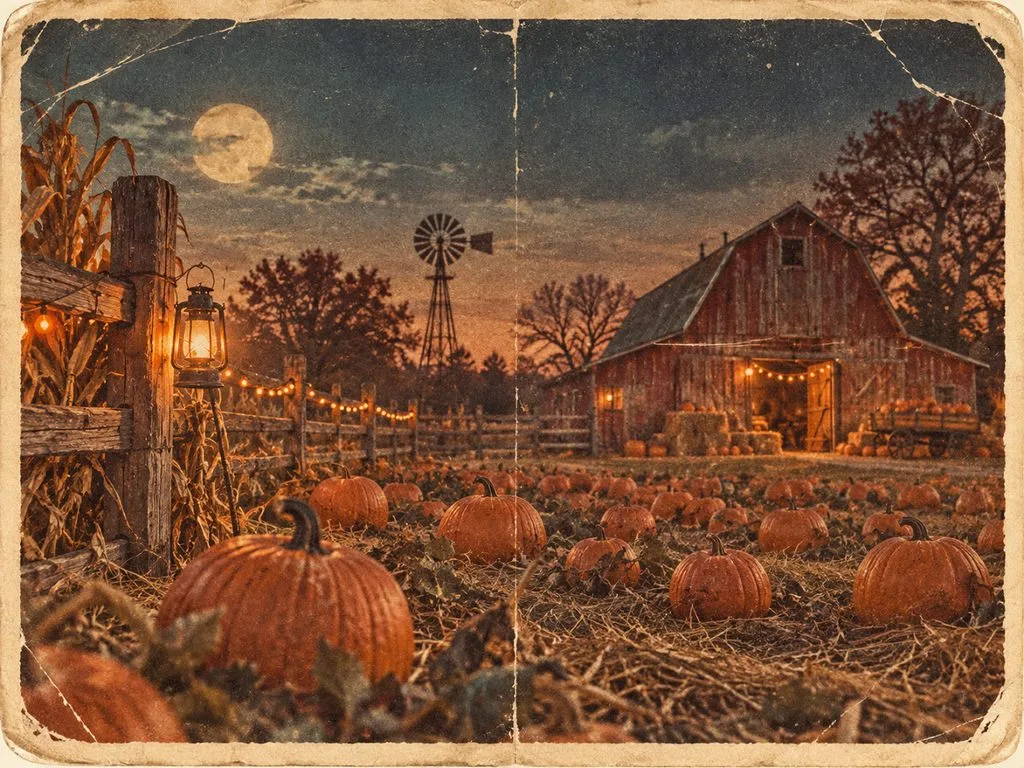
- Pumpkin Patch Postcard: Recreate the uploaded pumpkin patch photo as a 1950s Halloween postcard, with every pumpkin, fence post, and barn in its exact place. Faded print colors, soft paper texture, 4:3.
Collectible Figure and Miniature Prompts
Small toy figures became a popular Nano Banana trend in 2025. You can use Nano Banana prompts for Halloween to create similar figures with good lighting and realistic details. Here are some prompts for creating tiny Halloween characters in different settings.
- Witch Figure on a Desk: Create a 1/7 scale collectible figure of a cheerful witch holding a pumpkin lantern, on a round clear acrylic base beside its printed toy box. Soft studio lighting, 1:1.
- Haunted Town Diorama: Tilt-shift photograph of a miniature haunted town on a wooden table, with glowing windows and cotton fog between the houses. Macro lens, shallow depth of field, 16:9.
- Vinyl Vampire Toy: Product photo of a glossy vinyl vampire toy with a round face and oversized ears on a collectibles shelf. Three-point softbox lighting, pastel background, 1:1.
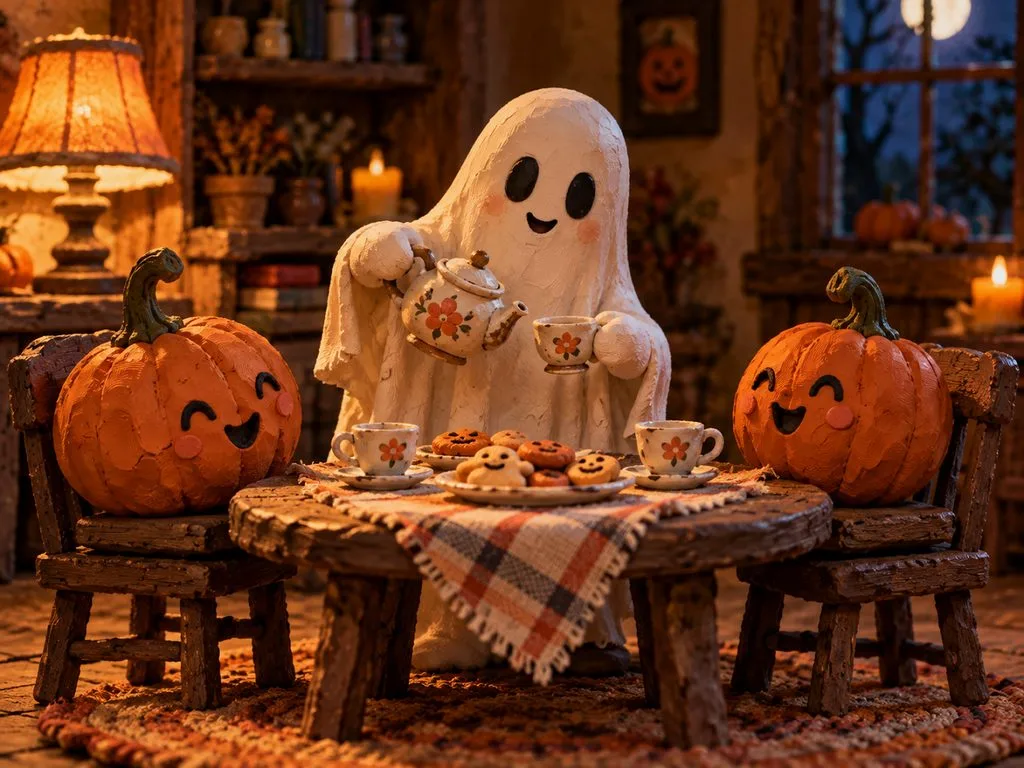
- Claymation Ghost Tea Party: Show a handmade claymation ghost hosting a tea party for two pumpkins, with fingerprints visible in the clay. Warm lamp light, stop-motion film look, 4:3.
Poster and Lettering Prompts
Halloween posters need clear words so people can easily read event details. Nano Banana prompts for Halloween can help you add spooky lettering to posters and greeting cards. The following prompts include exact words and font styles for different Halloween designs.
- Corn Maze Event Poster: Design a vertical poster titled “Lost in the Stalks” in tall, weathered wooden letters above a scarecrow silhouette. Add “Fridays in October, 7 PM” in small white sans-serif type, 9:16.
- 1950s B-Movie Poster: Paint a 1950s B-movie poster titled “The Night the Pumpkins Woke” in red hand-lettered type, with townsfolk fleeing giant jack-o’-lanterns. Halftone texture, faded cream border, 9:16.
- Haunted House Ticket: Vintage admission ticket for “Blackwood Manor Haunt” on yellowed card stock, with a torn edge and “Admit One” in ornate Victorian type. Close-up flat lay on dark wood, 4:3.
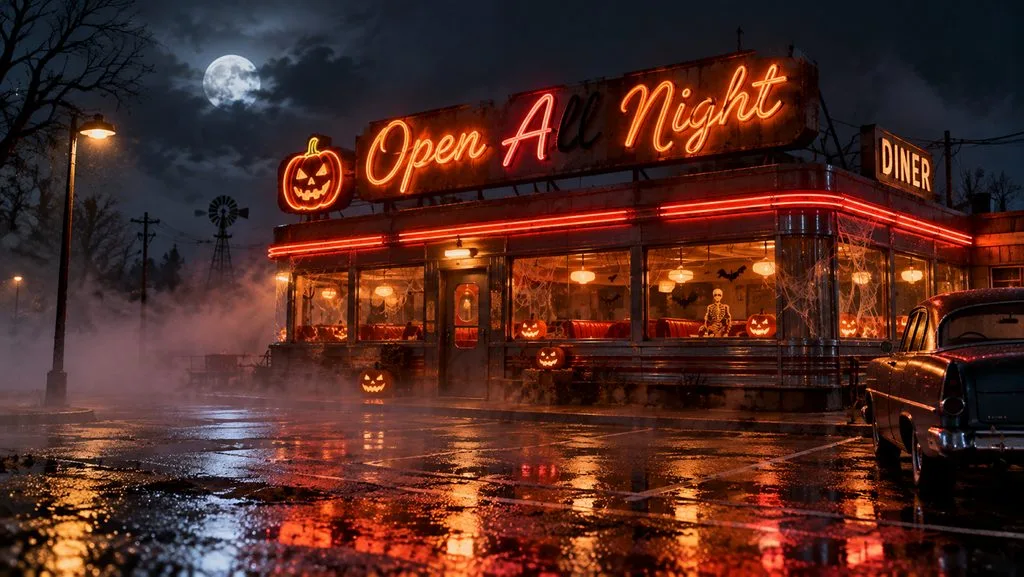
- Neon Diner Sign: A neon sign reading “Open All Night” in looping cursive tubes buzzes above a roadside diner on Halloween, one letter flickering off. Fog over the empty parking lot, wet asphalt reflections, 16:9.
Multi-Image Blend Prompts
You can upload several photos to Nano Banana and combine them into one Halloween scene. Each photo can add something different to the final image. The following prompts show how to bring these photos together in different Halloween settings.
- Sketch to Haunted Mansion: Use the attached pencil sketch for the layout and the brick photo for the walls, then render a photorealistic haunted mansion at dusk. One lit attic window, low clouds, 16:9.
- Costume Try-On From Two Photos: Dress the person in the first photo in the witch costume from the second, keeping face and hairstyle unchanged. Pumpkin stand at golden hour, 9:16.
- Mug in a Haunted Cottage: Place the mug from the product photo on a candlelit cottage windowsill, steam rising, rain on the glass. Logo and color exactly as photographed, macro lens, 1:1.
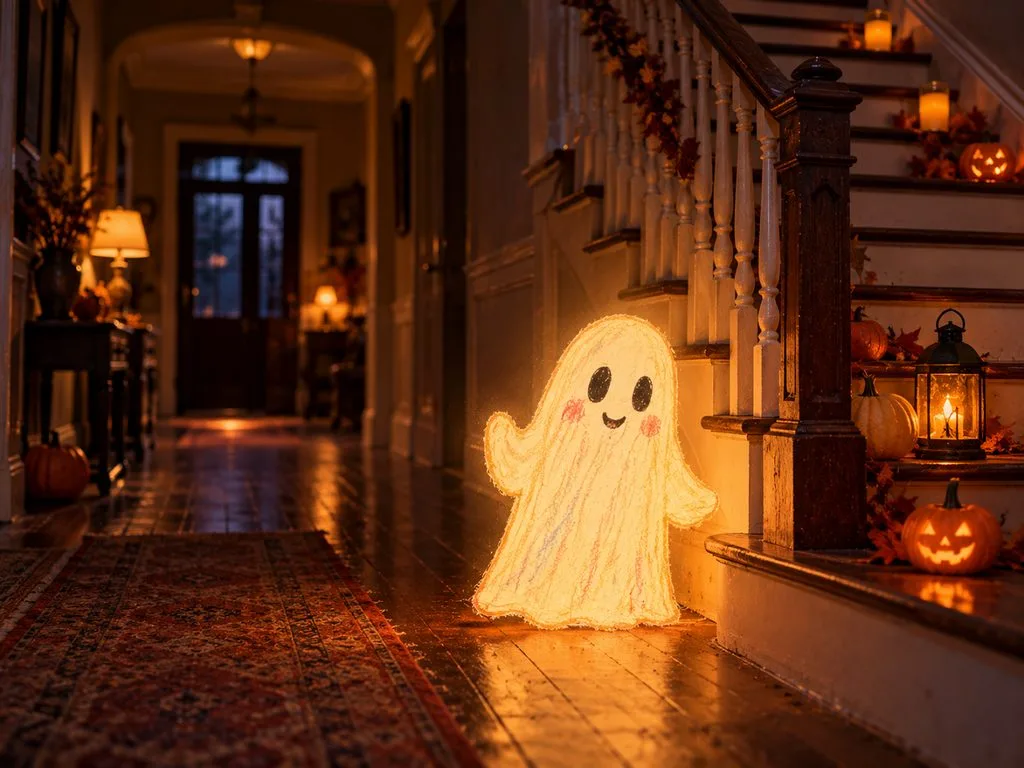
- Crayon Ghost in a Real Hallway: Use the attached crayon ghost drawing for the character and the hallway photo for the setting, with the ghost glowing softly by the stairs. Keep the drawing’s shape and colors, 4:3.
Part 2. Turn Nano Banana Halloween Prompts Into AI Videos With MagicLight AI
Nano Banana prompts for Halloween can help you create scary images that you can later turn into videos. MagicLight AI lets you generate these Halloween images using Nano Banana 2 in its Image Generator. You can create creepy characters and other Halloween scenes from your prompts.
MagicLight AI also offers 20 AI video models, including Kling 3.0 and Hailuo 2.3 Fast. Once your image is ready, you can use its image-to-video feature to turn it into a Halloween video.
Key Features of MagicLight AI
- Nano Banana 2 on Board: MagicLight AI offers 5 image models, including Nano Banana 2, for Halloween images. Select this model to create Halloween scenes directly from your written prompts.
- Uploads for Edits and Blends: Upload several photos to change backgrounds or combine them into Halloween scenes. Each reference image supports files up to 20MB for editing and blending.
- Detailed Video Prompts: Describe your Halloween video using a prompt of up to 1500 characters. Add up to 5 reference images to guide the final video result.
- Create Talking Characters: Use up to 1000 characters to describe how your Halloween character should look. With lip sync, Halloween characters move their mouths as they speak.
- Full Story Episodes: Story to Video turns Halloween stories into videos with several connected scenes. Saved characters keep the same appearance as the story moves between scenes.
Detailed Guide to Turn Nano Banana Halloween Prompts Into Videos Using MagicLight AI
Nano Banana prompts for Halloween work with MagicLight AI to create spooky images and turn them into videos. Go through the steps below to create your Halloween image and bring it to life with movement.
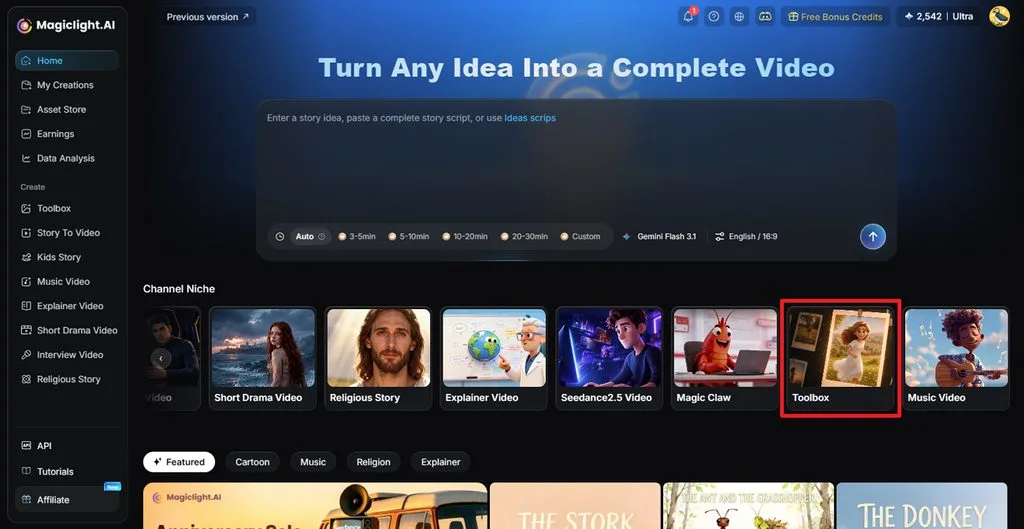
Step 1. Open the MagicLight AI Toolbox
From the MagicLight AI dashboard, select Toolbox to open the image and video creation page.
Step 2. Generate Your Halloween Image With Nano Banana 2
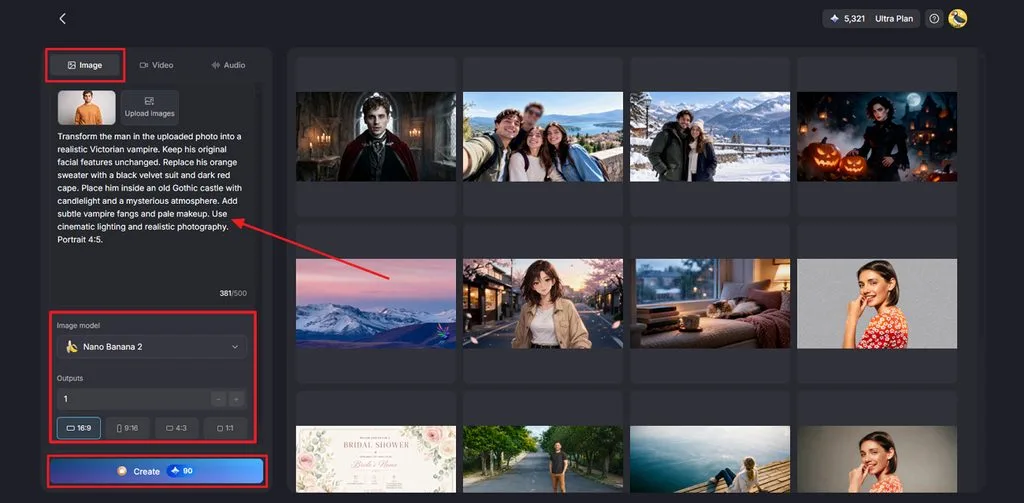
Open the Image tab and enter one of the Halloween prompts from Part 1. Select Nano Banana 2 under Image Model and choose your preferred Aspect Ratio. Click Create and download the image you like best.
Step 3. Turn Your Halloween Image Into a Video
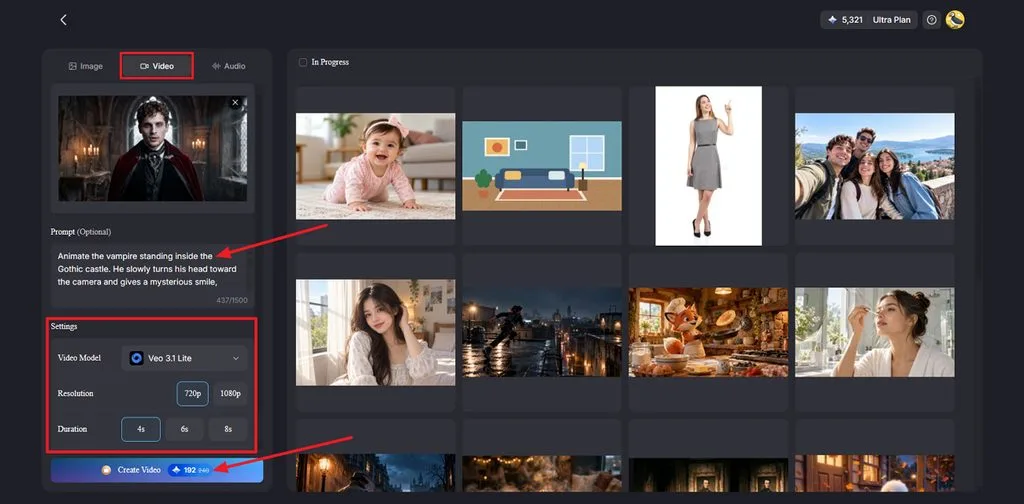
Go to the Video tab and upload your Halloween image. Write a short prompt explaining what should move in the scene. Then select a Video Model and set the Resolution and Duration. Press Create Video to generate your video.
Step 4. Check and Save Your Halloween Video
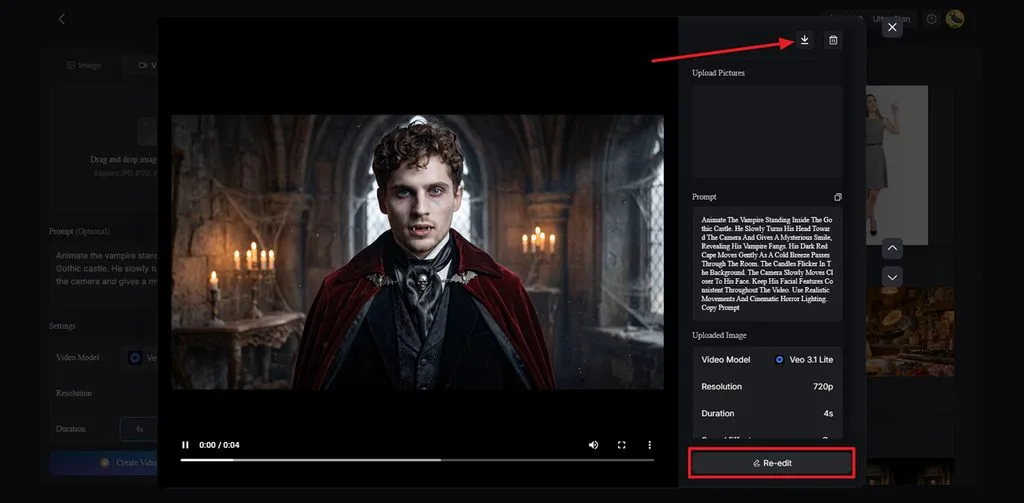
Play the video to see how it looks. If something needs to change, click Re-edit and update your prompt or settings. When the video looks good, click the Download icon to save it.
Part 3. Why Use MagicLight AI for Halloween Video Creation
Halloween content runs on a short calendar, with posters, teasers, and party clips due in the same few October weeks. MagicLight AI fits that rush for reasons that go beyond its feature list.
- Images and Videos in One Place: MagicLight AI lets you create Halloween images and videos in one place without switching between apps.
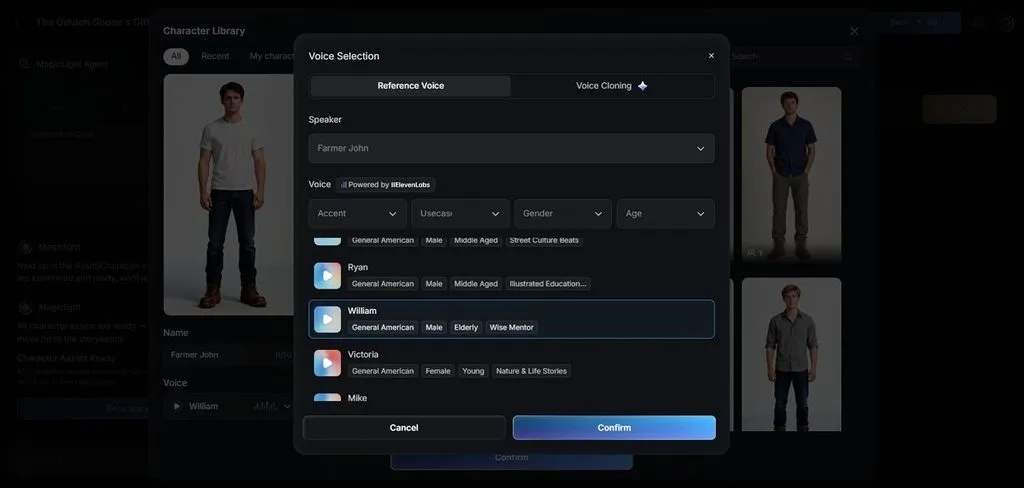
- Same Character in Every Video: Save your character designs and reuse them across different videos to maintain a more consistent appearance.
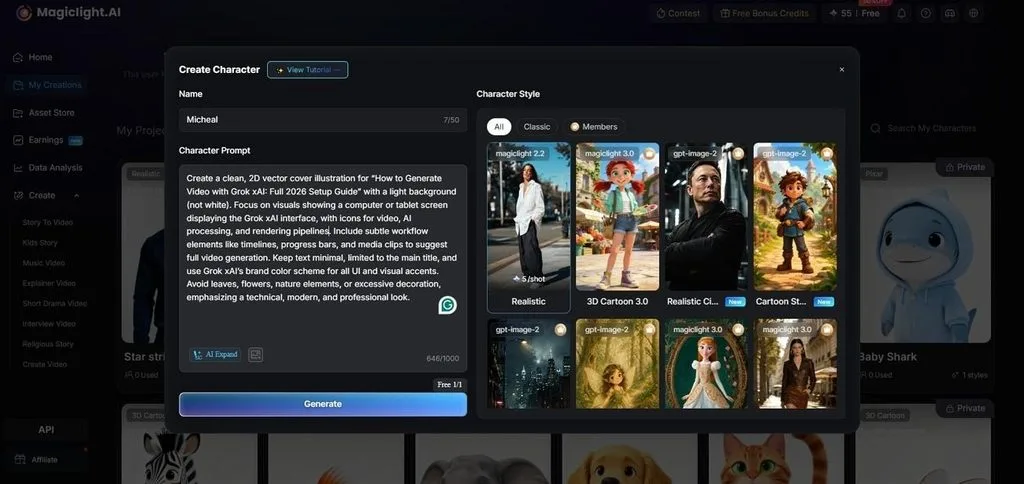
- Voiceovers in Different Languages: MagicLight AI supports 11 narration languages with 37 available voices and a voice cloning feature.
- High-Quality Videos Without Watermarks: Paid MagicLight AI plans let you export videos in 1080P HD without watermarks and create videos up to 50 minutes long.
Conclusion
In conclusion, Nano Banana prompts for Halloween help create spooky images with clear details and realistic scenes. These images can also become short Halloween videos with simple movements. An AI horror video generator adds motion to scary characters and haunted settings. Try MagicLight AI to create Halloween images with Nano Banana 2 and turn them into videos in one place.
FAQs About Nano Banana Prompts for Halloween
1. How do I write Nano Banana prompts that create better Halloween visuals?
Write full sentences to explain how your Halloween scene should look. Add a camera angle to show the scene from different views. Describe what you want to see rather than what to avoid.
2. What details should I include in a Nano Banana Halloween prompt?
Start your Halloween prompt by describing the main character. Explain what happens in the scene and where it takes place. Add lighting details and put any poster words inside quotation marks.
3. Can I turn Nano Banana Halloween images into animated videos?
MagicLight AI turns your Halloween images into videos with natural movement. Its Image to Video feature supports clips up to 30 seconds. Choose from 20 video models and add lip sync when needed.
4. How can I keep the same Halloween characters consistent across multiple scenes?
Start with reference images that clearly show your Halloween character design. Keep the same reference photos when creating scenes with different backgrounds. MagicLight AI also saves characters for use throughout longer Halloween stories.
5. What is the best AI tool for turning Nano Banana Halloween ideas into complete videos?
MagicLight AI helps turn simple Halloween ideas into complete animated stories. MagicLight Agent prepares scripts and storyboards before creating the actual video. Story to Video adds narration and music, with longer paid videos.
![How to Make a Product Video for Marketing With AI [Guide 2026]](https://magiclight.ai/wp-2/wp-content/uploads/product-video-marketing-guide-1-300x198.webp)