In this era, education is very important, but reading full lessons can feel tiring. Creating an educational video helps learners understand topics in a simple way. However, beginners often feel confused about where to start or what tools to use.
Now, tools like MagicLight AI make video creation much simpler for everyone. You can generate videos by simply chatting and describing your idea clearly. Hence, this guide explains how to make educational videos using easy and clear steps.
Part 1. How to Make Educational Videos with AI
Knowing how to make an educational video requires starting with simple methods. So, below are basic guidelines that help beginners create videos without confusion:
- Clear Goal: Define your audience, topic, and learning objective to keep your video focused. A clear goal helps viewers understand lessons easily without confusion or overload.
- Video Format: Choose a simple format like slides, talking head, or screen recording style. At the same time, using one consistent style keeps your content clean and easier to manage.
- Short Outline: Create a basic outline with intro, key points, and a short recap section. Instead, use bullet points instead of full scripts for a natural speaking flow.
- Clear Visuals: Prepare simple slides, images, and diagrams that clearly support your lesson content. However, avoid too much text, and use large fonts for better readability and clarity.
- Record Lesson: Record your lesson calmly, speaking slowly and clearly to improve understanding overall. Yet, use basic equipment, natural light, and focus more on clear audio quality.
Use MagicLight AI to Create an Educational Video
After learning basic steps, many creators still struggle with video production tasks. Beginners often get stuck while editing and arranging content manually without help. In such cases, MagicLight AI simplifies this process and shows how to make educational videos using AI. By using this advanced tool, you can create educational videos up to 50 minutes long for deep learning content delivery. It also generates one-click educational videos using 17 powerful AI models easily.
For global learners who speak different languages, this tool supports 11 languages to make educational videos. If you have a short idea, you can enhance it using the Smart Script feature with up to 12,000 characters. MagicLight AI allows you to choose from 21 cover templates for attractive educational video thumbnails. While creating, users can generate music-based educational videos using the built-in AI music creation tool.
Key Features
- Director Mode: Use 8 director modes to control the educational video storytelling structure easily.
- Nano Story: Nano Storyboard feature breaks scenes into micro steps for detailed educational videos.
- Story Models: Provides 9 story models for structured and creative educational storytelling workflows.
Complete Guide to Generating Long Educational Videos with Minimal Effort
If you want to know how to make a good educational video, follow the guide below to create it:
Step 1. Create a New Project in MagicLight AI
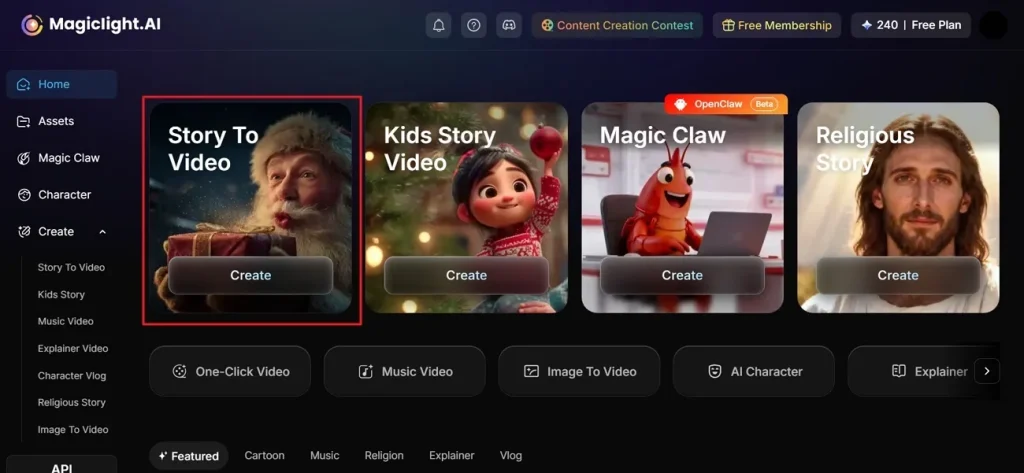
At first, open MagicLight AI in your web browser and click the Story To Video feature from the main screen.
Step 2. Describe Your Lesson and Adjust Settings
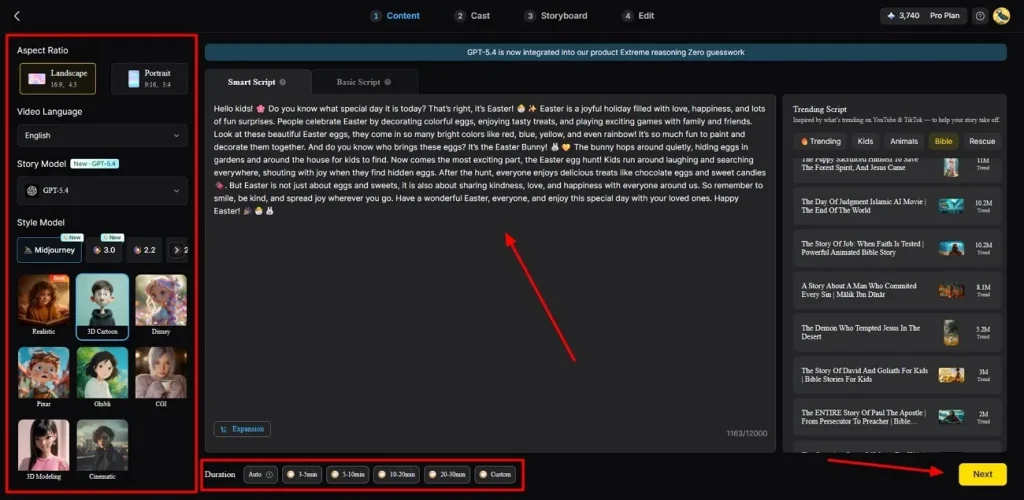
After accessing it, enter your prompt in the provided Text Box and select the preferred Video Language from the left panel. Next, adjust the Aspect Ratio and choose a preferred Story Model such as GPT-5. Moving forward, set the Video Duration and then opt for the Next button to proceed.
Step 3. Review or Edit Story Scenes
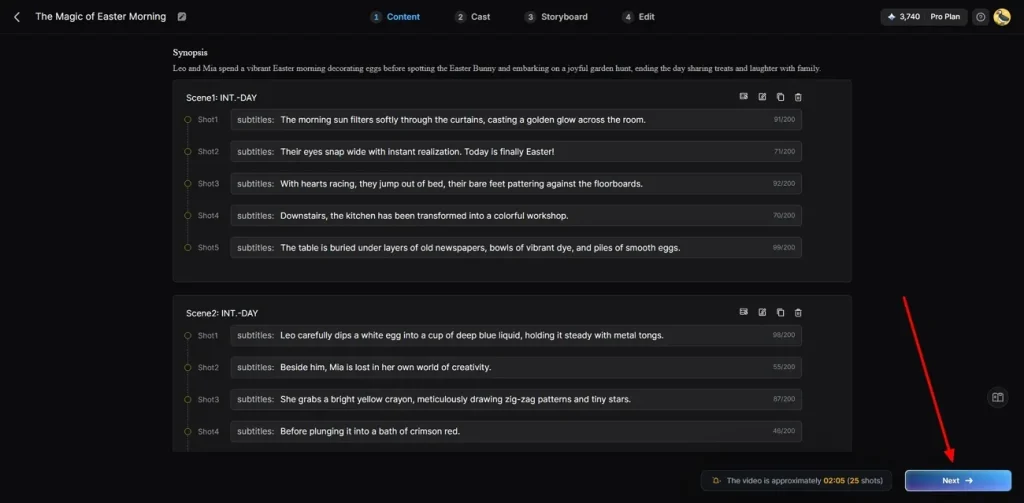
Later on, carefully check the generated scenes summary for better accuracy. Once everything is confirmed, press the Next button to move forward.
Step 4. Select or Add More AI Characters
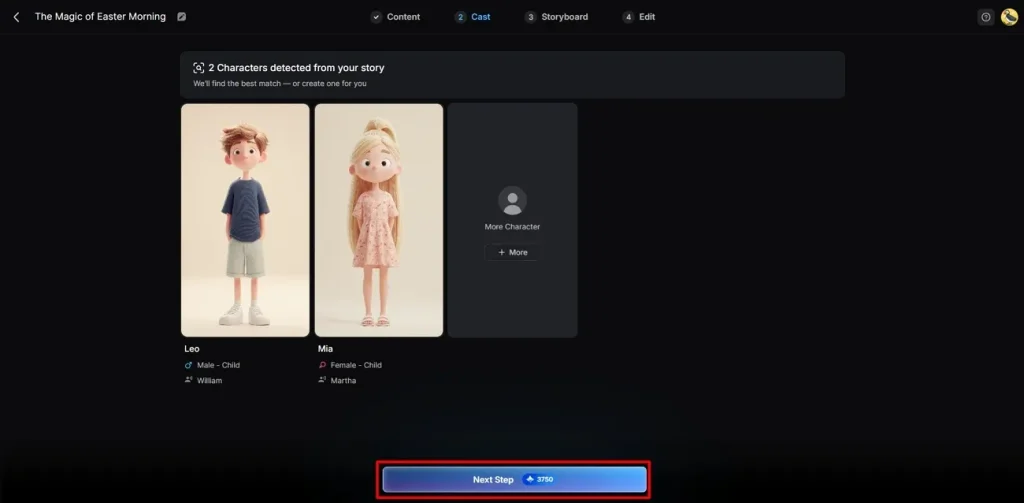
Now, MagicLight AI provides you with various AI characters according to your educational video needs. You can either choose from the given options or select a new one by clicking the More Character option. When you pick your character, opt for Next Step to generate your final video.
Step 5. Change Selected Character Appearance
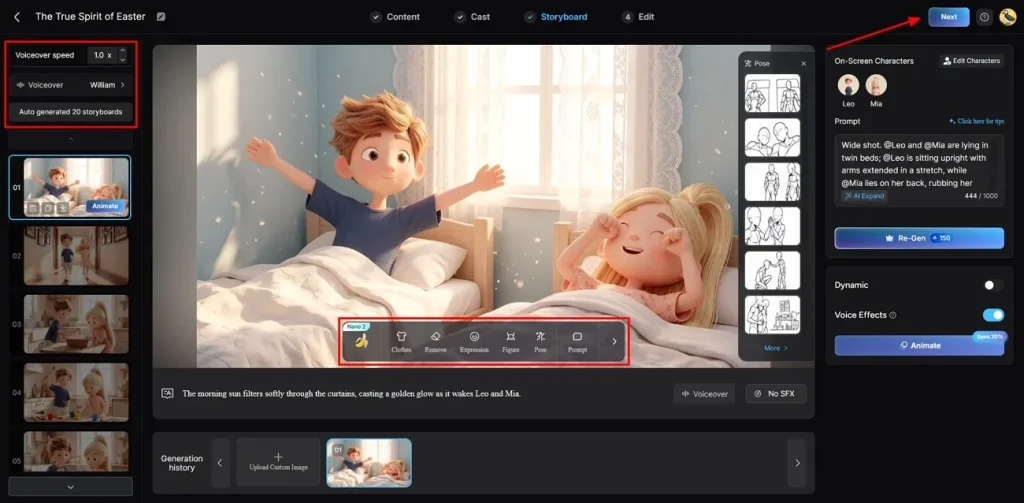
In the Storyboard screen, the tool allows you to change the Voiceover Speed of a character. Not only this, but you can also even modify its Clothes, Expression, and Body Figure from the provided buttons. After confirming all settings are correct, click the Next button to continue.
Step 6. Add Subtitles and Generate Audio
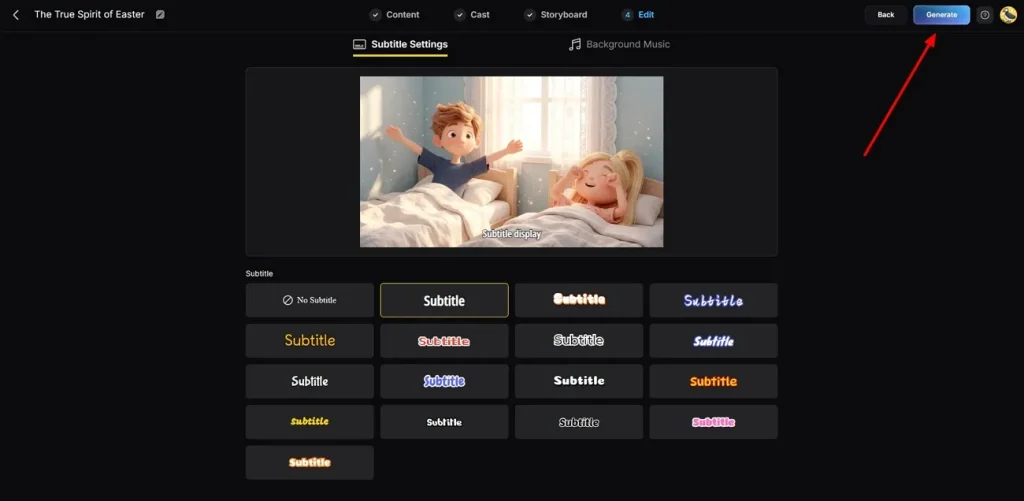
Now, go to the Subtitle Settings to generate subtitles in your educational video. To add a soundtrack, opt for the Background Music and set the tone of your video, and press Generate.
Step 7. Preview or Download the Generated Educational Video
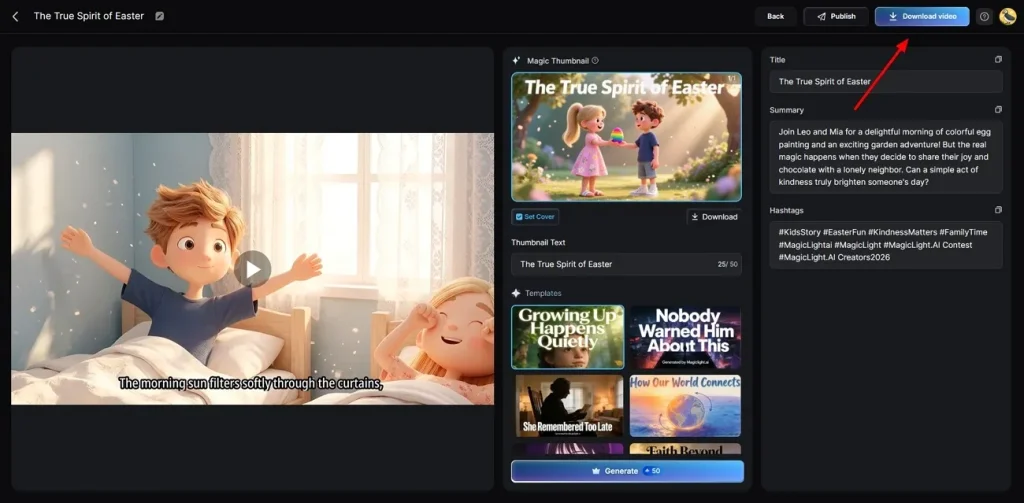
Once your educational video is generated, review it using the preview feature. After reviewing everything, opt for Download to save the educational video to your device.
Part 2. Why MagicLight AI Stands Out for Educational Video Creation
Once you understand how to make educational videos using AI, creative possibilities for teachers become clearer. So, this specific section explains capabilities that make MagicLight AI highly effective:
- Voice Cloning: Users can create custom digital tutors using unique voice cloning technology. Educators choose from 37 realistic voiceover options for clear instructional delivery.
- Custom Characters: Instructors define specific names, ages, and personality types for educational avatars. These AI characters help maintain learner interest during complex technical tutorials.
- Storyboard Editing: Editable storyboard previews allow creators to refine scenes before final video generation. With this control, educators can ensure a smooth flow across every educational segment.
- Pose Selection: Nano adjustments allow users to select from 50 different character poses. Educators can control specific body language to emphasize key instructional points.
- Project Management: Built-in project tools allow editing and organizing multiple videos efficiently. This makes handling large educational content libraries much more manageable over time.
Conclusion
Learning how to make educational videos becomes easy with simple planning and clear steps. By following this article, beginners can create engaging lessons without complex editing skills. Yet, many beginners still struggle with fast production and consistent quality. So, MagicLight AI solves this by helping you create, edit, and publish professional educational videos quickly.
FAQs on How to Make Educational Videos
1. What is the best tool for educational videos?
MagicLight AI is a great choice for people who want fast results. This smart tool helps you build high-quality and engaging lessons with little effort. You can create and design professional content without complex technical skills.
2. How do I make short educational videos?
You can use MagicLight AI to turn your small ideas into quick clips. The software works fast to make sure your teaching stays brief and very clear. It is the perfect way to share helpful tips in just a few minutes.
3. How do I make YouTube educational videos?
First, you should plan your lesson and write down all your main points. Then, record or generate your video using easy tools or AI platforms. Upload your final file to YouTube to reach many new students with a clear title and description.
4. What makes a good educational video?
A good video uses simple words and has a very clear main goal. MagicLight AI helps you keep the flow steady and the pictures very bright. Your students will learn better when the lesson is easy for their brains.
5. Can I make educational videos for free?
Yes, you can start using MagicLight AI without spending any of your money. The free version allows you to test out many cool and helpful features. This is a safe way to practice your skills before you grow bigger.