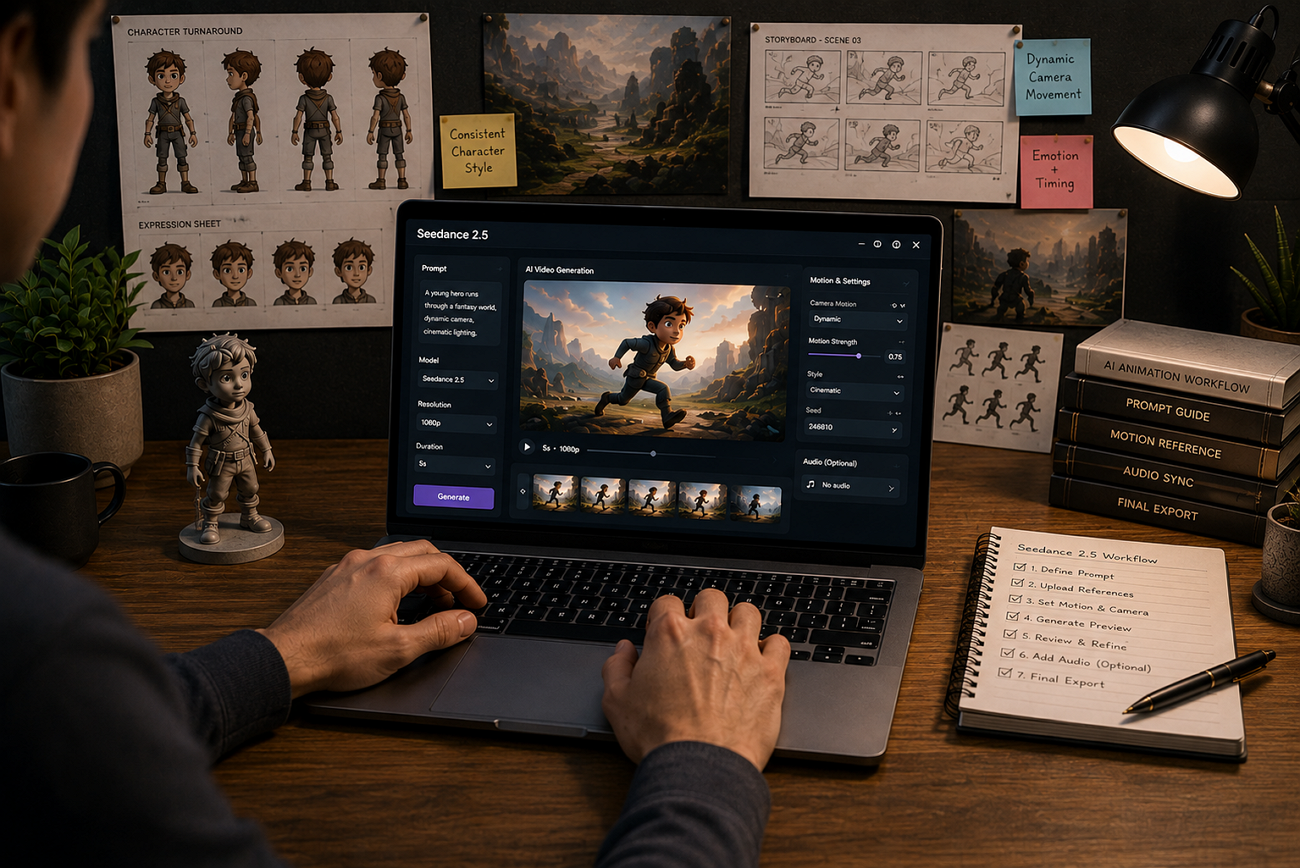
Animation quickly reveals visual mistakes that live footage can often hide from the viewer completely. A changing hairstyle or unrealistic jump can immediately make an animated scene feel noticeably incorrect. Animated worlds need consistent internal rules for characters, movement, weight, gravity, and overall visual continuity.
Working with Seedance 2.5 for AI animation means controlling these important rules deliberately across scenes. This guide covers supported styles, movement physics, and reference methods that keep characters recognizable throughout animations.
Part 1. What Seedance 2.5 Offers for Animation
Seedance 2.5 provides useful features designed specifically for creating drawn or modeled animation content. Let's explore 4 key qualities that make its animation generation more effective and consistent.
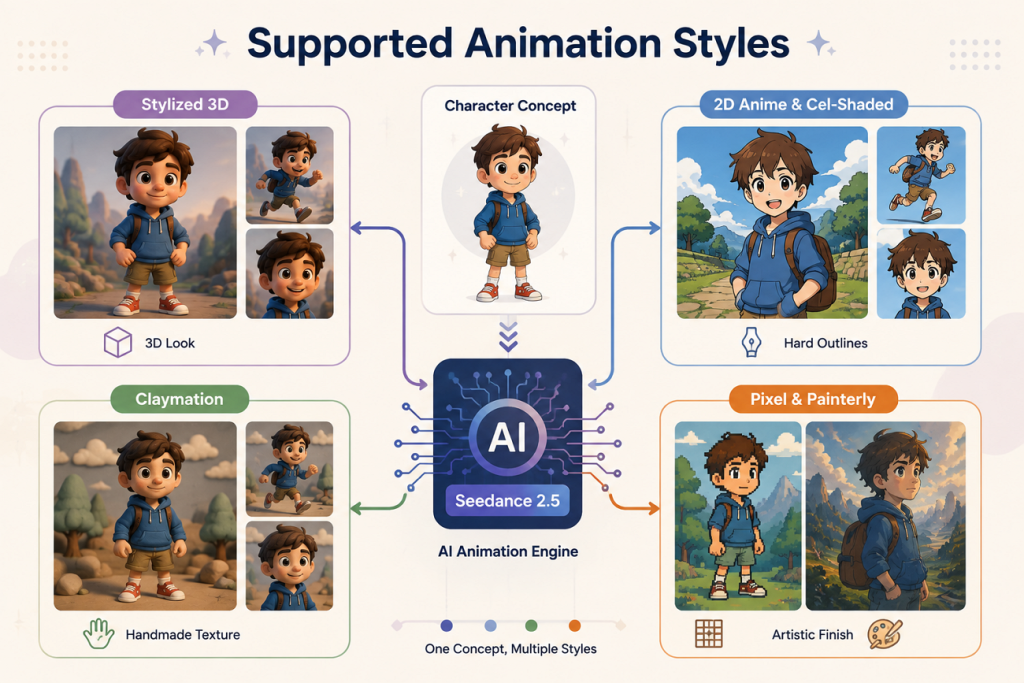
Supported Animation Styles
The model works across a wide stylistic range rather than favoring a single look, and creators have produced convincing results in:
- Stylized 3D with soft shading and rounded surfacing
- Flat 2D and cel-shaded anime with hard outlines
- Claymation and stop-motion with visible surface texture
- Pixel art, illustrative 2D and painterly finishes
Motion Physics and Gravity-Based Movement
After exploring supported styles, let's see how Seedance 2.5 for AI animation handles realistic movement and physical behavior:
- Gravity and Weight: Characters land with clear impact, making jumps and falls appear physically more believable.
- Cloth and Fluid Simulation: Fabrics settle naturally while liquids move with visible weight and realistic physical behavior.
- Crowd Motion: Multiple characters move independently across wide scenes without repeating identical movement patterns unnaturally.
Character and Style Consistency Across Scenes
Consistent animation requires important character details to remain stable across every generated scene. Maintaining key visual elements helps characters stay recognizable while preserving their overall appearance.
- Face: Facial proportions and key features remain consistent instead of changing between generated scenes.
- Clothing: Outfits and garment details remain visually consistent throughout connected shots and animated sequences.
- Rendering Style: Line weight, shading, colors, and surface details stay uniform across every animated scene.
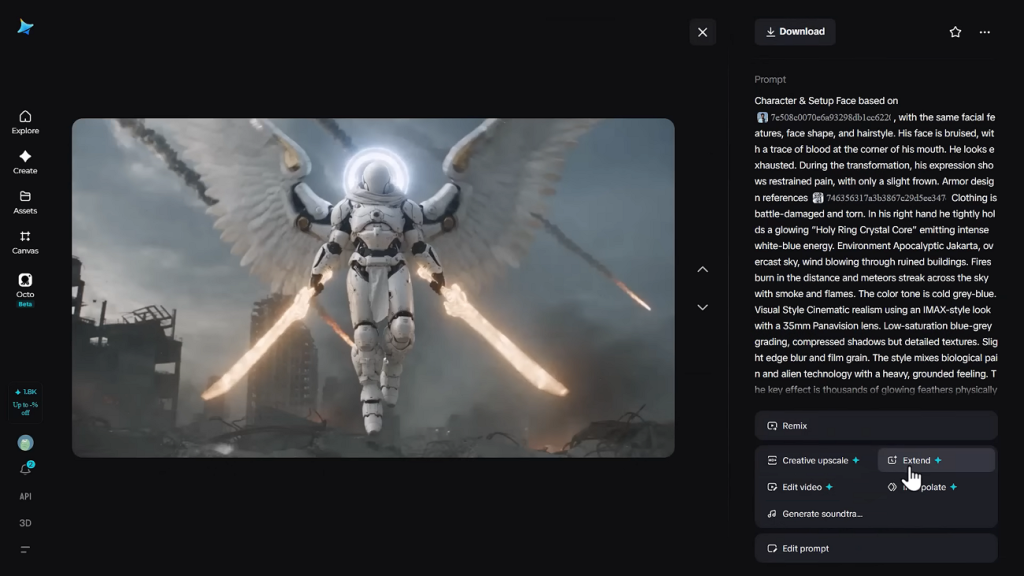
Using the same references across generations keeps sequential animation visually connected and consistent. Visual references can help preserve character structure, poses, motion direction, and camera composition more accurately.
Native Audio Sync for Animated Sequences
Animated faces are harder to synchronize because stylized mouths provide fewer visual timing cues. Generating audio with the visuals avoids synchronization problems between animated mouths and spoken dialogue. Sound design also keeps footsteps, impacts, and ambiance aligned with their exact motion frames. Matching these sounds manually becomes much harder when animations use exaggerated movement and timing.
Part 2. How to Set the Animation Style in Your Prompt
Clear style instructions help Seedance produce visuals that match your intended animation look more consistently.
Describing Art Style and Visual Finish
Specific visual terms give the model clearer guidance than broad style descriptions alone. The table below shows stronger prompt wording for controlling different visual characteristics:
| Vague Term | Specific Alternative | What It Controls |
| Cartoon Style | Cel-shaded, clean hard outlines | Line treatment and shading |
| Hand-made Look | Claymation, visible fingerprints | Material and surface texture |
| Painterly | Thick impasto brushstrokes | Paint texture and stroke appearance |
| Retro Anime | Cel animation, limited shading, film grain | Period-inspired visual treatment |
Choosing Between Realistic and Stylized Motion
Seedance 2.5 for AI animation can create realistic or stylized motion depending on prompting. Soft shading, gradients, and textures hide small errors that clean line work reveals clearly. Complex action suits stylized 3D, while flat 2D works better with simpler scene movement.
Part 3. How to Keep Characters Consistent Across an Animation
Character consistency across animated scenes depends on careful preparation before starting each generation. Now, we will cover 3 useful methods for keeping characters visually consistent:
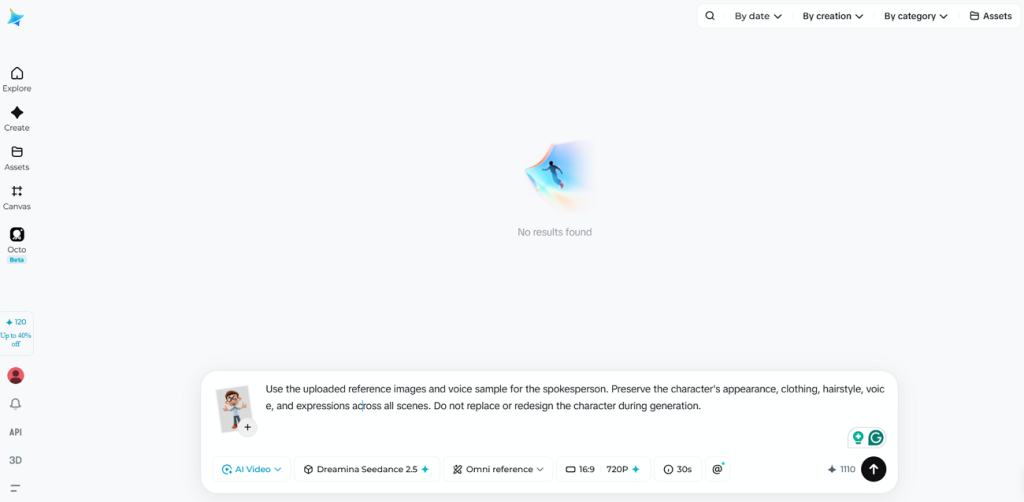
Uploading a Character Reference Sheet
Character reference sheets help maintain the same appearance across different generated animation scenes. Below are three useful reference views to prepare before starting your animation generation process:
- Show front, 3-quarter, and profile views using the same character scale consistently throughout.
- Include a full-length view to establish clear body proportions and overall character silhouette.
- Add an expression sheet when facial expressions play an important role in performance.
Repeating Identity Cues in the Prompt
Reference images establish the character, while repeated prompt details help preserve their identity across different animated scenes. Repeat 2 or 3 fixed details, such as hair color, clothing, and body build, in every prompt. Keep these descriptions exactly the same because changing their wording can cause gradual character differences between scenes.
Locking Outfit, Face, and Color Palette
After setting consistent identity cues, look at 3 details that need separate controls:
- Face: Include a 3-quarter reference so facial angles remain consistent between front and profile views.
- Outfit: Describe garment construction clearly, including collars, pockets, sleeves, and other defining clothing details.
- Color Palette: Repeat consistent color descriptions and reference imagery across scenes to help reduce unwanted color changes.
Part 4. How to Write Motion-Focused Prompts
With style and characters established, clear movement instructions become essential for producing smooth animated scenes.
Describing One Clear Action Per Scene
For Seedance 2.5 for AI animation, one clear action per scene produces cleaner movement. Separate movements, camera behavior, and outcomes instead of combining several actions within one detailed prompt.
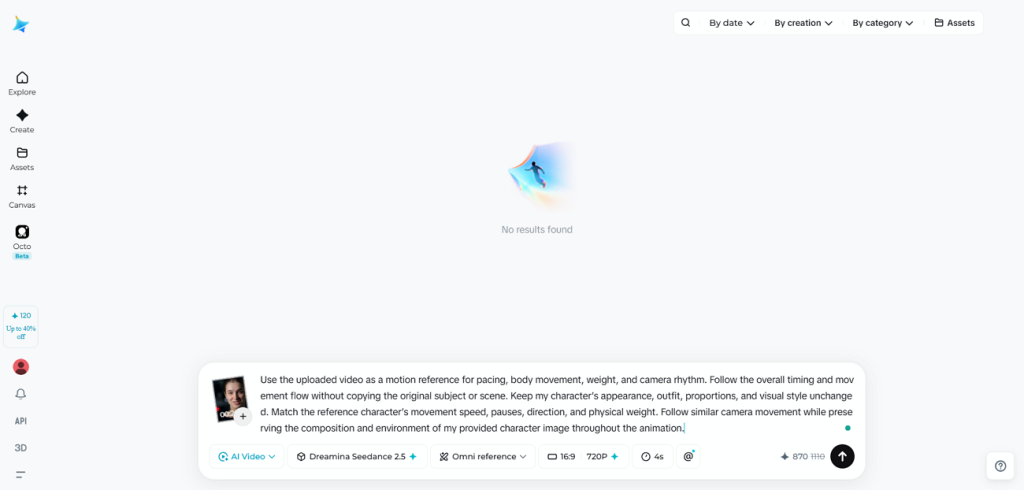
Using Reference Video for Movement Rhythm
Reference videos can communicate movement more clearly than detailed written descriptions of motion alone. Short clips help the model understand pacing, weight, and intended camera movement more accurately. The model interprets movement intention from references rather than copying every action exactly.
Avoiding Vague Motion Language
Specific physical actions give the model clearer movement instructions than vague descriptive verbs. The table below shows how simple motion phrases can become more precise:
| Vague | Specific | More Precise |
| Moves Across | Strides across | Strides across, arms swinging naturally |
| Comes Alive | Straightens up | Straightens up, shoulders rolling back |
| Flows | Pivots | Pivots smoothly on the back foot |
| Reacts | Flinches | Flinches sharply, head turning away |
5 Example Prompts to Try
Each example below carries one action, one style statement, and one camera instruction:
- A clay-textured fox leaps between two rooftops, its scarf trailing behind, landing with a visible weight shift. Stop-motion finish with soft fingerprint texture, warm dusk light, one continuous camera follow.
- A 2D anime swordsman draws his blade in one fluid arc, with an impact frame on contact and speed lines radiating outward. Flat cel shading, bold outlines, no motion blur.
- A stylized 3D robot lifts a crate heavy enough to strain its arms, then sets it down slowly. Soft key light, rounded surfacing, camera holding steady at waist height.
- An oil-painted forest where a deer turns its head toward the camera, visible brushstrokes shifting as it moves. Thick impasto texture, dappled light through the leaves, slow push in.
- A pixel-art character runs left to right across a scrolling street on a four-frame gait cycle, then jumps. Limited palette, hard edges, no anti-aliasing on the sprite.
Part 5. How to Animate Characters in MagicLight AI
After exploring Seedance 2.5 for AI animation, existing character artwork can also become moving scenes. MagicLight AI helps creators turn finished character images into animated videos using simple motion instructions. It adds movement while helping preserve important details from original artwork.
Unlike traditional image-to-video generators, MagicLight provides multiple AI models within one creative platform. MagicLight includes Seedance 2.5 alongside 19 other video models for different animation needs and styles. Creators can upload artwork, describe movement, select a suitable model, and generate their animated video.
Animating a Still Character Step by Step
Follow the steps below to turn finished character artwork into a complete animated video:
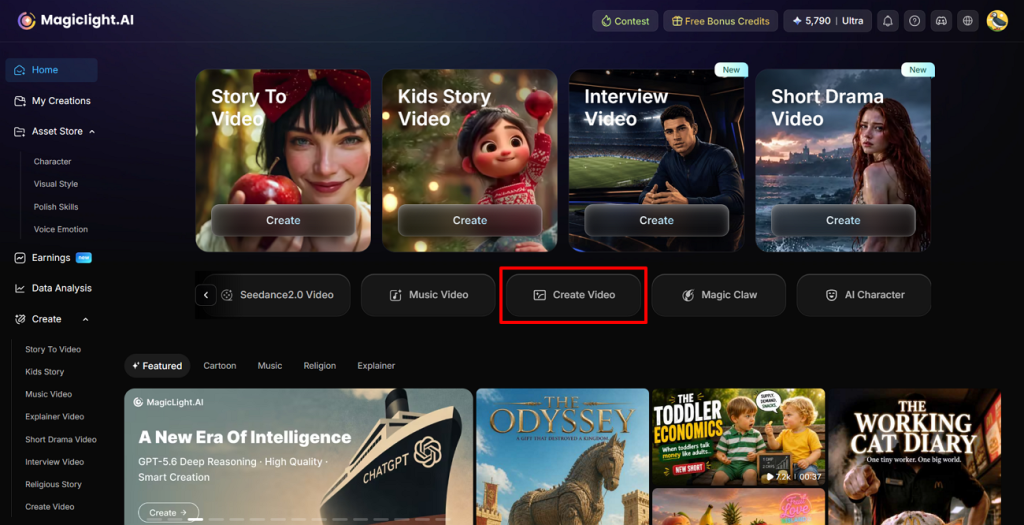
Step 1. Open the Image to Video Tool
From the MagicLight AI main page, click the Create Video tool to open the video creation interface.
Step 2. Upload Your Character Image
Inside the interface, drag and drop your character artwork or upload the image directly. Next, describe the character’s desired movement in the Prompt section. Customize the animation by choosing a suitable Video Model and Resolution. After completing the settings, press the Create Video button to start generating your character animation.
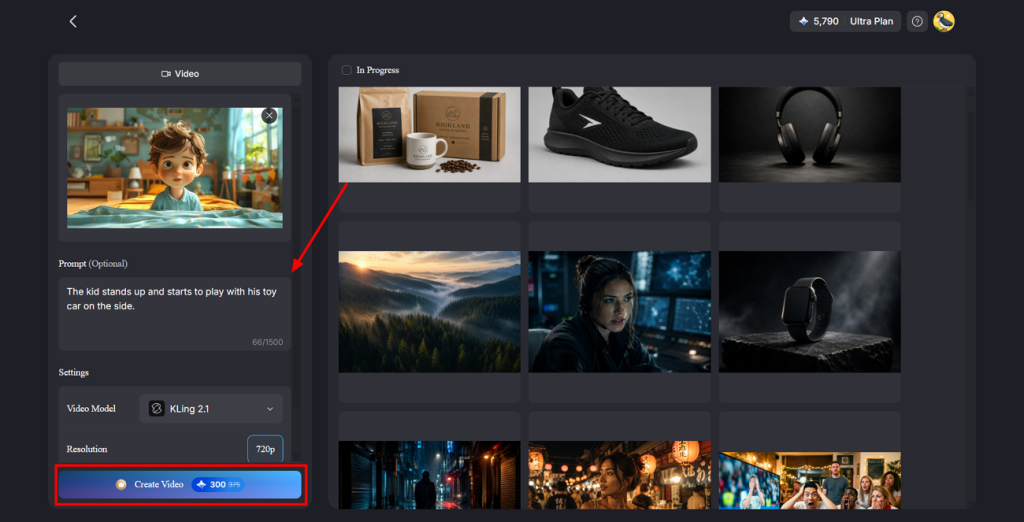
Step 3. Review and Download the Animation
Once generation finishes, play the animation and check the character’s appearance and movement carefully. If changes are required, click the Re-edit button, or if everything looks correct, press the Download icon at the top to save the finished animation.
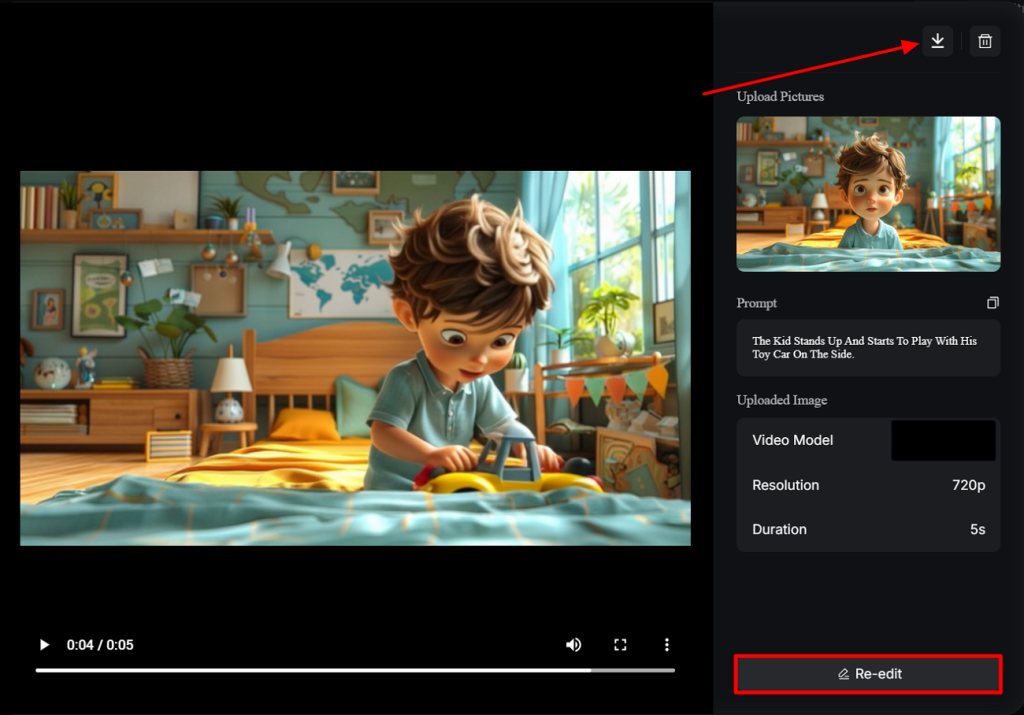
Conclusion
To conclude, Seedance 2.5 for AI animation works better with careful preparation beforehand. Choose your animation style, prepare character references, and describe one clear action per scene. Flat 2D generally requires more careful control than softer, stylized 3D animation approaches. MagicLight AI can animate finished artwork while helping preserve the existing character design.
FAQs on Seedance 2.5 for AI Animation
What animation styles does Seedance 2.5 support?
It handles stylized 3D, flat 2D, and cel-shaded anime, claymation and stop-motion, pixel art and painterly finishes. Naming the production technique rather than a mood produces the most reliable match.
Can Seedance 2.5 keep a character consistent across multiple scenes?
Yes, consistent reference images can help maintain a character’s appearance across multiple generated scenes. Keeping face, clothing, style, and identity descriptions unchanged also reduces visual character drift.
Does Seedance 2.5 work for anime-style animation?
Yes, Seedance 2.5 can create anime-style animation, including flat 2D visual styles. Clear prompts for linework, shading, and motion can help reduce frame-to-frame visual inconsistencies.
How do I write a motion prompt for Seedance 2.5?
State one physical action, name the body part performing it, and add a single camera instruction. Replace impressionistic verbs such as flows or moves with specific ones like pivots or staggers.
Can Seedance 2.5 generate audio for animated videos?
Yes, Seedance 2.5 can generate audio alongside video within the same creation process. This helps synchronize lip movements, sound effects, and animated actions with correct timing.
Can MagicLight AI create a full animated series with consistent characters?
MagicLight supports consistent characters across scenes, while its long-form video workflows can generate projects reaching 50 minutes. Episodes longer than that would need splitting into separate projects.
![How to Create a TikTok Video for Beginners [2026 Guide]](https://magiclight.ai/wp-2/wp-content/uploads/tiktok-video-creation-guide-300x169.png)
![How to Blur Faces in Photos Like a Pro [2026 Guide]](https://magiclight.ai/wp-2/wp-content/uploads/blur-faces-in-photos-with-ai-300x198.png)