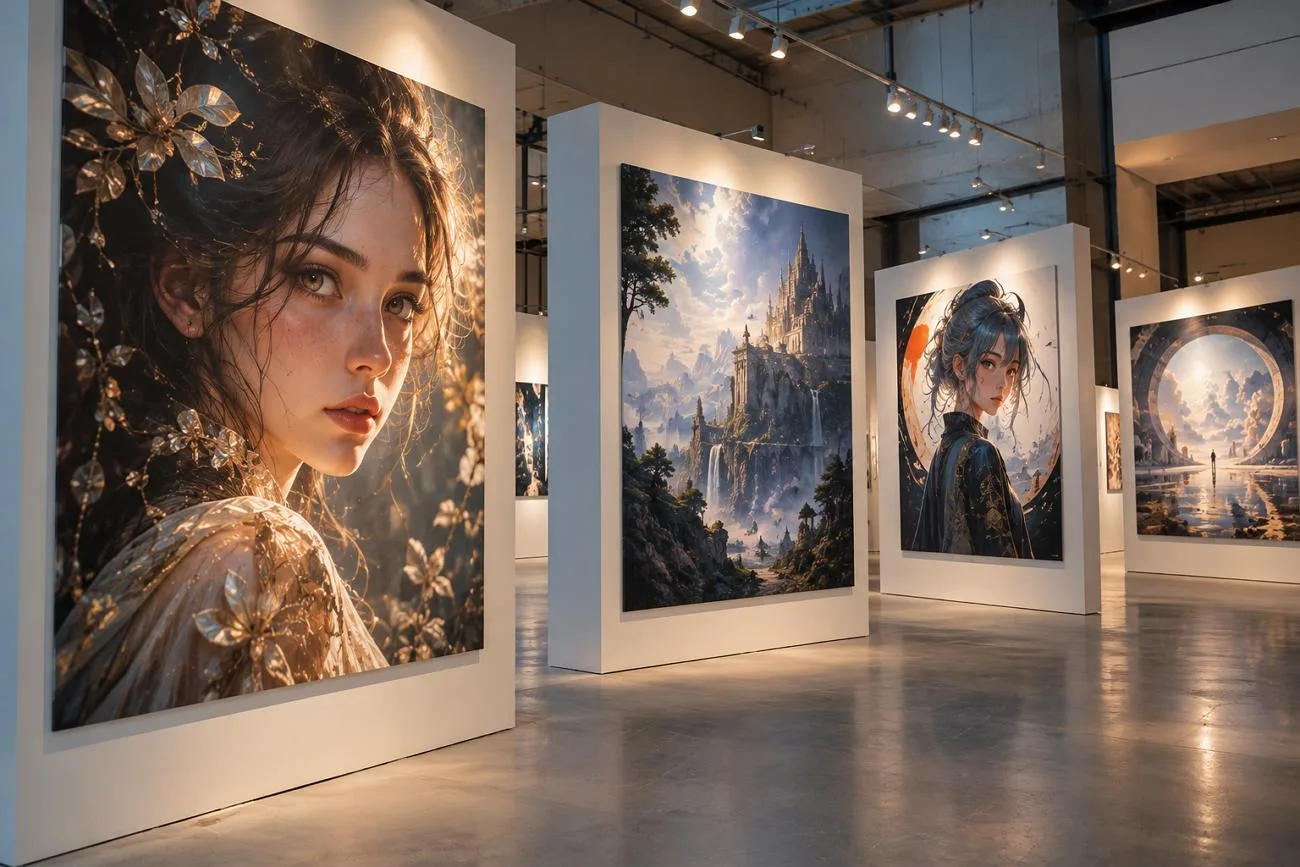
Running Stable Diffusion traditionally requires powerful graphics hardware, making advanced image generation expensive for many creators. Tensor Art AI moves this process online, letting users create images without relying on high-end computers locally. Its community model library offers diverse options for image creation, alongside some tools supporting video generation.
Free daily credits make the platform approachable, but usage restrictions can affect larger or professional projects. This guide examines its features, pricing, credits, limitations, and overall usefulness for different image creation needs.
Part 1. What is Tensor Art AI?
Tensor Art combines 2 services within one platform, which can complicate pricing details. Its generation studio creates images, while the community provides models powering those creations.
Introduction to Tensor Art
Tensor Art gives creators an online space for exploring AI-generated artwork across many creative styles. Users can begin creating through a browser after signing up, keeping the overall process accessible. The platform also supports short video creation, giving users another format for visual projects online.
TensorHub Art also connects with related models, resources, and creative content across the platform. Its large creator community helps users discover shared artwork, fresh ideas, and useful inspiration. Spelling varies in searches, with TensorArt, TensoArt, and Tenser Art all leading to this platform.
Key Features of Tensor Art
- Community Model Library: Explore Stable Diffusion, FLUX, SD3.5, PONY, and Wan checkpoints shared across the platform.
- Browser LoRA Training: Train custom LoRA models online using your own images without configuring a local environment.
- ComfyUI Workflows: Import and run complete ComfyUI pipelines through cloud hardware instead of installing them locally.
- ControlNet and Inpainting: Control poses, depth, and edges, then modify selected areas through inpainting or outpainting.
- Image or Text to Video: Turn an image or written prompt into AI-generated videos lasting up to 15 seconds.
Working With the Model Hub
Models appear under categories based on architecture, style, popularity, and other useful browsing filters. The Tensor Art Hub helps users find suitable checkpoints without checking random uploads individually. Community creators choose their own model names, so naming styles can differ between uploads considerably.
Specific models like Rainmaker Tensor Art appear through listings when users enter their exact names. For sharper results, creators can apply Hires Fix after completing their initial image generation. Hires Fix creates smaller images first, then upscales them while adding finer visual details.
Pros and Cons of Tensor Art AI
After exploring Tensor Art’s main features, let’s examine its practical advantages and potential drawbacks.
Pros
- Daily free credits refresh without requiring payment card details.
- Browser-based LoRA training removes local GPU setup requirements completely.
- ComfyUI workflows run directly through Tensor Art cloud hardware.
- ControlNet supports pose, depth, and edge-guided image generation workflows.
Cons
- Free outputs carry watermarks and cannot support commercial projects.
- Community models can include copyrighted characters, raising licensing concerns.
- Peak-hour generation queues can reach 30 minutes for users.
- Failed generations may consume credits without immediate automatic refunds.
Licensing and Model Risk
Commercial creators should consider model licensing carefully before focusing on subscription prices or generation costs. Many checkpoints come from community users and may contain protected characters, brands, or artwork elements.
Using such models can create infringement concerns regardless of your selected Tensor Art subscription plan. Always review model sources and usage terms before including generated content within commercial creative projects.
Tensor Art Pricing
Credits control standard generation usage, while a separate Energy system powers Canvas features independently. Pricing details may change over time, so compare the current plan structure table below:
| Plan | Price | What It Covers |
| Free | No cost | Credits earned through daily missions; standard access |
| Pro | $9.90/month | 300 daily credits, + 1,000 bonus credits |
| Quarterly Pro | $19.90/quarter | Pro benefits + 5,000 bonus credits |
| Annual Pro | $59.90/year | Pro benefits + 25,000 bonus credits |
| Credit Packs | Varies by pack | 3,000- and 10,000-credit packs available separately |
Note: One image typically costs a single credit, though higher resolutions and stacked LoRAs consume considerably more. Reported free allowances differ between sources, so confirm the current daily figure before planning around it.
Part 2. How to Use Tensor Art AI?
Choosing the right model comes before prompt writing when creating your first Tensor Art AI image. Follow the steps below to move from model selection through generation and final download:
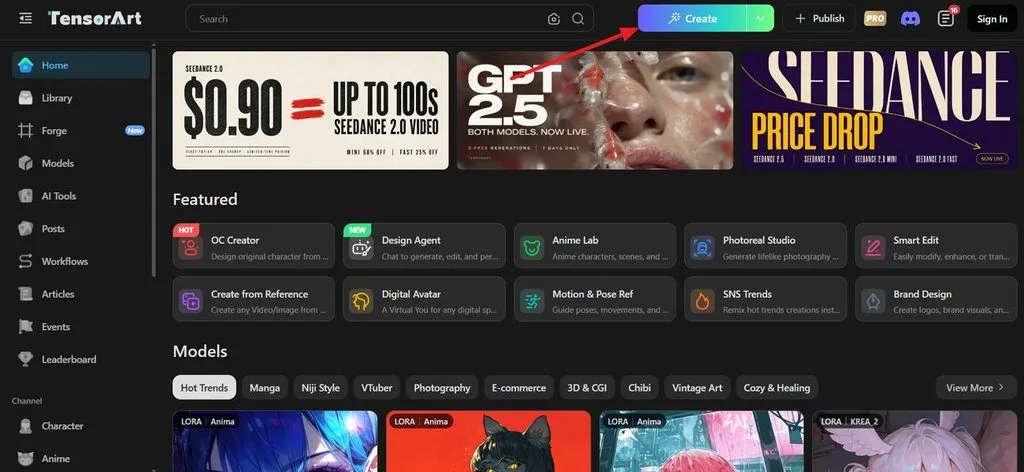
Step 1. Once you enter the main Tensor Art page, press the Create button to enter the image generation interface.
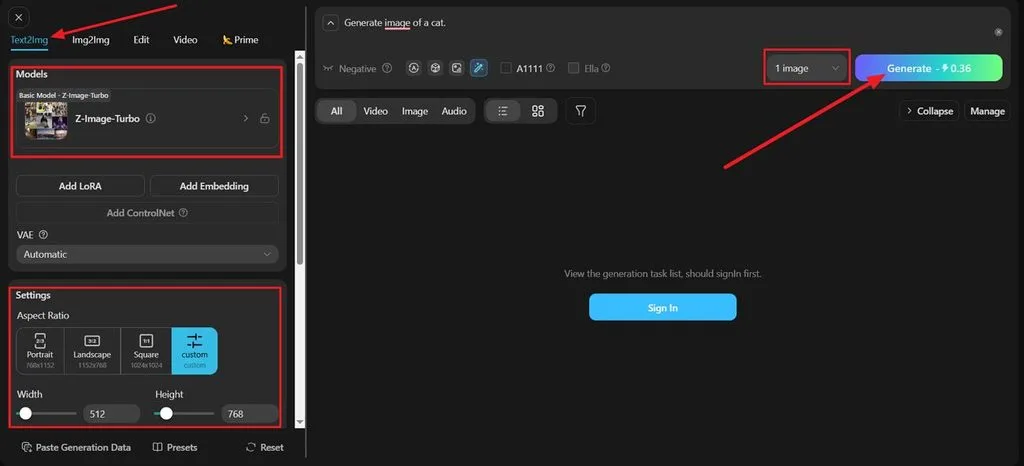
Step 2. Choose a method like Text2Img and enter the image prompt in the text box. Choose an AI model from the Models section, select an Aspect Ratio, and select the number of images you need. Once all is done, press the Generate button.
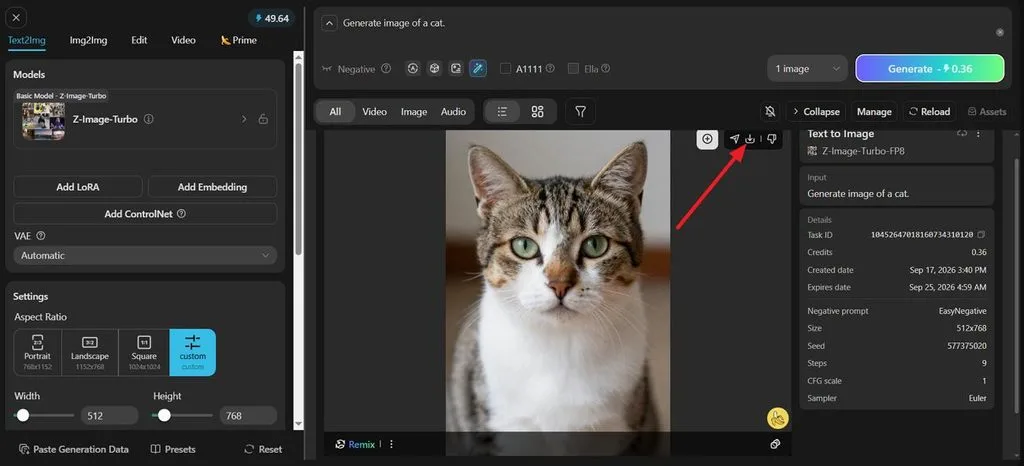
Step 3. After the image is generated, view it in the Preview panel and press the Download icon to save the image. If any adjustments are required, change the prompt and settings and generate the image again.
Daily credits last longer when you test images at a lower resolution before upscaling. Generate several images at 512 pixels first to compare composition while using fewer credits. Upscale only your chosen image afterward, avoiding unnecessary costs on results you will discard.
Part 3. Is There Any Best Alternative to Tensor Art AI?
Users exploring Tensor AI Art may need stronger tools when moving beyond image generation projects. MagicLight AI turns written scripts into complete videos with scenes, characters, visuals, and narration. Its Story to Video feature accepts 12,000 characters and produces videos up to 50 minutes.
Creators can choose from 20 AI video models, including Gemini 3.5 Flash and Seedance 2.5. These models offer varied visual styles while maintaining consistency throughout longer video creation projects. MagicLight AI also includes captions, cover artwork, and downloadable exports within one complete workflow.
Key Features of MagicLight AI
- AI Image Generator: Upload a reference image and add a prompt to create new visuals. The tool accepts up to 500 characters for clear and detailed image instructions.
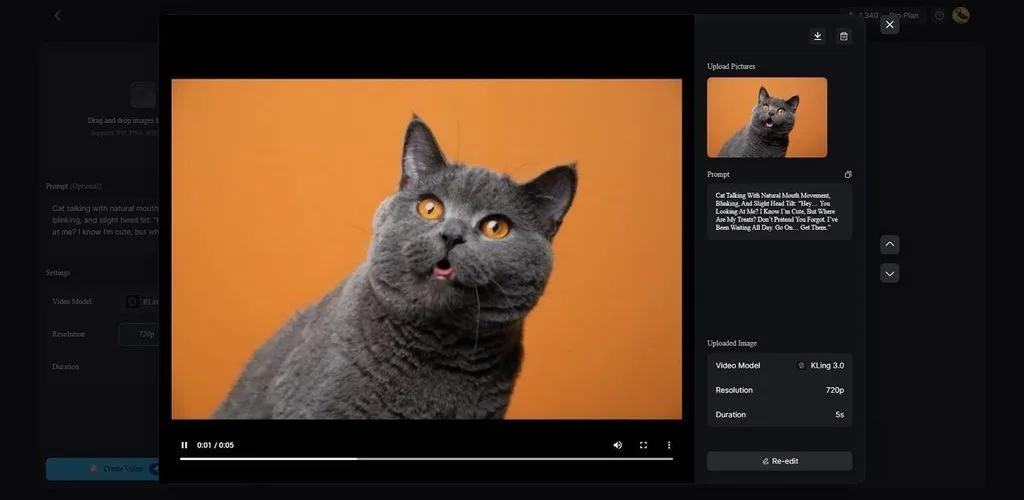
- Image to Video: Add up to 5 reference images and use a 1,500-character prompt to animate an image. This provides more control over how still visuals become moving video content.
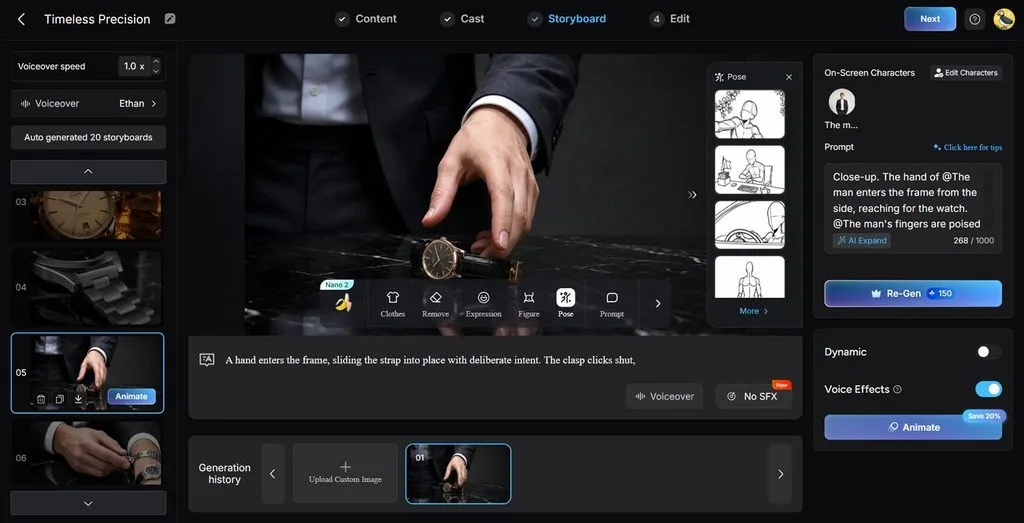
- Storyboard Scene Control: Adjust scenes before rendering with 50 poses, timing controls, and flexible edits. Creators can refine individual moments and improve story flow before final video generation.
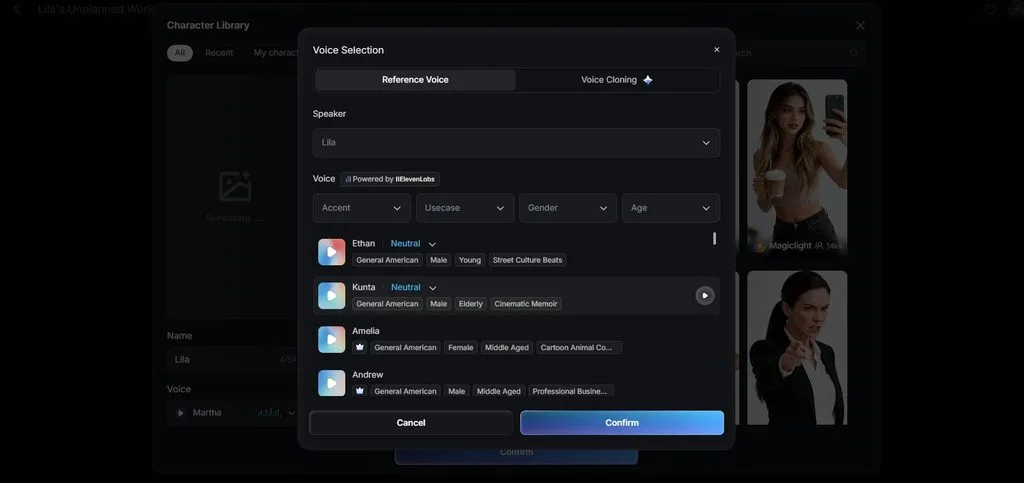
- Voiceover and Subtitles: Select from 37 AI voices with different ages, genders, and accents for narration. Add subtitles, clone voices, and apply 16 caption styles during video creation.
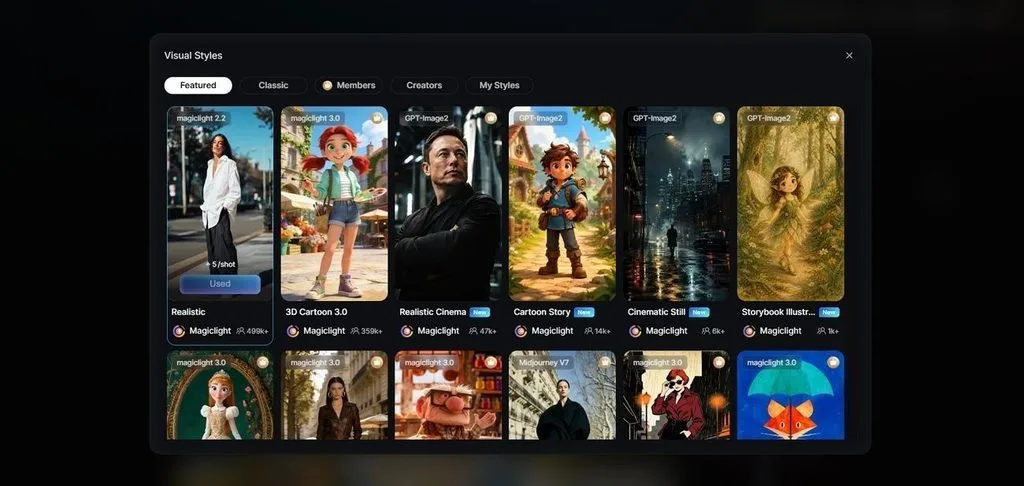
- Creative Style Library: Access 20+ visual themes, including realistic, anime, and watercolor-inspired designs. Apply different artistic styles to videos while keeping the overall visual direction consistent.
Comparison Table Between Tensor Art AI and MagicLight AI
Tensor.Art focuses mainly on detailed image creation, while MagicLight AI supports complete video production workflows. The table below compares their main features, pricing, strengths, limitations, and ideal creative use cases:
| Feature | Tensor Art AI | MagicLight AI |
| Primary Output | Still images with optional short clips | Finished narrative video + image generation |
| Model Access | Hundreds of thousands of community checkpoints | 20 engines across 5 families |
| Technical Control | ControlNet, ComfyUI, LoRA training | Editable scene prompts and poses |
| Character Reuse | Per-generation, unless a LoRA is trained | Saved cast across every project |
| Maximum Length | Short clips through partner models | 50 minutes per project |
| Narration | N/A | 37 voices with cloning |
| Main Strength | Depth of control over one frame | Complete pieces without assembly |
| Main Limitation | Free output watermarked, personal use | No local model training |
| Pricing | Free tier, Pro from $9.90 monthly | Free plan, commercial rights when paid |
| Best For | Stable Diffusion artists and hobbyists | Creators producing story-led video |
Conclusion
In summary, Tensor Art AI offers powerful image generation with flexible community models online. Its cloud tools, custom workflows, and model choices give creators extensive control over images. Free access supports testing, while paid plans provide additional resources for frequent creative projects. If you need complete AI story video creation instead, use MagicLight AI for longer projects.
Frequently Asked Questions
- How to use Tensor Art?
Choose a suitable checkpoint from the Tensor Art Hub before entering your image prompt. Generate at lower resolution first, then upscale your preferred result for better final quality.
- Is Tensor Art AI free to use?
A free tier provides credits for creating images without purchasing a subscription plan initially. Free outputs have restrictions, while paid plans provide additional credits and broader usage options.
- Is there a 100% free AI image generator?
Unrestricted free image generators are uncommon because most platforms apply specific usage limits. Running Stable Diffusion locally avoids subscription costs but requires suitable computer hardware for generation.
- Is there anything better than Tensor Art AI?
Different alternatives suit different needs, especially when creators want complete video production capabilities instead. MagicLight AI turns scripts into longer videos with scenes, characters, narration, and consistent visuals.