Explore the Magiclight AI Drawing Generator From Text Features
A pencil portrait calls for different details than an expressive charcoal landscape. Magiclight AI drawing generator from text lets you describe the artistic medium and finish you want.
Turn your ideas into beautiful pencil sketches, charcoal drawings, and ink illustrations with Magiclight AI. Describe the scene, choose your preferred artistic style, and let AI bring your imagination to life. No drawing skills needed.
Create AI Drawing from Text for Free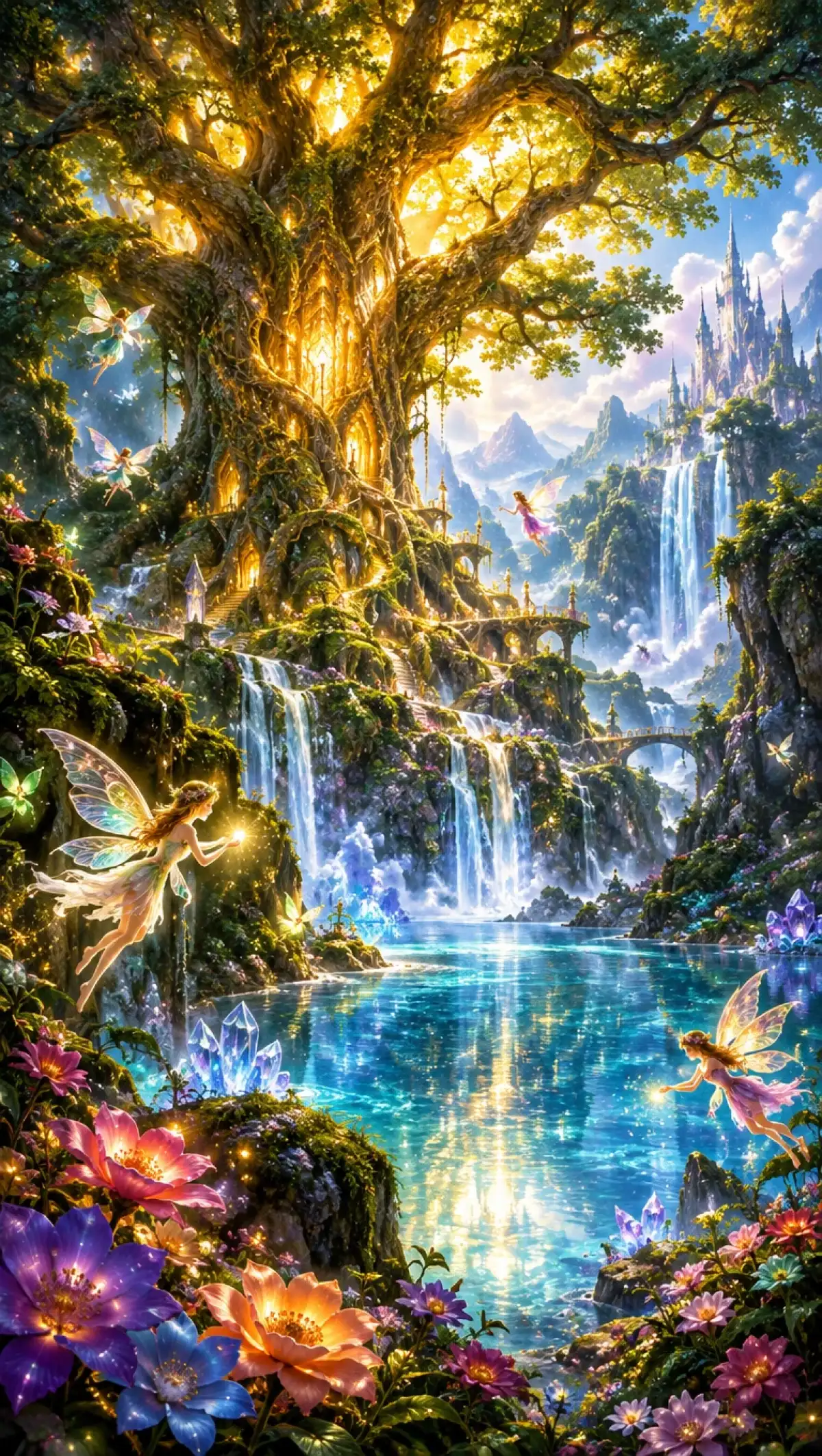
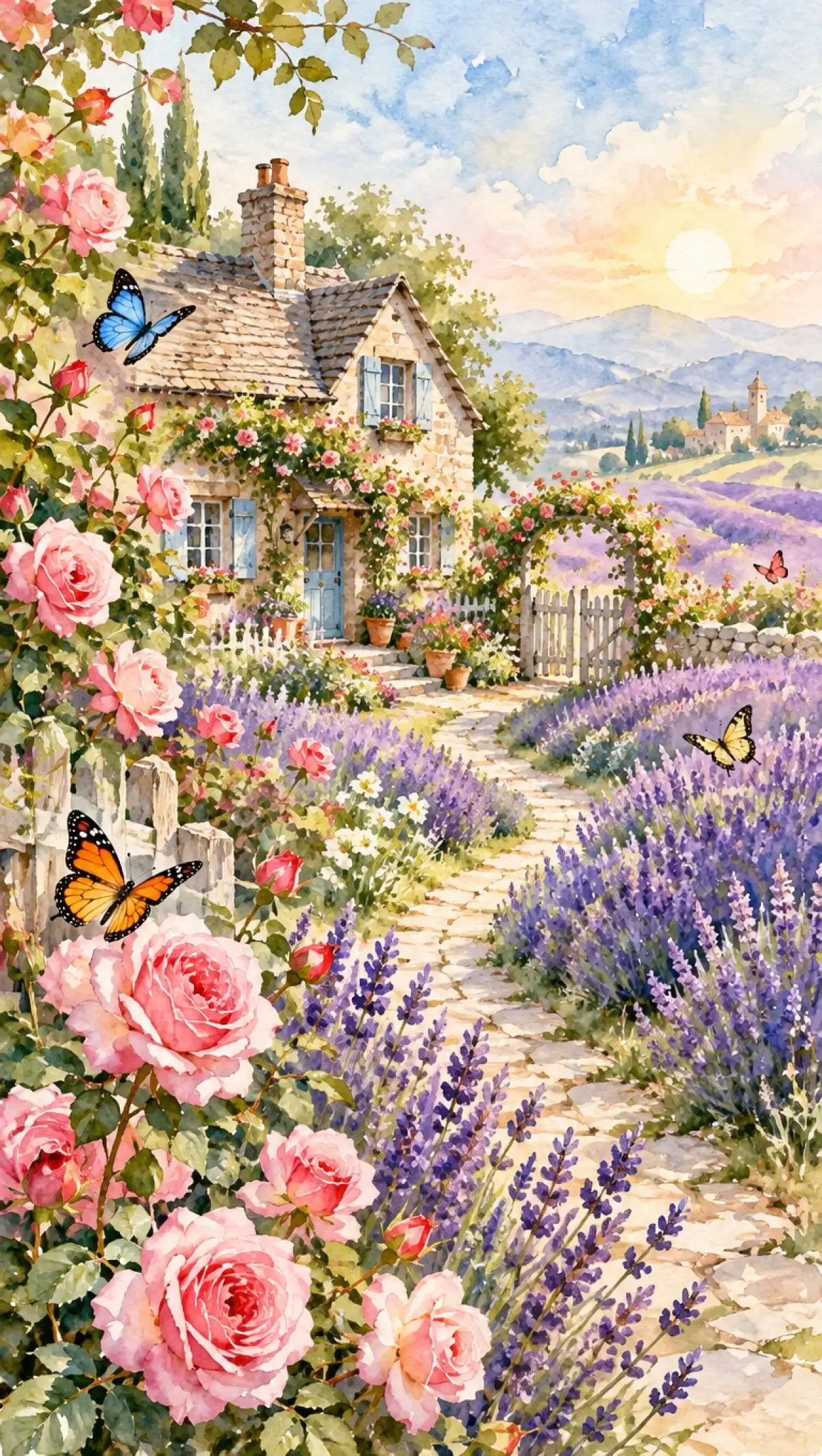
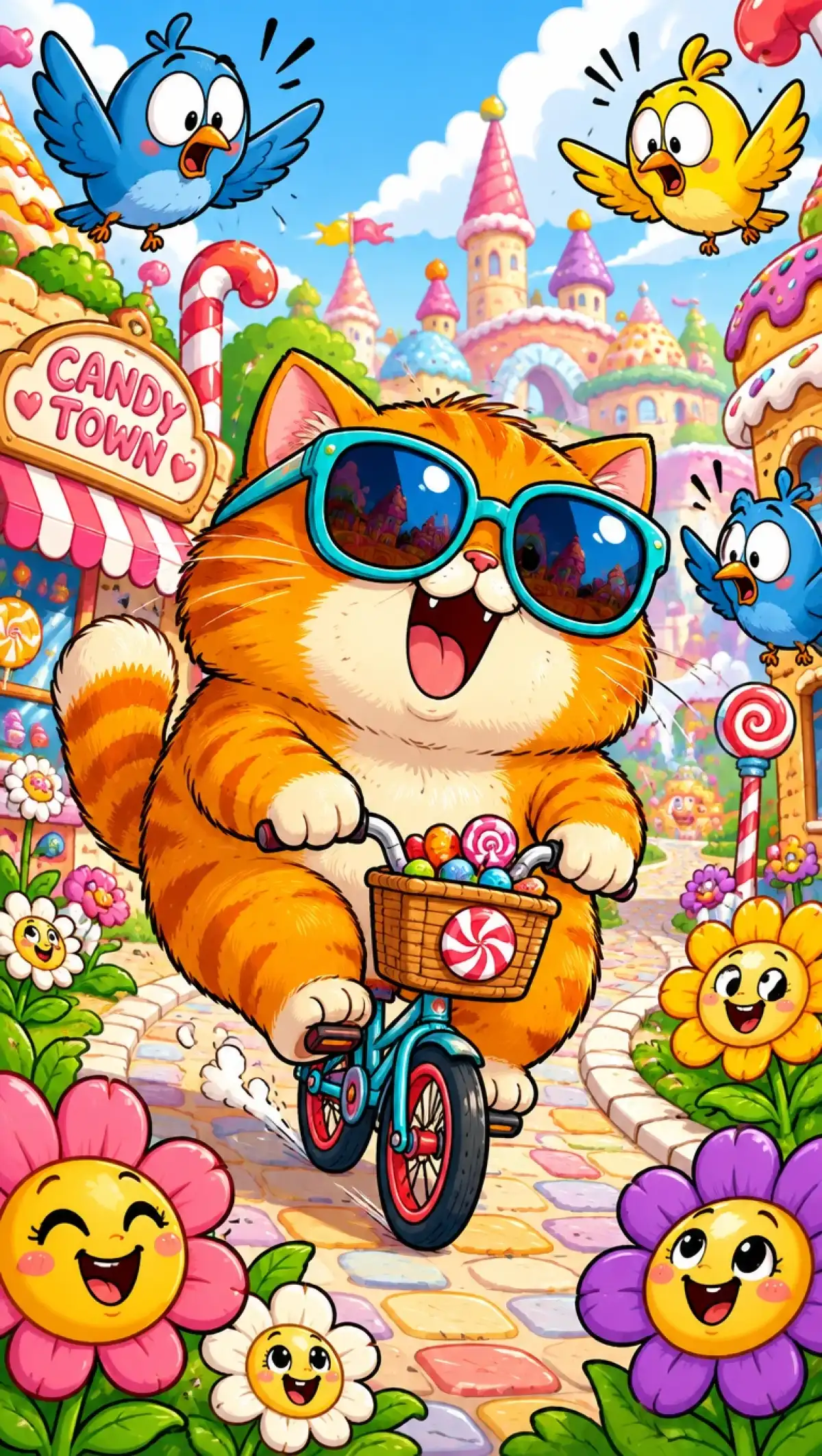
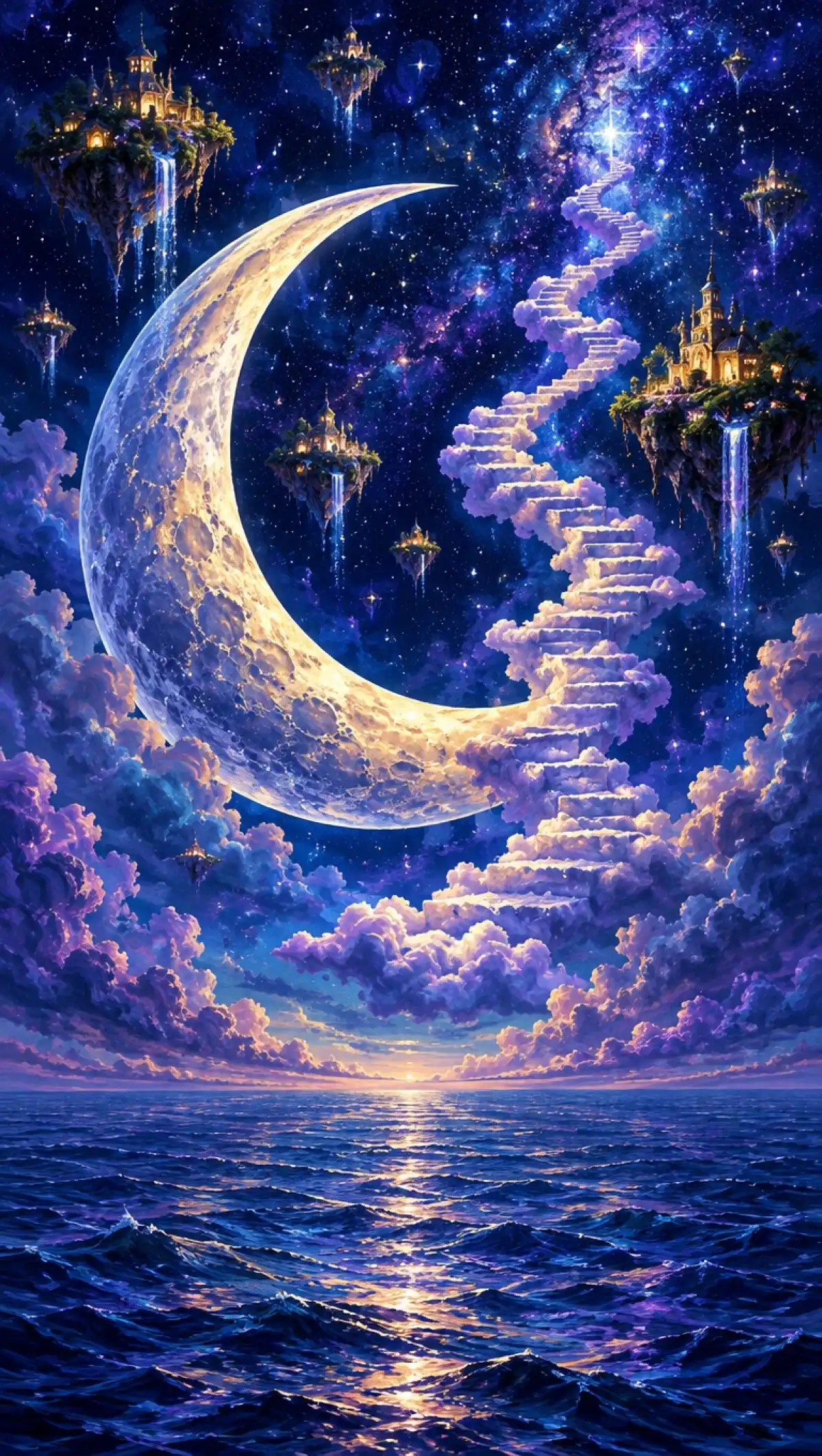
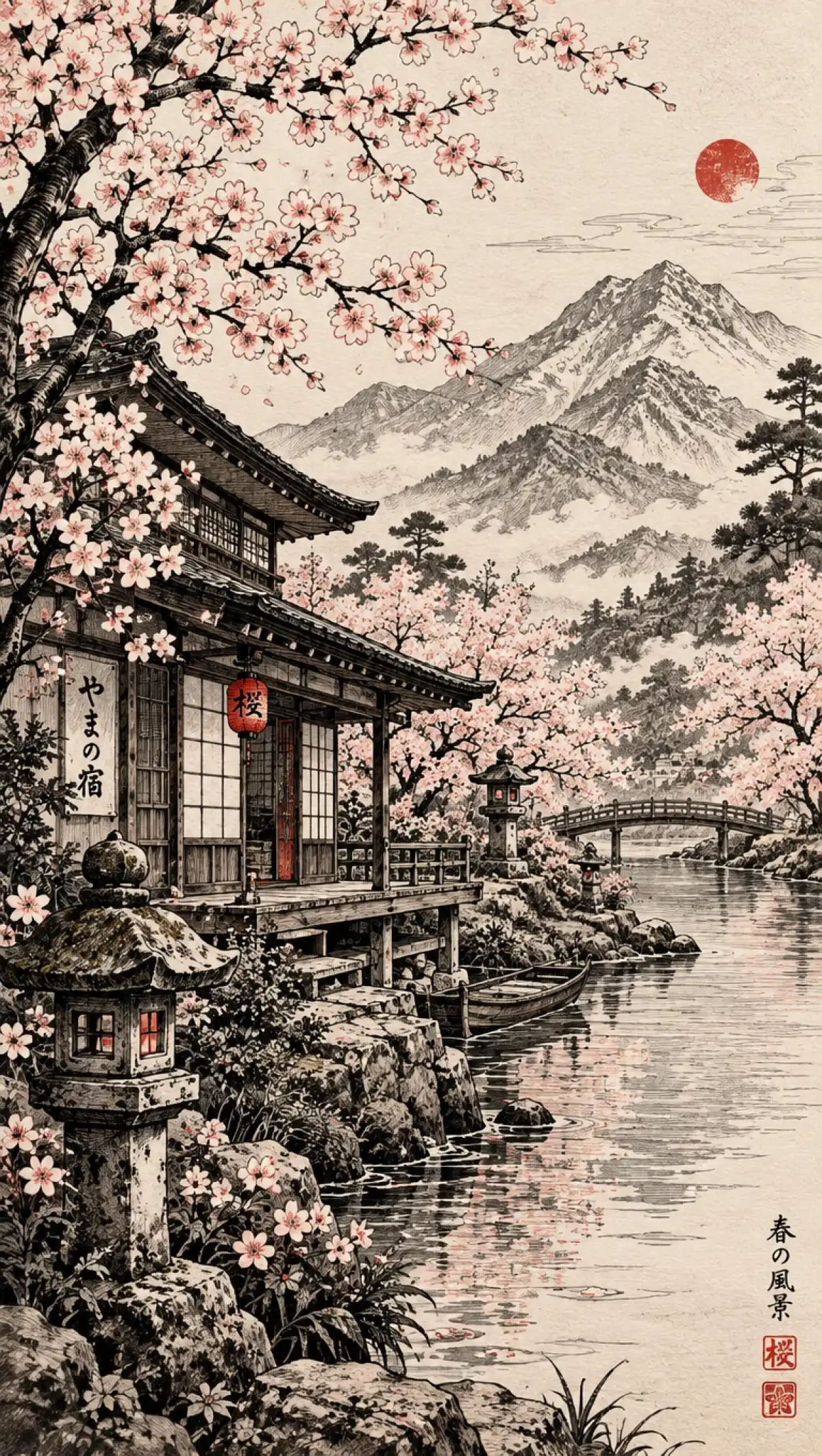
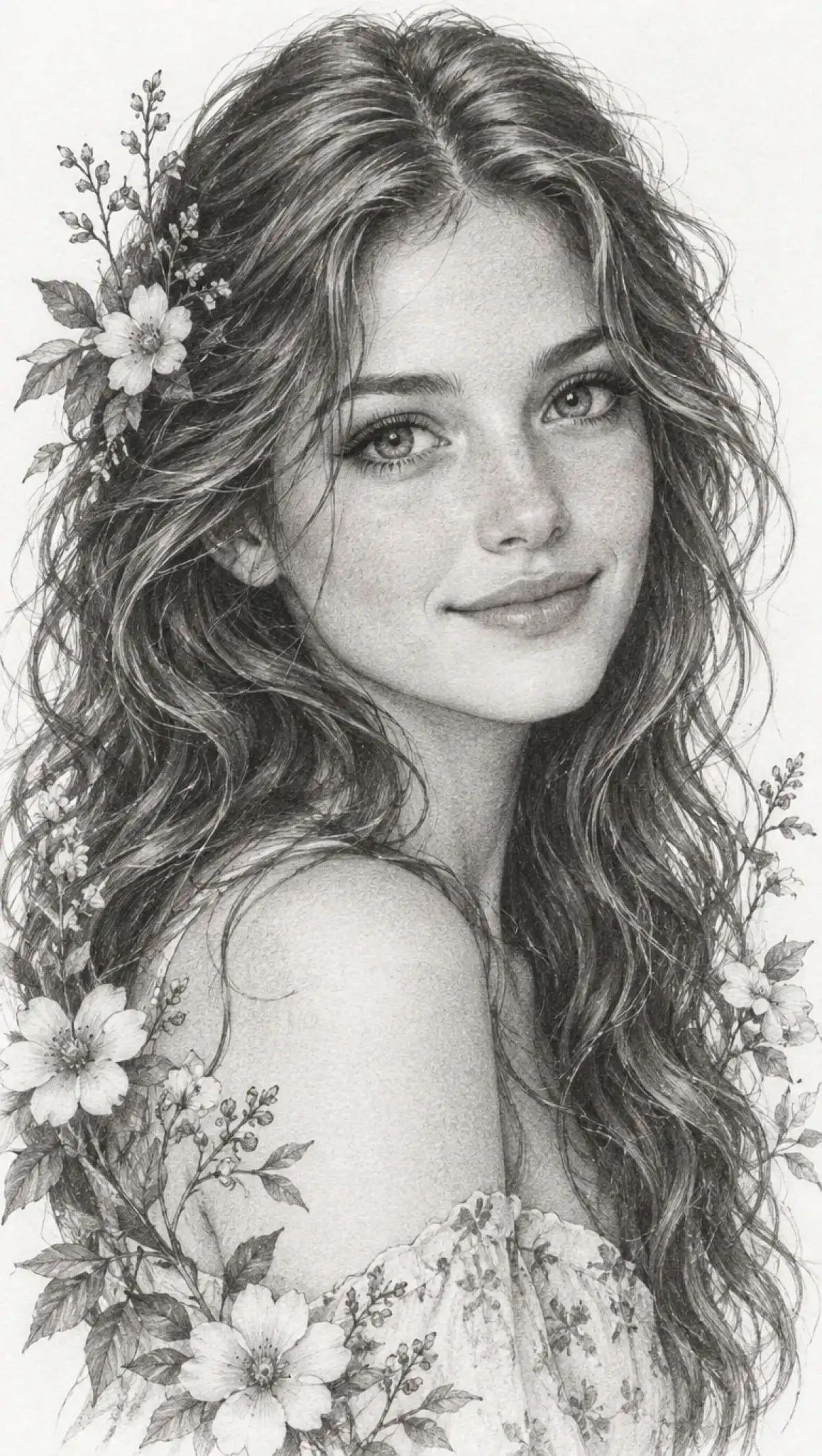
A pencil portrait calls for different details than an expressive charcoal landscape. Magiclight AI drawing generator from text lets you describe the artistic medium and finish you want.
Describe your drawing idea within 500 characters in Magiclight AI. Mention the subject, paper texture, and preferred shading technique. Try cross-hatching for an architectural sketch or soft shading for a pencil portrait.
Magiclight AI offers 10 image models to explore different artistic interpretations of your subject. Describe a delicate graphite portrait or a bold ink illustration, then compare drawings generated with different models.
Use Text to Image when you have an original drawing idea in mind. Choose Reference Image to Image when a family photograph or an unfinished sketch should guide your new artwork.
Choose 4:3 for a traditional sketch or 1:1 for a small decorative illustration. A wider 16:9 frame suits detailed landscapes, while 9:16 gives you room for full-length character drawings.


Have an idea for a pencil portrait or an ink illustration? Follow these 3 steps to turn your description into artwork with the Magiclight AI drawing generator from text.
In Magiclight AI, head to Toolbox and select the Image tab. Choose Text to Image for an original drawing or Reference Image to Image to work with an existing sketch.
Use the 500-character prompt to describe your subject, artistic medium, and shading technique. Mention the paper texture if you have a particular finish in mind. Select from 10 available image models.
Choose an aspect ratio that suits your artwork, then click Create Image. Check the linework and shading in the generated drawing.
The AI drawing generator from text creates pencil sketches, charcoal studies, ink art, ballpoint doodles, colored pencil work and pastels, and crayon drawings. Include the medium in your 500-character prompt and ask for two mediums at once if you like.
No, because the Doodle Generator makes loose, playful notebook doodles. This tool makes finished drawings in classic media such as graphite, charcoal, and ink.
Yes, you can ask for clean black outlines with no shading on a white background. Choose 4:3 or 1:1 so the page prints well on regular paper.
No, specific artworks are protected by copyright, and recreating one is not safe. Describe a general style, such as a loose charcoal study, and draw your own subject instead.
Yes, if your plan includes commercial use and the book’s publisher accepts AI illustration. Check both before print and keep the original files and your prompts for your records.
Yes, because a new account can try a first drawing at no cost. Describe one subject in Text to Image and upgrade later for more drawings and styles.


Your next sketch needs only a sentence and a medium. Let the AI drawing generator from text in Magiclight AI do the drawing.