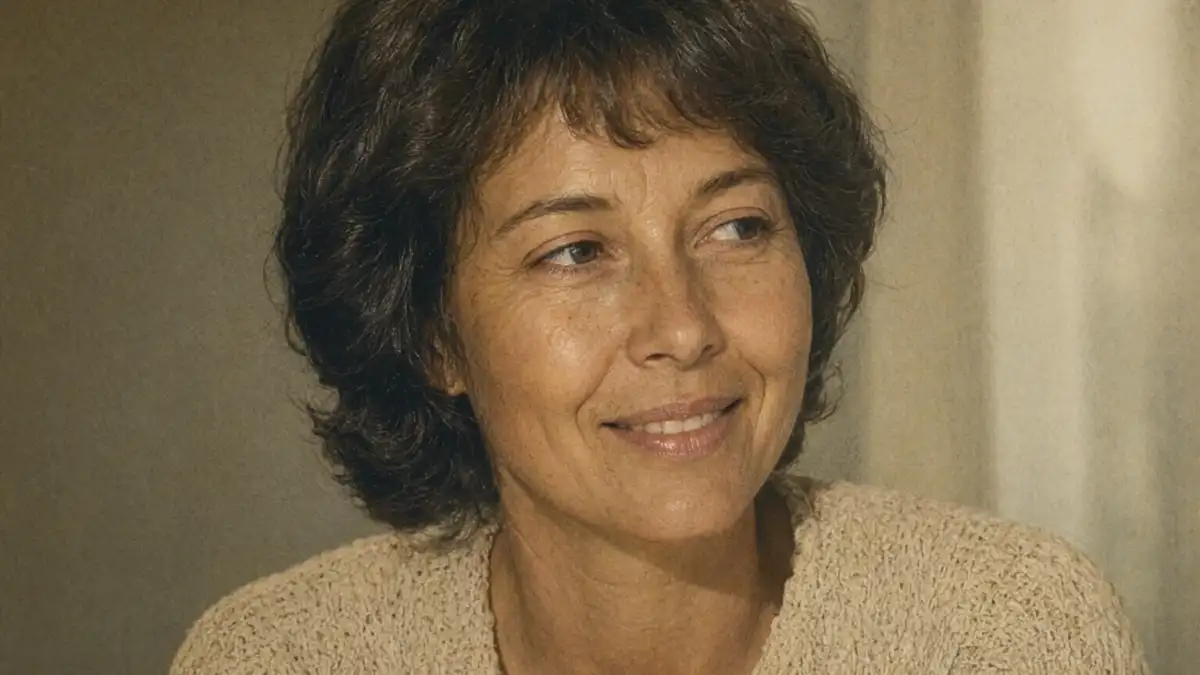









Hero background

AI Face Animation

Bring faces to life with MagicLight AI. Turn still photos into animated videos with natural facial expressions and movements. No manual animation skills needed.

Create AI Face Animation for Free
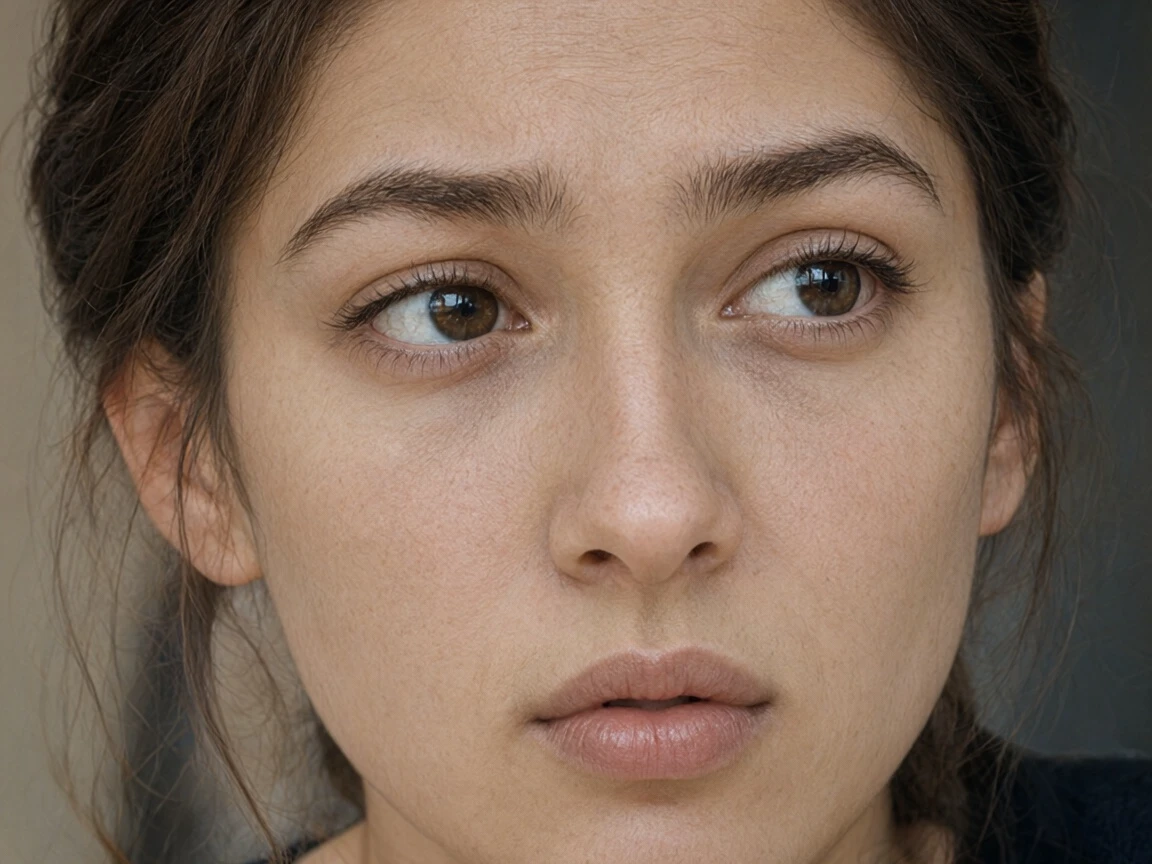
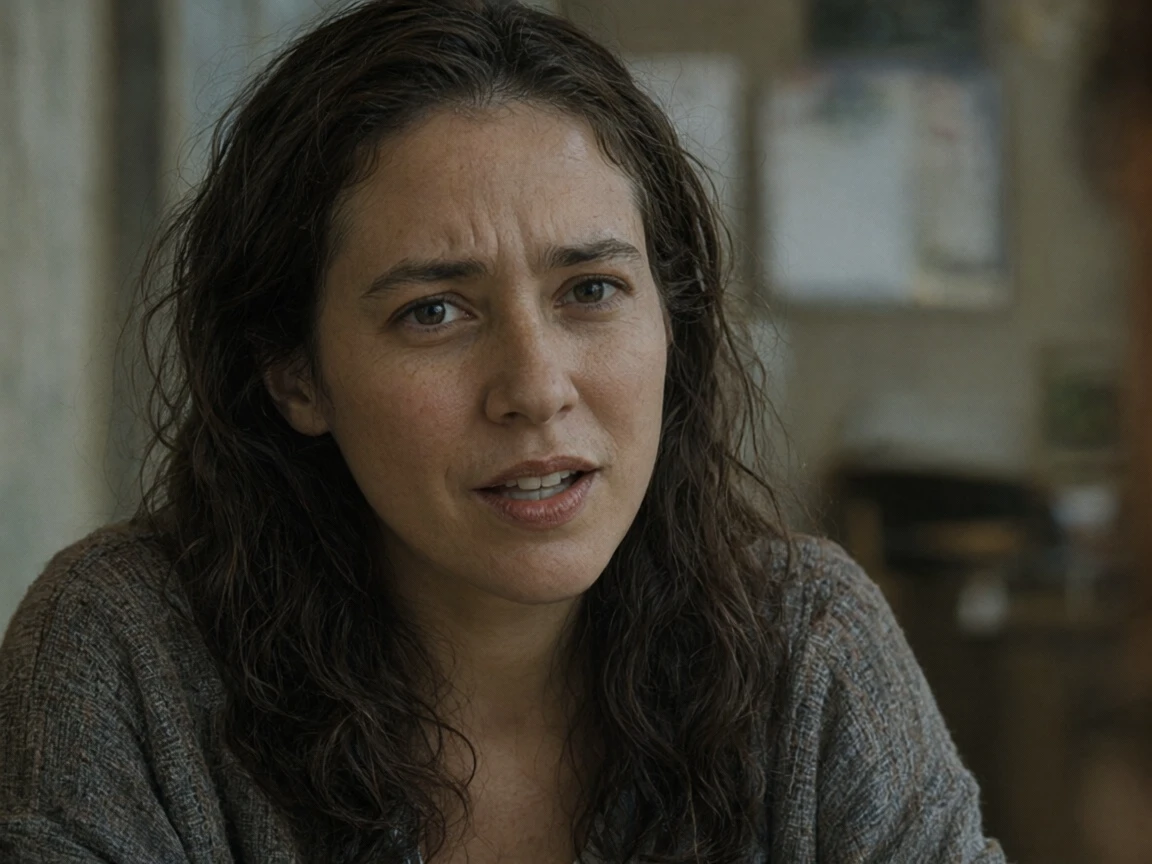
AI animated face portrait video preview
Nano Banana
Google VEO 3
Sora 2
Gemini
Hailuo
Kling
Midjourney
Qwen
Seedance
Wan
Nano Banana
Google VEO 3
Sora 2
Gemini
Hailuo
Kling
Midjourney
Qwen
Seedance
Wan

Top Features of Magiclight AI Face Animation

A subtle smile can give a still portrait an entirely different mood. AI face animation in Magiclight AI lets you explore facial movements through photos and written descriptions.

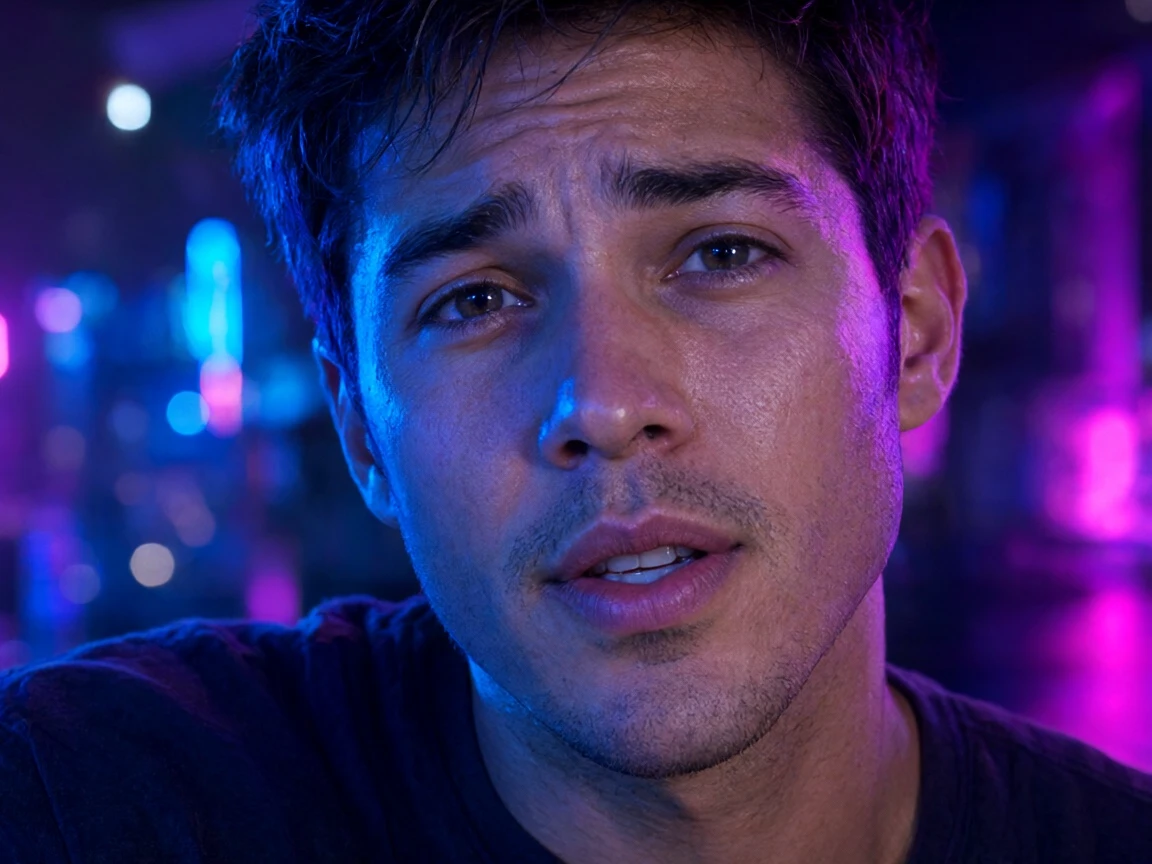
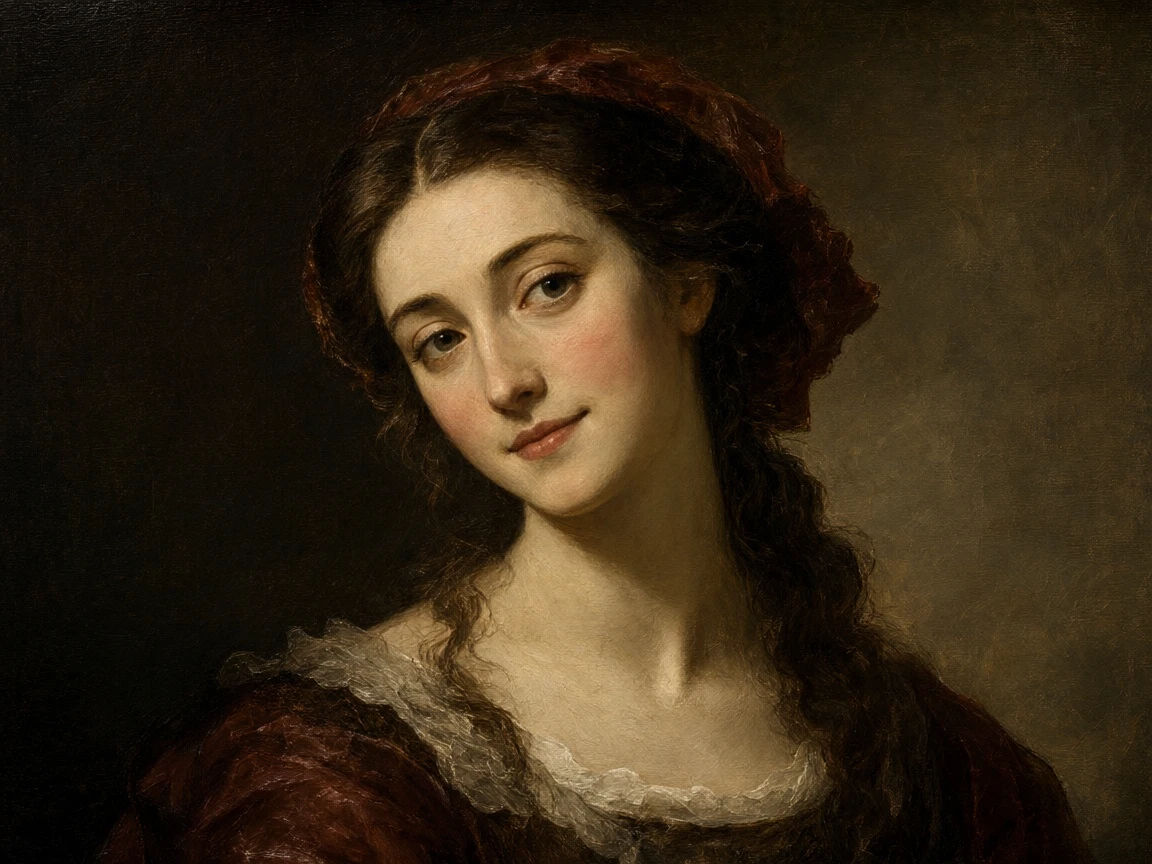
Frame to Video for Changing Facial Expressions

Add a neutral portrait as the opening frame and a smiling photo as the closing frame. Magiclight AI creates movement between the two images. Try different expressions to explore how the face changes.

Create Now
Frame to Video facial expression animation

20 Video Models for Facial Movements

Magiclight AI offers 20 video models to explore different facial movements. A gentle blink requires less movement than a surprised reaction or a laugh. Compare results from different models to find a suitable animation.

Create Characters
AI video models for facial movement animation

1500 Characters for Detailed Facial Animation

Describe your preferred facial movements within a 1500-character video prompt. Ask for a raised eyebrow, a slow smile, or a slight turn of the head. Include lighting and camera details to guide the animation.

Generate a Video
Detailed AI facial animation prompt customization

Up to 1080p for Animated Portraits

Close-up portraits need attention to small facial details. Magiclight AI supports 720p and 1080p video output, depending on the selected model and plan. Choose a suitable resolution when saving your animated portrait.

Start Creating
High-resolution AI animated portrait output
Who Can Use Magiclight AI Face Animation
A photographer can give a still portrait a moment of movement. Magiclight AI face animation also helps digital artists and content creators explore new ways to present familiar faces.
Here are some ways to use AI face animation:
Animated illustrated character faces
For Illustrated Characters
Use Image to Video to add smiles or blinks to illustrated faces.
Try 9 expression presets in AI Edit before animating your character.
Describe subtle head movements within a 1500-character video prompt.
Animated facial reactions for social media clips
For Reaction Clips
Connect 2 facial expressions through Frame to Video for funny reactions.
Choose a vertical 9:16 frame for reaction clips shared on social media.
Explore 20 video models to create different animated facial reactions.
Animated portrait photo session
For Portrait Photo Sessions
Animate a client's favorite headshot with gentle facial movements.
Save animated portraits in 1080p with a supported paid plan.
Upload JPG or PNG portraits up to 10MB for facial animation.
AI animation for painted portraits
For Painted Portraits
Create clips of up to 30 seconds to bring painted faces into motion.
Use Reference to Video to guide the movement of a painted character.
Select a 16:9 frame for displaying animated portraits on gallery screens.

How to Use Magiclight AI Face Animation

Give a still portrait a gentle smile or a surprised expression. Follow these 3 steps to create AI face animation in Magiclight AI using your favorite photos.

1.

Step 1. Open Frame to Video

Head to Toolbox in Magiclight AI and select Frame to Video under the Video tab. Add your portrait as the opening frame and a photo with a different expression as the closing frame.

2.

Step 2. Describe the Facial Movements

Upload clear JPG or PNG portraits within the 10MB limit. Describe the facial movements you want, such as a gentle blink or a gradual smile. Keep the movements simple to help maintain a familiar appearance.

3.

Step 3. Generate and Save Your Animated Portrait

Select a video model and set a suitable clip duration. Click Create Video and review the facial expressions in the result. Refine your description if needed before downloading the animated portrait.

What Users Say AboutMagiclight AI Face Animation

Elena Marchetti

Illustrator

I drew a second expression for my character and used it as the end frame in Magiclight AI. The smile eased in smoothly, and the line art stayed clean.

Jonah Whitfield

Photographer

I cropped a client portrait tight and wrote one slow blink across Magiclight AI. The clip kept the likeness, and she loved the tall version for her Stories.

Sana Qureshi

Content Creator

I shot two selfies and kept the clip near 4 seconds. My friends laughed at the eye-roll, and the Magiclight AI sound made it even funnier.

Marcus Lindqvist

Social Media Manager

I wrote the face moves in order and kept the head still. The first clip looked like our spokesperson, and we labeled it as Magiclight AI before posting.

FAQs on AI Face Animation

How can I get the best results when animating a face photo?

Use a clear, front-facing photo with the face fully visible. This helps MagicLight AI capture facial details and create more natural expressions and movements.

Will it still look like the same person?

Usually for a short clip. Magiclight AI stays closer to the photo when the head holds still and the motion is small. Skip big head turns if the likeness matters most.

Can I customize the facial expressions in my AI face animation?

Yes. You can describe the facial expressions and movements you want in your prompt to guide the animation. Use clear instructions to create expressions that match your idea.

Can I share my AI face animation videos on social media?

Yes. You can share your AI face animation videos on social media, messaging apps, and other platforms. Create fun animated clips from photos and share them with friends and followers.

How do I create an AI face animation with MagicLight?

Upload a clear face photo, describe the expressions and movements you want, and let MagicLight turn the still image into an animated video.

6. Can I animate illustrated faces instead of real photographs?

Yes. Magiclight AI supports face animation for drawings, cartoon characters, and painted portraits. Use Image to Video to add a gentle blink, smile, or surprised expression to your original artwork.

Animate Faces from Photos With Magiclight AI

Pick one sharp, front-facing photo and give it a smile this week. Open AI face animation in Magiclight AI and write the first blink.