Explore the Magiclight AI Wedding Photo Generator Features
Seeing yourselves in the scene makes the decision easier than any mood board. The Magiclight AI wedding photo generator turns those guesses into portraits of the real couple.
Imagine seeing yourself and your partner exchanging vows at a beautiful sunset venue. Upload your couple photo to Magiclight AI Wedding Photo Generator and describe your dream setting. No editor needed.
Create an AI Wedding Photo for Free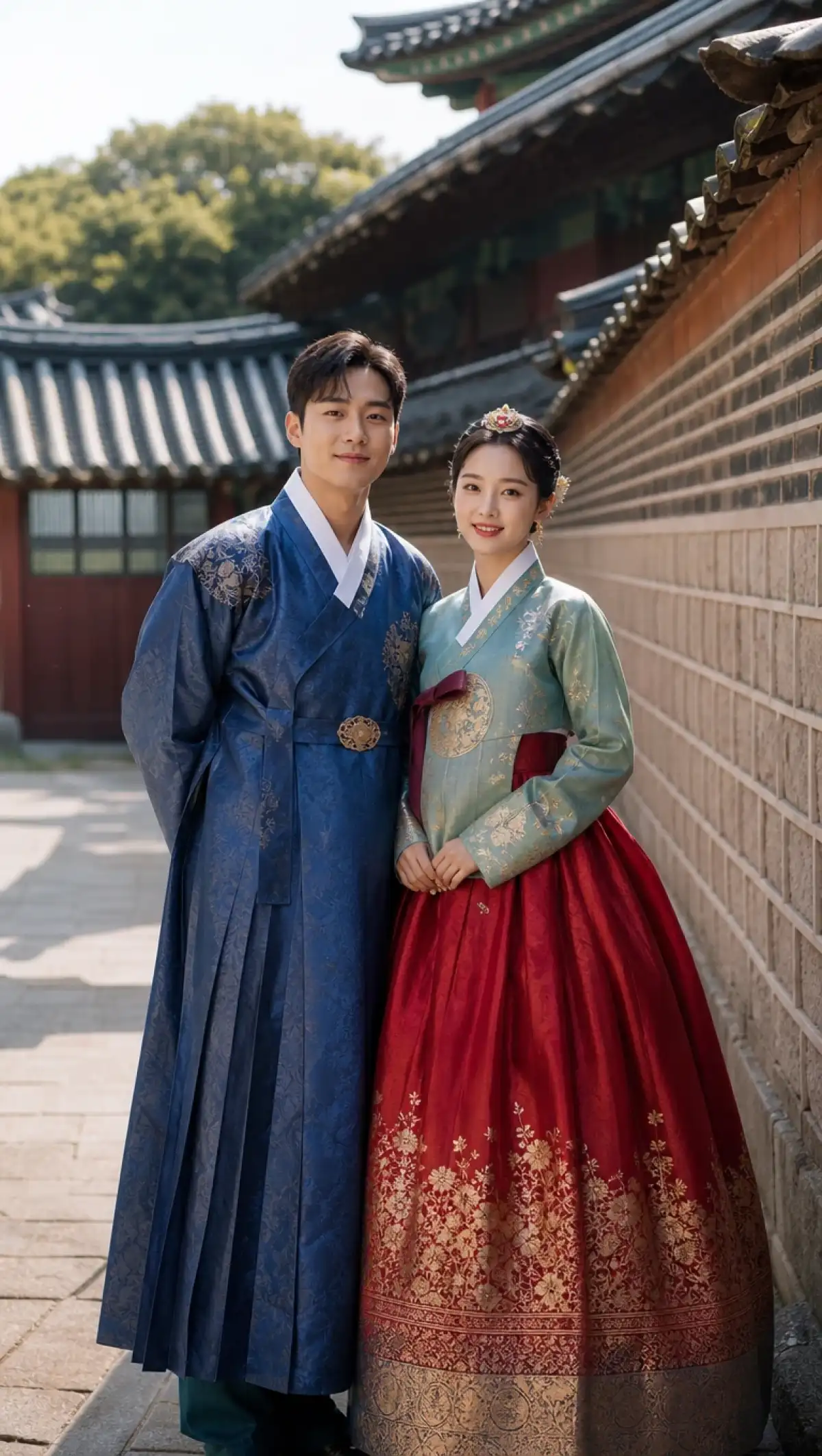
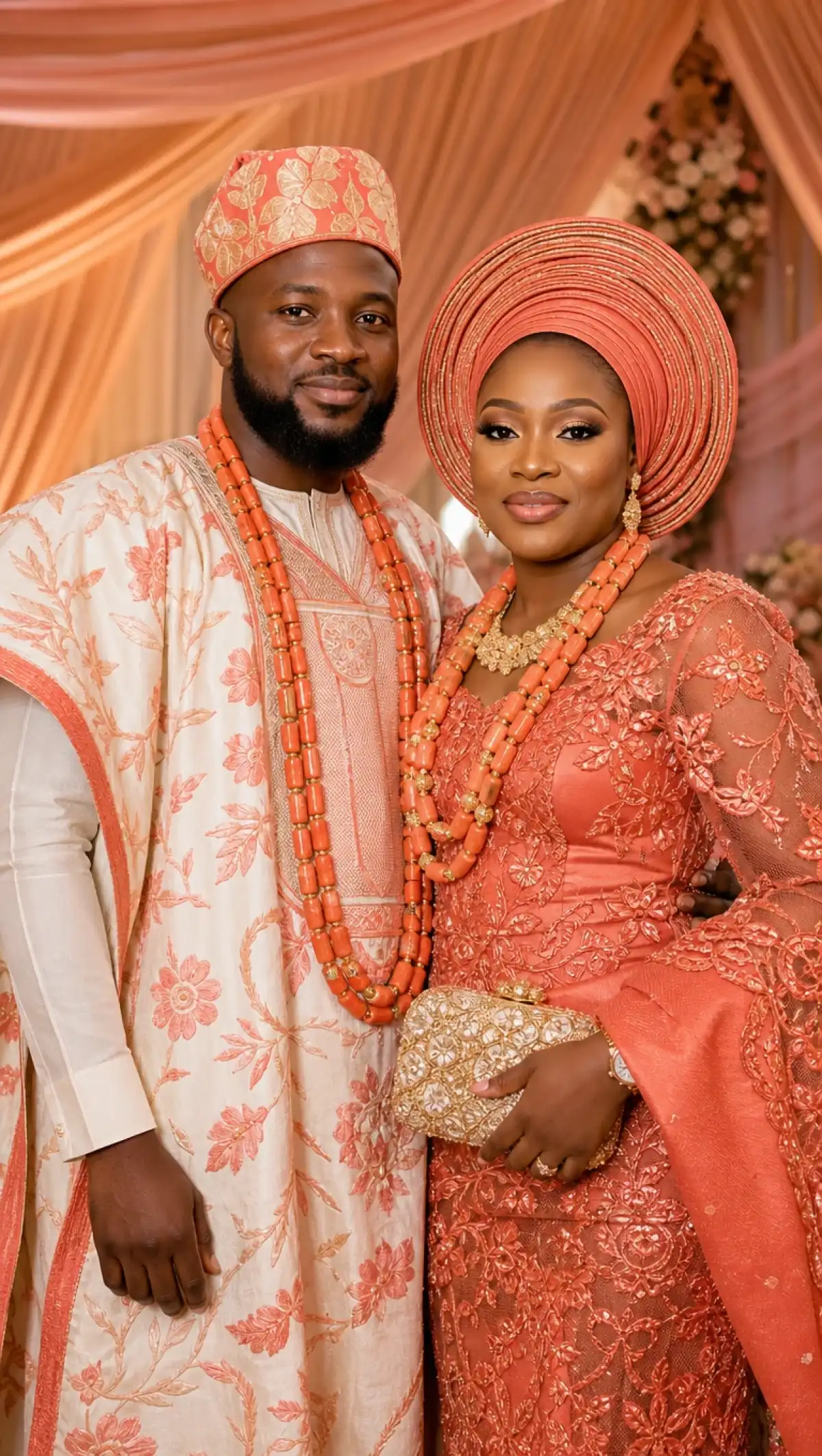
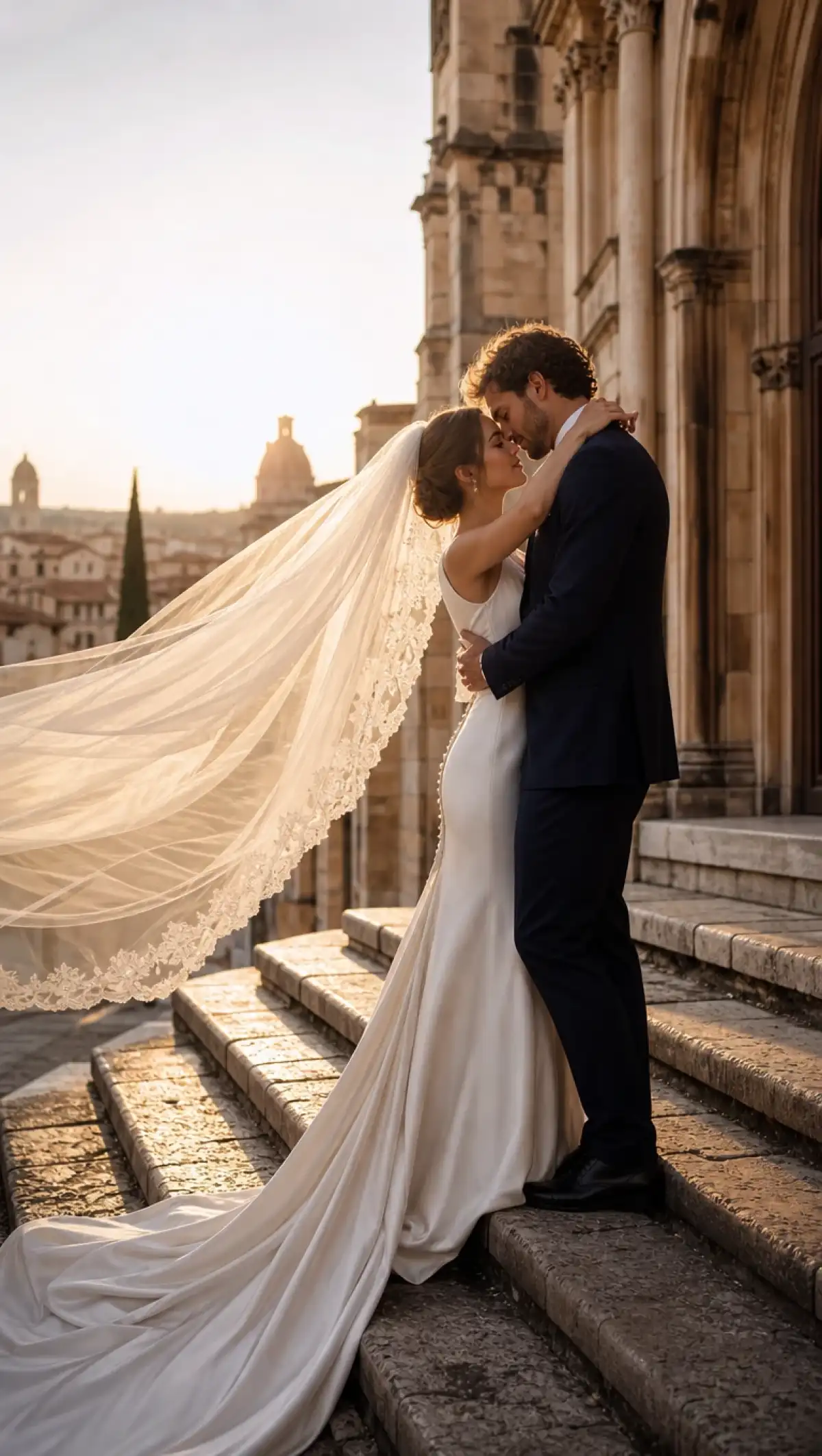
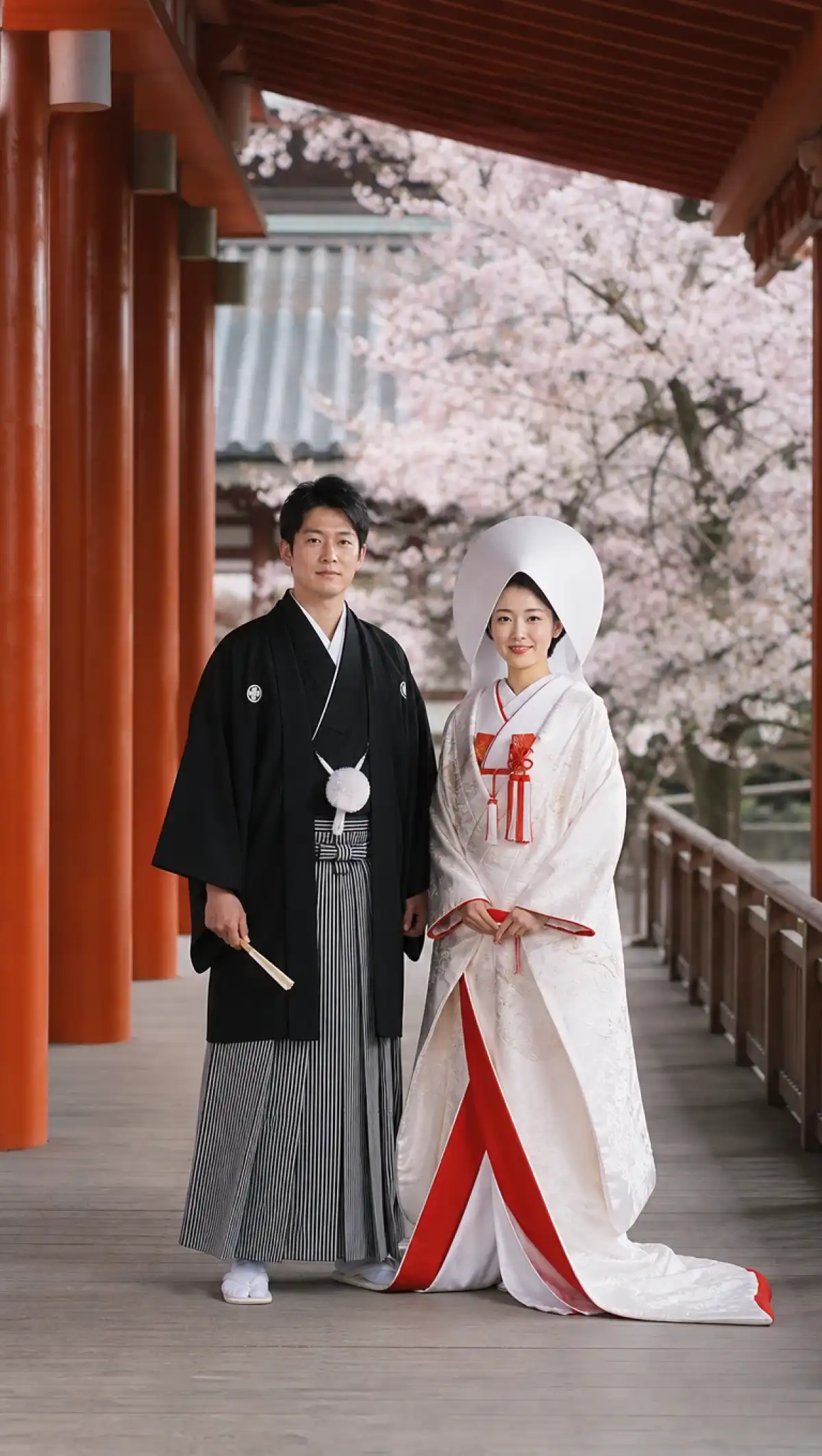
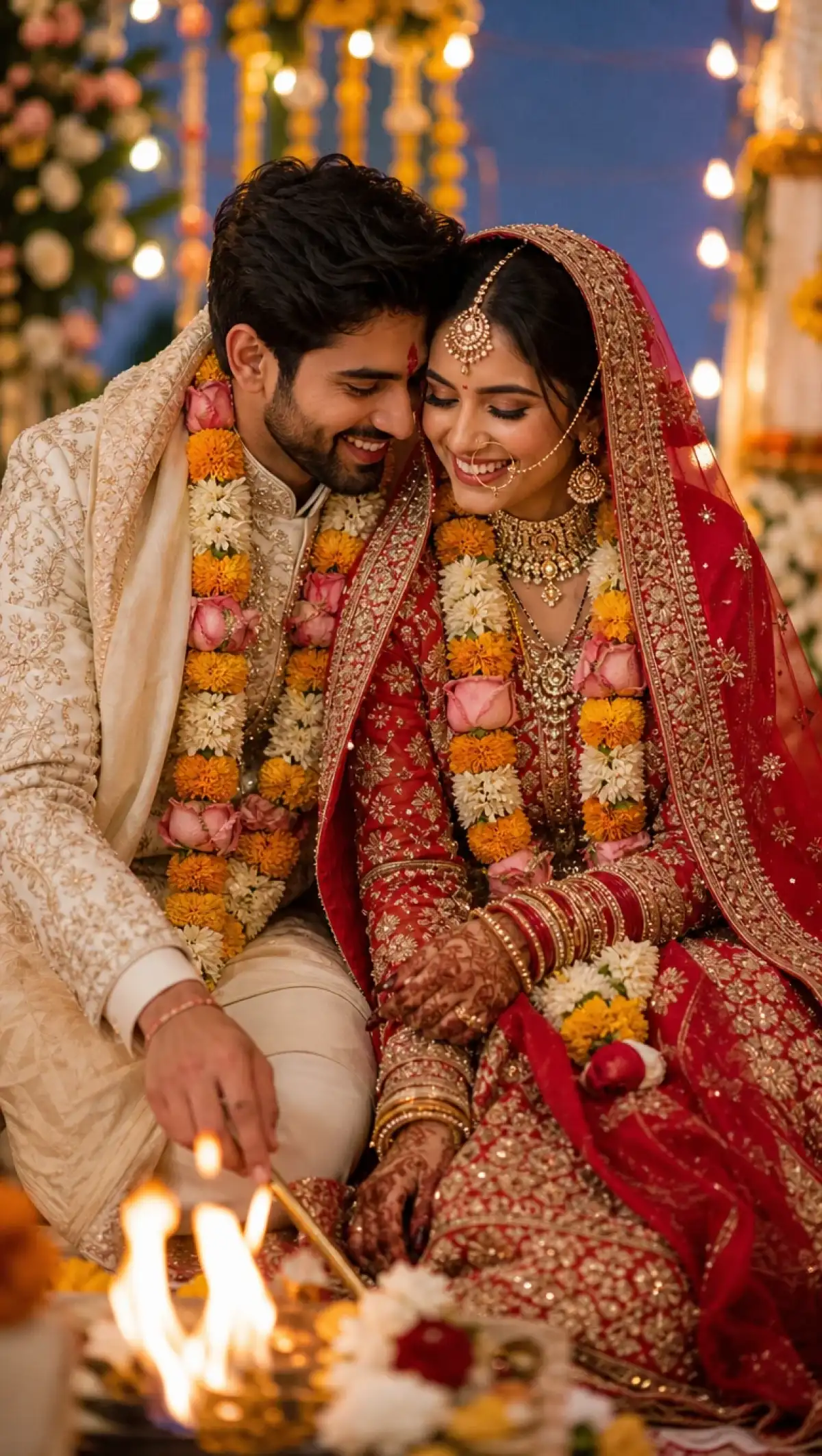
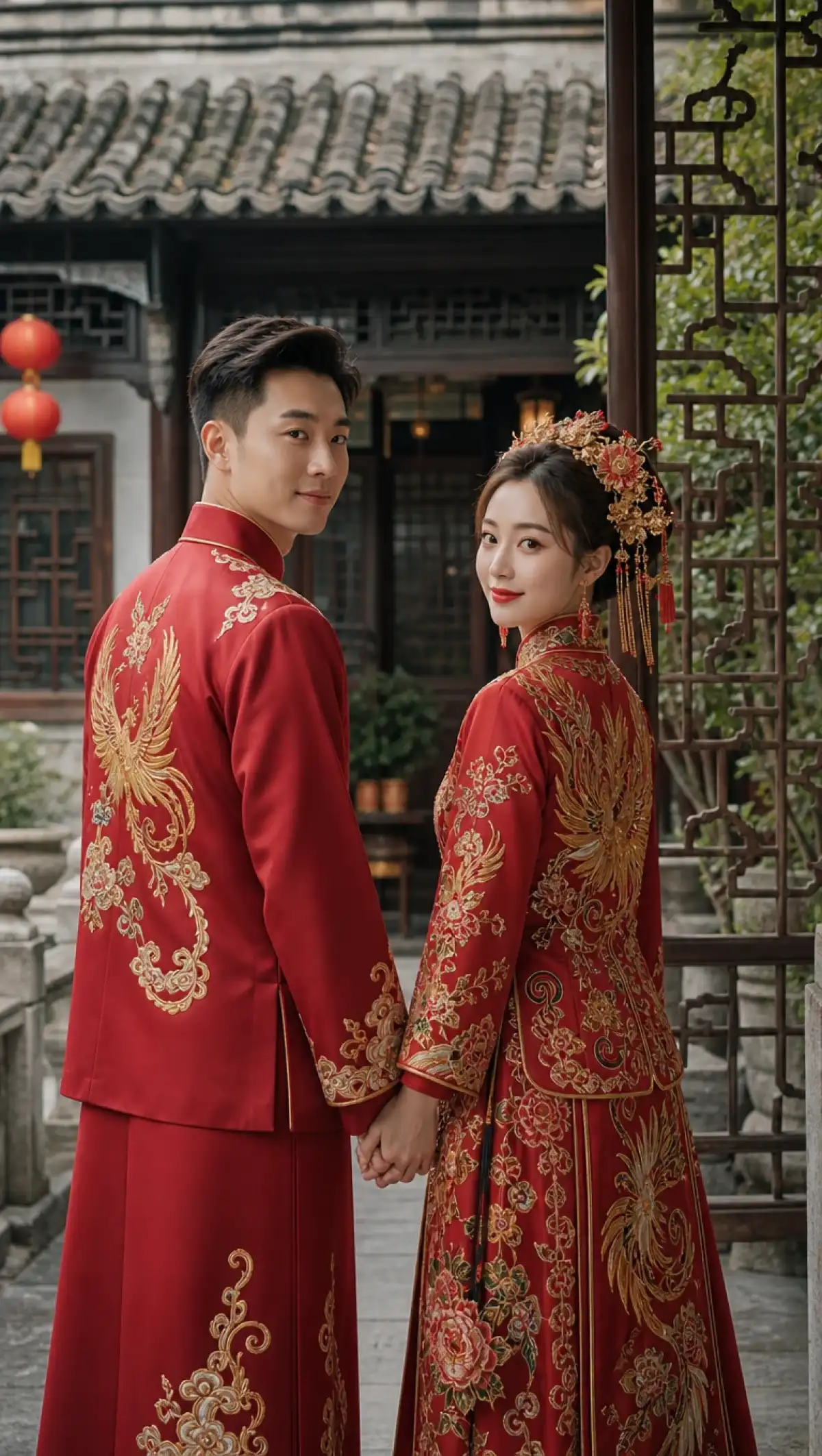
Seeing yourselves in the scene makes the decision easier than any mood board. The Magiclight AI wedding photo generator turns those guesses into portraits of the real couple.
Upload a clear photo of you and your partner through Reference Image to Image. Magiclight AI uses your picture to guide the couple's appearance while exploring different wedding outfits, venues, and lighting.
Add up to 10 reference images showing your wedding dress, suit, venue, and floral arrangements. Magiclight AI uses these pictures to guide the outfits, decorations, and overall appearance of your wedding portrait.
Enter up to 500 characters to describe your preferred wedding portrait. Include details like sunset lighting, a garden ceremony, romantic poses, or a flowing bridal veil to guide the final image.
Explore 6 image models in Magiclight AI to create wedding portraits. Try models like Seedream 5.5 and GPT Image 2.5 Sunburst to see differences in lighting, facial details, and photography styles.


Gather the couple's photo, the dress, and the venue in one folder first. The Magiclight AI wedding photo generator then needs only 3 short steps.
In the Toolbox, choose the Image tab. Select Reference Image to Image and upload a couple photo plus the dress, suit, venue, or flowers, each as a JPEG, PNG, or WEBP (up to 20 MB).
Write the pose, lighting, and mood in a prompt of up to 500 characters and ask it to keep both faces recognizable. Pick Seedream 5.5 or another of the 10 image models.
Choose the frame and raise the outputs to compare poses. Press Create Image and download the portraits you like.
No, it is a planning and keepsake tool. Real wedding photos capture real moments, real guests, and the feeling of the day, which an AI portrait cannot do. Use these portraits to plan poses, compare venues, and share ideas with your photographer before the shoot.
Usually, yes, when the couple photo is clear and evenly lit. Reference Image to Image keeps your faces recognizable while the setting, outfits, and light change. Small facial details can still shift, so compare each result with your real photo and keep the closest match.
No, both people must agree to the photo. Never create fake wedding images to mislead anyone, including family and friends. Use photos of your own partner or of people who have given you clear consent.
Yes, pair a photo of the gown with a standing photo of the bride in Reference Image to Image. Sharp photos help the lace and beading stay clear. The portrait shows a likely look and not an exact fit, so try the real dress on before you buy.
Yes, the 4:3 frame suits printed albums and framed pictures, so check each portrait at full size first. Ask your photo lab which album size matches the file. Large prints need a sharp original, and a clear couple photo gives a cleaner result.
Yes, a new account can try a first wedding portrait at no cost. Upload a couple photo and describe the scene to test it. Upgrade when you want more scenes, more outputs, and wedding clips.



You do not have to wait for the wedding day to see how it looks. Describe the scene to the Magiclight AI wedding photo generator and watch the portrait appear.