







Hero background

Character Animation Toolkit

Create and customize animated characters with MagicLight AI. Adjust their poses and expressions, then add voices to complete your scenes. No animation experience needed.

Create Character Animation for Free
Character animation story grid preview
Nano Banana
Google VEO 3
Sora 2
Gemini
Hailuo
Kling
Midjourney
Qwen
Seedance
Wan
Nano Banana
Google VEO 3
Sora 2
Gemini
Hailuo
Kling
Midjourney
Qwen
Seedance
Wan

Features of the Magiclight AI Character Animation Toolkit

A familiar face and a distinctive voice help viewers recognize their favorite characters. Magiclight AI character animation toolkit gives you control over their appearance, dialogue, and movement.

MagicLight Agent for Character Placement

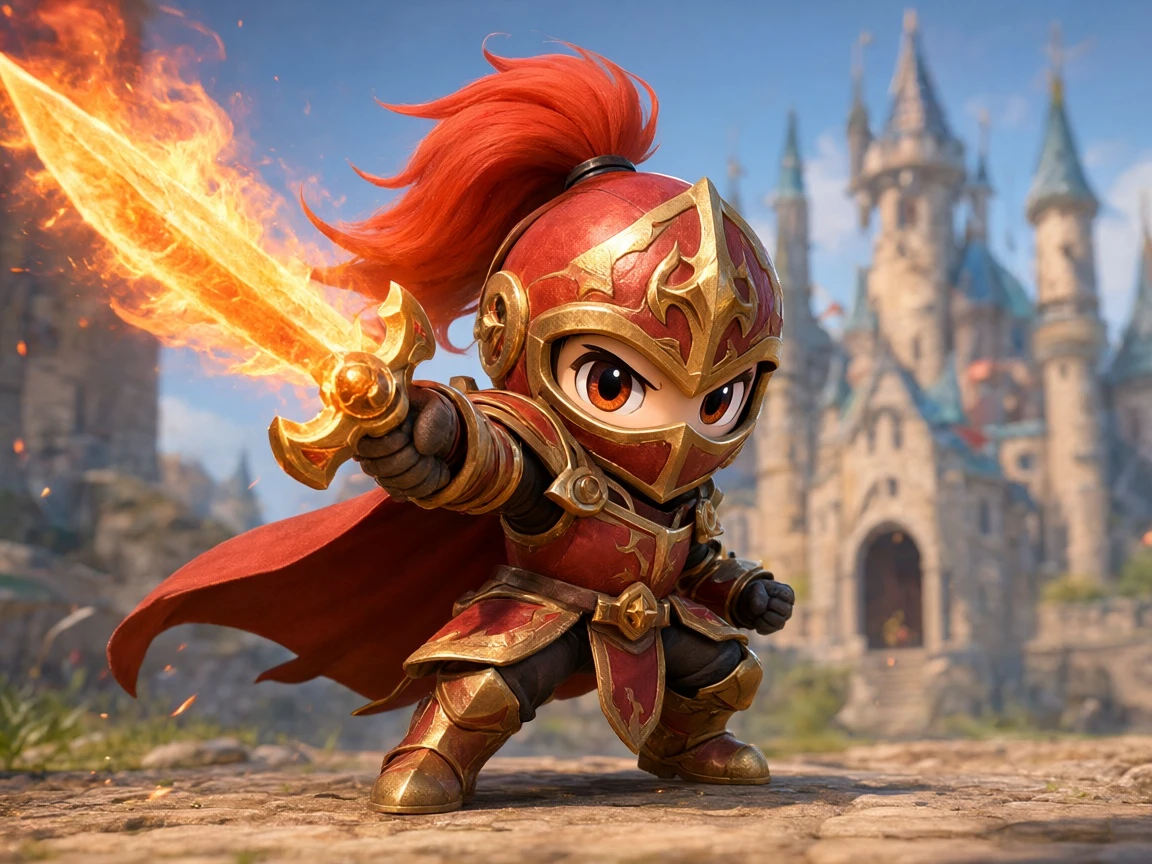
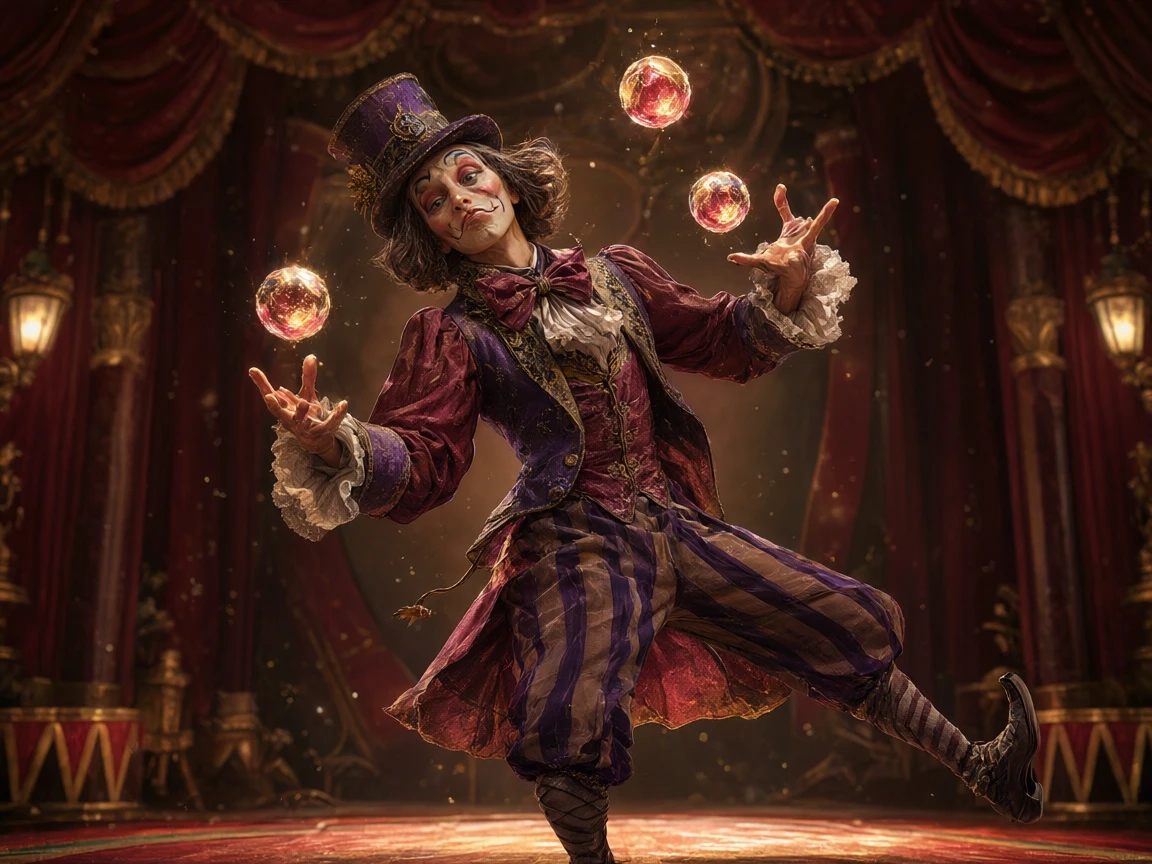
MagicLight Agent identifies the characters appearing in each storyboard scene. Mention a saved character by name in your prompt and review the assigned cast before animating a conversation or an action sequence.

Create Now
MagicLight Agent character placement

1,000 Characters for Detailed Character Designs

Describe your character's appearance within 1,000 characters in Magiclight AI. Mention a detective's long coat or a superhero's distinctive hairstyle. Save the finished character in the Character Library for future stories.

Create Characters
Detailed AI character designs

37 Voices and Voice Cloning for Characters

Choose from 37 voice options to give your characters distinct personalities. A wise wizard might need a deep voice. Use Voice Cloning on a supported paid plan to give your mascot a familiar sound.

Generate a Video
AI character voices and voice cloning

Animate One and Animate All for Character Movement

Use Animate One when a character needs movement in a particular scene. Select Animate All when the entire storyboard is ready. Review how your characters move before generating the finished video.

Start Creating
Animate One and Animate All character movement
Who Can Use the Magiclight AI Character Animation Toolkit
Bring back a mascot, give a hero a voice, test a costume, or stage a fight. 4 kinds of creators use the character animation toolkit in Magiclight AI.
Returning animated mascot
For a Returning Mascot
Save your brand mascot in the Character Library for future videos.
Use Consistent Characters to retain your mascot's familiar appearance.
Choose Series Mode to feature your mascot across different episodes.
Animated characters speaking
For Characters Who Speak
Select from 37 voice options to give each character a distinct personality.
Use Lip Sync to match character mouth movements with spoken dialogue.
Clone your own voice to give a recurring character a familiar sound.
Animated character outfit and look tests
For Outfit and Look Tests
Describe character outfits using a 1,000-character description.
Use AI Edit to change character clothing before animating a scene.
Explore 52 visual styles to give your character a different artistic look.
AI animated character action shots
For Action Shots
Adjust character poses in Nano Storyboard before animating action scenes.
Connect 2 character poses with Frame to Video for an action sequence.
Explore 16 animation models to create movement for dramatic fight scenes.

 How to Use the Magiclight AI Character Animation Toolkit

Start with a character you want to see in action. Magiclight AI character animation toolkit helps you develop their appearance, dialogue, and movement through 3 simple steps.

1.

Step 1. Create Your Animated Character

Head to the Asset Store in Magiclight AI and describe your character within 1,000 characters. Create the character and save it in the Character Library for future projects.

2.

Step 2. Prepare Your Character's Story

Open Story to Video and enter your script within 12,000 characters. Choose from 16 story models and select a language. Let MagicLight Agent refine your script or continue with the original version.

3.

Step 3. Customize and Animate Your Characters

Select your saved characters and review their scenes in Nano Storyboard. Adjust their poses and expressions, then assign suitable voices. Choose from 16 subtitle styles before generating your video.

What Users Say About the Magiclight AI Character Animation Toolkit

Priya Nair

Animator

I saved my lead character to the Magiclight AI Library with a long look prompt. Every new shot kept the same face, and I only changed one costume.

Lucas Meyer

Game Developer

I tried three outfits on one hero shot and compared them in Magiclight AI History. The face drifted once, so I pressed Re-gen and picked the best version for our trailer.

Amara Okafor

Content Creator

My mascot now has one cloned voice in every episode. I turn on Lip Sync in Magiclight AI for single character shots, and the mouth follows the line well.

Daniel Ruiz

Marketing Manager

I set a low angle for the hero and animated that one shot with Animate One across Magiclight AI. The client approved the first take, and we exported the MP4 the same day.

FAQs on Character Animation Toolkit

Is rigging or keyframing required in Magiclight AI?

No, because the character animation toolkit in Magiclight AI needs no rigging, keyframes, or editing skills. It animates from the scene image, so there are no bones to set. You steer the motion with the pose, the prompt, and the video model you pick.

Why would two characters swap looks in a shot across Magiclight AI?

A wrong character list or two very similar names can cause the swap. Check the on-screen characters of that shot in Magiclight AI and fix them with Edit characters. Then press Re-gen to redraw the image.

Can animals and robots use the Pose tool of Magiclight AI?

The Pose tool in Magiclight AI skips non-human characters. Describe the sit of a dog or the wave of a robot in the prompt instead. The other AI Edit tools still work on those shots.

Does editing one shot change the others in Magiclight AI?

No, because AI Edit in Magiclight AI redraws only the shot that you are working on. History keeps the earlier images of that shot. Every other shot stays exactly as it was.

What can I create with the Character Animation Toolkit?

You can create animated characters, customize their poses and facial expressions, and add voices to your scenes. Combine these elements to create characters that fit your stories and video ideas.

6. Can I change a character's outfit without creating a new character?

Yes. Use AI Edit in Magiclight AI to describe a different outfit for your existing character. Check the updated appearance before animating the scene to ensure the character still looks familiar.

Animate Your First Character with Magiclight AI

A first scene can be only 20 seconds long and still show your whole cast. The Magiclight AI character animation toolkit saves the look and the voice for the next one.