Hero background

Graffiti Art Generator

Turn your name and creative ideas into unique graffiti art. MagicLight AI lets you create custom graffiti designs in different styles online, with no drawing skills or sketchbook needed.

Create Graffiti Art for Free
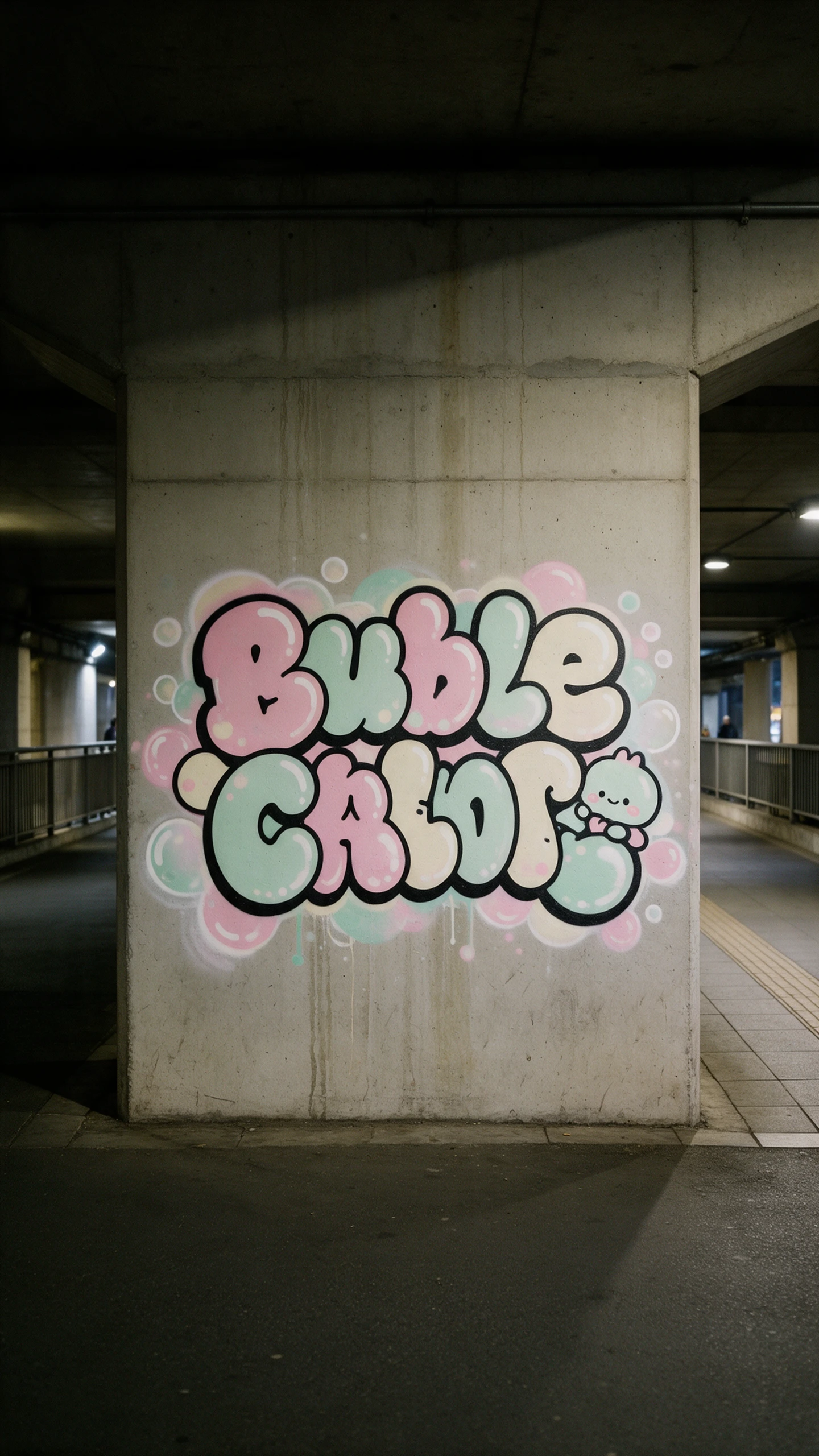
Graffiti Art Generator preview
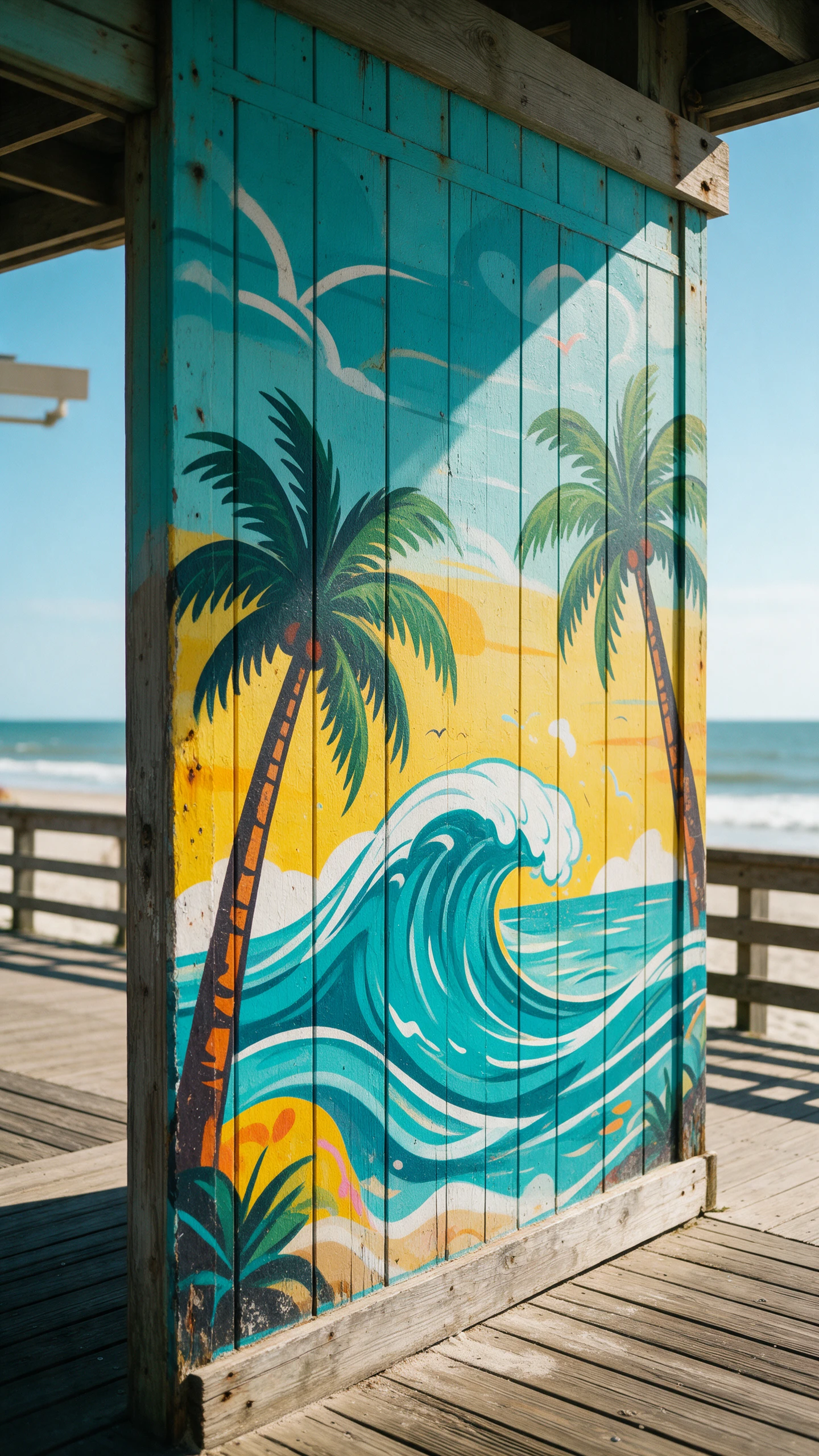
Graffiti art scene preview
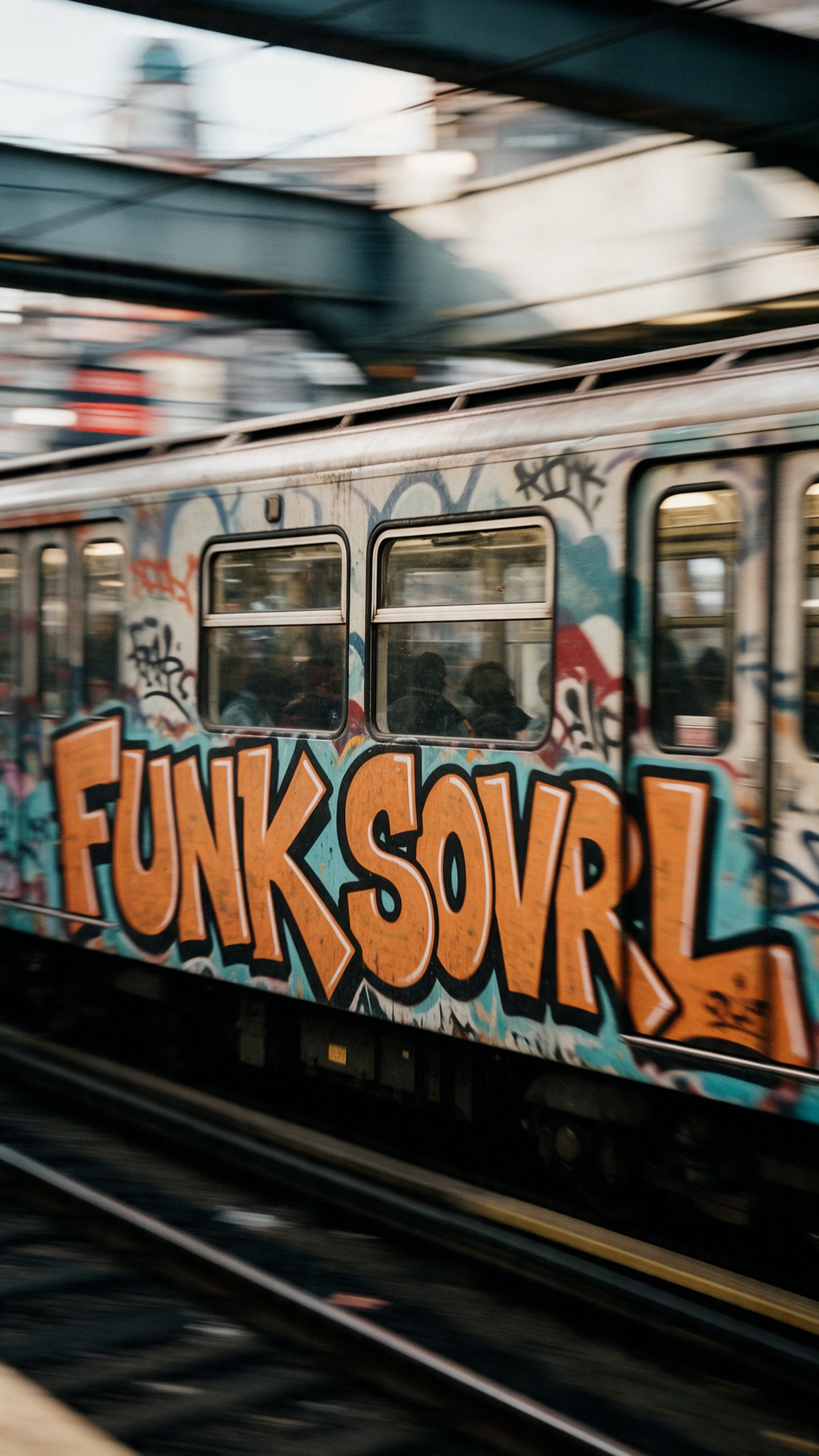
Graffiti Art Generator preview
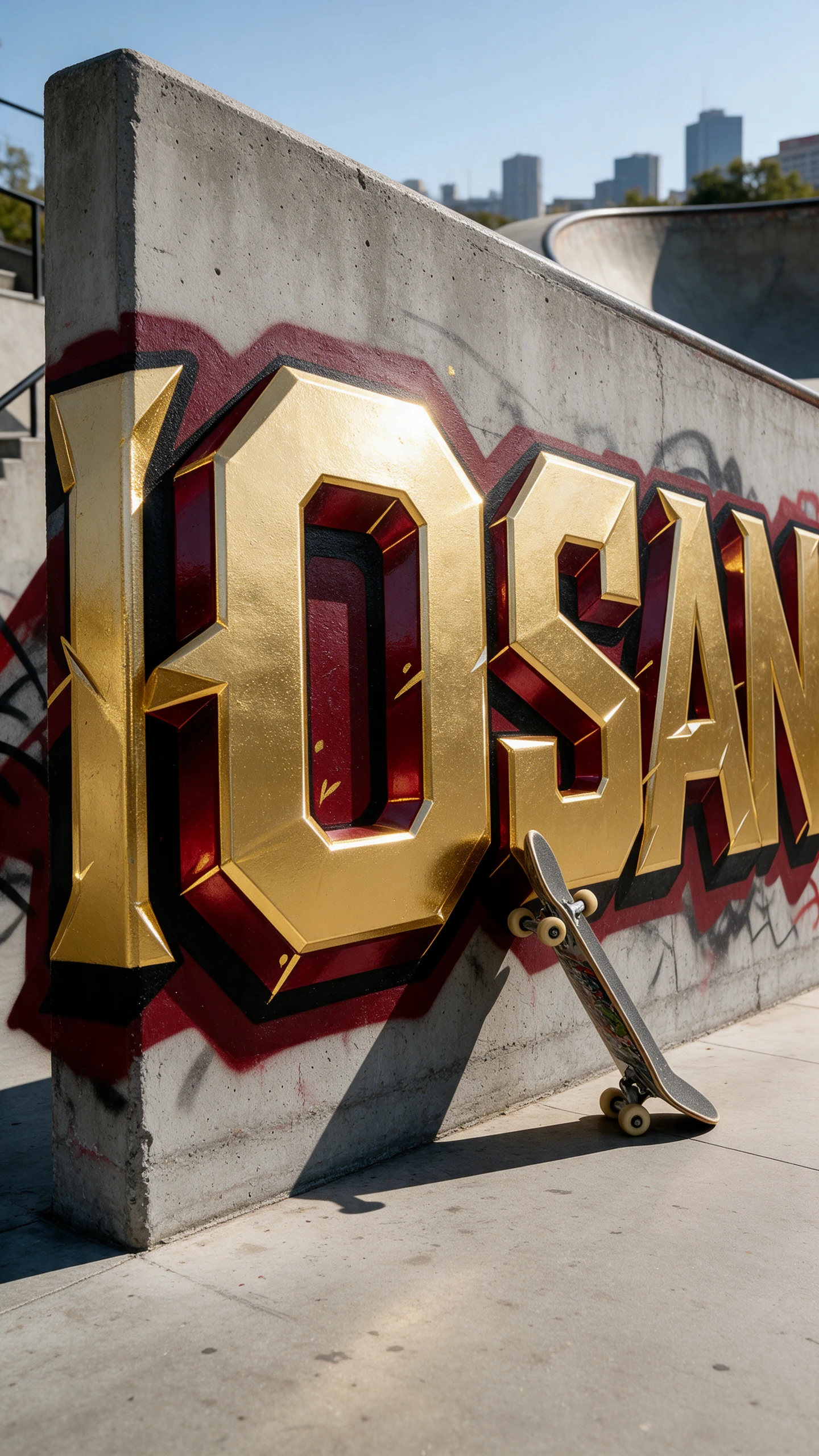
Graffiti art scene preview

Top Features of the Magiclight AI Online Graffiti Generator

Walls are big, and paint is permanent for setting up a graffiti. Magiclight AI's online graffiti generator lets you plan the piece first before committing to anything.
Generate AI Graffiti Now
3D decoration

10 References for a Complete Plan

Mix a wall photo, a blackbook sketch, and a color chart. Up to 10 pictures can guide one graffiti design. Say in the prompt what each one contributes.

3 Style Formats at 20MB Limit

Phone snaps in JPG, PNG, and WEBP can work as reference images in Magiclight AI. Textures in brick or concrete stay in the 20MB upload limit so the reference carries more detail.

6 AI Models for Different Spray Looks

Try GPT Image 2.5 sunburst first and Nano Banana 2 after. The same tag may return to a different finish. Keep the AI model version that fits the wall.

Frame to Video for a Wall Reveal

Pair the empty wall with the finished piece in Frame to Video. The clip moves from the first picture to the second. Show a landlord or a client the change.

Who Can Use the Magiclight AI Graffiti Art Maker
Not every wall piece starts with a spray can. Artists and brands use the Magiclight AI graffiti generator, as do venues and youth programs.
For Street Artists
For Street Artists
Lay a blackbook sketch over a wall photo in Reference Image to Image.
Spell out a tag and it drips within the 500-character prompt.
Pick 16:9 to judge a mural along a long fence.
For Skate Brands
For Skate Brands
Use Text to Image to try hoodie graphics with no source file.
Compare Nano Banana 2 and GPT Image 2.5 Flare for deck art.
Download the winning piece for a store mockup in high-quality.
For Bars, Cafes, and Venues
Upload a 20MB photo of the interior wall you want to change.
Use Frame to Video to show the wall before and after.
Add a dedicated bar reference photo in JPG, PNG or WEBP.
For Youth Art Programs
Add up to 10 student sketches as references for one piece.
Scan notebook pages as JPG, PNG, or WEBP files.
Start a letter idea on the Magiclight iPhone app after class.
Why Choose Magiclight AI
Graffiti Generator
A wall is expensive to redo. The online graffiti generator in Magiclight AI gives you a place to test the plan first.
2 Modes for New Ideas or Real Walls
Pick Text to Image when the idea is still loose. Pick Reference Image to Image once the piece must match a surface. Switch whenever the plan changes.
Big Wall Photos Welcome
Detailed phone shots up to 20MB carry more of the surface into the reference. JPG, PNG, and WEBP are all fine. No resizing is needed before the upload.
9:16 for Doors and Pillars
Narrow spots call for the tall option. Vertical letters can stack up a door or a lamp post. Nothing gets squeezed sideways.
500 Characters to Name Every Detail
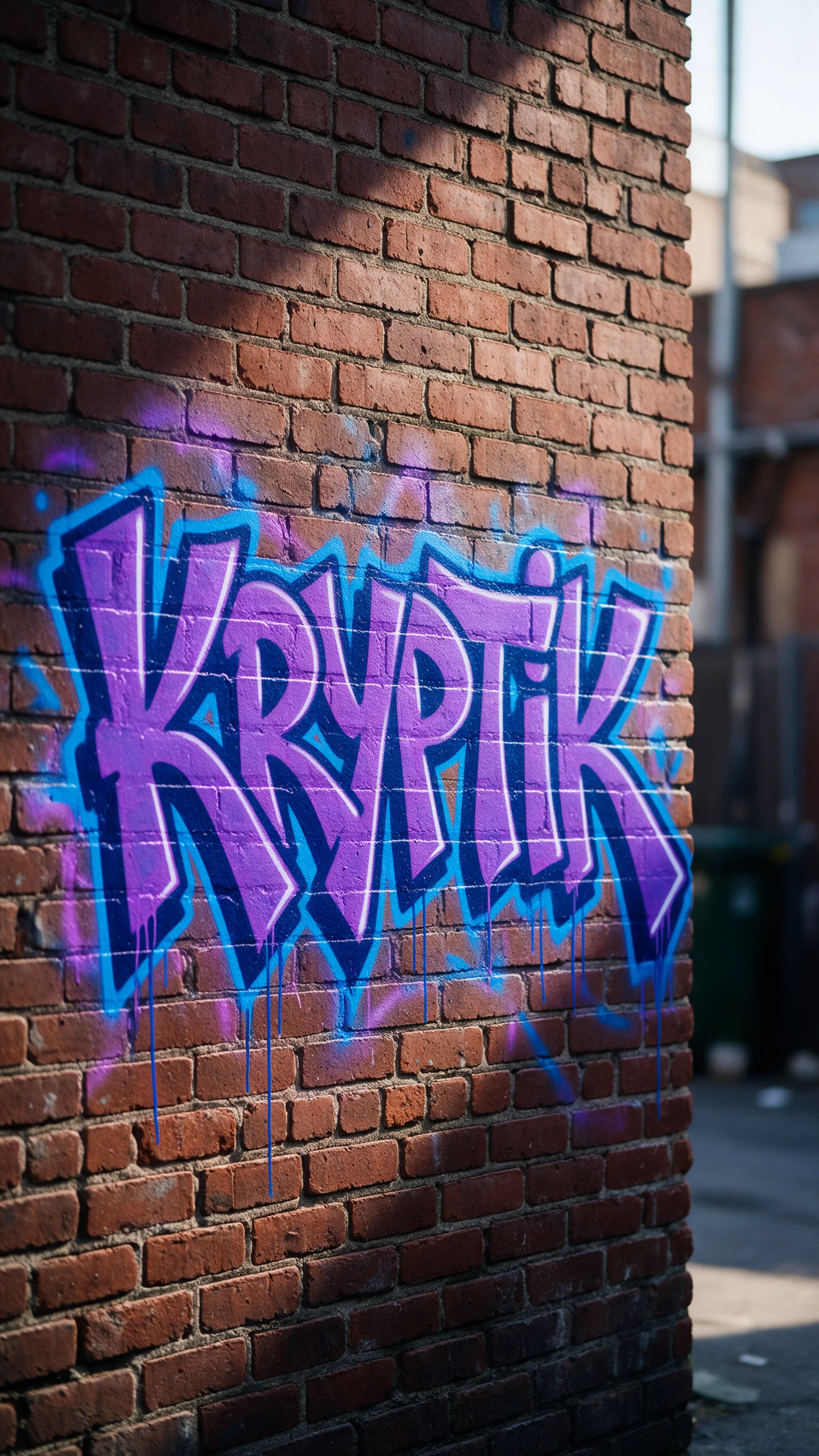
List the tag, the fill, the outline, and the surface. Say red brick or a metal shutter. Specific words give the plan a clearer target.
Image to Video for Moving Letters
Send a finished piece into Image to Video from the same account. The letters gain motion on the wall. Share the clip online.
iPhone App for Street-Side Ideas
Start a piece on the Magiclight iPhone app when a wall catches your eye. Refine it later on a larger screen. Jot the idea down on the spot.

How to Make Online Graffiti with Magiclight AI

Your piece moves from idea to saved image in 3 steps. A specific surface in step 2 gives the Magiclight AI online graffiti generator more to follow.

1.

Step 1. Choose a Mode in the Image Tab

Take a clear picture of the wall or pick a sketch from your blackbook. Open Image in the Toolbox and choose Reference Image to Image. Select Text to Image instead if you have no photo.

2.

Step 2. Describe the Letters and Colors

Name the tag, the style, the fill, and the effects in up to 500 characters. State the surface, such as red brick or a rolled-down shutter.

3.

Step 3. Pick the Frame and Create

Choose 16:9 for a long wall or 9:16 for a pillar. Select an AI image model and click Create Image. Download the piece you like most.

FAQs on Graffiti Art Generator

Can I preview graffiti on my own wall?

Yes, upload a clear photo of the wall in Reference Image to Image and describe the piece. The online graffiti generator in Magiclight AI uses the picture as a guide.

Which graffiti styles can I create?

Name the look in the prompt, such as wildstyle, bubble letters, or throw-ups. Block letters and stencil art work the same way. Try 2 models if the first style is off.

Can I add my name or crew tag?

Yes, type the tag exactly as it should read. Letter shapes vary between models, so check the spelling in each result. Keep the crispest version.

Is it legal to paint the design afterward?

Paint only on legal walls or with the property owner’s permission. This tool is for planning. Local rules on street art still apply.

Can I animate my graffiti piece?

Yes, send the finished piece into Image to Video or Frame to Video in the same account. The clip adds motion to the letters or reveals the piece over the wall photo. Share it as a post or a pitch.

Is the online graffiti generator free to try?

Yes, a new account comes with starter credits for early tests. Spend them on one tag and compare the results. Pay only if you want more pieces or commercial rights.

Create Custom Graffiti Art with Magiclight AI

Take a photo of the wall and the tag you have in mind. Magiclight AI's online graffiti generator gives you a plan to test before you paint.