10MB Uploads for Your Own Pictures
Your wallpaper can start with a photo you took or artwork you made. You can upload a JPG, PNG, or JPEG picture to Magiclight AI, as long as the file is no larger than 10MB.
Create Now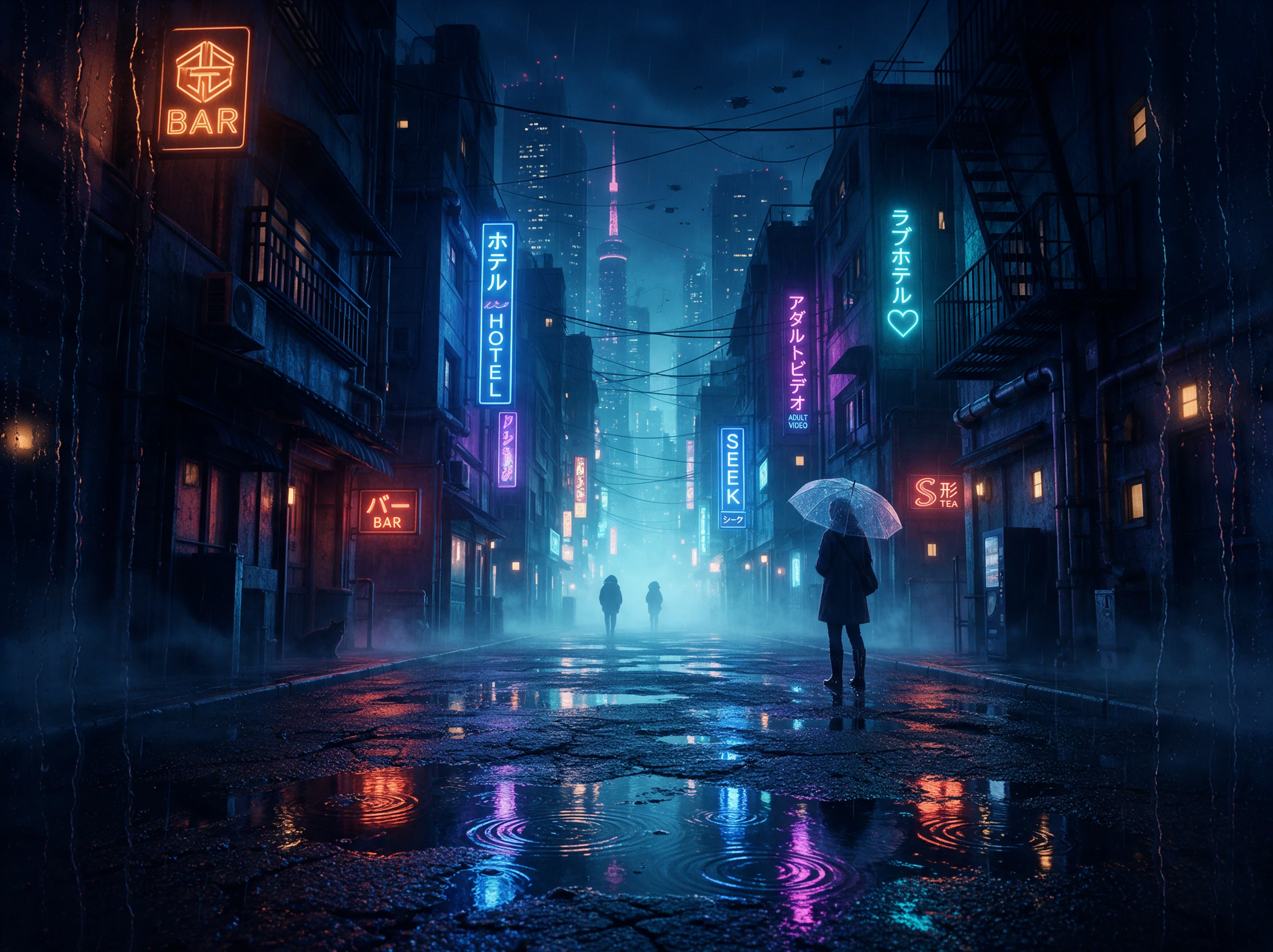

Turn your favorite photo into a moving wallpaper with Magiclight AI. Describe the motion you want and watch your image come to life on your phone screen. No editing skills needed.
Create a Live Wallpaper For Free










Choose a picture you would enjoy seeing every day and decide which part should move. The Magiclight AI live wallpaper maker creates a video you can use as your screen background.
Your wallpaper can start with a photo you took or artwork you made. You can upload a JPG, PNG, or JPEG picture to Magiclight AI, as long as the file is no larger than 10MB.
Create NowMagiclight AI offers 20 video models for your wallpaper. Try Seedance, Kling or models from the Veo family to see which one gives your picture the exact movement you had in mind.
Create Characters
A longer video gives your wallpaper more time before it plays again. Magiclight AI lets you create a 30 second clip, which you can then use with wallpaper software on your device.
Generate a Video
A rainy city street might need puddles that reflect passing lights. Magiclight AI gives you 1500 characters to describe the scene and how you want it to look on screen.
Start Creating


Create your wallpaper in 4 steps with the Magiclight AI live wallpaper maker. Add a photo, explain the movement, select your video settings, then review the result before saving.
Select the picture you want as your wallpaper and upload it to Magiclight AI. A clear image works best, especially if the main subject is easy to see without having to zoom in.
Use the 1500-character video description box to explain the movement you want. For a rainy window, mention drops sliding down the glass and ask for the camera to remain still.
Check the 20 AI video models and choose one for your picture. Set 16:9 for a computer screen or 9:16 for a phone, then select the video length before generating your clip.
Play the finished clip and check how the movement looks when it starts again. If the change is too noticeable, adjust your description and try again before downloading the file.
Graphic Designer
I used a rainy street photo for a client's desktop preview. The moving reflections looked good, although I had to try another version before the lights felt natural.
Twitch Streamer
Our waiting screen needed something quieter than gameplay footage. The moving background worked well in OBS, and viewers could still read the stream schedule clearly.
Digital Artist
A sketch of my little bookshop looked lovely with rain outside the windows. I kept the movement subtle because the first attempt distracted from the details in my drawing.
Content Creator
Most of my videos are for social posts, so this was a fun change. I turned a beach photo into a phone background and sent the result to a friend who loved that place.
The Magiclight AI live wallpaper maker creates moving videos from your photos. For an iPhone Lock Screen, convert the downloaded video into a Live Photo using a separate app.
Yes, but you need a Live Photo converter for the video first. On supported iPhones, select the converted file as your Lock Screen wallpaper and check whether it plays correctly.
Moving backgrounds generally use more power than still images. On a laptop, Lively Wallpaper can pause playback on battery power to help reduce unnecessary battery use.
A single clip may look cropped on one device. For better framing, create a 16:9 version for your computer and a separate 9:16 version for your phone using Magiclight AI.
Scenes with steady movement, such as rain on a window or clouds passing overhead, are good choices. Check faces and fine details carefully before keeping the final video.
A short clip works well for simple movements like falling rain. Magiclight AI supports 30 seconds of video, giving you more time for scenes with changing details.



The photo you love deserves more than a still background. Add a touch of movement with the Magiclight AI live wallpaper maker.