Free AI video no longer automatically means unusable results. Many free tools can now produce clips good enough to publish, so output quality is only part of the decision. What separates them now is what each free tier permits. Clip length, resolution, watermarks and commercial rights all vary sharply, so the best free AI video generator for one project may be unusable for another.
Part 1. How to Choose the Best Free AI Video Generator
Free plans can look similar until you start generating. Use these 5 factors to find the best free AI video generator for your needs:
- Free Plan Limits: Check whether credits refresh daily, monthly, or only once. A one-time allowance suits testing, while recurring credits are better for regular use.
- Text-to-Video Options: Some tools work from prompts, others need reference images, and some accept full scripts. Choose based on the material you already have.
- Video Quality and Styles: Free tiers often limit resolution, so compare visual consistency and available styles alongside output quality.
- Video Length and Customization: Check how long each generated clip can be and whether you can adjust scenes, motion, aspect ratio, or other details.
- Voiceover, Captions, and Editing: Built-in narration, subtitles, and editing tools can reduce the extra work needed after generation.
Note: Check commercial usage rights before choosing a tool. Some free plans allow personal use only, making their videos unsuitable for client or business projects.
Part 2. 6 Best Free AI Video Generators in 2026
The best free AI video generators offer different strengths, from cinematic clips to avatar and script-based videos. Here are 6 options worth considering in 2026 and what each free plan offers:
1. MagicLight AI
Best For: Creators turning written scripts into complete narrative video.
MagicLight AI now combines story planning and video generation within one workspace for a more connected workflow. Its GPT-6 Astra story model can develop initial ideas into scripts, characters, scenes, and visual directions. Creators can then choose video models such as Seedance 2.5 and Veo 3.1 for professional individual shots.
It also supports Image-to-Video, letting creators animate still images instead of always starting with written prompts. Storyboards, reusable characters, voice tools, music, and subtitles help maintain consistency throughout longer video projects. Videos can reach around 50 minutes, giving creators considerably more room than typical short-clip generators provide.
Key Features
- Story to Video: A 12,000-character script can become a complete video, with 14 story models shaping structure, scenes, and pacing.
- AI Character Creation: A prompt of up to 1,000 characters can create detailed characters that remain available for reuse across projects.
- Image to Video: Upload a still image and animate it with motion, camera movement, and scene instructions through a 1500-characters text prompt.
- Voiceover and Subtitles: Choose from 37 voices, clone recurring voices, and add captions using 16 preset subtitle styles.
- Visual Styles: Access 52 visual styles to customize the video’s overall look, with diverse aesthetics suited to storytelling, animation, and other creative projects.
Pros
- Runtime reaches far beyond any clip generator listed here.
- Offers a complete storyboard to use 50+ poses for changing the video frame by frame.
- Provides built-in 40 background music options to enhance video outlook.
Con
- Doesn’t offer output resolution beyond 1080p.
2. Google Veo 3
Best For: Short cinematic shots that need sound generated with them.
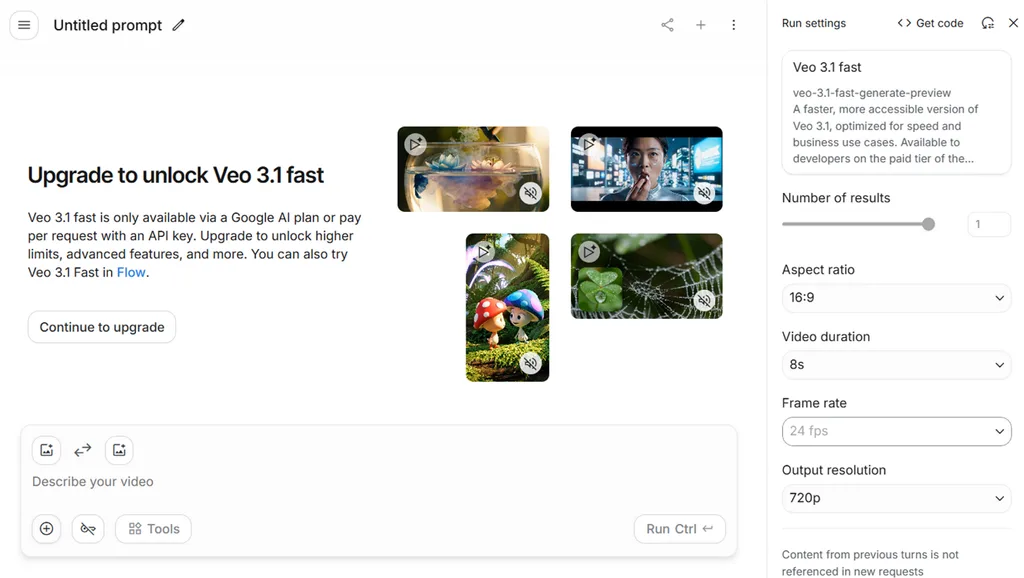
Anyone judging free output on quality alone will quickly land on Google Veo 3. Free Veo access may appear through Gemini offers, while the Gemini API itself provides no free tier for Veo video generation today.
Key Features
- Native audio is generated alongside the picture, covering dialogue, ambiance, and effects.
- Free output reaches 720p to 1080p depending on the access path used.
- Every clip carries an invisible SynthID provenance tag alongside a light visible mark.
Pros
- Output quality is widely rated the strongest available free.
- Rate limiting refreshes rather than exhausting a one-time allowance.
Cons
- Clips run around 8 seconds before extension is needed.
- Free usage sits under Gemini terms rather than a clear commercial license.
3. Adobe Firefly
Best For: Brands needing documented provenance on generated assets.
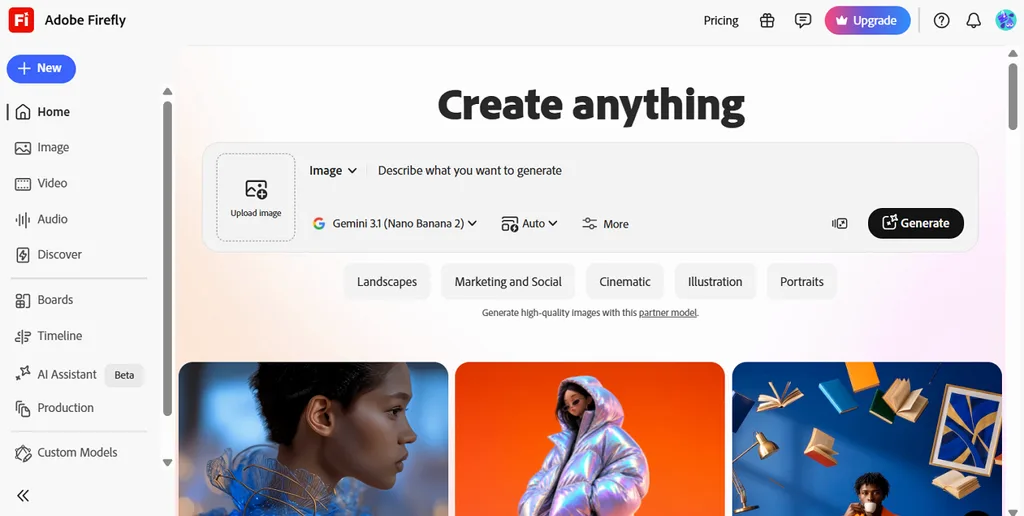
Teams looking for the best free AI video generator with commercially safer training data may consider Adobe Firefly. Its models use licensed Adobe Stock and public-domain content, while Content Credentials provide information about how each output was created.
Key Features
- A monthly generative credit allowance covers image, video, and audio generation.
- Partner models from Google, OpenAI, Runway and Luma run under the same login.
- Content Credentials label each file, which suits regulated and enterprise work.
Pros
- Adobe carries a training-data claim no rival matches directly.
- One account reaches several third-party models without separate subscriptions.
Cons
- Free credits run out quickly once video generation begins.
- Free output carries watermarks and Adobe branding.
4. Synthesia
Best For: Creating onboarding, training, and internal communication videos at scale.
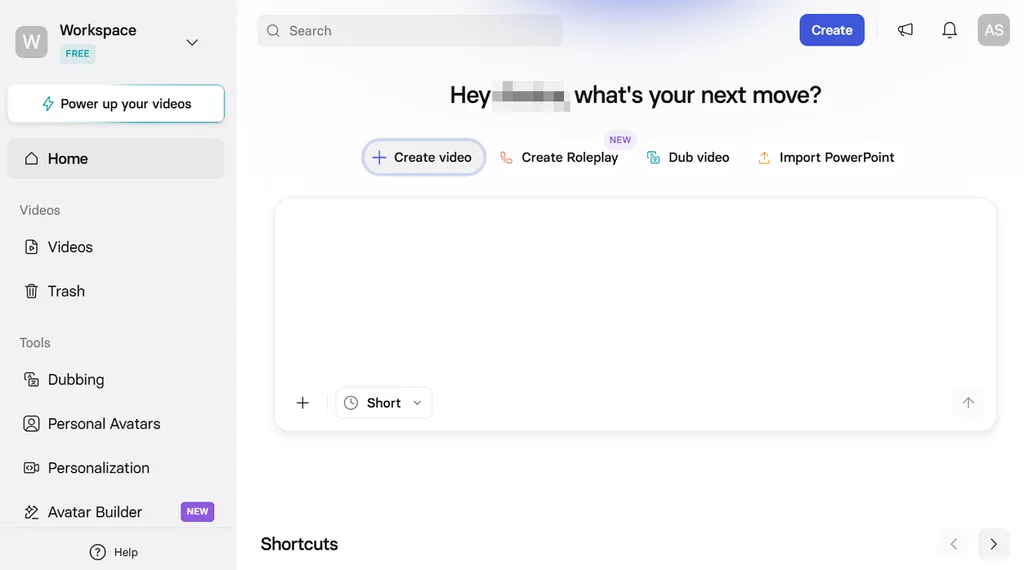
Synthesia focuses on presenter-led videos, making it particularly useful for internal communications, training, and onboarding. Add your script, select an AI avatar, and generate a polished presenter video without cameras, actors, or traditional filming.
Key Features
- The free plan provides roughly 10 minutes of finished video each month.
- Paid tiers open more than 90 avatars across over 160 languages.
- Templates and an AI script assistant sit alongside the avatar library.
Pros
- Avatar delivery reads naturally enough for external-facing use.
- No camera, studio, or presenter is required at any stage.
Cons
- 10 monthly minutes exhaust quickly on anything beyond a test.
- Presenter-focused videos limit options for cinematic or creative storytelling.
5. Vidu AI
Best For: Anime and character-driven animation across multiple shots.
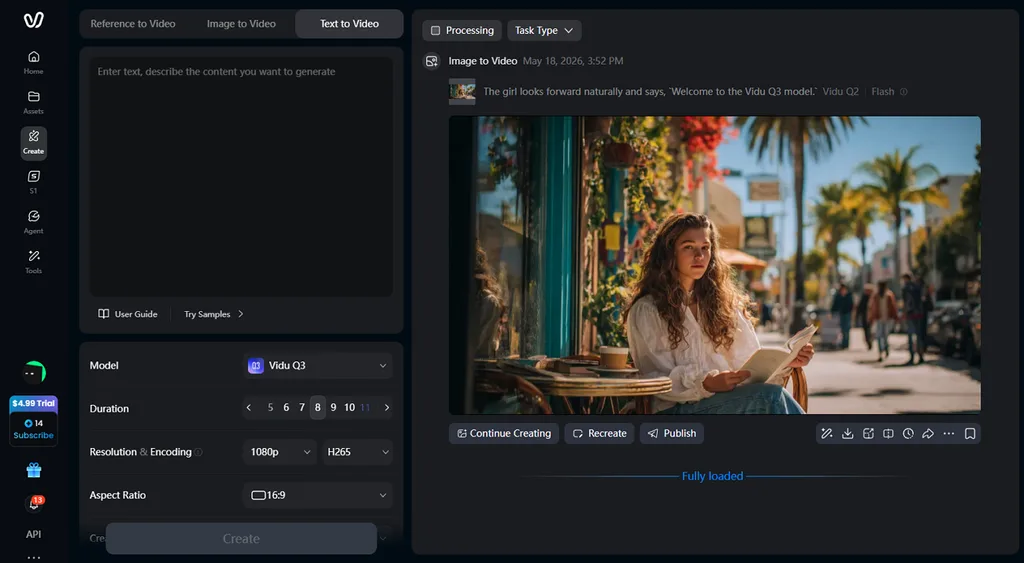
Vidu AI stands out as a best free AI video generator option for creators working with recurring characters. Its multi-reference generation keeps character appearance and visual details consistent while changing actions, settings, and camera angles across different shots.
Key Features
- The Q3 model generates synchronized audio and video in one 16-second shot.
- Off-peak generation is unlimited on the free tier, alongside bonus starter credits.
- Reference-to-video, image-to-video, and text-to-video all work as entry points.
Pros
- 16 seconds with audio exceeds every other free clip here.
- Unlimited off-peak use makes sustained experimenting genuinely free.
Cons
- Generation results can vary, requiring retries to achieve consistent motion.
- Advanced controls may feel limited for precise scene-level adjustments.
6. Luma AI
Best For: Turning existing photographs into short cinematic clips.
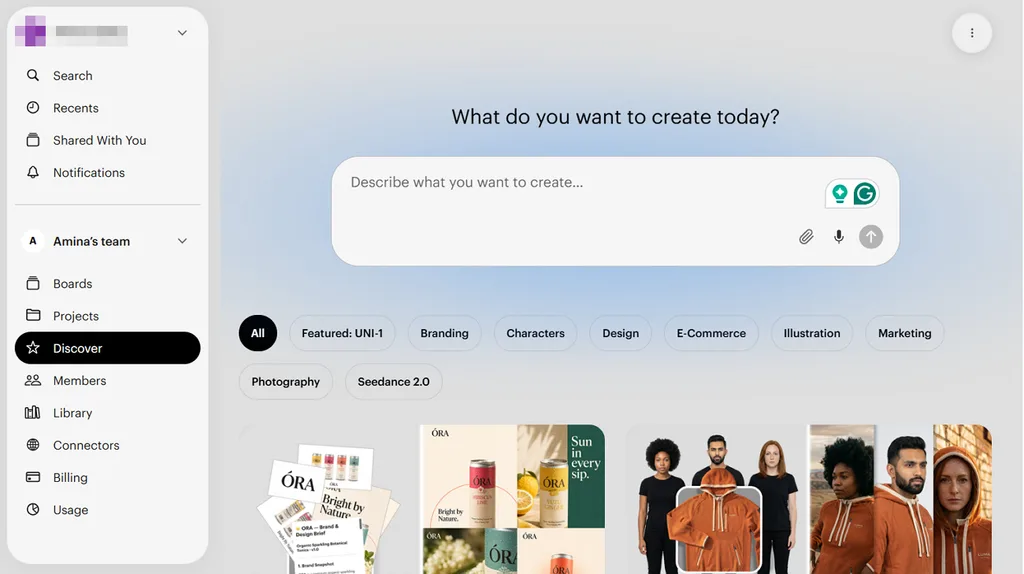
Creators starting with a still image can turn it into a dynamic scene without filming new footage. Luma adds natural subject movement, cinematic camera motion, and realistic physics while preserving the image’s original visual character.
Key Features
- Image-to-video generation drives the platform rather than sitting beside text prompts.
- The iOS plan carries 250 monthly credits, which is its clearest free route.
- Camera motion controls produce cinematic movement from a static source.
Pros
- Motion realism on animated stills leads this comparison group.
- Mobile credits refresh monthly rather than expiring after one batch.
Cons
- Free draft output is watermarked and licensed for personal use only.
- Clips run around 5 seconds before a paid plan is needed.
Compare the 6 Best Free AI Video Generators
Choosing the free AI video generator becomes easier when their limitations appear side by side. Use the table below to compare free access, video length, output quality, and commercial-use options:
| Tool | Free Access | Clip Length | Resolution | Commercial Use | Best For |
| MagicLight AI | Free plan, no card | Up to 50 minutes | 720p and 1080p | Paid plans | Script-led narrative video |
| Google Veo 3 | Rate-limited via Gemini | Around 8 seconds | 720p to 1080p | Under Gemini terms | Cinematic single shots |
| Adobe Firefly | Monthly credit allowance | Around 5 seconds | Limited on free | Generally allowed | Documented asset provenance |
| Synthesia | About 10 minutes monthly | Within the allowance | 720p | Paid plans | Avatar-led training video |
| Vidu AI | Credits plus off-peak use | Up to 16 seconds | 720p | Not permitted | Character-consistent animation |
| Luma AI | 250 monthly credits on iOS | Around 5 seconds | Draft quality | Not permitted | Animating a still image |
Part 3. Why Magiclight AI Is a Strong Choice for Free AI Video Creation
MagicLight AI stands out by handling more of the video creation process within one workflow. Instead of producing isolated clips, it can turn longer scripts into structured scenes with consistent characters and visuals. Voiceovers, subtitles, and story controls are also built in, reducing the editing needed before a video is ready to share.
How to Make a Video for Free Using MagicLight AI
Creating a video with a free AI video generator starts with choosing your content and setting the visual direction. Follow the 6 steps below to build, review, customize, and export your first video without separate editing software:
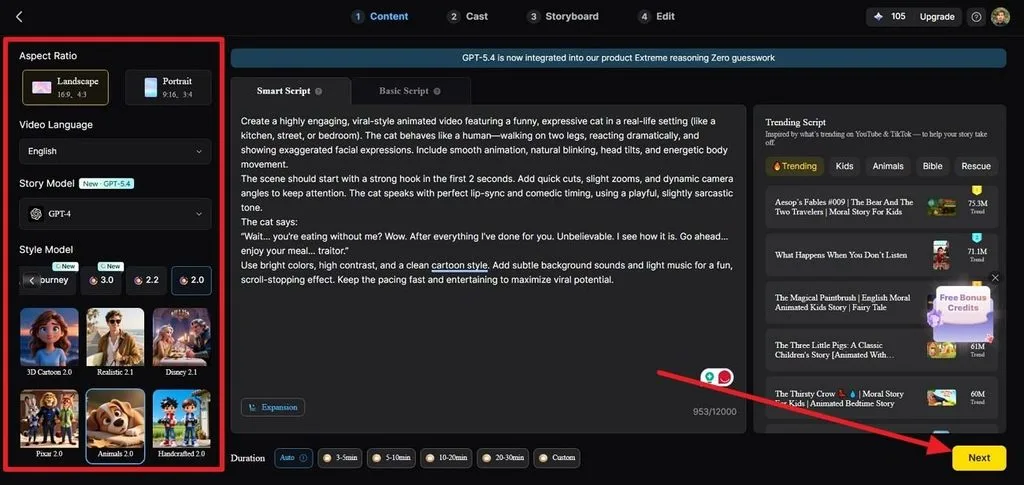
Step 1. Add Your Script and Video Settings
After accessing the Story to Video feature, select the Smart Script section and paste your script into the text box. Choose the Aspect Ratio, Video Language, Story Model, Style Model, and preferred Duration. Once the setup matches your video project, click Next.
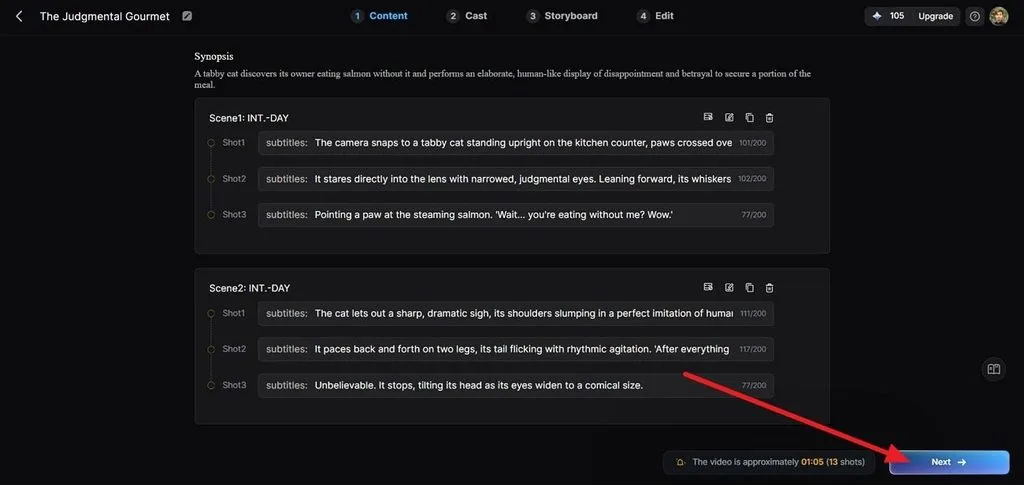
Step 2. Check the Generated Story Structure
Review how MagicLight AI has organized your script into a Synopsis, Scenes, and individual Shots. Read through the shot descriptions and revise anything that does not match your intended scene. Click Next after making the changes.
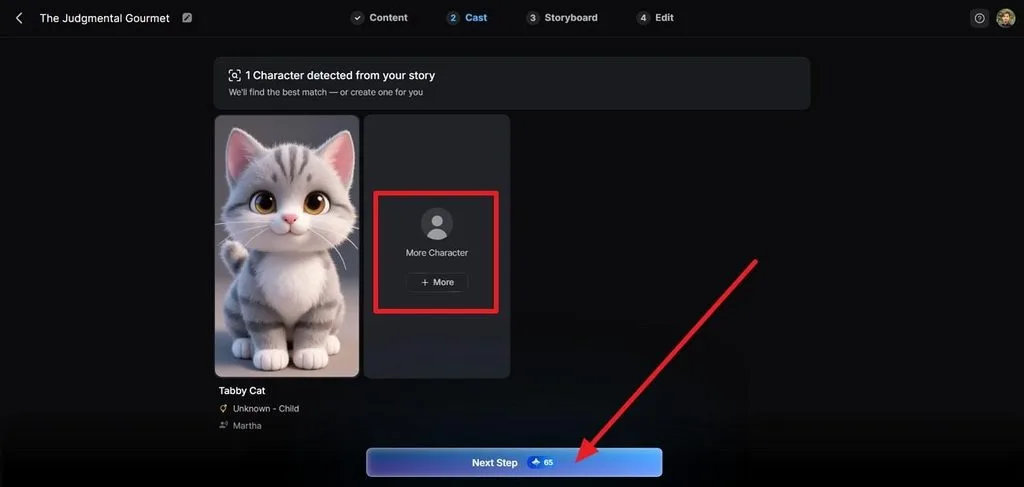
Step 3. Set Up the Character Cast
Move to the Cast section to see the characters created from your story. You can keep an existing character, swap it for another option, or select + More to expand the cast. Click Next Step when everyone looks right.
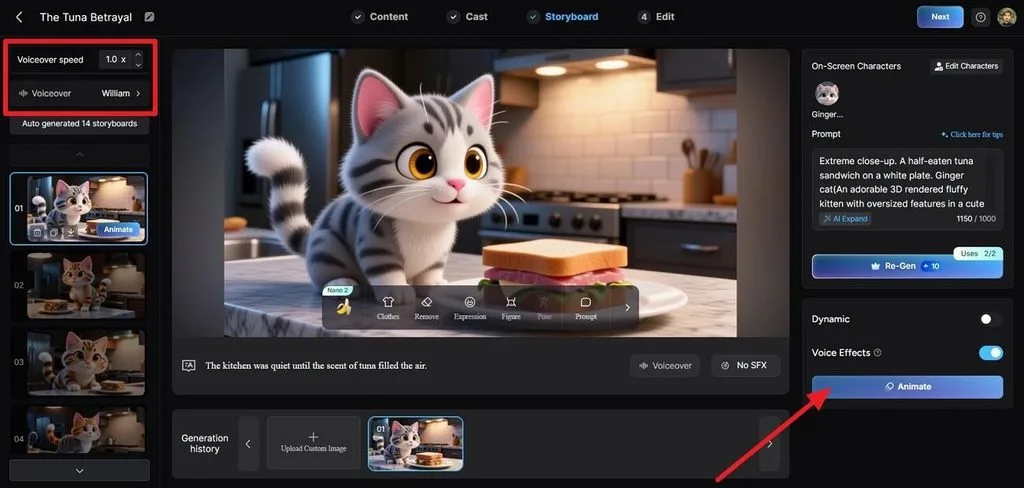
Step 4. Fine-Tune the Storyboard
Inside Storyboard, choose a frame from the panel on the left. Refine its Prompt, Expression, Figure, Pose, and other available visual settings. Configure the Voiceover, then select Animate to bring the prepared frames to life.
Step 5. Style the Subtitles and Soundtrack
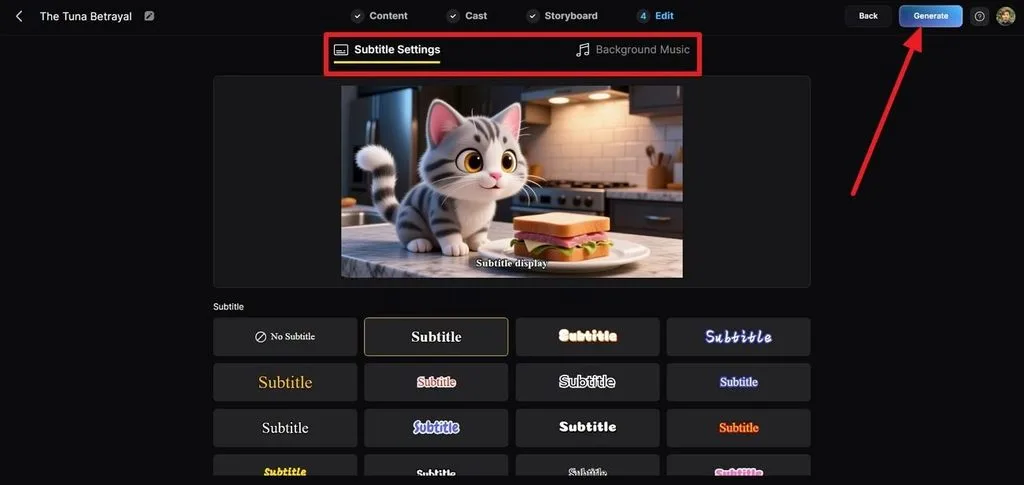
Click Next to continue into Edit, then open Subtitle Settings and select a suitable caption style. Move to Background Music to set the soundtrack for your video. When both are ready, click Generate.
Step 6. Review and Save the Video
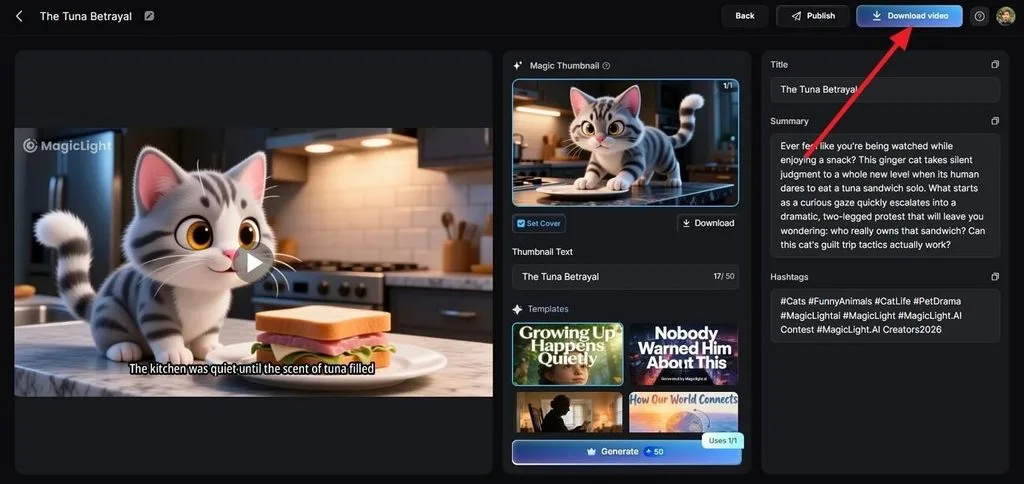
Watch the generated video before publishing it. You can also update its Magic Thumbnail, Title, Summary, and Hashtags from this screen. Select Publish to share the project or Download Video to save a copy.
Conclusion
Each tool here wins on something different from the rest. Veo 3 takes output quality, Vidu takes clip length and off-peak generosity, Firefly takes provenance, and Luma takes animated stills. What holds most free AI video generators back from real production work is length, while MagicLight AI offers the clearest long-form advantage.
FAQs About the Best Free AI Video Generators
1. What is the best free AI video generator in 2026?
MagicLight AI is the strongest option for complete videos, since its free plan produces a whole project rather than a short clip. Veo 3 produces better individual shots but caps around 8 seconds per generation.
2. Can I generate a video from text for free?
Yes, every tool listed here accepts a text prompt without payment. The difference lies in how much you get, with allowances running from roughly three minutes monthly to unlimited off-peak generation.
3. How long can a free AI video generator make videos?
Most clips from a free AI video generator run between 5 and 16 seconds. Vidu leads that group at 16 seconds with audio, while script-led platforms such as MagicLight AI produce projects of 50 minutes.
4. Can I use AI-generated videos for YouTube and social media?
Check the license before publishing, since several free tiers permit personal use only. MagicLight AI grants commercial rights on paid plans, which is the safer route for monetized channels and client work.
5. What can I create with a free AI video generator?
Short social clips, product shots, animated stills, and avatar explainers all sit within reach of a free plan. Longer narrative work needs a script-led platform, since clip generators stop well short of a finished piece.

![How to Make a Reaction Video with AI Tool [Guide 2026]](https://magiclight.ai/wp-2/wp-content/uploads/ai-faceless-reaction-video-guide-300x169.webp)