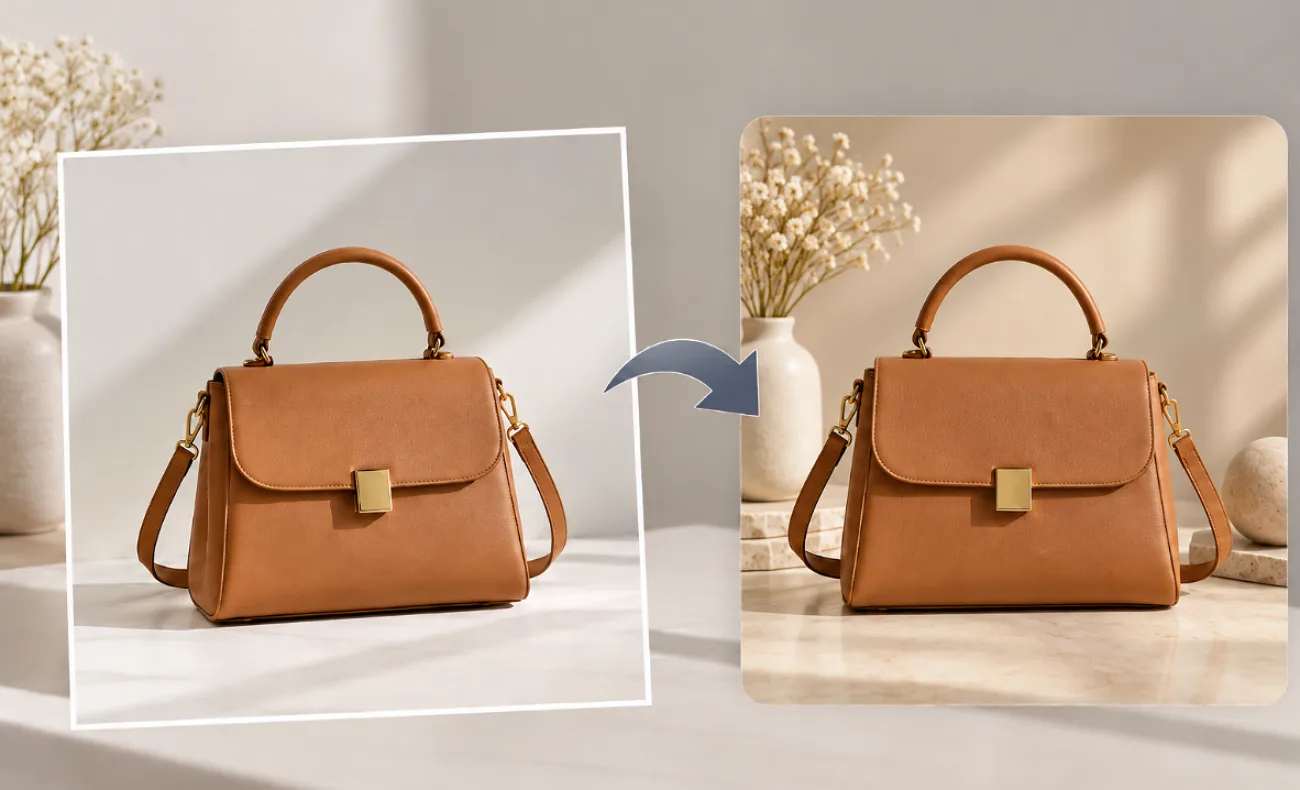
A white background works well for product shots, scanned artwork, portraits, and simple graphics until the image needs a more flexible design. Colored pages, social posts, ads, presentations, and product listings often require the subject to appear without the original white backdrop. Knowing how to remove the white background from image files makes those visuals easier to reuse across different layouts and creative projects.
AI tools can simplify the process by identifying the subject and reducing the need for manual selection around complex edges. Once separated, the subject can stay transparent, appear in another setting, or become the starting point for an AI generated scene or video.
Part 1. How to Remove White Background From Image
A white background may look easy to remove, but light-colored details, soft edges, and shadows can make clean separation more difficult. These 3 problems commonly appear during background removal:
- Soft Shadows: Light gray shadows may be partially removed or retained with the subject, creating uneven edges around the object.
- White-on-White Details: White clothing, labels, packaging, or other light areas can be difficult to distinguish from a similarly colored background.
- Pale Halos: Light pixels around the subject can remain visible as a thin outline when the cutout is placed on a darker background.
Different methods provide different levels of control, so the best option depends on the intended result. A transparent cutout works well for logos and layered designs, while background replacement is useful when the image needs a finished setting:
| Method | Best For | Result |
| Windows Paint, Mac Finder, iPhone Photos | Quick one-off cutouts | Subject on a transparent background |
| Photoshop | Hair, glass, and other fine edges | Editable mask with manual control |
| MagicLight AI Image Tab | Product scenes, ads, and social visuals | New image with the background replaced |
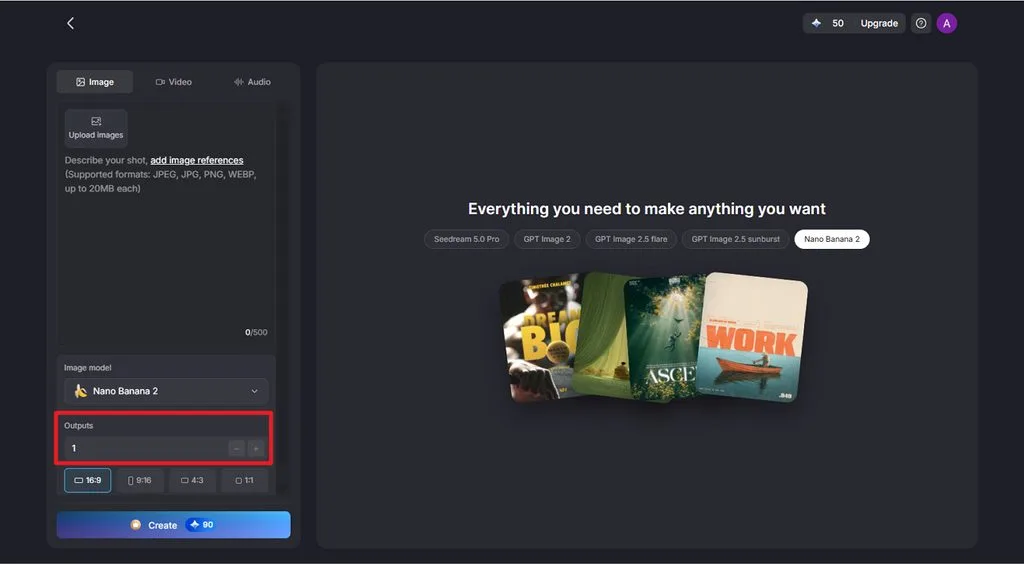
MagicLight AI gives background replacement more room than a basic cutout tool. Its Image workspace accepts references up to 20MB, provides 500 characters for scene instructions, and offers 5 image models. Multiple outputs and aspect ratios also make one source image easier to adapt for product pages, ads, and social content.
For more guided editing, MagicLight Agent can interpret the request and help turn the original image into a new visual without manual selection.
Key Features of MagicLight AI
- Image Upload Support: Upload reference images up to 20MB, providing the model with a source subject while you change or replace the surrounding background.
- Multiple Image References: Add several reference images to guide the result, such as a product photo alongside a desired surface, room, or visual setting.
- Detailed Background Prompts: Use up to 500 characters to describe the replacement background, including its color, setting, surface, lighting, and other visual details.
- Image Model Selection: Choose from 5 Image models such as Nano Banana 2, GPT Image 2, and Seedream 5.0 Pro based on the image-editing task and desired result.
- Batch Outputs and Ratios: Generate several versions per run, and use square, 4:3, 16:9, or 9:16 frames for listings, banners, and Stories.
Guide to Remove White Background From Image With MagicLight AI
MagicLight AI uses a prompt-based workflow to replace a white backdrop without manually tracing around the subject. For how to remove white background from image files from start to finish, follow the steps below:
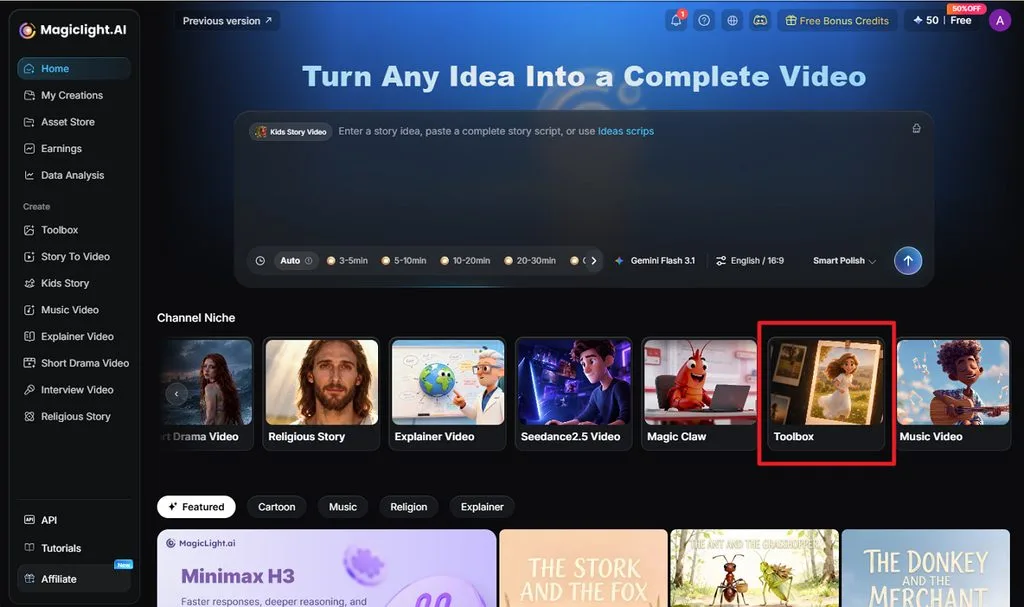
Step 1. Access the Toolbox
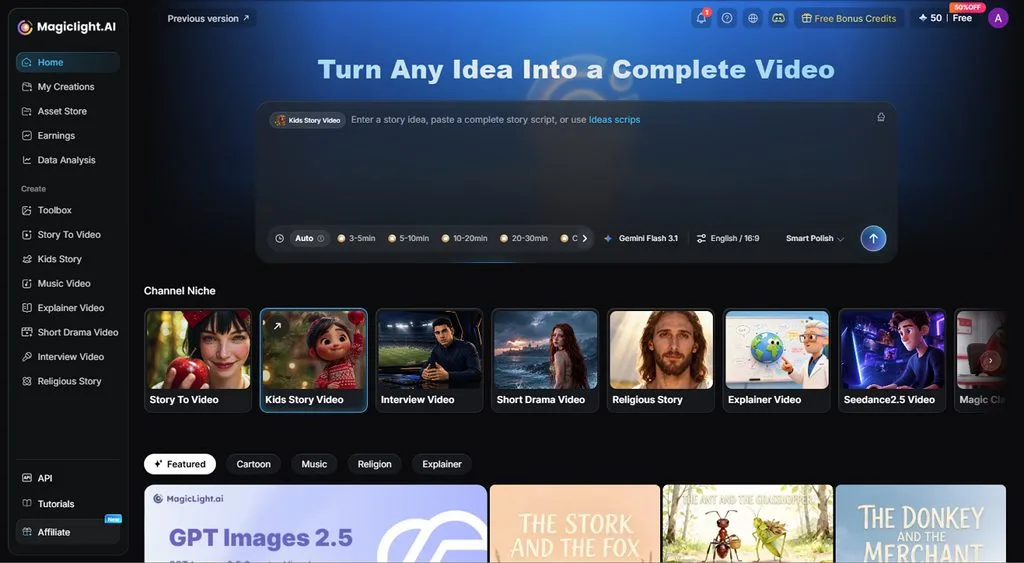
From the MagicLight AI home page, select Toolbox under the Channel Niche section to open its image, video, and audio creation tools.
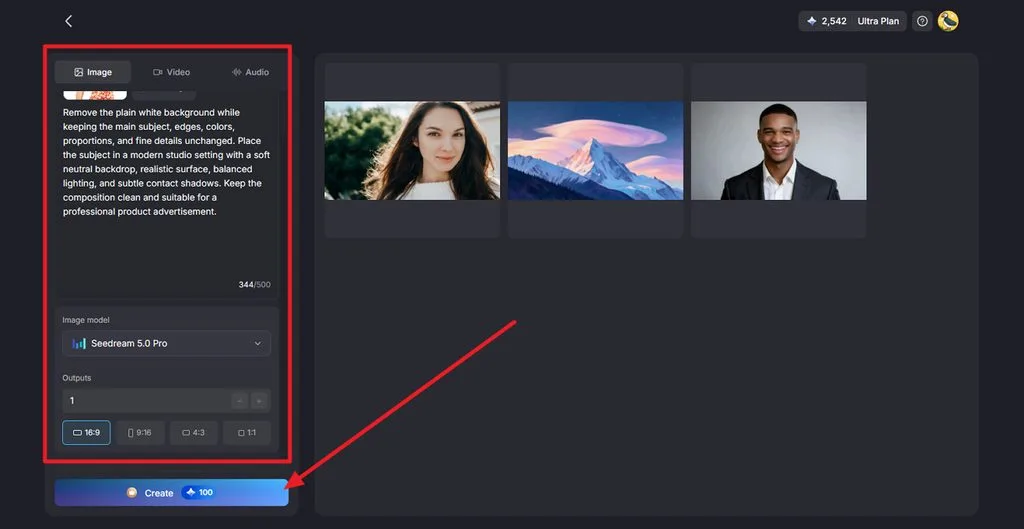
Step 2. Upload, Prompt, and Generate
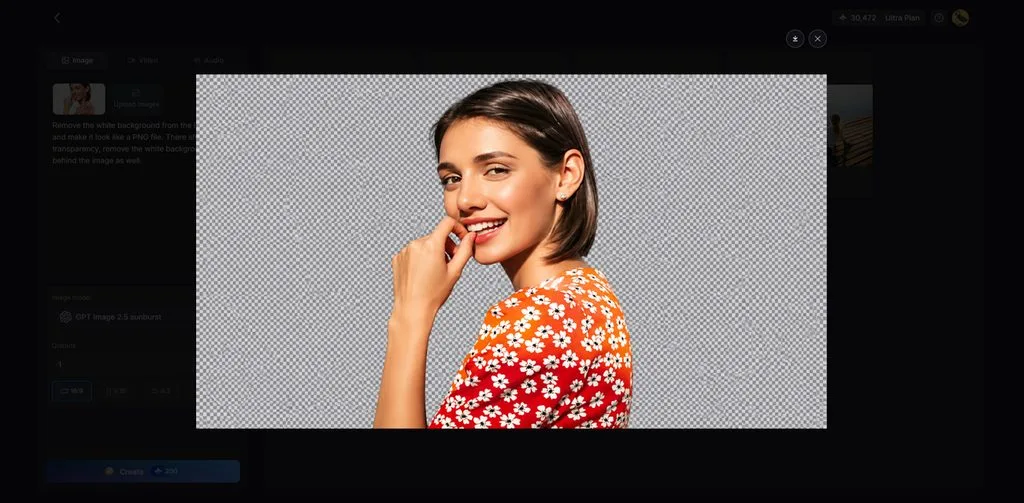
Open the Image tab and click Upload Images to add the picture with the white background. Write a prompt describing the background removal, choose an Image Model such as Seedream 5.0 Pro, and click Create to generate the edited image.
Step 3. Review and Download
Open the generated result and inspect the subject and replacement background. Once you are satisfied with the image, press the Download icon in the upper-right corner to save it.
Part 2. Why Use MagicLight AI for Background-Free Visuals
Removing a white background is often only the starting point. MagicLight AI can reuse the edited visual in other workflows. The subject can become a character, enter a new scene, or start a video.
- Multiple Input Options: Add images, videos, and audio as references when supported by the selected workflow, giving the model more material to guide the generated scene or video.
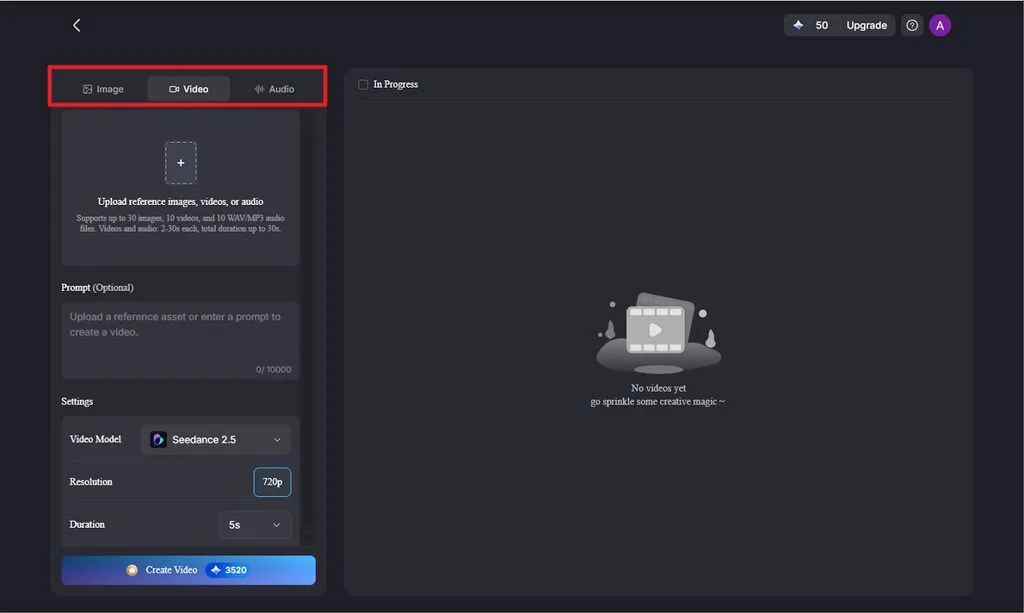
- Image Model Selection: Choose from 5 image models, including Seedream 5.0 Pro, Nano Banana 2, and 3 GPT Image options, for different generation needs.

- Flexible Output Settings: Adjust available output options such as the number of generations, aspect ratio, duration, and resolution. The exact settings and export quality vary by the selected model and workflow.
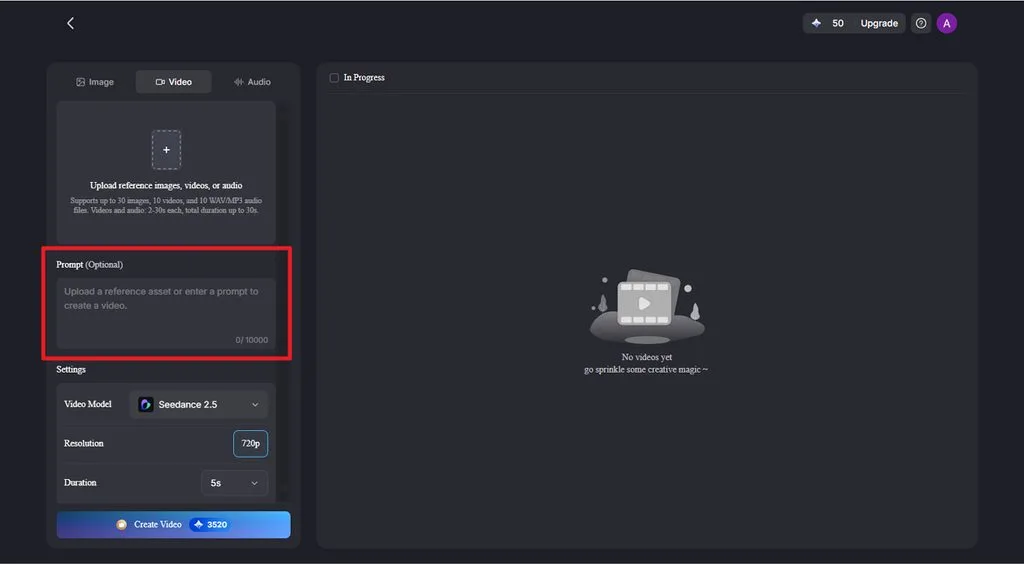
- Detailed Image-to-Video Prompts: In the Image to Video interface, Seedance 2.5 supports prompts up to 10,000 characters, providing room to describe subject movement and other visual instructions.
- Broader Creative Workflows: Move beyond a background-free still with tools for character creation. Image to Video, Story to Video, and MagicLight Agent, allowing the prepared subject to become part of a character, animated scene, or larger video project.
Conclusion
Learning how to remove a white background from image files starts with separating the subject cleanly while preserving fine details, shadows, and edges. AI can simplify the process through image references and prompts, while additional tools can extend the result into new scenes or videos. MagicLight AI is a practical option for handling these workflows in one platform.
Frequently Asked Questions on How to Remove White Background From Image
1. How can I remove a white background from an image?
An AI background remover can automatically isolate the subject and export it with transparency. MagicLight AI takes a different approach by letting you replace the original white background with a newly described scene or a transparent image.
2. Can AI remove a white background automatically?
AI can remove a white background automatically by recognizing the subject and cutting it out in one step. Pale edges, glass, and white areas inside the subject still deserve a zoomed-in check before the image is used.
3. Can I remove a white background without Photoshop?
On supported iPhones, Photos can isolate a subject from its background so you can copy, drag, or share the cutout into another app. For a new setting rather than a blank cutout, MagicLight AI regenerates the subject on a background described in a prompt.
4. Can I use a background-free image in a new scene?
A background-free subject fits well in a new scene, and MagicLight AI puts it there by regenerating it on the setting a prompt describes. Adding a second reference photo of the location helps match its lighting and style.
5. What AI tool can I use to turn edited images into videos?
Image to Video in MagicLight AI turns edited images into short clips, with motion described in a written prompt. Several images can be joined into one video, and a voiceover with captions can be layered on in the same workflow.