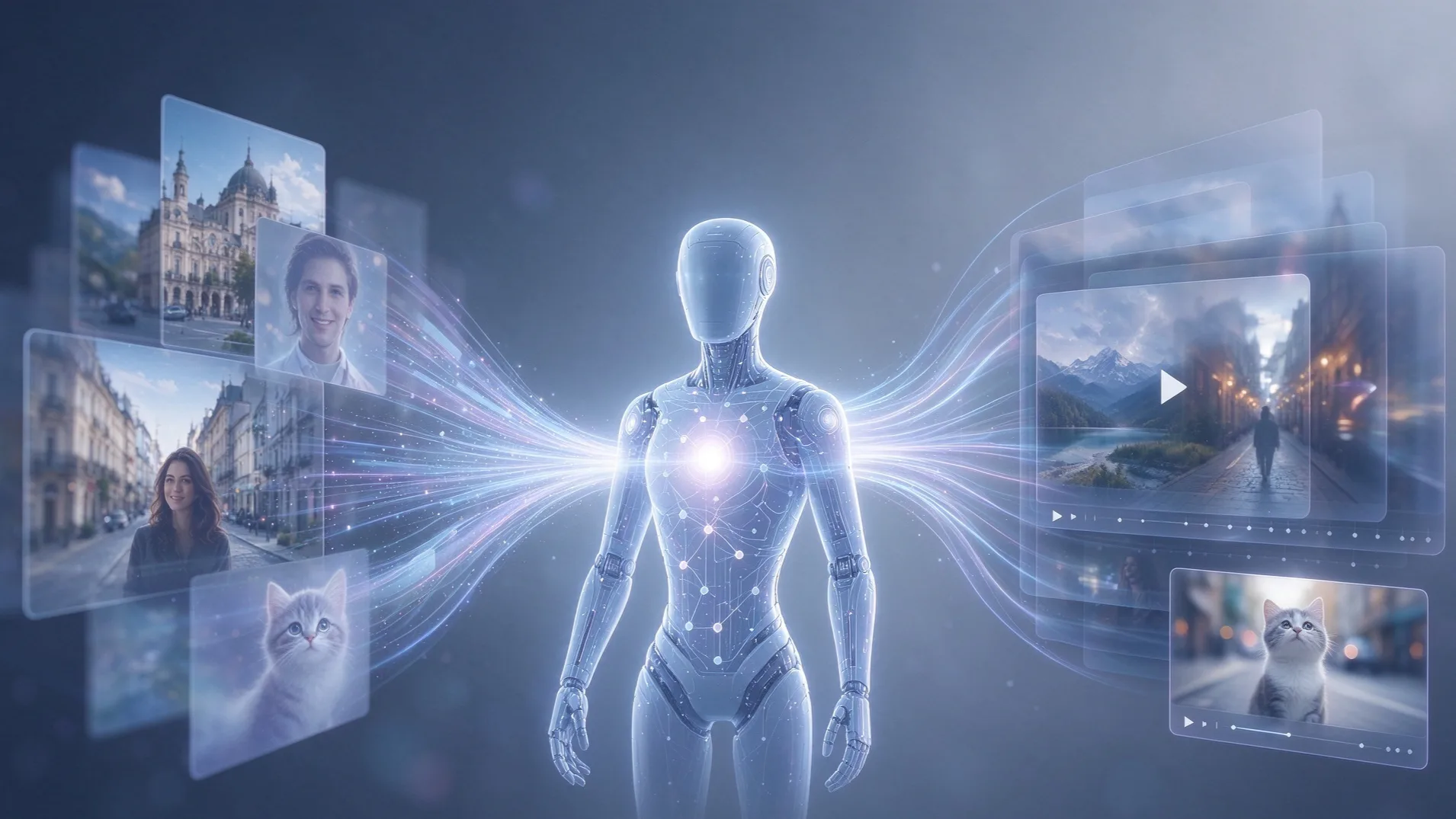
The AI image-to-video market has exploded, but finding the best AI tool to turn images into video in 2026 is overwhelming. From cinematic motion to anime style retention, this variety is a trap: it's hard to know which tool keeps faces stable, respects your style, or won't drain your wallet. This guide cuts through the noise—comparing the best options and explaining why Magiclight.AI is our top overall pick.
How to Choose the Best AI Tool to Turn Image into Video
1. Motion Naturalness & Consistency
The result should look like the same subject, simply in motion. The best tools avoid weird distortion or warping faces.
2. Style Retention
A good tool preserves your original aesthetic (anime, realistic, 3D) instead of imposing its own generic look.
3. Customization Controls
Look for tools that let you steer camera movement, control motion intensity, and choose clip duration.
4. Pricing & Free Tier Availability
Check for a usable free tier, the actual cost per generation, and whether commercial use is included.
5. Export Quality, Resolution, and Aspect Ratio Support
Check the maximum resolution and supported aspect ratios.
7 Best AI Tools to Turn Images into Video for Creators To Try
Each tool approaches image-to-video differently, so we’ve outlined their key features, best use cases, and trade-offs.
1. Magiclight.AI
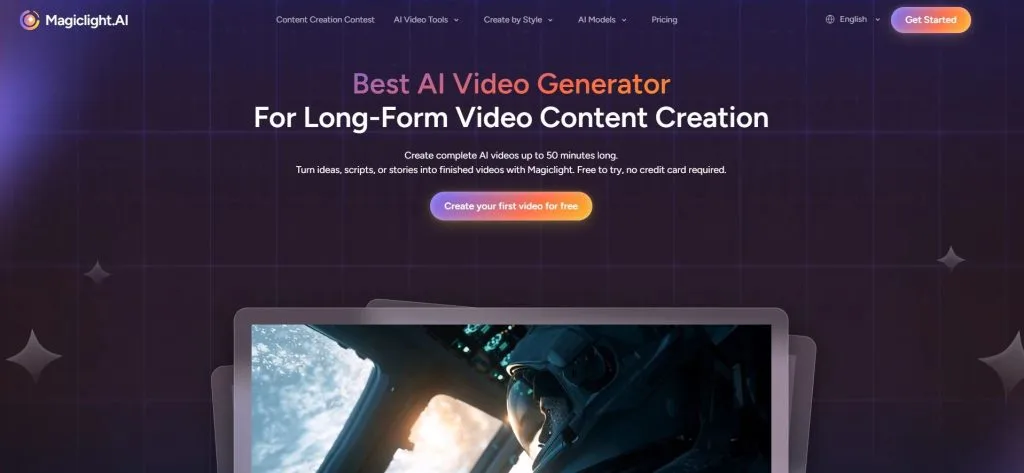
Magiclight.AI stands out as the best AI tool to turn image into video, designed to animate static visuals into lifelike motion without breaking the original aesthetic. It accepts uploaded images and preserves core details while adding natural, physically consistent movement. Creators don't need complex prompt engineering to match the motion style to the source picture.
Key Features
1. Advanced Workflow: Up to 10,000-character prompts for actions and camera movements.
2. Flexible Models: Choose from multiple models with resolutions from 720p to 4K, and durations up to 30s.
3. Style and Character Retention: Prevents morphing to keep original aesthetics intact.
4. Omni-Reference Input: Supports 30 images, 10 videos, and 10 audio files.
5. Trend Templates: Ready-to-use holiday templates in "Discover".
Best For:Anime artists needing flawless style retention, advanced creators using Omni-Reference, and social media marketers leveraging trending templates.
Pros
- 10,000-character prompts and Omni-Reference input ensure high precision.
- Prevents face-morphing, keeping images recognizable.
- Built-in "Discover" templates for instant starts.
- Specialized models for photos, sci-fi, and illustrations.
- Delivers great results without overly technical prompts.
Cons
- Most generations are capped at 720p;
- Standard clips are limited to 10–15 seconds.
2. Runway (Gen-4.5 / Gen-4)
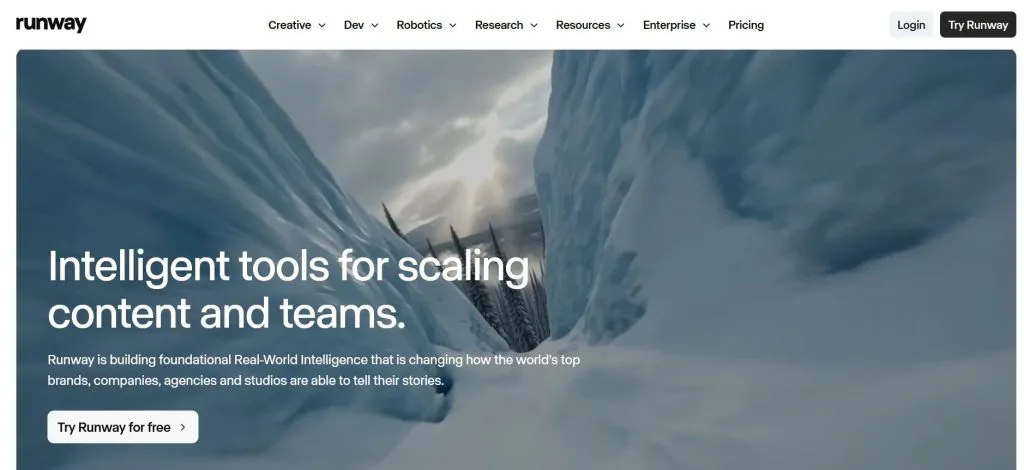
Runway is an industry veteran built for creators who prioritize cinematic quality and granular control. Using keyframes and camera movement parameters, you can dictate exactly how a scene unfolds, making it ideal for high-end, single-shot filmmaking.
Key Features
1. Image-to-Video from a single frame: Animate images with high visual detail and cinematic realism.
2. Professional camera and motion controls: Use pan, zoom, tilt, orbit, and precise keyframes.
3. Flexible aspect ratios: Choose from 16:9, 9:16, 4:3, 1:1, 3:4, and 21:9.
4. High-resolution upscaling: Generate natively at 720p and upscale to 1080p or 4K.
Best For: Filmmakers and editors needing absolute precision for individual shots and film pre-visualization.
Pros
- Exceptional cinematic quality, lighting, and textures.
- Unmatched director-level keyframe and camera control.
- Flexible blending of text descriptions and source images.
- Multiple aspect ratios without cropping.
Cons
- Short native clips require multiple generations and manual stitching.
- Standard generations cap at 720p, requiring upscaling.
3. Hailuo AI (MiniMax)
Developed by MiniMax, Hailuo AI excels in omni-modal generation, making it a top choice for the best AI tool to turn image into video with audio. Its flagship H3 model understands text, images, and audio natively. It specializes in first-and-last frame control for precise motion, and combines native 2K resolution with built-in stereo sound for immersive cinematic scenes.
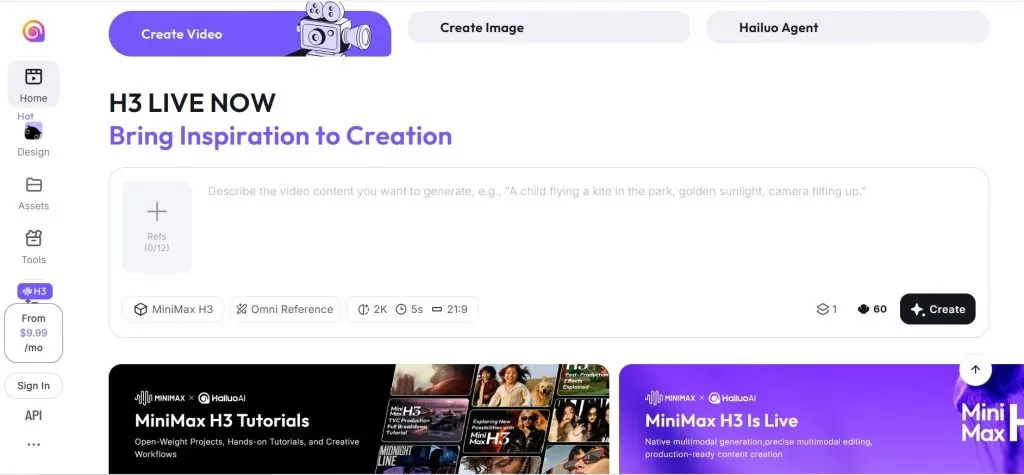
Key Features
1. First-and-last frame interpolation: Upload start/end frames to guide motion and transitions.
2. Native 2K resolution output: Generates highly detailed 2K clips without upscaling.
3. Omni-modal understanding: Analyzes text, images, and video context simultaneously.
4. Continuous model iterations: Frequent updates improve visual quality and speed.
Best For: Creators needing high-res output, native sound, and precise first/last-frame control. Ideal for single cinematic shots and high-res social clips, not full narratives.
Pros
- Exceptional native 2K resolution for crisp animations.
- Built-in stereo audio eliminates third-party tools.
- First/last-frame input gives strong motion control.
- Omni-modal architecture understands complex prompts.
Cons
- Single-clip focused; multi-clips need manual consistency.
- Requires a pre-set end frame; fails on open-ended images.
4. Kling AI (Kling V3 / 3.0)
Developed by Kuaishou, Kling AI is a dominant force in generative video, excelling as the best AI tool to turn image into video for high-res commercial outputs. Its Kling 3.0 model is renowned for native 4K resolution at 60fps, delivering extraordinary visual fidelity. It also heavily emphasizes subject consistency, ensuring characters and objects remain stable and recognizable as they move.
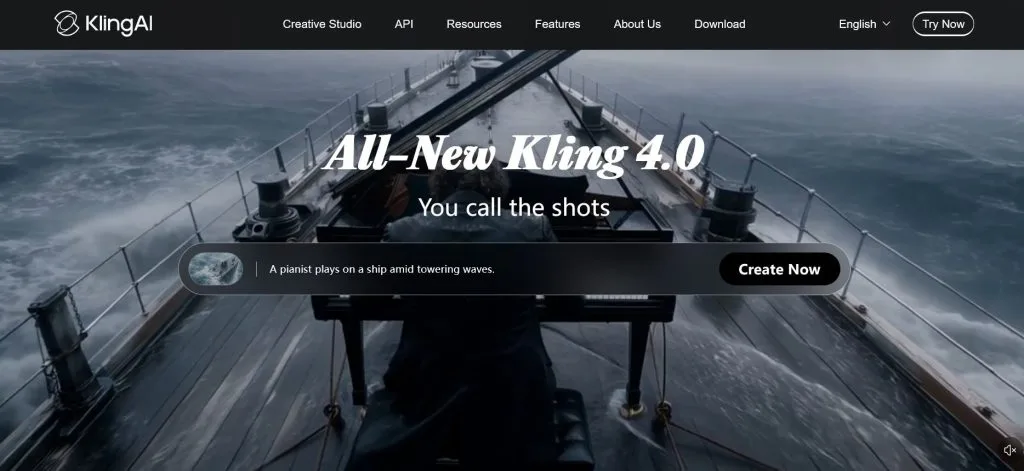
Key Features
1. Native 4K at 60fps: Generates ultra-high-definition video natively with buttery-smooth motion.
2. Multi-shot generation: Creates multiple camera angles and shots from a single image.
3. Strong subject consistency: Prevents character warping and background melting during complex movements.
4. Advanced controls: Use text prompts to dictate actions and camera movements with adjustable motion intensity.
Best For: Commercial creators and anime artists requiring top-tier 4K resolution and absolute subject consistency. Ideal for high-end ads, character-driven animations, and projects prioritizing exact image identity.
Pros
- Stunning native 4K at 60fps sets a new standard for visual quality.
- Exceptional subject consistency prevents unnatural warping or morphing during motion.
- Daily free credits allow regular testing of its high-end features.
- Built-in native audio seamlessly integrates sound effects into scenes.
Cons
- 4K/60fps generation is slow and requires long queues.
- High-res and multi-shot features drain credits fast.
5. Google Veo (Veo 3.1)
Google's Veo 3.1 emphasizes realism, consistency, and creative control. It supports first/last frame generation, scene extension, and native audio (dialogue, effects, ambience). With native vertical 9:16 output and 4K upscaling, it's a top choice for modern short-form platforms.
Key Features
1. First-and-last frame guidance: Upload start/end images to dictate the motion path and transition.
2. Advanced native audio: Generates dialogue, environmental sounds, and effects matching the visual motion.
3. Scene extension: Extends existing scenes while keeping visual continuity and character appearance intact.
4. High-resolution upscaling: Outputs high-quality video with upscaling up to 1080p and 4K.
Best For: Social media marketers, digital storytellers, and creators who need highly realistic, platform-ready vertical videos with immersive native audio.
Pros
- Delivers extraordinary visual realism with accurate lighting and physical interactions.
- Advanced native audio generation creates an immersive experience instantly.
- First-and-last frame control provides precise guidance over motion trajectory and pacing.
Cons
- Strict content moderation frequently rejects legitimate prompts, frustrating creators.
- Native audio and high-res upscaling are highly compute-intensive, causing long queue times.
6. Canva
Canva integrates AI animation directly into its design ecosystem. For beginners seeking the best AI tool to turn image into video without prompt engineering, Magic Media is a lifesaver. It focuses on practical motion design: upload an image, apply AI presets, and drag the clip into a professional layout with text, transitions, and music.
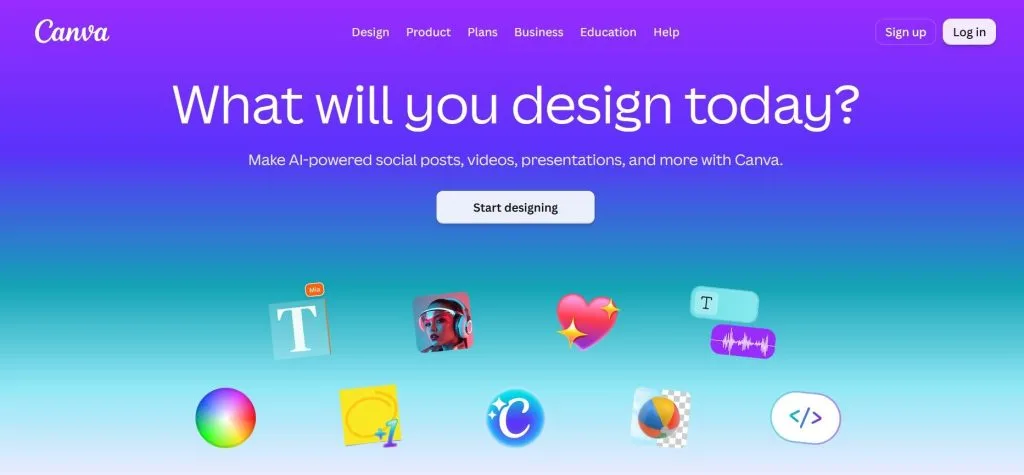
Key Features
1. Magic Media integration: Upload an image or prompt to generate clips directly inside Canva.
2. Seamless design workflow: Drag clips onto a canvas to add text and transitions without leaving the app.
3. Flexible export options: Export projects as MP4 videos or animated GIFs.
4. Massive template library: Access thousands of professional templates for social media and marketing.
Best For: Beginners and social media marketers who want to animate an image and finish a full design without switching tools.
Pros
- Requires zero editing or prompt-writing experience, ideal for beginners.
- Lets you animate pictures and add text/music in one unified app.
- Offers a massive library of pre-designed templates.
- Includes enough free AI uses to test the core workflow.
Con
- AI generation is basic, lacking advanced physics, cinematic angles, and first/last frame controls
7. Luma Dream Machine
Powered by the proprietary Ray3 model, Luma Dream Machine excels at producing photorealistic, cinematic clips from static images. For commercial creators, it offers unparalleled control over lighting and physical accuracy. Renowned for its fast generation speed, it makes motion look like it was shot on a real cinema camera—making it ideal for product showcases and high-end brand assets.
Key Features
1. Ray3 physics engine: Simulates accurate real-world lighting, reflections, and shadows.
2. Advanced camera controls: Provides panning, zooming, and cinematic movements.
3. Industry-leading speed: Generates high-quality clips with drastically reduced wait times.
4. Keyframe manipulation: Sets start/end keyframes to keep animation on the desired path.
Best For: Product marketers, commercial designers, and ecommerce brands wanting realistic, film-like motion from a still image.
Pros
- Delivers exceptional realism and lighting accuracy, resembling professional cinema.
- Offers incredibly fast speeds for rapid iteration.
- Dedicated camera controls allow precise cinematic movements.
Con
- Optimized for photorealistic content, struggling with anime, 2D illustrations, or stylized cartoons.
Compare All AI Image-to-Video Tools
| AI Tool | Motion Control | Style Keeping | Free Option | Max Resolution / Clip Length | Best For |
| Magiclight.AI | Multiple models, Omni-Reference | Excellent | Yes | Up to 4K; 720p image-to-video; up to 30s per clip | General creators & anime |
| Runway Gen-4.5 | Keyframes, camera | Good | Limited | Native 720p, upscale to 4K; up to 10s per clip | Cinematic single shots |
| Hailuo AI (MiniMax) | First/last frame | Good | Yes | Native 2K; clip length not specified in source | High-res single shots |
| Kling AI (V3 / 3.0) | Multi-shot | Very good | Daily credits | Native 4K at 60fps; clip length not specified in source | Anime & commercial |
| Google Veo 3.1 | First/last frame | Very good | Gemini trials | Upscale to 4K; clip length not specified in source | Realistic vertical clips |
| Canva | Presets | Good | Yes | Up to 1080p; clip length depends on project settings | Beginner social design |
| Luma Dream Machine | Camera controls | Good | Yes | Up to 4K; clip length not specified in source | Photorealistic products |
If you need a single polished cinematic shot, choose Runway or Veo. For high-res anime, Kling is hard to beat. For realistic product footage, Luma delivers, while Canva is the easiest entry. However, for the broadest group of creators, Magiclight.AI is the most directly aligned option and our top recommendation.
Part 3. What Makes Magiclight.AI the Best AI Tool to Turn Image into Video?
While many tools animate pictures, few maintain artistic integrity while offering professional controls. Magiclight.AI leads this list because:
1. Natural, physics-aware motion & stable visual consistency
Simulates real-world physics to keep characters and styles consistent, avoiding uncanny artifacts.
2. Unmatched Precision with Omni-Reference Input
Upload up to 30 images, 10 videos, and 10 audio files alongside 10,000-character prompts to match your exact vision..
3. Trend-Driven Templates for Instant Inspiration
The "Discover" section offers ready-to-use templates for holidays, helping you start instantly.
4. Commercial usage right & clean export
Paid users get full commercial rights with watermark-free cloud exports up to 4K.
Guide: How to Turn an Image into a Video on Magiclight.AI
Turning a still image into a dynamic video on Magiclight.AI is a straightforward process. Follow these simple steps:
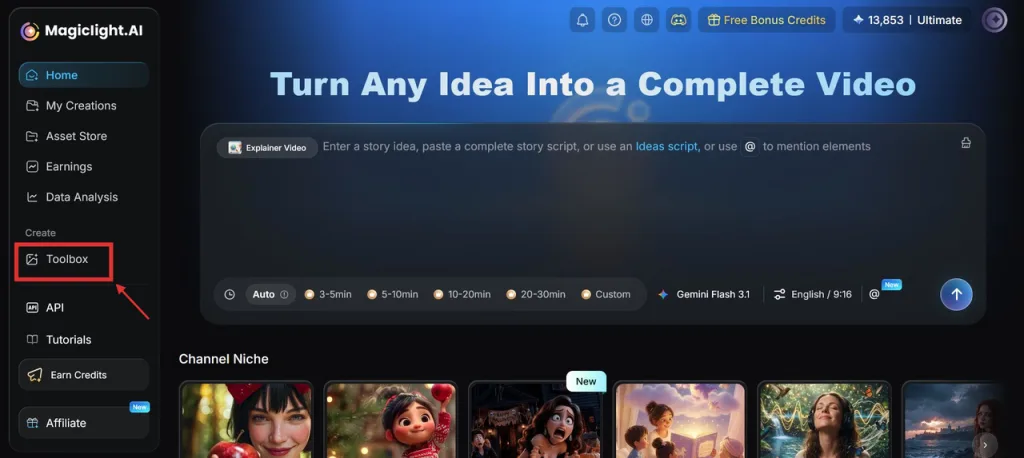
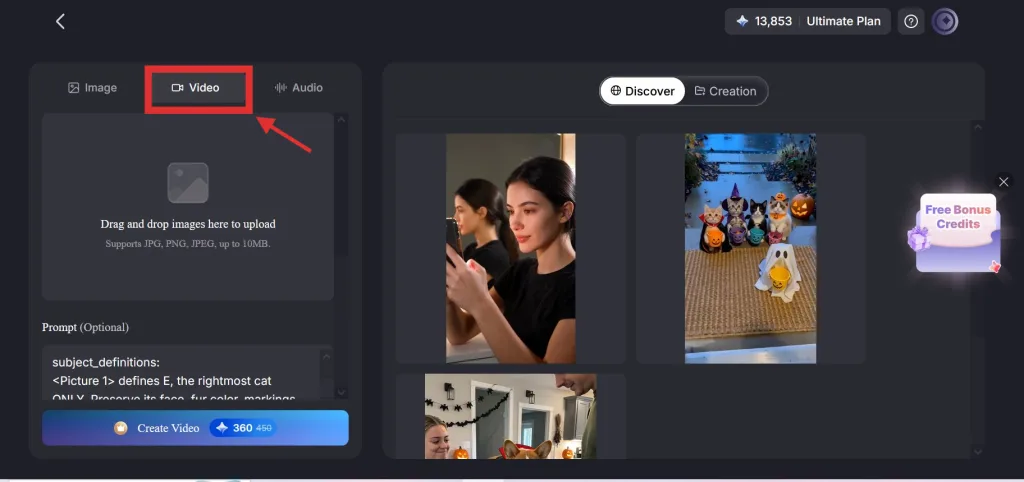
Step 1. Open Magiclight.AI and Access the Toolbox
Go to Magiclight.AI, navigate to the Toolbox, and select Video.
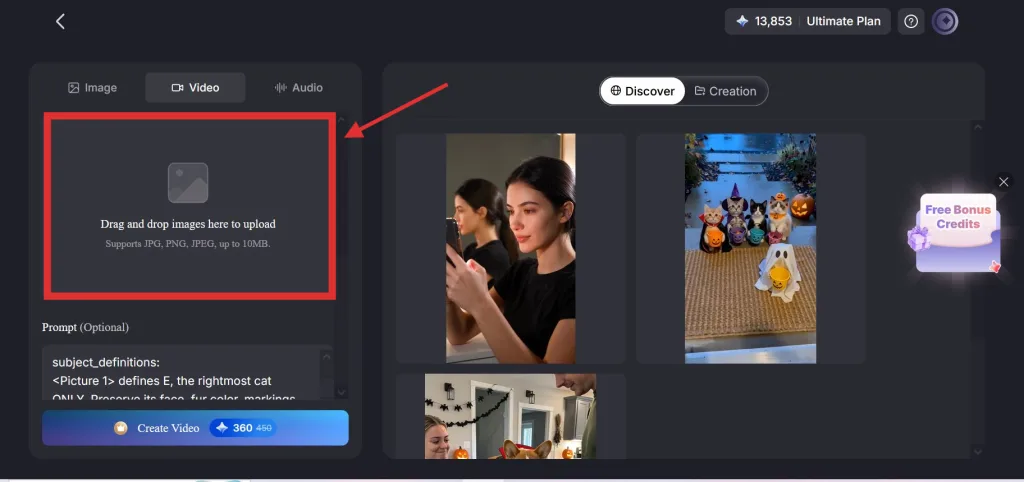
Step 2. Upload Your Image
Drag and drop your image (JPG/PNG/JPEG up to 10MB).
Step 3. Enter Your Prompt
Describe your desired motion or sound effects in the "Prompt" box (up to 10,000 characters).
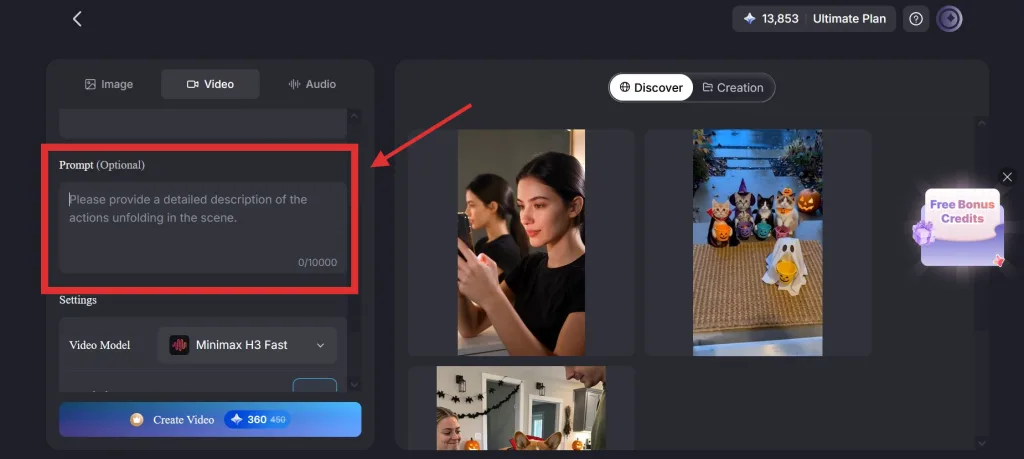
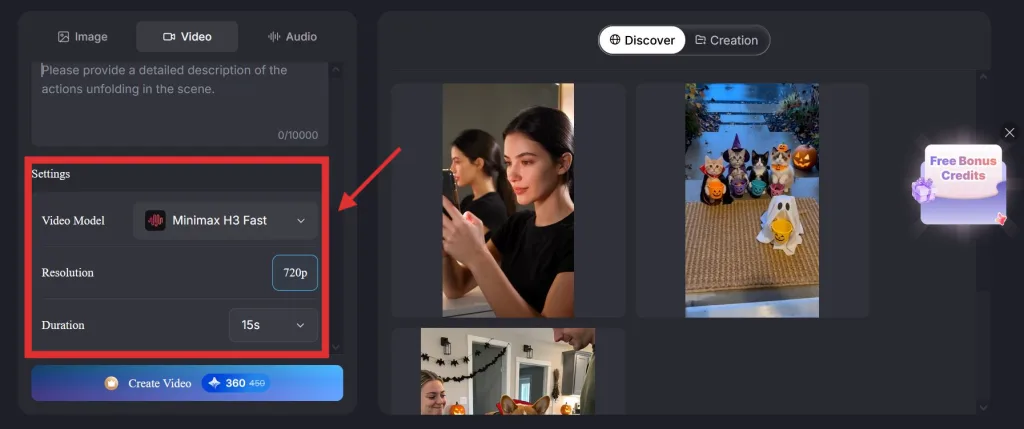
Step 4. Choose Your Settings
Scroll down to the Settings section to configure your output:
- Video Model: Select your preferred model from the dropdown list.
- Resolution: Choose your desired output quality.
- Duration: Set the length of the clip.
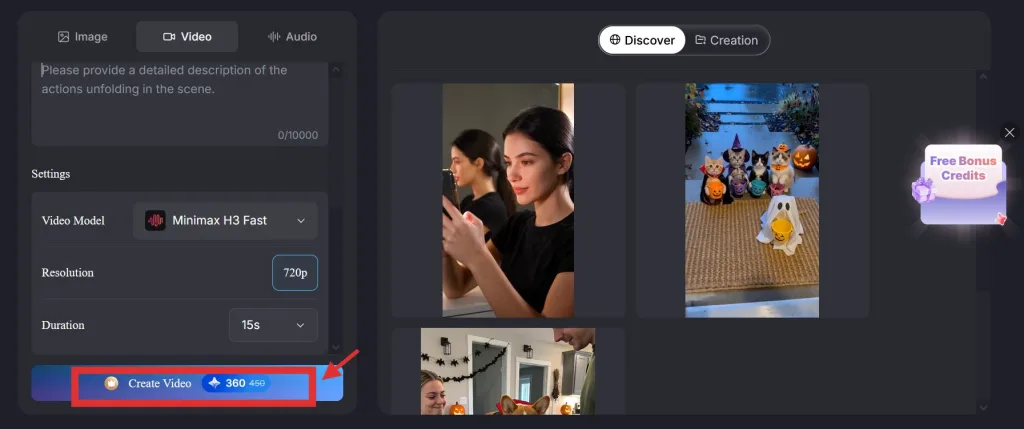
Step 5. Generate and Export
Click Create Video, preview the result, and download your final video.
Conclusion
The ideal tool depends on your workflow—Runway and Veo for cinematic shots, Kling for 4K anime, Luma for products, and Canva for beginners. However, Magiclight.AI is the best overall choice for most creators. Its image-first workflow preserves original art styles, offers a generous free tier, and creates polished clips without a complex timeline.
Frequently Asked Questions on Best AI Tools to Turn Image into Video in 2026
1. Which AI is best for converting images to videos?
For most creators, Magiclight.AI is our top recommendation. Its image-first workflow preserves style and identity, offers a free tier, and requires no manual editing.
2. Is there a free AI tool that can convert pictures into videos?
Yes. Magiclight.AI, Kling AI, Canva, and Luma Dream Machine all offer free tiers. Magiclight.AI is a great starting point.
3. Which AI image-to-video tool works best for anime-style pictures?
Magiclight.AI emphasizes style retention, keeping illustrations intact. Kling AI is also excellent for high-resolution anime with strong subject consistency.
4. Can I use image-to-video AI for social media content?
Absolutely. Magiclight.AI, Google Veo (native 9:16), and Canva support vertical and square formats for TikTok, Reels, and Shorts.
5. Can GPT create videos?
No, GPT is a language model. You need dedicated video-generation tools like Magiclight.AI, Runway, Kling, or Veo.