



Deepfakes are no longer limited to funny face swaps or small experiments on social media. People now use deepfake AI tools for videos, characters, and different creative projects. Rules around deepfakes are growing, so safety and consent should never be ignored either. This guide looks at 6 deepfake AI tools and what each one can offer.
Part 1. What to Consider When Choosing Deepfake AI Tools
Deepfake AI tools differ in more ways than how real their results appear. Below are the factors you should check before using one for your work:
- Consent Verification: See how the tool confirms permission before letting you copy another person’s identity.
- Disclosure and Labels: Find out whether viewers can easily tell that your finished video uses AI.
- Legal Exposure: Check local laws before posting deepfake content made with another person’s likeness online.
- Regional Rules: Rules change by country, especially around disclosure, consent, and using someone’s identity online.
- Commercial Rights: Make sure the license actually allows generated content in ads or client work.
Part 2. 6 Best Deepfake AI Tools to Explore
Deepfake AI tools now cover everything from character videos to quick face swap projects. These 6 options offer different ways to create, edit, or personalize videos with AI:
1. MagicLight AI
Best For: Storytellers creating lifelike characters with natural dialogue.
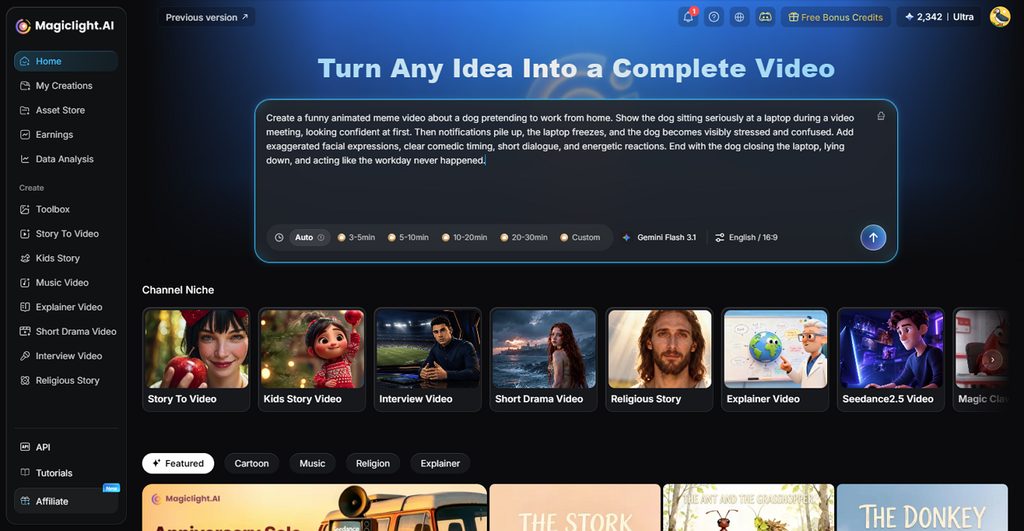
MagicLight AI focuses on original characters instead of copying the appearance of real people. Saved characters keep their facial features, body proportions, and clothing consistent between different scenes. Its Lip Sync tool turns typed or recorded lines into speech for chosen characters.
Story to Video creates narrated episodes using the same characters throughout the complete video. Paid plans support videos reaching 50 minutes, giving creators room for longer storytelling projects. Among 20 video engines, Kling 3.0 creates scenes with synchronized dialogue and matching sound.
Key Features
- MagicLight Agent: Chat briefly about your niche before the Agent writes your script. It prepares the story before moving ahead with any scene creation.
- Character Styles: Choose from 50+ presets covering four different character style families. Options include realistic characters along with several animated looks for projects.
- Nano Storyboard: Adjust poses, expressions, and clothing separately for every storyboard shot easily. This helps each scene match the emotion behind every spoken line.
- Image Generator: The generator offers 5 image models for creating characters and backgrounds. Available models include Nano Banana 2 and Seedream 5.0 Pro options.
Pros
- Original characters avoid concerns around copying real faces.
- Create long consistent videos of around 50 minutes.
Con
- Does not export more than 1080p resolution.
2. HeyGen
Best For: Brands creating reusable digital presenters for communication.
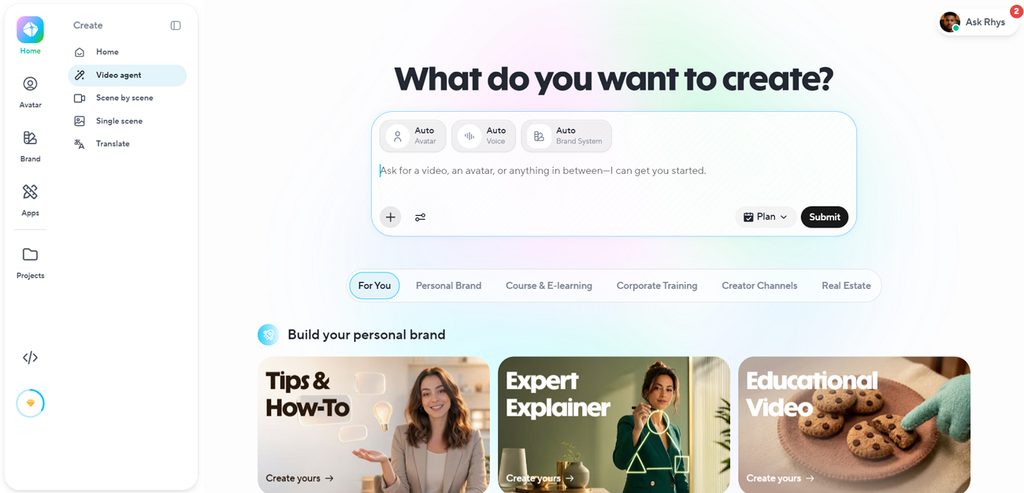
HeyGen brings deepfake AI tools into business videos through customizable digital twins and avatars. Its avatar system keeps identity separate from clothing, backgrounds, camera angles, and presentation styles. Creators can reuse the same digital person across videos without recording each appearance again.
Key Features
- LiveAvatar handles two-way conversations through voice, video, and text with low latency.
- Avatar Looks supports different outfits, poses, backgrounds, and angles for one identity.
Pros
- Custom Motion directs avatar gestures, gaze, posture, and energy.
- Digital twins can start from 15-second video recordings.
Cons
- LiveAvatar custom recordings require continuous 2-minute source footage.
- Existing HeyGen avatars cannot transfer directly into LiveAvatar.
3. Synthesia
Best For: Training teams building interactive workplace learning videos.
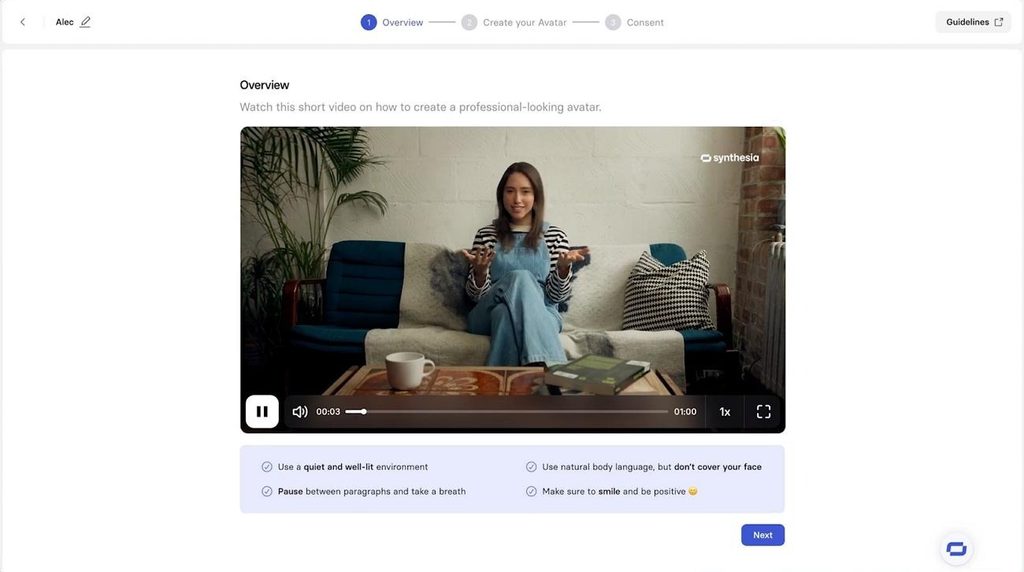
This tool takes a workplace-focused route, building avatar videos around training and internal communication needs. Its tools also cover localization, interactive learning, practice sessions, and controlled content sharing options.
Key Features
- Roleplay Sessions simulate conversations and score learners against selected skills after practice.
- Interactive videos support quizzes, calls-to-action, and branching paths for different viewer responses.
Pros
- SCORM exports move finished videos directly into existing learning management systems.
- Videos can update everywhere after editing their original version once.
Cons
- Roleplays allow only one learner and avatar persona together.
- Interactive scenes only support selected avatars certified for interaction.
4. Reface
Best For: Users making quick face-based entertainment clips.
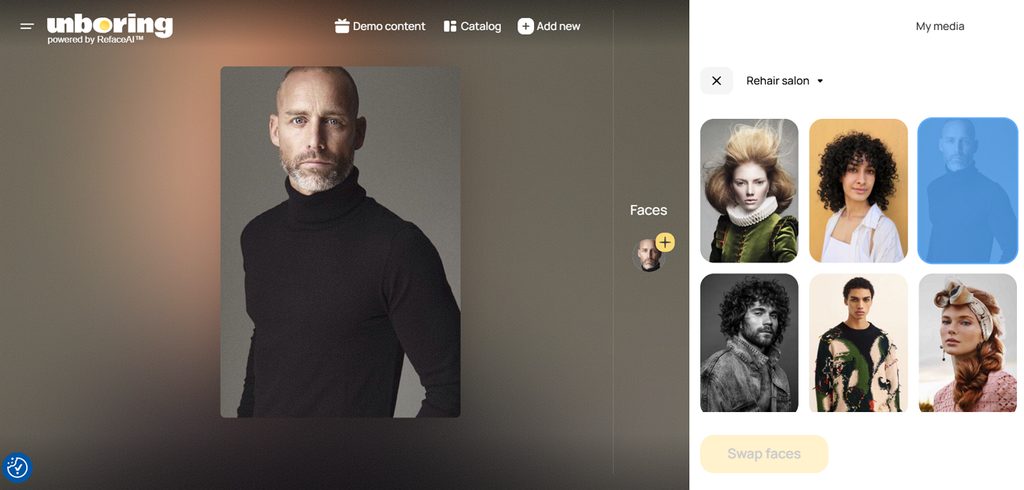
Reface keeps deepfake AI tools closer to casual face swapping and playful content. Users can place faces into photos or videos without building full presenter-style avatar projects. Its wider creative tools also animate portraits, restyle visuals, and create shareable social content.
Key Features
- Face Swap replaces faces inside uploaded images and videos using facial embeddings.
- Animate turns still portraits into moving faces that can sing or speak.
Pros
- Original uploaded photos leave cloud storage within 48 hours.
- Existing face embeddings disappear completely by the fourth day.
Cons
- Face swapping depends heavily on clear source portraits.
- Reusing faces later requires photos to be processed again.
5. CapCut
Best For: Social creators making avatar-based short video content.
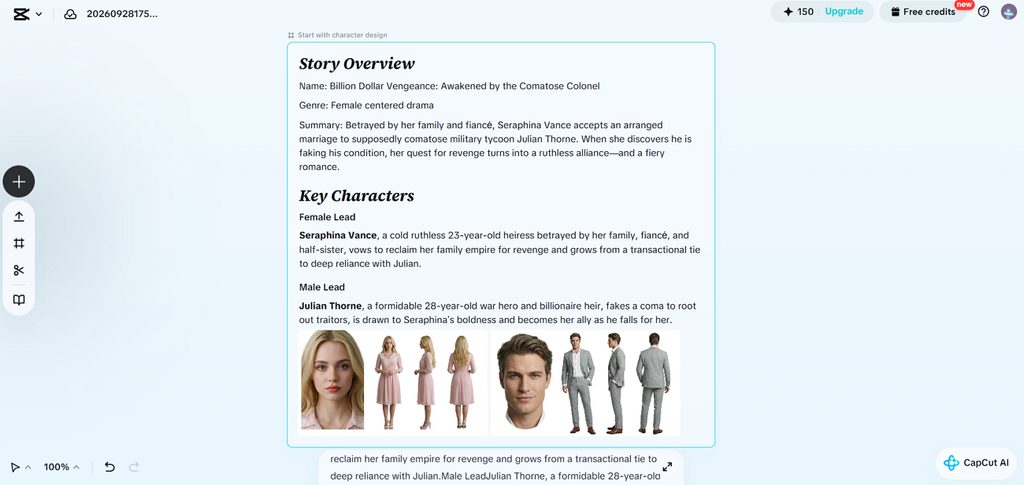
For short clips, CapCut puts deepfake AI tools beside familiar editing controls and templates. Creators can build talking avatars from personal footage, then place them directly inside projects. Its synthetic media options fit social videos where speed matters more than complex production.
Key Features
- Lip sync supports 13 languages and over 1,000 available AI voices.
- AI dialogue scenes place several speaking characters together inside one video.
Pros
- Custom avatars use personal footage and read-aloud scripts.
- Seedance 2.0 includes visible watermarks and C2PA credentials.
Cons
- Avatar creation uses credits based on generated duration.
- US terms grant broad rights over uploaded likenesses.
6. FaceFusion
Best For: Technical editors needing private local face processing.
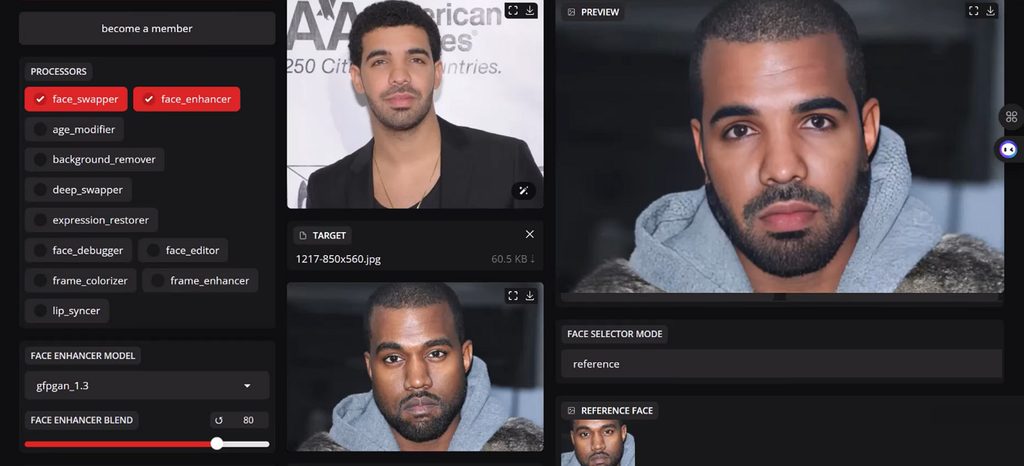
FaceFusion gives technical editors local control over face manipulation without uploading their footage. The open-source software handles swapping, lip syncing, expressions, aging, and frame restoration locally.
Key Features
- Its 11 processors handle swapping, expressions, lip sync, and enhancement.
- Version 3.8.0 supports AV1 encoding, alpha output, and improved HDR handling.
Pros
- Footage stays on the computer during local processing.
- Built-in content analysis blocks detected nudity before processing.
Cons
- Some included models restrict commercial usage under licenses.
- Finished output has no automatic disclosure watermark included.
Compare All Deepfake AI Tools
The table below puts their key uses, standout functions, access, and limitations:
| Tool | Main Use | Likeness Source | Safeguards | Max Video Length |
| MagicLight AI | Story and character videos | Text prompts, reference images, generated characters | Requires rights to uploaded content | Up to 50 minutes |
| HeyGen | Presenter avatars and translation | Recorded footage, photos, stock avatars | Consent recording, liveness code, celebrity screening | Up to 30 minutes |
| Synthesia | Training and business videos | Personal avatars, stock avatars | Consent process and content moderation | Up to 4 hours |
| Reface | Face swaps and photo animation | Uploaded photos and videos | Biometric consent and content watermarking | Short-form clips |
| CapCut | Social video creation and editing | Photos, footage, generated avatars | AI checker and feature-based safeguards | Varies by AI |
| FaceFusion | Local face manipulation | User-supplied images and videos | Built-in NSFW content analyzer | Depends on Source |
Part 3. Why Choose MagicLight AI for AI Character Video Creation
Unlike many deepfake AI tools, MagicLight AI builds videos around original characters and stories. Below are the main reasons MagicLight AI works well for creating AI character videos:
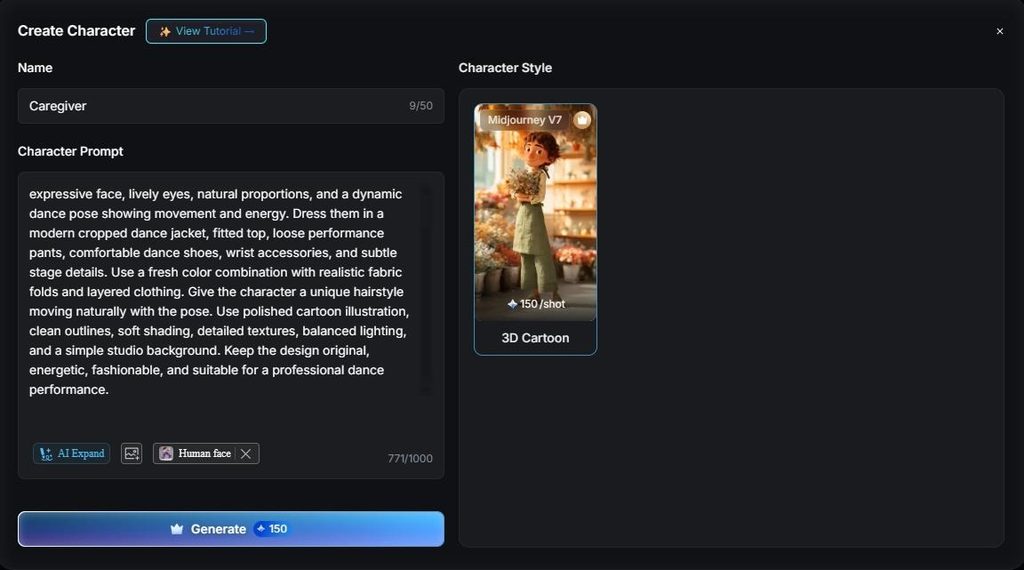
- Characters From Words or Photos: Write 1,000 characters to define an original character without using anyone’s real likeness. The AI Avatar Generator maps one photo’s facial features, hairstyle, clothing, and appearance.
- Voices in 11 Languages: Characters speak using 37 stock voices or a cloned voice for different projects. Narration supports 11 languages, while cloning another person’s voice always requires their consent first.
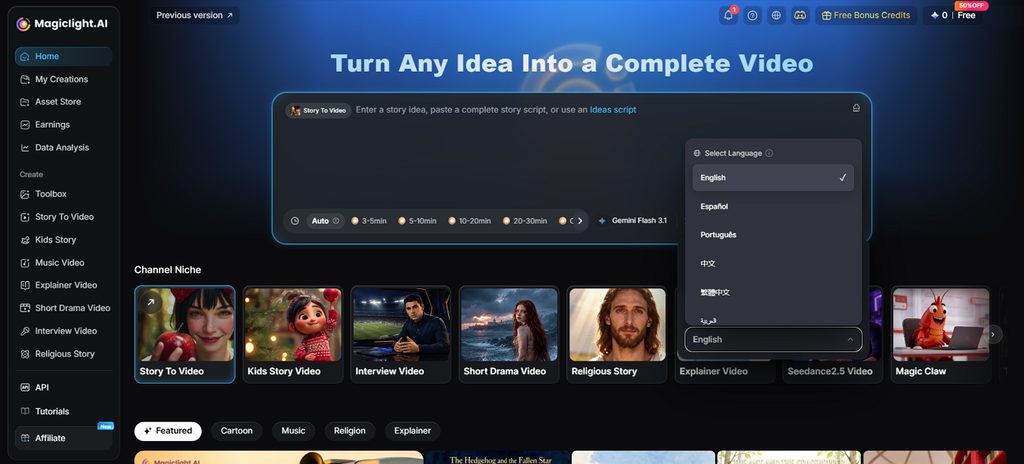
- Story Models: Choose from 14 story models for different writing and storytelling needs within MagicLight AI. Available options include Gemini Flash 3.1, GPT-5.6, and more models for creating stories.
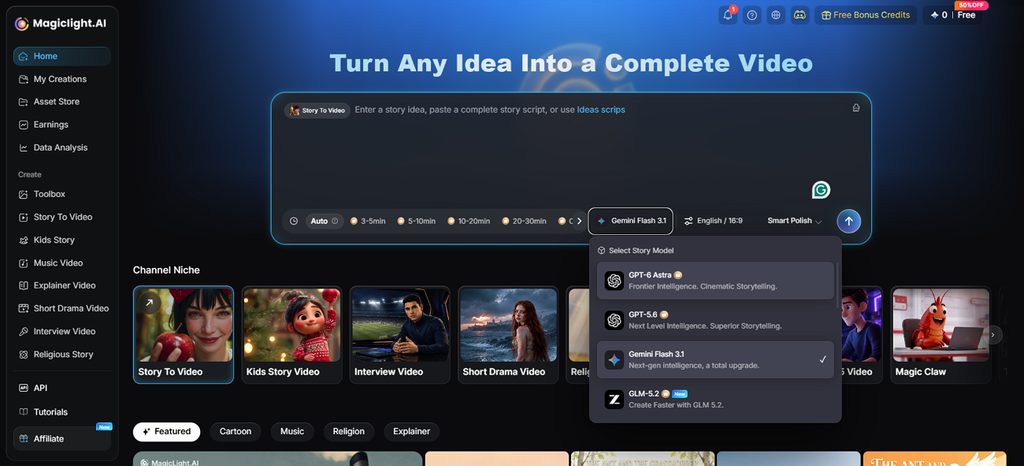
Guide to Create an AI Character Video With MagicLight AI
MagicLight AI turns written stories into character videos using its Story to Video workflow. Go through the steps below to create your video with deepfake AI tools:
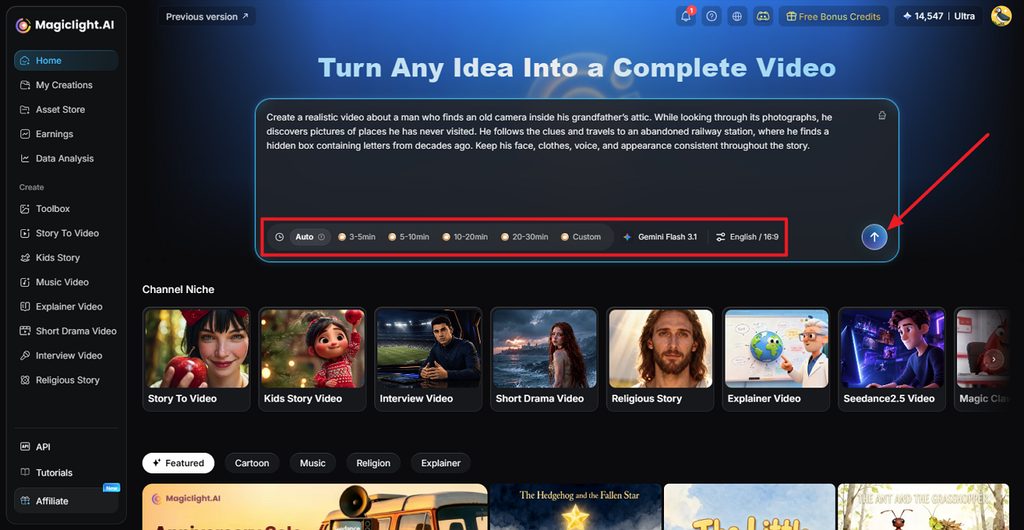
Step 1. Enter Your Script and Video Settings
First, choose Story to Video and enter the script you want to turn into video. Set the Duration, Model, Language, and Aspect Ratio, then click Send.
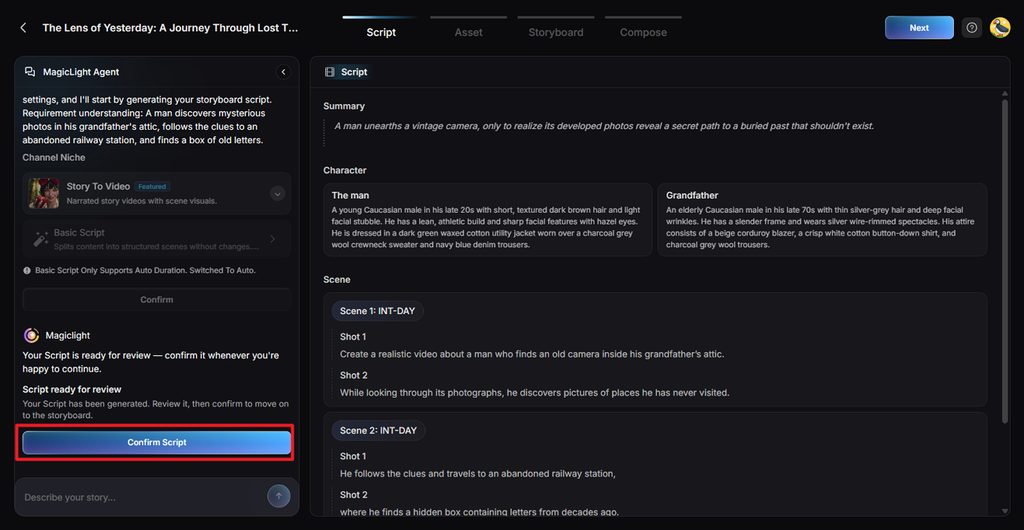
Step 2. Review the Script Details
Review the Summary, Characters, and Shots prepared by MagicLight Agent. Edit anything that differs from your story. Then, select Confirm Script.
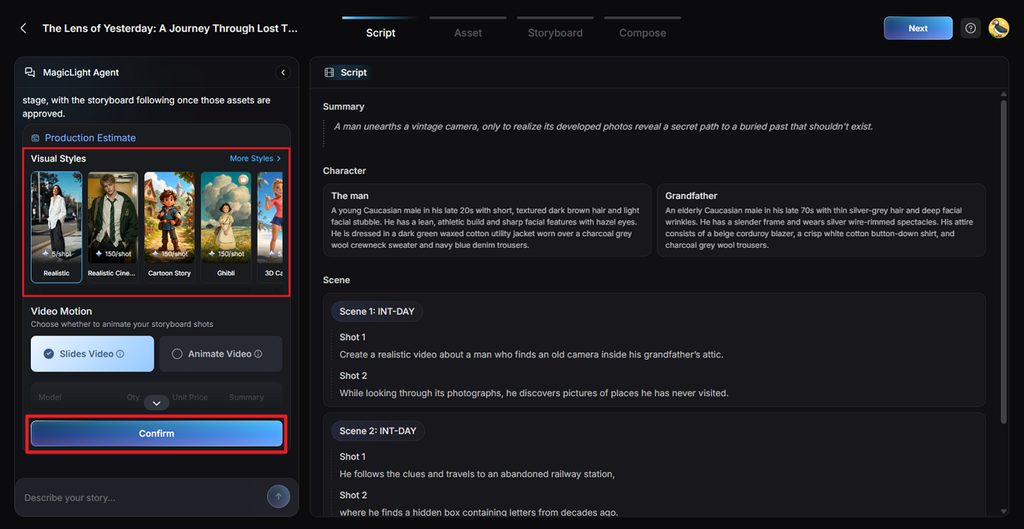
Step 3. Choose the Visual Style and Video Type
Choose a Visual Style that fits how you want the finished video to look. Once done, press Confirm.
Step 4. Create a New Character
MagicLight AI creates character assets from the people described within your submitted script. Press the character to open Character Library and click Create Character.
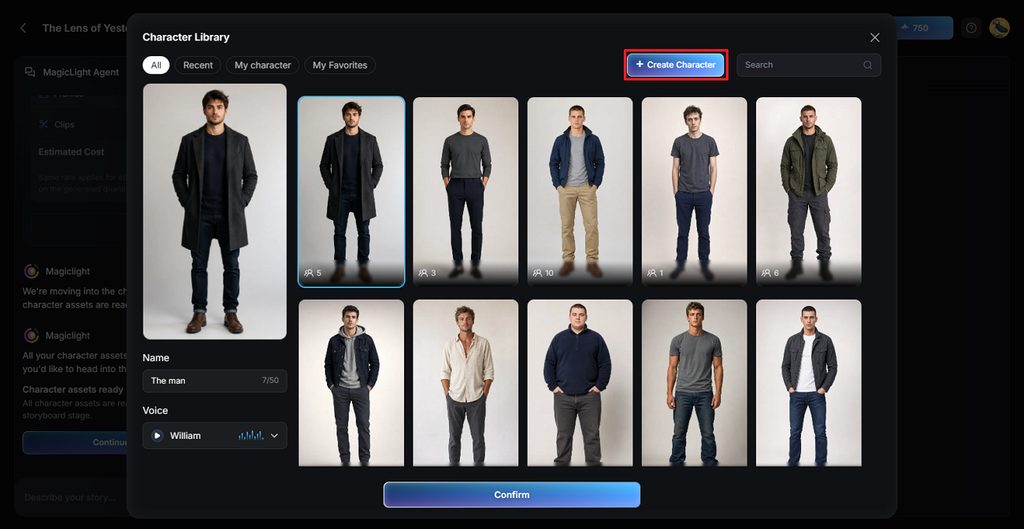
Step 5. Upload Reference Image and Enter Character Description
After that, enter a character description and add a reference image of your character. Then, choose a realistic style and press Generate.
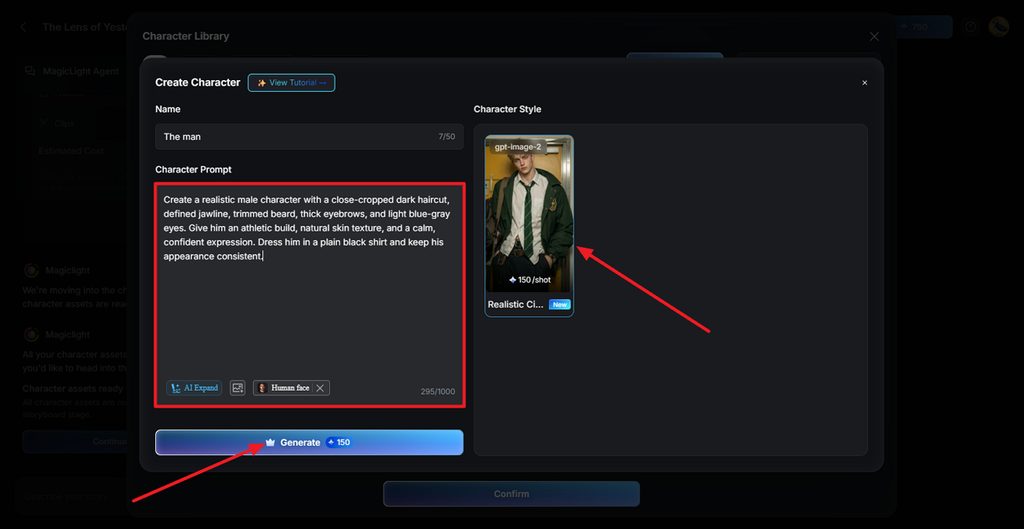
Step 6. Confirm the Character
Once your character is generated, review the character and press Continue to Storyboard to move forward.
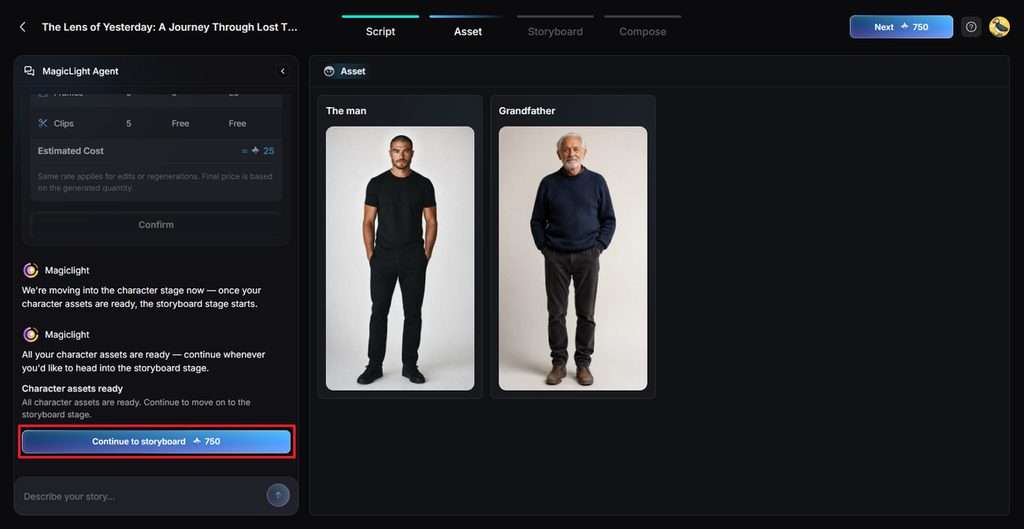
Step 7. Customize and Animate the Shots
Fine-tune individual shots using Clothes, Expression, Figure, Pose, and Prompt controls. Adjust voices or effects as needed and press the Next button.
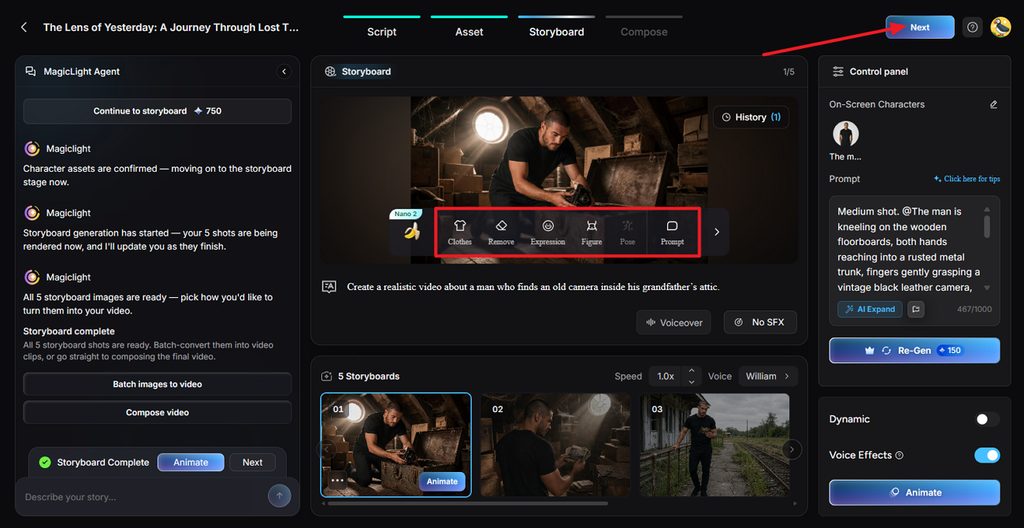
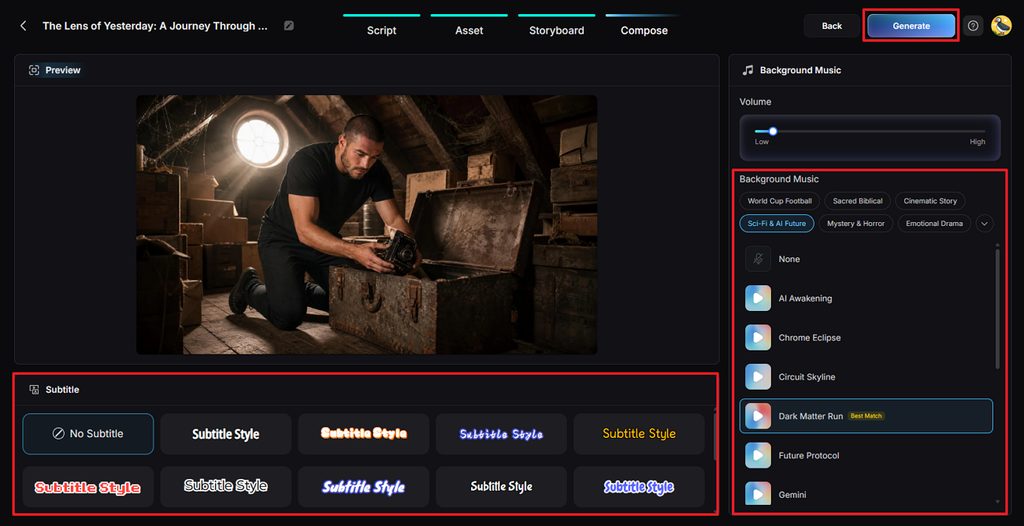
Step 8. Set Subtitles and Background Music
Preview your video and select a Subtitle Style or choose No Subtitle instead. Set the Background Music and volume before clicking Generate to create the video.
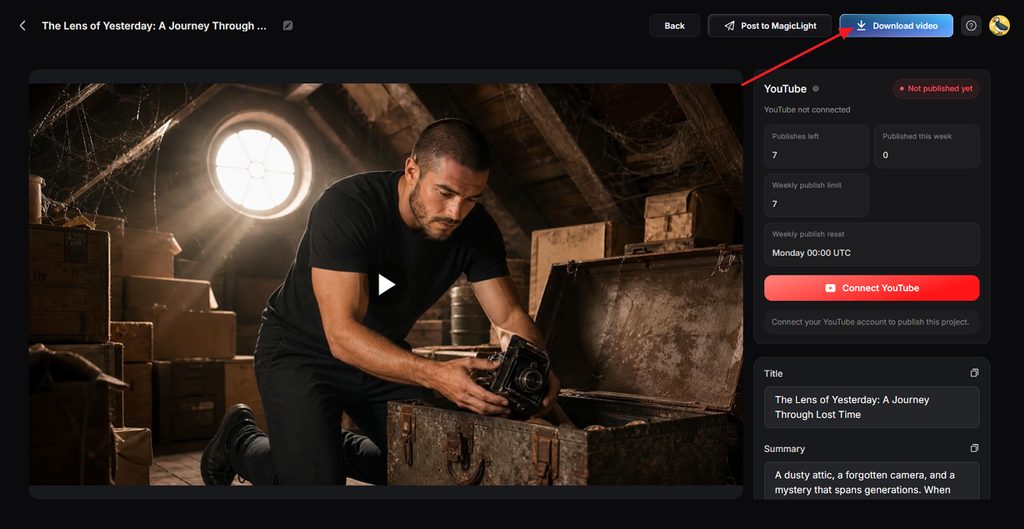
Step 9. Review and Download the Final Video
Watch the result and check its scenes, voices, subtitles, music, and overall pacing. Once everything looks right, click Download video to save the finished file.
Conclusion
In summary, deepfake AI tools offer different ways to create realistic characters and faces. Some platforms animate a real person image, while others build original characters for storytelling. MagicLight AI offers original characters, consistent scenes, voices, and storytelling without requiring real likenesses.
FAQs on Deepfake AI Tools
1. Can deepfake AI generate lifelike character videos for storytelling?
Yes, deepfake AI tools can create lifelike characters for different types of storytelling projects. MagicLight AI keeps character faces, clothing, and appearance consistent throughout different video scenes.
2. What safety rules should I follow when using deepfake AI tools?
Always get clear permission before using another person’s face or voice in generated content. Add clear AI labels when required, especially when realistic synthetic media could mislead viewers. Avoid deceptive, harmful, or nonconsensual content involving real people, particularly intimate material or minors.
3. Is it possible to create talking character clips with deepfake AI?
Yes, MagicLight AI can create talking clips using original characters, mascots, or permitted subjects. Its Lip Sync tool turns typed or recorded dialogue into speech for chosen characters. Image to Video can also animate a single image into short lip-synced video clips.
4. Which deepfake AI tool works well for character videos with dialogue?
MagicLight AI supports dialogue-focused character videos with consistent appearances across multiple connected scenes. Story to Video combines recurring characters with narration available across 11 supported languages.
![6 Best AI Tools for Designers to Try [2026 List]](https://magiclight.ai/wp-2/wp-content/uploads/ai-tools-for-designer-300x198.png)


![How to Create a Meme for Instagram in 2026 [Step-by-Step Guide]](https://magiclight.ai/wp-2/wp-content/uploads/create-a-meme-for-instagram-300x169.png)