


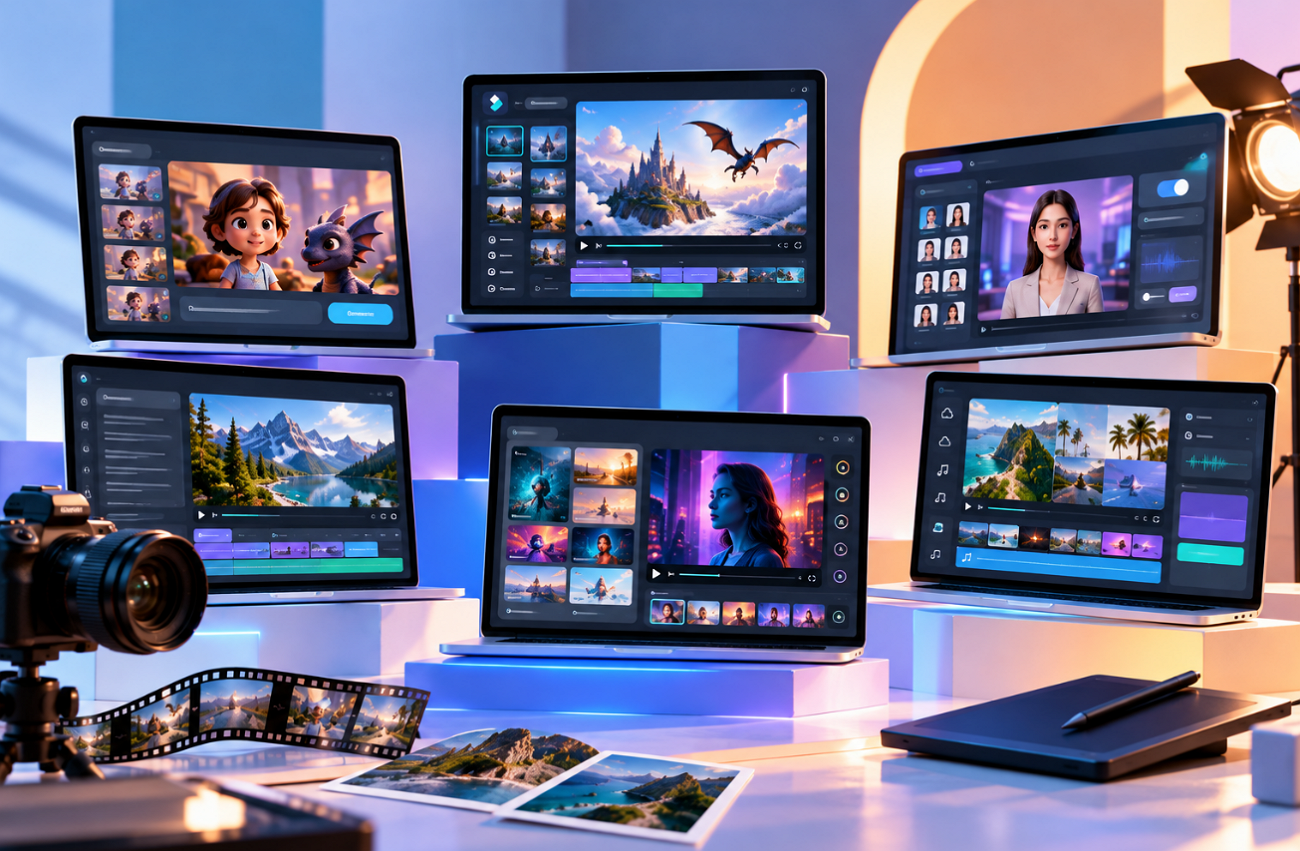
Marketing teams, trainers, and social creators all need video, but making it still takes time. AI video creation software speeds things up by turning scripts, prompts, or images into finished clips with voice, captions, and music. Some platforms make cinematic scenes, while others focus on avatars, editing, or longer story-based videos.
Part 1. How to Choose AI Video Creation Software
Before choosing a platform, compare the inputs, output limits, audio options, and usage terms that shape the final workflow:
- Supported Input Types: Check whether the tool accepts text prompts, scripts, images, existing footage, or multiple input formats.
- Maximum Video Length: Compare output limits, since some tools create short clips while others support longer videos and complete stories.
- Narration and Language Support: Look for built-in voices, voice cloning, dubbing, subtitles, and multilingual support for broader content needs.
- Pricing and Usage Rights: Review credit limits, watermarks, export restrictions, commercial-use terms, and other factors that affect overall cost.
Part 2. 6 Best AI Video Creation Software
AI video platforms solve very different production problems, so comparing them as one category can be misleading. The 6 tools below show where each approach works best, beginning with MagicLight AI:
1. MagicLight AI
Best For: Creators who turn ideas or scripts into long narrated stories and series.
Short AI clips are useful for individual scenes, but they often fall short when a project needs a full narrative. MagicLight AI handles longer formats by generating complete narrated videos, with paid plans supporting projects up to 50 minutes. MagicLight Agent can develop a loose idea into a script, while Story to Video turns that script into structured, voiced scenes.
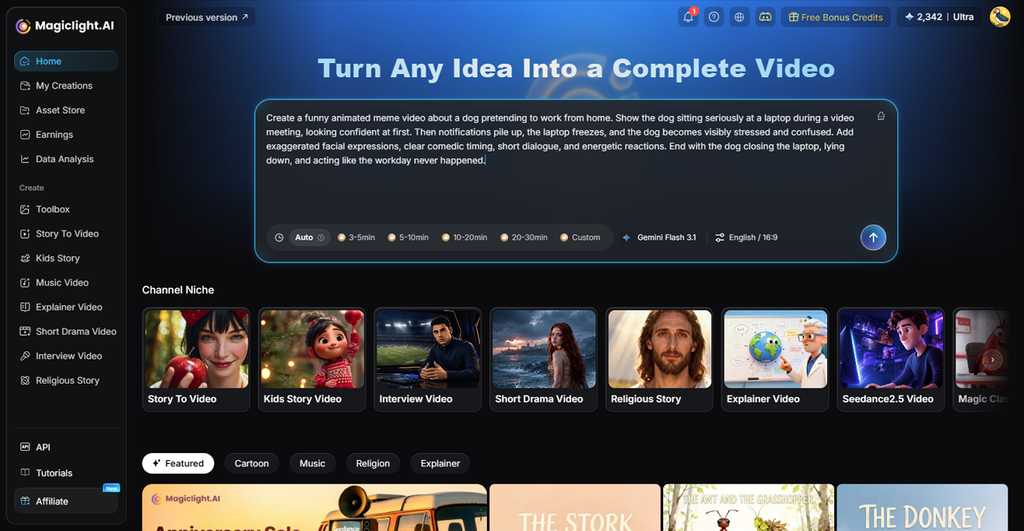
Characters, narration, music, and subtitles stay in the same workflow, reducing the need to move between separate tools. That makes it a practical AI tool for video creation across explainers, children’s stories, and recurring series.
Key Features
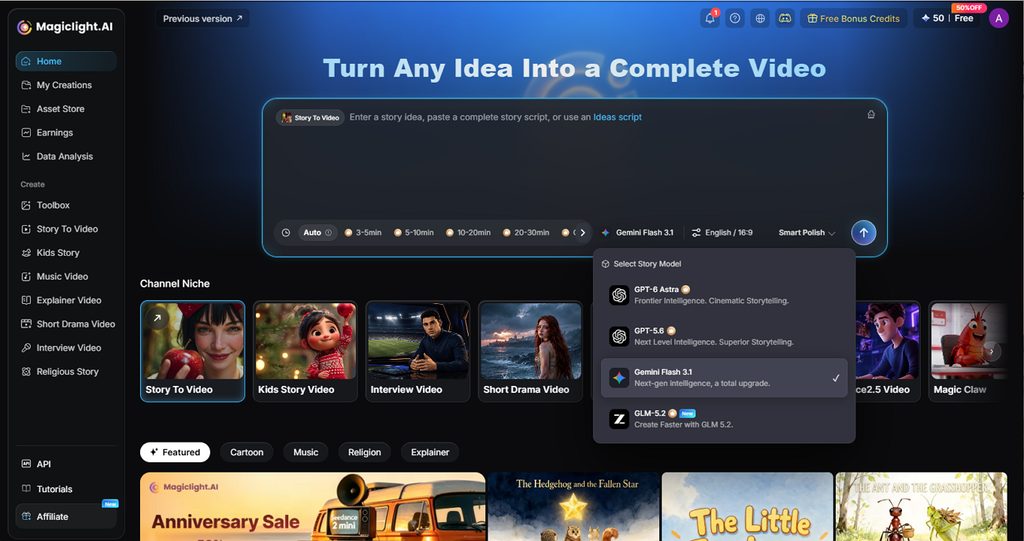
- Story Model Library: Offers 14 story models that support different writing and planning styles, including GPT-6 Astra for shaping longer narratives and scene structure before video generation.
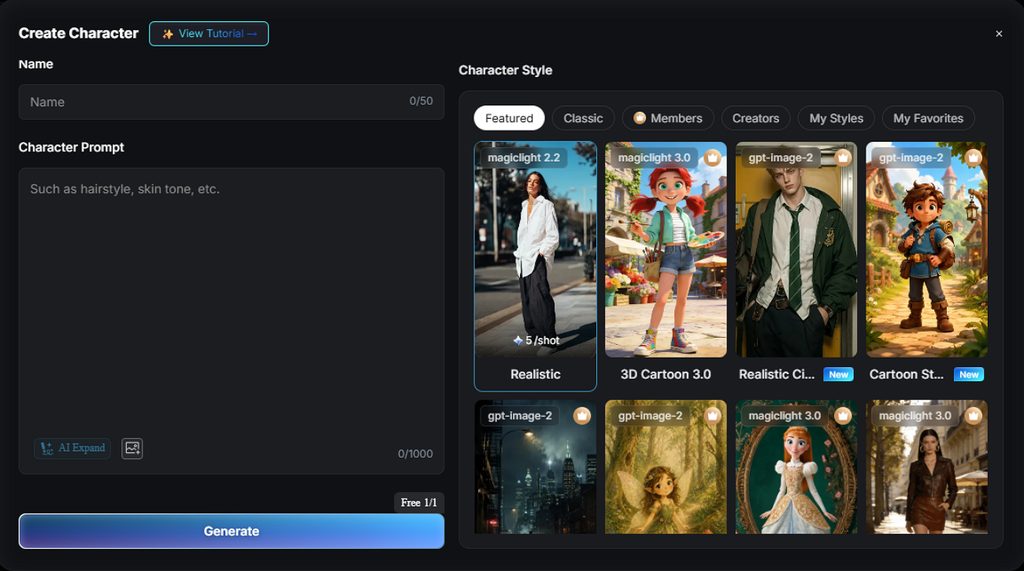
- Saved Characters: Characters generated from a photo or a 1,000-character profile keep their face, proportions, and clothing across scenes.
- Nano Storyboard: Clothes, poses, and expressions change shot by shot, and redoing one weak shot leaves the rest untouched.
- Talking Photos: Image to Video animates still photos, and Lip Sync makes a portrait or mascot speak typed or recorded lines.
Pros
- You can find 20 different AI video models to test different creation styles.
- Use any of the 52 unique visual styles to improvise a proper character for your video.
Con
- Resolution caps at 1080p, while several rivals reach 4K on paid tiers.
2. Runway
Best For: Filmmakers and editors who want precise control over each shot.
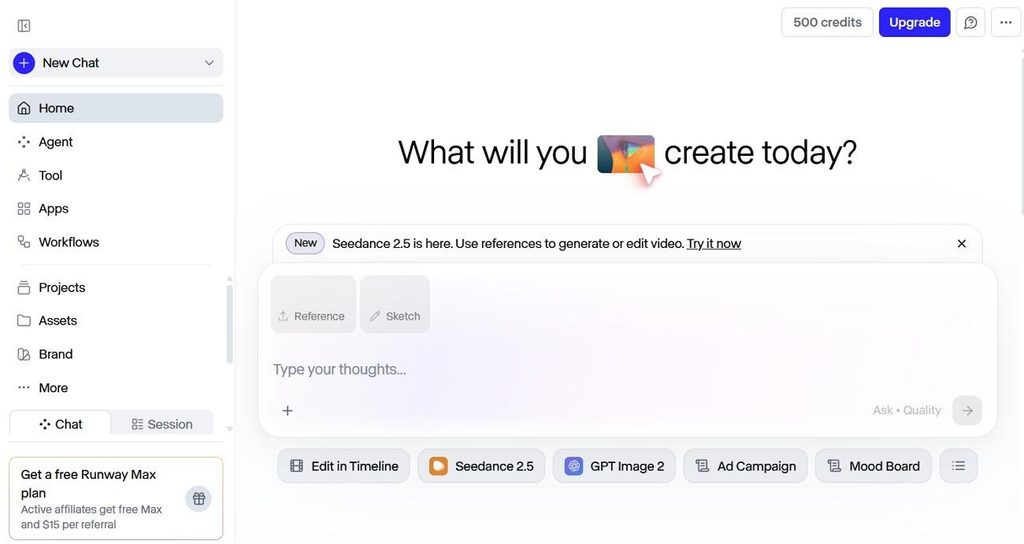
Built around shot-level control, Gen-4.5 works beside a built-in editing timeline for creators who want to shape each scene themselves. This AI video-making tool also says it now serves more than 60 million users across creative workflows.
Key Features
- Multi-Shot, a Runway app, builds up to 5 connected shots from a single prompt.
- References carry up to 3 characters, styles, or objects into each new image.
Pros
- Projects keep sessions, workflows, and assets together for easier organization.
- Studio’s built-in timeline trims, stitches, and exports without another editor.
Cons
- Gen-4.5 focuses on short shots, so longer videos require multiple generations
- The iOS app does not run on iPad, which limits tablet workflows.
3. HeyGen
Best For: Marketers and trainers who need a talking presenter in many languages.
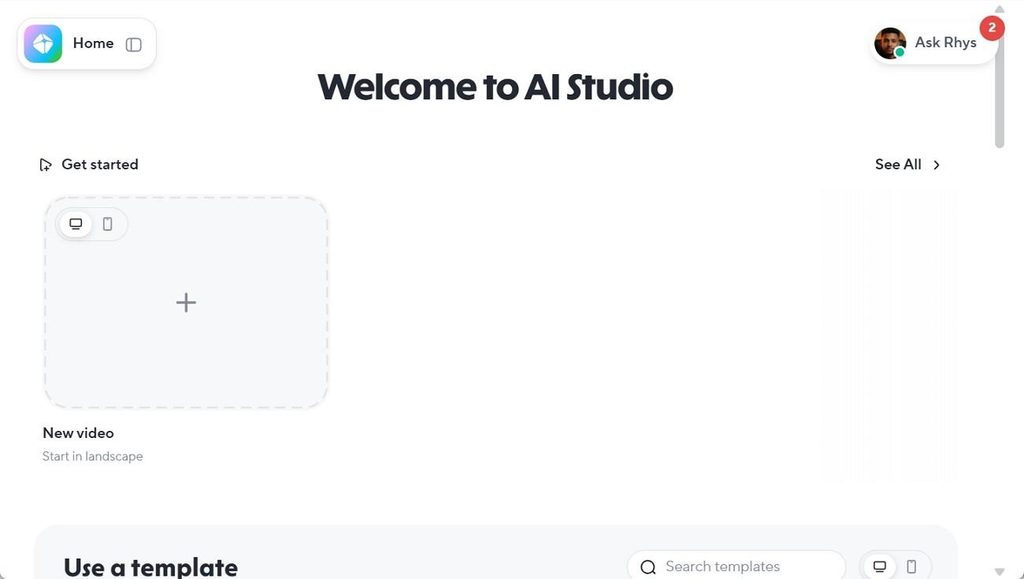
For presenter-led videos, HeyGen can create a digital twin from a 15-second phone recording with Avatar V. Among AI tools to make videos, it now supports single-pass avatar videos up to 30 minutes, with Android joining iOS in May 2026.
Key Features
- Video Translation dubs footage into 175+ languages with voice cloning and lip sync.
- Photo avatars turn one image into a talking presenter, unlimited on paid plans.
Pros
- Brand Systems keep logos, fonts, colors, images, and other visual assets consistent.
- The Pro subscription in HeyGen adds 4K export.
Cons
- Its presenter-first workflow offers less flexibility for cinematic, scene-driven storytelling.
- Creating a personalized digital twin requires source footage or photos
4. Synthesia
Best For: Training and HR teams producing multilingual lessons at scale.
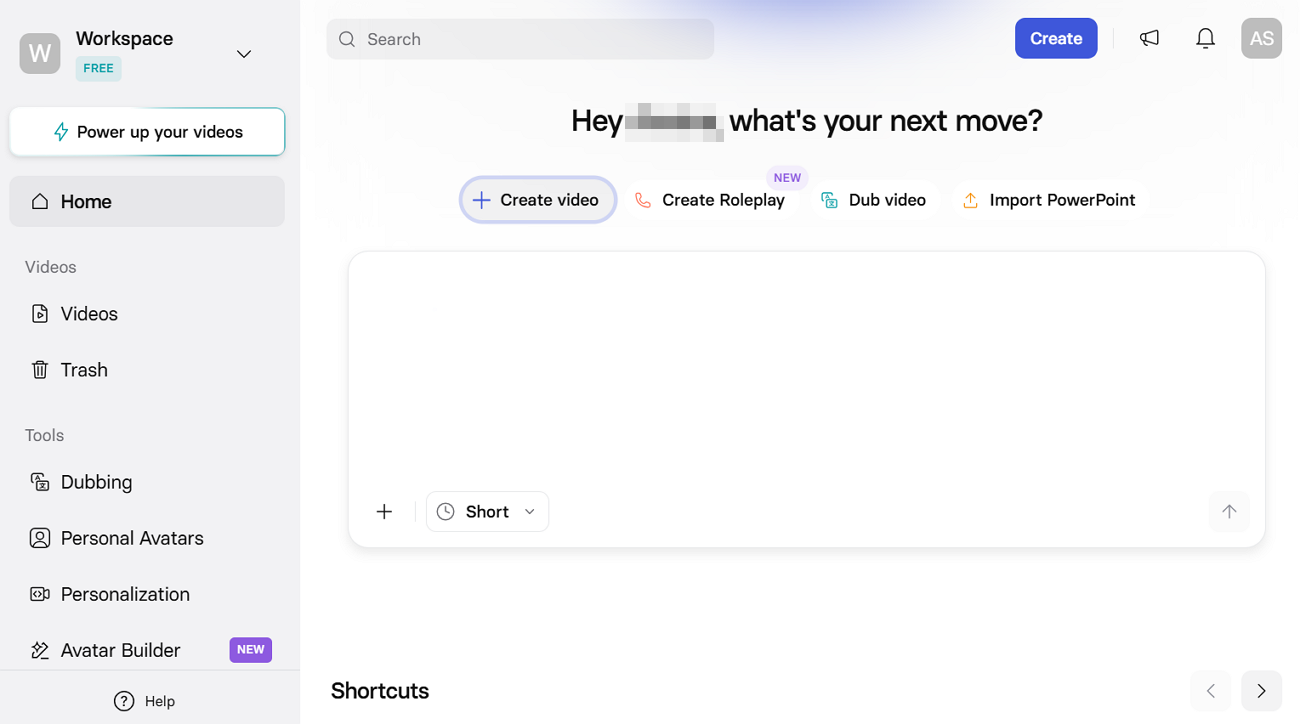
Synthesia turns prompts, files, and URLs into avatar-led videos through its AI Assistant. Support for 160+ languages across plans and more than 240 Enterprise avatars makes it one of the broader AI tools for creating videos for global training.
Key Features
- Dubbing 2.0 translates uploads into 70+ languages on self-serve plans, with frame-accurate lip sync.
- The free AI Screen Recorder transcribes narration into an editable script and removes filler words.
Pros
- Reusable templates help teams maintain consistent layouts and branding.
- Custom avatars require live, on-camera consent from the person shown.
Cons
- Stock avatars are barred from paid ads without Synthesia’s written consent.
- Its avatar-led workflow is less suited to cinematic scenes requiring detailed shot-by-shot control.
5. InVideo
Best For: Teams that want an AI first draft and hands-on timeline editing together.
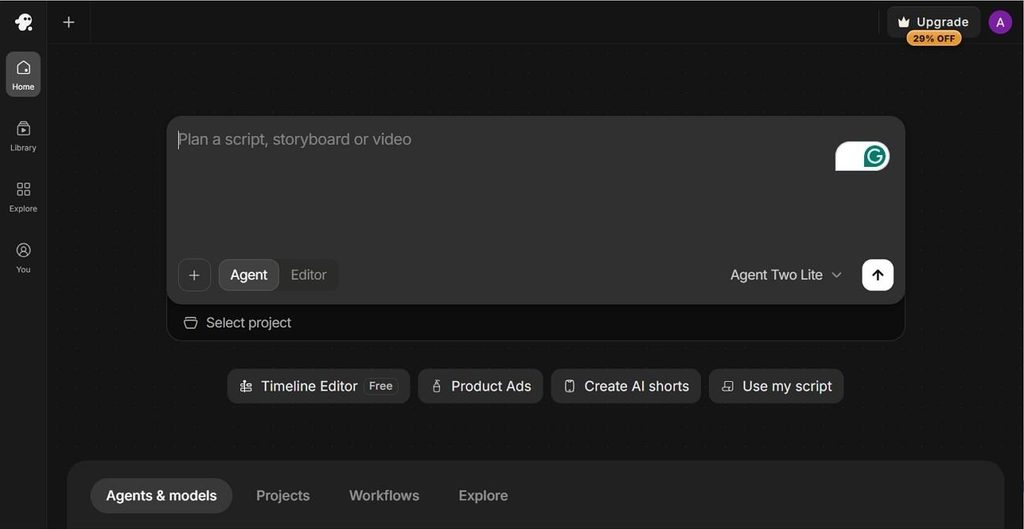
InVideo brings AI generation and browser-based editing into one workflow, helping creators move from an initial idea to a polished video without switching platforms. It is a flexible AI tool to create videos on a laptop, tablet, or phone, with 200+ models inside.
Key Features
- Agentic Sound Design finds or generates sound effects and places them on the timeline.
- Voiceovers cover 50+ languages, and stock media tops 16 million photos and videos.
Pros
- Shareable review links collect frame-accurate comments from clients and colleagues.
- AI-generated drafts remain editable, letting users refine individual scenes.
Cons
- AI-generated drafts can still require scene-by-scene editing.
- Its large model and editing ecosystem can add extra choices for users.
6. VEED
Best For: Social teams turning long recordings into subtitled short clips.
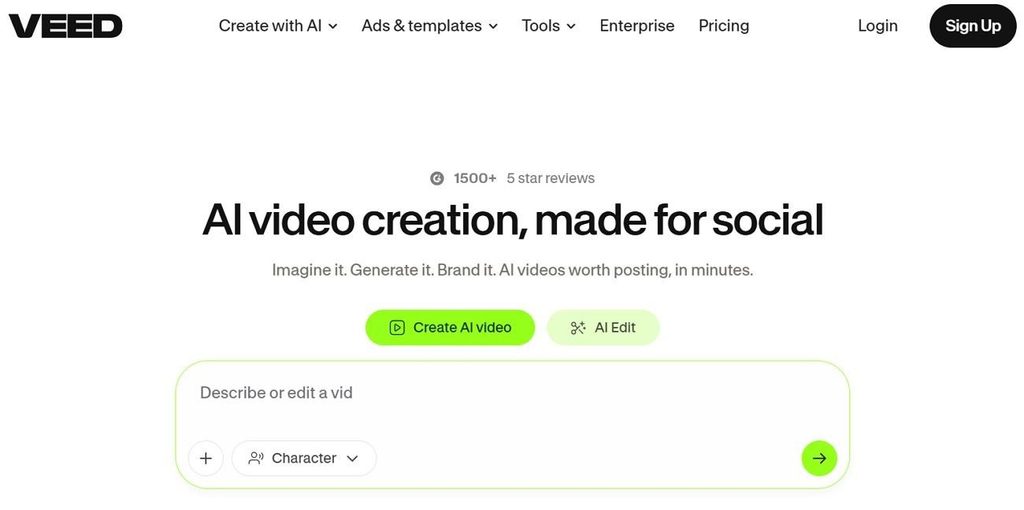
VEED combines browser-based editing, screen recording, subtitles, and social clipping in one workspace for real footage. Its AI video maker tools also include 60+ avatars, while the mobile app currently supports iPhone and iPad, with Android access still on a waitlist.
Key Features
- Eye Contact adjusts a speaker’s gaze toward the camera after recording.
- Background Remover cuts out unwanted backgrounds without needing a green screen.
Pros
- The browser editor keeps trimming, text, subtitles, media, and visual adjustments accessible
- Up to 3 editors co-edit one video, even on the free plan.
Cons
- Mobile access currently covers iPhone and iPad, while the Android app remains unavailable.
- Free exports are watermarked 720p files until re-exported on a paid plan.
Compare All AI Video Creation Software
The table below puts those differences side by side, making it easier to compare each platform on the factors that matter most:
| Software | Creation Method | Output Focus | Editing Control | Platform Access |
| MagicLight AI | Idea or script to story video | Narrated stories up to 50 minutes | Shot-level storyboard, characters, voice, music, and subtitles | Web, iPhone, Android |
| Runway | Prompt or image to clips | Cinematic Gen-4.5 shots | Timeline editing and individual shot control | Web, iPhone, creative-app plugins |
| HeyGen | Script to avatar video | Presenter and translated videos | Avatar, script, translation, and brand controls | Web, iPhone, Android |
| Synthesia | Prompt, file, or URL to avatar video | Training and presenter videos | Script, avatar, template, and dubbing controls | Browser-based workflow |
| InVideo | Prompt to editable draft | AI drafts with multitrack editing | Full timeline and scene-level refinement | Laptop, tablet, and phone |
| VEED | Recording or upload to clip | Subtitled clips and avatar videos | Timeline, subtitles, media, and visual adjustments | Web, iPhone, iPad |
Part 3. Why Choose MagicLight for AI Video Creation
Most AI tools for video creation handle one stage well, such as a clip, a presenter, or an edit. MagicLight AI links planning, story development, character creation, and final production inside one project:
- AI-Guided Story Planning: From a short chat, MagicLight Agent helps define the niche, shape the script, and prepare the production approach before generation begins.
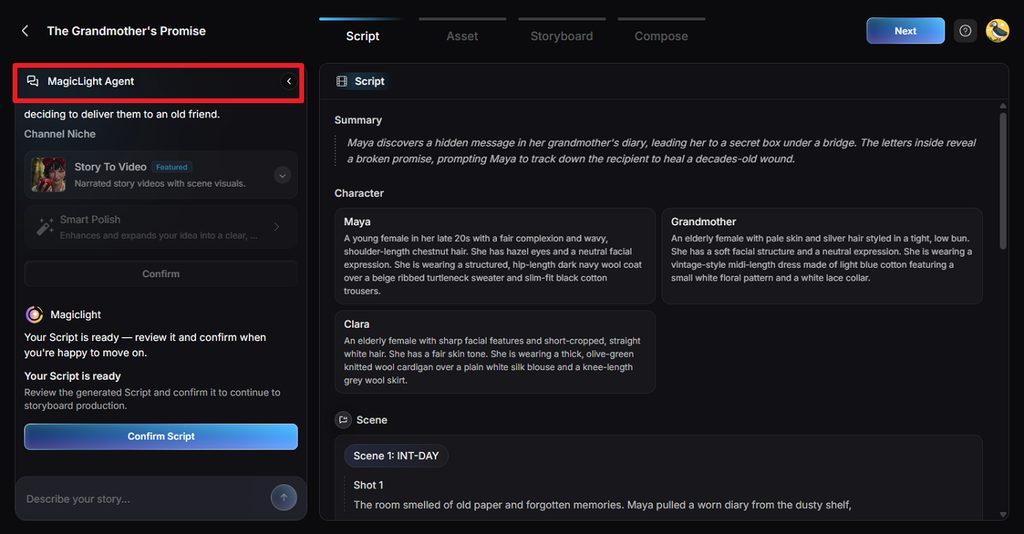
- Story Models for Different Formats: Creators can choose from 14 story models, including GPT-5.6, to shape structure, tone, pacing, and scene direction for different video formats.
- Reusable Character Generation: Character generation supports descriptions up to 1,000 characters, giving users more control over appearance, clothing, and style. Saved characters can then be reused across scenes and future projects for better visual consistency.
Guide to Create an AI Video With MagicLight
Story to Video is the core workflow in MagicLight’s AI video creation app. Every stage stays editable, so a weak scene or shot gets fixed without starting over.
Step 1. Enter Your Video Idea
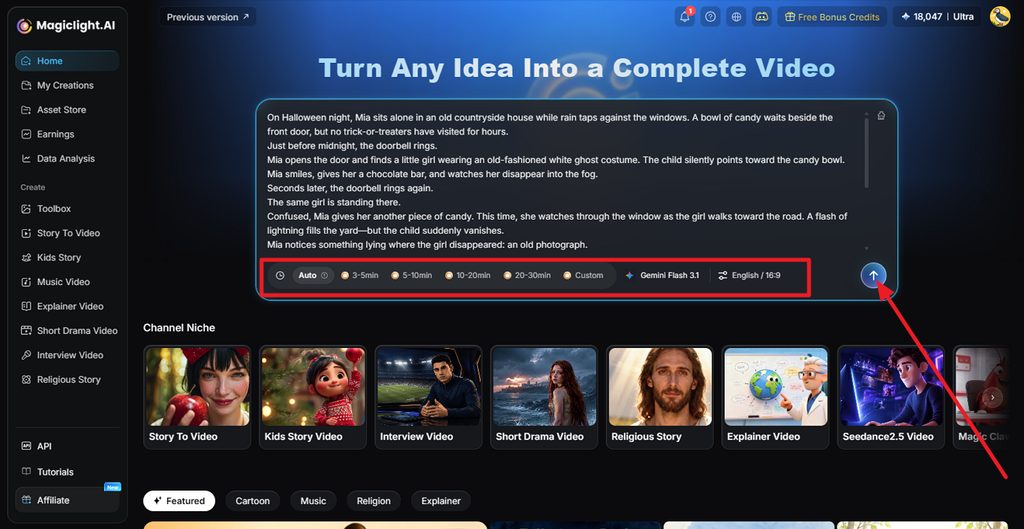
Open Story to Video and enter a topic, prompt, or complete script into the main input box. Set the preferred video duration and language, then submit the idea so MagicLight AI can organize it into a structured script.
Step 2. Review the Generated Script
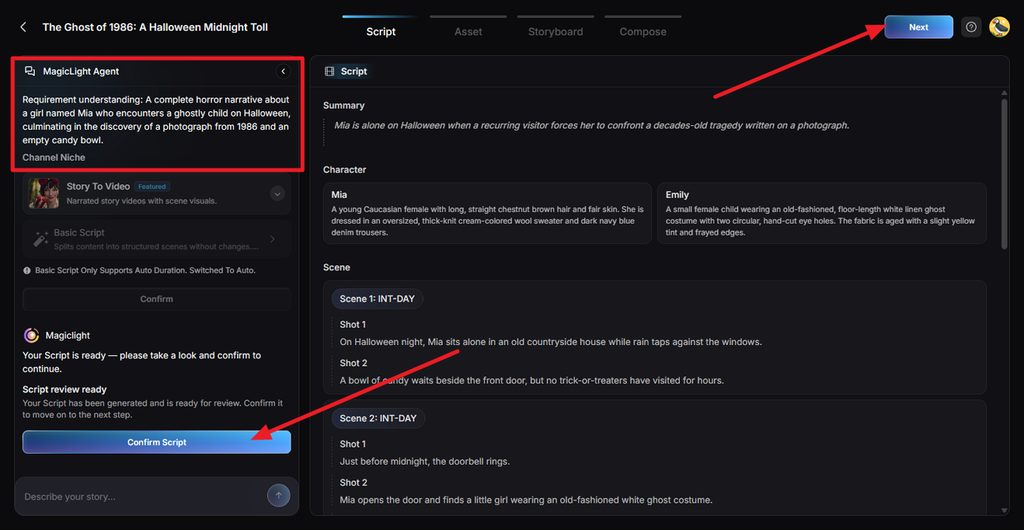
Check the summary, characters, scenes, and individual shots prepared from your input. MagicLight Agent also shows how it interpreted the project, making it easier to catch missing details. Edit anything necessary, then select Confirm Script.
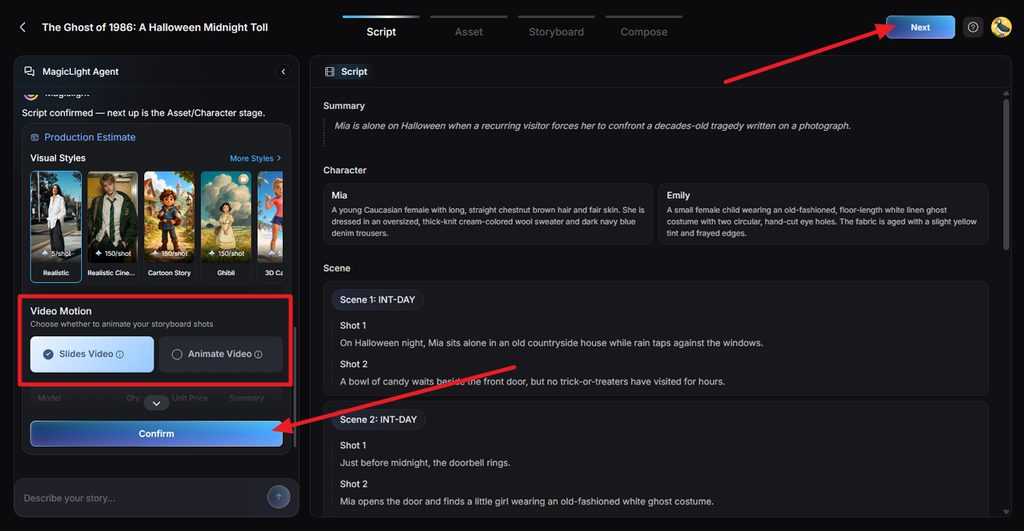
Step 3. Choose the Visual Style
Select a visual style that matches the video, whether realistic, illustrated, cinematic, or animated. Next, choose Slides Video or Animate Video, review the estimated production cost, and confirm the settings before moving forward.
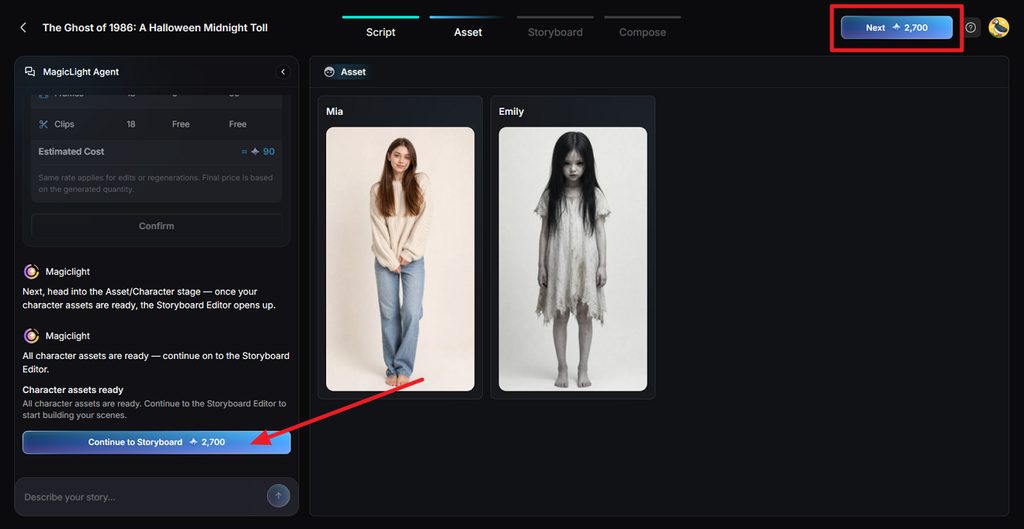
Step 4. Check the Generated Characters
Review the character assets created from the approved script before storyboarding begins. Check clothing, appearance, and overall style carefully, especially when the same character appears across several scenes. Select Continue to Storyboard once everything looks consistent.
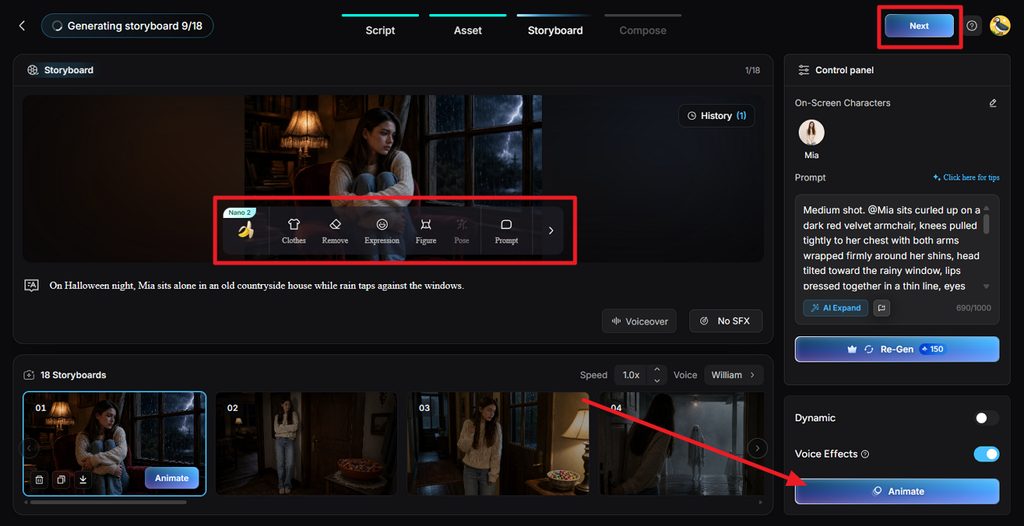
Step 5. Refine the Storyboard
Go through each storyboard shot and adjust details using Clothes, Expression, Figure, Pose, Remove, or Prompt. You can also change voice settings or regenerate individual scenes without restarting the whole project. Select Animate when the shots are ready.
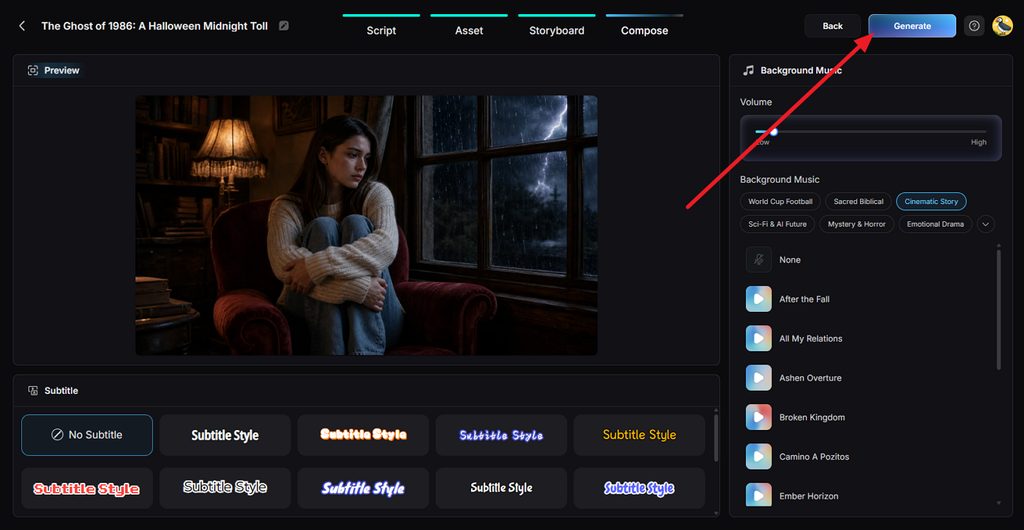
Step 6. Add Music and Subtitles
Open Compose to preview how the scenes work together as one video. Choose background music, adjust its volume, and select a subtitle style that remains readable across different scenes. Click Generate after checking the overall presentation.
Step 7. Choose the Export Settings
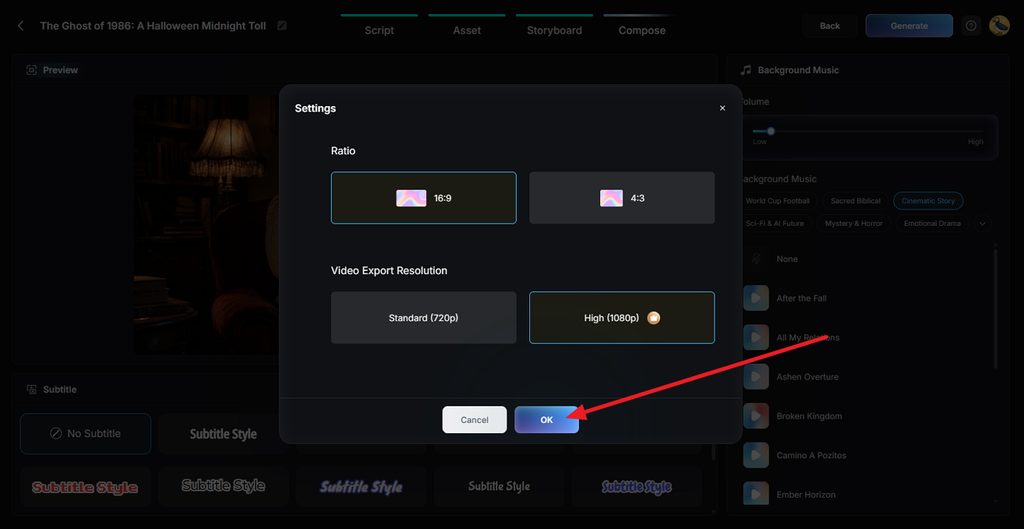
Set the final aspect ratio and video resolution based on where the content will appear. Choose a vertical format for Shorts or Reels, or widescreen for YouTube and presentations. Select the available export quality, then press OK.
Step 8. Preview and Download the Video
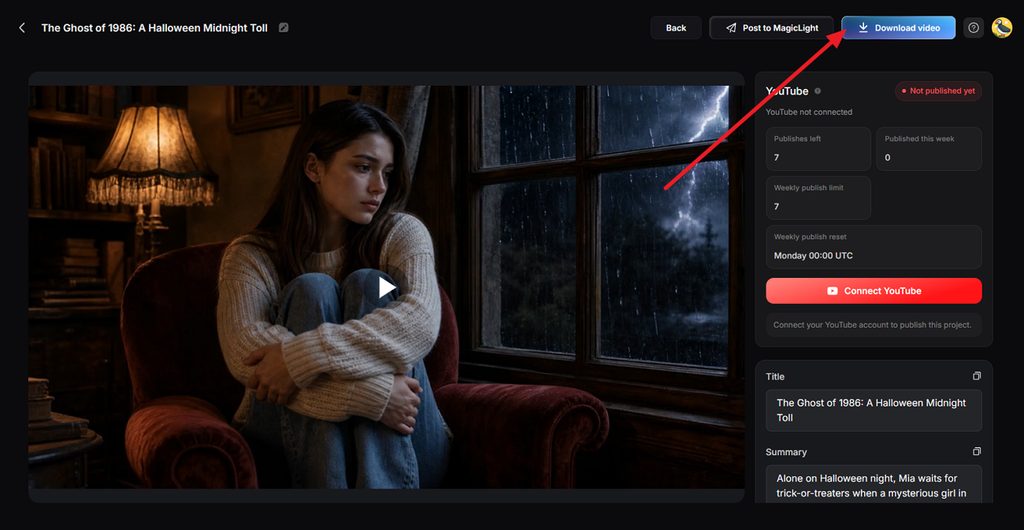
Watch the finished video and check the narration, visuals, subtitles, music, and scene transitions before exporting. Fix any scene that needs another pass, then click Download Video to save the completed project for publishing or further editing.
Conclusion
Runway suits hands-on filmmakers, HeyGen and Synthesia lead on presenter videos, and InVideo and VEED blend AI help with timeline editing. The right AI video creation software depends on the video being made. MagicLight AI handles the full journey when a single idea must become a narrated story with the same cast throughout.
FAQs on AI Video Creation Software
1. Can AI video software help cut down video production time?
AI tools to create videos remove the slowest steps, such as filming, casting, recording narration, and captioning by hand. A script can become a voiced, subtitled draft within one session, although reviewing each scene and fixing weak shots still takes human time.
2. What can AI video creation software do?
Modern AI tools for making videos write scripts, generate scenes from text or photos, add avatar presenters, clone voices, translate speech, and caption footage.
3. Can AI software create a video from a script?
MagicLight AI builds a complete video from a script, since Story to Video accepts scripts reaching 12,000 characters and breaks them into scenes. It adds characters, narration, music, and subtitles automatically, and the Nano Storyboard allows shot-level changes before the final render.
4. Can beginners create videos with AI software?
Beginners can start with MagicLight AI, a guided AI video creation tool that requires no editing or design experience. In a short chat, MagicLight Agent develops a basic idea into a full script, and a free first test needs no card.
5. Which AI video creation software supports different video workflows?
MagicLight AI supports several workflows under one subscription, from long narrated stories to short talking-photo clips. Story to Video builds full narratives, Image to Video animates photos, Lip Sync makes portraits speak, and the Image Generator creates characters and covers.

![6 Best AI Tools for Designers to Try [2026 List]](https://magiclight.ai/wp-2/wp-content/uploads/ai-tools-for-designer-300x198.png)

![How to Create a Meme for Instagram in 2026 [Step-by-Step Guide]](https://magiclight.ai/wp-2/wp-content/uploads/create-a-meme-for-instagram-300x169.png)