


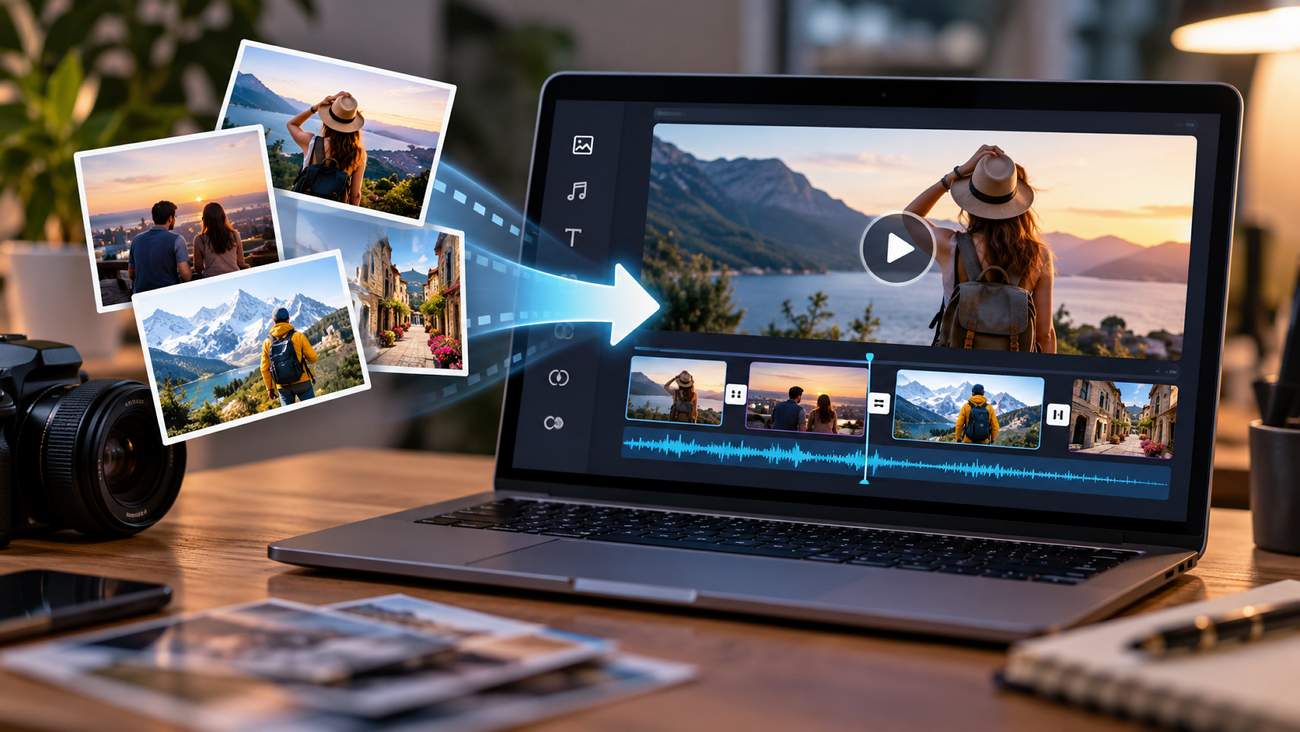
Turn static photos into engaging videos with slideshows, music, transitions, or AI-powered motion. Modern tools can animate individual images or combine several photos into a complete sequence. This guide explains how to make a video out of images using practical methods, including smooth transitions, creative effects, and tools like MagicLight AI.
Part 1. Ways to Turn Images into a Video
3 common methods can turn photos into a video. Begin with a slideshow, then improve it with transitions, sound, and movement. The following points explain each process in detail:
- Combine Multiple Images into a Slideshow
A slideshow places photos in sequence, each on screen for a few seconds, and it works on almost any device. Built-in apps now do much of the arranging automatically, which helps anyone learning how to make video using photos for the first time:
- Apple Photos Memories: On iPhones with Apple Intelligence, a typed description such as “beach trips with the dog” becomes a memory movie with music.
- iMovie Magic Movie: Chosen clips and photos become an edited iPhone or iPad movie whose style, music, and text stay adjustable.
- Template Editors: Canva, Adobe Express, and CapCut offer slideshow templates in which photos drop into ready-made layouts with preset timing.
- Add Transitions, Music, and Text
Polish turns a plain sequence into a video people finish watching, and 3 layers do most of that work. Each follows a simple rule of thumb, and restraint usually looks more professional than piling on effects:
| Layer | What Works | What to Avoid |
| Transitions | Short crossfades or simple cuts between related shots | Spins, page curls, and a new effect on every slide |
| Music | A royalty-free track whose tempo matches the mood | Chart songs that can trigger copyright claims |
| Text | Short titles and captions held long enough to read twice | Small fonts and text placed near the frame edges |
| Pacing | Longer holds for detailed photos and quicker cuts on the beat | The same duration for every image |
- Use AI to Animate Static Images
AI image-to-video models generate new frames from a still, so subjects can move and cameras can travel through the scene. Even a lone photo can become a short clip, which is the whole idea behind how to make a video from an image. Tools like MagicLight AI comes with a complete dedicated feature of converting static images to AI using its Image to Video model.
Part 2. How to Make a Video from Images?
MagicLight AI makes videos from images through its Image to Video tool. One picture can be animated on its own, or several can blend into a single flowing sequence. Narration and captions join in the same workflow, so the finished clip is ready to post. Precision Camera Control handles pans, tilts, and push-ins, letting a flat photo feel like footage shot on a moving camera.
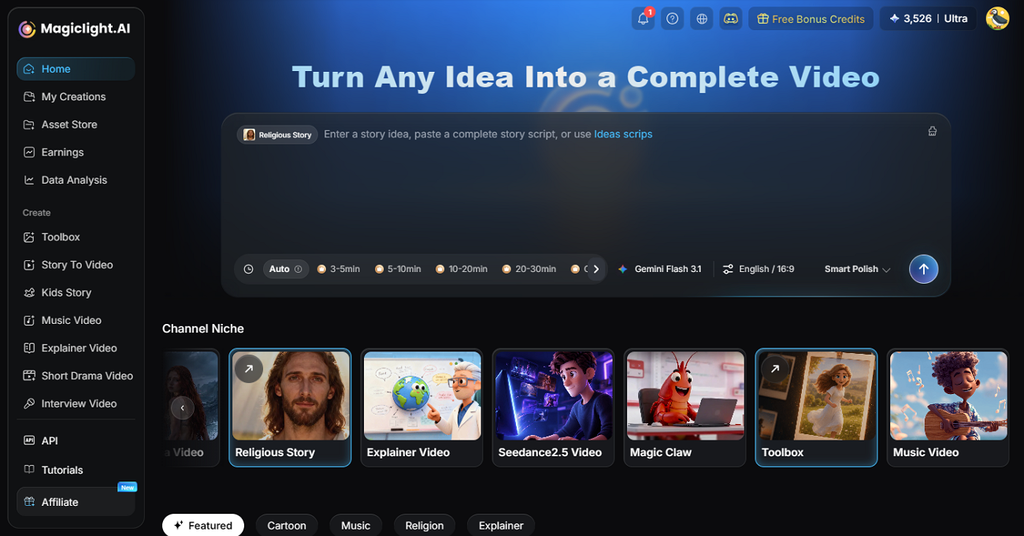
Beyond single clips, MagicLight can also turn a photo set into a narrated story. MagicLight Agent builds a script around the photos, picks the niche without extra input, and sends the finished plan on to Story to Video. People in the photos can return there as recurring characters.
Key Features of MagicLight AI
5 features matter most when the source material is a set of images:
- Upload Reference Files: Add images, videos, or audio files to give the tool source material for your video. Upload up to 30 images, 10 videos, and 10 audio files in one project together.
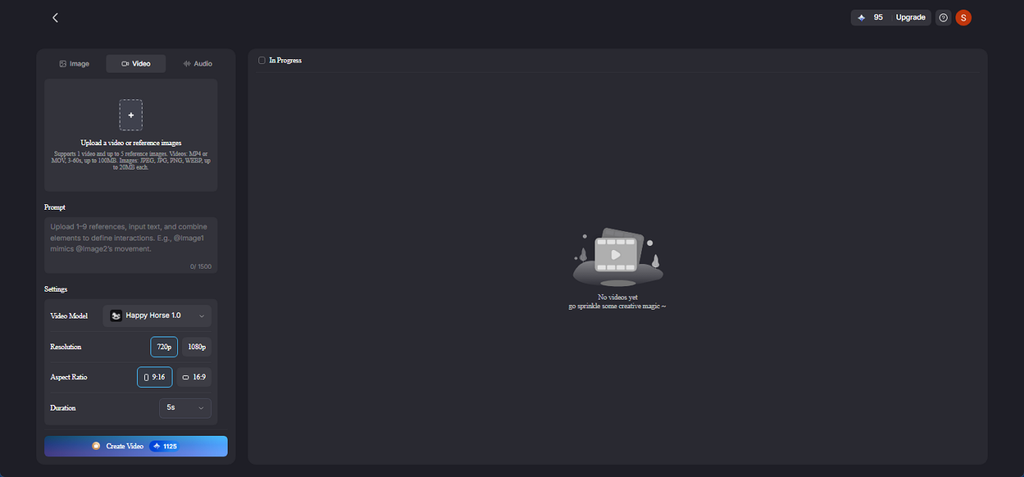
- Video Format and Duration: Each uploaded video can run from 2 to 30 seconds, with 30 seconds total allowed. The upload area accepts WAV and MP3 files, so common audio formats work without conversion.
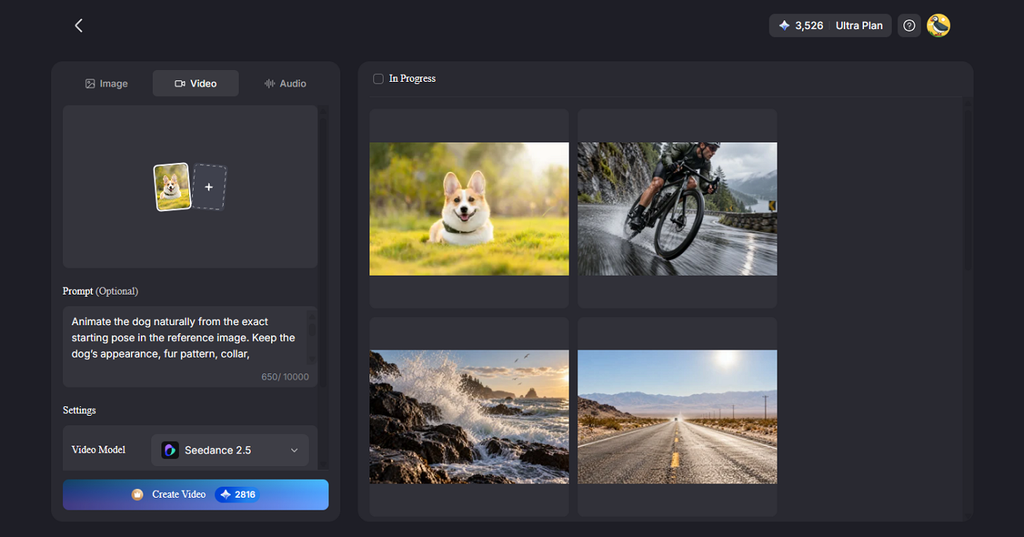
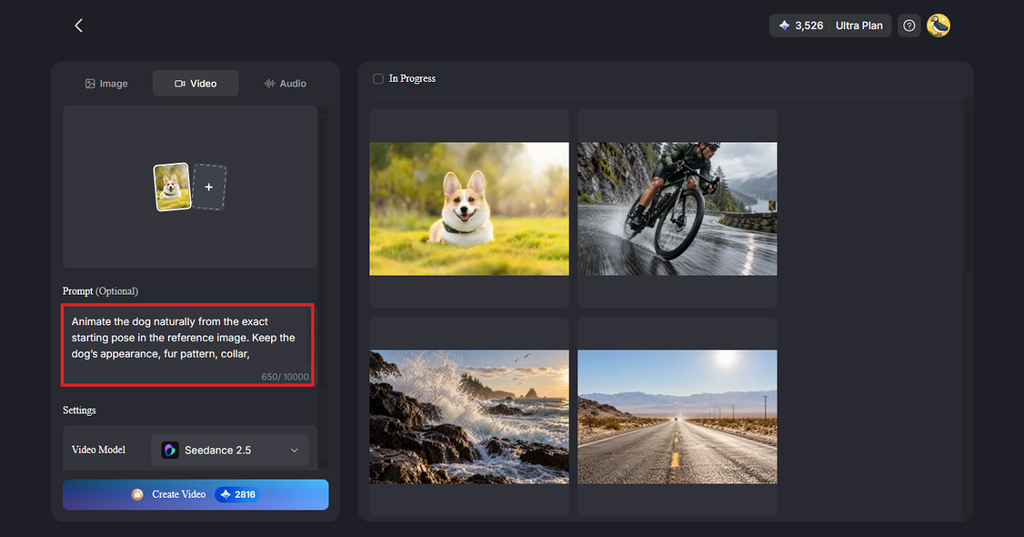
- Optional Prompt Box: Use the prompt box to describe what you want the finished video to look like. The prompt field supports up to 10,000 characters for Seedance 2.5, giving plenty of room for detailed instructions.
- Portraits That Talk: Lip Sync matches a face in a portrait photo to typed lines or recorded audio, which works well for tributes and product explainers.
Guide: How to Create a Video from Images with MagicLight AI
Good photos and clear directions matter more than editing skill in MagicLight’s Image to Video workflow. 4 steps cover how to create a video from images in MagicLight and are explained below:
Step 1. Sort and Prepare the Images
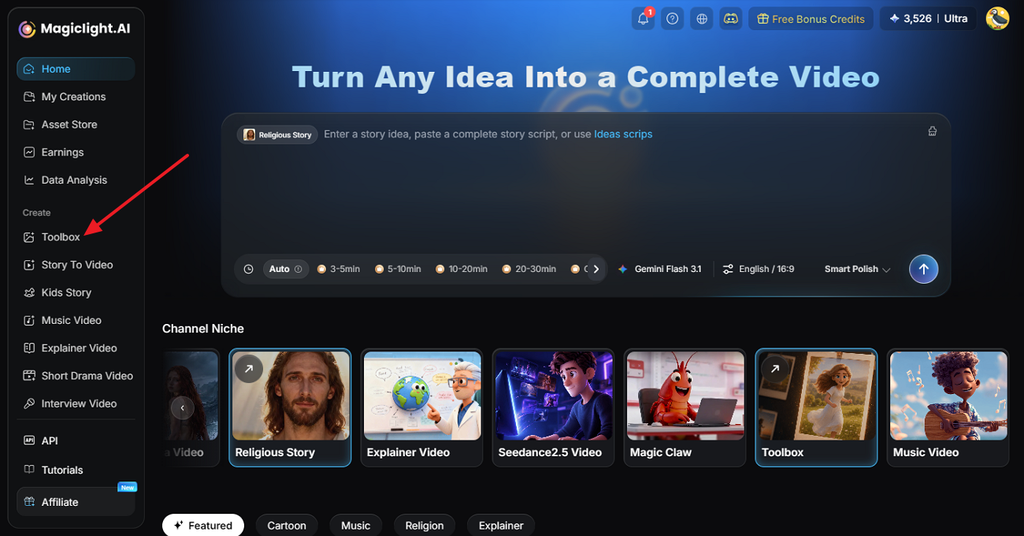
Access the Toolbox on the MagicLight main interface and switch to Video. Choose clear images and arrange them in the order you want. Crop them to the same size so each scene changes smoothly.
Step 2. Upload to Image to Video
Drag in the pictures and keep them in story order. One image works as well, producing a short animated moment rather than a sequence. Write what should happen in every scene, naming the subject, the movement, and the camera. Include parts that should not move, such as text or a logo, in the note as well.
Step 3. Pick the Style, Length, and Format
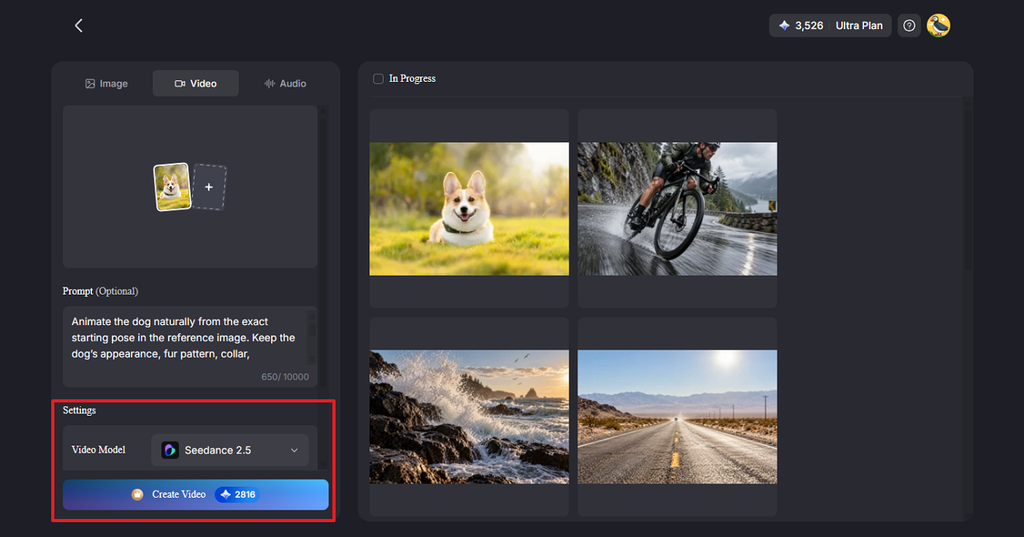
Choose the Video Model, Duration, and Resolution, then press Create Video. Start the process and wait for the finished image to appear in the results area.
Step 4. Check and Export in HD
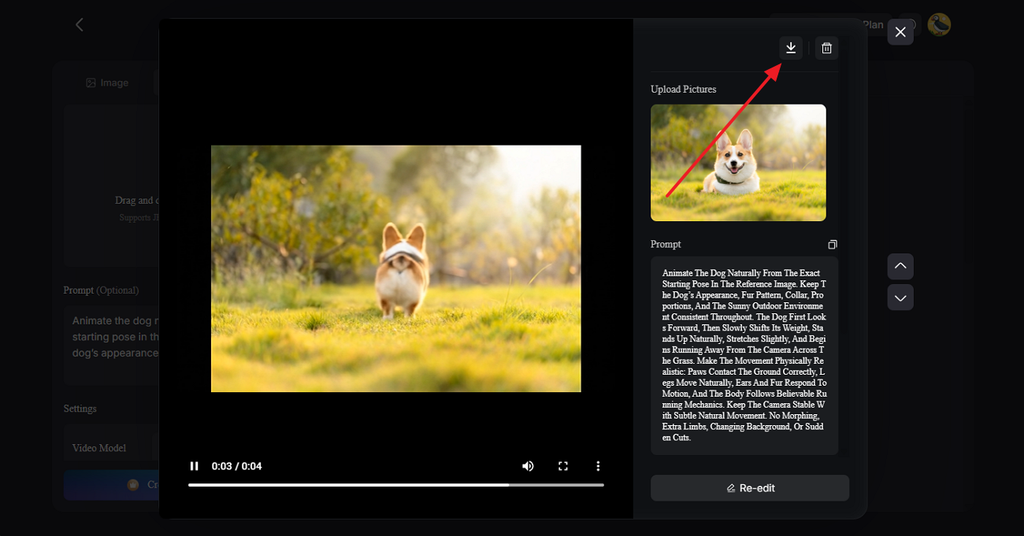
Check each scene for odd hands, edges, or changing faces, and remake any scene that looks wrong. Click the Download icon and save the final video in HD.
Part 3. Tips for Better Image-to-Video Content
Most problems in photo videos start before any tool opens, with blurry sources, mismatched shapes, or vague directions. 5 habits prevent the most common mistakes when you learn how to create a video from an image:
- Start with Sharp Sources: AI models animate the detail they can see, so compressed social media downloads produce softer, blotchier motion than camera originals.
- Match the Aspect Ratio Early: Crop photos to the final shape before upload to avoid cropped heads or invented background at the edges.
- Plan for Short Clips: Veo 3.1, for example, caps each generation at eight seconds, so longer videos combine several clips.
- Label Realistic AI Video: TikTok requires a label on AI-generated content with realistic images, audio, or video, which likely includes animated real-life photos.
- Use Photos with Permission: Animate only pictures owned by the creator or shared with consent, since moving faces feel more personal than stills.
Conclusion
Learning how to make a video out of images becomes easier when you start with clear photos, arrange them in the right order, and add suitable transitions, music, or text. Slideshow tools like Apple Photos Memories and iMovie handle basic editing well, while AI tools can animate individual images. MagicLight AI extends the process by turning multiple photos into animated sequences with narration and captions.
FAQs About Making Videos from Images
1. How do I make a video from multiple photos?
Arrange the photos in order, add music, transitions, and titles, then export the video. Tools like iMovie, Canva, Apple Photos, or MagicLight AI can handle the process.
2. Can I turn a single image into a video?
You can turn one photo into a short clip with simple movement or camera motion. AI tools handle how to create a video from an image by generating realistic motion. MagicLight AI, for instance, animates one picture from a written description.
3. How can AI animate images?
Video tools create new frames between movements based on the image and your prompt. Check the final clip, since faces, hands, or backgrounds can sometimes change.
4. What is the best AI tool for creating videos from images?
MagicLight AI supports single or multiple images, camera movement, portrait animation, and Lip Sync. It can also turn photos into a longer narrated video.

![6 Best AI Tools for Designers to Try [2026 List]](https://magiclight.ai/wp-2/wp-content/uploads/ai-tools-for-designer-300x198.png)

![How to Create a Meme for Instagram in 2026 [Step-by-Step Guide]](https://magiclight.ai/wp-2/wp-content/uploads/create-a-meme-for-instagram-300x169.png)