


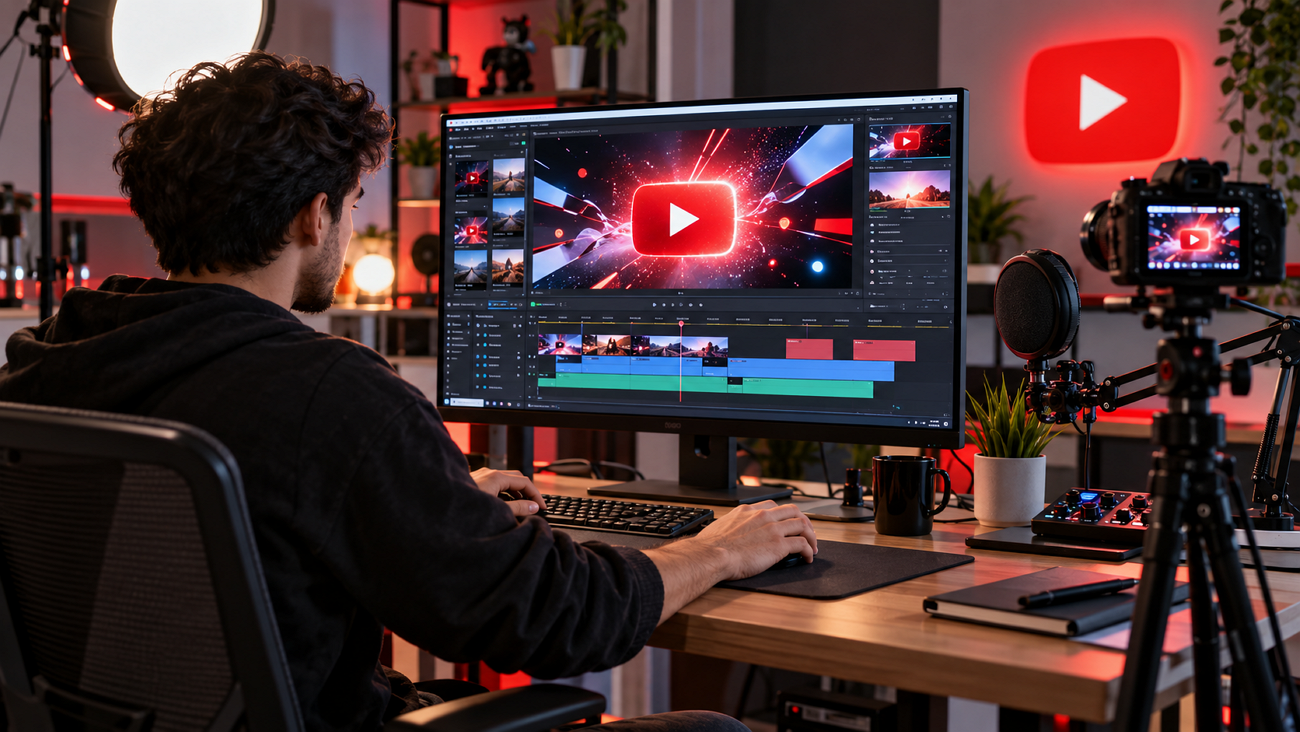
A strong YouTube intro can establish your channel identity and give viewers a reason to keep watching. Learning how to make a YouTube intro video starts with the right concept, branding, visuals, motion, and sound. This guide covers effective intro elements, practical creation methods, and how MagicLight AI can help create animated openers, title cards, and branded characters.
Part 1. What Makes a Good YouTube Intro?
To understand how to create a YouTube intro video, start with 5 basic qualities that make an intro work well:
- Keep It Short: Make the intro brief so viewers reach the main content quickly without losing interest.
- Use Consistent Branding: Keep your logo, colors, fonts, and channel name consistent across videos and thumbnails.
- Match the Channel Tone: Design the intro around your channel’s style, whether it is energetic, professional, calm, or playful.
- Add a Signature Sound: Use a short, recognizable sound or music cue to strengthen your channel identity.
- Show the Video’s Value: Give viewers a quick idea of what the video offers and why they should keep watching.
Part 2. How to Make a YouTube Intro Video?
A good intro starts with a simple plan. Once the idea is clear, you can shape the visuals, movement, and sound more easily. The following points explain this further:
- Plan Your Intro Concept
Decide what the intro must do, whether that means creating brand recognition, setting a mood, or previewing the episode. Creators planning how to make an intro video for YouTube should list the fixed elements. Most intros reuse the logo, channel name, tagline, brand colors, and one sound cue.
Then plan the timing. Show the person first, reveal the logo next, and finish with the tagline. Keep the order simple to make the intro easier to follow and keep it short.
- Create Visuals and Animations
With the plan set, you can create the visuals using templates, animation software, or AI. The right choice depends on budget, skill level, and how customized the result should look:
| Approach | Example Tools | Best For |
| Intro Templates | Canva, Adobe Express | Quick branded openers with little design work |
| Motion Graphics Software | After Effects, DaVinci Resolve Fusion | Custom logo animations and precise timing |
| 3D Animation | Blender | Spinning logos and cinematic 3D scenes |
| AI Generation | MagicLight AI | Original scenes and mascots from a written prompt |
| Live Action | A phone or camera plus an editor | Host-led channels such as vlogs |
Key Features of MagicLight AI
MagicLight AI creates intros from written prompts, so no animation skills or stock footage are needed. Still title cards and logo scenes come from its Image to Video function. For longer animated openers, MagicLight Agent plans the script, decides the niche, and passes everything to Story to Video for rendering. These 5 features will help you understand how to make a video intro for YouTube in a better way:
- Long Script Input: Paste scripts up to 12,000 characters, then pick an aspect ratio and duration of your choice that suits your intro video.
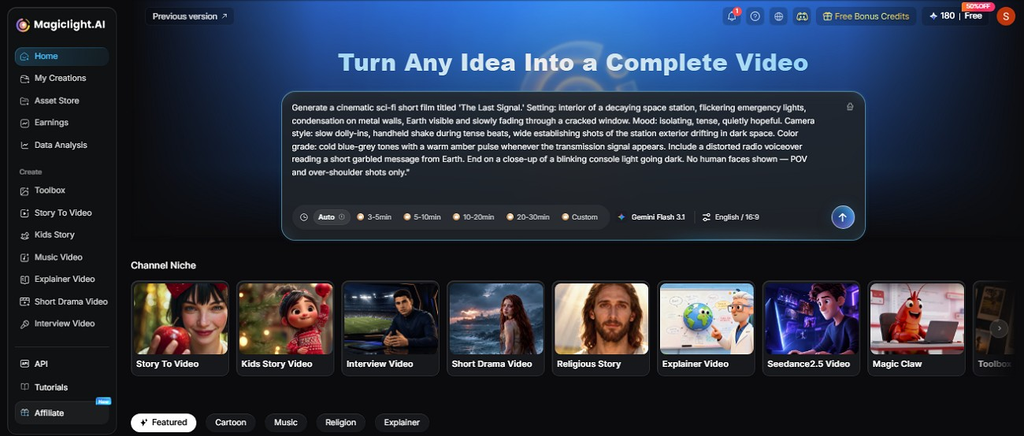
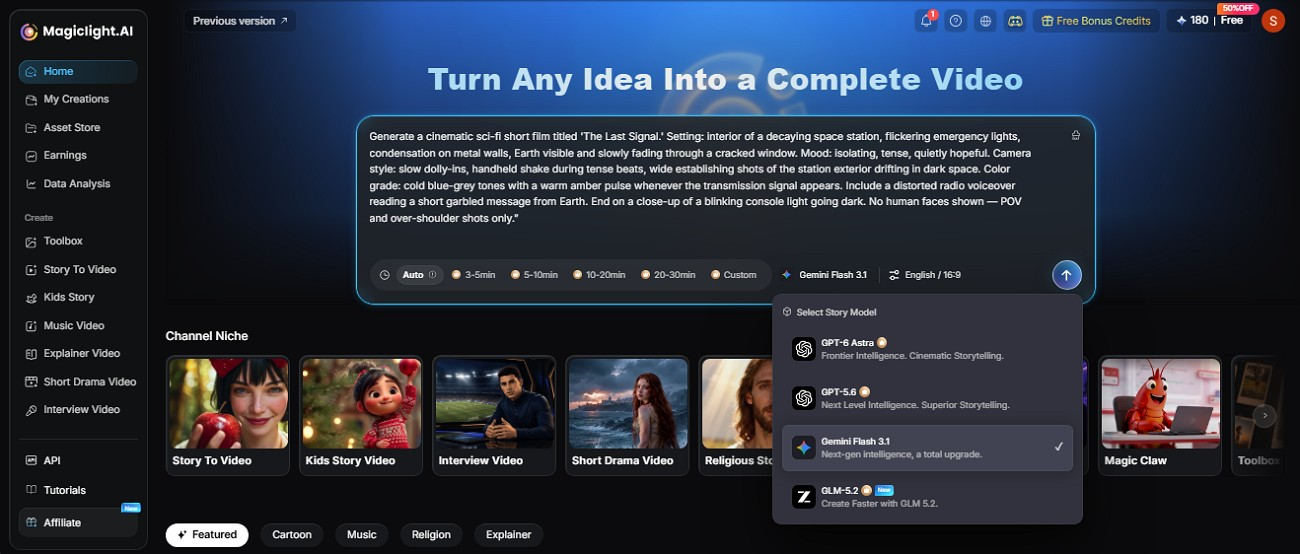
- AI Story Models: Pick from 14 story models, like Gemini 3.1 Pro or DeepSeek V4, to compare different approaches to pacing, structure, and script development.
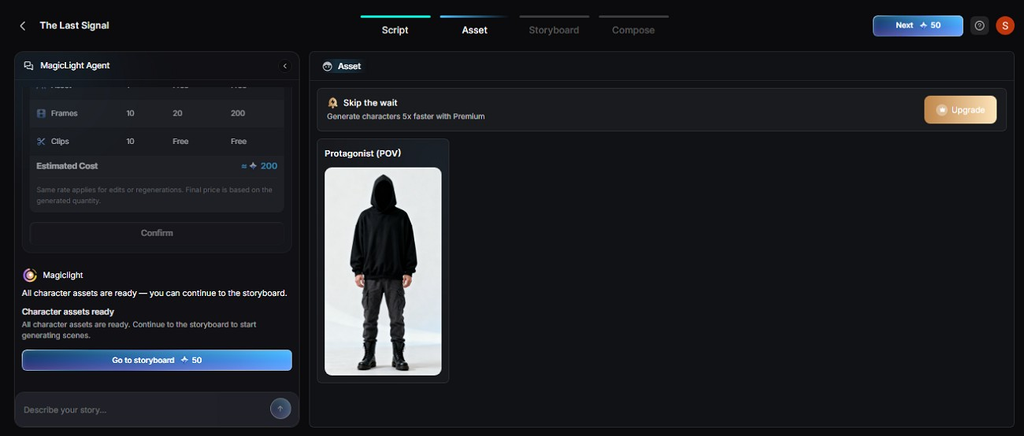
- Consistent Characters: Create a narrator or mascot using an image or 1,000-character prompt for consistent YouTube intros.
- Voices, Captions, and Languages: Use a cloned voice, pick from 16 caption styles, and export videos in 11 languages.
- MagicLight Agent: Describe your YouTube intro idea, and the MagicLight Agent turns it into a complete script with matching scenes and visuals.
- Mascot Greetings: Lip Sync can make a mascot or host photo speak a short intro line. Add the words or audio, choose a voice, and use the clip before the logo reveals.
Guide: How to Make a YouTube Intro with MagicLight AI
The quickest way to make an engaging opener is to create a proper script or improve it using the 14 story models. Using this workflow, how to create a YouTube intro video comes down to the following steps:
Step 1. Start with MagicLight Agent
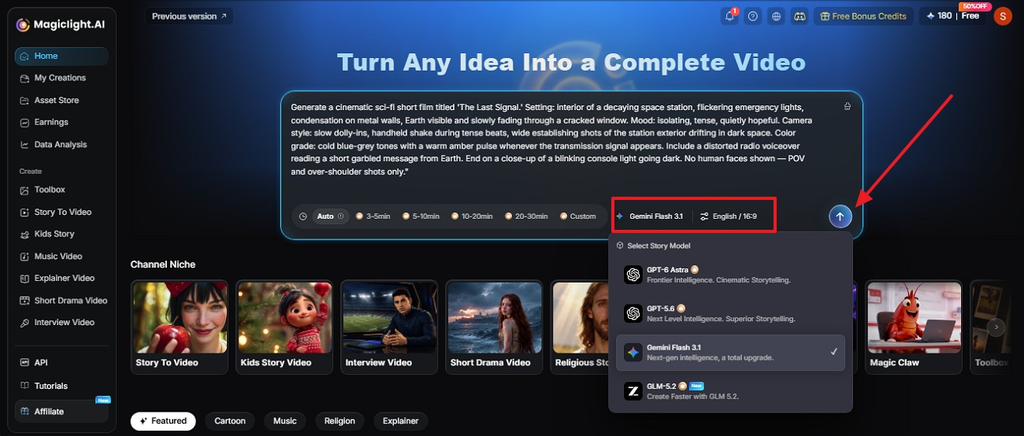
Go to MagicLight AI’s homepage and type a short intro script, like your channel name and a one-line hook. Pick an AI Story Model, set Video Duration to a few seconds, choose 16:9 under Aspect Ratio, and press Send.
Step 2. Check the Basic Settings
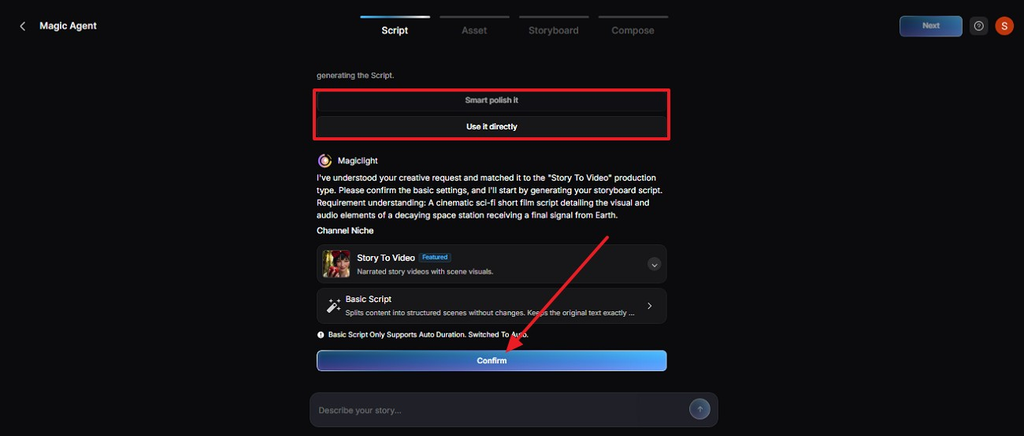
Select Smart Polish It if you want the Agent to clean up your script. Tap Use It Directly to keep your own words. Check the suggested video type, then click Confirm.
Step 3. Review the Scene Breakdown
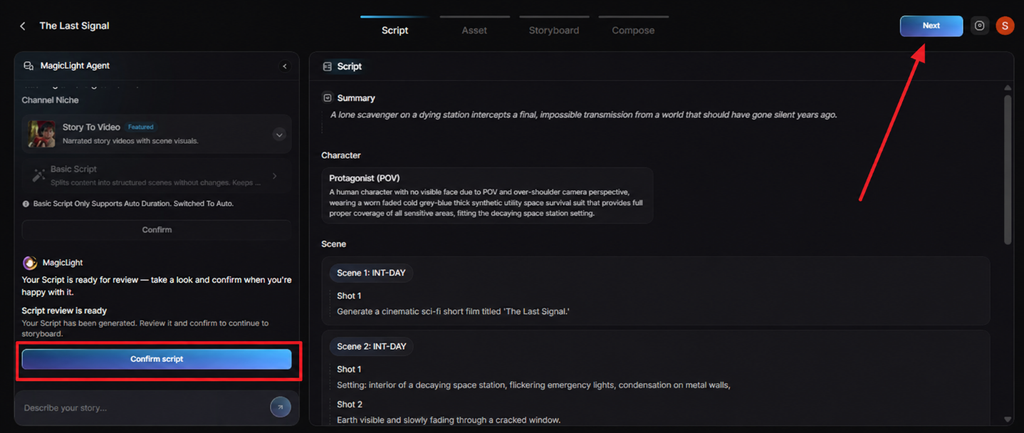
Check the Summary, Character details, and each scene to make sure they fit your intro. Remove unnecessary scenes or adjust the content if needed, click Confirm Script and select Next to continue.
Step 4. Pick Video Motion Options
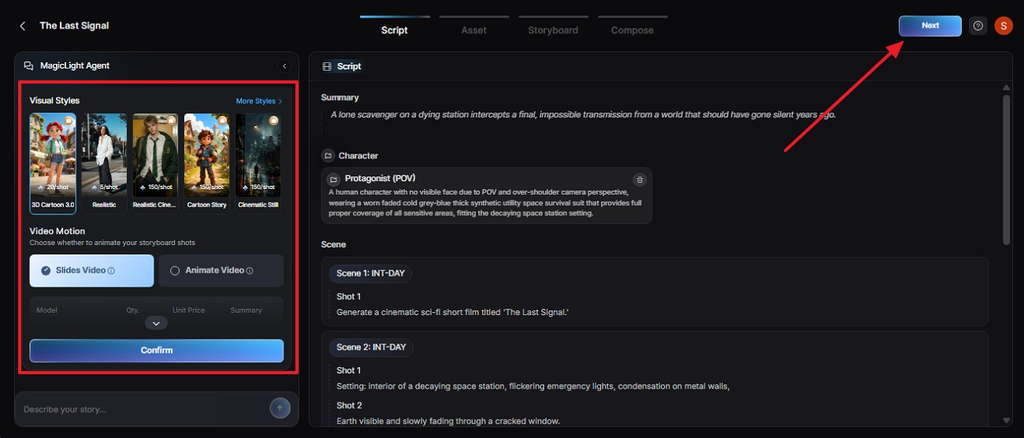
Choose a Visual Style on the left and select Animate Video so your intro has movement. Check the cost shown below, then click Confirm and Next.
Step 5. Check Assets and Continue
Open the Asset stage to see your characters and visuals. Swap in your mascot or narrator here if needed. Click Next to move to Storyboard.
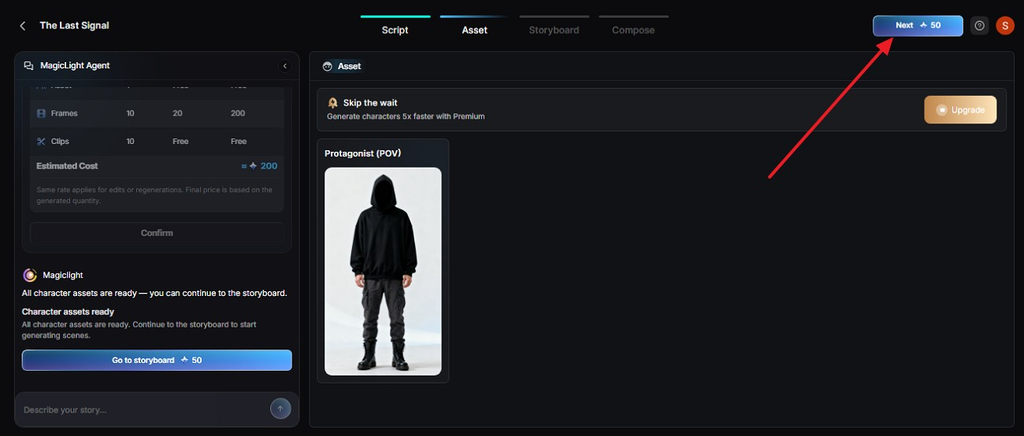
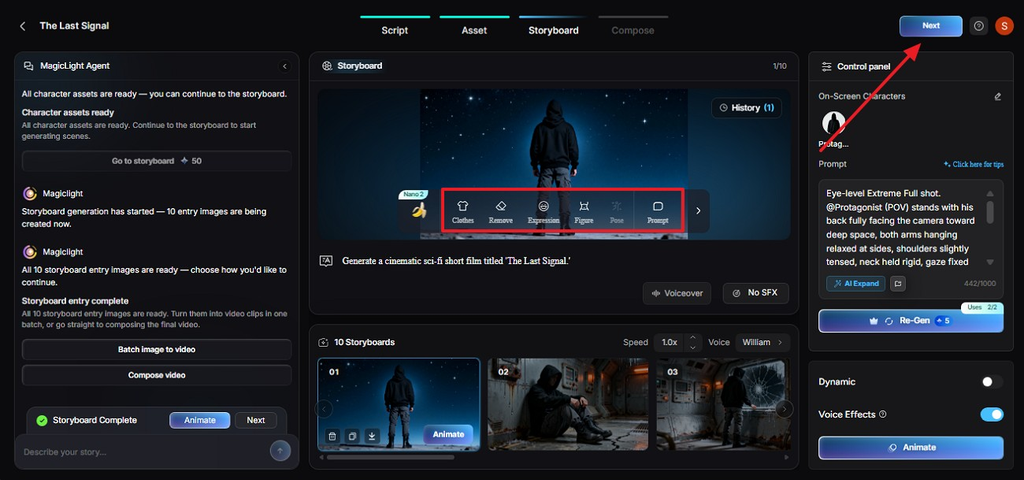
Step 6. Edit the Storyboard
Go through each shot and adjust the Clothes, Poses, and Expressions. Keep every shot short so the intro stays quick. Press Next when it looks right.
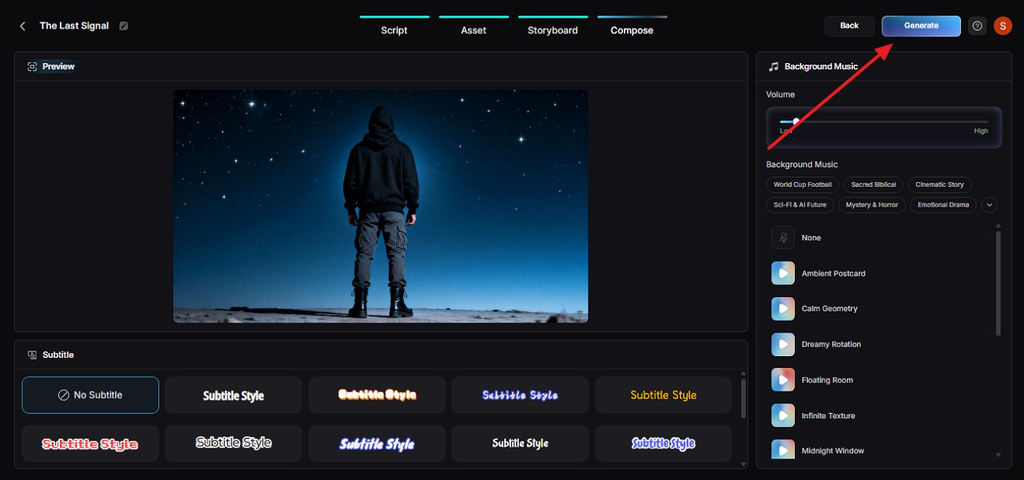
Step 7. Add Subtitles and Generate
Pick a Subtitle style that is easy to read on a phone. Then click Generate in the top right corner.
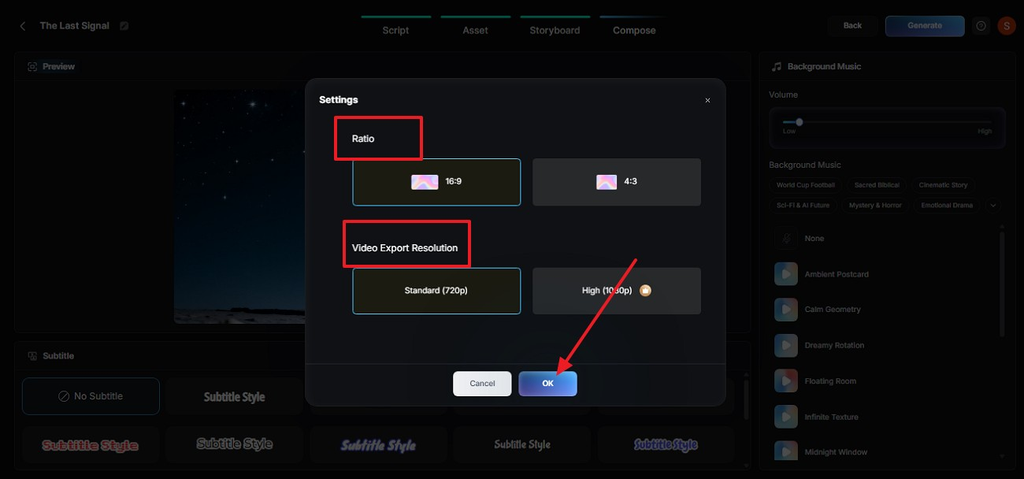
Step 8. Select Aspect Ratio and Resolution
In the popup, choose your Ratio and Video Export Resolution, then click OK.
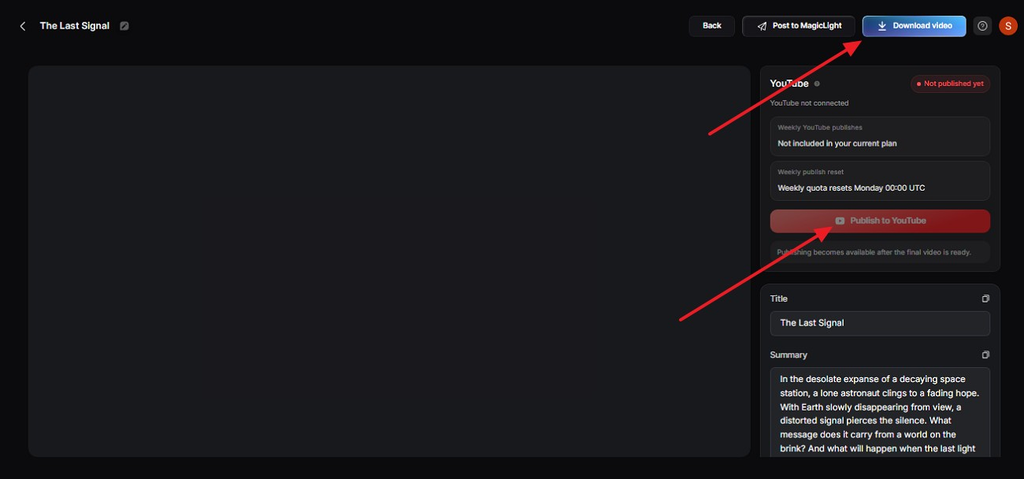
Step 9. Download or Publish Intro Video
Watch the finished intro and check the Thumbnail, Cover, and Hashtags. Click Download Video to save it or Publish to YouTube. Add the intro to the start of your videos in any editor.
Part 3. Tips for a Better YouTube Intro
Small adjustments often decide whether an intro makes a brand or costs viewers. Each tip takes little time and helps protect audience retention. Creators refining “how to make intro video for YouTube” projects can apply these tips to every upload:
- Hook First, Logo Second: A few seconds of the best moment before the branded intro keeps viewers curious.
- Check the Intro Card: YouTube Studio’s Intro card shows how many viewers last 30 seconds, and YouTube suggests experimenting with that opening stretch.
- Use Copyright-Safe Music: YouTube Audio Library tracks are copyright-safe. Creative Commons tracks require attribution, while tracks marked ‘Attribution not required’ do not.
- Add a Watermark: YouTube Studio’s video watermark can stay on screen for the entire video, keeping the brand visible without a longer intro.
- Skip It on Shorts: Vertical Shorts work better with the hook in the first second and no branded opener at all.
Conclusion
Mastering how to make a YouTube intro video means creating a brief, on-brand opener that respects the viewer’s time. Plan the sequence first, pair it with a signature sound, and check the Intro card in YouTube Studio after publishing. MagicLight AI speeds up the creative part, turning a prompt into an animated title card or a talking mascot.
FAQs About YouTube Intro Videos
1. How long should a YouTube intro be?
Keep a YouTube intro as short as the branding requires, usually just a few seconds. Lead with useful or engaging content first, then check audience retention to see whether the opening keeps viewers watching.
2. What should I include in a YouTube intro?
Include your logo or channel name, brand colors, and a short sound that viewers can recognize. You can also add a tagline or quick preview to show what the video is about.
3. Can I make a YouTube intro with AI?
AI can create a YouTube intro from a prompt, script, image, or character. MagicLight AI can develop scenes, animate visuals, add voices and subtitles, and generate the finished opener.
4. What is the best AI tool for creating a YouTube intro?
MagicLight AI lets you create title cards, animate images, add movement, and include talking characters or voice. You can use the same intro style across videos to keep your channel branding consistent.

![6 Best AI Tools for Designers to Try [2026 List]](https://magiclight.ai/wp-2/wp-content/uploads/ai-tools-for-designer-300x198.png)

![How to Create a Meme for Instagram in 2026 [Step-by-Step Guide]](https://magiclight.ai/wp-2/wp-content/uploads/create-a-meme-for-instagram-300x169.png)