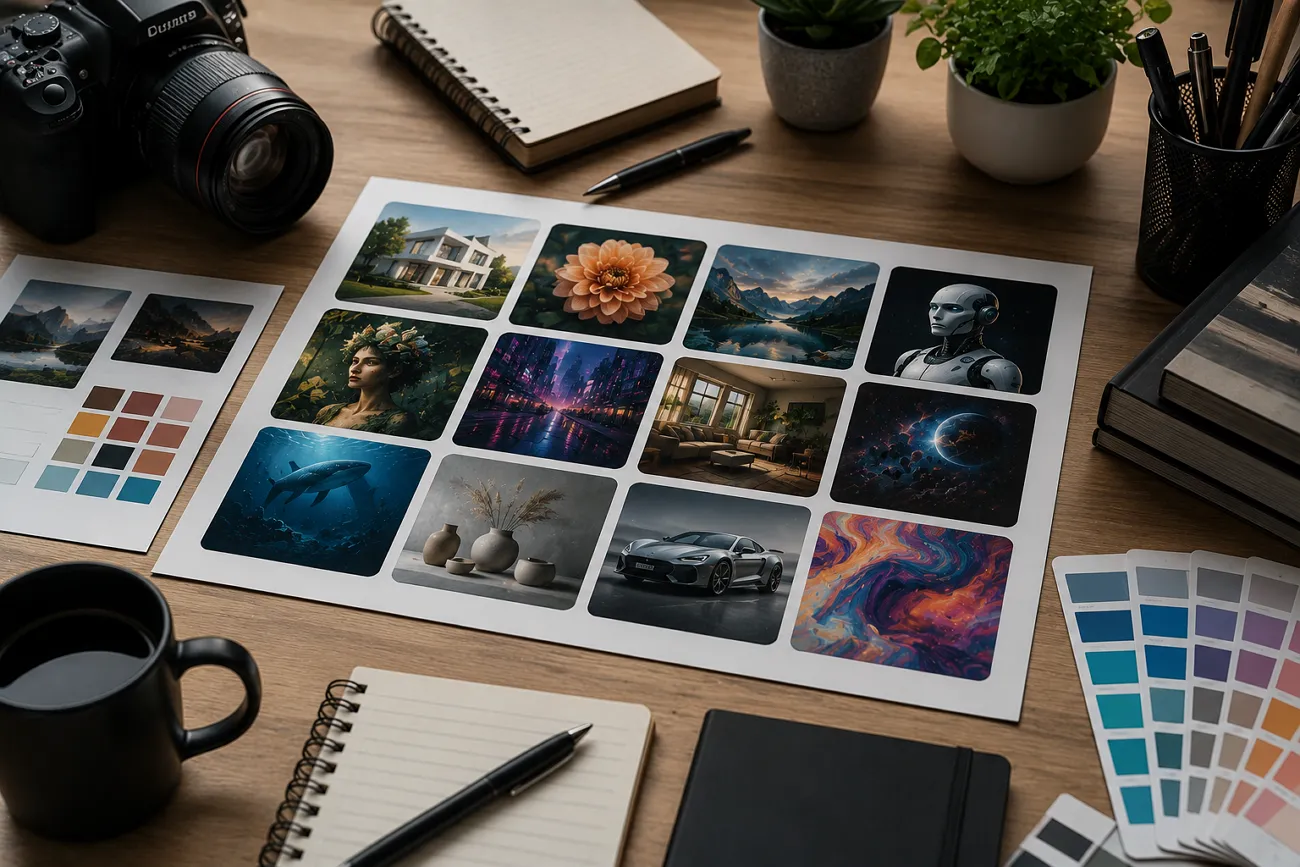
Many people spend hours searching for the right tool to create stunning visuals online. This is exactly where the new Freepik AI tool changes the entire game. It reduces manual effort by turning prompts into ready-made images and designs quickly. Despite its popularity, some users still face technical issues during the generation process. To counter this, a comprehensive review and a better alternative are provided below for easy selection.
Part 1. What Is Freepik AI?
The Freepik AI video generator, which is now called Magnific, is a browser-based tool that creates visuals using AI technology. Moreover, it creates multiple variations from the same prompt for more creative video options instantly. Users can even enhance prompts using AI to improve quality and generate better video results.
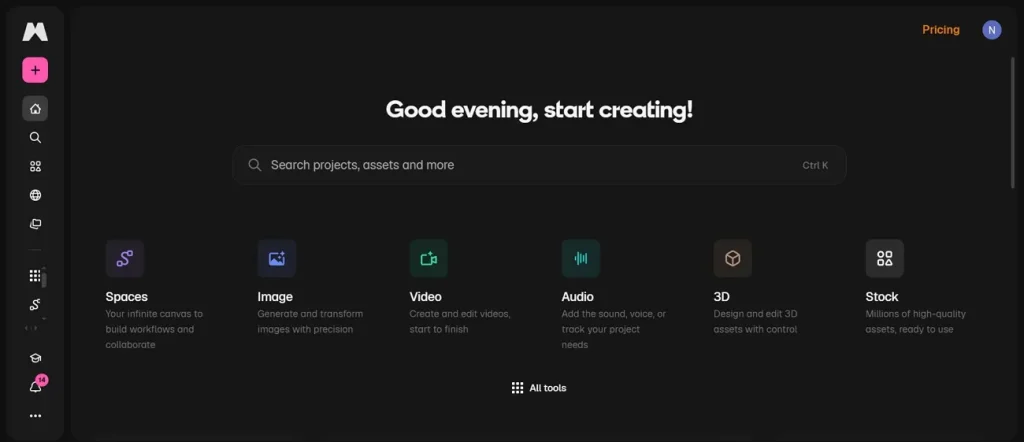
This tool generates up to 6 cinematic shots within a single video creation process. Additionally, Magnific supports various AI video models, including Kling 3.0 and Seedance 2.0. For smooth and controlled video transitions, it uses start frame and end frame. Along with visual creation, the platform includes tools like upscaling, background removal, and object editing.
Key Features of Freepik AI
- Lighting Adjust: Control lighting conditions in generated visuals for mood consistency and enhanced cinematic depth effects.
- Noise Reduction: Remove unwanted grain and noise from images and videos to improve clarity and visual sharpness.
- Color Adjust: Modify and control color tones in images and videos for consistent branding and visual identity.
- Audio Sync: Automatically synchronize generated audio elements with visuals for smooth and professional video presentation quality output.
- Object Replace: Remove or replace unwanted objects in visuals using smart AI-driven content editing tools.
Pros and Cons of Freepik AI To Know
The Freepik AI generator provides strong creative tools, yet still has some limitations. Therefore, adhere to the important strengths and weaknesses you should understand before starting:
Pros
- Create realistic product mock-ups for branding presentations and marketing materials instantly.
- Ready-made templates help create professional designs quickly without extra effort.
Cons
- Generated visuals sometimes require manual adjustments for better final output.
- Supports only 20-second videos, limiting longer cinematic storytelling and projects.
Part 2. How to Use Freepik AI For Easy Media Generation?
Many users find Freepik's AI video generator to be a very helpful tool to create stunning visuals. In this particular part, you will walk through each step to generate visuals:
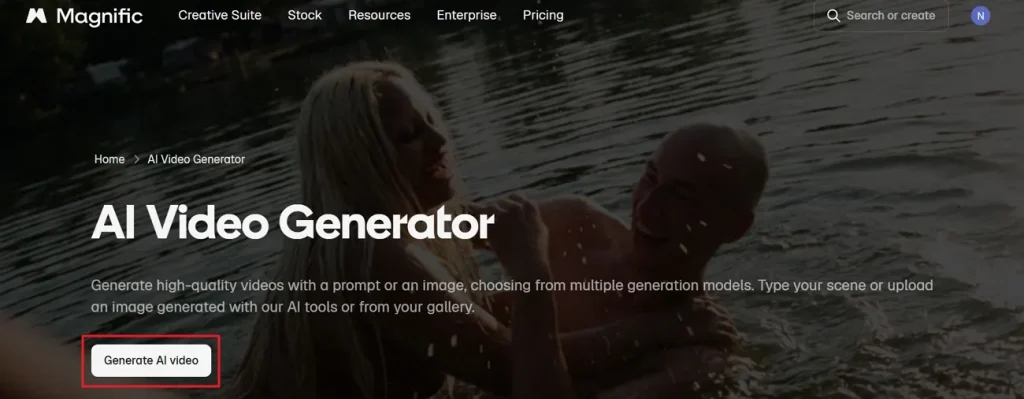
Step 1. To initiate, access the official webpage of Freepik AI and click Generate AI Video.
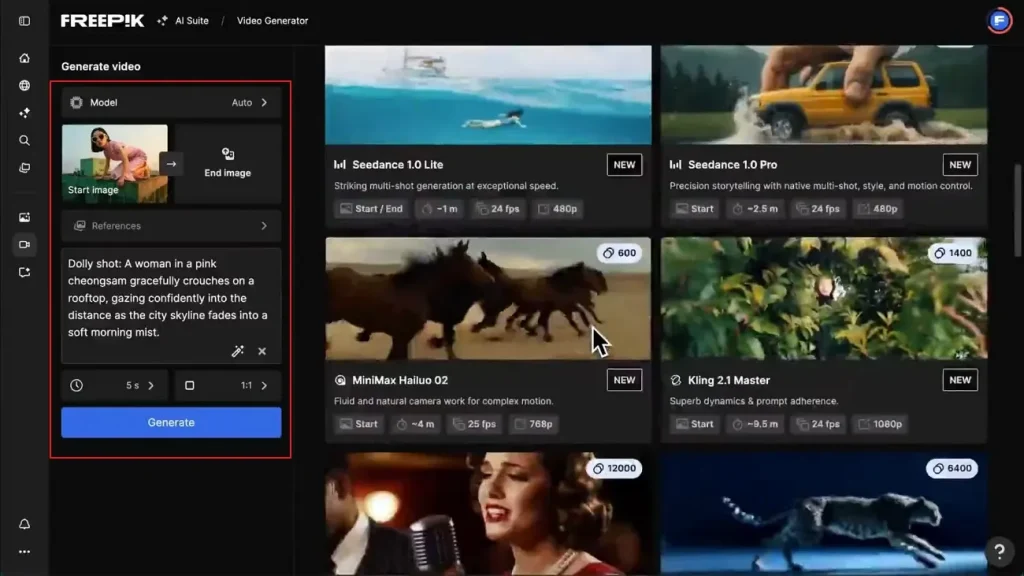
Step 2. After that, enter the Script into the given Text Box. You can also provide Start Frame and End Frame to guide video generation. Next, select the video duration and Aspect Ratio according to your needs. At last, opt for the Generate button to start creating your video.
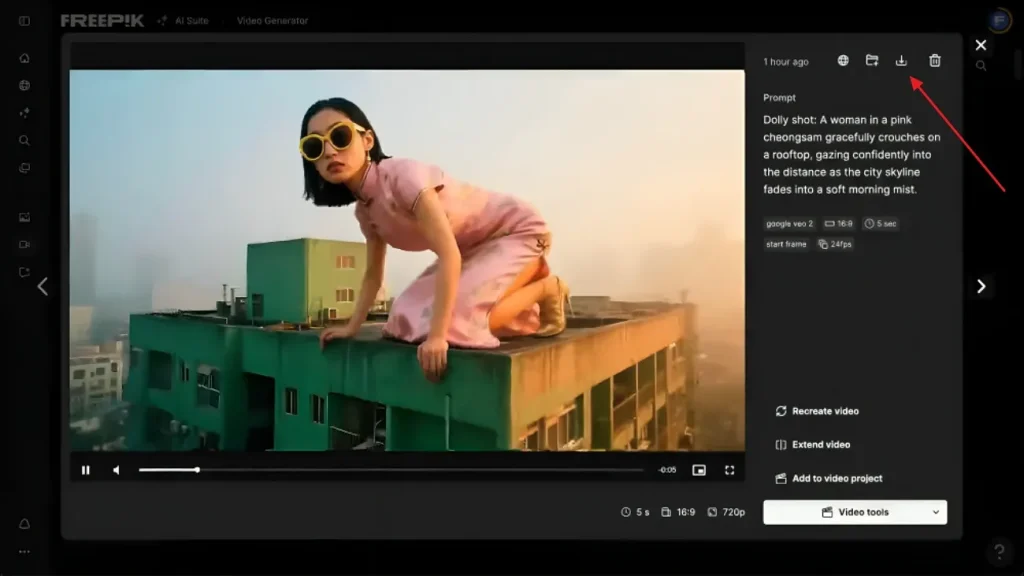
Step 3. Once your video is generated, review it and opt for the Download icon to save it.
Part 3. Why MagicLight AI Is Better Than Freepik AI
Many users enjoy creating visuals with the Freepik AI image generator for quick results. However, certain creators still face limits when producing advanced cinematic video content. In such cases, MagicLight AI becomes the most helpful alternative to Freepik AI. This dedicated tool supports long-form video creation up to 50 minutes for storytelling projects. Plus, it provides a complete workflow, from idea generation to final exported cinematic video output.
Using its Scene Control feature, users can adjust actions, expressions, and timing within each generated scene. The tool supports Nano Storyboard editing with micro-level scene adjustments and timing control. Not only text-to-video, but MagicLight AI also supports image-to-video with 19 different AI video models for diverse cinematic generation styles. Furthermore, it supports multiple aspect ratios and allows export in 720p and 1080p resolution for flexible video quality output.
Key Features
- Animation Convert: Converts a storyboard into animated sequences using 16 advanced animation models for cinematic storytelling.
- Director Mode: Provides 8 modes to control camera perspective, pacing, and the overall cinematic storytelling flow.
- Re-edit Video: Allows re-editing during the video generation process to improve scenes, timing, and final output quality.
- Script Length: Accepts up to 12,000 characters that enable detailed long-form storytelling for complex video creation projects.
- Music Library: Offers 40 background music tracks to enhance emotional depth and storytelling impact in videos.
A Comprehensive Guide to Generating AI Video Using MagicLight AI
Instead of using the Freepik AI photo generator, adhere to the given guide to generate an AI video:
Step 1. Start a New Video Project
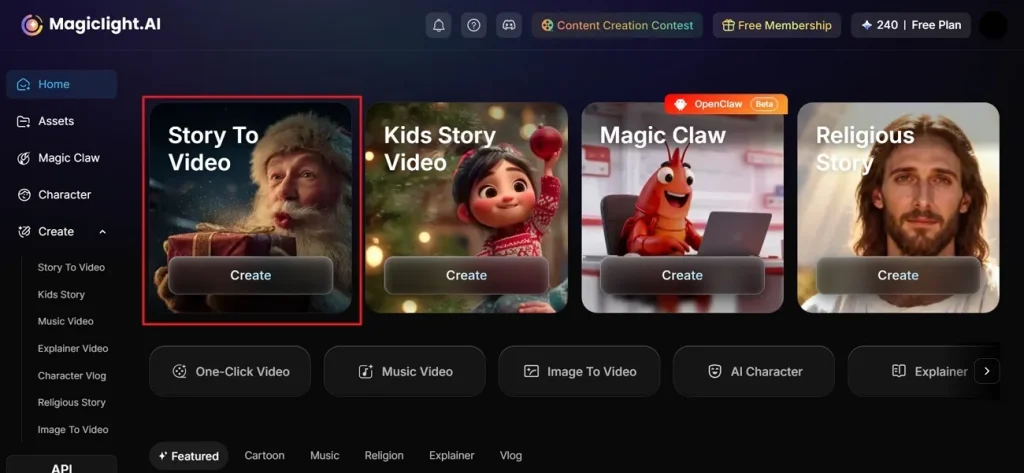
To initiate, opt for the Story to Video option of MagicLight AI to start generating an AI video.
Step 2. Story Setup Configuration
Next, add or refine your story inside Smart Script and choose the preferred Aspect Ratio from the left side panel. After that, choose the desired Video Language and select an AI Story Model such as GPT-5.4. Now, choose a Style Model like Disney or 3D cartoon for visual appearance and set Video Duration. Once all the setup is done, opt for the Next button to move forward.
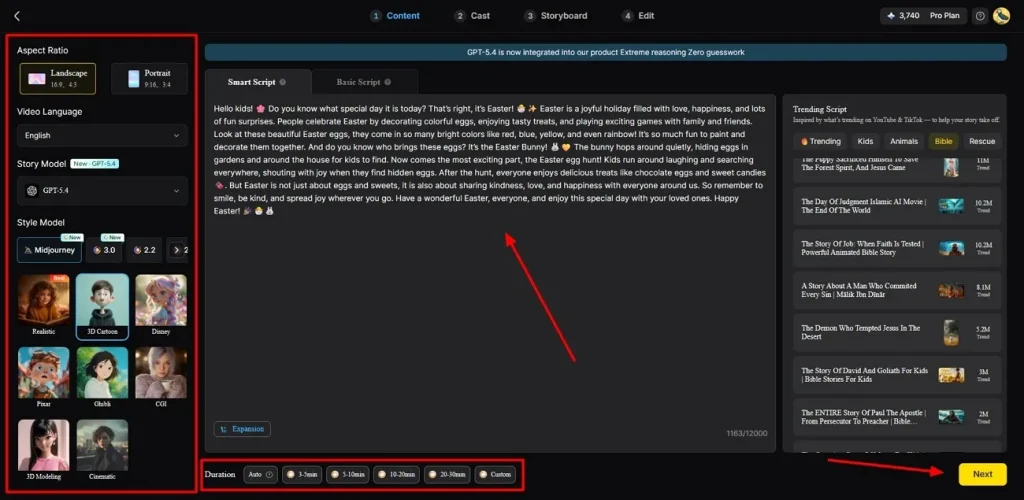
Step 3. Review the Generated Scene Structure
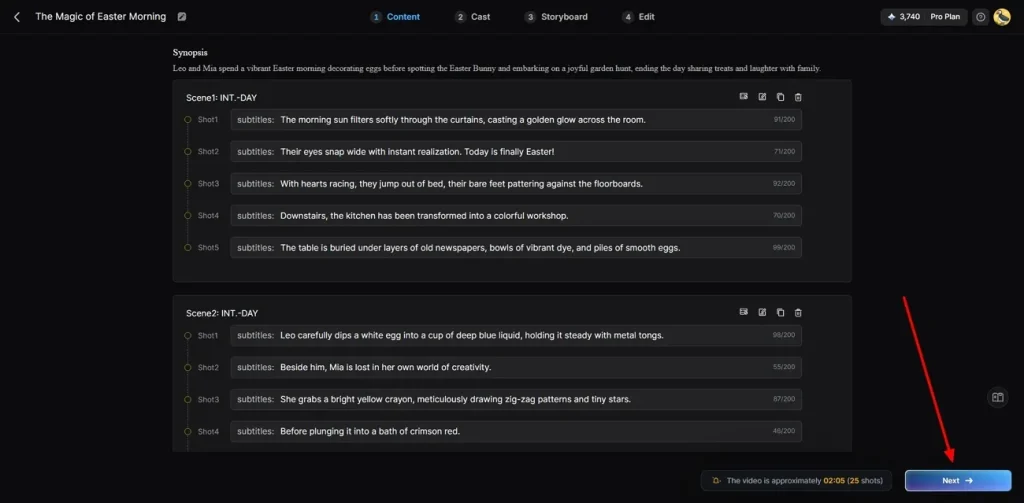
After processing is complete, examine the generated summary and detailed scene breakdown shown below. In addition, you can edit or delete generated scenes according to your needs. Carefully check each shot, confirm timing and overall flow, then click Next to continue.
Step 4. Select or Add Story Characters
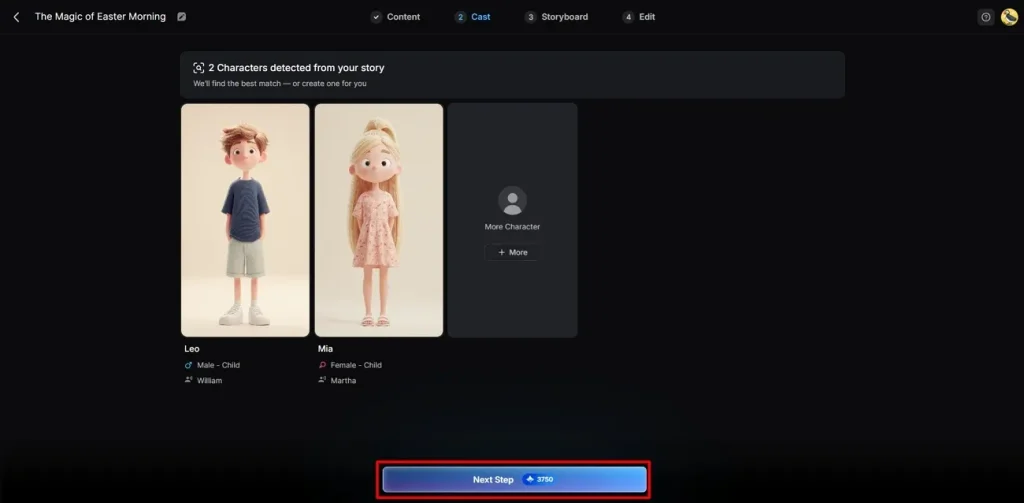
At the Cast Stage, MagicLight AI suggests different AI characters according to your needs. You can keep suggested options or add new ones using the More Character option. After confirming your character selection, opt for the Next button to continue.
Step 5. Customize the Storyboard Frames
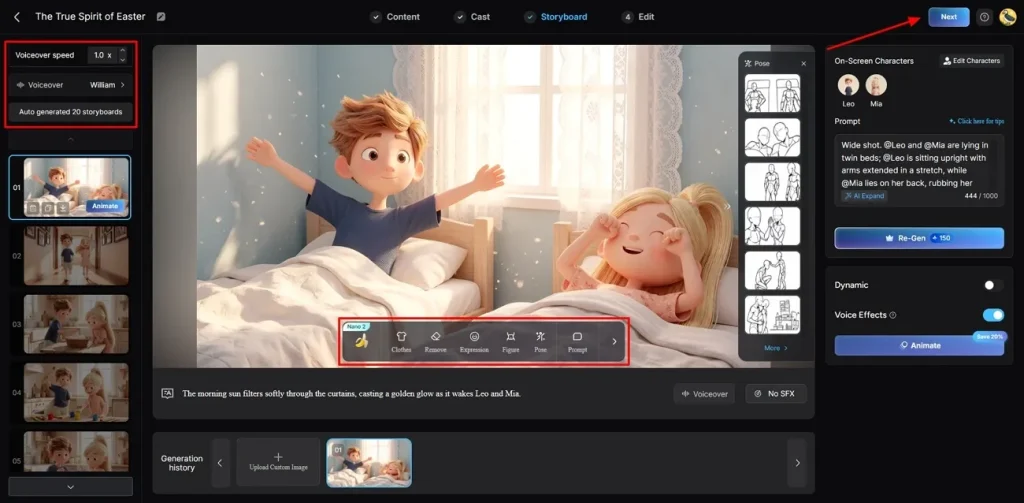
Now, review each storyboard frame individually and adjust clothing, expressions, poses, character appearance, or prompts as needed. You can also modify voiceover speed, choose a voiceover option, regenerate scenes, and then click Next.
Step 6. Set Subtitle and Music Style
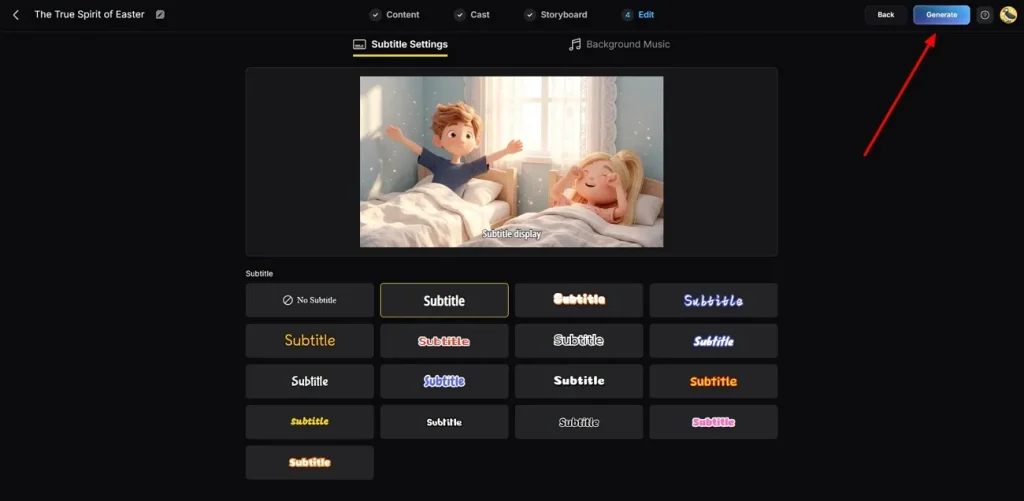
In the editing window, open Subtitle Settings to check how subtitles appear throughout the video. Next, head toward the Background Music option and choose music matching the video's mood if needed. Once you have confirmed every setting properly, opt for Generate to create the final AI video.
Step 7. Watch and Export the Final Video
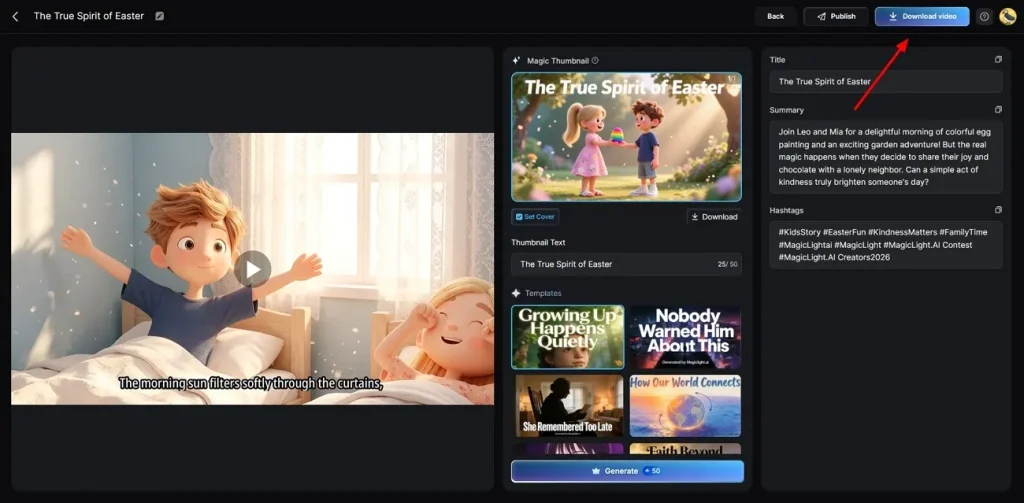
After the rendering process ends, preview the generated AI video along with the Magic Thumbnail and Hashtags. Once final edits are checked successfully, opt for the Download Video button to save the video on your device.
Part 4. Freepik AI vs MagicLight AI: Which Tool Should You Use?
Freepik's AI image generator and MagicLight AI both offer very different creative experiences. Let's walk through the given table to find out which tool suits your needs:
| Feature | Freepik AI | MagicLight AI |
| Max Video Length | Up to 20 seconds only | Up to 50 minutes long |
| Video Creation Models | Kling 3.0 and Seedance 2.0 | 19 diverse AI video models |
| Storyboard Control | Basic start and end frame | Nano micro-level scene editing |
| Cinematic Shots | Up to 6 shots only | Full scene timeline control |
| Re-edit Option | No mid-generation editing | Re-edit during video generation |
| Export Resolution | Standard output only | 720p and 1080p available |
| Scene Expressions | No expression control | Adjust expressions per scene |
| Video Workflow | Create only | Create, publish, and track |
Verdict
You should select Freepik's AI video generator if your focus is on quick graphics. It offers incredible image models like Flux and Mystic to create marketing materials. However, for serious video creation, you should pick MagicLight AI if you want to make complete movies. It handles scripts, audio, and animations in one place for faceless channels.
Conclusion
To sum up, this review shows that Freepik AI is an excellent option for quick graphic design projects. It offers great automated tools that help you finish your visual work very fast. However, busy creators often need an all-in-one system to produce long marketing films without switching apps. Therefore, you should try MagicLight AI to handle your entire video production workflow smoothly.
FAQs on Freepik AI
1. Can Freepik AI generate videos?
Yes, Freepik AI can generate short videos using text or uploaded images. It includes various tools for video, such as enhancement and simple media creation. Users can create quick content for marketing, education, and social media platforms.
2. Is Freepik AI good for beginners?
New users can easily navigate the interface to generate high-quality images. Its prebuilt templates make the creative process much easier for new users. However, MagicLight AI offers a more guided and beginner-friendly full video workflow.
3. Does Freepik AI support photo generation?
Yes, Freepik AI supports photo generation through text prompts and sketches. Users can create realistic visuals using different styles and AI models. It also includes tools like background removal and object replacement for quick edits.
4. What are Freepik AI alternatives?
Several alternatives exist for users needing stronger video creation capabilities. MagicLight AI stands out with long videos and advanced storytelling features. It also supports multiple models, voice options, and detailed storyboard controls.
5. Is Freepik AI better than other AI design tools?
Freepik AI performs well for quick visual design and short content creation. However, the best tool relies on your creative goals and project needs. MagicLight AI becomes better suited for professional video workflows and longer narrative content generation.

![How to Make a Reaction Video with AI Tool [Guide 2026]](https://magiclight.ai/wp-2/wp-content/uploads/ai-faceless-reaction-video-guide-300x169.webp)