A script no longer has to sit on the page. With how to make AI video from text, those words can become scenes, dialogue, narration, and music without a traditional shoot. The source material does not need special formatting either. A lesson outline, blog paragraph, product pitch, short story, or scattered notes can provide enough material to begin. AI can generate the scenes, narration, captions, and music around it.
Part 1. What Types of Videos Can You Make From Text?
Almost any format that starts with a script can now begin as plain text. Anyone learning how to create AI video from text should know that the tools fall into 2 groups with very different outputs.
Prompt-to-clip models turn one description into a single shot, while story platforms turn a full script into many connected scenes. The table below compares both approaches, making an AI video from text easier to match with the right project:
| Approach | What the Text Becomes | Typical Length | Best For |
| Prompt-to-Clip Models | One shot with motion and often sound | 2 to 15 seconds, up to 30 on newer models | B-roll, ads, and quick social clips |
| Story-to-Video Platforms | Multi-scene video with characters, voices, and subtitles | Several minutes, up to 50 on MagicLight AI | Stories, explainers, and series |
1. Animated Stories and Short Films
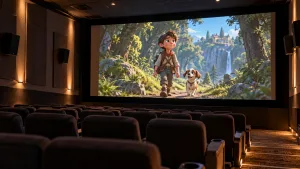
Fiction works naturally with text-to-video because the script already provides characters, locations, and a sequence of events. Story-based tools can divide longer scripts into scenes, add narration, and maintain character continuity. Bedtime stories, fables, and animated shorts suit this format especially well, where keeping the same cast across many scenes would otherwise require considerable manual work.
2. Explainer and Educational Videos
Lessons, tutorials, and product walkthroughs are strong use cases for how to make a free ai video from text because their scripts usually follow a clear sequence. Narration, captions, and supporting visuals can explain each point without elaborate footage. A well-structured script matters most here, while readable on-screen text and consistent narration help viewers follow the information from beginning to end.
3. Social Media Shorts and Reels
Short-form platforms favor videos that communicate their point quickly. A concise script with a strong opening works well for Shorts, Reels, and TikTok, including faceless content produced without filming. Anyone exploring how to create an AI video from text for social media should prioritize vertical framing, readable captions, quick pacing, and a hook that gives viewers a reason to continue watching.
4. Marketing and Product Videos
Ads, launch teasers, and product videos benefit from text-to-video because one brief can produce several creative variations. Prompt-based models work well for individual product shots, while longer scripts can support complete promotional stories. Product names, brand colors, packaging, and logos still need careful review before publishing, since generated visuals may not reproduce these details exactly.
5. Presenter and Avatar Videos
Training updates, company announcements, and news-style videos can place an AI presenter in front of the script. Instead of recording a host, the written text becomes spoken dialogue paired with lip movement. Natural wording matters here: short sentences, sensible pauses, and conversational phrasing generally sound better when read aloud and make the presenter easier for viewers to follow.
Part 2. How to Make AI Videos From Text With AI
Turning a full script into video means handling scene breaks, recurring characters, narration, and visual continuity across every shot. MagicLight AI brings those parts into one workflow. Its Story to Video tool accepts scripts up to 12,000 characters and can create multi-scene videos lasting up to 50 minutes.
An unfinished idea can take another path through MagicLight Agent. Describe what you want to make, and the AI agent can develop the concept, organize the script, and prepare the storyboard for production. Creators researching how to make a free AI video from text can begin with free credits, while paid plans provide commercial-use rights and watermark-free exports.
Key Features
- Smart Script Generator: One sentence of premise grows into a full story draft before any scenes are built. That makes a finished script optional rather than required.
- Consistent Characters: The tool helps keep each character’s face, outfit, and overall appearance consistent across scenes.
- Scene-by-Scene Character Control: Refine clothing, expressions, and more than 50 poses for each scene before generation, with approved changes carried into the finished video.
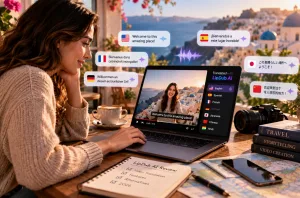
- Narration and Captions: Narrators come from 37 AI voices, or from voice cloning when a series needs one consistent voice. Captions can follow any of 16 subtitle styles to match the tone.
- Multiple Visual Styles: MagicLight AI offers more than 52 visual styles, giving creators different looks to match the mood and direction of each video.
How to Make an AI Video From Text With MagicLight AI
MagicLight AI takes your text through the main stages of video production while keeping the story, characters, and scenes open to changes along the way. This makes how to make AI video from text easier to manage without jumping between separate tools. Follow the steps below to move from your initial text to the finished video:
Step 1. Enter Your Text and Video Settings
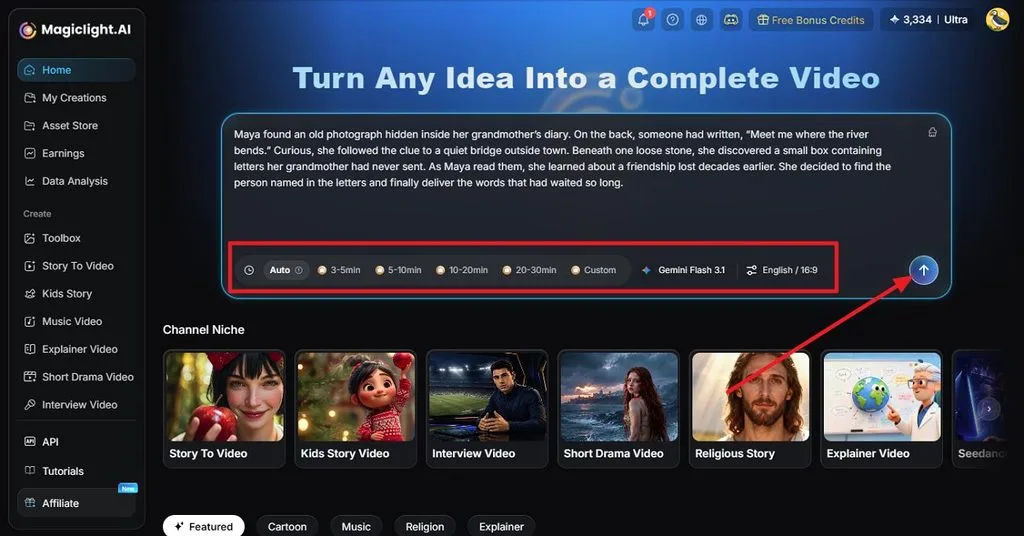
Open Story to Video and paste your script or type the idea you want MagicLight AI to develop. Set the Aspect Ratio, Video Duration, Video Language, and AI Story Model to suit the project, then click the Generate icon.
Step 2. Review the Generated Scenes
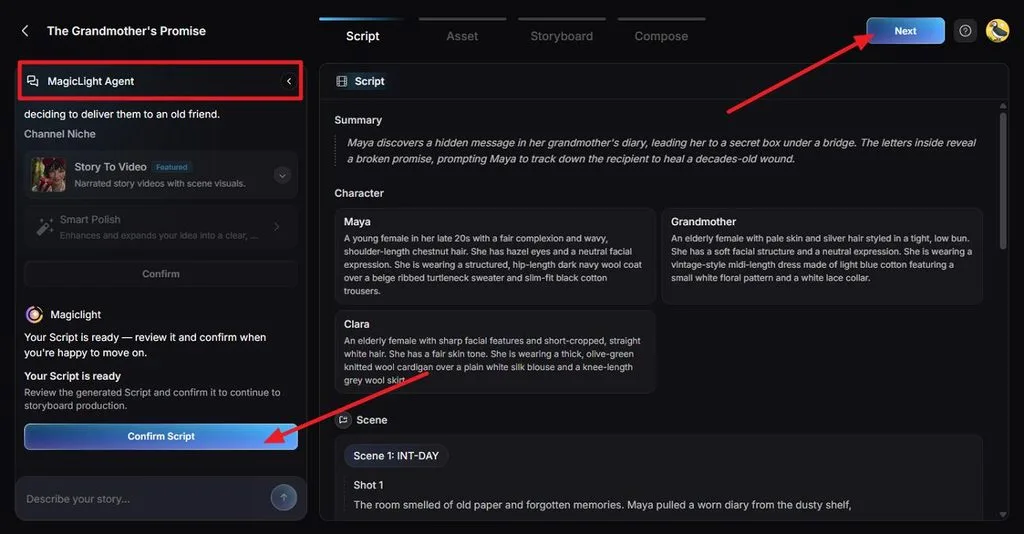
MagicLight Agent develops your text into a structured script with a summary, characters, scenes, and individual shots. Read through each section and edit anything that does not match your original idea. Once the script is ready, click Confirm Script, followed by Next.
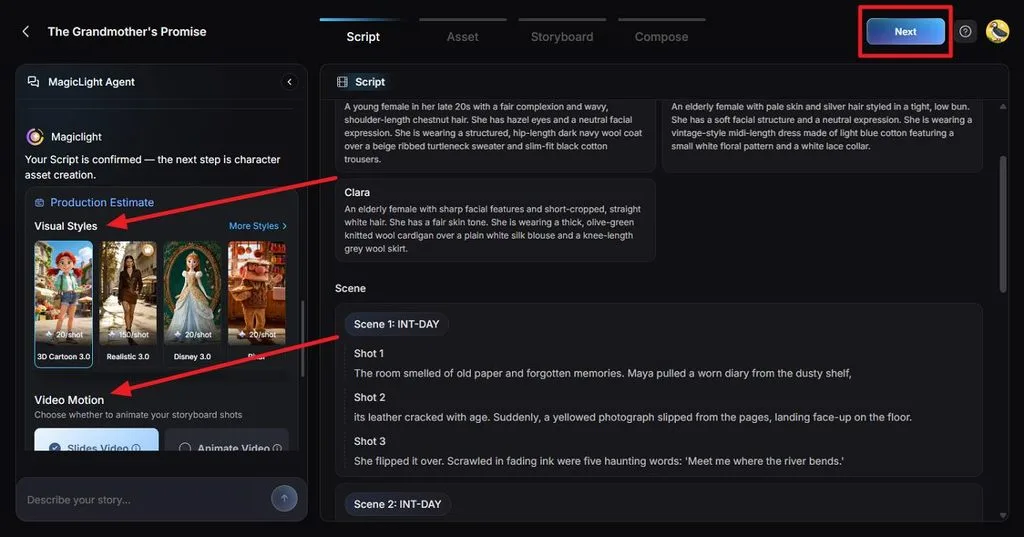
Step 3. Choose the Visual Style and Motion
Select a Visual Style that matches the look you want for the story. Under Video Motion, choose how the scenes should move or animate. Check the production settings and estimated requirements, then click Next to generate the character assets.
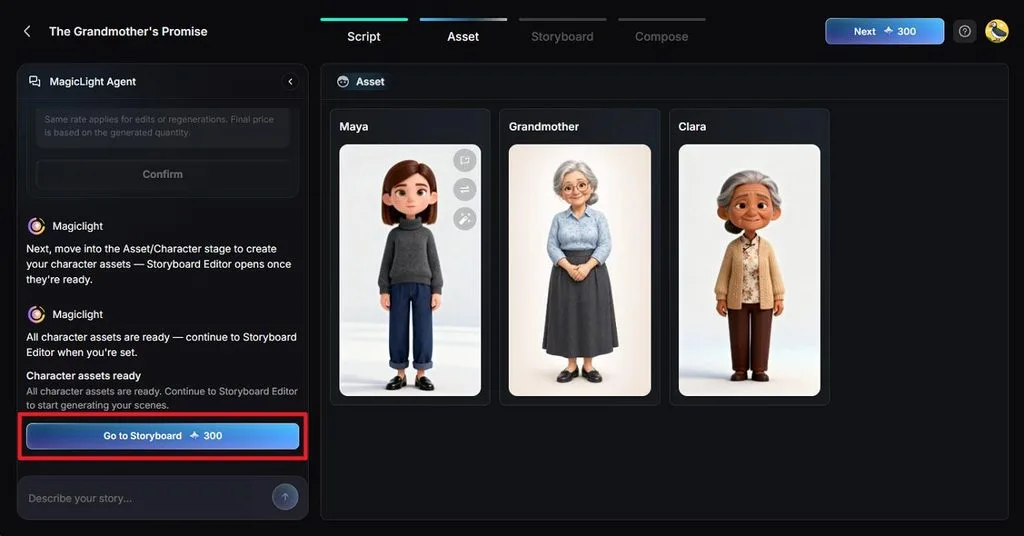
Step 4. Review the Characters
Check the generated characters against the descriptions in your script. Make sure their appearance suits their roles and remains appropriate for later scenes. Use the available character controls if adjustments are needed, then click Go to Storyboard.
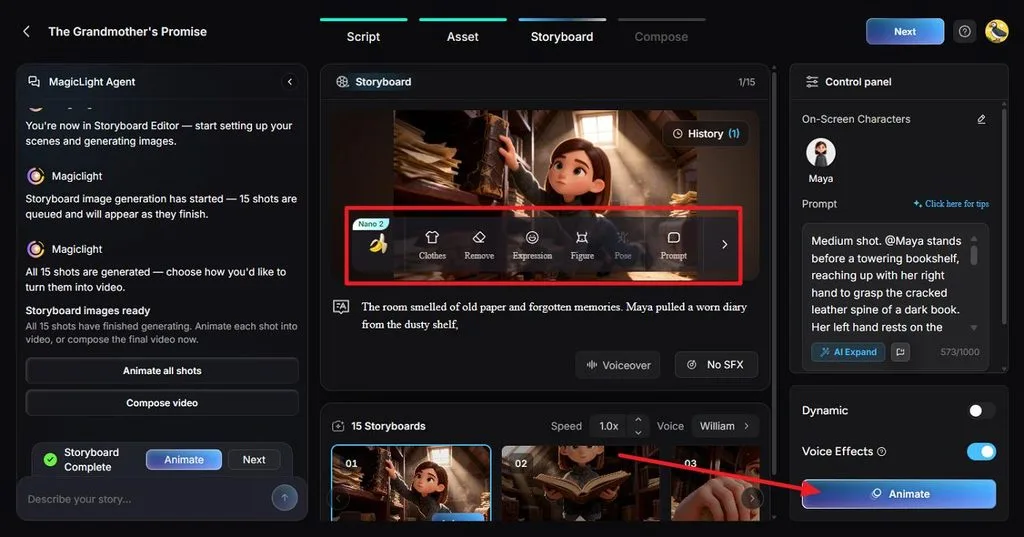
Step 5. Refine and Animate the Storyboard
Review each storyboard shot and compare it with the corresponding part of your text. Use the controls to adjust Clothes, Expressions, Figure, Pose, or the scene Prompt. Choose the voice and sound effects where needed, then click Animate.
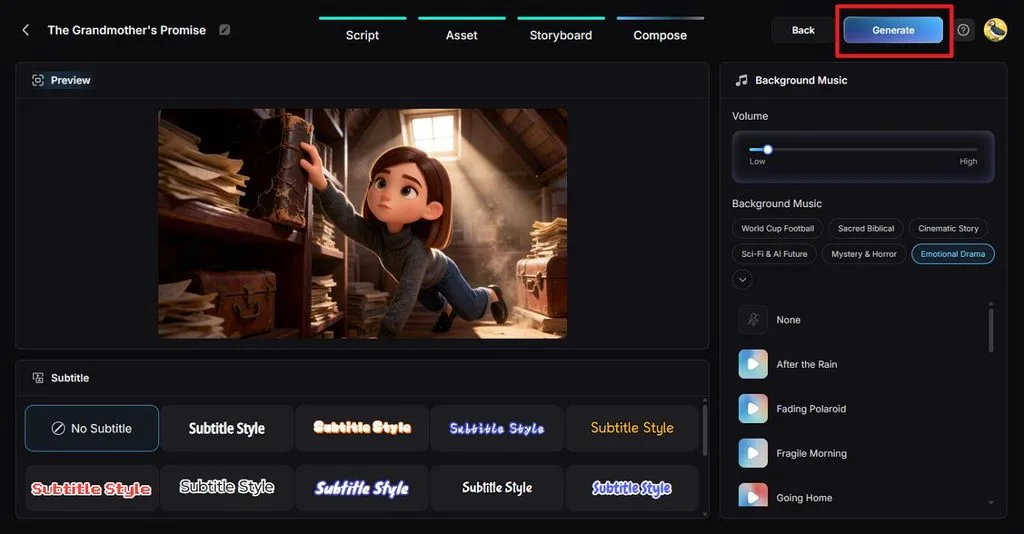
Step 6. Add Subtitles and Background Music
Open Compose to preview how the animated scenes work together. Select a subtitle style and choose background music that fits the story. Adjust the music volume so it does not overpower the narration, then click Generate.
Step 7. Set the Video Quality
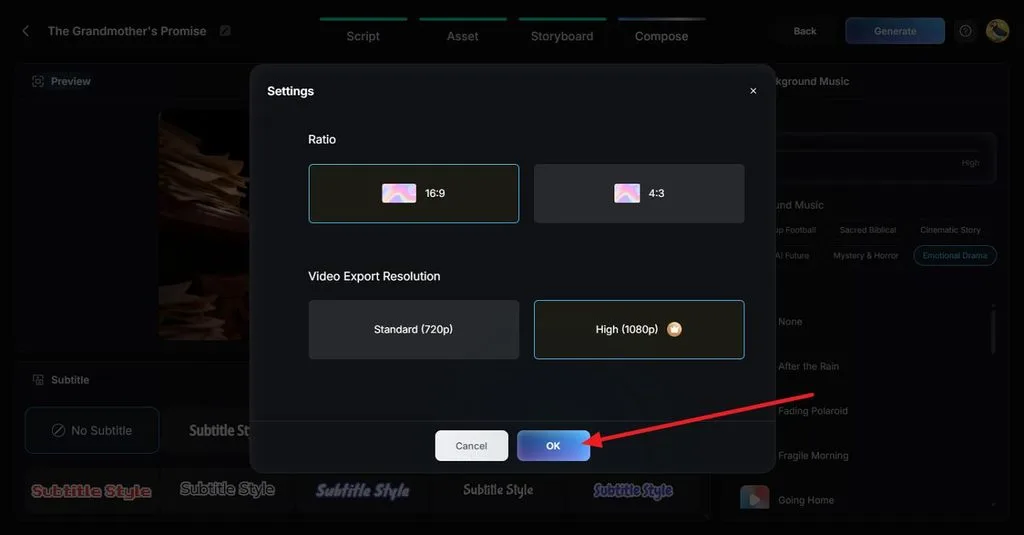
This automatically opens the settings before exporting the finished video. Choose the required Aspect Ratio, such as 16:9 or 4:3, and select 720p or 1080p resolution. Click OK to apply the export settings.
Step 8. Preview and Download the Video
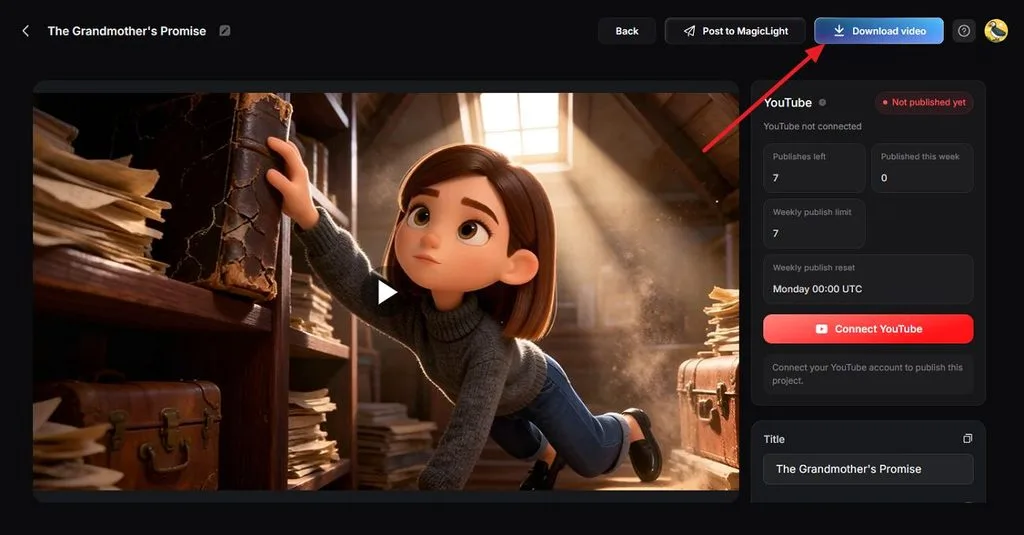
Play the completed video and check whether the visuals, character actions, subtitles, narration, and scene order accurately reflect your original text. Return to the relevant stage if anything needs correcting. Once satisfied, click Download video to save the finished result.
Tips for Writing Text That Turns Into Better Video
Clear, visual writing plays an important role in how to make video from text using AI. Specific descriptions help the AI understand what should appear in each shot and how the story should progress. The tips below can help you write text that produces clearer, more consistent video results:
- Describe Each Scene Clearly: Include the subject, action, setting, lighting, and mood instead of relying on abstract ideas.
- Limit Each Sentence to One Action: Keep actions separate so they translate more easily into distinct scenes or shots.
- Use Consistent Character Details: Keep the same names and defining features whenever recurring characters appear.
- Keep Dialogue Short and Natural: Use conversational lines that sound natural in AI voices and remain readable as subtitles.
- Match the Script to Video Length: Allow roughly 150 narration words per minute, with adjustments for pauses, dialogue, and pacing.
Conclusion
To conclude, knowing how to make AI video from text comes down to choosing the right workflow and writing clear visual instructions. Short prompts work well for individual clips, while detailed scripts support complete stories with narration, characters, and subtitles. For both approaches in one platform, try MagicLight AI.
Frequently Asked Questions
1. What is the best AI tool for text-to-video?
A strong pick for full videos is MagicLight AI, whose Story to Video tool handles scripts, characters, voices, and subtitles together. For single short clips, models such as Veo 3.1 or Kling 3.0 are another route for making video from text using AI.
2. Can I make AI videos from text for free?
Free options exist, though most carry limits or watermarks. MagicLight AI starts every new account with free credits, giving you the ability to try the tool before leading to any subscription plan. This helps answer the most “how to make video from text using AI free” searches.
3. How long does it take to make a video from text?
A single clip usually renders in seconds to a few minutes, depending on the model and demand. Story videos add review time for scripts and scenes. For “how to make AI video from text 2026” projects, MagicLight AI says a 5-minute story renders in roughly a coffee break.