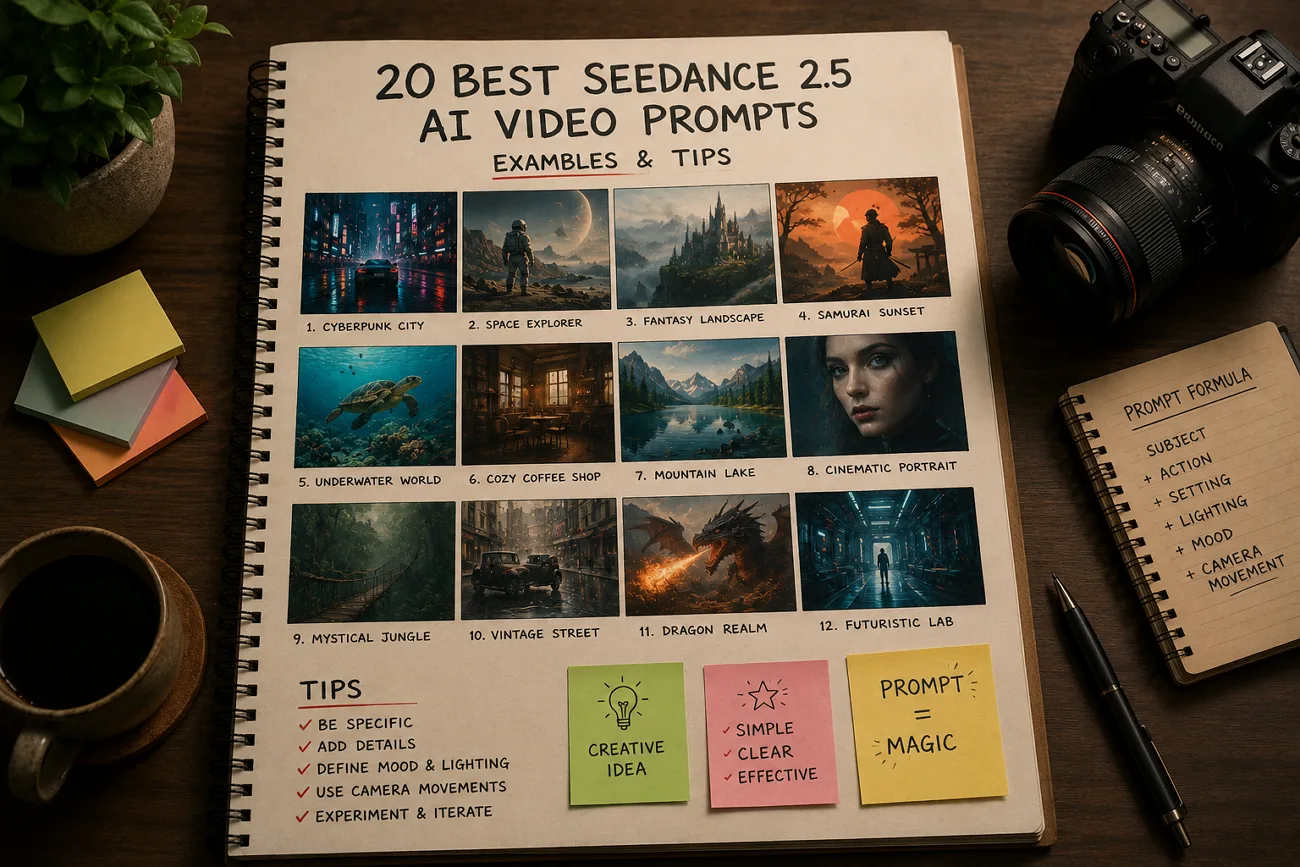
A 30-second video generation costs more than a 5-second version, making weak prompts expensive to use. Seedance 2.5 builds on Seedance 2.0 prompting, though richer prompts generally produce better results. This guide shares 20 Seedance 2.5 AI video prompts across 5 categories that you can copy or customize. It also explains how the model reads prompts and highlights some common mistakes that often waste generations.
Part 1. How Seedance 2.5 Prompts Work
Seedance 2.5 still uses similar prompt grammar as before for creating AI videos. Now each prompt needs more details to produce better and more accurate video results.
How Seedance 2.5 Prompting Differs From Seedance 2.0
Most prompts written for Seedance 2.0 also work in Seedance 2.5 because the basic prompt structure and reference system remain the same. The newer model builds on those features with several improvements:
- Time Structure: A 30-second video works better when the prompt describes each scene or stage instead of using one general description.
- Reference Roles: With support for up to 50 reference assets, each one should have a clear purpose instead of being added without explanation.
- Edit Instructions: Editing prompts can specify changes more precisely, depending on the editing features available in the selected workflow.
Core Elements of a Strong Prompt
Most Seedance 2.5 AI video prompts fail because they miss important details instead of lacking words. Build every prompt with these 5 elements in order:
- Subject: Clearly describe the main person or scene to keep the video consistent.
- Motion: State what moves and at what pace, phrased as an action rather than an adjective.
- Camera: Specify a single move, named directly, such as a dolly-in or a locked-off frame.
- Lighting: Describe the light direction, quality, and color to create the right atmosphere.
- Timing: Show when each scene or action happens if the video runs longer than ten seconds.
Part 2. Seedance 2.5 Prompt Examples by Category
Each category explains its style first, then shares 4 Seedance 2.5 prompts you can copy. Change the subject and setting freely because the prompt structure still gives strong video results.
Cinematic and Storytelling Prompts
Longer 30-second videos tell better stories when each scene is described clearly in the prompt first.
Prompt 1: 0-10s: a lone figure walks a rain-soaked alley, neon reflections underfoot. 10-20s: they stop and look up as the light shifts. 20-30s: slow pull back reveals the empty street.
Prompt 2: 0-10s: sunlight crosses a dusty archive room. 10-20s: a hand lifts one folder from a shelf. 20-30s: camera holds as the page turns and dust catches the beam.
Prompt 3: 0-10s: two figures sit across a diner booth in silence. 10-20s: one slides an envelope forward. 20-30s: the other leaves, the bell chiming as rain starts.
Prompt 4: A continuous handheld shot following a dancer through a warehouse, dust in the light beams, camera circling as the tempo builds, ending on a held pose in silhouette.
Product and E-commerce Prompts
Use Seedance 2.5 AI video prompts with clear product details for better-looking video results. Describe the product surface, light direction, and one camera movement for clean videos.
Prompt 1: 0-10s: slow dolly-in on a matte black smartwatch rotating on a stone pedestal, studio haze. 10-20s: the display wakes. 20-30s: rim light sharpens across the case edge.
Prompt 2: A ceramic coffee cup on a linen surface, steam rising, morning light from the left, camera drifting slowly right as a hand enters frame and lifts it away.
Prompt 3: 0-10s: a sneaker suspended against a seamless coral backdrop. 10-20s: it rotates to reveal the sole. 20-30s: it drops and settles, a small puff of dust catching the light.
Prompt 4: Macro shot traveling across a perfume bottle, refracted light moving through the glass, background falling into soft bokeh, camera easing back to reveal the full silhouette.
Character and Dialogue Prompts
Seedance 2.5 creates video and audio together from the same prompt automatically. Write spoken lines inside quotation marks for clearer dialogue and better results.
Prompt 1: Close-up of a woman in a control room, lit by monitor glow. She says, 'We are not going to make the window.' Ambient hum, no music, tight framing.
Prompt 2: Two colleagues walk a hospital corridor. One says, 'The results came back this morning.' Camera tracks alongside at shoulder height, fluorescent light, footsteps and distant paging audible.
Prompt 3: A chef faces the camera in a busy kitchen and says, 'Everything here is made the same day.' Warm overhead light, background staff blurred, natural room noise throughout.
Prompt 4: 0-10s: an older man settles into a workshop chair. 10-20s: he says, 'I built this bench in 1974.' 20-30s: camera drifts across the worn surface.
Nature, Travel, and Cinematic B-Roll Prompts
Nature and travel B-roll looks better with one camera movement and clear lighting details only.
Prompt 1: Aerial shot drifting over a pine valley at dawn, mist sitting between the ridges, slow forward push, cool blue light warming as the sun clears the treeline.
Prompt 2: Waves breaking against black volcanic rock in slow motion, spray catching low afternoon light, static locked-off camera, deep contrast between water and stone, horizon held level.
Prompt 3: Handheld walk through a night market, lanterns overhead, camera moving past food stalls, faces passing in and out of focus, warm ambient glow and steam rising from griddles.
Prompt 4: 0-10s: wide of a desert road at golden hour. 10-20s: a car passes camera left to right. 20-30s: the dust settles and the road empties again.
Reference-Based and Video Editing Prompts
Upload each reference with a clear purpose before creating your video prompt for best results. Explain what each reference controls before describing the video scene and camera movement.
Prompt 1: Use the uploaded product image as the hero object and the uploaded clip as a motion reference. Match its camera speed exactly while keeping the product centered throughout the shot.
Prompt 2: @ref1 as the lead character, @ref2 as the environment, @ref3 for lighting mood. Place the character walking through that space, camera tracking behind at waist height.
Prompt 3: Edit at the 18-second mark only: change the character's jacket from gray to burgundy. Leave camera movement, lighting, and every other element in the take unchanged.
Prompt 4: Swap the background reference for the newly uploaded image and regenerate only what depended on it. Keep the character performance, framing, and audio exactly as approved.
Part 3. Common Seedance 2.5 Prompt Mistakes
Writing better Seedance 2.5 AI video prompts starts by avoiding a few common mistakes. Now, let's explore each mistake and learn the correct way to fix it:
- Overloading a Single Prompt With Instructions: Too many cameras, lighting, and style instructions can confuse the model and reduce video quality. Keep one subject, one movement, and one scene style in each prompt for better results.
- Vague Action Verbs That Confuse the Model: General words like moves or interacts do not clearly describe what should happen. Use specific actions like reaches, tilts, steps back, or sets down instead.
- Combining Conflicting Camera Instructions: Different camera movements in one prompt can give the model conflicting directions. Choose one camera movement for each generation and add another movement in a separate version.
- Uploading References Without Assigning Their Roles: Every reference should have a clear purpose before you generate the video. With support for up to 50 reference assets, unlabeled files can be interpreted incorrectly by the model.
Pro Tip: Plan Seedance 2.5 Prompts With MagicLight AI's Storyboard Workflow
Keeping Seedance 2.5 AI video prompts consistent across long videos with many scenes is challenging. This is where MagicLight AI helps by integrating Seedance 2.5 and many other AI video models. It supports prompts up to 12,000 characters, making detailed video instructions much easier to write.
You can also create long AI videos lasting up to 50 minutes without splitting every scene manually. The storyboard keeps characters, scenes, and camera movements organized from the beginning to the final video.
Create Perfect Seedance 2.5 Videos With MagicLight AI
Follow these simple steps to create better videos with less work and more consistent results:
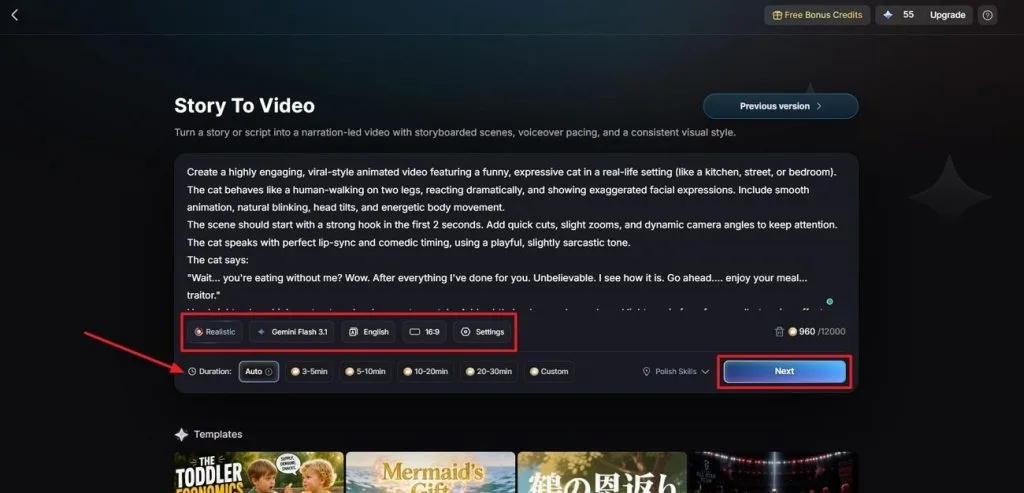
Step 1. Write Your Prompt and Set Preferences
In Story to Video, start by entering your video prompt into the Text Box. Choose a Visual Style Model, select an AI Story Model, and set the Video Language and Aspect Ratio. Finally, adjust the Video Duration and click Next to move forward.
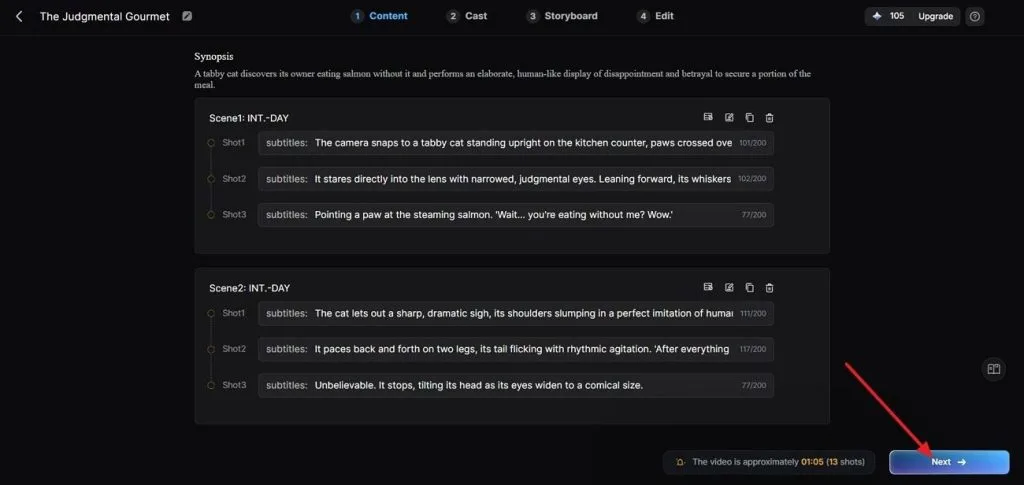
Step 2. Check the Generated Scene Layout
Review the generated scenes and the Synopsis before moving to the next step. Make any needed changes using the Controls at the top, then click Next to continue.
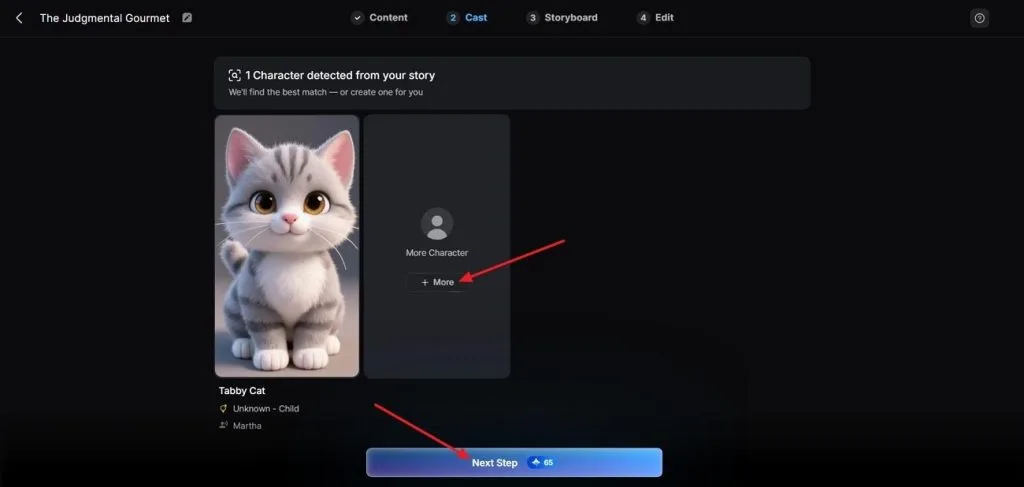
Step 3. Pick a Character for Every Scene
After that, MagicLight AI analyzes your script and suggests matching characters automatically. Click More to view additional character options. Once you choose your character, click Next Step to continue.
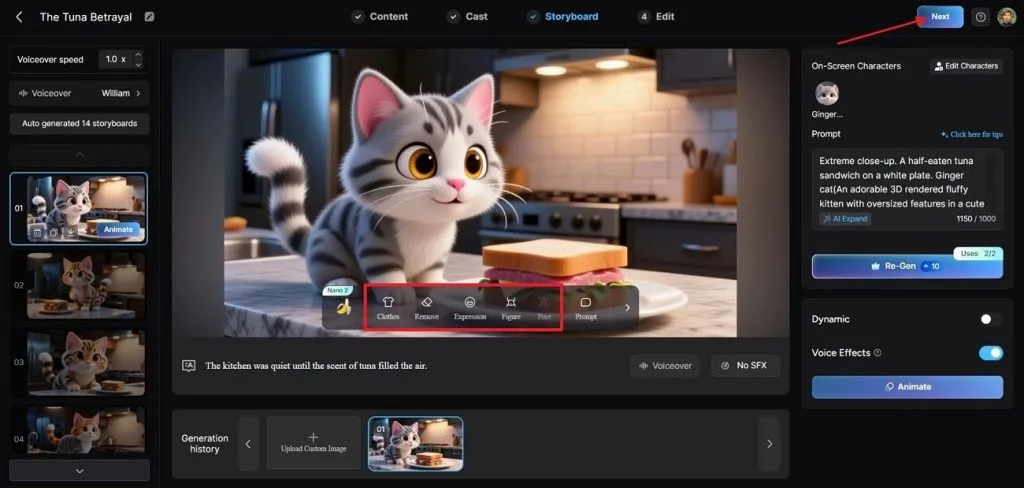
Step 4. Preview the Complete Storyboard
Review every scene in the generated Storyboard before continuing. If needed, adjust Clothes, Poses, and Expressions using the Controls below. When the Storyboard is ready, click Next at the top.
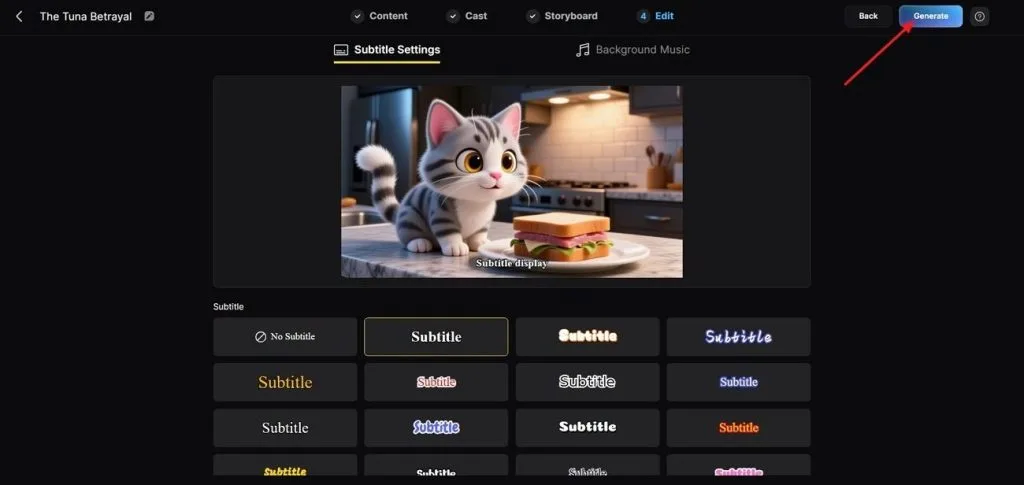
Step 5. Customize the Subtitle Appearance
Choose a Subtitle Style from the available options for your video. Then click Generate in the top-right corner to create the final video.
Step 6. Preview and Save Your Finished Video
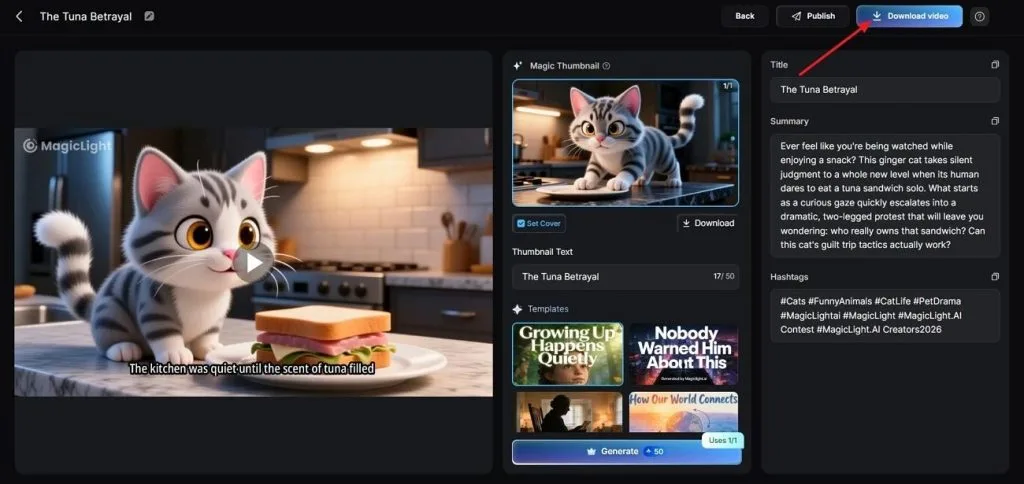
After the tool creates the video, preview the final result carefully. Then review the Cover, Thumbnail, and Hashtags. Once everything looks correct, click Download Video to save your finished video.
Conclusion
In summary, Seedance 2.5 AI video prompts work best with clear structure and detailed instructions throughout. Clear camera movements, reference roles, and scene order help create better videos with consistent quality. Try MagicLight AI to plan, generate, and manage longer AI videos with greater ease and consistency.
FAQs on Seedance 2.5 AI Video Prompts
- How detailed should a Seedance 2.5 prompt be?
A prompt should cover subject, motion, camera, lighting, and timing, using enough detail for the intended scene. Beyond that point, additional adjectives compete with one another rather than add precision.
- How do I structure multiple shots and camera angles in one prompt?
Split the runtime into labeled segments and give each one a single camera behavior. Writing 0-10s, 10-20s, and 20-30s as separate beats produces cleaner transitions than describing several angles in one sentence.
- How do reference images affect Seedance 2.5 prompts?
Reference images follow the role you assign before generating the video for accurate results. Character identity keeps faces consistent, while unlabeled images may become style references instead unexpectedly.
- Do Seedance 2.5 prompts support dialogue and voice cues?
Yes, spoken dialogue works because audio and video generate together during the same creation process. Write dialogue inside quotation marks, and matching lip movements follow the spoken lines.
- Can I reuse Seedance 2.0 prompts on Seedance 2.5?
Yes, older prompts remain compatible because the prompt structure and reference syntax stay unchanged. Add new instructions to use longer videos and larger reference support available in Seedance 2.5.
![How to Write a Script for a Short Film in 2026 [Beginner’s Guide]](https://magiclight.ai/wp-2/wp-content/uploads/short-film-screenplay-writing-guide-300x169.webp)