Explore the Features of the Magiclight AI Image Generator from Image
A series needs range and a clean starting file as reference. Magiclight AI image generator from image gives you options for both.
Upload a simple image and instruct new scenes by taking its inspiration. The AI image generator from image in Magiclight constructs a new scene around that same star. No design needed.
Create AI Image from Image for Free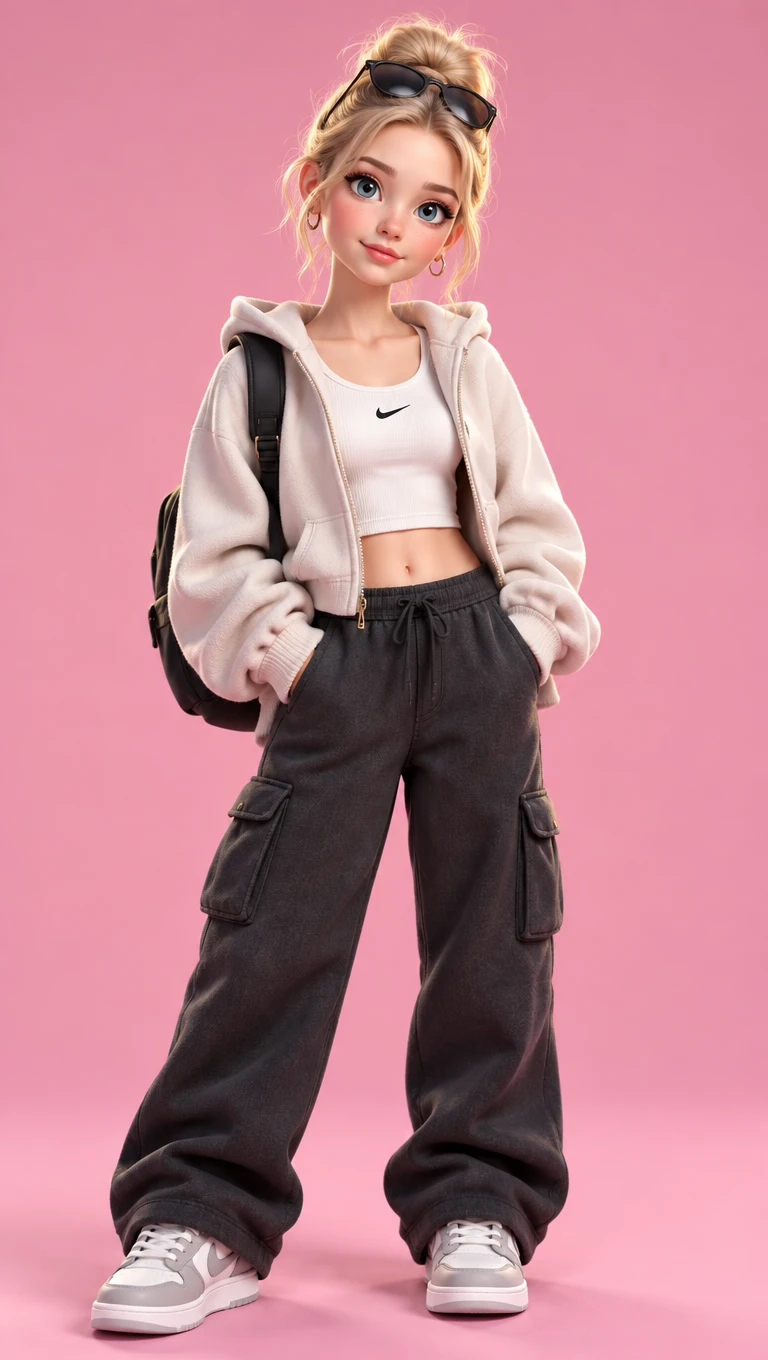
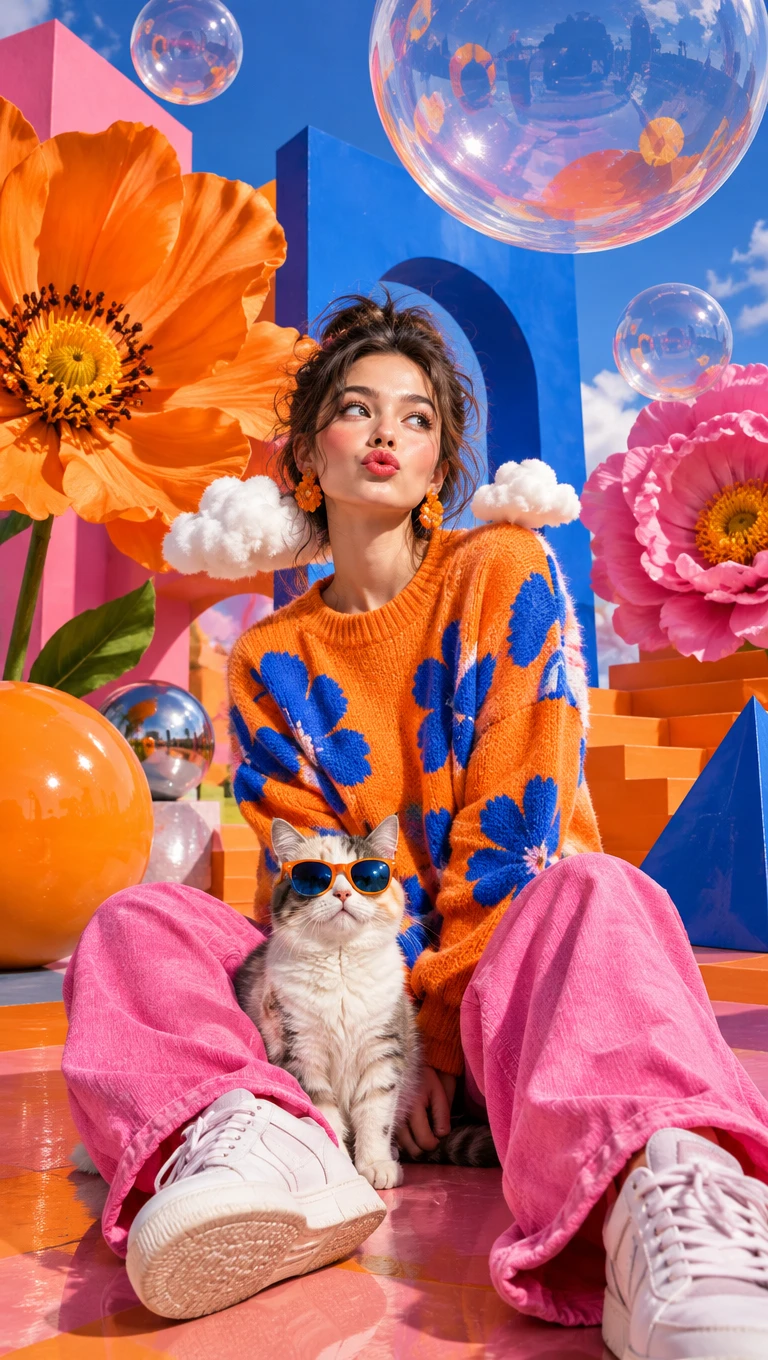
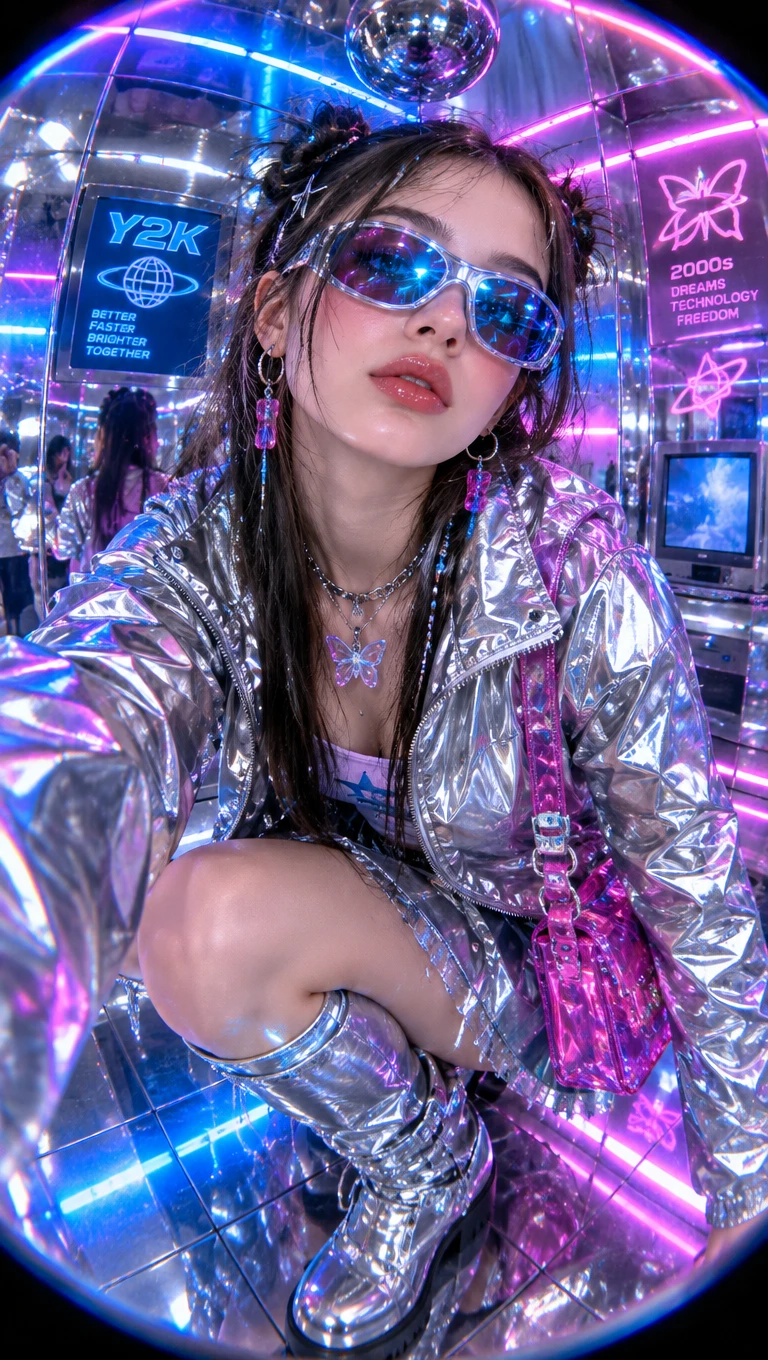
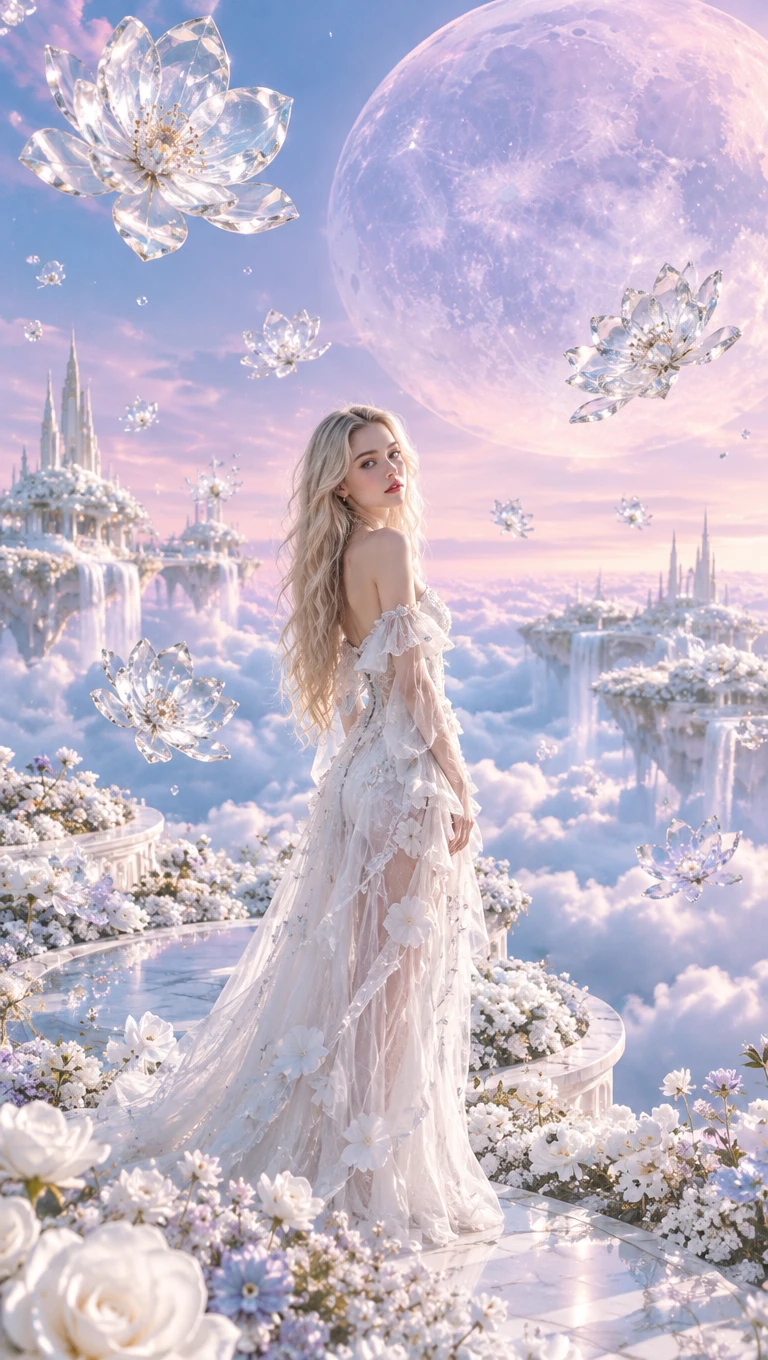
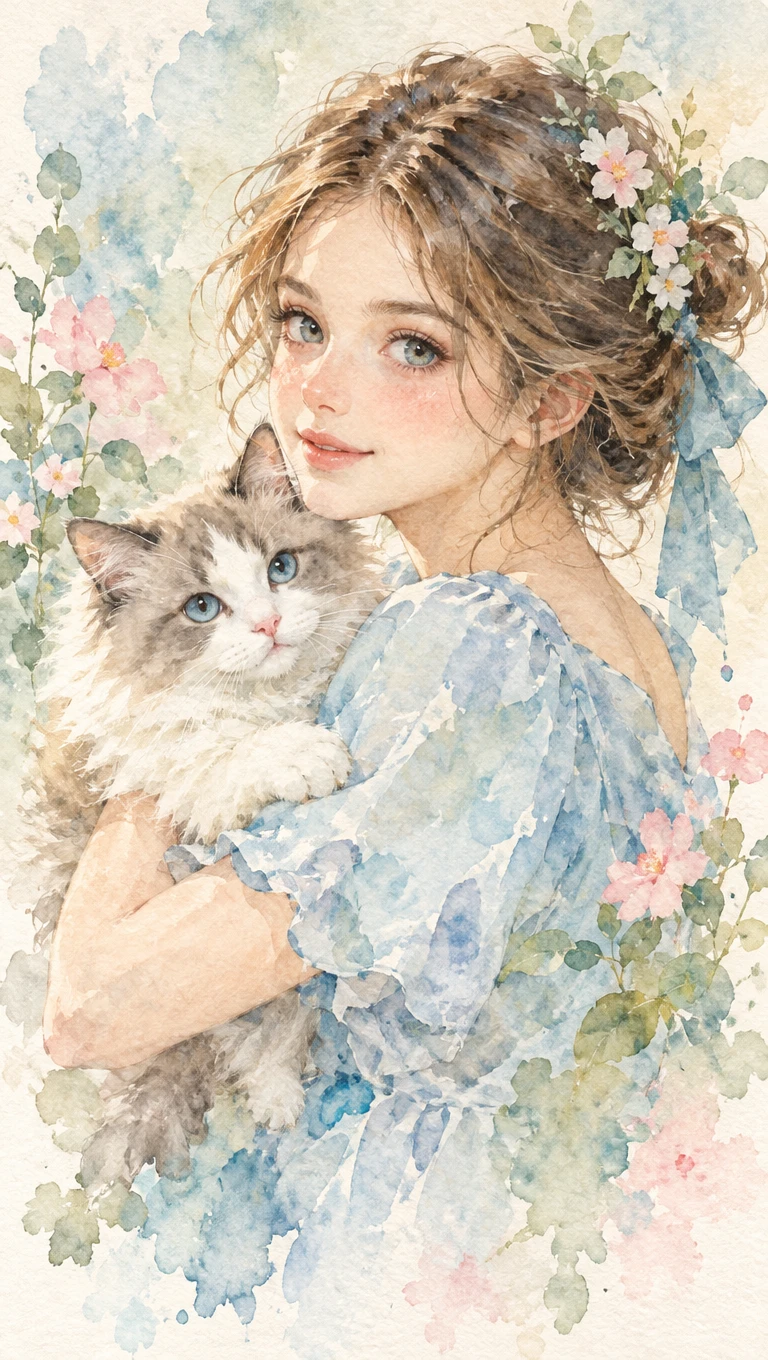
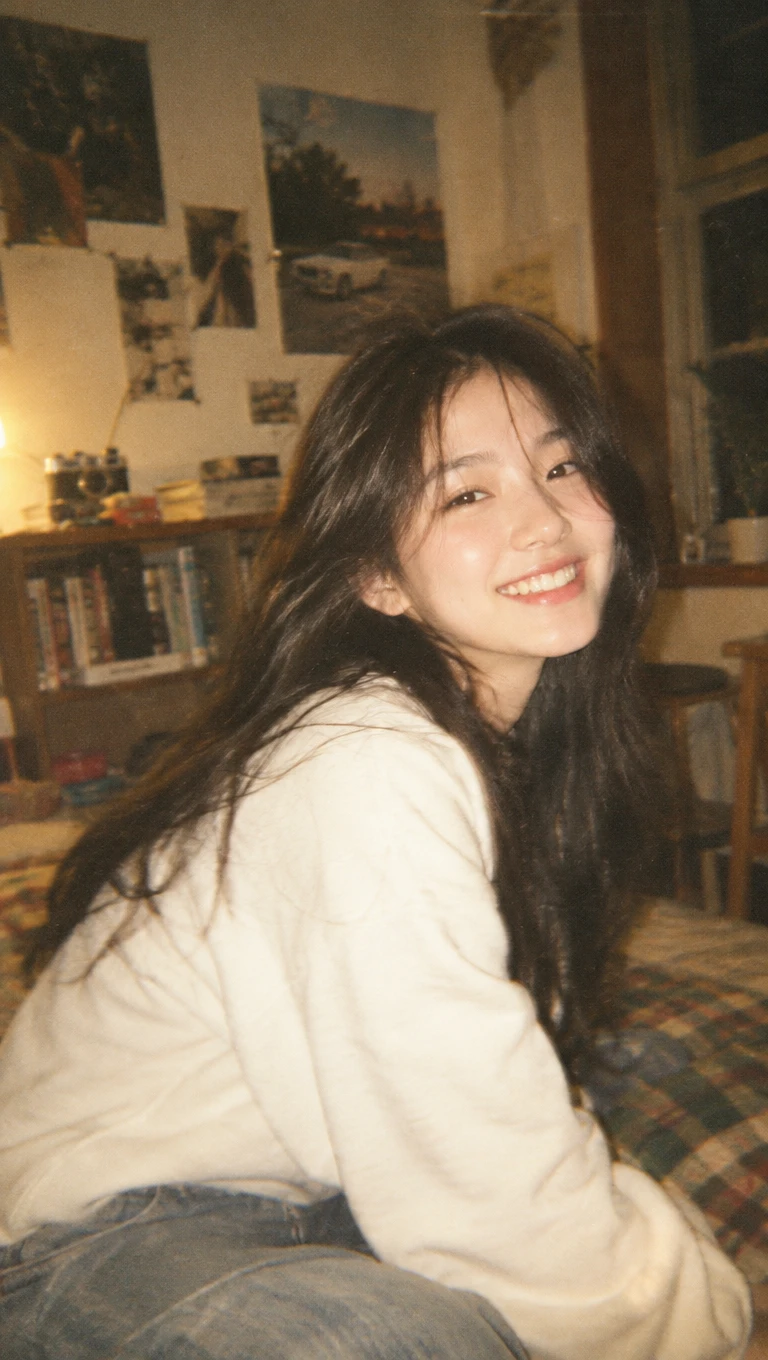
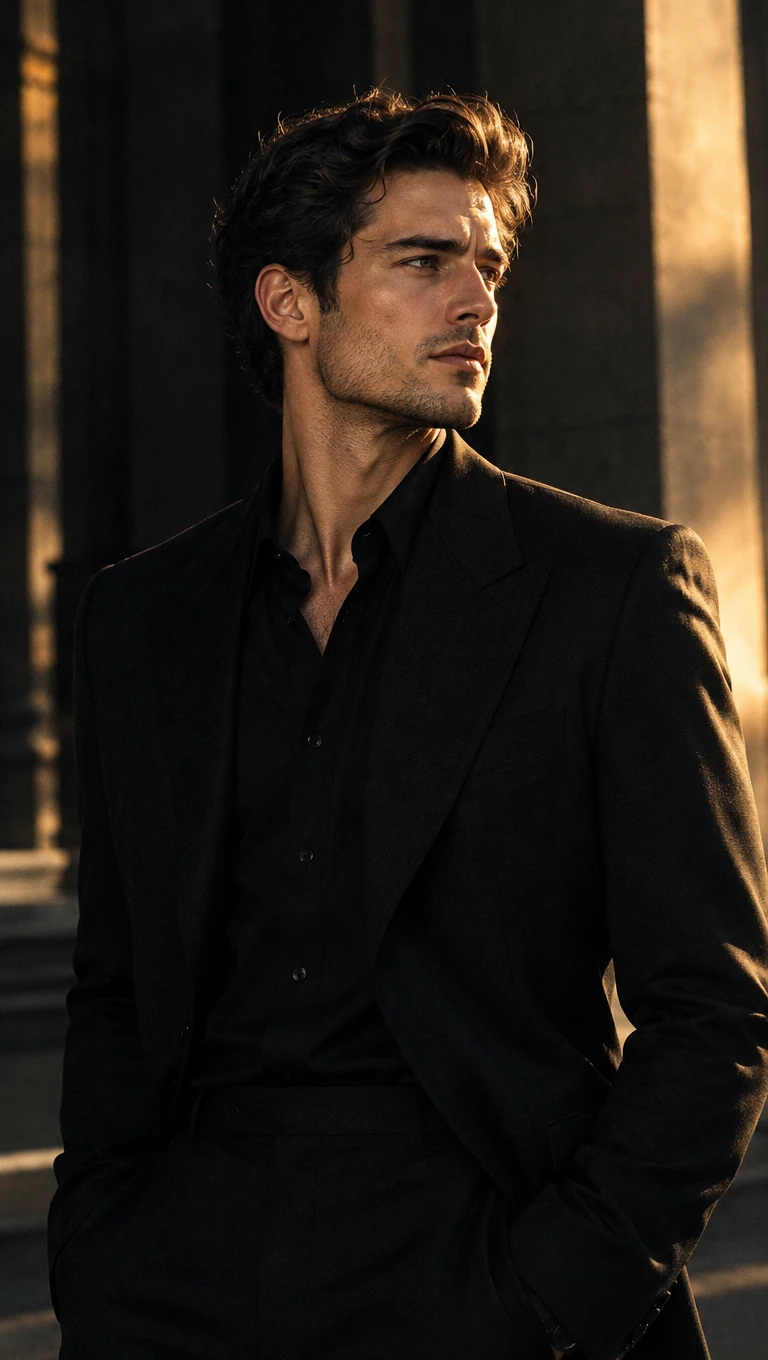
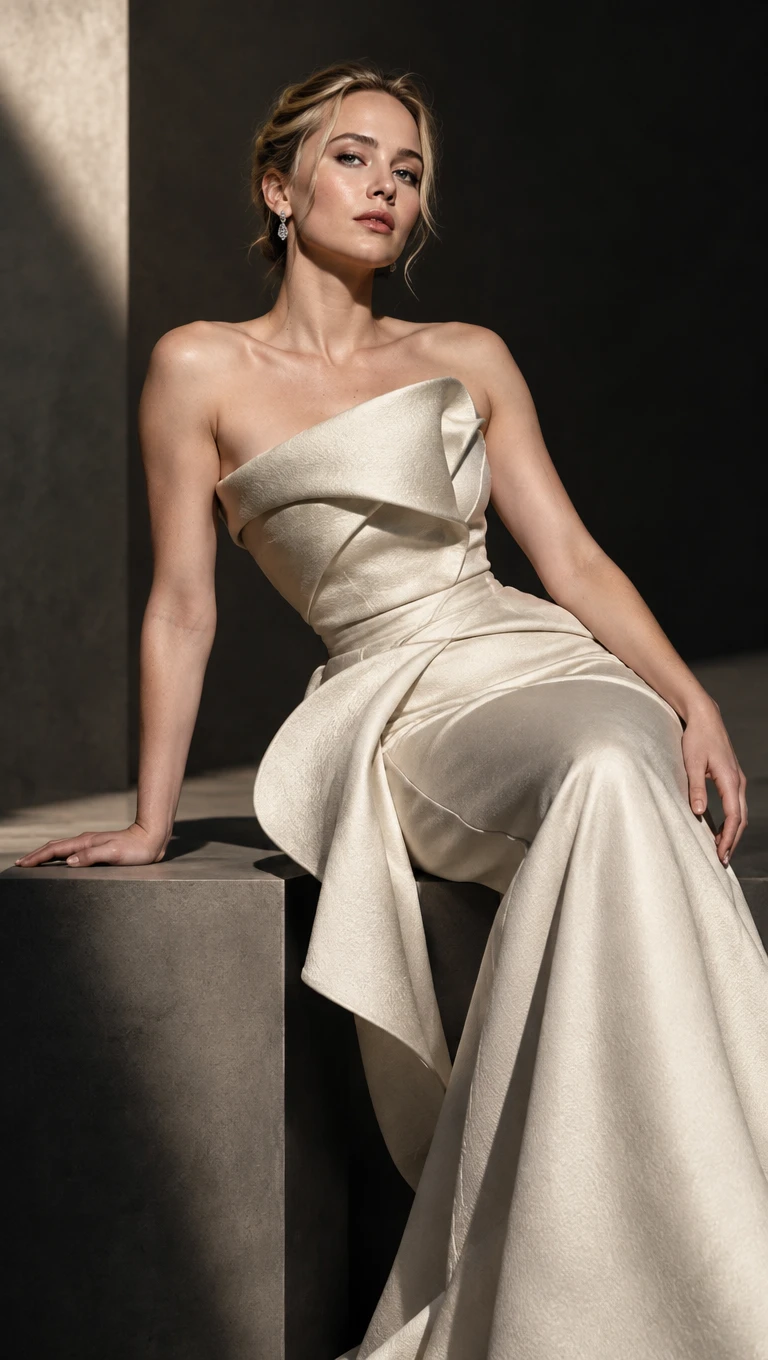
A series needs range and a clean starting file as reference. Magiclight AI image generator from image gives you options for both.
Load up to 10 pictures, such as a character, a location, and a color palette. Say in the prompt what each one should contribute. The new image draws something from every source.
Choose 16:9 or 9:16 or 4:3 or 1:1 before each run. One source can become a comic panel, a phone background, and a feed tile. Set the shape before you generate within Magiclight AI.
JPG, PNG, and WEBP sources can serve as proper image references. Each file can reach 20MB so that a sharp original gives the engine more detail to carry forward.
Write where the subject goes, what it does, and how the light falls. Repeat the subject’s key details so each 500-character prompt stays consistent. Longer notes leave less for the engine to guess.


Growing a series needs a source, a short brief, and a few choices. The AI image generator from image in Magiclight AI keeps each round quick.
Pick a picture with good light and a visible subject. Open the Image tab in the Toolbox and select the Reference Image to Image mode. Add any extra pictures you want to blend in.
Write the new setting, the action, and the mood in the prompt. Repeat the subject’s key details so the scene stays consistent in up to 500 characters.
Choose the frame shape from the 4 options that matches the use. Select an AI model and run the brief by pressing the Create Image button. Look through the results and download your favorite.
Both start from an upload in the Reference Image to Image mode. Restyling changes the look of the same picture. The AI image generator from image in Magiclight AI creates new scenes and settings around the subject you uploaded.
A clear, well-lit source photo helps keep the subject recognizable. Repeat the key details such as color and shape in each prompt. Results can still vary, so try a second engine if a scene drifts.
Up to 9 references can guide a single result. A subject, a place, and a color palette make a good mix. Name each upload’s role in the prompt.
Upload only pictures you took or have permission to use. Start with your own photos and drawings and licensed images. Check the rules of any platform where you plan to publish.
Yes, send a scene into Image to Video from the same account. You can also pair two scenes in Frame to Video. Check the tool for the clip length each model allows.
Yes, you can sign up for a new Magiclight AI account and run your first scene on your own photo before choosing a plan. Upload one clear picture and write the new setting in the prompt. Pick a paid plan only if you want more scenes or commercial rights later.

Bring one favorite photo and the places you want it to travel. The AI image generator from image in Magiclight AI creates the scenes one by one.