500 Characters to Name the Change
The prompt box holds up to 500 characters for the item, the new shade, and the finish. Add what must stay, such as the logo or the brick. One clear line is usually enough.
Create Now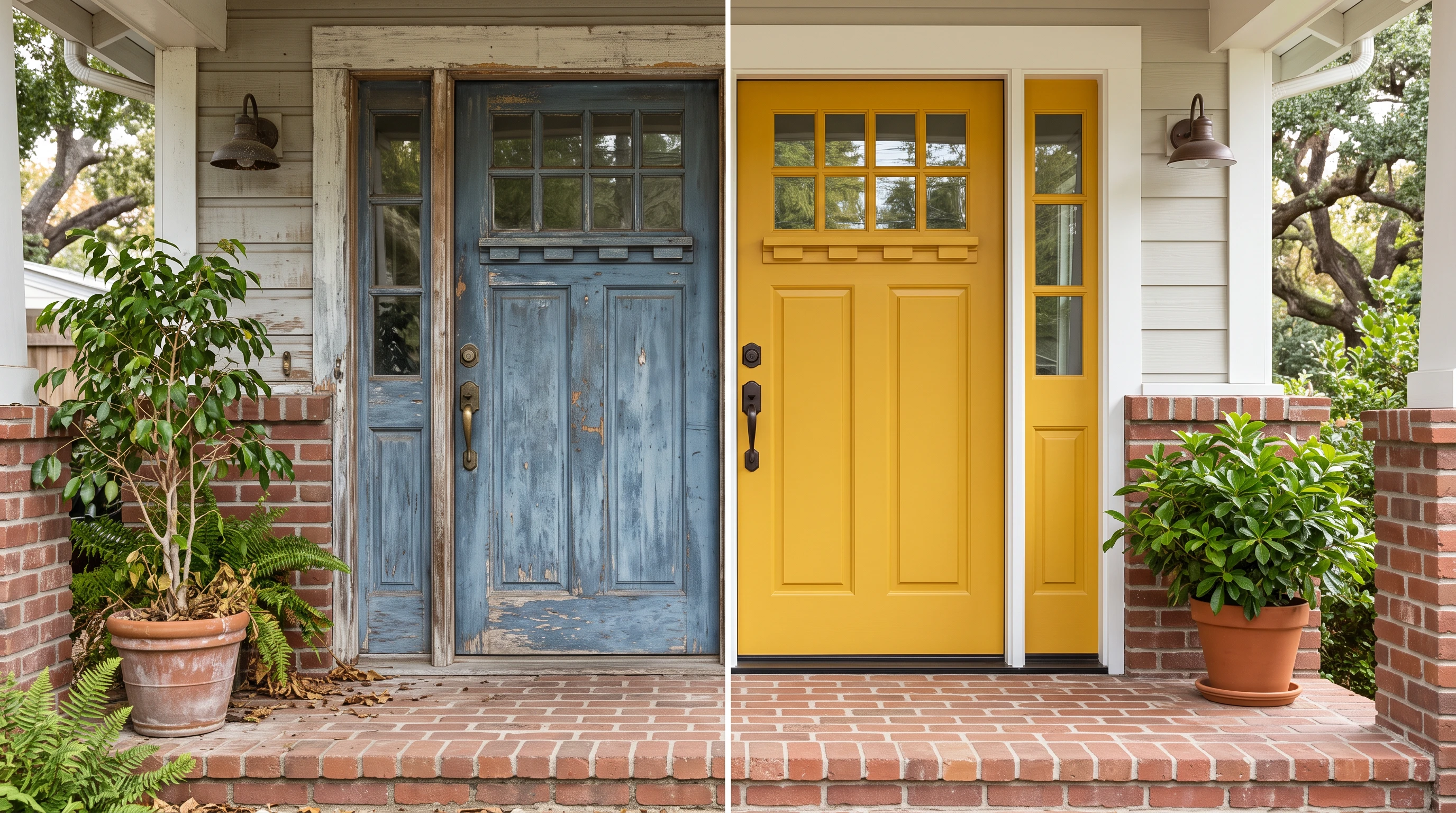
Change colors in your photos with MagicLight AI. Describe the object and the color you want, and let AI update your image. No manual selection or editing skills needed.










Collect the photo and any swatch you have before you start. Magiclight AI then recolors one item in your shot with the image color changer using Reference Image to Image.
The prompt box holds up to 500 characters for the item, the new shade, and the finish. Add what must stay, such as the logo or the brick. One clear line is usually enough.
Create NowCompare the same photo on 6 AI models, including Nano Banana 2 and Nano Banana 2.1, and GPT Image 2. Each model renders color and light in its own way. Keep the one that looks closest to your idea.
Create Characters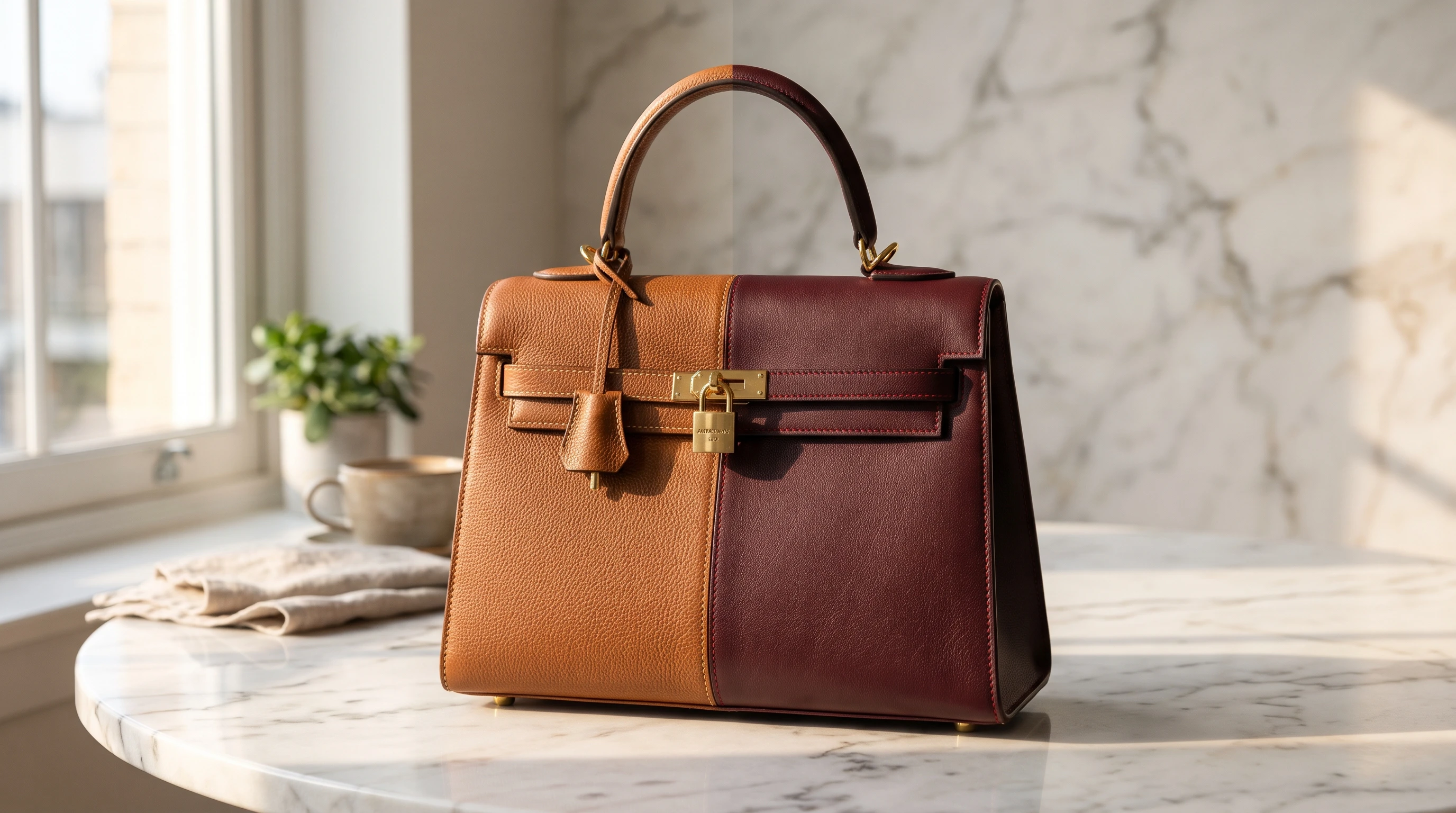
Pick 16:9, 9:16, 4:3, or 1:1 ratio to stay close to the shape of your shot. A new color should not change the framing. The closest ratio shifts less of the frame.
Generate a Video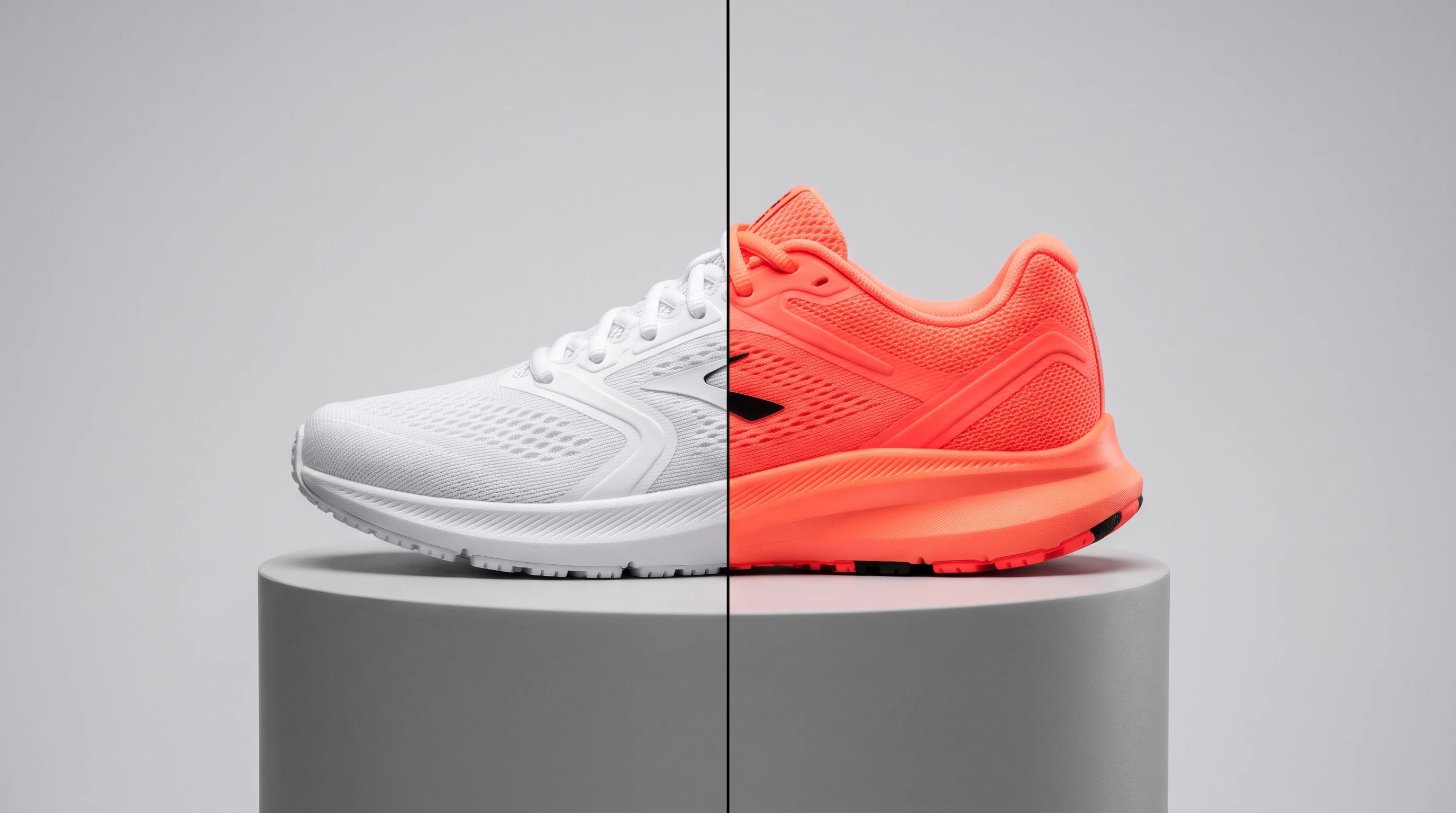
Add up to 10 images in one run so a paint chip or a fabric scrap can sit beside the main photo. Say which picture holds the color you want for the best possible result in generation.
Start Creating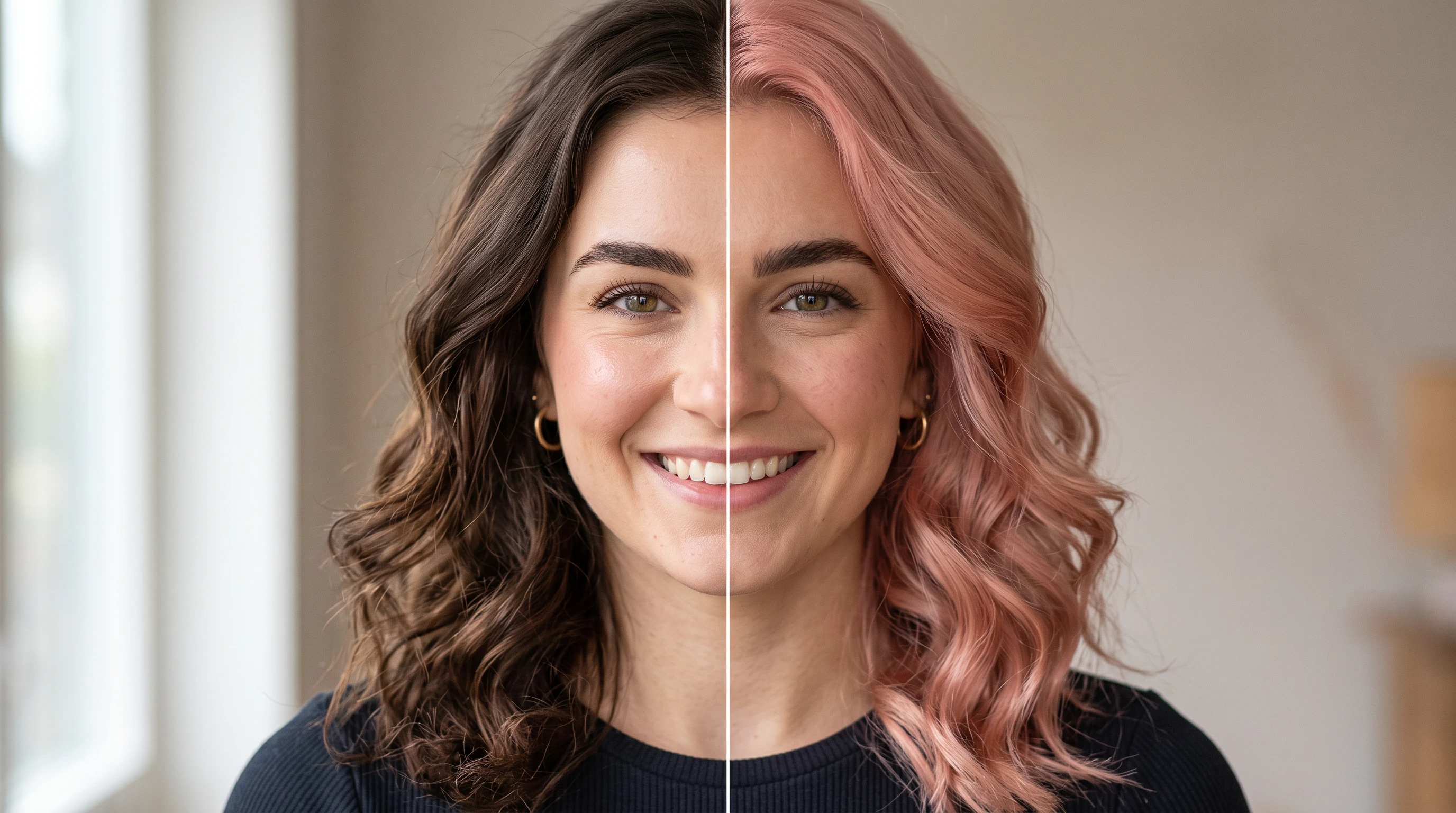


Take the photo in daylight since lamps tint every color. Open the Image tab in Magiclight AI, then add the photo, name the color, and check the result in the image color changer.
Go to Image in the Toolbox and choose Reference Image to Image as the mode. Add the photo (JPEG, PNG, or WEBP, 20MB or less), plus a swatch if you have one.
Write which item changes and the exact shade, such as “the armchair in rust velvet.” List what stays the same, such as the brick and the house number.
Choose a model and the ratio nearest your photo, then click Create Image. Compare the edges and any text with the original and use Re-edit to try another shade.
Interior Designer
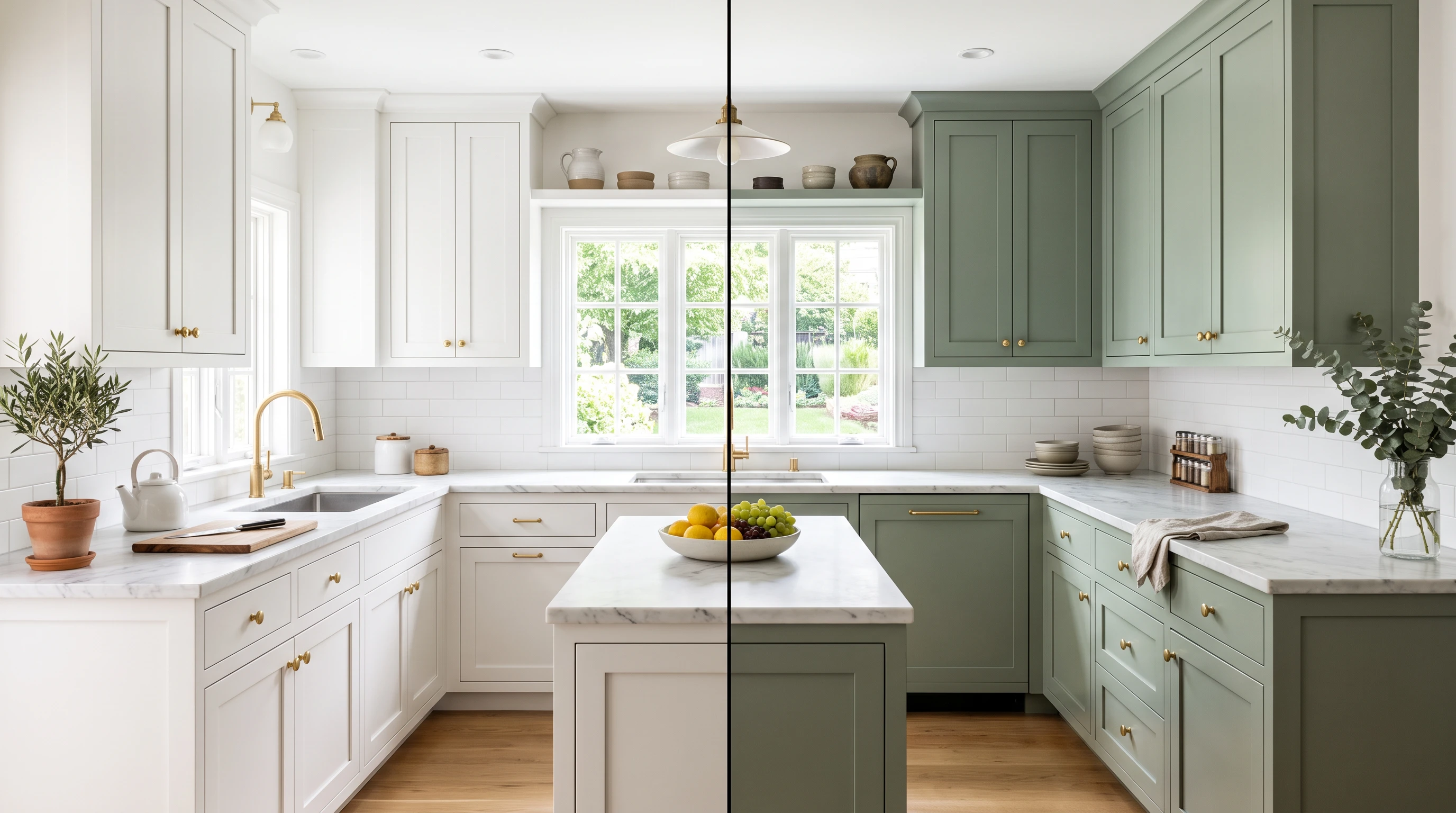
I add the room photo and a fabric swatch as a second image and name one wall. Clients see the sage green before a single can of paint is opened.
Online Store Owner
I request one colorway per run for each product photo. Re-edit keeps my prompt so I only change the color word. The mockups helped me decide which shades to stock.
Hair Stylist
Clients bring a front-facing photo and a shade they love. I test copper on two models and compare the strands. It makes the consultation much easier.
Car Wrap Installer
I shoot the car side-on and run matte, satin, and gloss as three separate tries. Customers pick a finish before we cut any vinyl.
Largely, though fine details can drift. The image color changer in Magiclight AI regenerates the whole picture, so check small text and edges, and list what to keep.
Only roughly. Magiclight AI reads color names, swatches, and hex codes as guides, and screens vary, so compare the result with a physical sample before you order.
Only for colors you actually stock. Use recolored shots for real colorways and mark the rest as concepts since buyers expect the photo to match.
Magiclight AI offers 4 output shapes, so a photo in any other shape, such as a 3:2 camera shot, gets reframed. Pick the nearest ratio or crop the photo first.
No, creating images in Magiclight AI takes a membership, so a free account is pointed to the plans page instead. Credits for a failed run are refunded automatically.



Test the sage green or the satin blue on a photo before anything gets bought or painted. Add your picture to the Magiclight AI image color changer and see the shade in place.