Top Features of the Magiclight AI Realistic Image Generator
Photos feel real when light and depth are right. Magiclight AI realistic image generator lets you describe both in plain words.
Create lifelike images with MagicLight AI. Describe your subject, lighting, and preferred style to generate realistic visuals in seconds. No camera or editing skills needed.
Create AI Realistic Images for Free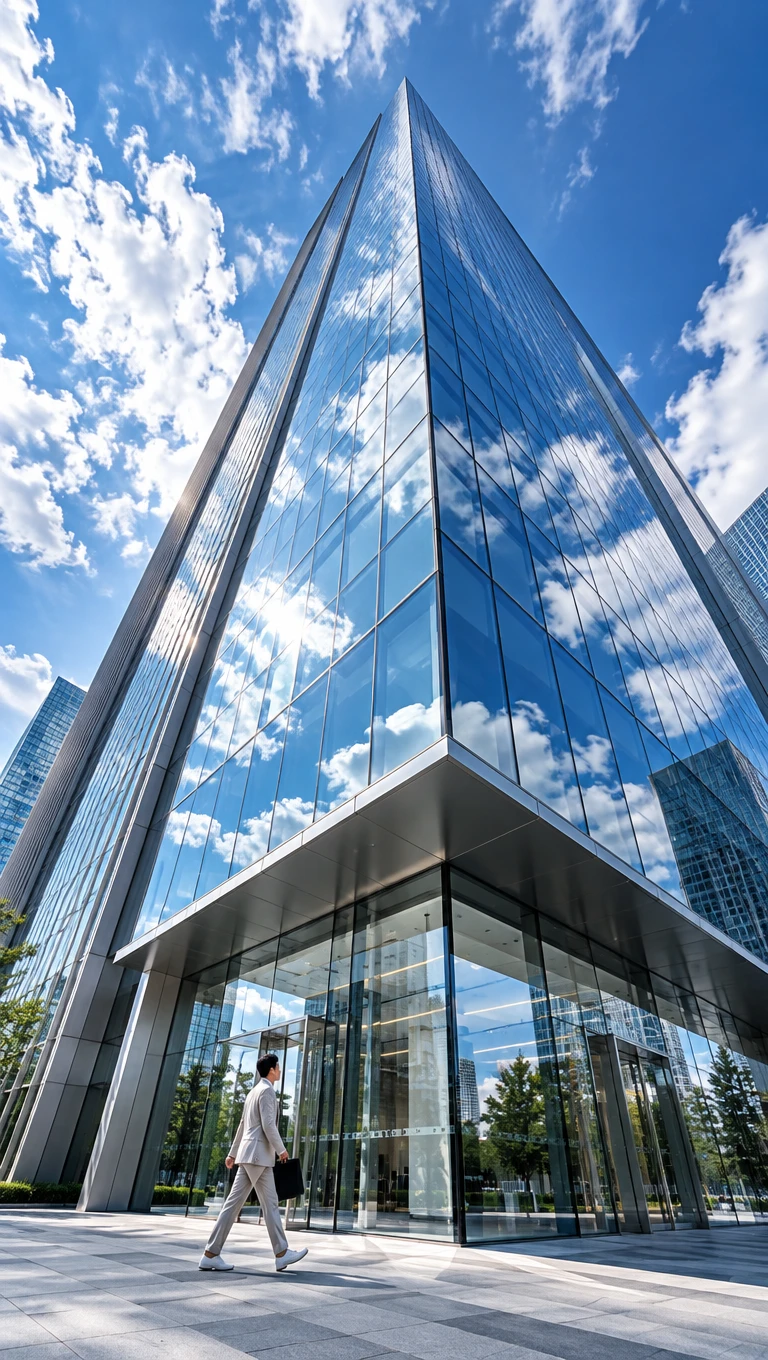
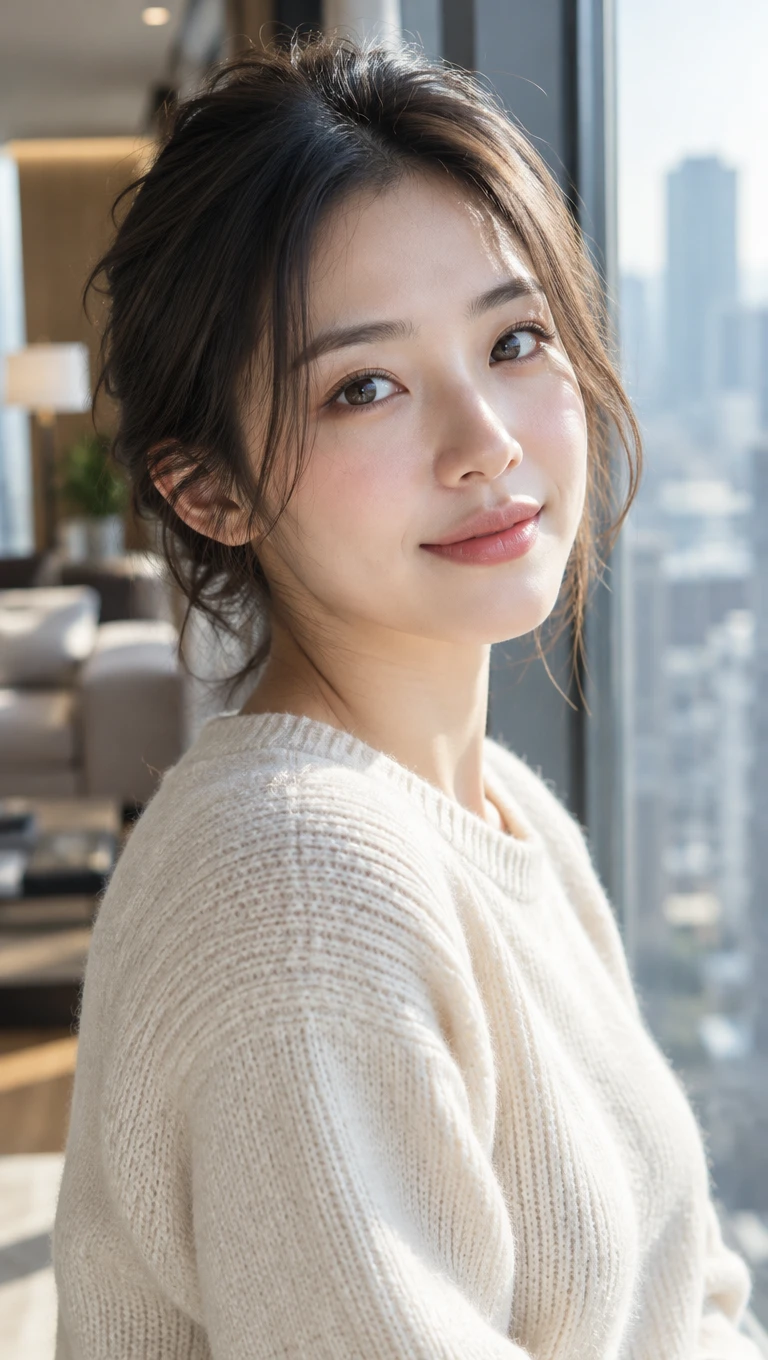
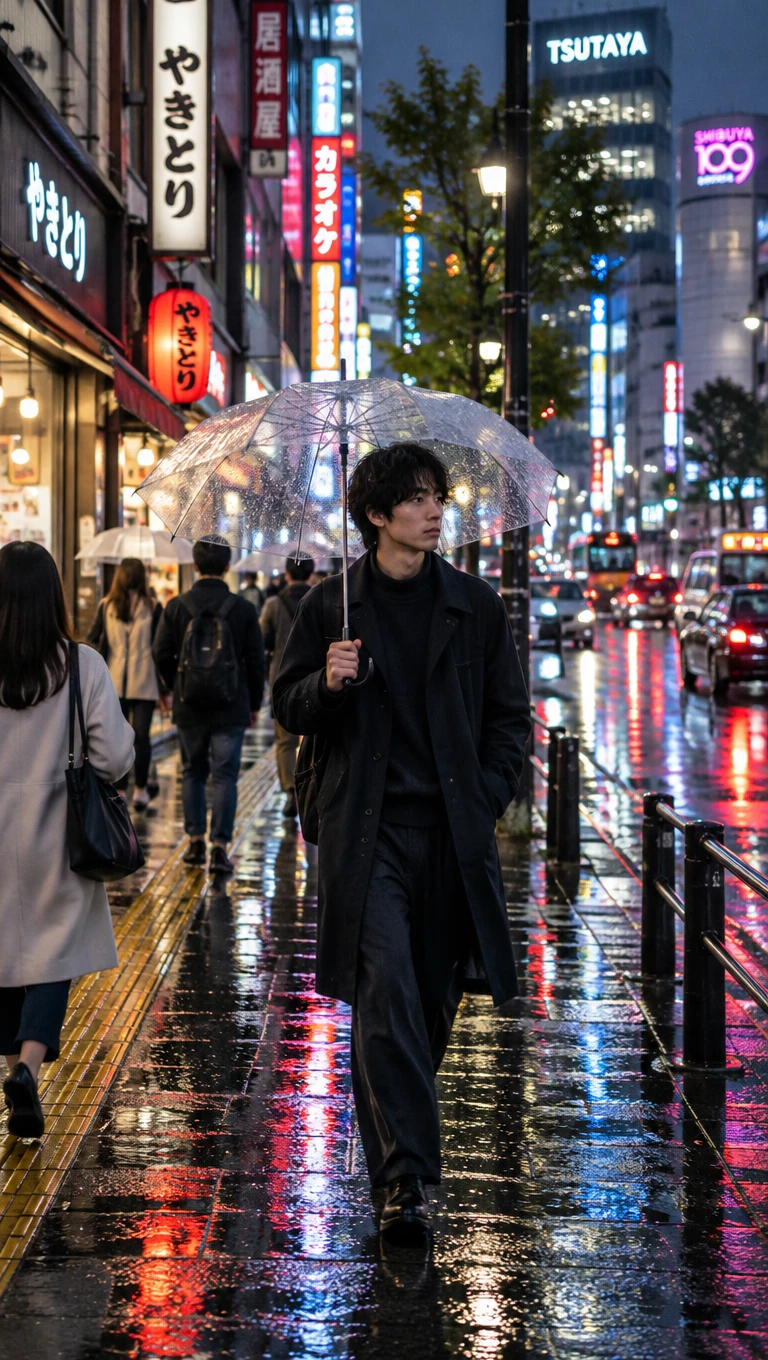
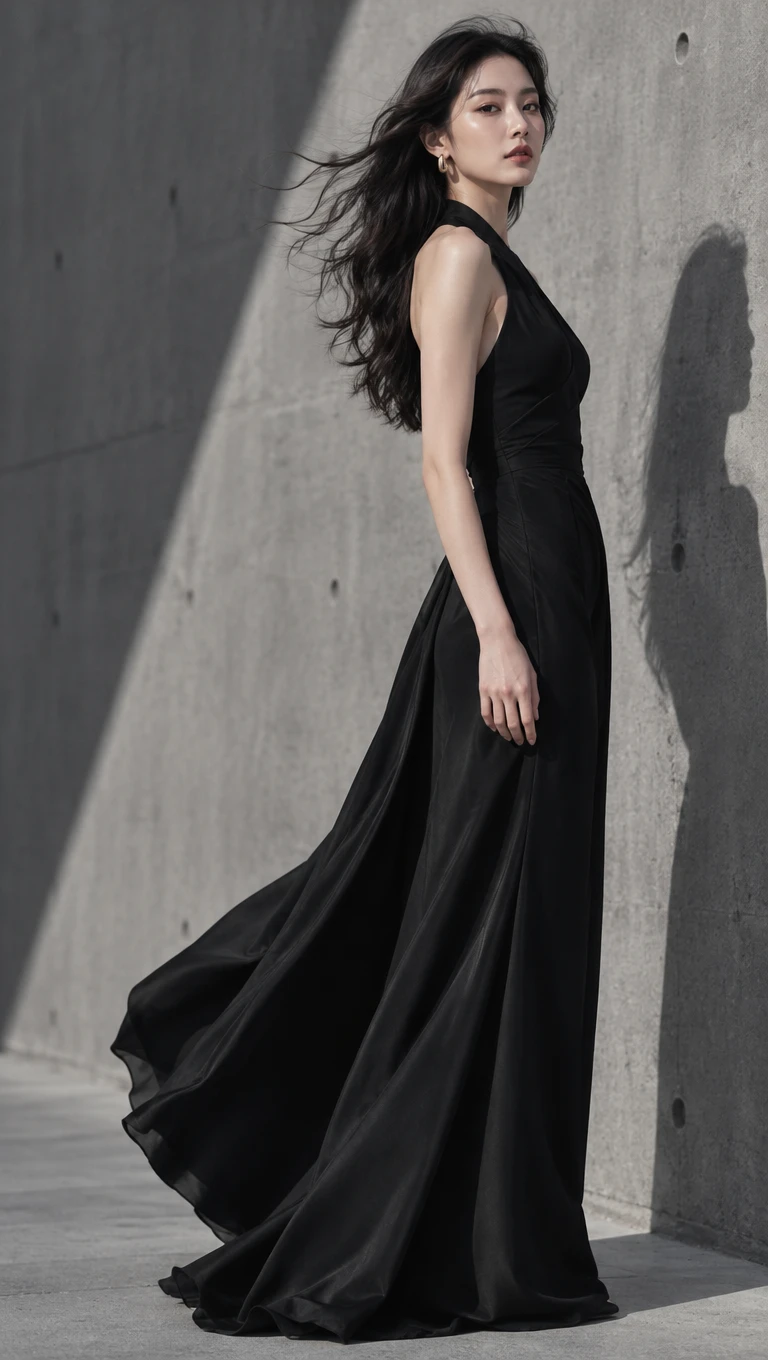
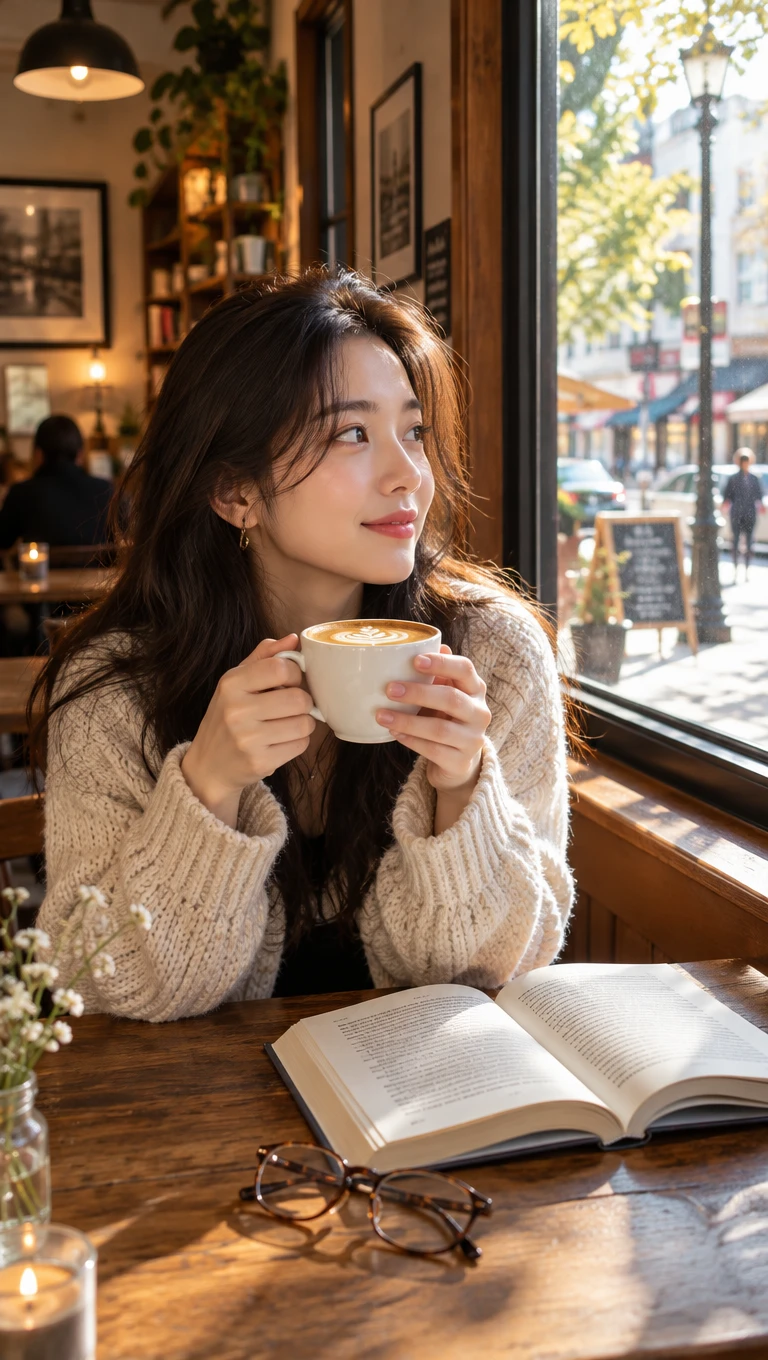
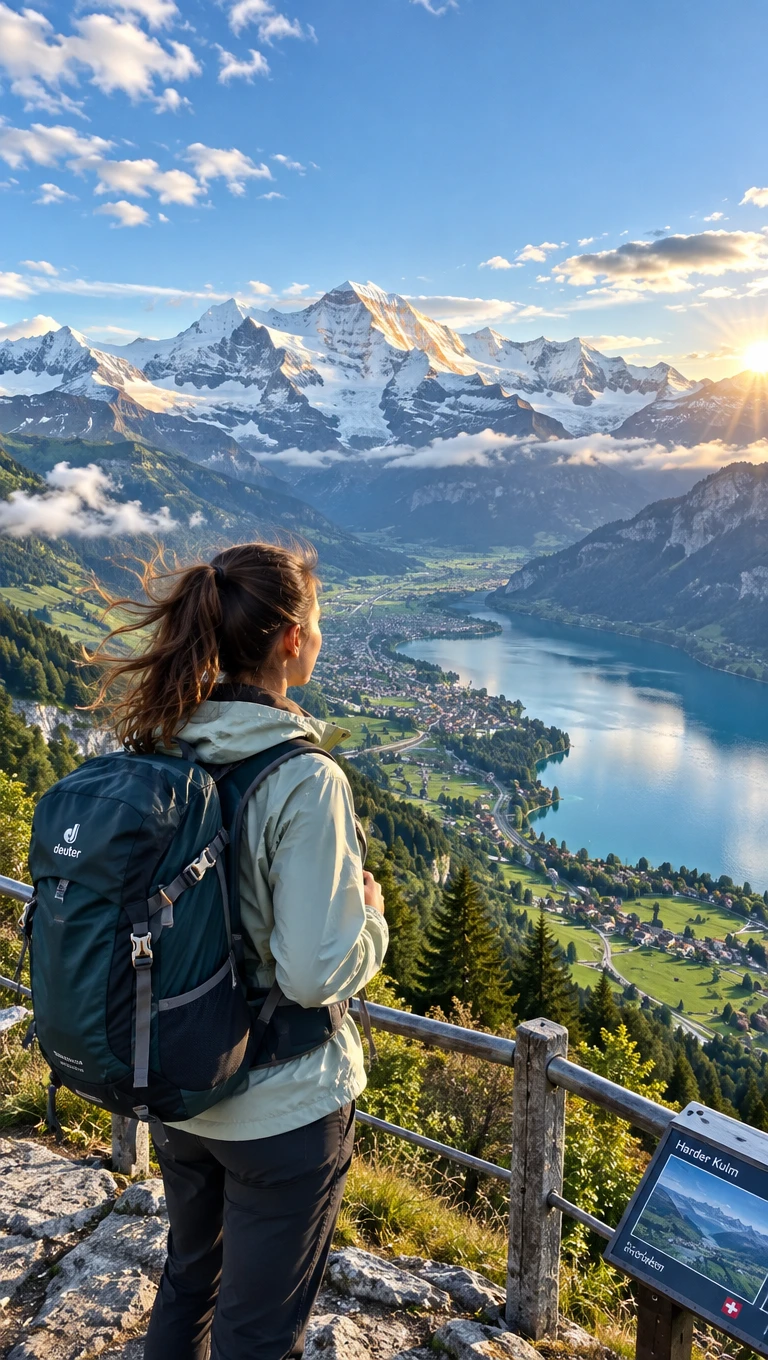
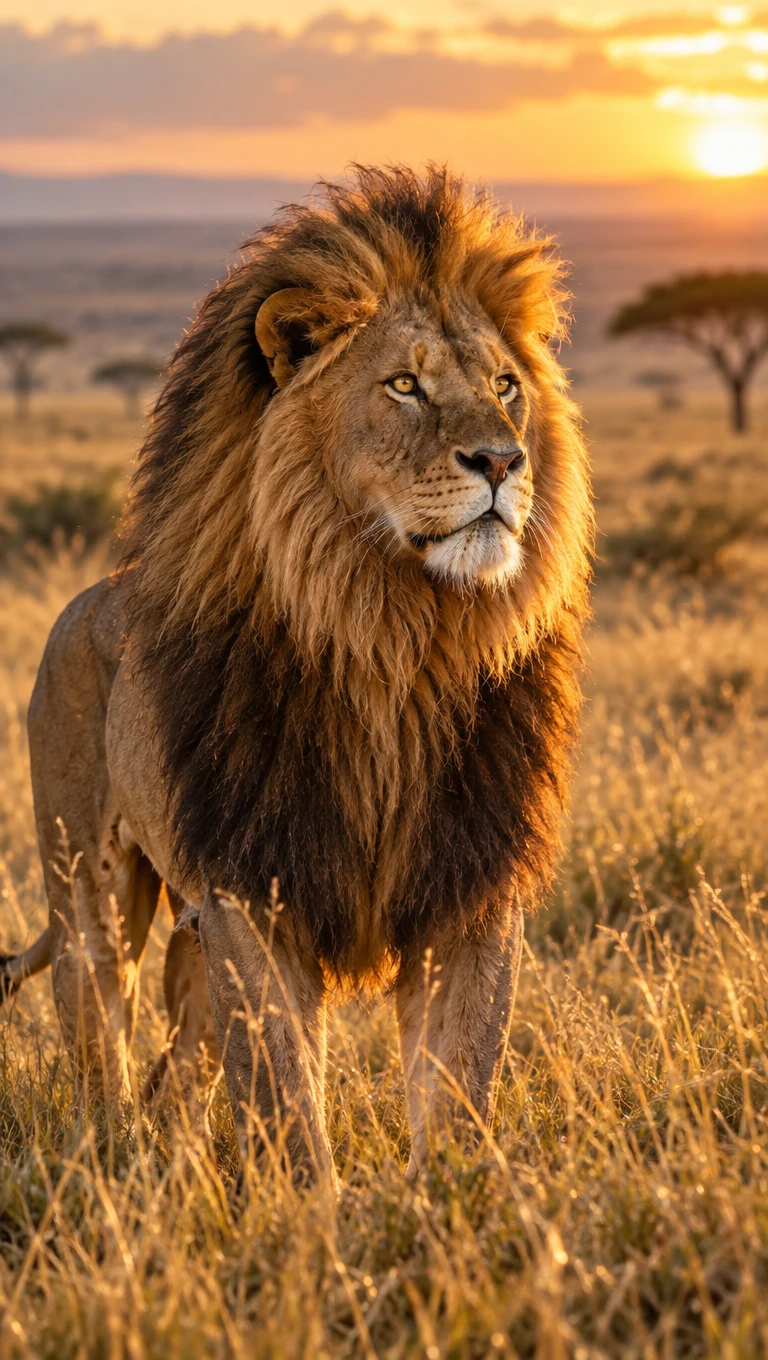
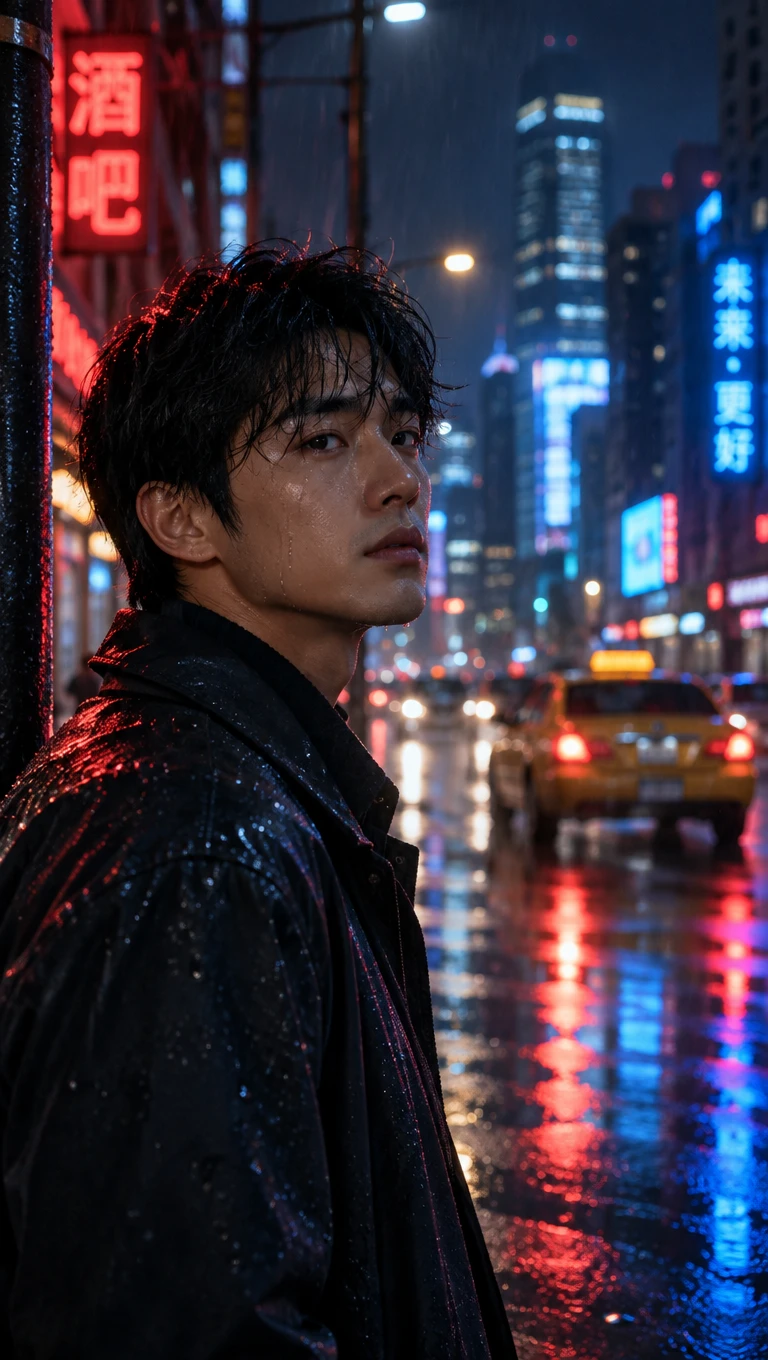
Photos feel real when light and depth are right. Magiclight AI realistic image generator lets you describe both in plain words.

Write the lens length, the aperture, and the time of day in one 500-character prompt. Add the direction of the light, while photographic terms steer the picture toward a camera look.
Use 4:3 for a classic sensor and 16:9 for a cinema look. Choose 9:16 for a phone shot and 1:1 for a social square. Set the frame before you start generating with Magiclight AI.
Try Seedream 5.0 Pro and GPT Image 2.5 Sunburst on the same prompt. Compare how each handles light and texture and keep the result that feels most like a photo.
JPG, PNG, and WEBP photos are accepted as image references in Magiclight AI. Large files go in at full size so that the detail in the source gives the result more to work from.


Create your lifelike image in Magiclight AI in 3 simple steps. Think like a photographer in to help the AI realistic image generator find the right look.
Decide whether the subject is imagined or real. Words alone work for a new scene, and a photo suits a real product or place. Open Image in the Toolbox to pick the mode.
Name the subject, the lens, the light, and the mood, such as 85mm and soft backlight. Keep the prompt within 500 characters.
Select one of the 6 AI models and an aspect ratio. Click Create Image and inspect the result. Download the most convincing frame or edit one detail and run it again.
Use photography terms such as lens length and aperture, and light direction in the AI realistic image generator. Add a real reference photo when the subject must look familiar.
No single model wins for every scene. Run the same prompt on GPT Image 2.5 Sunburst and Seedream 5.0 Pro and compare. Keep the one that looks most like a photo.
Yes, add product photos as references and write the setting around them. The references guide how the product looks. Check the final image against the real item before you use it in a listing.
The Business Photo Generator focuses on offices and teams. This generator covers realistic scenes of any kind, such as food and travel, nature, and products. Use the one that matches the subject.
Yes, when the context could mislead people, such as news or reviews. Many platforms ask creators to label AI-made images. Check each platform's rules before you post.
A new account begins with starter credits for early tests. Spend them on one scene and compare two models. Upgrade only when you want more images or commercial rights.



Describe the scene and the light you can picture. The AI realistic image generator in Magiclight AI shows you a photo-style version before you pick up a camera.