3 File Types Up to 20MB Each
Upload JPEG, PNG, and WEBP files for every image reference. Each file may weigh up to 20MB so that sharp originals give the model more detail to work with in the final scene.
Create an Image from a Reference for Free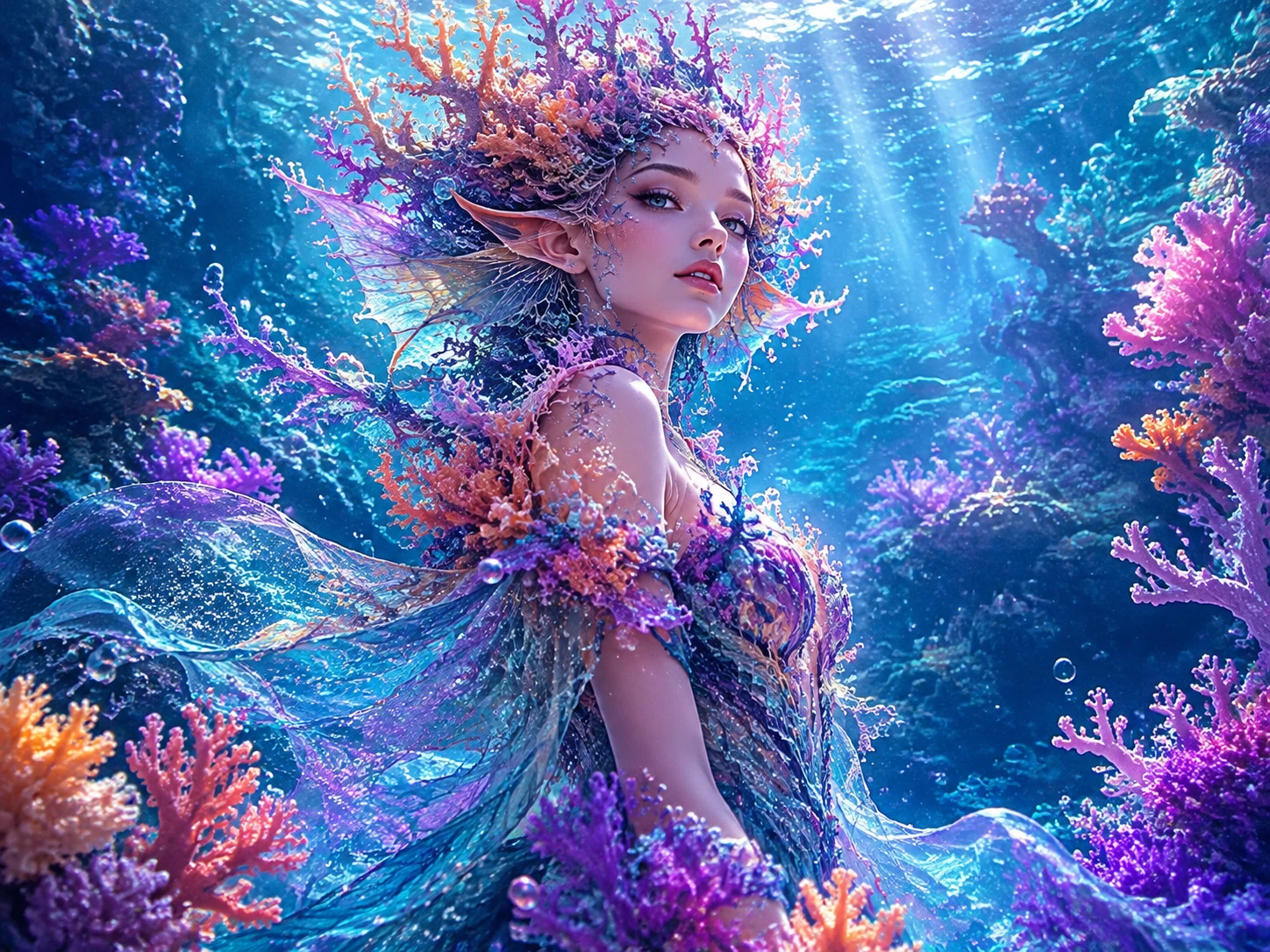
Upload reference images and describe the result you want. MagicLight AI uses your references and prompt to generate new images. No editing skills needed.
Create an Image from a Reference for Free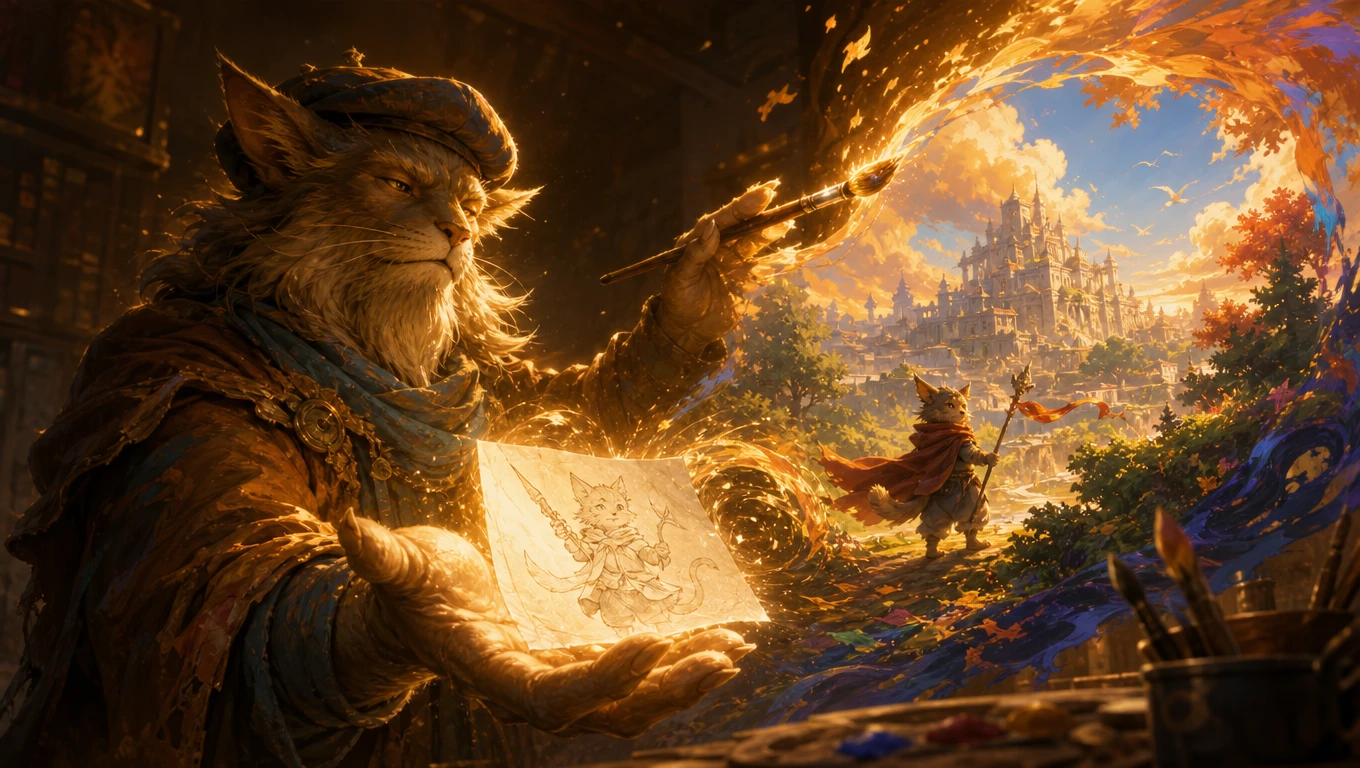










Sort your photos by the job each one does before you upload. Magiclight AI Reference to Image gives each of them a place in the new scene.
Upload JPEG, PNG, and WEBP files for every image reference. Each file may weigh up to 20MB so that sharp originals give the model more detail to work with in the final scene.
Create an Image from a Reference for FreeAdd your product, the model, and the street as separate pictures in Magiclight AI. One request can include up to 10, allowing each photo to show a single clear subject so the mix stays clean.
Create an Image from a Reference for Free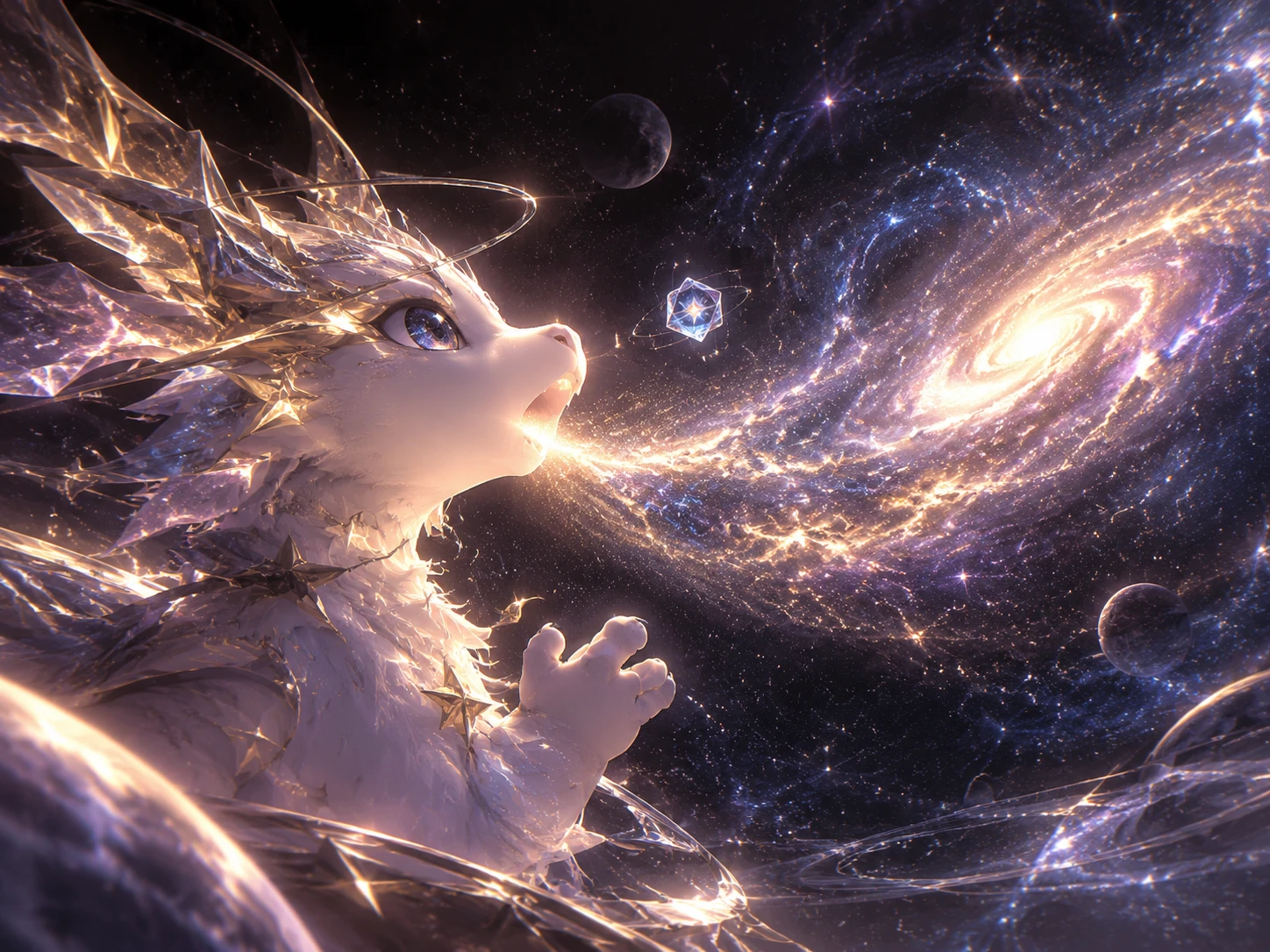
Swap from Nano Banana 2.1 to GPT Image 2 and keep every reference in place. Each AI image model holds detail in its own way. Switch when a logo blurs or a face drifts.
Create an Image from a Reference for Free
Write what to keep from every reference in the prompt box. Try a 500-character unique prompt with clear explanation to how the reference image is to be used for defining all roles properly.
Create an Image from a Reference for Free


Photo order matters before anything else. In MagicLight AI, 3 steps take Reference to Image from the first upload to the final download.
Go to the Image tab in the Toolbox and select Reference Image to Image. The mode requires at least one photo before it lets you run. Plan which picture plays which part.
Drop in up to 10 files of 20MB or less; one subject per photo works best. Put the most important picture first, so it leads the scene. Describe the scene in 500 characters or less.
Choose a frame shape and click Create Image. Download the picture you like best. If a detail looks off, adjust one line in the prompt and run it again.
Photographer
I gave it my studio shot of a ceramic cup and a photo of a stone counter. Naming each job in the prompt kept the cup sharp and the scene natural.
Interior Designer
I uploaded the empty living room first and then the sofa and rug my client likes. Switching models fixed how the rug sat. The 16:9 view works well in pitch decks.
Marketing Specialist
One request holds the product shot, a lifestyle photo, and a mood image. I pick 1:1 for listings and download the result. My team stopped asking for manual edits.
Social Media Manager
I write one line about what each photo should add and run it. When a logo looked soft, I used Re-edit with a different model and kept all my references.
Seedream 5.0 Pro checks the size of every file before it runs. Each side must be between 15 and 6000 pixels, and the shape also cannot be longer than 16:1. Resize the file or switch to another model in Magiclight AI Reference to Image.
Use sharp, front-facing photos and say in the prompt which reference holds the face. If the likeness slips, add a second clear photo of that person. Try another model too, since each one holds faces in its own way.
Only with permission; photos of other people need their OK, and brand photos need the owner’s approval. Famous logos and characters can also fail the copyright check and return no image. Stick to photos you own or license.
Reference to Video is its own mode under the Video tab. It turns image, video, and audio references into a moving clip. Reference Image to Image returns a still picture.
It is a member feature; free accounts cannot use Reference Image to Image, so check the plan page for what each tier includes. Commercial use needs a plan with commercial rights.

A few photos on your phone can become one picture worth sharing. Upload them, describe each part, and let Magiclight AI Reference to Image mode pull the scene together.