Explore the Features of ChatGPT Images 2.6 in Magiclight AI
ChatGPT Images 2.6 helps you turn your creative ideas into original images. Magiclight AI lets you describe what you want and adjust your artwork until it looks right.
Bring your imagination to life with ChatGPT Images 2.6 in Magiclight AI. Describe what you want to see, try different artistic styles, and create images that feel personal. No drawing skills needed.
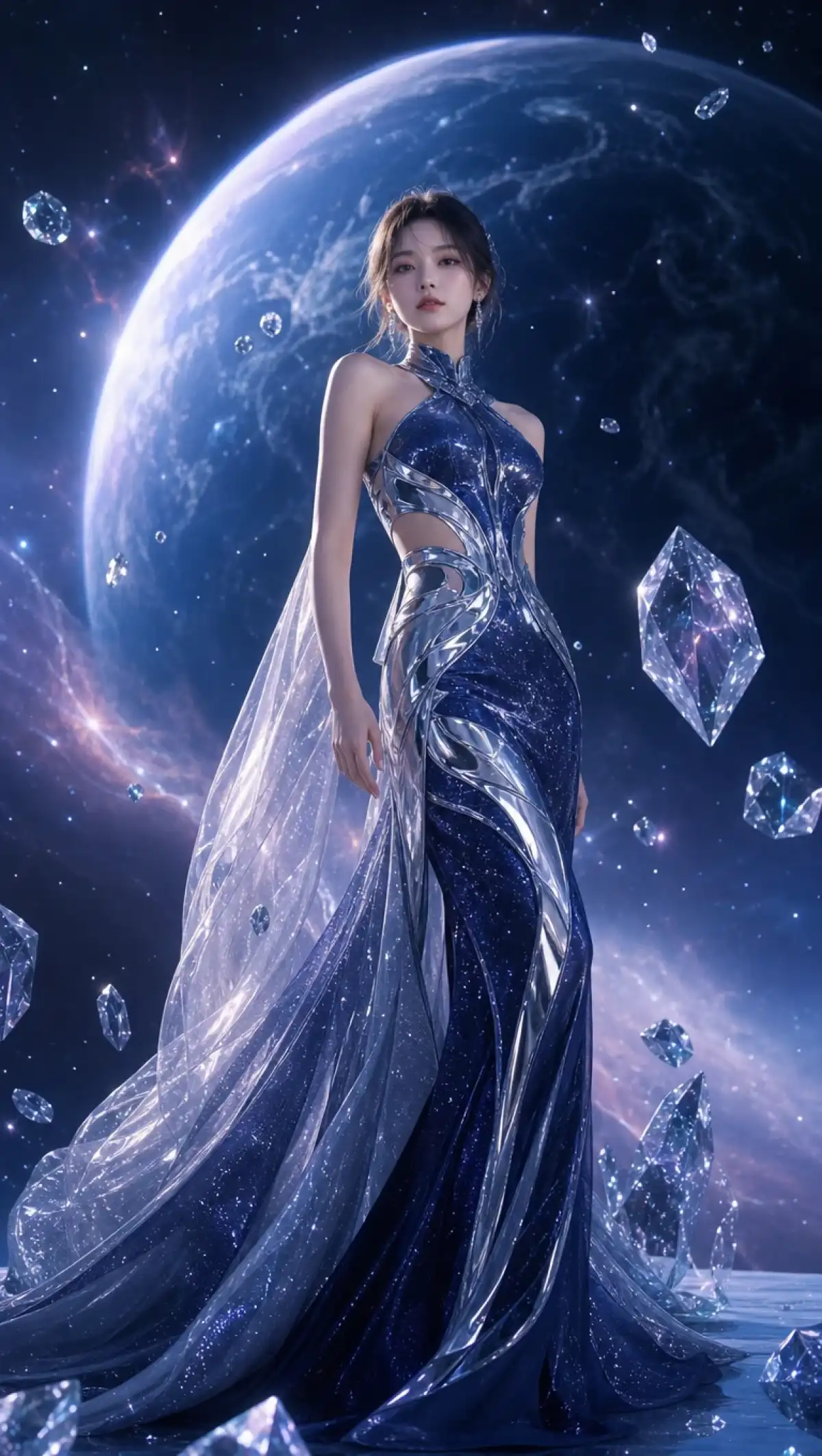
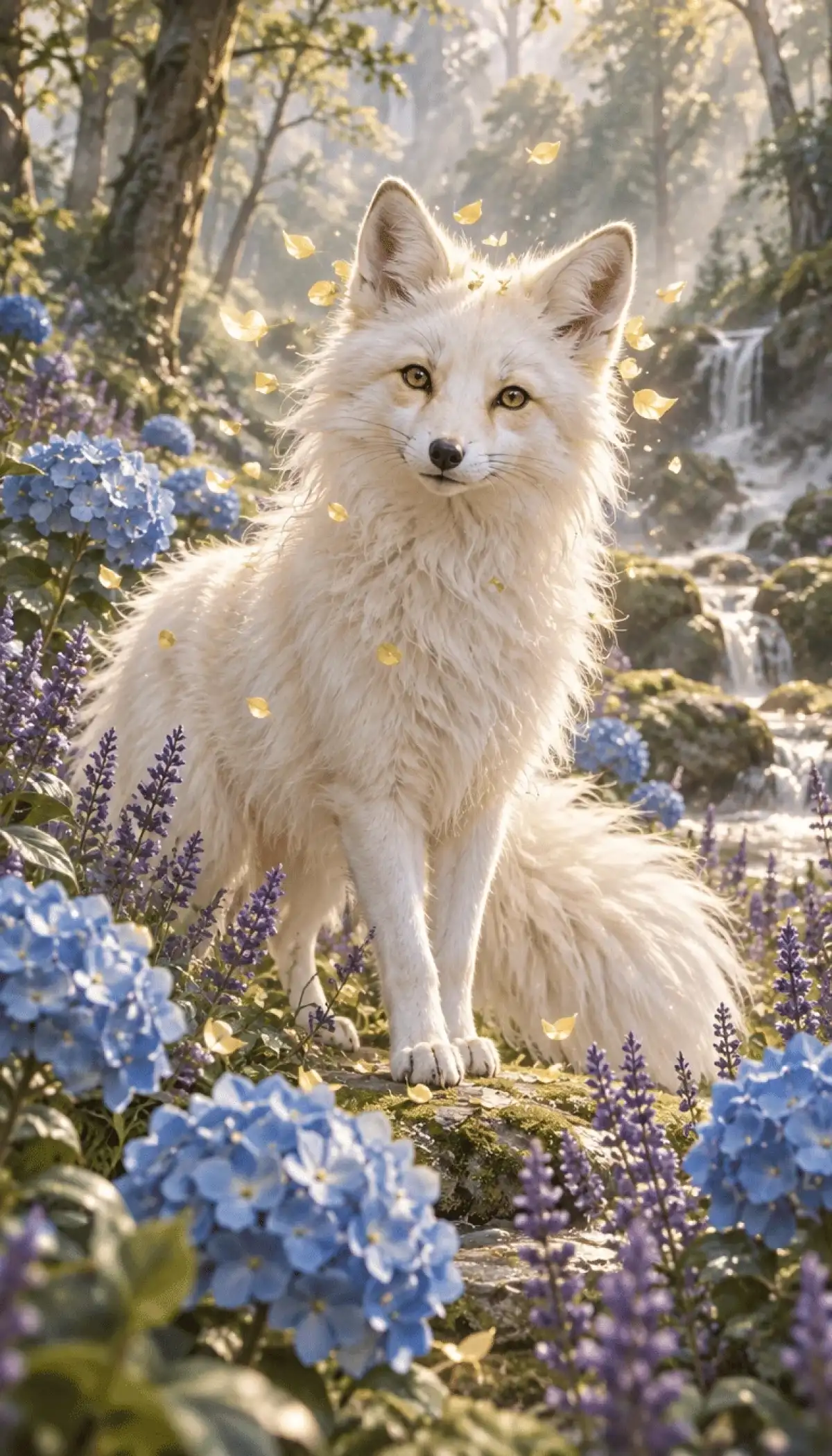
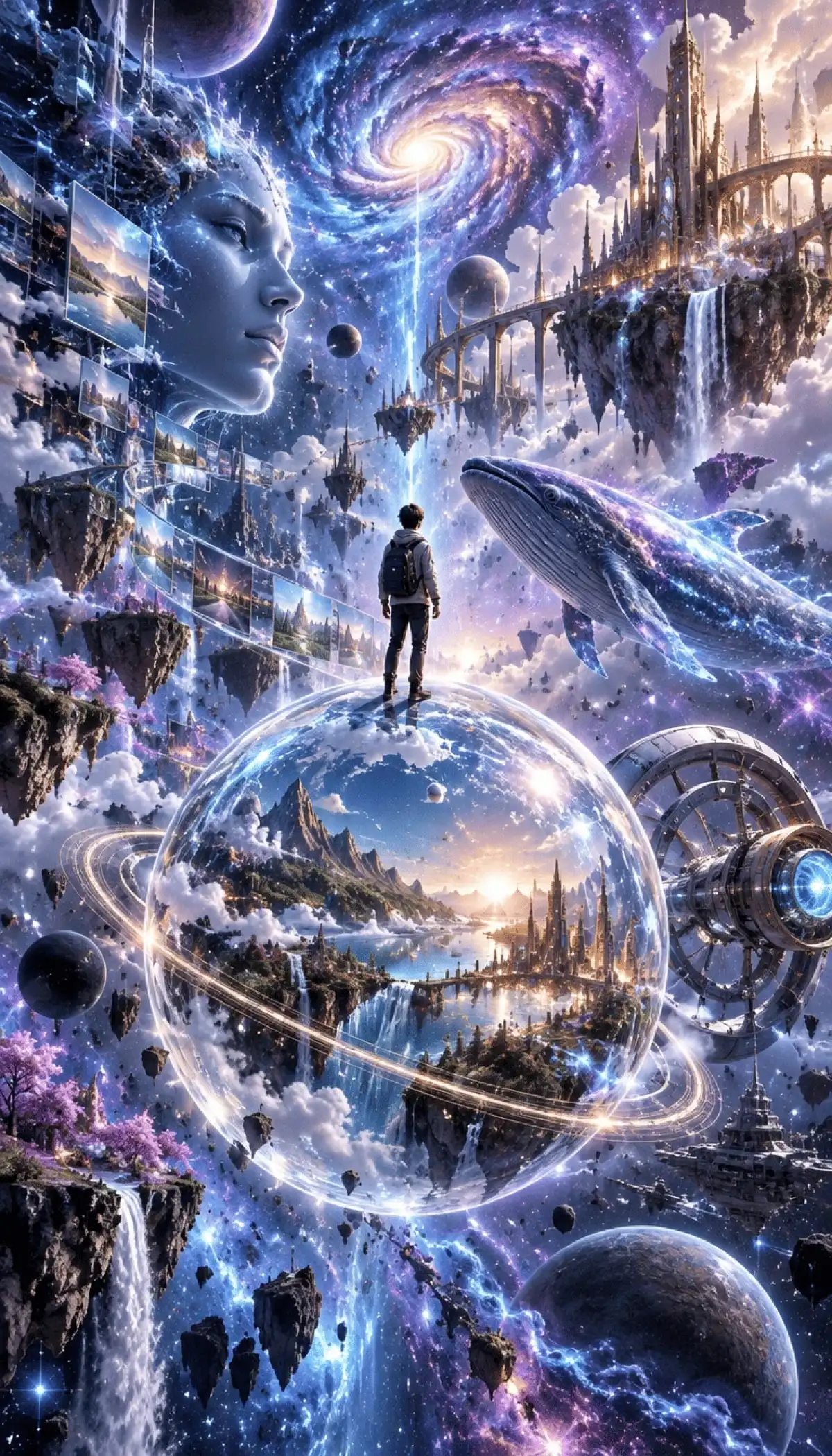
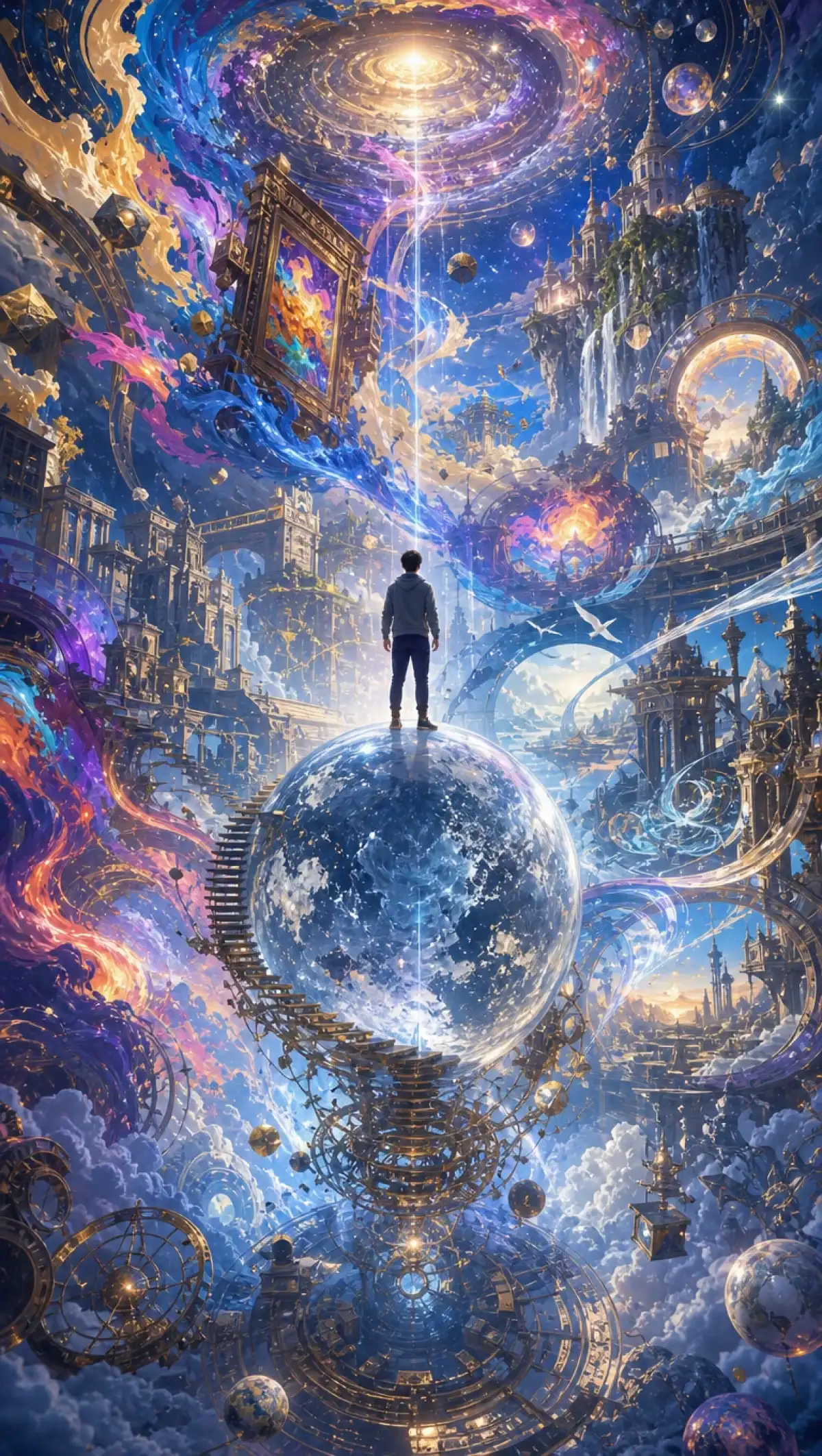
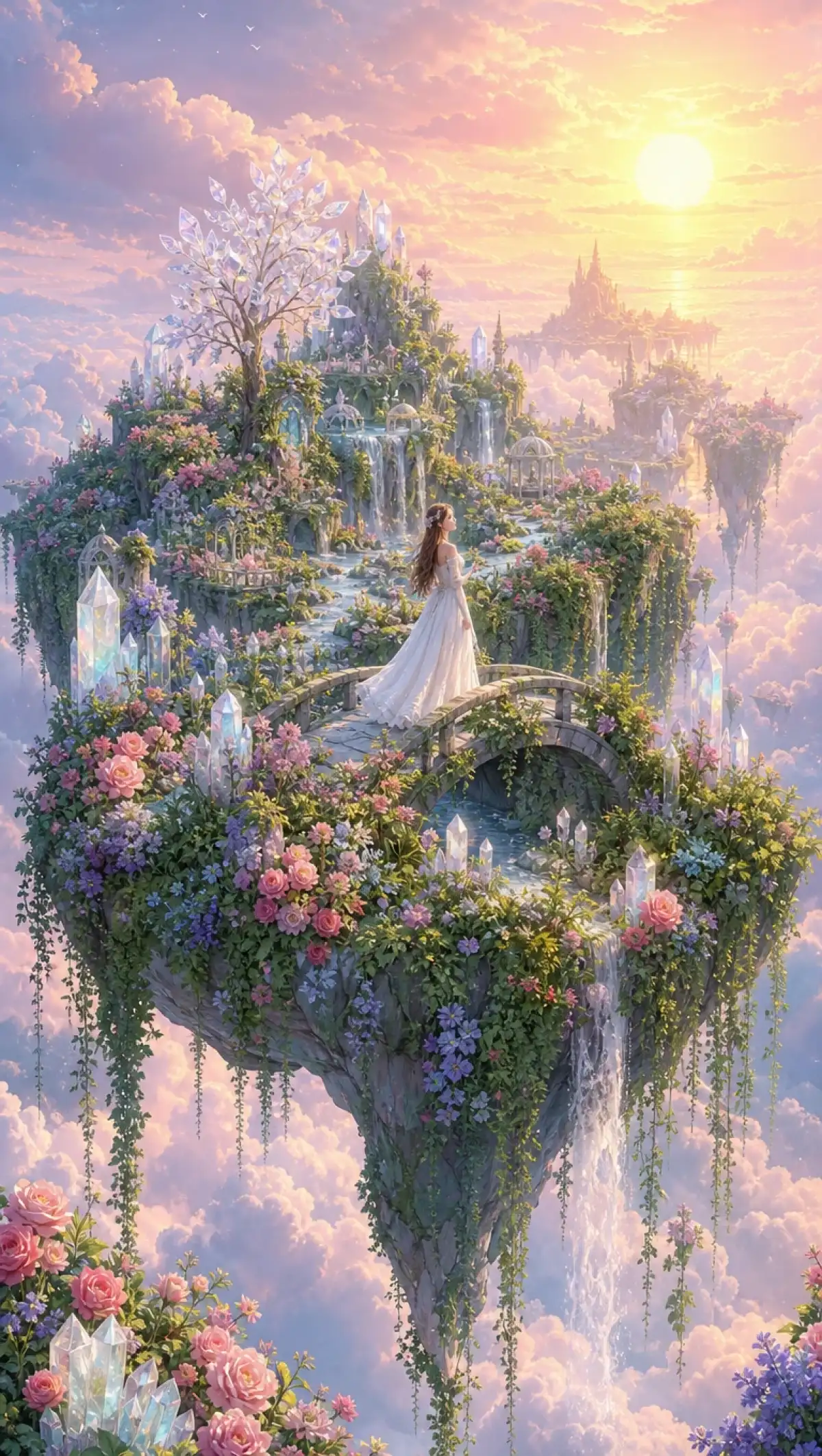
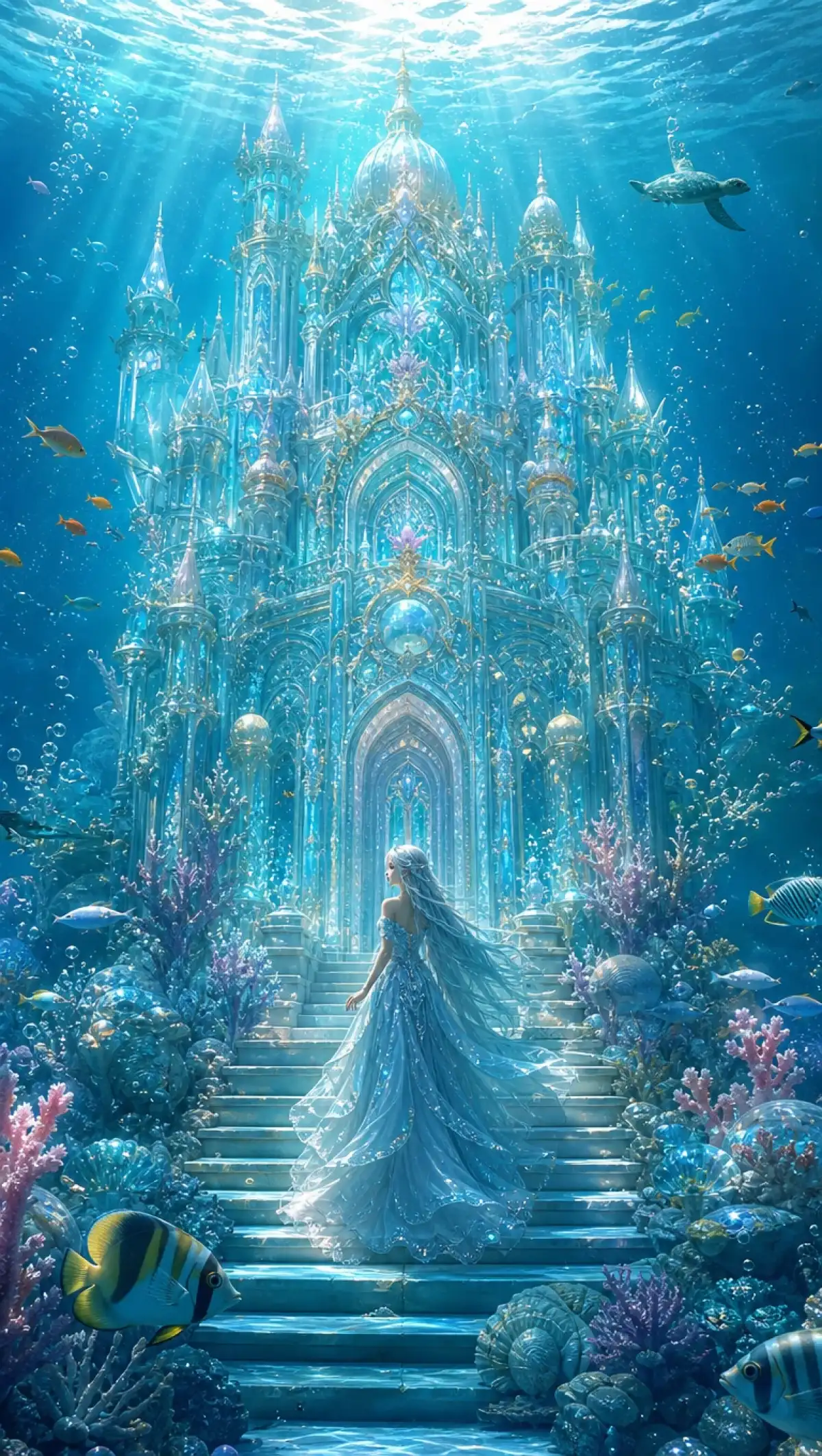
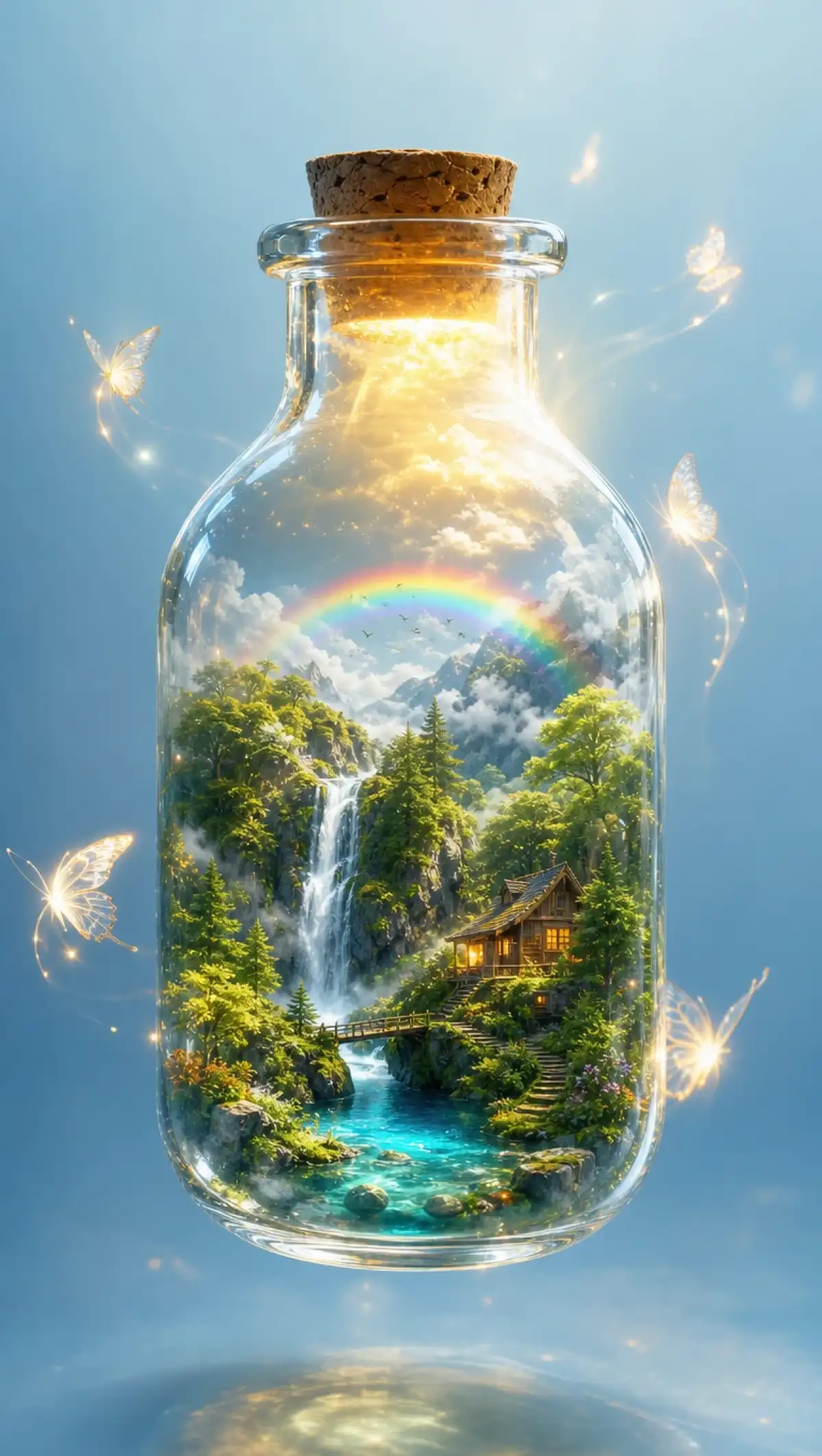
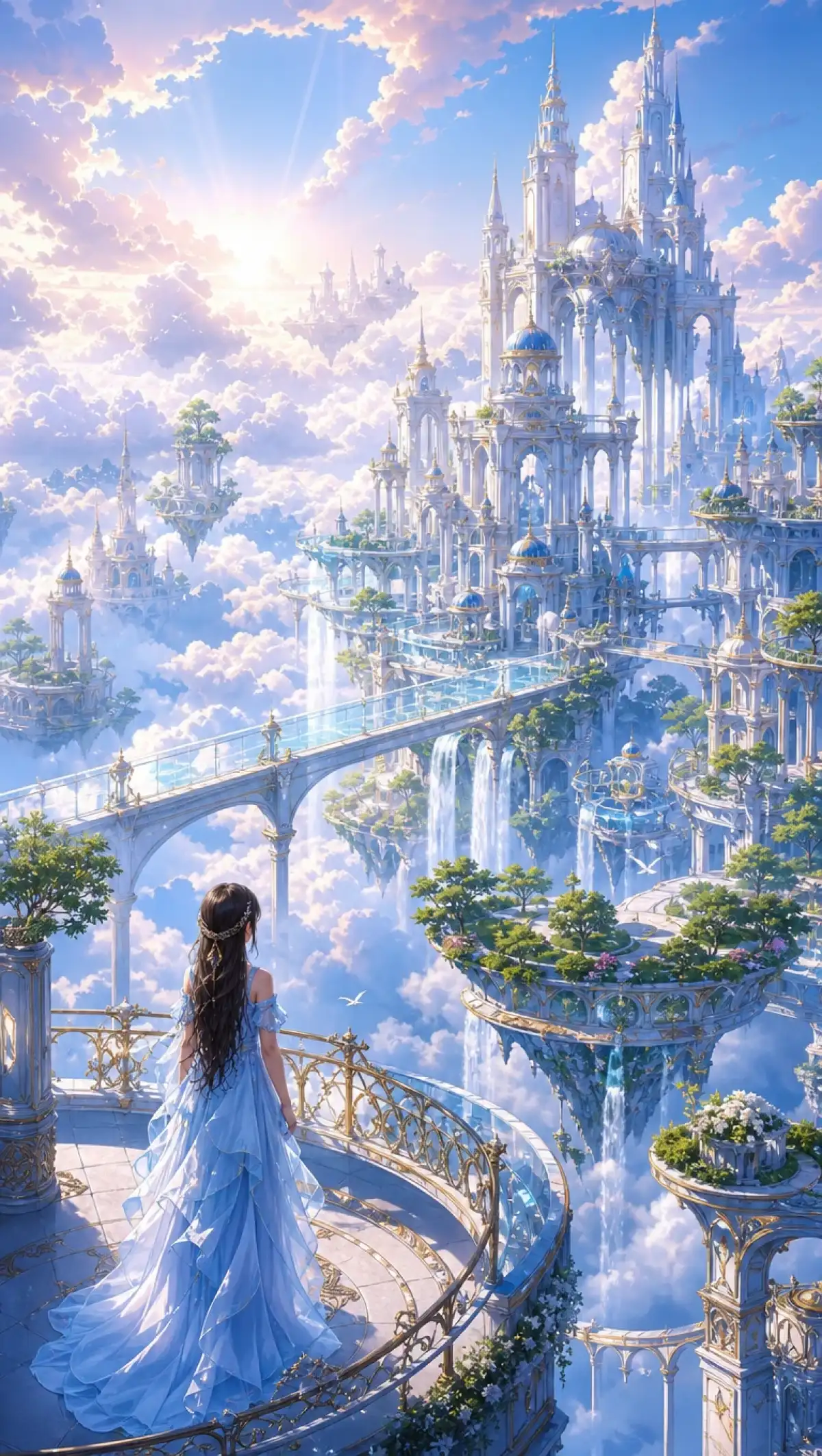
ChatGPT Images 2.6 helps you turn your creative ideas into original images. Magiclight AI lets you describe what you want and adjust your artwork until it looks right.
Magiclight AI offers 6 image models, including ChatGPT Images 2.6, Seedream 5.0 Pro and Nano Banana 2. Each model handles image prompts differently. You can try your idea with different models and compare the results before choosing the image you want for your image.
Magiclight AI supports 4 aspect ratios for image creation. Choose 16:9 for desktop wallpapers or 9:16 for phone backgrounds. The 4:3 option suits traditional picture frames, and 1:1 works for square artwork and social media posts. Pick the size that suits your image.
Upload several reference images in JPEG, JPG, PNG or WEBP format, with a maximum size of 20MB per file. Use a prompt of up to 500 characters to explain how the new image should look. ChatGPT Images 2.6 can use these references to maintain recognizable subjects across different images.
Magiclight AI offers 4 video modes, including Frame to Video for animating between a starting and ending image. Reference to Video also accepts image, video and audio references. You can generate clips of up to 30 seconds and create short lip sync animations.
A good image depends on more than just a prompt. ChatGPT Images 2.6 in Magiclight AI gives you useful options to shape the final result and make each creation suit its purpose.
OpenAI says Images 2.6 generates images 50% faster than before. Inside Magiclight AI, this speed gives you more room to test different prompts and compare results. You can experiment with new concepts, adjust small details, and find an image that matches your expectations without spending too much time on each attempt.
Try ChatGPT Images 2.6 For Free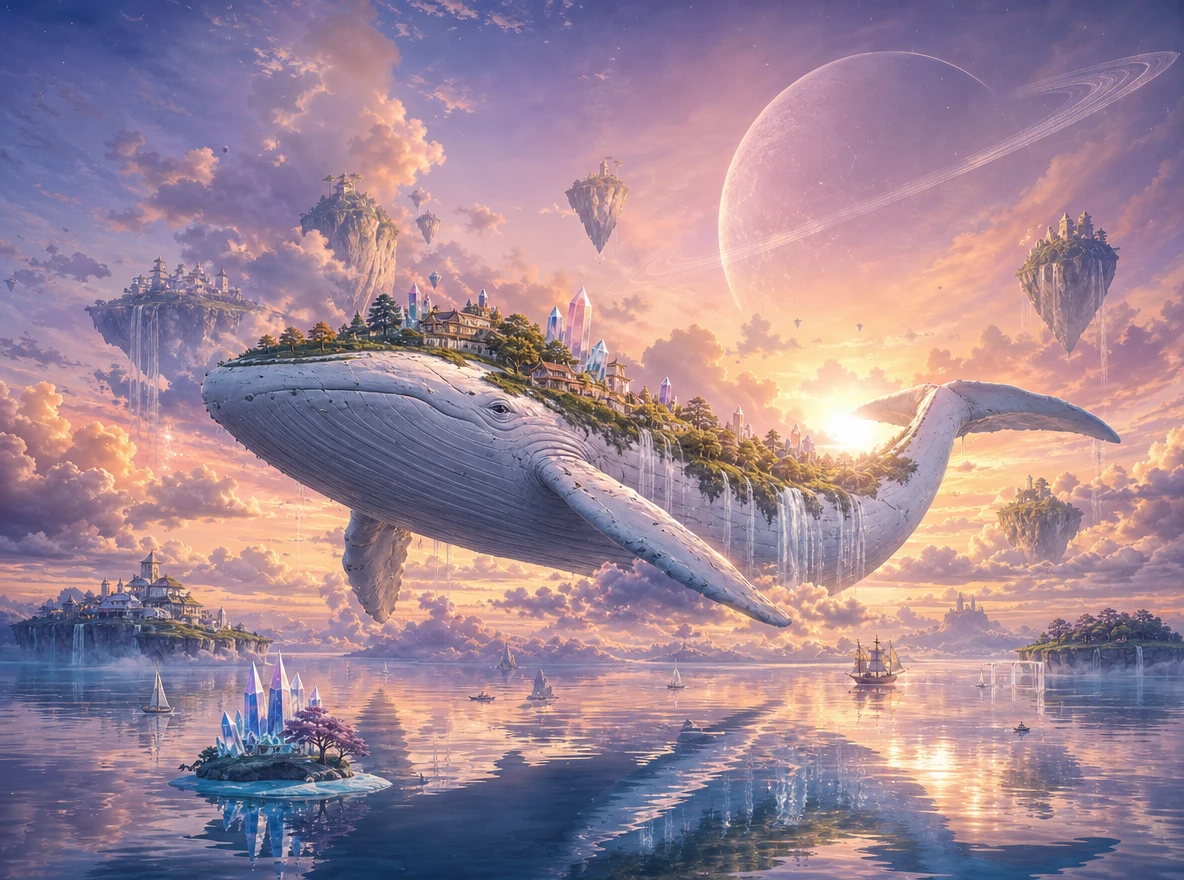
Magiclight AI offers 2 image creation modes. Text to Image lets you describe what you want and generate an image from your prompt. Reference Image to Image allows you to upload up to 10 reference images and use them to create something new. This is useful when you want the result to follow a particular visual style or character appearance.
Try ChatGPT Images 2.6 For Free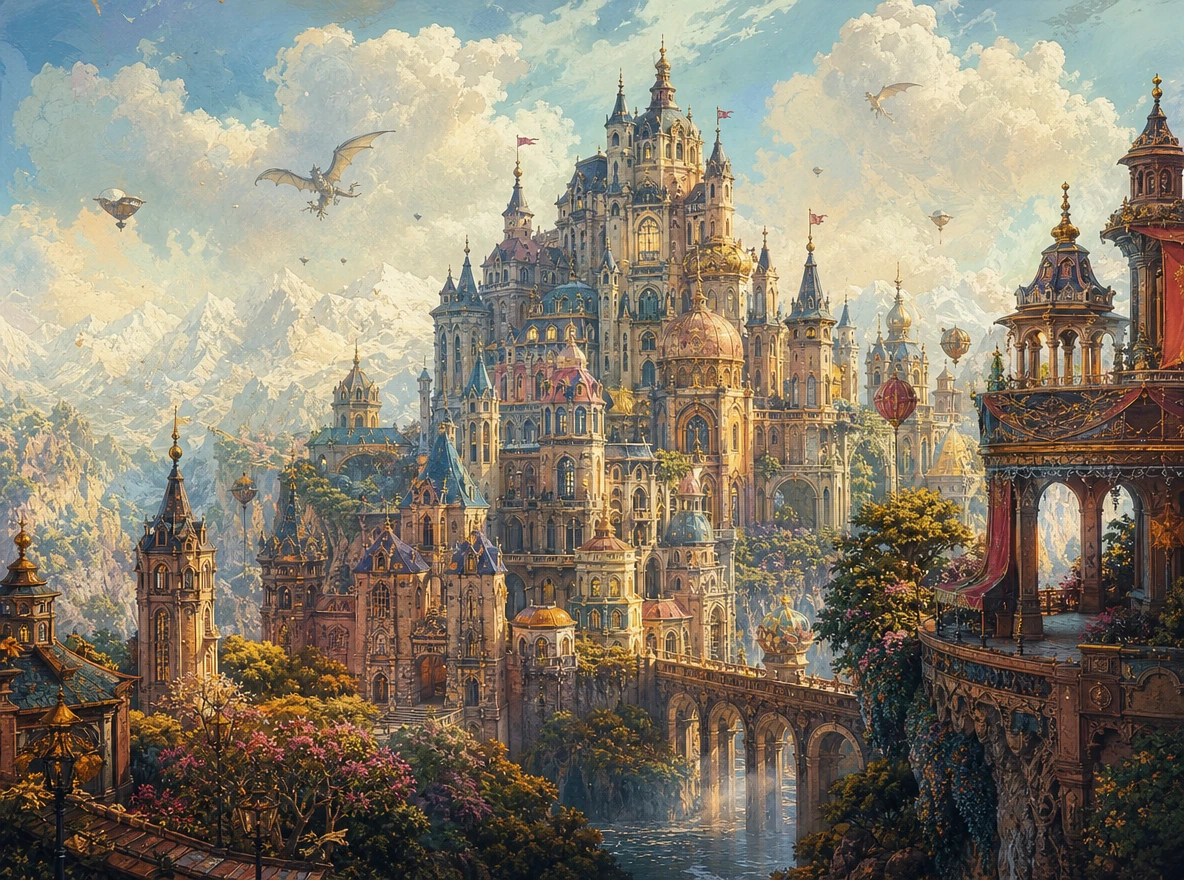
A character image made with ChatGPT Images 2.6 can also become part of your video project. Save the generated image as a new character in Magiclight AI and use it when creating scenes. This gives you more control over how your character looks and helps maintain the same appearance throughout your video.
Try ChatGPT Images 2.6 For Free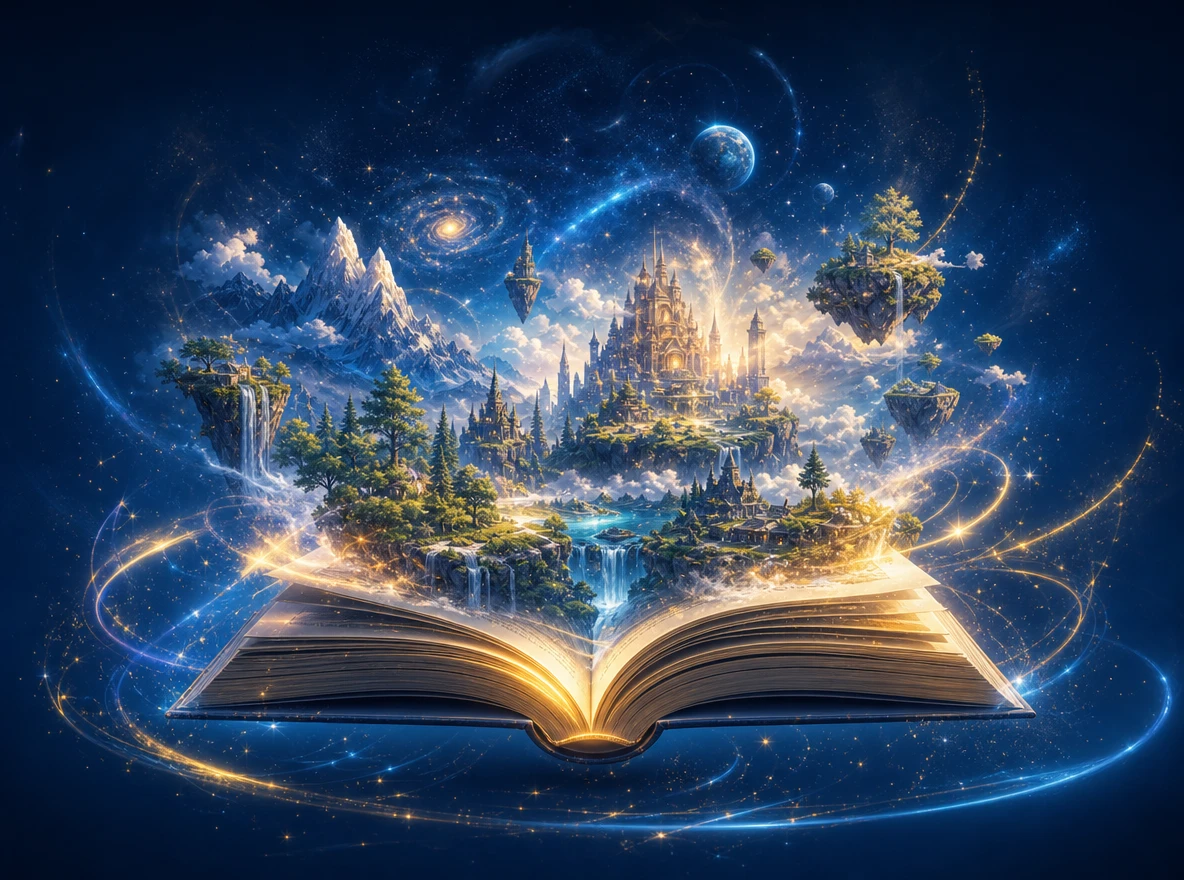
Not every image generator gives you the same results or creative flexibility. See how ChatGPT Images 2.6 in Magiclight AI compares with other tools for creating custom images:
| Platform | Image Models Available | Reference Image Support | Image Customization | Best For |
|---|---|---|---|---|
| Magiclight AI | 6 image models | Upload up to 10 reference images | Text prompts, aspect ratios, and multiple image outputs | Artists, designers, and content creators |
| ChatGPT | ChatGPT Images 2.6, including Flare and Sunburst | Upload images to guide new creations | Conversational prompts and image revisions | Personal artwork and creative experiments |
| Buzzy | Multiple models, including GPT Image 2 and Nano Banana 2 | Reference images supported | Model selection and prompt adjustments | Digital artists and marketing teams |
| CapCut | Dola Seedream 5.0 Pro through Dreamina | Image uploads supported | Text prompts and image editing tools | Social media graphics and promotional artwork |
| FLUX | FLUX 3 Image and FLUX 3 Image Klein | Reference image support varies by model | Prompt control and image generation settings | Designers, developers, and creative teams |
Making images with ChatGPT Images 2.6 in Magiclight AI takes 4 simple steps. Enter your prompt, adjust the settings to suit your needs, and save the artwork you like most.
Go to the Toolbox in Magiclight AI and select the Image tab. Choose Text to Image to create something new or Reference Image to Image to work from existing pictures.
Select the GPT Image 2.6 Flare model and describe your idea in up to 500 characters. Pick an aspect ratio that suits your image before starting the generation.
Check the generated image and see what needs changing. You can upload reference images of up to 20MB each and adjust your prompt to get a result closer to your idea.
Once you've adjusted your prompt and image settings, generate your final image. Review the results and download the version you like best for your project.
Product Designer
I used Magiclight AI to create product images for my online store. A few prompt changes helped me get the colors and background looking exactly how I wanted.
Digital Illustrator
I tried several ideas with ChatGPT Images 2.6 Flare before switching to Sunburst for my final artwork. Comparing the results helped me settle on the right look.
Social Media Designer
I needed fresh graphics for a product launch and used ChatGPT Images 2.6 to create them. The different aspect ratios made it easier to prepare images for each platform.
Character Designer
ChatGPT Images 2.6 helped me experiment with different poses for my character. I used reference images to keep the appearance familiar as I changed the background.
Go to the Toolbox in Magiclight AI and select the Image tab. Pick GPT Image 2.6 Flare, write a prompt of up to 500 characters, choose an aspect ratio and generate your image.
ChatGPT Images 2.6 Flare is ideal for quick drafts and testing different ideas. Sunburst works better for final images where sharper details and consistency matter more.
No. Magiclight AI lets you use the image models without paying for a separate ChatGPT subscription. You can generate images using the credits available in your Magiclight AI account.
Magiclight AI supports 16:9, 9:16, 4:3 and 1:1 image ratios. Use 16:9 for landscape scenes, 9:16 for vertical content or 1:1 for square images on social media.
You can improve character consistency by uploading the same reference pictures for each generation. Keep the character's main features in your prompt to reduce unwanted changes.
Yes. Magiclight AI lets you animate images through Frame to Video or Reference to Video. Upload your still, describe the motion and generate a video clip lasting up to 30 seconds.

Turn your ideas into custom artwork with ChatGPT Images 2.6 in Magiclight AI. Experiment with different looks and save your favorite creations.