Explore the Key Features of Seedream AI Image Generator in MagicLight AI
From poster concepts to personal artwork, Seedream AI fits different creative projects. Magiclight AI lets you guide each image and even turn a finished image into a video.
Turn your ideas into images with Seedream AI in MagicLight. Describe the scene, add the text you want to include, and generate visuals in seconds. No design skills needed.
Try Seedream AI for Free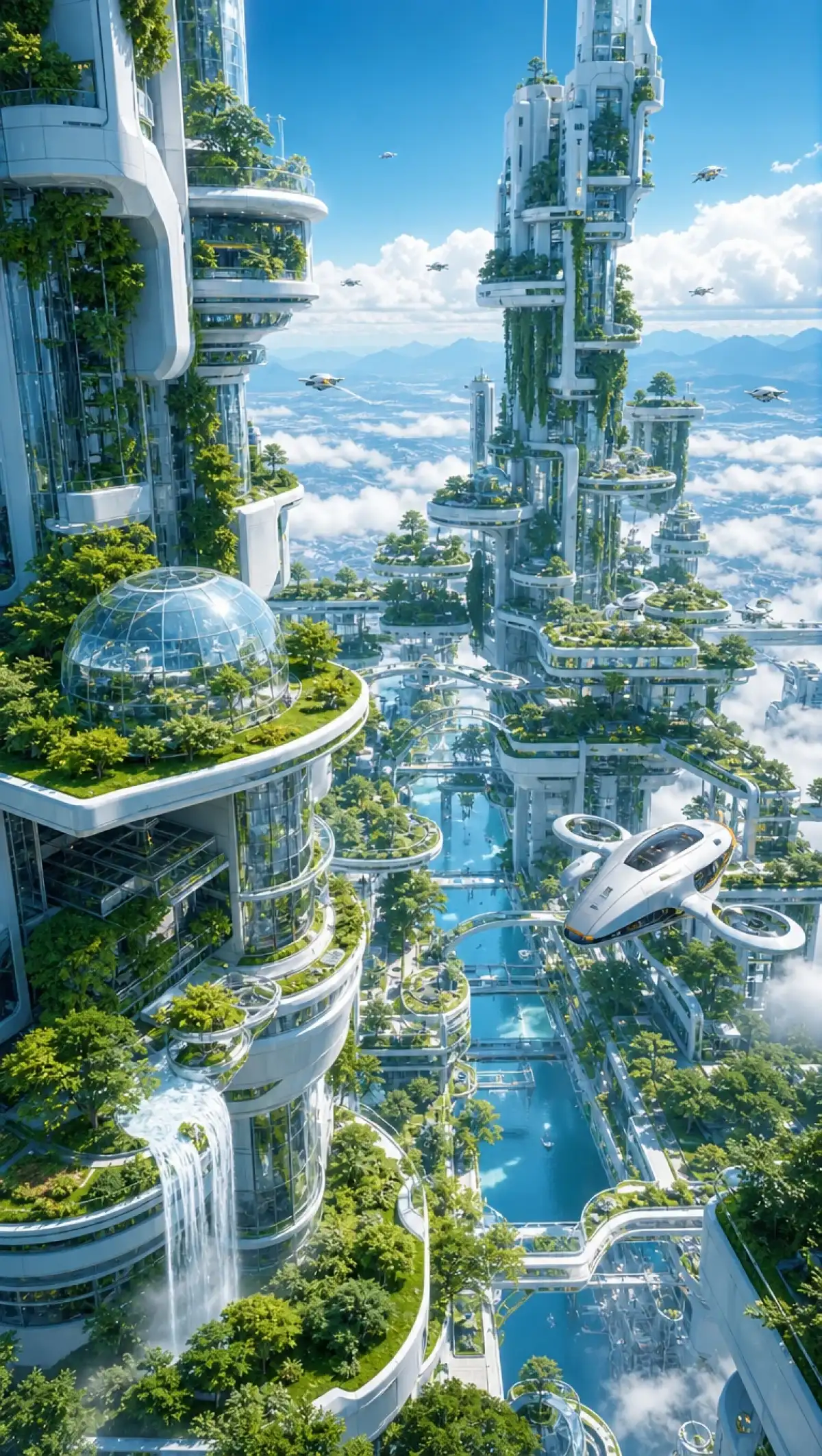
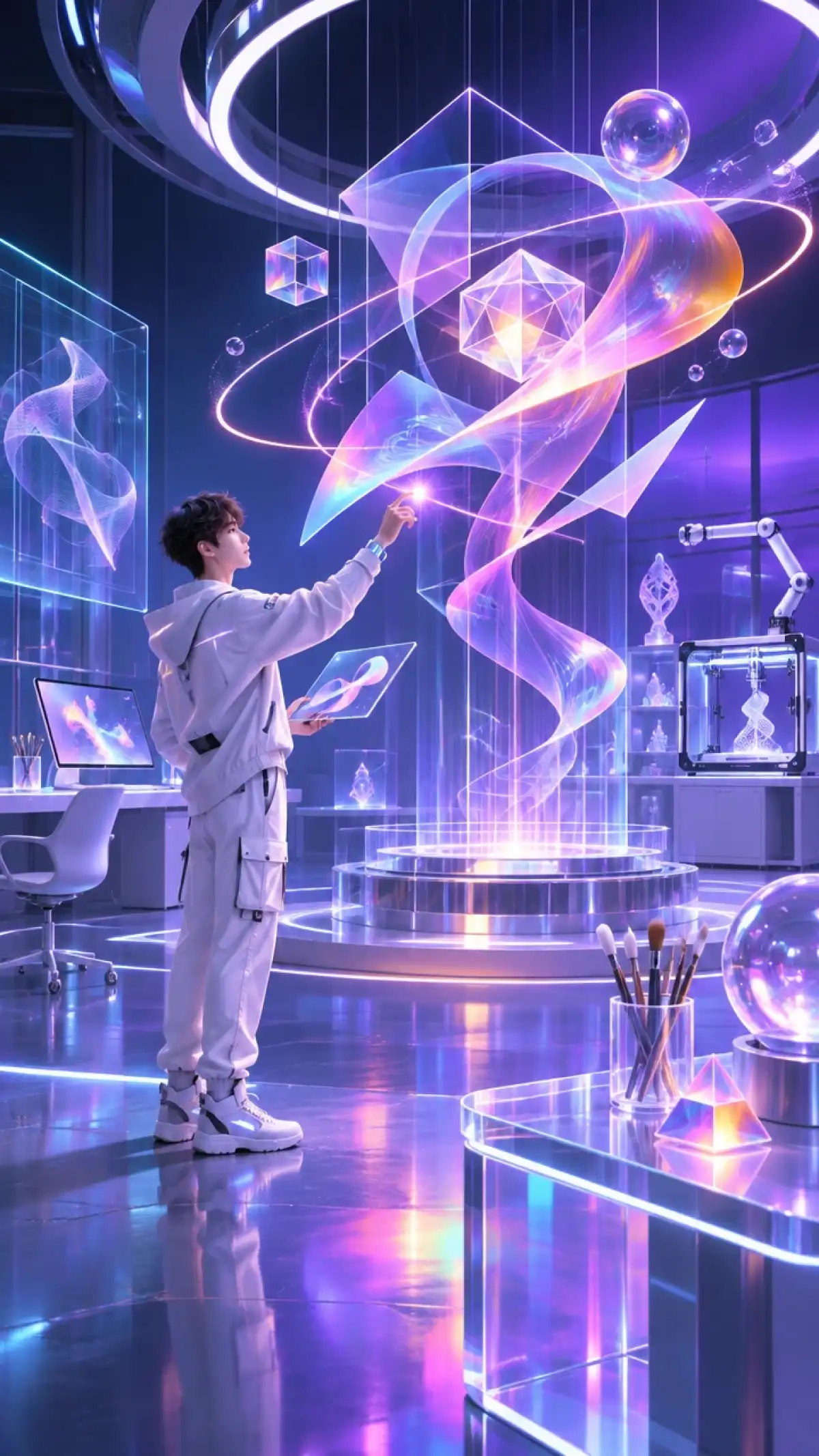
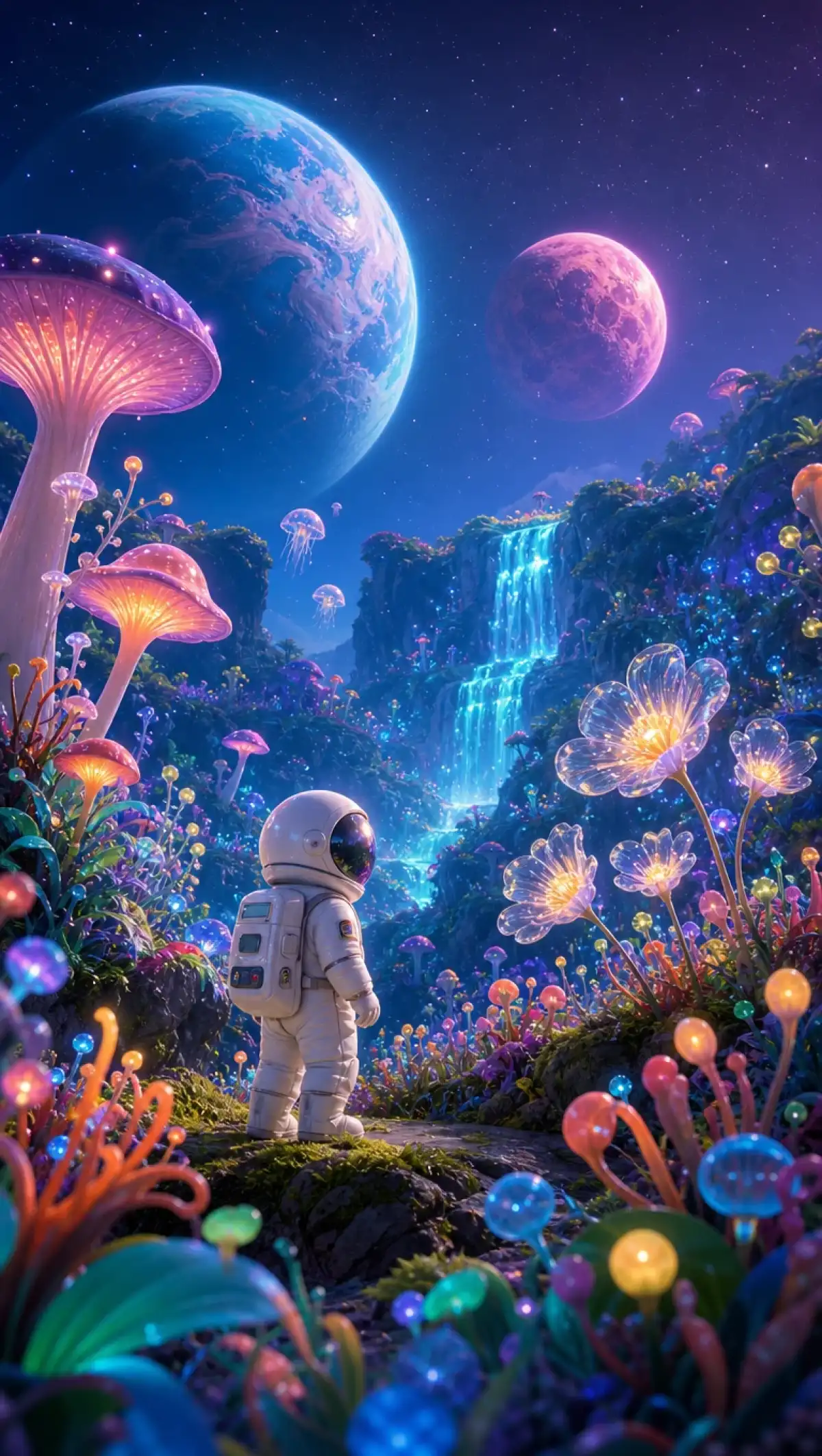
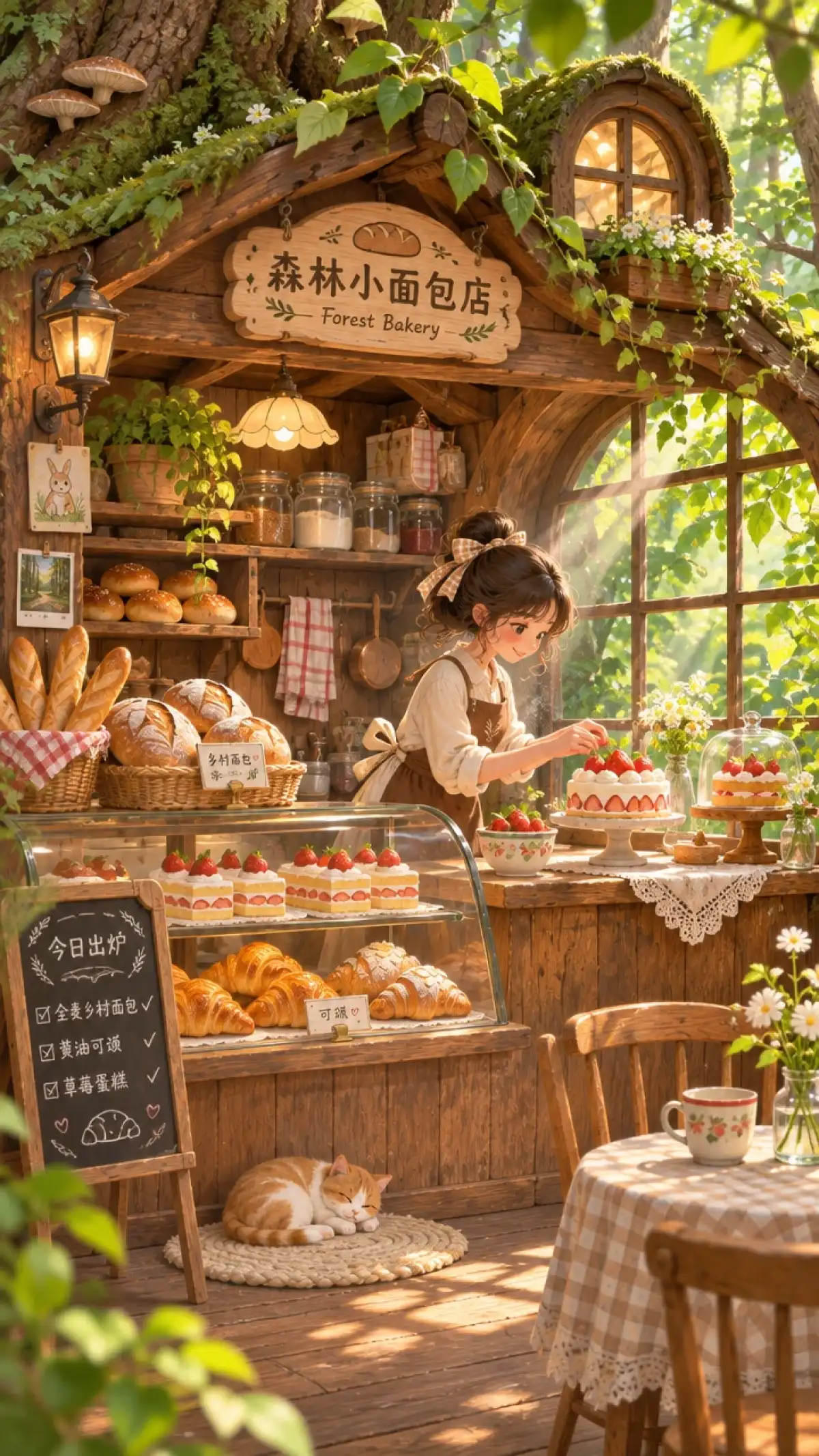
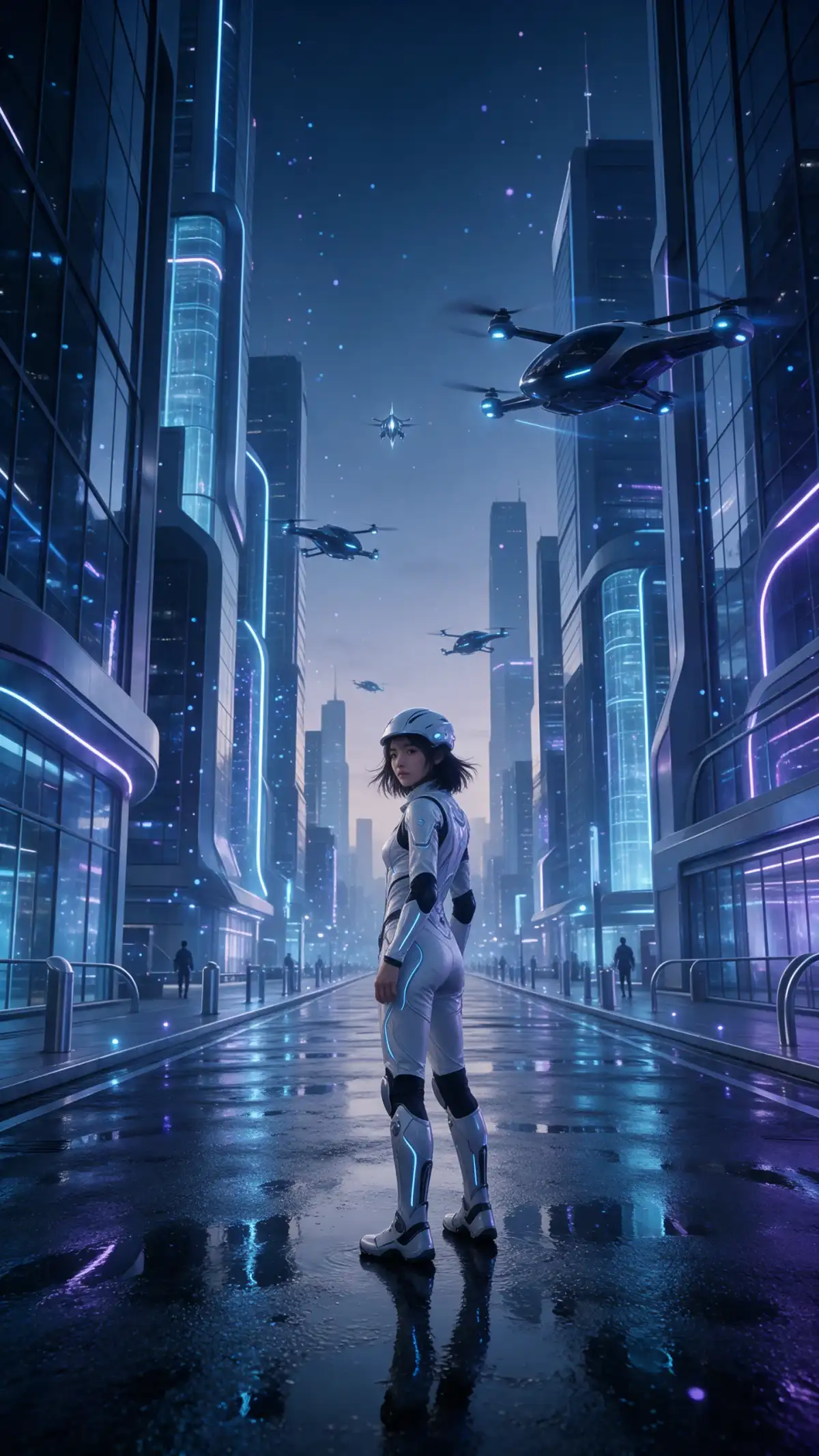
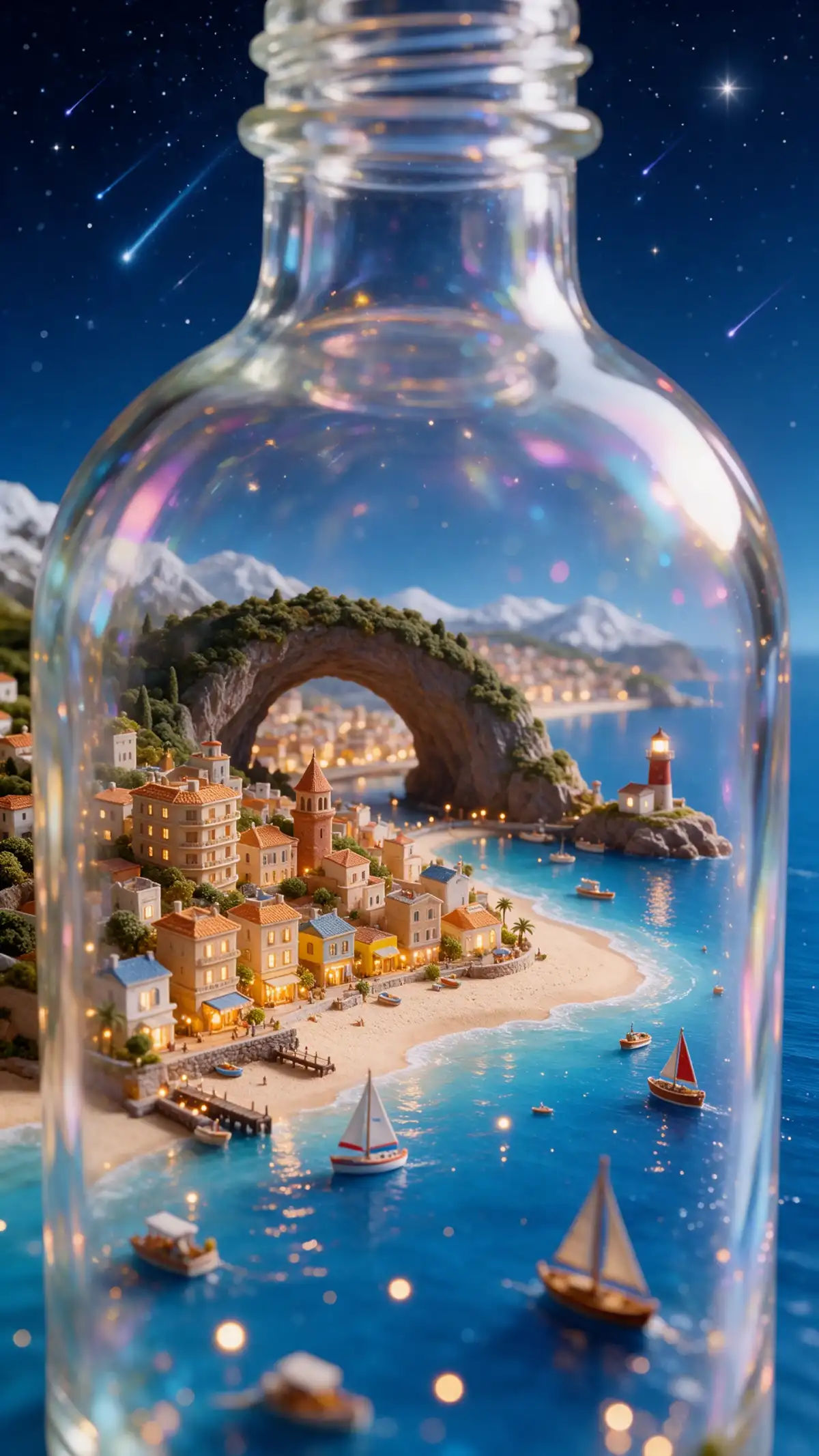
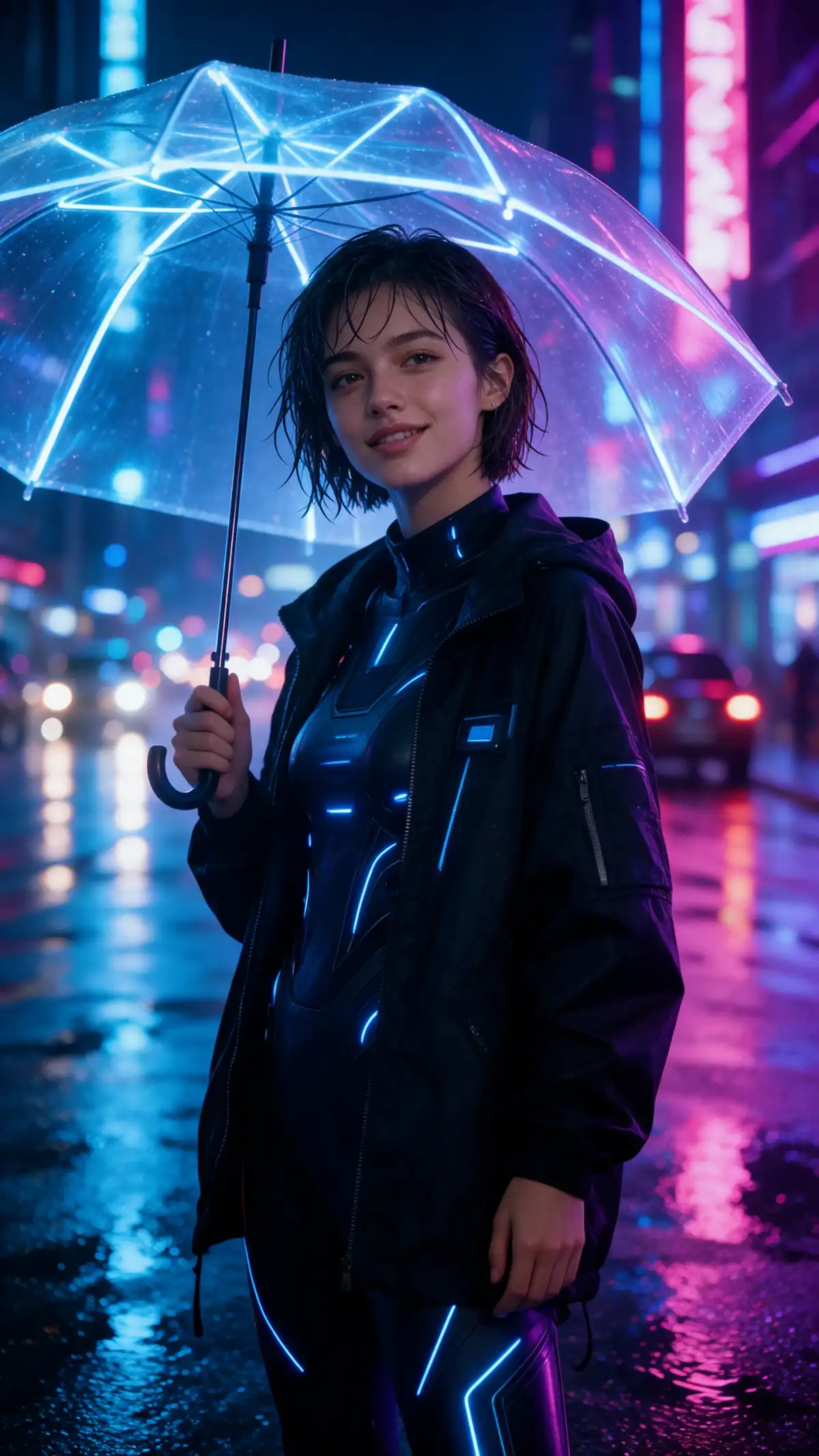
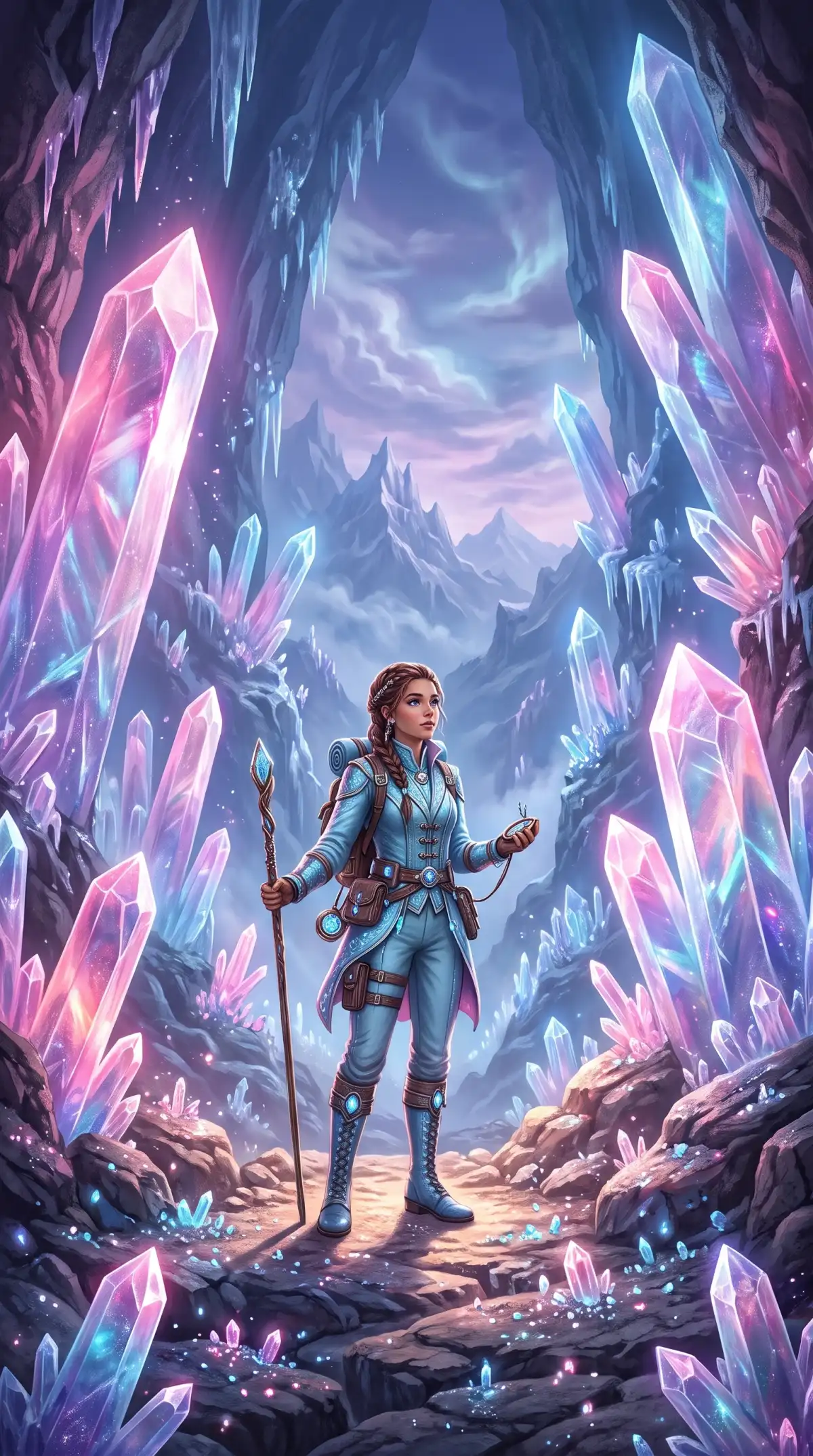
From poster concepts to personal artwork, Seedream AI fits different creative projects. Magiclight AI lets you guide each image and even turn a finished image into a video.
Add up to 10 reference images to guide your next Seedream AI creation. Choose photos that show the subject or style you want to keep consistent. These references give the model visual guidance beyond your written prompt alone today.
Describe your image idea using the 500-character prompt in Magiclight AI Toolbox. Include the main subject and explain where you want the scene to happen. Add a few words about lighting to guide the overall mood you want.
Magiclight AI provides 6 image models for different kinds of creative image projects. Select Seedream AI from the Toolbox model menu to begin your image creation. Try another available model whenever you want to explore a different visual result.
Turn your finished Seedream AI images into short videos within Magiclight AI Toolbox. Choose from 20 AI video models to explore motion for your still artwork. Create clips up to 30 seconds using an image as your starting point.
Seedream AI gives you more freedom to create images that suit your ideas. Magiclight AI lets you use personal photos as references and choose the right format for your artwork.
Bring your own photos into Magiclight AI to guide your Seedream AI images. Upload JPG, PNG or WEBP files with a maximum size of 20MB each. Use personal portraits or product photos to help shape your next creation.
Try Seedream AI for Free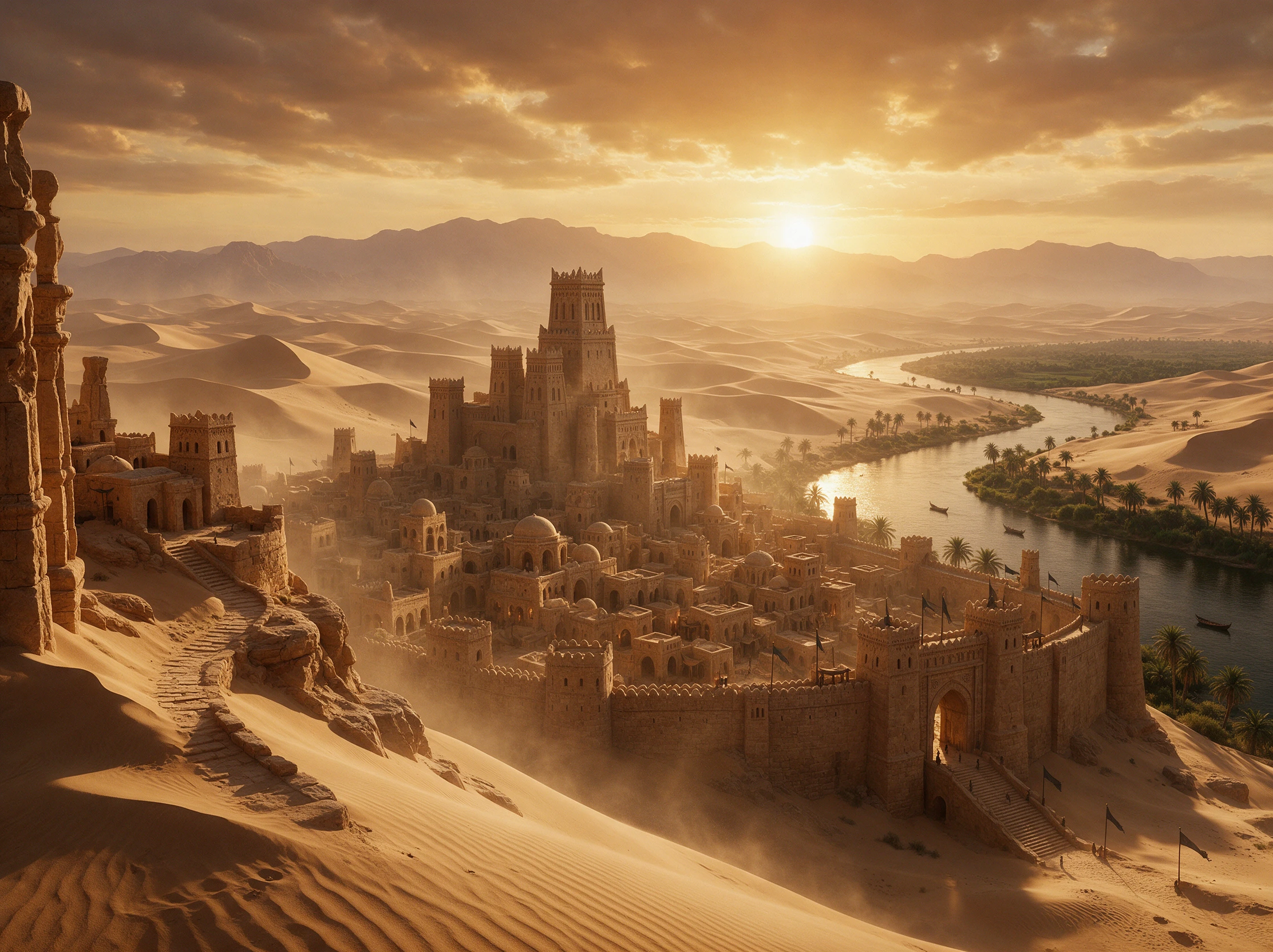
Magiclight AI provides 4 aspect ratios to suit different types of image artwork. Select 1:1 for square posts or 9:16 for tall social media graphics. Choose 16:9 for wide images or 4:3 for more traditional picture layouts.
Try Seedream AI for Free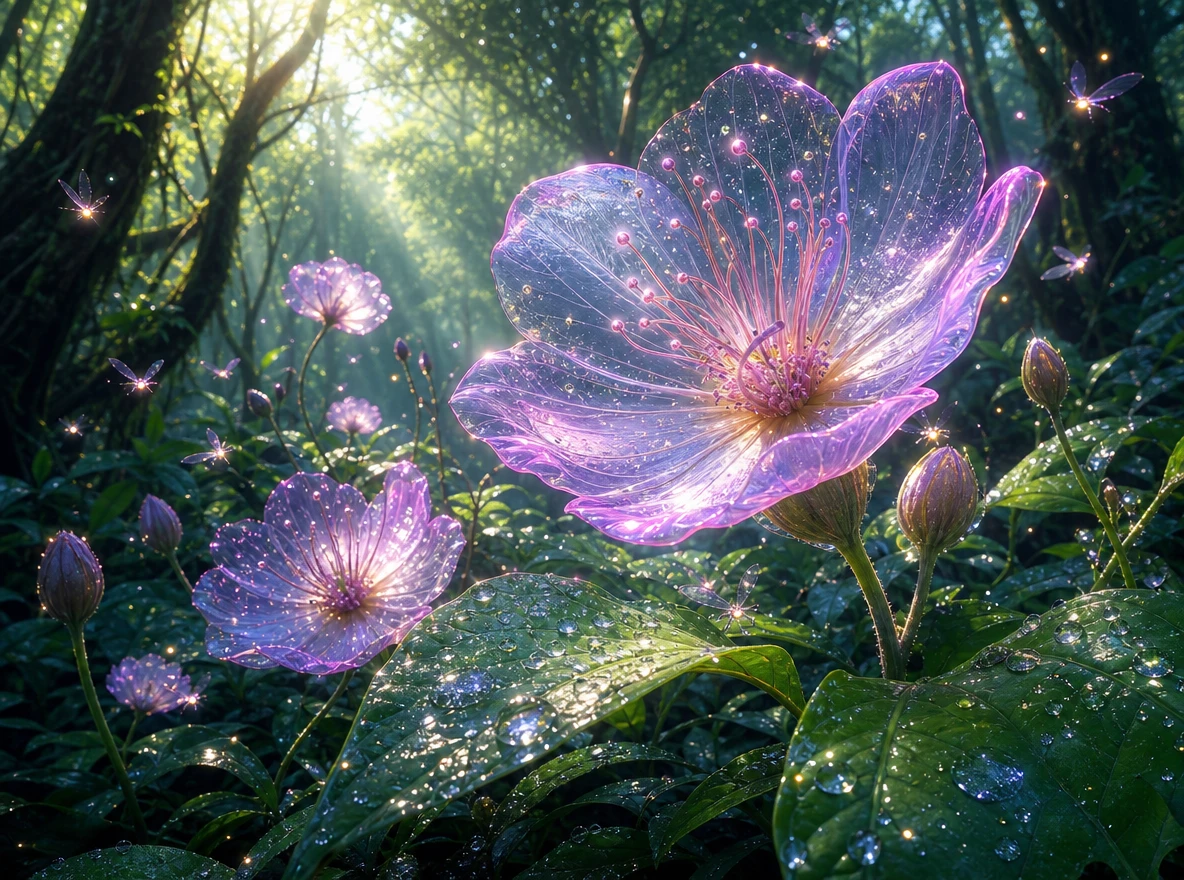
Start with Text to Image when you want artwork from a written description. Reference Image to Image lets you upload photos to guide your image generation. Both options let you explore Seedream AI creations inside the Magiclight AI Toolbox.
Try Seedream AI for Free
Not every Seedream AI platform gives you the same editing options. Take a look at Magiclight AI alongside other tools to find the right place for your next image project:
| Platform | Image Creation | Editing Options | Output Options | Best For |
|---|---|---|---|---|
| Magiclight AI | Seedream 5.0 Pro and 5 AI models, 10 references | Text to Image, Reference Image to Image | Images, 30-sec videos | Artwork and social media |
| Dreamina | Seedream 5.0 Pro, image references | Local edits, layer controls | Images, AI videos | Designers and creators |
| CapCut | AI Image Generator | Layer separation, color editing | Images, video editing | Social media marketing |
| Runway | 10 references, sketch guidance | Image-guided generation | 1K–2K images, Multi Shot Video | Filmmakers and advertisers |
| Replicate | Seedream 5.0 Pro, 10 references | Aspect ratio controls | 1K–2K images, PNG/JPEG, API | Developers |
Seedream AI makes image creation accessible inside Magiclight AI. Start with your own concept, choose the settings that suit your artwork and generate the result in 4 simple steps.
Open Magiclight AI and find the Image tab under Toolbox. Choose Text to Image for a fresh idea, or select Reference Image to Image to start with your own photo or a basic sketch.
Describe the picture you want in the 500 character prompt. Mention the subject and setting, then add any words you want Seedream AI to show clearly in the finished image artwork.
Select Seedream 5.0 Pro from the 6 image models. Pick an aspect ratio that suits your artwork, then choose how many image variations you want Magiclight AI to create for you now.
Next, click Create Image to view your results. Check the artwork and any text you requested, then download your favorite image or adjust the prompt to try a new image version one more.
Graphic Designer
Seedream AI in Magiclight AI helped me create a promotional poster with clear lettering. The final artwork captured the warm colors and vintage style I wanted.
Digital Artist
My first Seedream AI portrait in Magiclight AI looked surprisingly natural. The lighting suited the scene, and the facial features stayed close to my reference photo.
Content Creator
A simple sketch was enough to guide my poster layout in Seedream AI. Magiclight AI kept the main subject where I wanted it and gave the artwork a much cleaner look.
Social Media Designer
Magiclight AI made it easy to try Seedream AI for my social media graphics. I changed the prompt a few times and found a style that worked perfectly for my page.
Magiclight AI includes Seedream 5.0 Pro among its 6 image models. Select it from the Toolbox Image tab to create artwork using text prompts or reference photos.
Yes. Choose Text to Image in Magiclight AI and describe your idea using up to 500 characters. You can create posters or original artwork without adding reference images.
Seedream AI in Magiclight AI supports up to 10 reference images per prompt. Upload your favorite photos or sketches to guide the subject and appearance of your generated artwork.
Yes. Seedream 5.0 Pro can generate posters with text directly inside the artwork. Include the exact words in your prompt and review their accuracy after generation.
Magiclight AI accepts JPG, PNG and WEBP images up to 20MB each. These files can guide the visual appearance of your artwork when using Reference Image to Image.
Yes. Magiclight AI provides 4 aspect ratios: 1:1, 4:3, 16:9 and 9:16. Choose the format that suits your poster or social media artwork before generating your image.



Use Seedream AI in Magiclight AI to create images from simple prompts. Choose your preferred look and generate artwork.