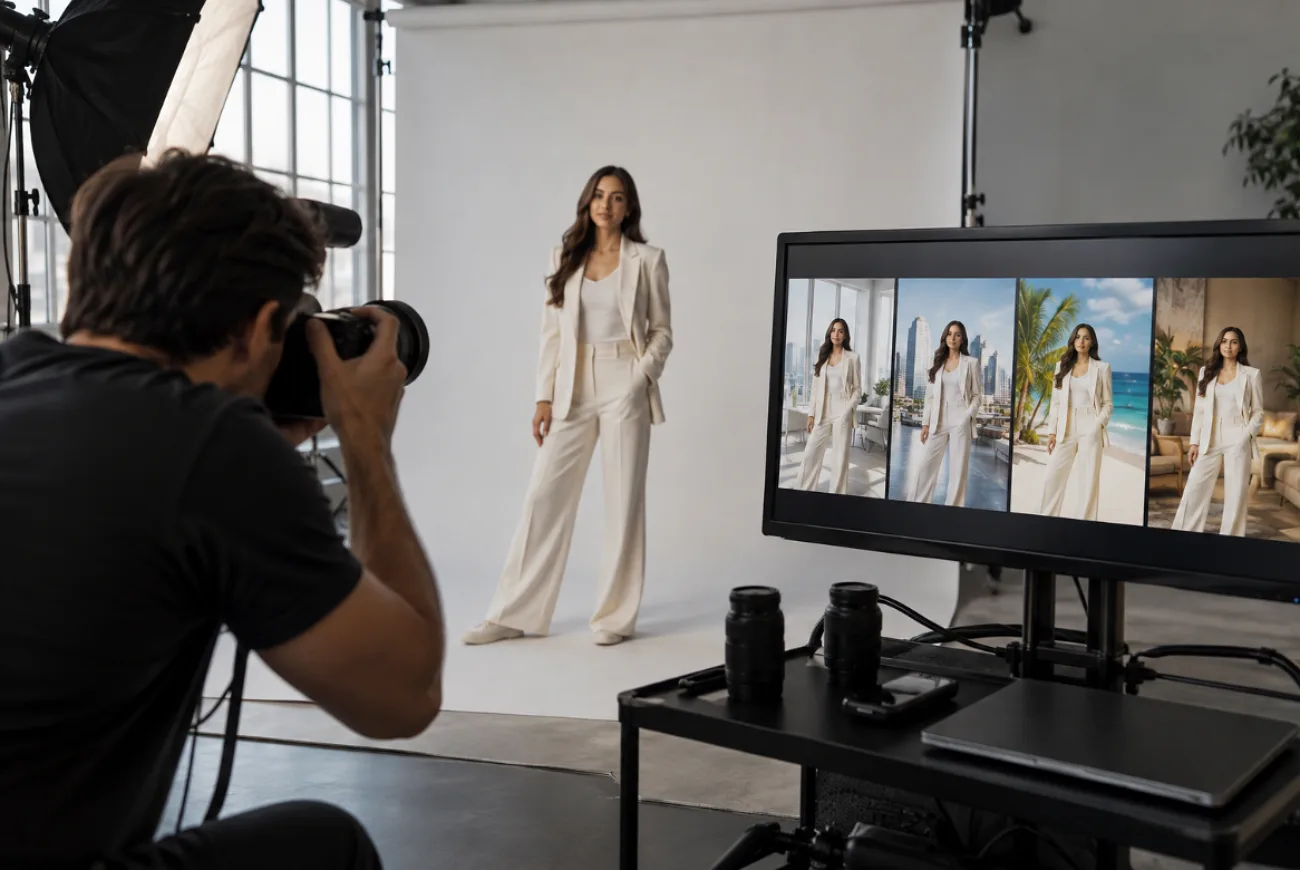
Product photos, thumbnails, and social posts often need a different setting without changing the main subject. A best AI background generator can create that setting from a written prompt or reference image. This guide compares 6 tools for background creation across common design and marketing tasks. Each option is examined for realism, available styles, output quality, editing flexibility, and free access.
Part 1. How to Choose the Best AI Background Generator
Choosing the best AI background generator means looking beyond how quickly a tool replaces a scene. The strongest option should preserve the subject while producing a background that fits its lighting, perspective, and intended use. The 5 points below cover the main factors to compare before choosing a tool:
- Background Realism: Look for consistent lighting, believable shadows, accurate perspective, and clean subject edges. Poor alignment between these elements can make the subject appear separate from the generated scene.
- Style and Creative Control: Presets can speed up common tasks, while detailed prompts provide more control over colors, environments, props, lighting, and overall visual direction.
- Generation and Editing Tools: Check whether the platform only generates backgrounds from text or also accepts uploaded images for background replacement, editing, and reference-based creation.
- Export Quality and Formats: Compare available resolutions, upscaling options, supported file formats, and whether free exports include watermarks or other restrictions.
- Usability and Free Access: Consider how easily the tool follows plain-language prompts, along with free credits, generation limits, and which features remain available without a paid plan.
Part 2. 6 Best AI Background Generators in 2026
Not every best AI background generator candidate handles the job the same way. Some favor prompt-driven scenes, while others rely on presets or hands-on editing. The 6 options below show what each tool offers, who it suits, and where its limits appear:
1. MagicLight AI
Best For: Creating product backgrounds and expanding them into marketing visuals.
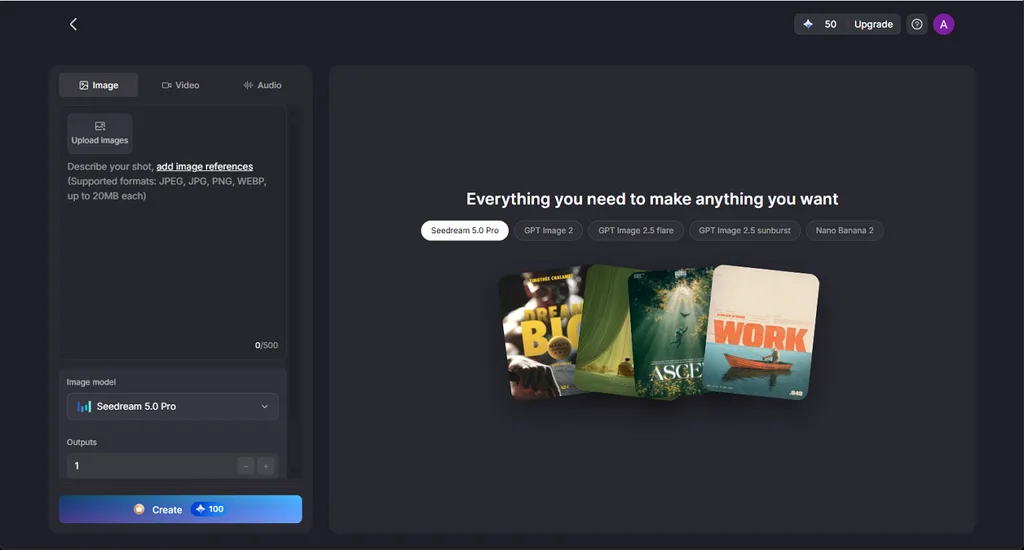
Product photos often need different backgrounds for listings, advertisements, and social media campaigns. MagicLight AI uses Image-to-Image to create new settings from an uploaded reference. Prompts can define the background, lighting, surface, props, and other scene details.
The same reference image can support several campaigns without requiring another product shoot. Creators can produce studio setups, lifestyle scenes, seasonal backgrounds, and different aspect ratios.
Key Features
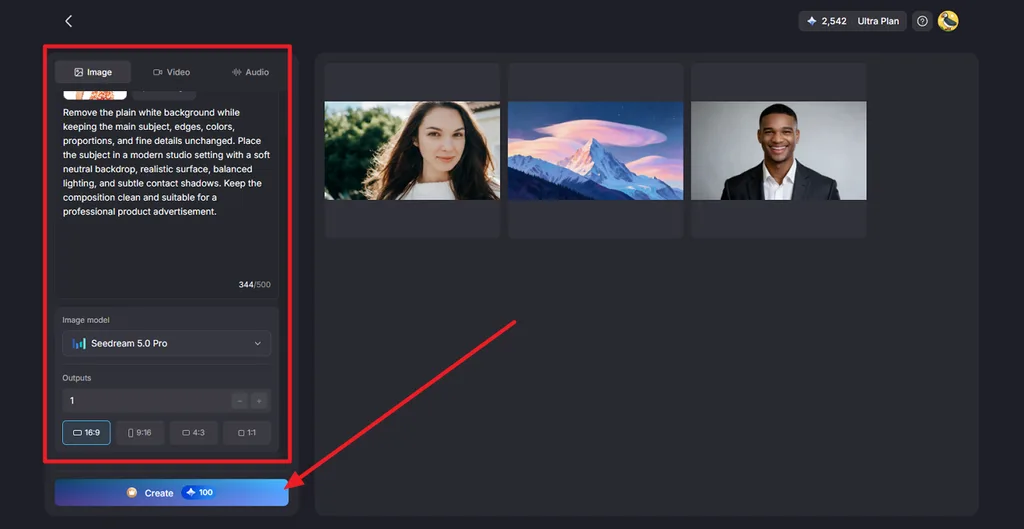
- Detailed Scene Control: Use a prompt of up to 500 characters to describe the setting, surface, props, lighting, and composition.
- Flexible Reference Inputs: Add multiple images to guide the composition, with supported uploads up to 20MB each.
- Model Selection: Choose among 5 image models, including 3 GPT Image options, Nano Banana 2, and Seedream 5.0 Pro.
- Multiple Results: Generate several versions from one setup, making it easier to compare different interpretations before choosing an image.
- Format Controls: Prepare images in square, 4:3, 16:9, or 9:16 formats for product pages, presentations, banners, and vertical content.
Pros
- Subject and setting are generated together, leaving no cutout edges to clean.
- A general commercial license comes with paid plans, covering product and client work.
- New accounts get free credits, and no card is needed to try them.
Con
- Does not offer different export formats for images.
2. Canva AI
Best For: Design teams that finish backgrounds inside ready-made templates.
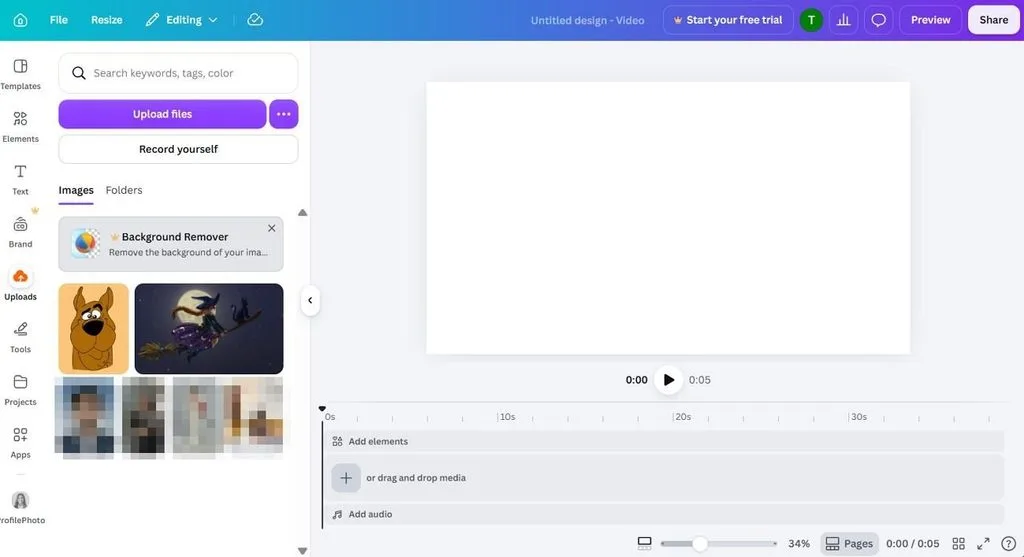
For designers already working in Canva, the best AI background generator may be one that stays inside the existing design process. Backgrounds can move directly into posts, presentations, advertisements, and other layouts, keeping the new scene alongside brand elements and text instead of requiring a separate editing application.
Key Features
- Describe a new setting with text or use reference imagery to guide its appearance.
- Select part of an image and use a prompt to replace or modify that area.
- Remove an existing background before adding a replacement scene or transparent backdrop.
Pros
- Works on the web, desktop, iOS, and Android.
- BG Generator handles up to 200 images every 24 hours.
Cons
- The free plan limits AI tools to 20 uses a month.
- Canva notes that generated backgrounds may look more pixelated than the original.
3. Adobe Firefly
Best For: Adobe users editing backgrounds across connected Creative Cloud workflows.
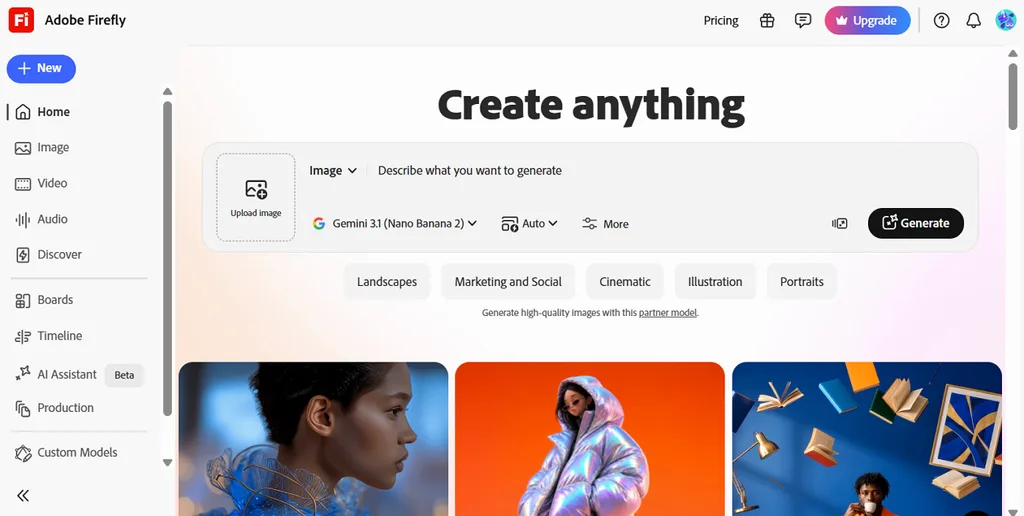
Adobe Firefly brings background generation into the same ecosystem as Photoshop and Adobe Express. As an AI background maker, it combines Adobe’s generative models with familiar editing controls. Adobe says its Firefly models are trained on licensed and public-domain content, making commercial workflows a central part of the platform.
Key Features
- Generate a replacement background in Photoshop while retaining the existing foreground subject.
- Select a specific image area and alter it with Generative Fill prompts.
- Choose between Adobe Firefly models and supported partner models for generative edits.
Pros
- Firefly Image 5 generates at a native 4MP without upscaling.
- Paid plans include unlimited standard features such as Generative Fill.
Cons
- Third-party models can consume premium generative credits more quickly.
- Free access comes with daily generation limits and restrictions.
4. Leonardo AI
Best For: Marketers testing backgrounds before preparing high-resolution campaign assets.
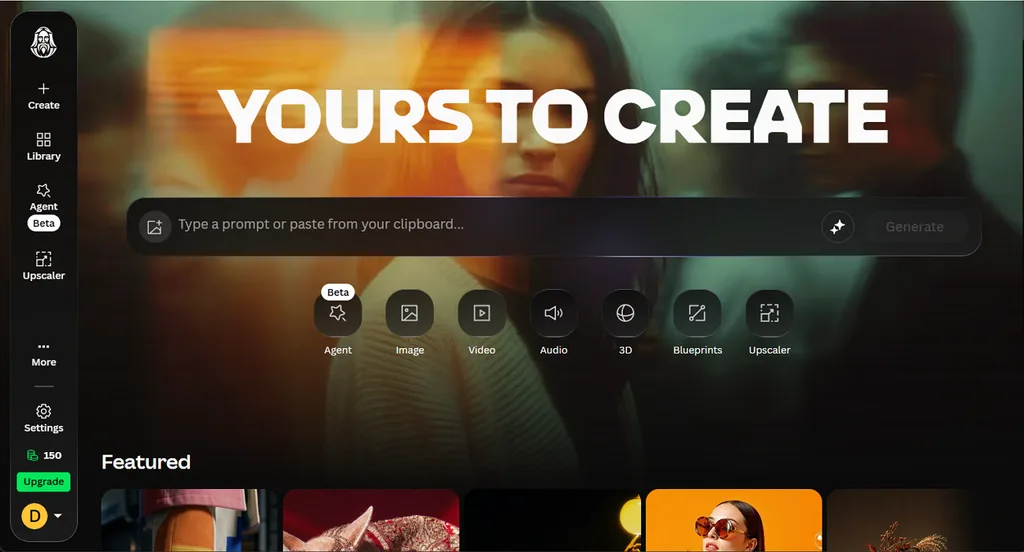
A single product shot can take several visual directions in Leonardo AI. Its AI background generator workflow supports scene creation, targeted edits, and image expansion, while finished results can move into Canva for further design work. Multiple image models also give creators room to compare different interpretations of the same concept.
Key Features
- Blueprints combine models, prompts, and settings into prepared generation workflows.
- Inline Editor uses written instructions and references for targeted image changes.
- Canvas Editor extends scenes beyond the image borders through outpainting.
Pros
- Free accounts receive 150 fast tokens each day.
- Pro Upscaler supports finished images up to 105MP.
Cons
- Pro Upscaler is available only with eligible paid plans.
- Upscaling can consume 73 to 1,211 tokens per run, which can be expensive.
5. Fotor AI
Best For: Fast background changes across product photos and portrait batches.
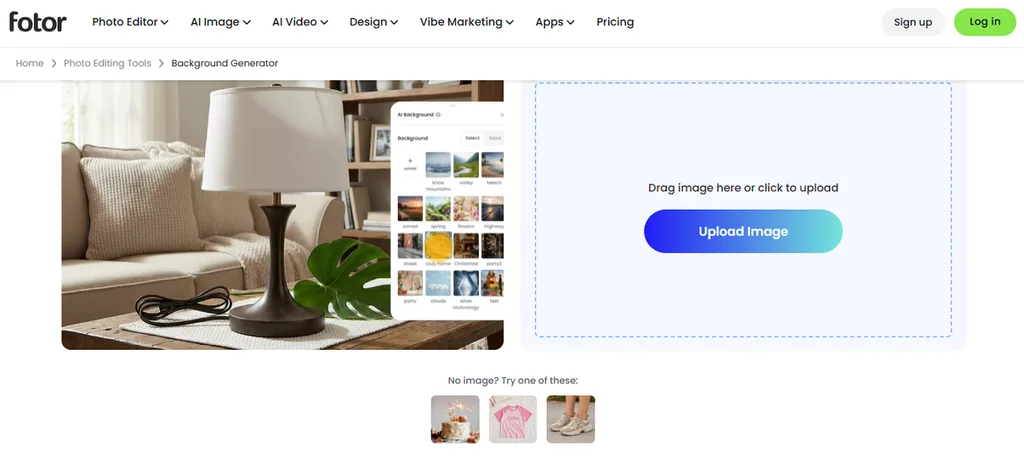
Anyone after a free AI background generator with ready-made scenes can start with Fotor AI, an online photo editor. Its AI Background Generator works from a few typed words or presets such as studio, bokeh, and outdoor effects.
Key Features
- Upload images up to 60MB and 8192 × 8192 pixels for background removal.
- Process up to 50 images at once with the bulk background remover.
- Extend backgrounds to 1:1, 16:9, 9:16, or custom dimensions without cropping the original subject.
Pros
- Subscription credits can accumulate for up to five months.
- Pro+ includes unlimited use of supported AI editing features.
Cons
- Pro limits many AI editing tools to 200 daily uses.
- Generative background creation consumes credits with each generated image.
6. Picsart AI
Best For: Social creators making backgrounds and resizing visuals across devices.
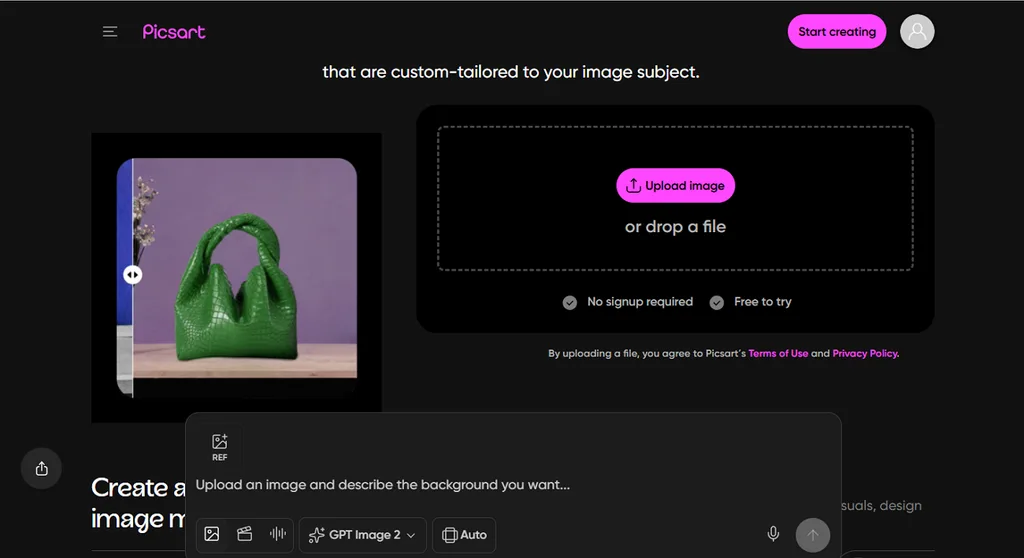
Phone-first editing gives Picsart a different place among background generator AI tools. A photo can receive a prompt-generated setting and then continue through the editor for layout changes or publishing. The background creator works on web, iOS, and Android, which suits projects moving between desktop and mobile
Key Features
- Create a custom background from a written description, color choice, or visual style.
- Bulk editing on the Pro plan supports up to 50 images at once.
- AI Expand adds new content beyond existing borders and supports preset aspect ratios such as 16:9 and 9:16.
Pros
- Pro includes advanced background removal and 1,000 monthly AI credits.
- AI Playground provides access to 23+ image generation models.
Cons
- Monthly subscription credits reset instead of rolling into future months.
- AI Expand performs better when image edges have simple textures..
Compare the 6 Best AI Background Generators
The best AI background generator for a project depends on its scene method, output, and free plan. All 6 tools are lined up on those 3 points:
| Tool | Background Method | Output Notes | Free Access |
| MagicLight AI | Prompt and references, full scene regenerated | Four ratios, batch outputs | Free credits, no card |
| Canva AI | BG Generator, Magic Background, Magic Edit | Transparent PNG on paid plans | 20 AI uses a month |
| Adobe Firefly | Prompt edits, Generative Fill, Photoshop | Native 4MP with Image 5 | Daily free generations |
| Leonardo AI | Prompts, Inline Editor, Blueprints | Paid upscaling up to 105MP | 150 tokens a day |
| Fotor AI | Prompts or preset scenes | HD and transparent PNG on paid plans | Limited free credits |
| Picsart AI | Prompt or preset swaps, batch changes | Text-to-image up to 8K | Trial credits, 30-day renewal |
Part 3. Why MagicLight AI Is a Strong Choice for AI Background Generation
MagicLight AI extends background generation beyond a single edited image. Its 5 image models and reference inputs provide control over scene creation, while multiple output formats support different publishing needs. Finished visuals can move into Image to Video, character creation, or Story to Video, with MagicLight Agent supporting more complex projects from concept through production.
How to Generate AI Backgrounds With MagicLight AI
MagicLight AI creates new backgrounds from an uploaded subject and a written scene description. The steps below cover the complete process, from opening the Image workspace to generating and saving the finished background:
Step 1. Open the Image Workspace
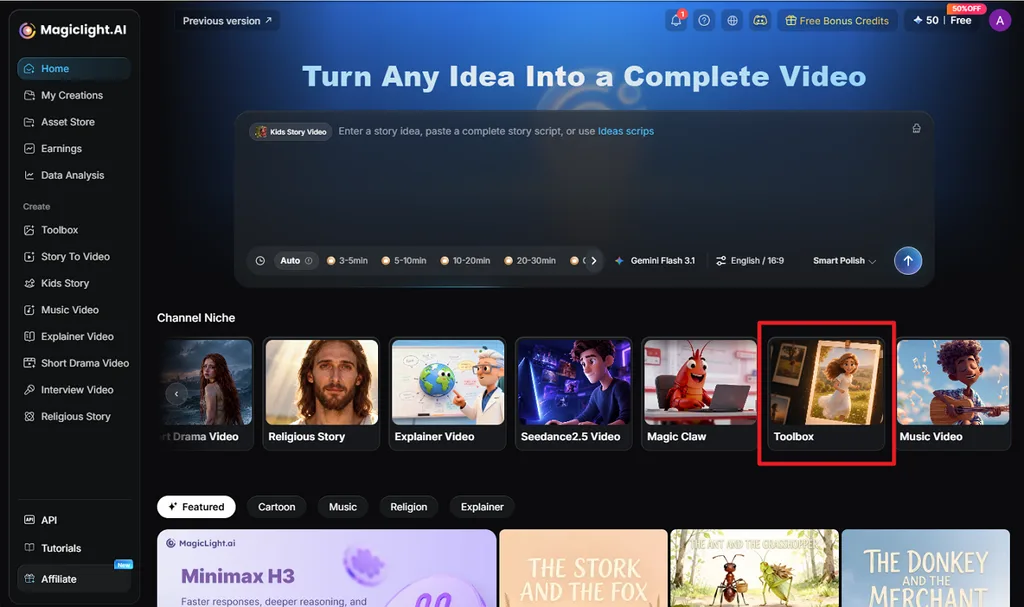
From the MagicLight AI home page, select Toolbox under the Channel Niche section. Open the Image tab, then click Upload Images to add your subject.
Step 2. Describe and Generate the Background
Write a prompt describing the background, lighting, surface, and other important scene details. Choose an Image Model, select the required Outputs and Aspect Ratio, then click Create.
Step 3. Review and Save the Result
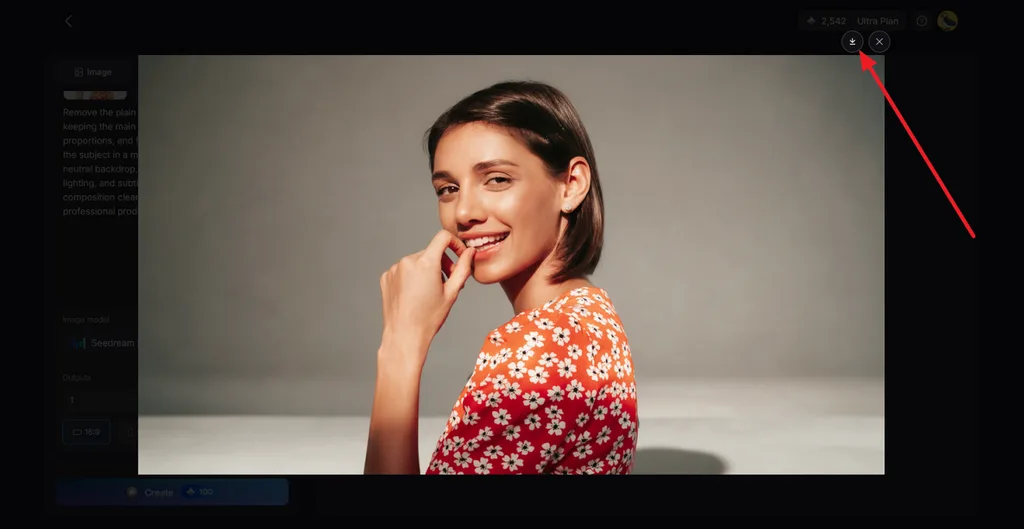
Open the generated images and compare their backgrounds, shadows, edges, and subject details. Select the strongest result, then click the Download icon to save the finished image.
Conclusion
The best AI background generator depends on the required workflow, editing control, and final format. Canva supports template-based design, while Firefly and Leonardo AI offer broader editing options. Fotor and Picsart suit quick background changes and batch tasks. For creators who want flexible background generation alongside image and video workflows, MagicLight AI provides a practical all-in-one option.
FAQs About the Best AI Background Generators
1. What is the best AI background generator in 2026?
MagicLight AI is a strong pick for 2026, since its Image tab builds new scenes from prompts, reference photos, and five image models. Finished backgrounds can then move into Image to Video, which adds motion, narration, and captions in the same workspace.
2. What is the best free AI background generator?
The best free AI background generator depends on how its allowance refreshes, from Leonardo AI’s 150 daily tokens to Canva’s 20 monthly AI uses. MagicLight AI gives new accounts free credits without asking for a card, so a first background test costs nothing.
3. Can AI generate or replace a background from a text prompt?
A “background generator AI” tool can creates a scene from a text prompt alone or swap the backdrop in an uploaded photo. Canva’s BG Generator, Firefly’s Generative Fill, and MagicLight AI’s Image tab read a written description and create the new setting around the subject.