Realistic AI videos are becoming common, but small visual mistakes can quickly reveal them. Warped hands, changing faces, and unnatural movements often make generated scenes feel less believable. These problems matter in ads, lessons, and stories where viewers expect natural-looking video content.
Learning how to make realistic AI videos starts with controlling important details before video generation. Good prompts, reference images, camera directions, and matching sound help create more consistent results. This guide explains simple techniques for creating realistic AI videos with better visual consistency.
Part 1. The Secrets Behind Realistic AI Videos
Creating believable footage requires careful choices before you begin generating each individual scene. To make realistic AI videos, focus on consistency, movement, lighting, sound, and framing. Small improvements in these areas can make every generated scene feel more natural. Below are the key secrets that help your AI videos look more realistic:
- Stable Characters: Changing faces, hairstyles, or clothing between scenes can quickly make characters look inconsistent. Reference images help keep characters consistent across realistic AI videos and different scenes.
- Believable Motion and Physics: Unnatural movement or disappearing objects can quickly make generated footage feel less believable. Simple actions and slower movements help models create smoother and more natural motion.
- Motivated Lighting: Specific light sources help shadows, skin, clothing, and surfaces appear more physically natural. Describe lamps, sunlight, and spotlights to maintain consistent lighting throughout each scene.
- Real Camera Language: Clear camera directions help generated scenes feel filmed instead of digitally created footage. Use shot types, lens details, and simple camera movements for more natural framing.
- Faces, Eyes, and Hands: Strange eyes, smooth skin, and broken hands can easily reveal generated video content. Use clear reference images to reduce visual problems when animating faces and hands.
- Sound That Fits the Scene: Natural background sounds and effects help generated scenes feel more present and believable. Match dialogue closely with mouth movements to prevent distracting audio and visual differences.
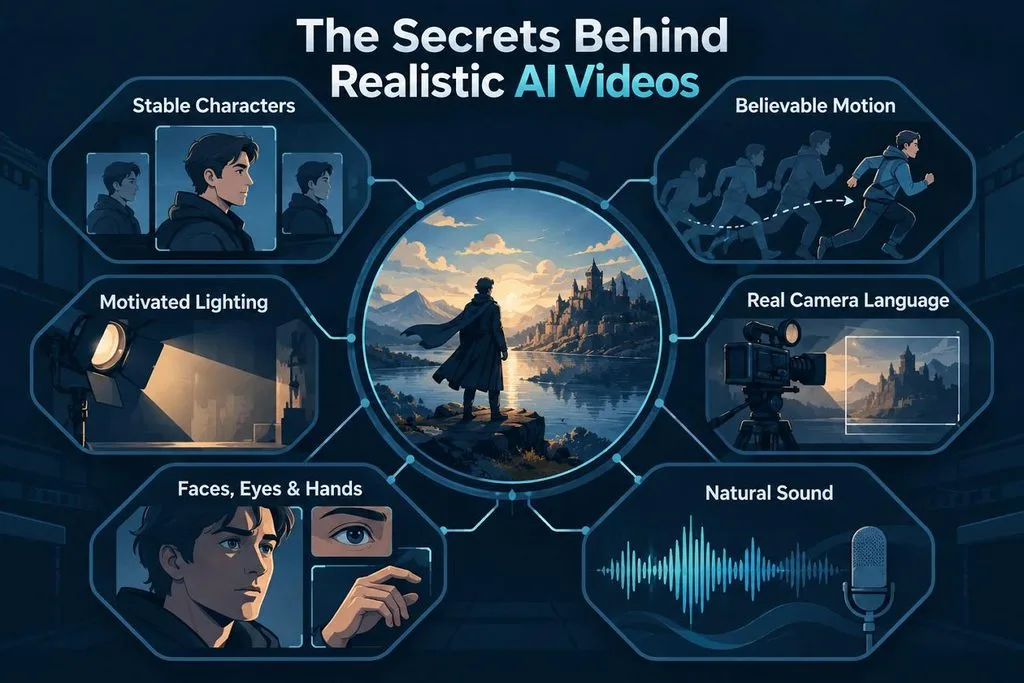
Good planning helps you create realistic AI videos with fewer distracting visual mistakes. Each important detail should stay consistent before you generate the final video scenes.
Part 2. Tools and Techniques for Better AI Video Results
Better AI video results depend on giving the model clear details for every scene. Strong prompts describe camera work, subjects, actions, settings, visual style, and matching sound. Look at the table below to understand the main parts of an effective prompt:
| Prompt Part | Example Wording |
| Cinematography | “Slow dolly-in, medium close-up, shallow depth of field” |
| Subject | “A woman in her thirties with short gray hair and a navy raincoat” |
| Action | “checks her watch, then looks down the street” |
| Context | “a rain-soaked bus stop at dusk” |
| Style and Ambiance | “lit by a flickering streetlight, shot as if on 35mm film with slight grain” |
| Sound | “SFX: rain drumming on the shelter roof. Ambient noise: distant traffic” |
When starting with photos, focus prompts mainly on movement instead of repeating visual details. The image already provides the subject, lighting, background, colors, and overall visual style clearly. Describe what should appear instead of listing unwanted elements or negative instructions in prompts. Connected shots can also help you create realistic videos with AI.
Using 24fps gives finished videos the familiar cinematic appearance commonly seen in professional films. Matching colors between separate clips helps reduce visible differences and keeps scenes visually consistent. Apply one final color grade across all clips to create a more unified appearance. Major social platforms require labels when creators publish photorealistic AI-powered content for their audiences.
How MagicLight AI Simplifies Video Creation
Using separate tools for each production step can make video creation slower and harder. MagicLight AI works as a realistic AI video maker for complete story projects. It manages scripts, characters, storyboards, video, voices, and subtitles within one simple workspace.
Story to Video supports prompts up to 12,000 characters for detailed video creation. Projects can reach 50 minutes, with narration available across 11 supported languages worldwide. Free credits help beginners start, while paid plans support watermark-free 1080p video exports.
Key Features of MagicLight AI
Below are the key MagicLight AI features for creating consistent and realistic videos:
- Realistic Visual Styles: Choose photographic Realistic styling from 52 visual styles across 4 groups. These options help match characters with believable settings throughout generated scenes.
- MagicLight Agent: MagicLight Agent turns your movie idea into a structured video project. It prepares scripts, storyboards, characters, and visual direction before generation begins.
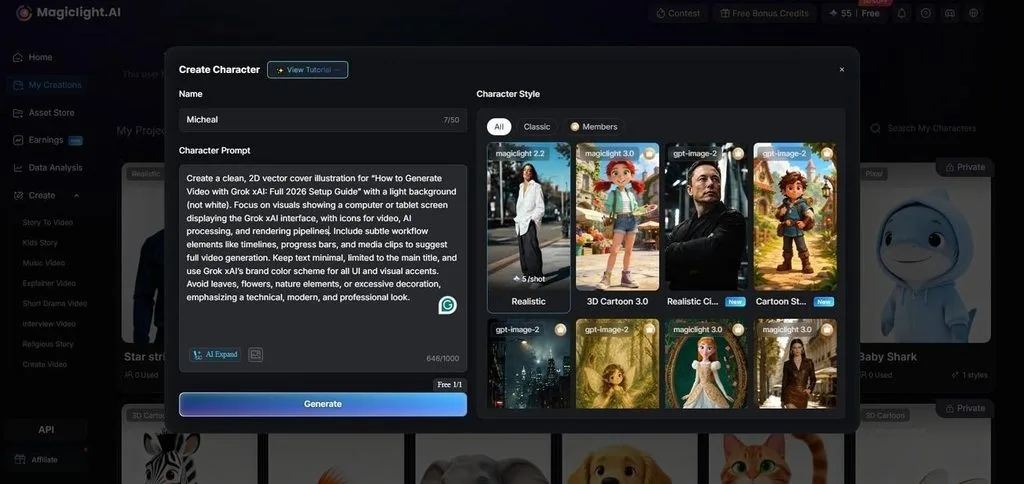
- AI Character Creation: Create characters using written descriptions containing up to 1,000 characters each. Upload reference images and reuse saved characters across different video scenes.
- Story Models: MagicLight AI provides 14 story models for scripts and dialogue creation. Options like GPT-6 Astra support developing longer stories with connected scenes and characters.
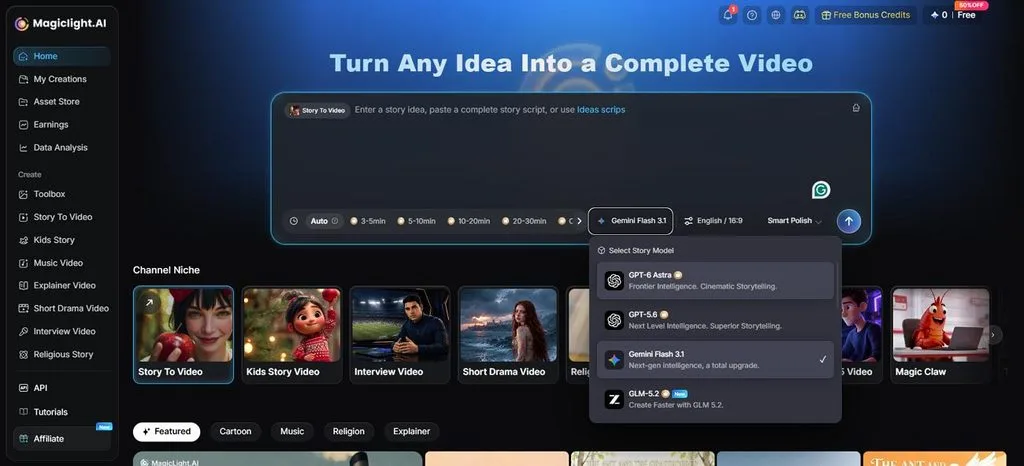
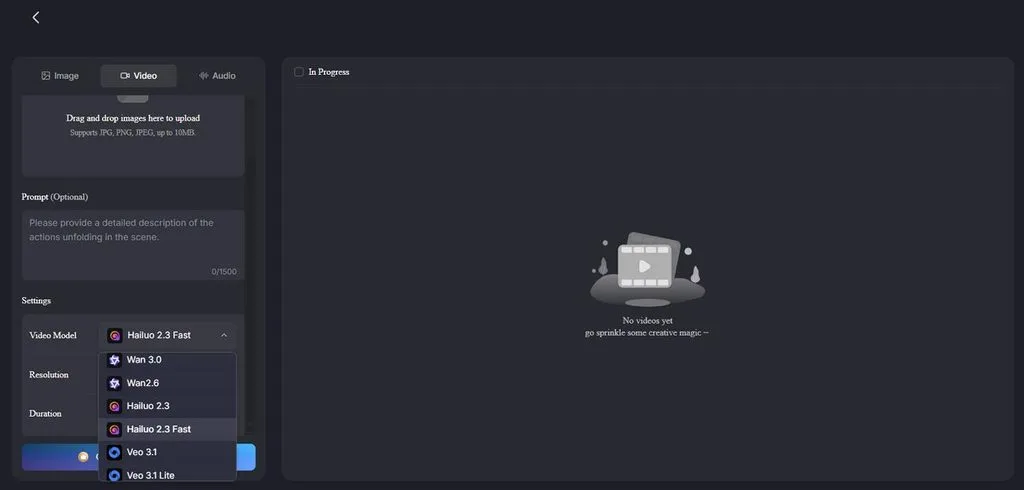
- AI Video Models: Kling 3.0 in MagicLight AI generates synchronized dialogue, sound, and matching lip movements together. Seedance 2.5 joins Kling among around 20 available models for realistic video generation.
How to Create Realistic AI Videos With MagicLight AI
MagicLight AI turns your ideas into complete videos for ads, lessons, and creative projects. Use the steps below to learn how to create realistic AI videos with MagicLight AI:
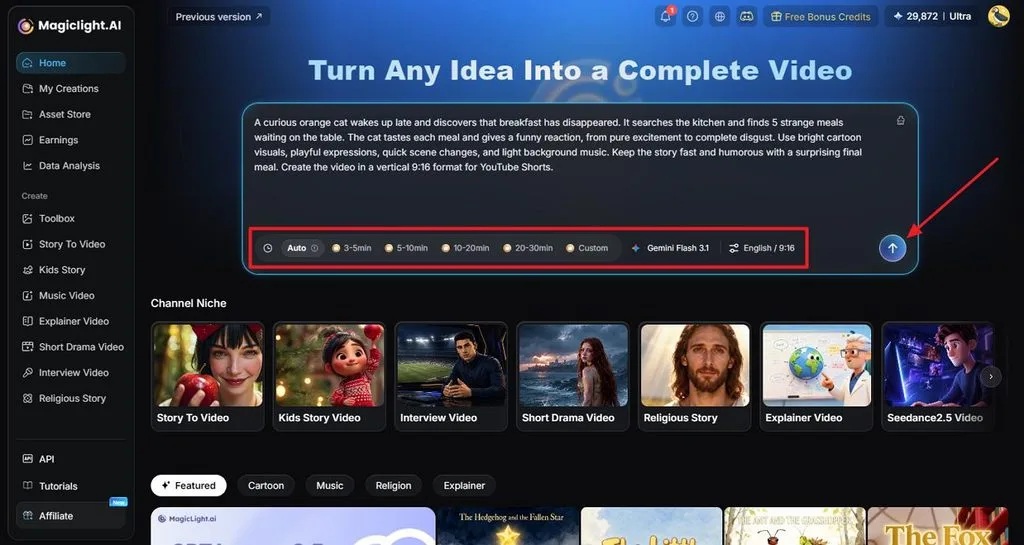
Step 1. Set Up the Video Project
Add your script to MagicLight AI and prepare the basic generation settings. Pick the Story Model, Duration, Language, and Aspect Ratio, then submit everything to begin building the video.
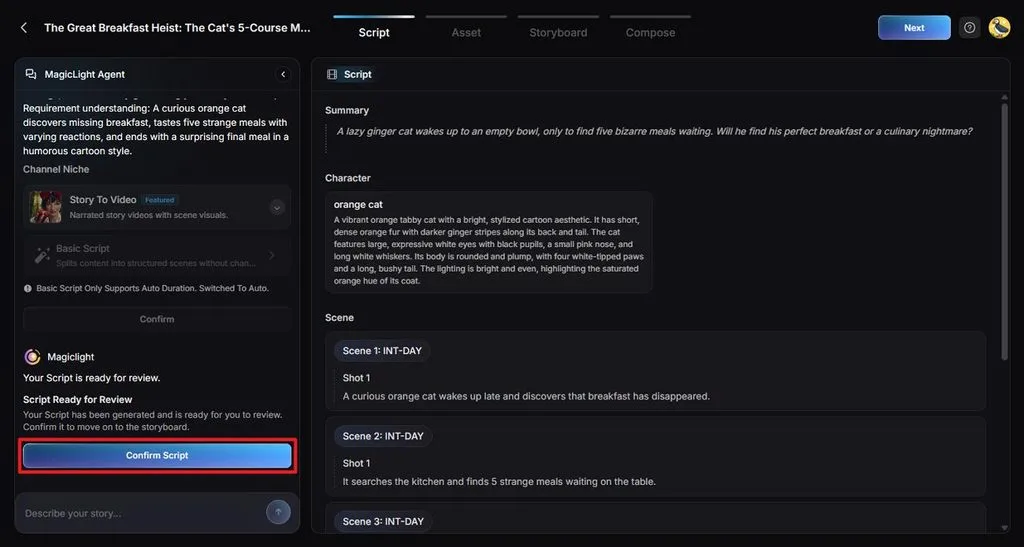
Step 2. Review the AI-Prepared Story Plan
Review the Summary, Characters, Scenes, and Shots prepared by MagicLight Agent. Make changes where needed, then click Confirm Script to approve the story plan.
Step 3. Build the Realistic Look
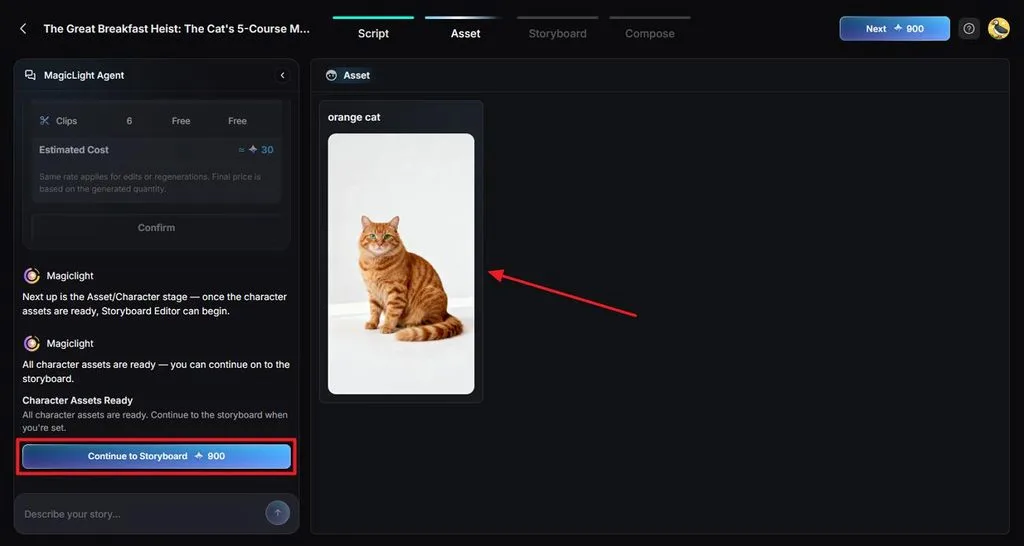
Open the available Visual Styles and choose Realistic to give the video a photographic appearance. Check the character assets against your story, make appearance changes where required, and move into storyboard creation.
Step 4. Fine-Tune Every Generated Shot
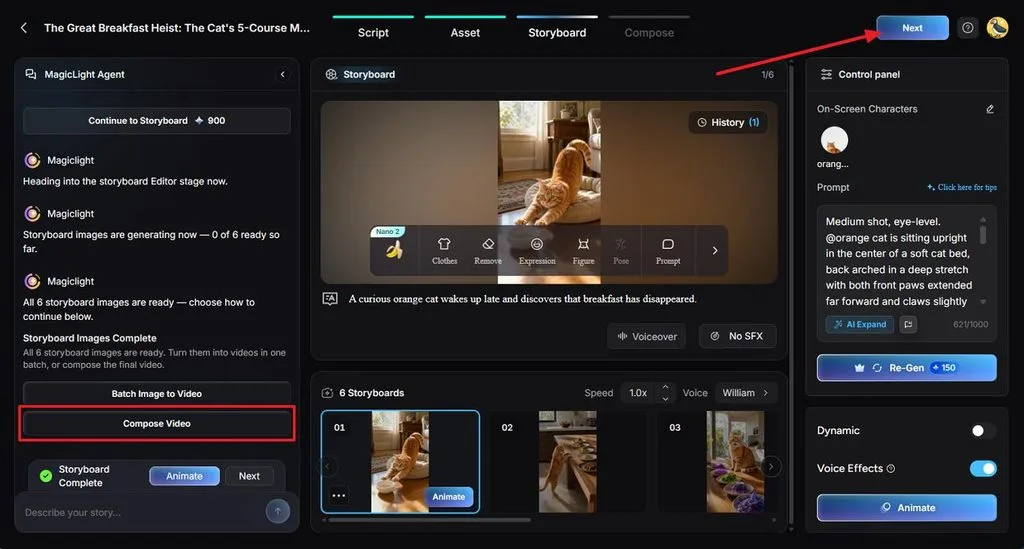
Work through the storyboard one shot at a time instead of changing the entire project. Modify Clothes, Expression, Figure, and Pose, to maintain the same characters and visual details between scenes. Press Compose Video to see what it changed.
Step 5. Complete the Audio and Captions
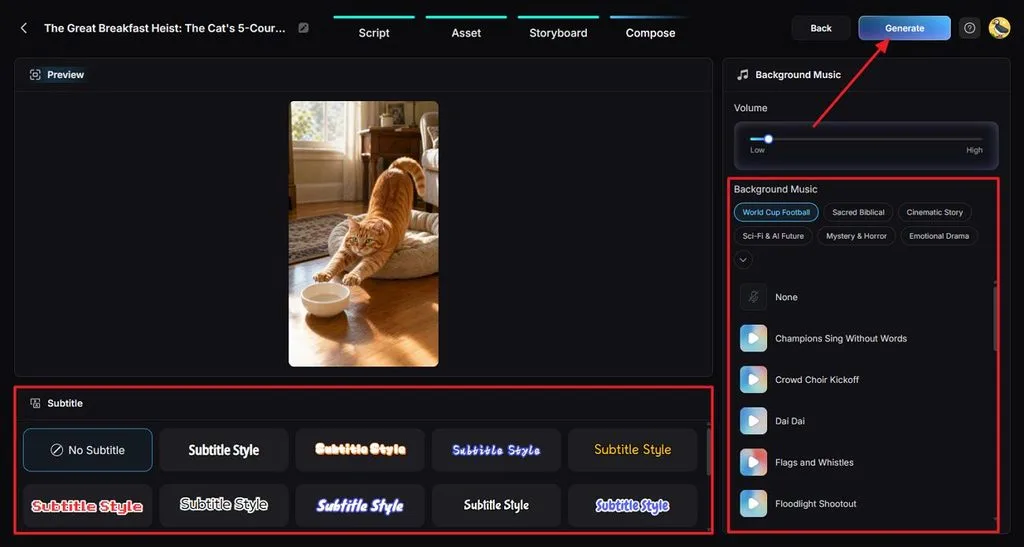
Match each character with a suitable voice and listen for dialogue that fits the scene. Set your Subtitle Style, choose Background Music, balance its volume, and start the final generation.
Step 6. Preview and Download the Video
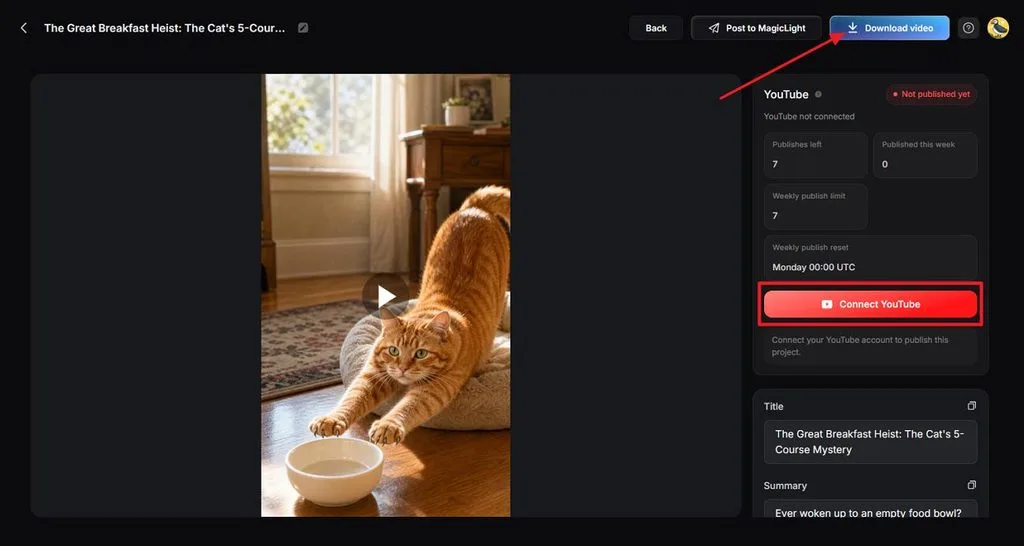
Play the finished video from beginning to end and look for changes in faces, motion, lighting, or audio. Correct any problem scenes first, then use Download video when the complete video looks consistent. To publish it directly to YouTube, simply press Connect to YouTube to connect your channel.
Conclusion
To conclude, learning how to make realistic AI videos requires control over every visual detail. Strong prompts, stable characters, natural movement, lighting, camera direction, and sound improve the final result. MagicLight AI combines these elements in one workspace for creators who make storytelling videos. With careful planning and consistent scenes, AI-generated videos can feel more natural and visually convincing.
Frequently Asked Questions
- What makes an AI-generated video look realistic?
Stable characters, natural movement, proper lighting, and believable camera work improve video realism. Matching sound and accurate lip movements also make realistic AI videos more convincing. Consistent details across every scene help viewers stay focused on the video content.
- How can I keep AI characters consistent across multiple scenes?
Use the same reference images and character descriptions throughout every generated video scene. Keep clothing, facial features, hairstyles, and body proportions consistent between different shots. MagicLight AI saved characters can maintain the same appearance across connected video scenes.
- What is an easy AI tool for creating realistic videos?
MagicLight AI provides tools for creating videos with consistent characters, voices, and scenes. The best realistic AI video generator should provide control across the entire project. MagicLight AI combines character creation, storyboards, video generation, voices, and lip sync.
- Can I create AI videos for free?
Free AI video tools usually provide limited credits, generations, features, or export options. MagicLight AI offers free credits that beginners can use for initial video generations. Paid plans provide additional generation options and features when your video needs increase.


![How to Remove People from Photos in 2026 [Full Guide]](https://magiclight.ai/wp-2/wp-content/uploads/remove-people-from-photos-guide.jpg-300x197.webp)
![6 Best Picture Modification Apps in 2026 to Try [New List]](https://magiclight.ai/wp-2/wp-content/uploads/best-picture-modification-apps-for-photos.jpg-300x200.webp)