








Hero background

Free Background Remover

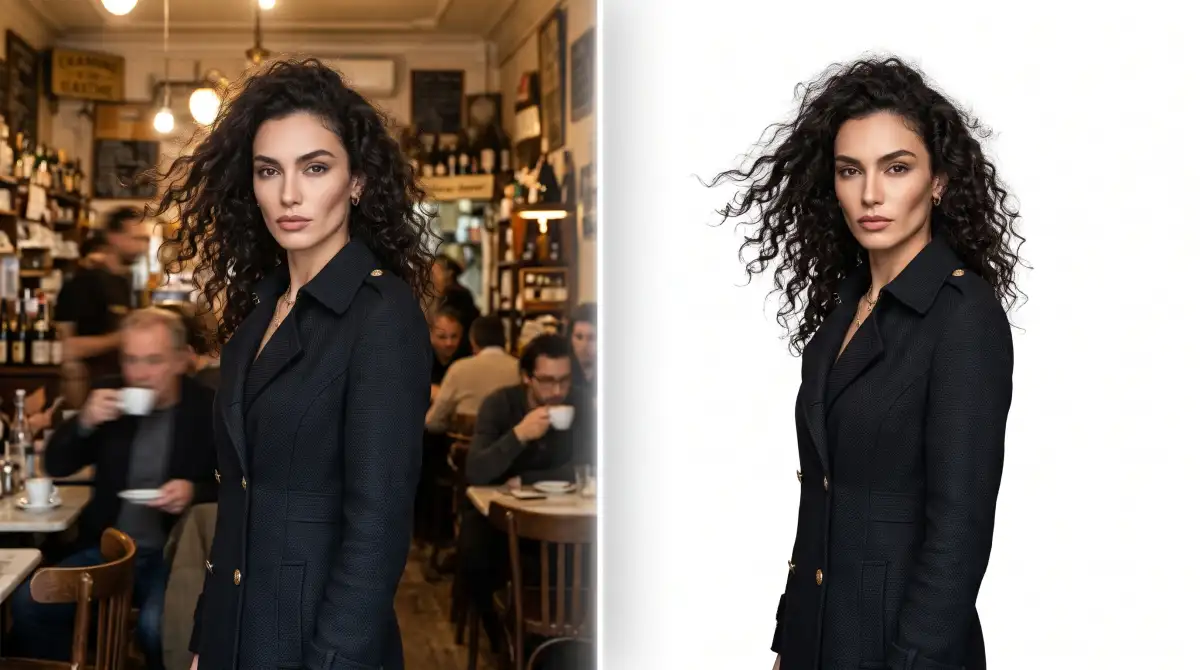
Remove unwanted backgrounds from product photos and portraits with MagicLight. Upload an image and get a clean result in seconds. No manual editing skills needed.

Remove Background for Free
Background remover example
Nano Banana
Google VEO 3
Sora 2
Gemini
Hailuo
Kling
Midjourney
Qwen
Seedance
Wan
Nano Banana
Google VEO 3
Sora 2
Gemini
Hailuo
Kling
Midjourney
Qwen
Seedance
Wan

Explore the Features of the Magiclight AI Background Remover

A product photo looks different against a plain white backdrop than a busy room. That subject stays put while the Magiclight AI background remover redraws everything behind it.

20MB Image Uploads for Background Editing

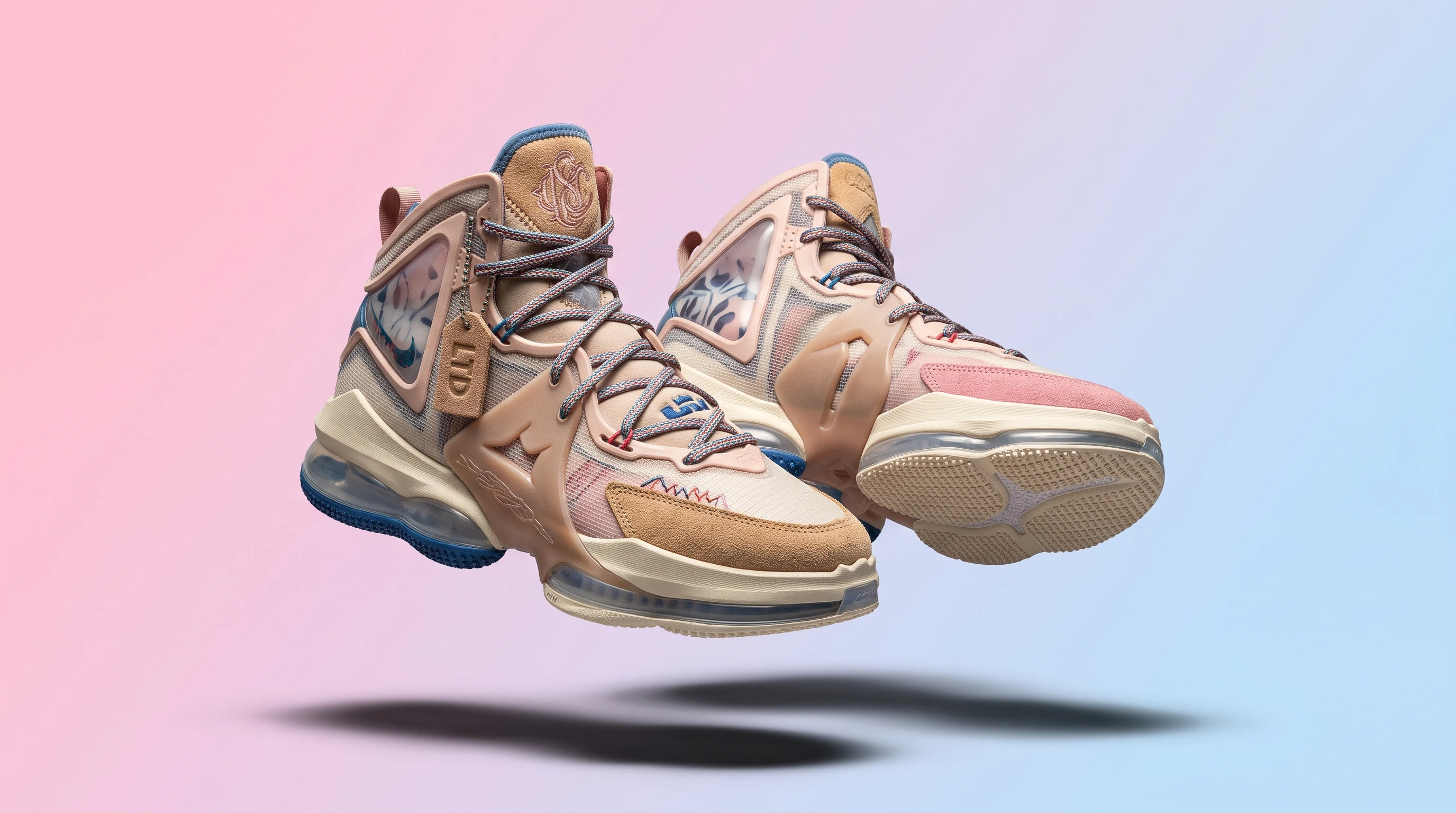
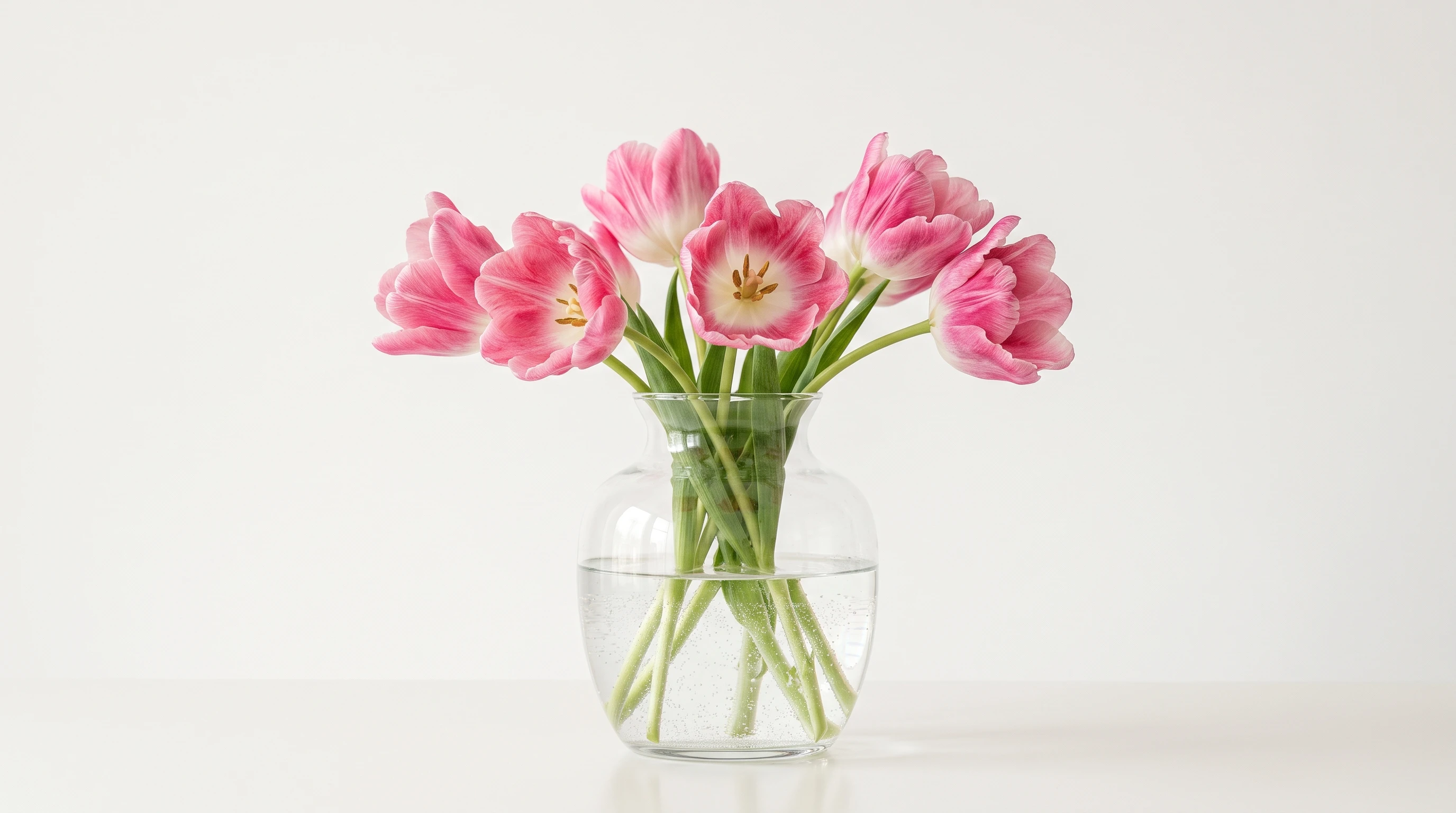
Add product photos, portraits, or pet pictures as JPG, PNG, or WEBP files up to 20MB each. Clear images with visible subject edges help Magiclight AI create cleaner background replacements.

Remove Background for Free
20MB Image Uploads for Background Editing

10 AI Image Models for Different Background Edits

Explore 10 image models in Magiclight AI to remove or replace photo backgrounds. Compare how different models handle fine hair, pet fur, or transparent glass edges before choosing your preferred result.

Remove Background for Free
10 AI Image Models for Different Background Edits

10 Reference Images for Custom Backgrounds

Upload up to 10 reference images showing your subject, preferred backdrop, or brand colors. Magiclight AI uses these visual references to guide the new setting while keeping the original subject as the main focus.

Remove Background for Free
10 Reference Images for Custom Backgrounds

4 Aspect Ratios for Different Photo Displays

Choose from 4 aspect ratios in Magiclight AI for your edited pictures. Use 1:1 for product listings, 4:3 for printed photos, 9:16 for Stories, or 16:9 for website banners.

Remove Background for Free
4 Aspect Ratios for Different Photo Displays
Who Can Use the Magiclight AI Background Remover
The background remover swaps the setting and leaves the subject untouched. Magiclight AI helps content creators and designers prepare visuals for websites, marketing, and social media.
For Marketplace Listings
Use the Outputs setting to export in different white product backgrounds.
Describe a clean studio backdrop within the 500-character prompt.
Use Re-edit to refine a background that distracts from the product.
For Headshots and Profiles
Choose Reference Image to Image to replace a busy portrait background.
Compare 10 image models to find a suitable professional headshot look.
Use 4:3 for wider professional portraits or 1:1 for profile pictures.
For Video Thumbnails
Use Text to Image to create a colorful backdrop for your thumbnail.
Add your original portrait as a reference for a new thumbnail setting.
Choose 16:9 for widescreen YouTube thumbnail backgrounds.
For Used Car Listings
Upload a vehicle photo and request a clean showroom background.
Add showroom photos as references to guide the new car setting.
Take the used car photos into the Image to Video for unique animations.

 How to Use the Magiclight AI Background Remover

Upload your picture, describe the preferred backdrop, and adjust the image settings. Follow these 3 steps to get started.

1.

Upload Your Photo in Reference Image to Image

Open the Toolbox, click the Image tab, and choose Reference Image to Image. Upload your JPG, PNG, or WEBP photo up to 20MB. Add a background reference image if needed.

2.

Describe Your New Background

Enter a prompt of up to 500 characters describing your preferred backdrop. Request a plain white studio background, an office setting, or a solid color. Specify which subject details you want to preserve.

3.

Generate and Download Your Edited Photo

Choose from 10 image models, select an aspect ratio, and click Create Image. Review the subject edges and background details. Use Re-edit if needed, then download your preferred result.

What Users Say About the Magiclight AI Background Remover

Maya Delgado

Ecommerce Seller

I photographed a candle on my kitchen counter and asked for pure white with a soft shadow on Magiclight AI. Three versions later, the label was still correct, and the listing looked clean.

Ryan Takahashi

Graphic Designer

I added a photo of the brand paper as a second reference in Magiclight AI. The new backdrop matches the color closely, and I retry fine edges on another model when needed.

Chloe Bennett

YouTuber

I put myself on a bright solid color for my thumbnails. Keeping one side clear left room for the title, and the edges around my hair came out clean on Magiclight AI.

Omar Haddad

Photographer

Glass and hair were my biggest worry. I zoom in at full size, switch models if an edge looks off, and send clients the cleanest version from Magiclight.

FAQs on Background Remover

Does Magiclight AI give me a transparent PNG?

Not directly; the Image tab in Magiclight AI has no transparency setting. So, the background remover works by redrawing the backdrop. Ask for a flat white or solid green background instead, which a design app’s color-select tool can clear.

Will small text on the product stay readable?

Usually, but letters can shift because the whole picture is drawn fresh. Name the brand text in your prompt, zoom in on the result, and try another model if a letter changes.

Can Magiclight AI remove the background from a video?

Not from the Image tab. Video to Video in the Toolbox can restyle a clip if you describe the new background and what to keep, though the whole clip is generated again.

Can I replace a photo background with my own image?

Yes. Magiclight AI lets you upload a background photo through Reference Image to Image. Describe the setting you want, and the AI uses both images to guide the result.

Can I remove backgrounds from multiple photos at once?

Magiclight AI lets you generate multiple output versions. However, this does not mean it removes backgrounds from several different photos in one batch. You will have to provide a separate prompt for each photo across the platform.

Can I change the background without affecting the subject?

Magiclight AI uses your original photo as a reference when replacing the background. Describe which details should remain unchanged, such as facial features, clothing, or product labels.

Create a Background Removed Photo with Magiclight AI

Erase the messy counter behind your next product shot, no studio needed. Bring it to the Magiclight AI background remover, describe the backdrop, and compare a few versions.